2015 FORD EXPLORER navigation system
[x] Cancel search: navigation systemPage 515 of 596
Note:Before setting this feature on, make sure that you read the 911
Assist privacy notice later in this section for important information.
Note:If any user turns 911 Assist on or off, that setting applies for all
paired phones. If 911 Assist is turned off, either a voice message plays or
a display message (or icon) comes on (or both) when your vehicle is
started after a previously paired phone connects.
Note:Every phone operates differently. While SYNC 911 Assist works
with most cellular phones, some may have trouble using this feature.
If a crash deploys an airbag (excludes knee airbags and rear inflatable
safety belts [if equipped]) or activates the fuel pump shut-off, your
SYNC-equipped vehicle may be able to contact emergency services by
dialing 911 through a paired and connected Bluetooth-enabled phone.
You can learn more about the 911 Assist feature, visit
www.SYNCMyRide.com, www.SYNCMyRide.ca or www.syncmaroute.ca.
•For information on airbag deployment, see theSupplementary
Restraints Systemchapter.
•For information on the fuel pump shut-off, see theRoadside
Emergencieschapter.
Setting 911 Assist On
If your vehicle is equipped with Navigation, touch the i
(Information) button to access these features. If your vehicle is
not equipped with Navigation, touch the corner of the
touchscreen with the green tab.
PressApps>911 Assist,>On.
You can also access 911 Assist by:
•Pressing the Settings icon >Settings>Phone>911
Assist,or
•Pressing the Settings icon >Help>911 Assist.
To Make Sure that 911 Assist Works Properly
•SYNC must be powered and working properly at the time of the
incident and throughout feature activation and use.
•The 911 Assist feature must be set on before the incident.
•You must pair and connect a Bluetooth-enabled and compatible phone
to SYNC.
•A connected Bluetooth-enabled phone must have the ability to make
and maintain an outgoing call at the time of the incident.
•A connected Bluetooth-enabled phone must have adequate network
coverage, battery power and signal strength.
514MyFord Touch® (If Equipped)
2015 Explorer(exp)
Owners Guide gf, 2nd Printing, September 2014
USA(fus)
Page 518 of 596
The system allows you to check your vehicle’s overall health in the form
of a diagnostic report card. The Vehicle Health Report contains valuable
information, such as:
•Vehicle Diagnostic Information
•Scheduled maintenance
•Open Recalls and Field Service Actions
•Items noted during vehicle inspections by your authorized dealer that
still need servicing.
Making a Report
If your vehicle is equipped with Navigation, touch the i
(Information) button to access these features. If your vehicle is
not equipped with Navigation, touch the corner of the
touchscreen with the green tab.
If you want to run a report by using the touchscreen, touchApps>
Vehicle Health Report.
To run a report by voice command, press the voice button on
the steering wheel and, when prompted, say “Vehicle health
report”.
Vehicle Health Report Privacy Notice
When you create a Vehicle Health Report, Ford Motor Company may
collect your cellular phone number (to process your report request) and
diagnostic information about your vehicle. Certain versions or updates to
Vehicle Health Report may also collect more vehicle information. Ford
may use your vehicle information it collects for any purpose. If you do
not want to disclose your cellular phone number or vehicle information,
do not run the feature or set up your Vehicle Health Report profile at
www.SYNCMyRide.com. See www.SYNCMyRide.com (Vehicle Health
Report Terms and Conditions, and Privacy Statement) for more
information.
MyFord Touch® (If Equipped)517
2015 Explorer(exp)
Owners Guide gf, 2nd Printing, September 2014
USA(fus)
Page 522 of 596
Door Keypad Code
To change the keypad code for your keyless entry keypad system:
1. Press the Settings icon >Vehicle>Door Keypad Code.
2. Enter your current factory code, then, when prompted, enter your
new code.
Camera Settings
This menu allows you to access settings for your rear view camera.
Press the Settings icon >Vehicle>Camera Settings,then select from
the following settings:
•Enhanced Park Aids.
•Rear Camera Delay.
Enable Valet Mode
Valet mode allows you to lock the system. No information is accessible
until the system is unlocked with the correct PIN.
1. Press the Settings icon >Vehicle>Enable Valet Mode.
2. Enter a four-digit pin twice, as prompted.
After you press Continue, the system locks until you enter the PIN again.
Note:If the system locks, and you need to reset the PIN, enter 3681 and
the system unlocks.
Settings
Access and adjust system settings, voice features, as well as phone,
navigation and wireless settings.
System
Press the Settings icon >Settings>System,then select from
the following:
System
LanguageSelect to have the touchscreen display in
English, Spanish or French.
DistanceSelect to display units in kilometers or miles.
TemperatureSelect to display units in Celsius or
Fahrenheit.
System Prompt
VolumeAdjust the volume of voice prompts from the
system.
Touch Screen Button
BeepSelect to have the system beep to confirm
choices made through the touchscreen.
MyFord Touch® (If Equipped)521
2015 Explorer(exp)
Owners Guide gf, 2nd Printing, September 2014
USA(fus)
Page 525 of 596
Navigation
Press the Settings icon >Settings>Navigation,then select
from the following:
Navigation
Map PreferencesTurn breadcrumbs on and off.
Have the system display your turn list top to
bottom or bottom to top.
Turn the Parking POI notification on and off.
Route Preferences Preferred Routeallows you to choose to
have the system display theShortest,
Fastestor mostEcologicalroute first. If you
setAlways Use Preferred RoutetoYe s,
the system uses the selected route type to
calculate only one route to the desired
destination.Always Use Preferred Route
bypasses route selection in destination
programming. The system only calculates one
route based on the preferred route setting.
Eco Time Penaltyallows you to select a low,
medium or high cost for the calculated Eco
Route. The higher the setting, the longer the
time allotment is for the route.
Have the system avoid freeways.
Have the system avoid tollroads.
Have the system avoid ferries or car trains.
Have the system use high-occupancy vehicle
lanes.
Navigation
PreferencesHave the system use guidance prompts.
Have the system automatically fill-in
State/Province information.
524MyFord Touch® (If Equipped)
2015 Explorer(exp)
Owners Guide gf, 2nd Printing, September 2014
USA(fus)
Page 526 of 596
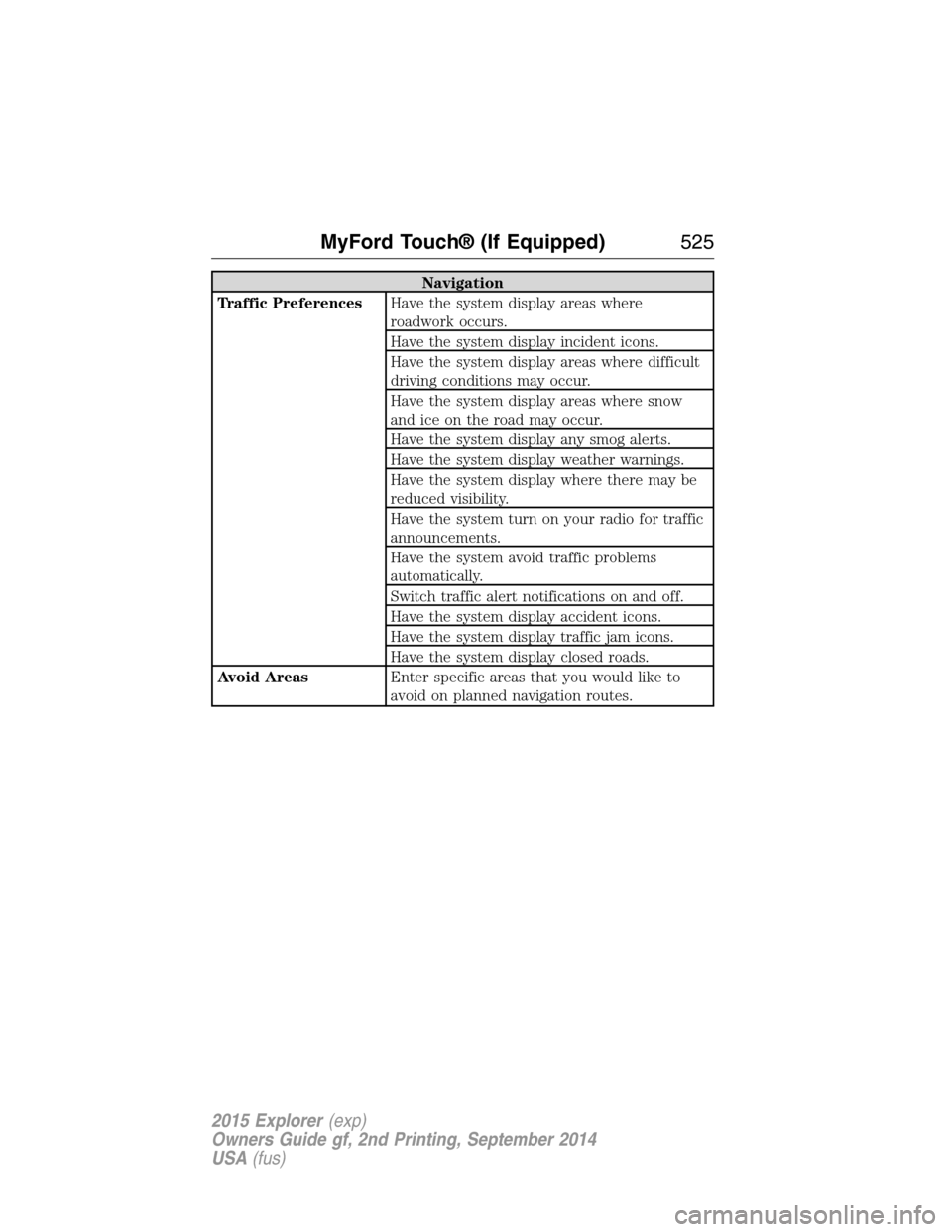
Navigation
Traffic PreferencesHave the system display areas where
roadwork occurs.
Have the system display incident icons.
Have the system display areas where difficult
driving conditions may occur.
Have the system display areas where snow
and ice on the road may occur.
Have the system display any smog alerts.
Have the system display weather warnings.
Have the system display where there may be
reduced visibility.
Have the system turn on your radio for traffic
announcements.
Have the system avoid traffic problems
automatically.
Switch traffic alert notifications on and off.
Have the system display accident icons.
Have the system display traffic jam icons.
Have the system display closed roads.
Avoid AreasEnter specific areas that you would like to
avoid on planned navigation routes.
MyFord Touch® (If Equipped)525
2015 Explorer(exp)
Owners Guide gf, 2nd Printing, September 2014
USA(fus)
Page 530 of 596
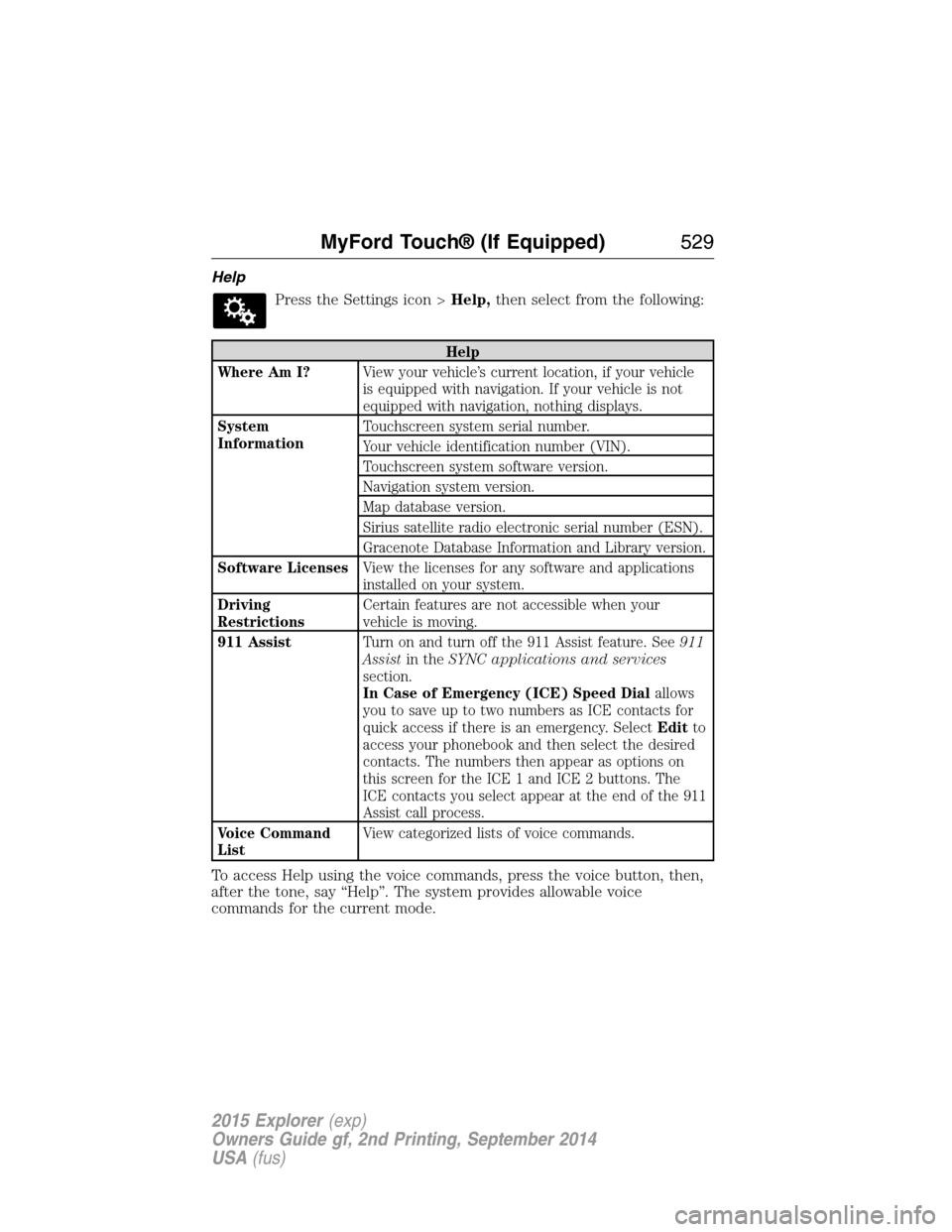
Help
Press the Settings icon >Help,then select from the following:
Help
Where Am I?View your vehicle’s current location, if your vehicle
is equipped with navigation. If your vehicle is not
equipped with navigation, nothing displays.
System
InformationTouchscreen system serial number.
Your vehicle identification number (VIN).
Touchscreen system software version.
Navigation system version.
Map database version.
Sirius satellite radio electronic serial number (ESN).
Gracenote Database Information and Library version.
Software LicensesView the licenses for any software and applications
installed on your system.
Driving
RestrictionsCertain features are not accessible when your
vehicle is moving.
911 AssistTurn on and turn off the 911 Assist feature. See911
Assistin theSYNC applications and services
section.
In Case of Emergency (ICE) Speed Dialallows
you to save up to two numbers as ICE contacts for
quick access if there is an emergency. SelectEditto
access your phonebook and then select the desired
contacts. The numbers then appear as options on
this screen for the ICE 1 and ICE 2 buttons. The
ICE contacts you select appear at the end of the 911
Assist call process.
Voice Command
ListView categorized lists of voice commands.
To access Help using the voice commands, press the voice button, then,
after the tone, say “Help”. The system provides allowable voice
commands for the current mode.
MyFord Touch® (If Equipped)529
2015 Explorer(exp)
Owners Guide gf, 2nd Printing, September 2014
USA(fus)
Page 534 of 596
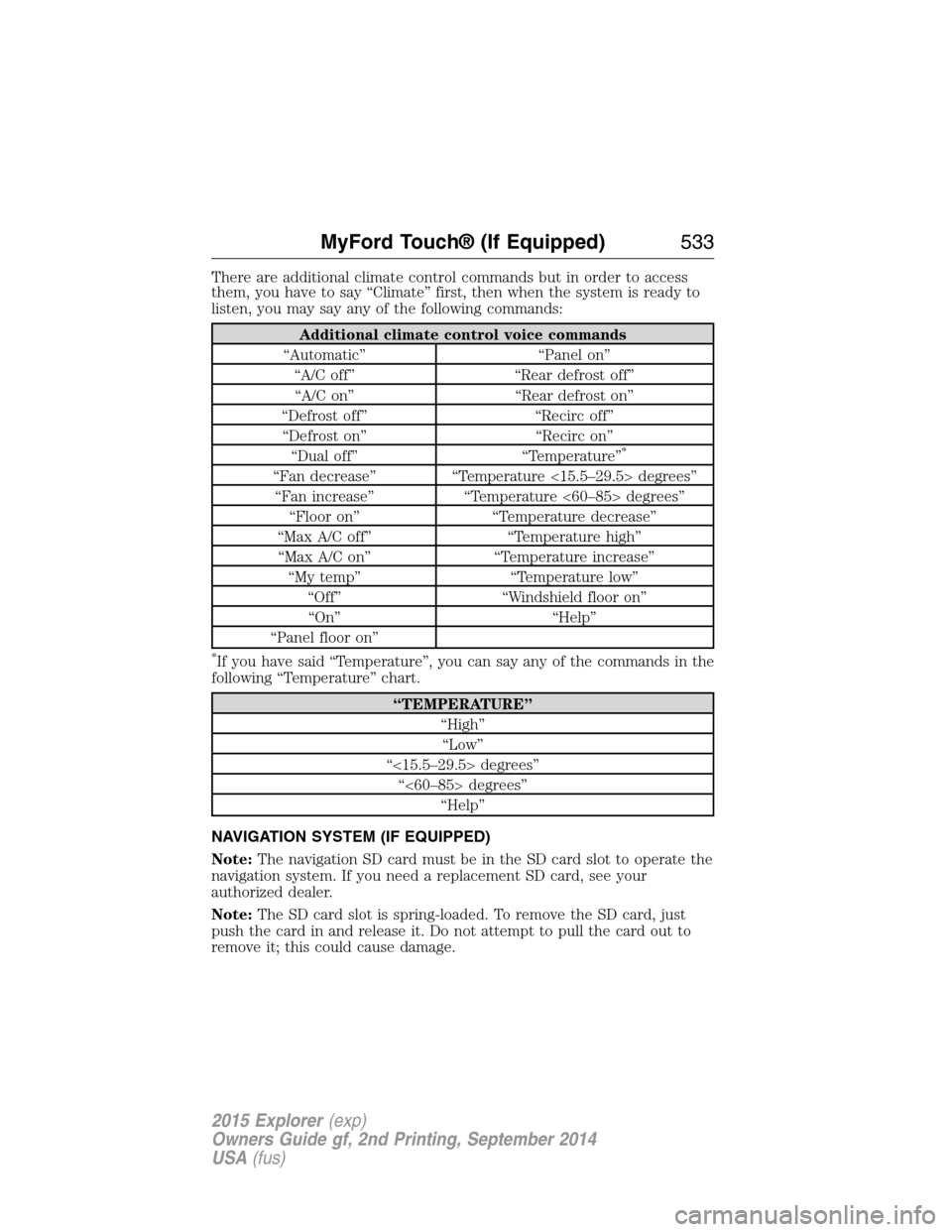
There are additional climate control commands but in order to access
them, you have to say “Climate” first, then when the system is ready to
listen, you may say any of the following commands:
Additional climate control voice commands
“Automatic” “Panel on”
“A/C off” “Rear defrost off”
“A/C on” “Rear defrost on”
“Defrost off” “Recirc off”
“Defrost on” “Recirc on”
“Dual off” “Temperature”
*
“Fan decrease” “Temperature <15.5–29.5> degrees”
“Fan increase” “Temperature <60–85> degrees”
“Floor on” “Temperature decrease”
“Max A/C off” “Temperature high”
“Max A/C on” “Temperature increase”
“My temp” “Temperature low”
“Off” “Windshield floor on”
“On” “Help”
“Panel floor on”
*If you have said “Temperature”, you can say any of the commands in the
following “Temperature” chart.
“TEMPERATURE”
“High”
“Low”
“<15.5–29.5> degrees”
“<60–85> degrees”
“Help”
NAVIGATION SYSTEM (IF EQUIPPED)
Note:The navigation SD card must be in the SD card slot to operate the
navigation system. If you need a replacement SD card, see your
authorized dealer.
Note:The SD card slot is spring-loaded. To remove the SD card, just
push the card in and release it. Do not attempt to pull the card out to
remove it; this could cause damage.
MyFord Touch® (If Equipped)533
2015 Explorer(exp)
Owners Guide gf, 2nd Printing, September 2014
USA(fus)
Page 535 of 596

Your navigation system is comprised of two main features, destination
mode and map mode.
To set a destination, press the green corner of your touchscreen, then
Destwhen it appears. SeeSetting a destinationlater in this chapter.
To view the navigation map and your vehicle’s current location, touch the
green bar in the upper right hand corner of the touchscreen, or, press
Dest>Map.SeeMap modelater in this chapter.
Setting a Destination
Press the green corner of your touchscreen, thenDestwhen it appears.
Choose any of the following:
Destination selections
My Home Street Address
Favorites Intersection
Previous Destinations City Center
Point of Interest Map
Emergency Edit Route Cancel Route
1. Enter the necessary information into the highlighted text fields (in
any order). For address destination entry,Go!appears once you
enter all the necessary information. PressingGo!makes the address
location appear on the map. If you choosePrevious Destination,
the last 20 destinations you have selected appear.
2. SelectSet as Destto make this your destination. You can also
choose to set this as a waypoint (have the system route to this point
on the way to your current destination) or save it as a favorite. The
system considers anyAvoid Areasselections in its route calculation.
3. Choose from up to three different types of routes, and then select
Start Route.
•Fastest Route:Uses the fastest moving roads possible.
•Shortest Route:Uses the shortest distance possible.
•Eco Route:Uses the most fuel-efficient route.
You can cancel the route or have the system demo the route for you.
SelectRoute Prefsto set route preferences like avoiding freeways,
tollroads, ferries and car trains as well as to use or not use
high-occupancy vehicle lanes. (High-occupancy vehicle lanes are also
known as carpool or diamond lanes. People who ride in buses, vanpools
or carpools use these lanes.)
Note:If your vehicle is on a recognized road and you do not press the
Start Routebutton, the system defaults to theFastest Routeoption
and begins guidance.
534MyFord Touch® (If Equipped)
2015 Explorer(exp)
Owners Guide gf, 2nd Printing, September 2014
USA(fus)