2015 FORD EXPLORER climate settings
[x] Cancel search: climate settingsPage 165 of 596
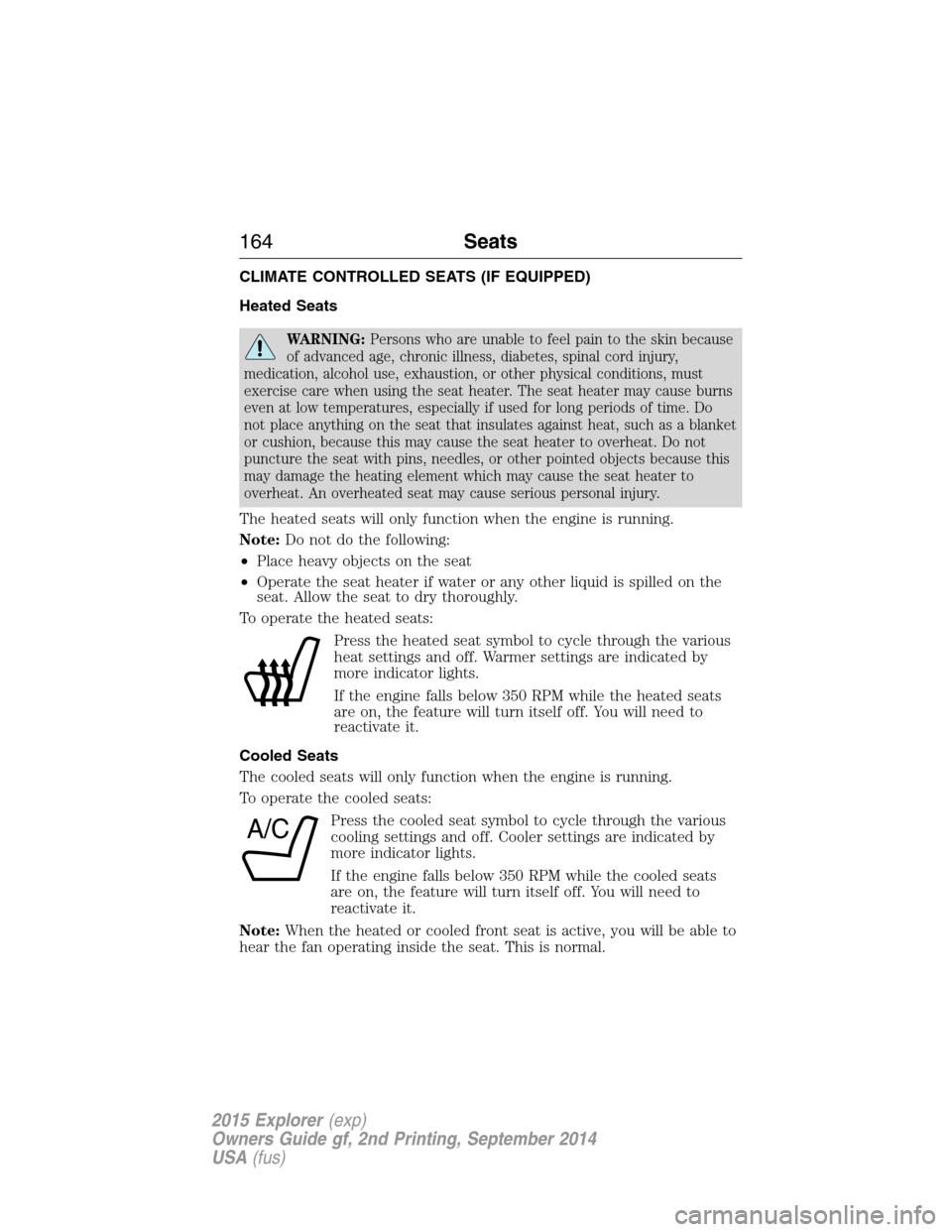
CLIMATE CONTROLLED SEATS (IF EQUIPPED)
Heated Seats
WARNING:Persons who are unable to feel pain to the skin because
of advanced age, chronic illness, diabetes, spinal cord injury,
medication, alcohol use, exhaustion, or other physical conditions, must
exercise care when using the seat heater. The seat heater may cause burns
even at low temperatures, especially if used for long periods of time. Do
not place anything on the seat that insulates against heat, such as a blanket
or cushion, because this may cause the seat heater to overheat. Do not
puncture the seat with pins, needles, or other pointed objects because this
may damage the heating element which may cause the seat heater to
overheat. An overheated seat may cause serious personal injury.
The heated seats will only function when the engine is running.
Note:Do not do the following:
•Place heavy objects on the seat
•Operate the seat heater if water or any other liquid is spilled on the
seat. Allow the seat to dry thoroughly.
To operate the heated seats:
Press the heated seat symbol to cycle through the various
heat settings and off. Warmer settings are indicated by
more indicator lights.
If the engine falls below 350 RPM while the heated seats
are on, the feature will turn itself off. You will need to
reactivate it.
Cooled Seats
The cooled seats will only function when the engine is running.
To operate the cooled seats:
Press the cooled seat symbol to cycle through the various
cooling settings and off. Cooler settings are indicated by
more indicator lights.
If the engine falls below 350 RPM while the cooled seats
are on, the feature will turn itself off. You will need to
reactivate it.
Note:When the heated or cooled front seat is active, you will be able to
hear the fan operating inside the seat. This is normal.
A/C
164Seats
2015 Explorer(exp)
Owners Guide gf, 2nd Printing, September 2014
USA(fus)
Page 467 of 596

GENERAL INFORMATION
WARNING:Driving while distracted can result in loss of vehicle
control, crash and injury. We strongly recommend that you use
extreme caution when using any device that may take your focus off
the road. Your primary responsibility is the safe operation of your
vehicle. We recommend against the use of any hand-held device while
driving and encourage the use of voice-operated systems when possible.
Make sure you are aware of all applicable local laws that may affect the
use of electronic devices while driving.
A. Phone
B. Navigation (or Information if your vehicle is not equipped with
Navigation)
C. Climate
D. Settings
E. Home
F. Information
G. Entertainment
AB
GCDFE
466MyFord Touch® (If Equipped)
2015 Explorer(exp)
Owners Guide gf, 2nd Printing, September 2014
USA(fus)
Page 468 of 596

This system uses a four-corner strategy to provide quick access several
vehicle features and settings. The touchscreen provides easy interaction
with your cellular phone, multimedia, climate control and navigation
system. The corners display any active modes within those menus, such
as phone status or the climate temperature.
Note:Some features are not available while your vehicle is moving.
Note:Your system is equipped with a feature that allows you to access
and control audio features for 30 minutes after you switch the ignition
off (and no doors open).
PHONE
Press to select any of the following:
•Making Calls
•Quick Dial
•Phonebook
•Call History
•Text Messaging
•Settings
NAVIGATION
Press to select any of the following:
•My Home
•Favorites
•Previous Destinations
•Point of Interest
•Emergency
•Street Address
•Intersection
•City Center
•Map
•Edit Route
•Cancel Route
CLIMATE
Press to select any of the following:
•Driver Settings
•Recirculated Air
•Auto
•Dual
•Passenger Settings
•A/C
•Defrost
MyFord Touch® (If Equipped)467
2015 Explorer(exp)
Owners Guide gf, 2nd Printing, September 2014
USA(fus)
Page 470 of 596
Using the Touch-sensitive Controls on Your System
To turn a feature on and off, just touch the graphic with your finger. To
get the best performance from the touch-sensitive controls:
•Do not press hard on the controls. They are sensitive to light touch.
•Use your bare finger to touch the center of a touch-control graphic.
Touching off-center of the graphic may affect operation of a nearby
control.
•Make sure your hands are clean and dry.
•Keep metal and other conductive material away from the surface of
the touchscreen as this may cause electronic interference (for
example, inadvertently turning on a feature other than the one you
meant to turn on).
Depending on your vehicle and option package, you may also have these
controls on your bezel:
•Power:Switch the media or climate features off and on.
•VOL:Control the volume of playing media.
•SeekandTune:Use as you normally would in media modes.
•Eject:Eject a CD from the entertainment system.
•SOURCE:Touch the word repeatedly to see all available media
modes. The screen does not change, but you see the media change in
the lower left status bar.
•SOUND:Touch the word to access the Sound menu where you can
adjust settings such as: Bass, Treble, Midrange, Balance and Fade,
THX Deep Note Demo, DSP (Digital Signal Processing), Occupancy
Mode and Speed Compensated Volume. (Your vehicle may not have
all of these sound options.)
•Temperature, fan and climate control:Control the temperature,
fan speed or settings of the climate control system.
Using Your Steering Wheel Controls
Depending on your vehicle and option package, you can use your
steering wheel controls to interact with the touchscreen system.
•VOL:Control the volume of audio output.
•SEEK:
•While in radio mode, press to seek between memory presets or
press and hold to seek between stations.
•While in USB or CD mode, press to seek between stations or press
and hold to fast seek.
•Voice:Press to start a voice session. Press again to interrupt a voice
prompt and begin speaking. Press and hold to end a voice session.
MyFord Touch® (If Equipped)469
2015 Explorer(exp)
Owners Guide gf, 2nd Printing, September 2014
USA(fus)
Page 477 of 596
Accessing a List of Available Commands
•If you use the touchscreen, press the Settings icon >Help>Voice
Command List.
•If you use the steering wheel control, press the voice icon. After the
tone, speak your command clearly.
Voice command list
“Audio list of commands”
“Bluetooth audio list of commands”
“Browse list of commands”
“CD list of commands”
“Climate control list of commands”
“List of commands”
“Navigation list of commands”
*
“Phone list of commands”
“Radio list of commands”
“SD card list of commands”
“Sirius satellite list of commands”
**
“Travel link list of commands”*
“USB list of commands”
“Voice instructions list of commands”
“Voice settings list of commands”
“Help”
*This command is only available when your vehicle is equipped with the
navigation system, and the navigation system SD card is in the card slot.
**This command is only available when you have an active Sirius satellite
radio subscription.
Voice Settings
Voice settings allow you to customize the level of system interaction,
help and feedback. The system defaults to standard interaction that uses
candidate lists and confirmation prompts as these provide the highest
level of guidance and feedback.
Interaction Mode:Novice mode provides detailed interaction and
guidance while the advanced mode has less audible interaction and more
tone prompts.
476MyFord Touch® (If Equipped)
2015 Explorer(exp)
Owners Guide gf, 2nd Printing, September 2014
USA(fus)
Page 523 of 596
System
Touch Panel Button
BeepSelect to have the system beep to confirm
button choices made through the climate or
audio system.
Keyboard LayoutHave the touchscreen keyboard display in
QWERTY or ABC format.
Install ApplicationsInstall any downloaded applications or view
the current software licenses.
Master ResetSelect to restore factory defaults. This erases
all personal settings and personal data.
Voice Control
Press the Settings icon >Settings>Voice Control,then
select from the following:
Voice control
Interaction ModeStandard interaction mode provides more
detailed interaction and guidance. Advanced
mode has less audible interaction and more
tone prompts.
Confirmation
PromptsHave the system ask you short questions if it
has not clearly heard or understood your
request.
Note:Even with confirmation prompts turned
off, the system may occasionally ask you to
confirm settings.
Media Candidate
ListsCandidate lists are possible results from your
voice commands. The system simply makes a
best guess at your request with these turned
off.
Phone Candidate
ListsCandidate lists are possible results from your
voice commands. The system simply makes a
best guess at your request with these turned
off.
Voice Control VolumeThis allows you to adjust the system’s voice
volume level.
522MyFord Touch® (If Equipped)
2015 Explorer(exp)
Owners Guide gf, 2nd Printing, September 2014
USA(fus)
Page 531 of 596
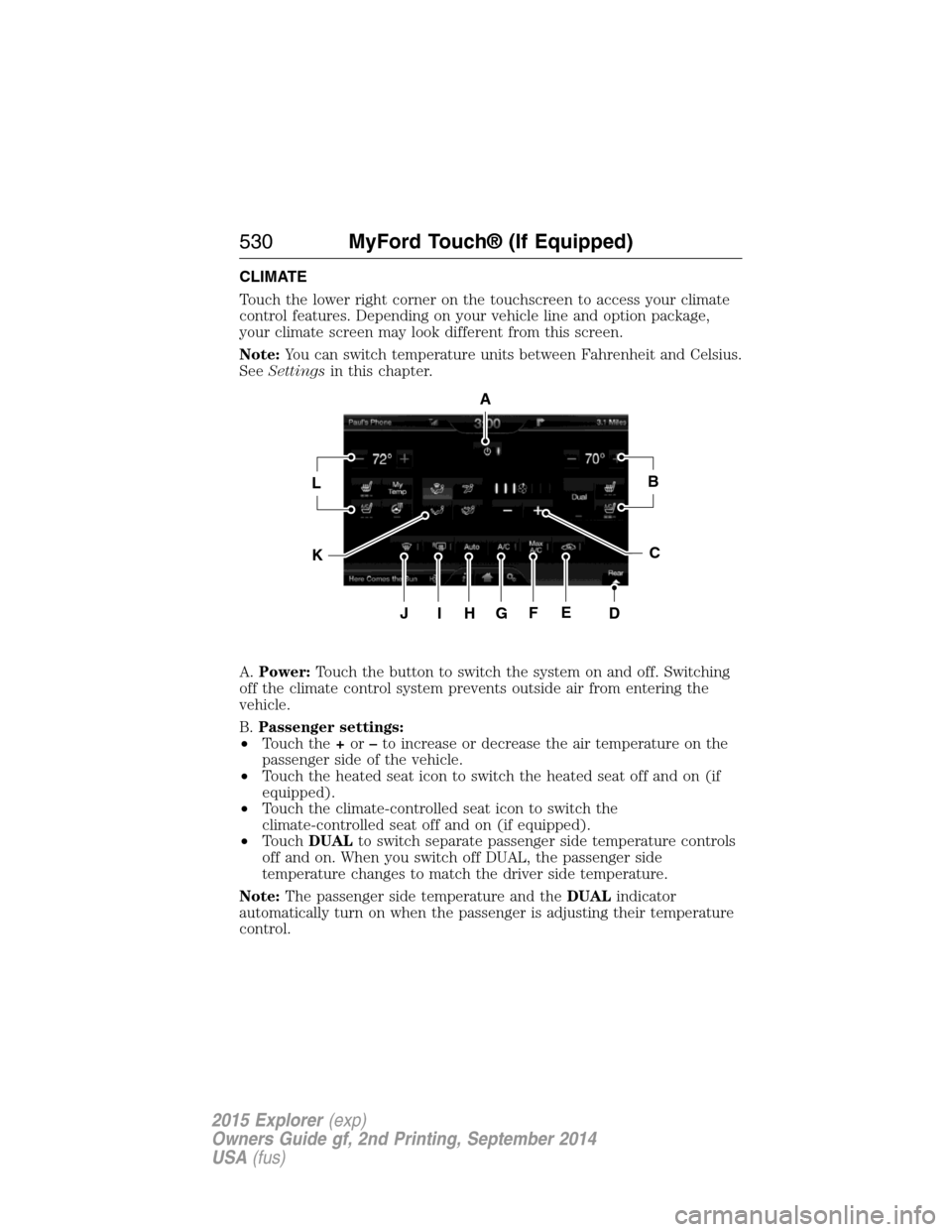
CLIMATE
Touch the lower right corner on the touchscreen to access your climate
control features. Depending on your vehicle line and option package,
your climate screen may look different from this screen.
Note:You can switch temperature units between Fahrenheit and Celsius.
SeeSettingsin this chapter.
A.Power:Touch the button to switch the system on and off. Switching
off the climate control system prevents outside air from entering the
vehicle.
B.Passenger settings:
•Touch the+or–to increase or decrease the air temperature on the
passenger side of the vehicle.
•Touch the heated seat icon to switch the heated seat off and on (if
equipped).
•Touch the climate-controlled seat icon to switch the
climate-controlled seat off and on (if equipped).
•TouchDUALto switch separate passenger side temperature controls
off and on. When you switch off DUAL, the passenger side
temperature changes to match the driver side temperature.
Note:The passenger side temperature and theDUALindicator
automatically turn on when the passenger is adjusting their temperature
control.
A
LB
KC
JIHGFED
530MyFord Touch® (If Equipped)
2015 Explorer(exp)
Owners Guide gf, 2nd Printing, September 2014
USA(fus)
Page 532 of 596
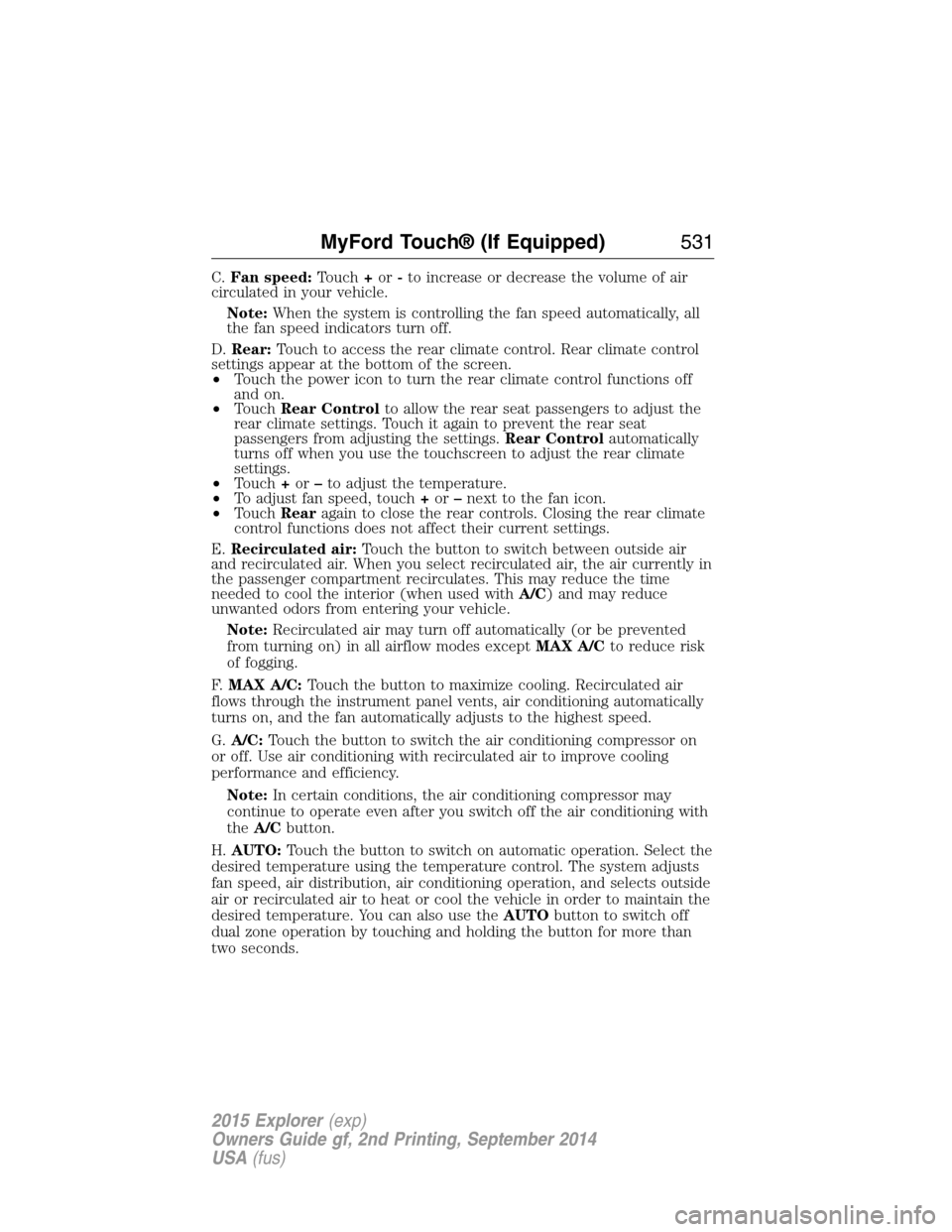
C.Fan speed:Touch+or-to increase or decrease the volume of air
circulated in your vehicle.
Note:When the system is controlling the fan speed automatically, all
the fan speed indicators turn off.
D.Rear:Touch to access the rear climate control. Rear climate control
settings appear at the bottom of the screen.
•Touch the power icon to turn the rear climate control functions off
and on.
•TouchRear Controlto allow the rear seat passengers to adjust the
rear climate settings. Touch it again to prevent the rear seat
passengers from adjusting the settings.Rear Controlautomatically
turns off when you use the touchscreen to adjust the rear climate
settings.
•Touch+or–to adjust the temperature.
•To adjust fan speed, touch+or–next to the fan icon.
•TouchRearagain to close the rear controls. Closing the rear climate
control functions does not affect their current settings.
E.Recirculated air:Touch the button to switch between outside air
and recirculated air. When you select recirculated air, the air currently in
the passenger compartment recirculates. This may reduce the time
needed to cool the interior (when used withA/C) and may reduce
unwanted odors from entering your vehicle.
Note:Recirculated air may turn off automatically (or be prevented
from turning on) in all airflow modes exceptMAX A/Cto reduce risk
of fogging.
F.MAX A/C:Touch the button to maximize cooling. Recirculated air
flows through the instrument panel vents, air conditioning automatically
turns on, and the fan automatically adjusts to the highest speed.
G.A/C:Touch the button to switch the air conditioning compressor on
or off. Use air conditioning with recirculated air to improve cooling
performance and efficiency.
Note:In certain conditions, the air conditioning compressor may
continue to operate even after you switch off the air conditioning with
theA/Cbutton.
H.AUTO:Touch the button to switch on automatic operation. Select the
desired temperature using the temperature control. The system adjusts
fan speed, air distribution, air conditioning operation, and selects outside
air or recirculated air to heat or cool the vehicle in order to maintain the
desired temperature. You can also use theAUTObutton to switch off
dual zone operation by touching and holding the button for more than
two seconds.
MyFord Touch® (If Equipped)531
2015 Explorer(exp)
Owners Guide gf, 2nd Printing, September 2014
USA(fus)