2015 FORD EDGE audio
[x] Cancel search: audioPage 380 of 508

Description and action
Display
2. Scroll to browse indexed media files on the device, and
then press the OK button.
Resets the USB index. After the new indexing is complete,
you can choose what to play from the USB song library.
Reset USB
* You can use the buttons at the bottom of the audio display to jump to a certain
alphabetical category quickly. You can also use the letters on the audio system's numeric
keypad to jump in the list.
USB 2
(If Equipped)
Your vehicle may come equipped with an
additional USB port. If so, USB 1 will be
located at the front of the vehicle at the
bottom of the instrument panel. USB 2 will
be located inside the storage compartment
of the vehicle's center console.
You can plug in an additional USB device
into the second USB port. To switch
between the two connected USB devices
using voice commands, say, "USB1" or
"USB2". Saying "USB" defaults to the most
recently played USB device.
Note: SYNC only supports one connected
iOS (Apple) devices at a time (whichever
one you plug in first). When you connect a
second iOS device, the systems charges it,
but does not support playback from it.
Line In Audio
To access the Line In audio source, start a
voice session and say, "Line in" or "Aux".
Bluetooth Devices and System
Settings
You can access these menus using the
audio display. See
Using SYNC™ With
Your Phone (page 358). Voice Commands for Audio
Sources
Your voice system allows you to change
audio sources with a simple voice
command. Press the voice button and say,
"Audio" when prompted, and
then any of the following
commands: "AUDIO"
"AM"
"AM1"
"AM autoset" or "AM2"
"Bluetooth
Page 381 of 508

"AUDIO"
"USB"
"What's playing" "Help"
Radio Voice Commands If you are listening to the radio,
press the voice button, and then
any of the commands in the
following table. If you are not listening to
the radio, press the voice button and, after
the tone, say, "Radio", and then any of the
following voice commands: "RADIO"
"AM"
"AM1"
"AM autoset" or "AM2" "AM <530-1710>"
"AM preset
"AM [1] [autoset] preset
"FM1"
"FM autoset" or "FM2" "FM <87.9-107.9>"
"FM [autoset] preset
"FM
"FM2 preset
"Preset
Sirius Satellite Radio Voice Commands If you are listening to Sirius
satellite radio, press the voice
button, and then any of the
commands in the following table. If you
are not listening to Sirius satellite radio,
press the voice button and, after the tone,
say, "Sirius", and then any of the following
voice commands: "SIRIUS"
"<0-233>" "SAT"
"SAT1"
"SAT2"
"SAT3"
"Preset
"SAT1 preset
"SAT2 preset
"SAT3 preset
378
Edge/Galaxy/S-MAX (CDQ), enUSA, First Printing SYNC™E142599 E142599
Page 382 of 508

CD Voice Commands
If you are listening to a CD, press
the voice button, and then any
of the commands in the
following table. If you are not listening to
a CD, press the voice button and, after the
tone, say, "CD", and then any of the
following voice commands: "CD"
"Pause" "Play"
"Play next track"
"Play previous track" "Play track <1-512>"
"Repeat" *
"Repeat folder" "Repeat off"
"Repeat track" "CD"
"Shuffle" *
"Shuffle CD"
"Shuffle folder" "Shuffle off"
* You need to indicate to the system which
track or folder to repeat or shuffle when
using these commands.
SYNC™ TROUBLESHOOTING
Your SYNC system is easy to use. However,
should questions arise, see the tables
below.
Use the website at any time to check your
phone's compatibility, register your
account and set preferences as well as
access a customer representative via an
online chat (during certain hours). Visit
www.SYNCMyRide.com,
www.SYNCMyRide.ca or
www.syncmaroute.ca for more
information. Phone issues
Possible solution(s)
Possible cause(s)
Issue
Review your phone's manualabout audio adjustments.
The audio control settings
on your phone may be
affecting SYNC perform- ance.
There is excessive back-
ground noise during a phone call.
Try turning off the device,resetting the device,
removing the device's
battery, then trying again.
This may be a possible
phone malfunction.
During a call, I can hear the
other person but theycannot hear me.
Go to the website to reviewyour phone's compatibility.
This is a phone-dependent
feature.
SYNC is not able to down-
load my phonebook.
379
Edge/Galaxy/S-MAX (CDQ), enUSA, First Printing SYNC™E142599
Page 385 of 508
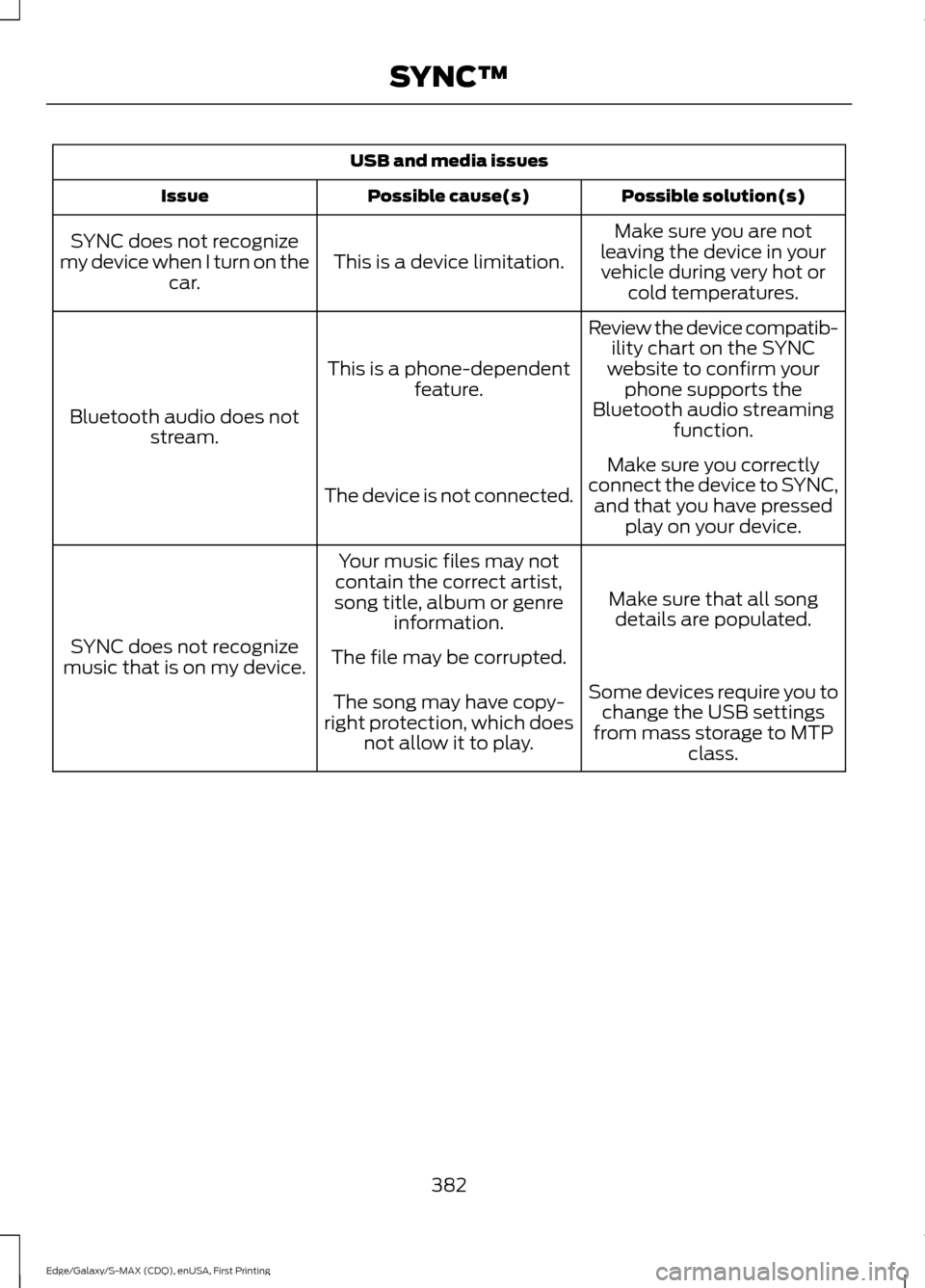
USB and media issues
Possible solution(s)
Possible cause(s)
Issue
Make sure you are not
leaving the device in your vehicle during very hot or cold temperatures.
This is a device limitation.
SYNC does not recognize
my device when I turn on the car.
Review the device compatib-ility chart on the SYNC
website to confirm your phone supports the
Bluetooth audio streaming function.
This is a phone-dependent
feature.
Bluetooth audio does not stream.
Make sure you correctly
connect the device to SYNC, and that you have pressed play on your device.
The device is not connected.
Make sure that all songdetails are populated.
Your music files may not
contain the correct artist,
song title, album or genre information.
SYNC does not recognize
music that is on my device. The file may be corrupted.
Some devices require you tochange the USB settings
from mass storage to MTP class.
The song may have copy-
right protection, which does not allow it to play.
382
Edge/Galaxy/S-MAX (CDQ), enUSA, First Printing SYNC™
Page 392 of 508

This system uses a four-corner strategy to
provide quick access to several vehicle
features and settings. The touchscreen
provides easy interaction with your cellular
phone, multimedia, climate control and
navigation system. The corners display any
active modes within those menus, such as
phone status or the climate temperature.
Note:
Some features are not available while
your vehicle is moving.
Note: Your system is equipped with a
feature that allows you to access and
control audio features for 30 minutes after
you switch the ignition off (and no doors
open).
PHONE
Press to select any of the following:
• Phone.
• Quick Dial.
• Phonebook.
• History.
• Messaging.
• Settings.
NAVIGATION
Press to select any of the following:
• My Home.
• Favorites.
• Previous Destinations.
• Point of Interest.
• Emergency.
• Street Address.
• Intersection.
• City Center.
• Map.
• Edit Route.
• Cancel Route.
CLIMATE Press to select any of the following:
•
Driver Settings.
• Recirculated Air.
• Auto.
• Dual.
• Passenger Settings.
• A/C.
• Defrost. SETTINGS
Press to select any of the following:
• Clock.
• Display.
• Sound.
• Vehicle.
• Settings.
• Help. HOME
Press to access your home
screen. Depending on your
vehicle ’s option package and software,
your screens may vary in appearance from
the descriptions in this section. Your
features may also be limited depending on
your market. Check with an authorized
dealer for availability. INFORMATION
Press to select any of the following:
• Services.
• Travel Link.
• Alerts.
• Calendar.
• Apps.
ENTERTAINMENT
389
Edge/Galaxy/S-MAX (CDQ), enUSA, First Printing MyFord Touch
™ (If Equipped)E142607 E142613 E142608
Page 393 of 508

Press to select any of the following:
•
AM.
• FM.
• SIRIUS.
• CD.
• USB.
• BT Stereo.
• SD Card.
• Line In.
Using the Touch Screen
To turn a feature on and off, just touch the
graphic with your finger. To get the best
performance from the touch-sensitive
controls:
• Make sure your hands are clean and
dry.
• Since the touchscreen operates based
on the touch of a finger, you may have
trouble using it if you are wearing
gloves.
• Keep metal and other conductive
material away from the surface of the
touchscreen as this may cause
electronic interference (for example,
inadvertently turning on a feature other
than the one you meant to turn on).
Using the Bezel Controls
Depending on your vehicle and option
package, you may also have these controls
on your bezel:
• Power: Switch the media or climate
features off and on.
• VOL
: Control the volume of playing
media.
• Seek
and Tune: Use as you normally
would in media modes. •
Eject
: Eject a CD from the
entertainment system.
• Climate Control
: Control the
temperature, fan speed or settings of
the climate control system.
Using Your Steering Wheel
Controls
Depending on your vehicle and option
package, you can use your steering wheel
controls to interact with the touchscreen
system.
• VOL
: Control the volume of audio
output.
• Mute
: Mute the audio output.
• Voice
: Press to start a voice session.
Press again to end an active voice
prompt, so you can begin speaking.
Press and hold to end a voice session.
• SEEK DOWN
and PHONE ACCEPT:
• While in radio mode, press to seek
between memory presets.
• While in USB or CD mode, press to
seek between tracks or press and
hold to fast seek.
• While in phone mode, press to
answer a call or switch between
calls.
• SEEK UP
and PHONE REJECT:
• While in radio mode, press to seek
between memory presets.
• While in USB or CD mode, press to
seek between tracks or press and
hold to fast seek.
• While in phone mode, press to end
a call or reject an incoming call.
See
Steering Wheel (page 74).
390
Edge/Galaxy/S-MAX (CDQ), enUSA, First Printing MyFord Touch
™
(If Equipped)
Page 397 of 508
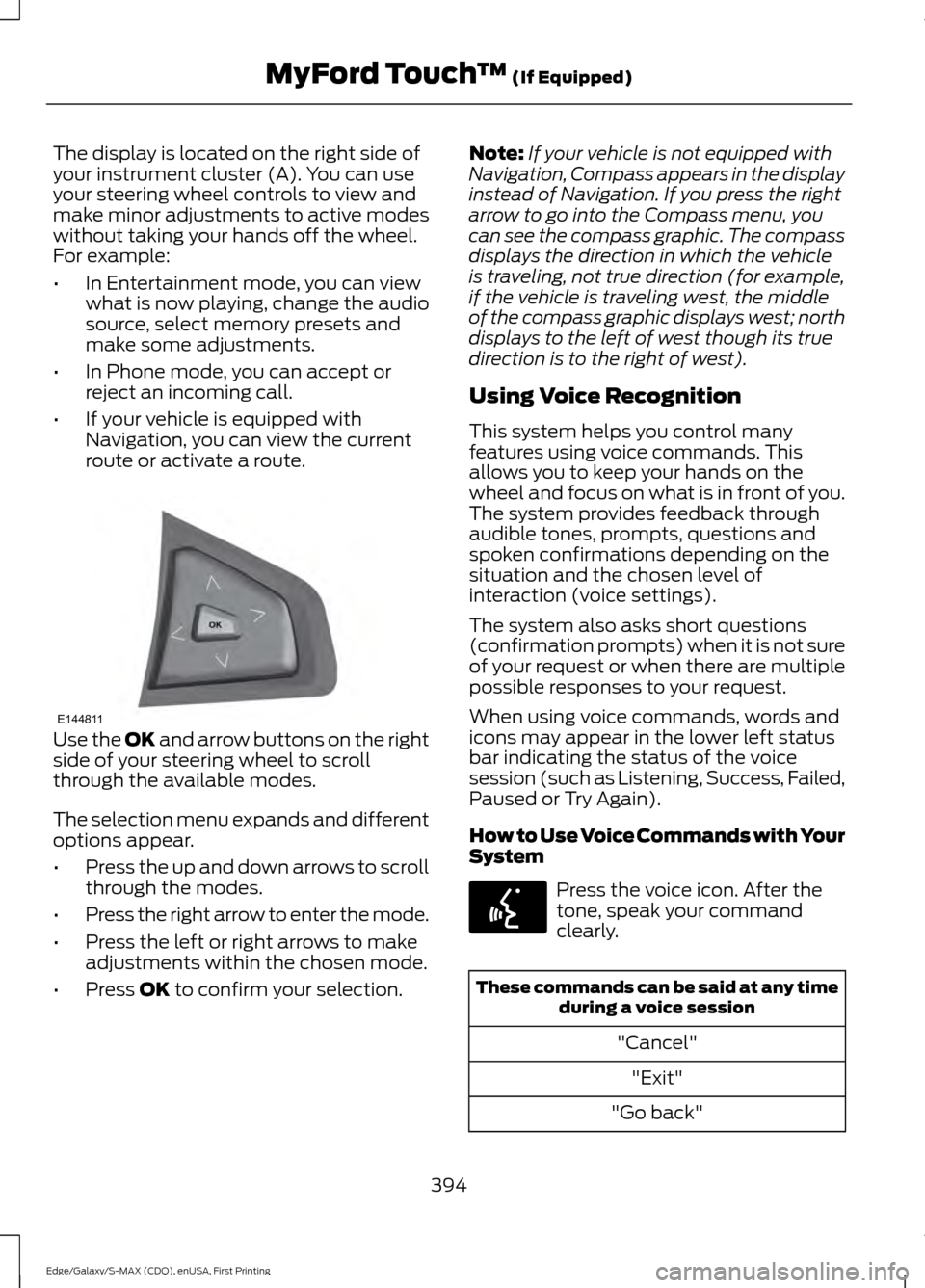
The display is located on the right side of
your instrument cluster (A). You can use
your steering wheel controls to view and
make minor adjustments to active modes
without taking your hands off the wheel.
For example:
•
In Entertainment mode, you can view
what is now playing, change the audio
source, select memory presets and
make some adjustments.
• In Phone mode, you can accept or
reject an incoming call.
• If your vehicle is equipped with
Navigation, you can view the current
route or activate a route. Use the OK and arrow buttons on the right
side of your steering wheel to scroll
through the available modes.
The selection menu expands and different
options appear.
• Press the up and down arrows to scroll
through the modes.
• Press the right arrow to enter the mode.
• Press the left or right arrows to make
adjustments within the chosen mode.
• Press
OK to confirm your selection. Note:
If your vehicle is not equipped with
Navigation, Compass appears in the display
instead of Navigation. If you press the right
arrow to go into the Compass menu, you
can see the compass graphic. The compass
displays the direction in which the vehicle
is traveling, not true direction (for example,
if the vehicle is traveling west, the middle
of the compass graphic displays west; north
displays to the left of west though its true
direction is to the right of west).
Using Voice Recognition
This system helps you control many
features using voice commands. This
allows you to keep your hands on the
wheel and focus on what is in front of you.
The system provides feedback through
audible tones, prompts, questions and
spoken confirmations depending on the
situation and the chosen level of
interaction (voice settings).
The system also asks short questions
(confirmation prompts) when it is not sure
of your request or when there are multiple
possible responses to your request.
When using voice commands, words and
icons may appear in the lower left status
bar indicating the status of the voice
session (such as Listening, Success, Failed,
Paused or Try Again).
How to Use Voice Commands with Your
System Press the voice icon. After the
tone, speak your command
clearly.
These commands can be said at any time
during a voice session
"Cancel""Exit"
"Go back"
394
Edge/Galaxy/S-MAX (CDQ), enUSA, First Printing MyFord Touch
™
(If Equipped)E144811 E142599
Page 398 of 508

These commands can be said at any time
during a voice session
"List of commands" "Main menu""Next page"
"Previous page"
"What can I say?" "Help"
What Can I Say?
To access the available voice commands
for the current session, do one of the
following:
• During a voice session, press the help
icon (?) in the lower left status bar of
the screen.
• Say, "What can I say?" for an
on-screen listing of the possible voice
commands associated with your
current voice session.
• Press the voice icon. After the tone, say,
"Help" for an audible list of possible
voice commands.
Helpful Hints
• Make sure the interior of your vehicle is
as quiet as possible. Wind noise from
open windows and road vibrations may
prevent the system from correctly
recognizing spoken commands.
• After pressing the voice icon, wait until
after the tone sounds and Listening
appears before saying a command. Any
command spoken before this does not
register with the system.
• Speak naturally, without long pauses
between words.
• At any time, you can interrupt the
system while it is speaking by pressing
the voice icon. Accessing a List of Available Commands
•
If you use the touchscreen, press the
Settings icon >
Help > Voice
Command List.
• If you use the steering wheel control,
press the voice icon. After the tone,
speak your command clearly. Available voice commands
"Audio list of commands"
"Bluetooth audio list of commands" "Browse list of commands""CD list of commands"
"Climate control list of commands" "List of commands"
"Navigation list of commands" *
"Phone list of commands" "Radio list of commands"
"SD card list of commands"
"Sirius satellite list of commands" **
"Travel link list of commands" *
"USB list of commands"
"Voice instructions list of commands" "Voice settings list of commands" "Help"
* This command is only available when
your vehicle is equipped with the
navigation system, and the navigation
system SD card is in the card slot.
** This command is only available when
you have an active SIRIUS satellite radio
subscription.
395
Edge/Galaxy/S-MAX (CDQ), enUSA, First Printing MyFord Touch
™
(If Equipped)