2015 FORD EDGE cruise control
[x] Cancel search: cruise controlPage 105 of 508

Fuel Economy
All Values
Auto StartStop
• Distance to Empty - Shows the approximate distance your vehicle can travel before
running out of fuel.
• Inst Fuel Economy - Shows a visual graph of your instantaneous fuel economy along
with your Avg MPG since the function was last reset.
• Long Term Fuel Economy - Shows your long term fuel economy.
• Fuel History - Shows a bar chart of your fuel history.
• Average Fuel — Shows the average fuel economy for a given trip.
• All Values — Shows all fuel economy values (DTE, Inst Fuel Econ, Avg Fuel).
• Auto StartStop - Available Auto Start-Stop messaging will provide details about what
is happening with your system. See Information Messages (page 109).
Note: You can reset your average fuel economy by pressing and holding the OK button on
the left hand steering wheel controls. Driver Assist
Traction Ctrl - check enabled or uncheck disabled
Blind Spot - check enabled or uncheck disabled
Cross Traffic - check enabled or uncheck disabled Adaptive or Normal
Cruise Control
Driver Alert or Driver Alert Display
Driver Alert
Sport, Normal or Comfort
Driver Select Suspension
Hill Start Assist - check enabled or uncheck disabled
Intelligent AWD
Alert, Aid or Both
Mode
Lane Keeping System
High, Normal or Low
Intensity
High, Normal or Low
Alert Sensitivity
Pre-Collision
Active Braking - check enabled or uncheck
disabled
Front Park Aid - check enabled or uncheck disabled
102
Edge/Galaxy/S-MAX (CDQ), enUSA, First Printing Information Displays
Page 110 of 508
Driver Assist
Traction Control - check enabled or uncheck disabled Sport or Normal
Steering in D
Adaptive Steering
Sport or Normal
Steering in S
Blind Spot - check enabled or uncheck disabled
Cross Traffic Alert - check enabled or uncheck disabled Adaptive or Normal
Cruise Control
Driver Alert or Driver Alert Display
Driver Alert
Sport, Normal or Comfort
Driver Select Suspension
Hill Start Assist - check enabled or uncheck disabled
Alert, Aid or Both
Mode
Lane Keeping System
High, Normal or Low
Intensity
High, Normal or Low
Alert Sensitivity
Pre-Collision
Active Braking - check enabled or uncheck
disabled
Front Park Aid - check enabled or uncheck disabled
Rear Park Aid - check enabled or uncheck disabled Tire Monitor - Hold OK to Reset
Tire Monitor
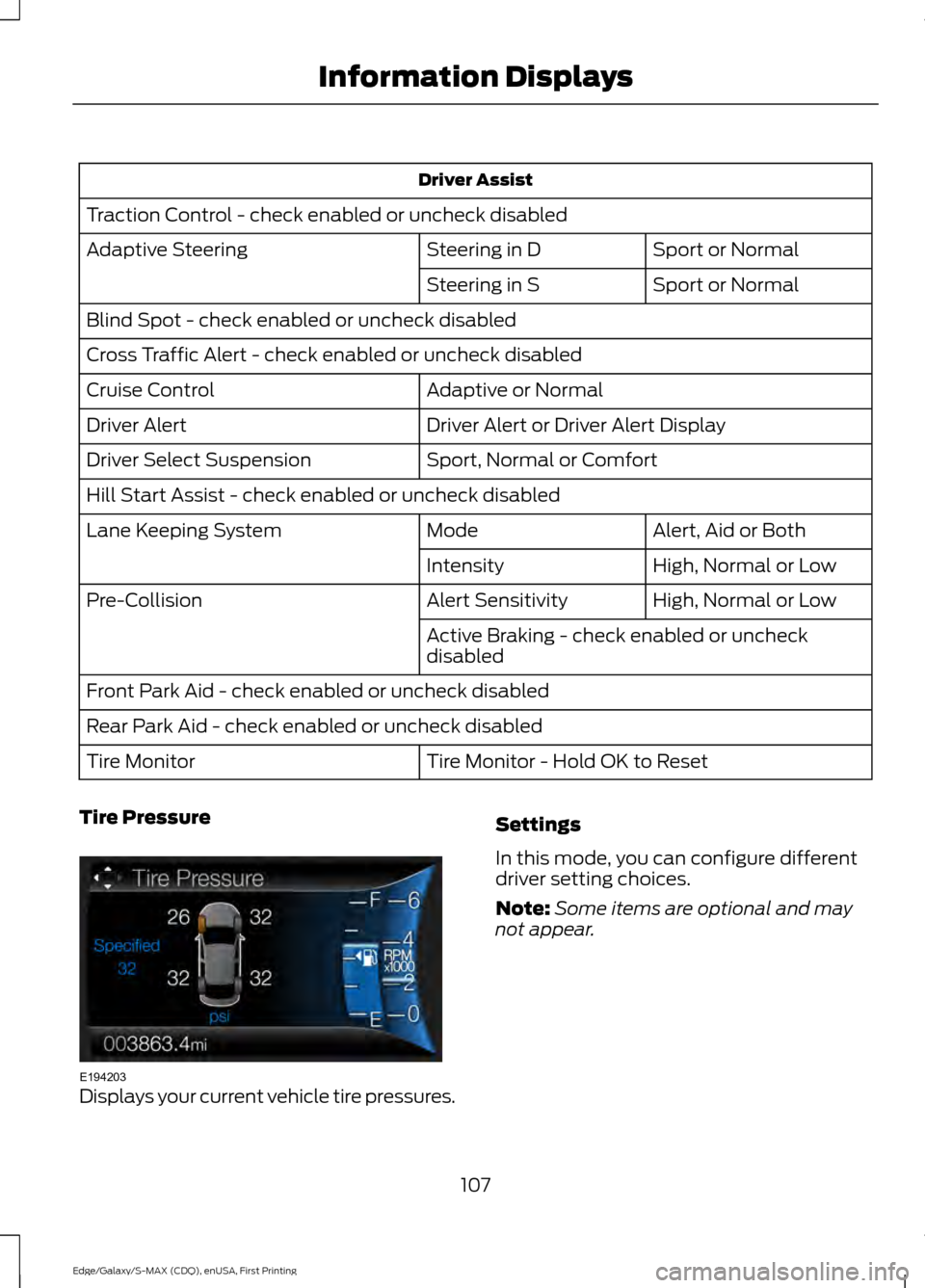
Tire Pressure Displays your current vehicle tire pressures. Settings
In this mode, you can configure different
driver setting choices.
Note:
Some items are optional and may
not appear.
107
Edge/Galaxy/S-MAX (CDQ), enUSA, First Printing Information DisplaysE194203
Page 113 of 508

Press the OK button to acknowledge and
remove some messages from the
information display. The information
display will automatically remove other
messages after a short time.
You need to confirm certain messages
before you can access the menus.
Active Park Action
Message
The system requires service due to a malfunction. Contact an authorized dealer.
Active Park Fault
Adaptive Cruise Control Action
Message
A radar malfunction is preventing the adaptive cruise controlfrom engaging. See Using Adaptive Cruise Control (page
197).
Adaptive Cruise
Malfunction
A condition exists such that the adaptive cruise cannot func-tion properly. See
Using Adaptive Cruise Control (page
197).
Adaptive Cruise Not
Available
You have a blocked sensor due to bad weather, ice, mud or
water in front of the radar sensor. You can typically clean the
sensor to resolve. See Using Adaptive Cruise Control
(page
197).
Adaptive Cruise Not
Available Sensor
Blocked See Manual
The system has disabled the automatic braking.
Normal Cruise Active
Automatic Braking Turned Off
A radar malfunction is preventing the adaptive cruise control from engaging.
Front Sensor Not Aligned
110
Edge/Galaxy/S-MAX (CDQ), enUSA, First Printing Information DisplaysE144636
Page 114 of 508

Action
Message
The adaptive cruise has reinstated controls to the driver.
Adaptive Cruise - Driver
Resume Control
Your vehicle speed is too slow to activate the adaptive cruise.
Adaptive Cruise Speed
Too Low to Activate
The adaptive cruise is automatically adjusting the gap
distance and the driver needs to shift the transmission into a lower gear.
Adaptive Cruise Shift
Down
Airbag Action
Message
The system detects a malfunction due to a blocked sensor. Remove blockage.
Occupant Sensor
BLOCKED Remove
Objects Near Passenger Seat
Alarm Action
Message
Alarm triggered due to unauthorized entry. See Anti-Theft Alarm (page 73).
Vehicle Alarm to Stop
Alarm, Start Vehicle
The system requires service due to a malfunction. Contact
an authorized dealer.
Alarm fault Service required
111
Edge/Galaxy/S-MAX (CDQ), enUSA, First Printing Information Displays
Page 199 of 508

PRINCIPLE OF OPERATION
Cruise control lets you maintain a set
speed without keeping your foot on the
accelerator pedal. You can use cruise
control when your vehicle speed is greater
than 20 mph (30 km/h).
USING CRUISE CONTROL WARNINGS
Do not use cruise control on winding
roads, in heavy traffic or, when the
road surface is slippery. This could
result in loss of vehicle control, serious
injury or death. When you are going downhill, your
vehicle speed may increase above
the set speed. The system will not
apply the brakes but a warning displays. The cruise controls are on the steering
wheel.
Switching Cruise Control On
Press and release
ON.
The indicator appears in the
instrument cluster.
Setting the Cruise Speed
1. Drive to desired speed. 2. Press and release
SET+.
3. Take your foot off the accelerator pedal.
Note: The indicator will change color.
Note: Cruise control disengages if the
vehicle speed decreases more than 10 mph
(16 km/h) below the set speed while driving
uphill.
Changing the Set Speed
• Press the accelerator or brake pedal
until you reach the desired speed. Press
and release
SET+.
• Press and hold SET+ or SET-. Release
the control when you reach the desired
speed.
• Press and release
SET+ or SET-. The
set speed will change in approximately
1 mph (2 km/h)
increments.
Note: If you accelerate by pressing the
accelerator pedal, the set speed will not
change. When you release the accelerator
pedal, your vehicle returns to the speed that
you previously set.
Canceling the Set Speed
Press and release
CNCL or tap the brake
pedal. You will not erase the set speed.
Resuming the Set Speed
Press and release
RES.
Switching Cruise Control Off
Press and release
OFF when the system
is in stand by mode or switch the ignition
off.
Note: You erase the set speed when you
switch the system off.
196
Edge/Galaxy/S-MAX (CDQ), enUSA, First Printing Cruise ControlE191246 E71340
Page 200 of 508

USING ADAPTIVE CRUISE
CONTROL (If Equipped)
WARNINGS
Always pay close attention to
changing road conditions when using
adaptive cruise control. The system
does not replace attentive driving. Failing
to pay attention to the road may result in
a crash, serious injury or death. Adaptive cruise control is not a crash
warning or avoidance system.
Adaptive cruise control does not
detect stationary or slow moving
vehicles below
6 mph (10 km/h).
Adaptive cruise control does not
detect pedestrians or objects in the
roadway.
Adaptive cruise control does not
detect oncoming vehicles in the
same lane.
Do not use adaptive cruise control
on winding roads, in heavy traffic or,
when the road surface is slippery.
This could result in loss of vehicle control,
serious injury or death. The system adjusts your vehicle speed to
maintain the set gap between you and the
vehicle in front of you in the same lane. You
can select four gap settings. The adaptive cruise controls are on the
steering wheel.
Switching Adaptive Cruise Control
On
Press and release
ON.
The indicator appears in the
instrument cluster.
The current gap setting and
SET will also
appear.
Setting the Adaptive Cruise Speed
1. Drive to desired speed.
2. Press and release
SET+.
3. A green indicator light, current gap setting and your desired set speed
appear in the instrument cluster.
4. Take your foot off the accelerator pedal. 5. A lead vehicle graphic will illuminate if
there is a vehicle detected in front of
you.
197
Edge/Galaxy/S-MAX (CDQ), enUSA, First Printing Cruise ControlE191247 E144529 E164805 E164805
Page 201 of 508

Note:
When adaptive cruise control is
active, the speedometer may vary slightly
from the set speed displayed in the
information display.
Following a Vehicle WARNINGS
When following a vehicle, your
vehicle does not decelerate
automatically to a stop, nor does
your vehicle always decelerate quickly
enough to avoid a crash without driver
intervention. Always apply the brakes when
necessary. Failing to do so may result in a
crash, serious injury or death. Adaptive cruise control only warns
of vehicles detected by the radar
sensor. In some cases there may be
no warning or a delayed warning. You
should always apply the brakes when
necessary. Failure to do so may result in a
crash, serious injury or death. Note:
The brakes may emit noise when
applied by the system.
When a vehicle ahead of you enters the
same lane or a slower vehicle is ahead in
the same lane, the vehicle speed adjusts
to maintain a preset gap distance.
The lead vehicle indicator appears in the
instrument cluster.
Your vehicle will maintain a consistant gap
from the vehicle ahead until:
• The vehicle in front of you accelerates
to a speed above the set speed.
• The vehicle in front of you moves out
of the lane you are in.
• Your vehicle speed falls below 12 mph
(20 km/h).
• You set a new gap distance. The system applies the brakes to slow your
vehicle to maintain a safe gap distance
from the vehicle in front. The maximum
braking which the system applies is limited.
You can override the system by applying
the brakes.
If the system determines that its maximum
braking level will not be sufficient, an
audible warning sounds while the system
continues to brake. A red warning bar
displays on the windshield and you must
take immediate action.
Note:
When you are following a vehicle and
you switch on a direction indicator, adaptive
cruise control may provide a small
temporary acceleration to help you pass.
Setting the Gap Distance
Note: It is your responsibility to select a gap
appropriate to the driving conditions. Gap decrease.
A
Gap increase.
B
You can decrease or increase the gap
between your vehicle and the vehicle in
front of you by pressing the gap control.
198
Edge/Galaxy/S-MAX (CDQ), enUSA, First Printing Cruise ControlE192116
A
B
Page 202 of 508

The selected gap appears in the
information display as shown by the bars
in the graphic. Five gap settings are
available.
The gap setting is time dependent and the
distance automatically adjusts with your
vehicle speed.
Adaptive cruise control gap settings Dynamic beha-
vior
Gap
Time gap,
seconds
Graphic display,
bars indicated betweenvehicles
Set speed
yd (m)
mph ( km/h)
Sport
31 (28)
1
1
62 (100)
Normal
43 (39)
1.4
2
62 (100)
Normal
55 (50)
1.8
3
62 (100)
Comfort
67 (61)
2.2
4
62 (100)
Each time you start the vehicle, the system
selects the last chosen gap.
Disengaging the System
Press the brake pedal or press and release
the CNCL button. The last set speed does
not erase.
Overriding the System WARNING
Whenever the driver is overriding the
system by pressing the accelerator
pedal, the system does not
automatically apply the brakes to maintain
separation from any vehicle ahead. You can override the set speed and gap by
pressing the accelerator pedal. When you override the system,
the green indicator light
illuminates and the lead vehicle
graphic does not show in the
information display.
The system resumes operation when you
release the accelerator pedal. The vehicle
speed decreases to the set speed, or a
lower speed if following a slower vehicle.
Changing the Set Speed
• Accelerate or brake to the desired
speed, then press and release
SET+.
• Press and hold SET+ or SET- until the
desired set speed shows on the
information display. The vehicle speed
will gradually change to the selected
speed.
• Press and release
SET+ or SET-. The
set speed changes in 1 mph (1 km/h)
increments.
199
Edge/Galaxy/S-MAX (CDQ), enUSA, First Printing Cruise ControlE164805 E144529