Page 218 of 240
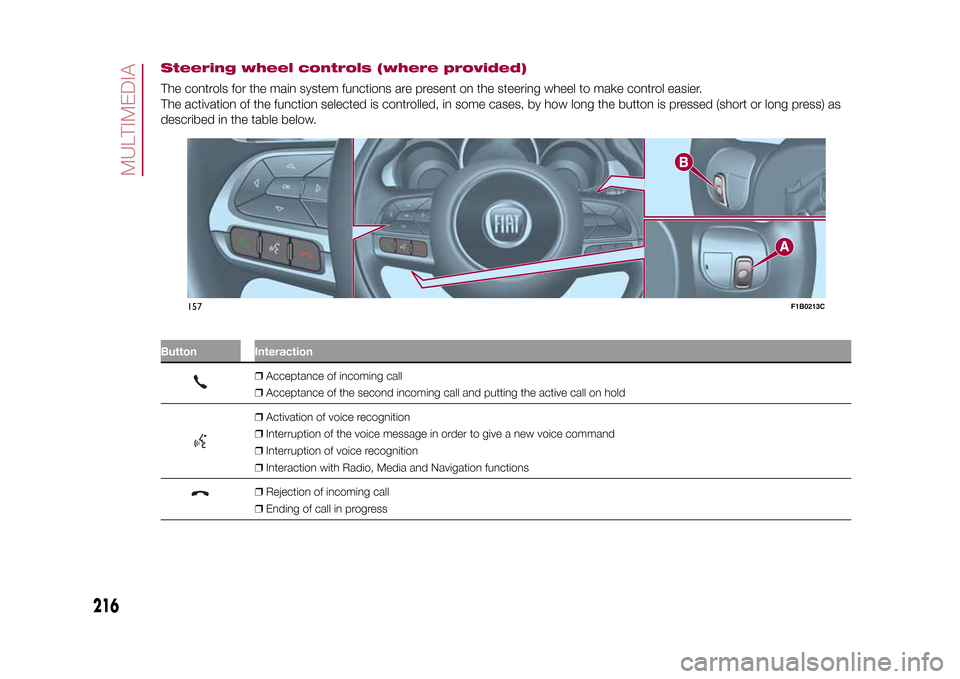
Steering wheel controls (where provided)The controls for the main system functions are present on the steering wheel to make control easier.
The activation of the function selected is controlled, in some cases, by how long the button is pressed (short or long press) as
described in the table below.
.
Button Interaction
❒Acceptance of incoming call
❒Acceptance of the second incoming call and putting the active call on hold❒Activation of voice recognition
❒Interruption of the voice message in order to give a new voice command
❒Interruption of voice recognition
❒Interaction with Radio, Media and Navigation functions❒Rejection of incoming call
❒Ending of call in progress
.
157
F1B0213C
216
MULTIMEDIA
15-12-2014 8:23 Pagina 216
Page 220 of 240

SWITCHING THE SYSTEM
ON/OFFThe system is switched on/off by
pressing the
(ON/OFF) button/knob.
Turn the button/knob clockwise to
increase the radio volume or
anticlockwise to decrease it.
RADIO (TUNER) MODEThe system has the following tuners:
AM, FM and DAB (where provided).Radio mode selectionPress the RADIO button on the front
panel to activate radio mode.
The different tuning modes can be
selected with the corresponding button
on the display.
Up to 12 favourite radio stations can be
stored in each mode.Selecting a frequency
bandPress one of the buttons at the left of
the display to select the frequency
band: AM, FM and DAB (where
provided).Indications on displayAfter the desired radio station is
selected, the following information is
shown on the display:At the top: display of the stored radio
station (preset) list. If the current station
is in the list of presets, it will be
highlighted on the display.
In the middle: the name of the radio
station being listened to and the
buttons to select the previous or the
next radio station are displayed.
At the bottom: display of the following
buttons:
❒"browse": search available radio
stations
❒"tune" : manual radio station tuning
(not available for DAB radios);
❒"audio": access to the "Audio
settings" screen
❒
and
: permit searching for
the desired radio station.
Select previous/next
radio stationThe previous/next radio station can be
selected using the following methods:
turning the BROWSE ENTER
button/knob, briefly pressing the
or
button on the display, pressing of
the buttons behind the steering wheel.
Holding down the
or
buttons
on the display activates rapid scrolling
through the active frequency band.
Previous/next radio
station fast searchTo start the fast search press the
or
button on the display, or use the
corresponding steering wheel controls.
AM/FM radio station
tuningPress the "tune" button, then select the
first digit of the desired radio station.
Press the
button to delete a wrong
number (and enter the correct station
number).
After entering the last digit of the station
the system will tune to the selected
one.
The screen disappears automatically
after 5 seconds or manually by pressing
the OK button.
DAB radio (where
provided)Once DAB radio mode is selected, the
information on the current station is
displayed and the following functions.
The "browse" button is used to display:
❒the list of all DAB stations;
❒the list of all the favourites;
❒the list of stations filtered by
"Ensembles" (broadcast group).
Within each list, the "ABC" button
allows the user to skip to the desired
letter in the list.
218
MULTIMEDIA
15-12-2014 8:23 Pagina 218
Page 223 of 240

AUX SUPPORTTo activate AUX mode, connect an
appropriate device to the AUX socket
on the vehicle.
Adjust the volume using the
button/
knob on the front panel or using the
volume adjustment control on the
connected device.
IMPORTANTThe functions of the device connected
with the AUX socket are directly
managed by the device itself: it is not
possible to change track/folder/playlist
or control playing start/end/pause
with the controls on the front panel or
on the steering wheel.
Do not leave the cable of your portable
player connected to the AUX socket
after disconnection, to avoid possible
hiss from the speakers.PHONE MODE
Activating the Phone
modePress the PHONE button on the front
panel to activate the Phone mode.
The buttons on the display can be used
to:
❒compose the phone number (using
the graphic keypad on the display);
❒display and call the contacts in the
mobile phone phonebook;❒display and call contacts from the
registers of recent calls;
❒pair up to 10 phones to make access
and connection easier and quicker;
❒transfer calls from the system to the
mobile phone and vice versa and
deactivate the microphone audio for
private conversations.
The mobile phone audio is transmitted
through the vehicles’s audio system;
the system automatically mutes the
radio when the Phone function is used.
Pairing a mobile phoneProceed as follows:
❒activate theBluetooth® function on
the mobile phone;
❒press the PHONE button on the front
panel;
❒if no phone is paired with the system
yet, the display shows a dedicated
screen;
❒select "Yes" to start the pairing
procedure, then search for the
Uconnect™device on the mobile
phone (if "No" is selected, the Phone
main screen is displayed);
❒when prompted by the mobile
phone, use its keypad to enter the PIN
code shown on the system display
or confirm on the mobile phone the PIN
displayed;❒from the "Phone" screen you can
always pair a mobile phone by pressing
the "Settings" button: press the "Add
Device" button and proceed as
described above;
❒during the pairing stage a screen is
displayed showing the progress of
the operation;
❒when the pairing procedure is
completed successfully, a screen is
displayed: answer "Yes" to the question
to pair the mobile phone as favourite
(the mobile phone will have priority over
all other mobile phones to be paired
subsequently). If no other devices are
paired, the system will consider the first
associated device as favourite.
221
15-12-2014 8:23 Pagina 221
Making a phone callProceed as follows:
❒selecting the
icon (mobile
phone phonebook);
❒selecting "Recent Calls";
❒selecting the
icon;
❒pressing the "Redial" button.
The operations described above can
only be accessed if supported by
the mobile phone in use.
SMS MESSAGE READERThe system can read the messages
received by the mobile phone.
To use this function the mobile phone