Page 178 of 367
Technical Specifications
The complete system consists of:
•Two 165 mm diameter midwoofer speakers, one
speaker in each of the front doors.
•Two 22 mm diameter tweeter speakers, one speaker in
each of the front pillars.
•Two 100 mm diameter full range speakers, one speaker
in each of the rear side panels.
•Antenna on the car roof.
•Radio with CD/MP3 player.
With Alpine Premium Audio system (if equipped):
•Two 165 mm diameter midwoofer speakers.
•Two 11 mm tweeter speakers in the front pillars.
•Two 100 mm full range speakers, one speaker in each
of the rear side panels.
•An amplifier in the trunk on the right-hand side panel.
•Antenna on the car roof.
•Radio with CD/MP3 player.
176 UNDERSTANDING YOUR INSTRUMENT PANEL
Page 179 of 367
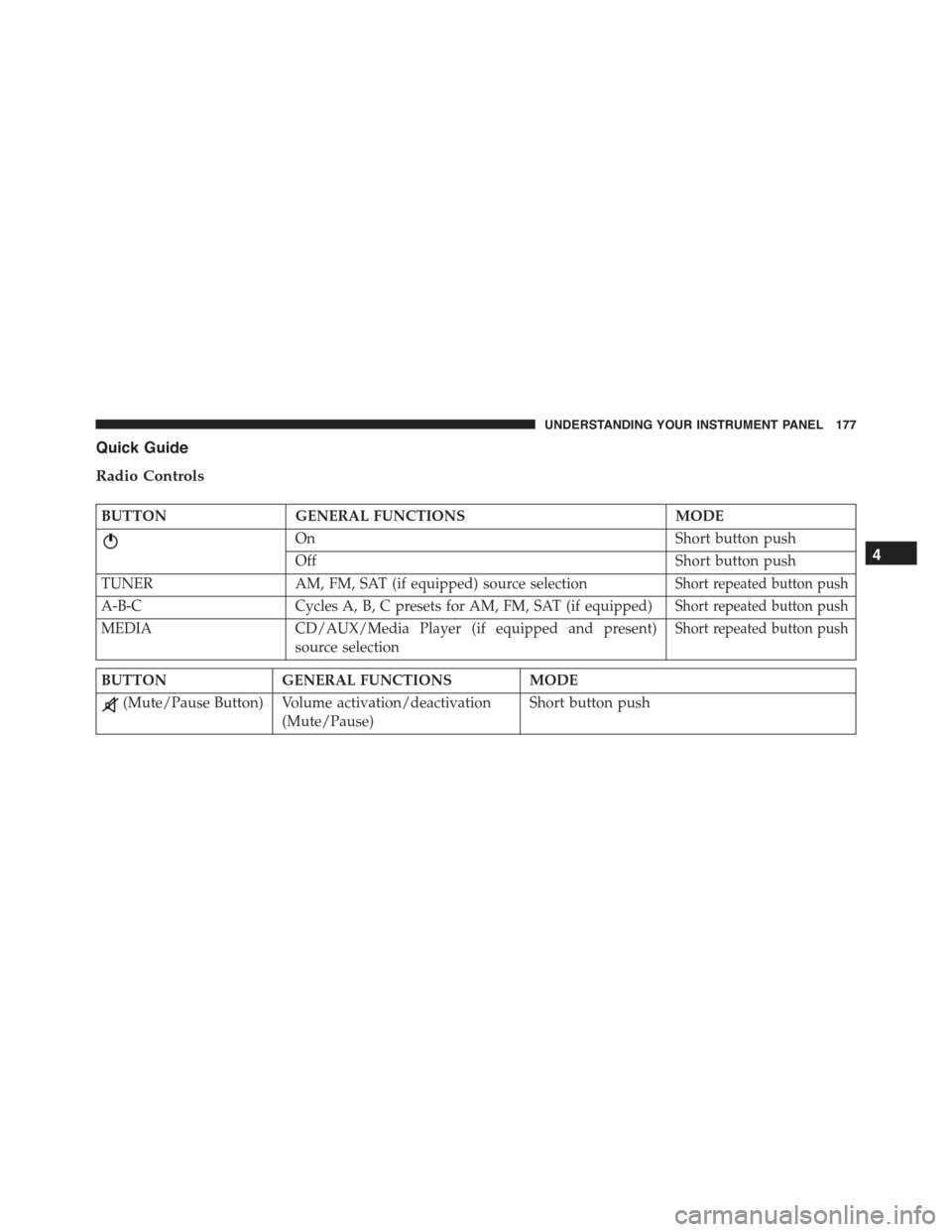
Quick Guide
Radio Controls
BUTTONGENERAL FUNCTIONSMODE
OnShort button push
OffShort button push
TUNERAM, FM, SAT (if equipped) source selectionShort repeated button push
A-B-CCycles A, B, C presets for AM, FM, SAT (if equipped)Short repeated button push
MEDIACD/AUX/Media Player (if equipped and present)
source selection
Short repeated button push
BUTTONGENERAL FUNCTIONSMODE
(Mute/Pause Button) Volume activation/deactivation
(Mute/Pause)
Short button push
4
UNDERSTANDING YOUR INSTRUMENT PANEL 177
Page 180 of 367
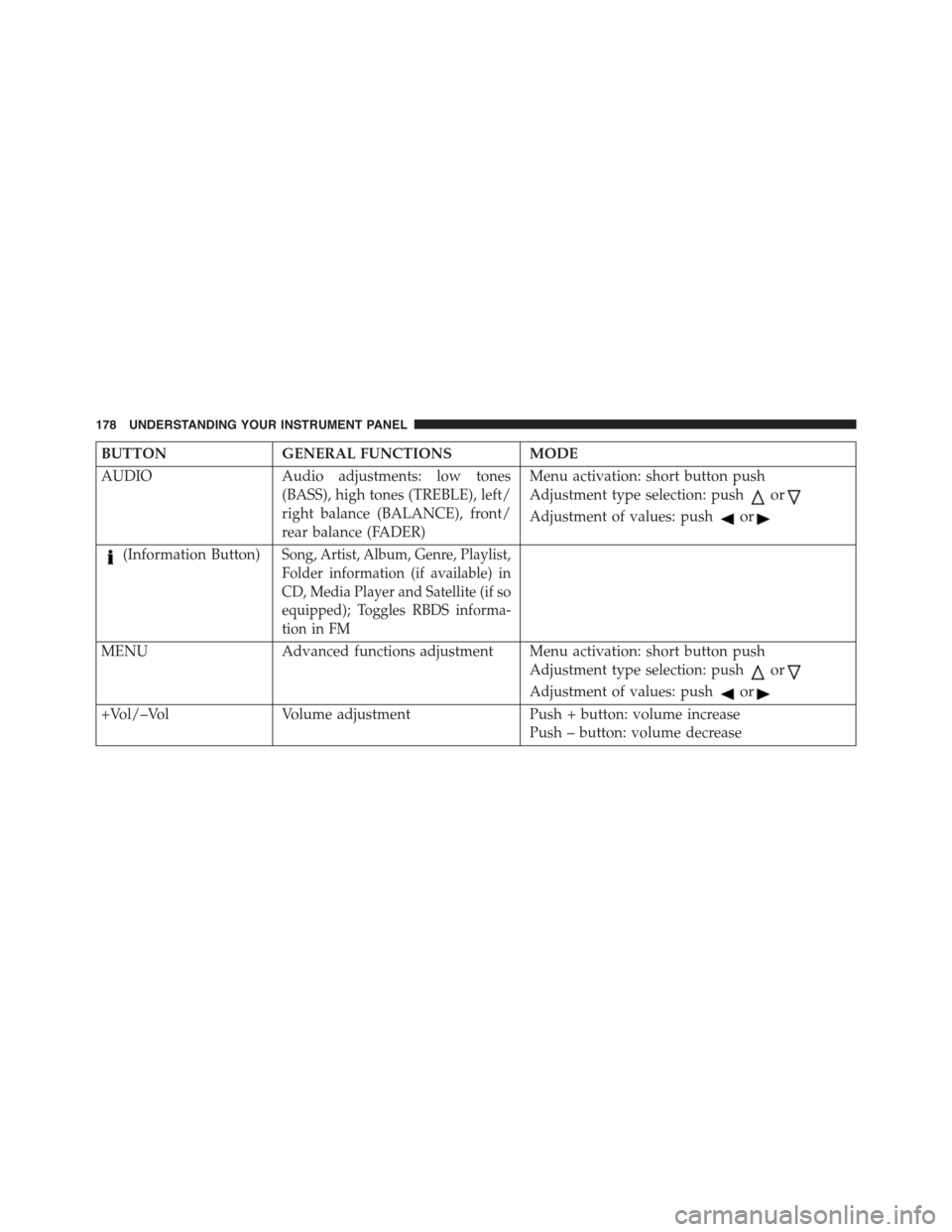
BUTTONGENERAL FUNCTIONSMODE
AUDIOAudio adjustments: low tones
(BASS), high tones (TREBLE), left/
right balance (BALANCE), front/
rear balance (FADER)
Menu activation: short button push
Adjustment type selection: pushor
Adjustment of values: pushor
(Information Button)Song, Artist, Album, Genre, Playlist,
Folder information (if available) in
CD, Media Player and Satellite (if so
equipped); Toggles RBDS informa-
tion in FM
MENUAdvanced functions adjustment Menu activation: short button push
Adjustment type selection: pushor
Adjustment of values: pushor
+Vol/–VolVolume adjustmentPush + button: volume increase
Push – button: volume decrease
178 UNDERSTANDING YOUR INSTRUMENT PANEL
Page 195 of 367
Satellite Radio Antenna — If Equipped
The antenna for the satellite radio is mounted on the roof
of the vehicle. Do not place items on the roof around the
roof top antenna location. Objects placed within the line
of sight of the antenna will cause decreased performance.
Larger luggage items should be placed as far from the
antenna as possible. Do not place items directly on or
above the antenna.
CD Player
Introduction
This chapter describes the operation of the CD player
only. To operate the radio, refer to the description in the
“Functions and Adjustments” chapter.
CD Player Selection
To activate the CD player built into the equipment,
proceed as follows:
•Load a CD with the equipment switched on. The first
track will start to play.
Or
•If a CD has already been loaded, turn on the radio and
then briefly push the MEDIA button to select the “CD”
function mode. The last track listened to will start to
play.
It is advisable to use original CDs to ensure optimal
playing. If CD-R/RWs are used, we recommend using
good quality media that are burned at the slowest speed
possible.
4
UNDERSTANDING YOUR INSTRUMENT PANEL 193
Page 197 of 367
Display Information
When the CD player is operating, information will ap-
pear on the display with the following meaning:
•“Track 5” indicates the CD track number.
•“03:42” indicates the time elapsed since the start of the
track (if the relevant Menu function is activated).
Track Selection
Briefly push thebutton to play the previous CD
track and thebutton to play the next track. The
tracks are selected cyclically: the first track is selected
after the last track and vice versa.
If the track has been played for more than 3 seconds,
pushing thebutton, starts the track again from the
beginning. In this case, if you want to play the
previous track, push thebutton twice consecu-
tively.
Track Fast Forward/Rewind
Keep thebutton pushed down to fast forward the
selected track and keep thebutton pushed down to
fast rewind the track. The fast forward/rewind will
stop once the button is released.
Pause Function
To pause the CD player, push thebutton. The word-
ing “CD Pause” appears on the display.
To resume listening to the track, push thebutton
again.
CD MP3 Player
Introduction
This chapter describes the operation of the CD MP3
player.
NOTE:Layer-3 audio decoding technology is licensed
from Fraunhofer IIS and Thomson multimedia.
4
UNDERSTANDING YOUR INSTRUMENT PANEL 195
Page 200 of 367
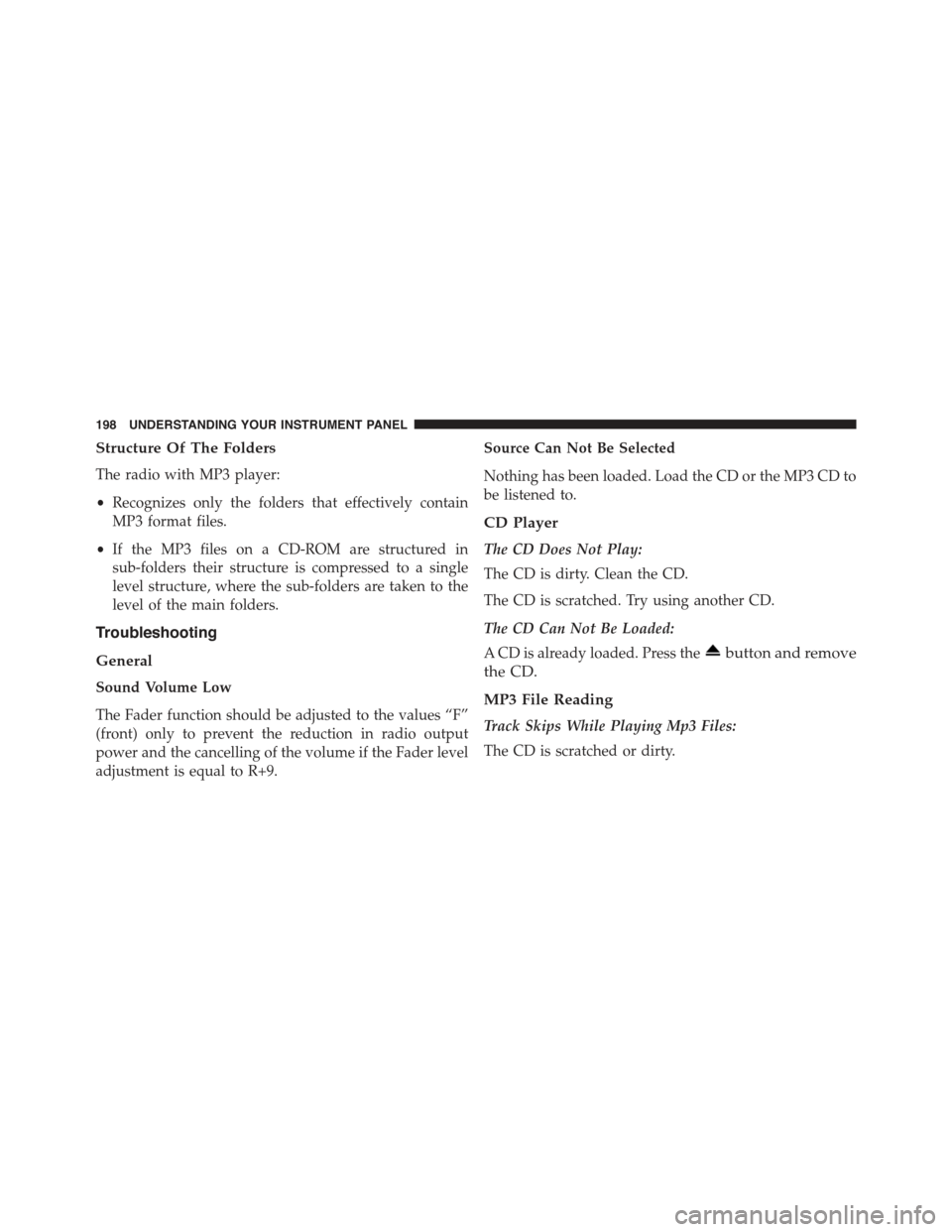
Structure Of The Folders
The radio with MP3 player:
•Recognizes only the folders that effectively contain
MP3 format files.
•If the MP3 files on a CD-ROM are structured in
sub-folders their structure is compressed to a single
level structure, where the sub-folders are taken to the
level of the main folders.
Troubleshooting
General
Sound Volume Low
The Fader function should be adjusted to the values “F”
(front) only to prevent the reduction in radio output
power and the cancelling of the volume if the Fader level
adjustment is equal to R+9.
Source Can Not Be Selected
Nothing has been loaded. Load the CD or the MP3 CD to
be listened to.
CD Player
The CD Does Not Play:
The CD is dirty. Clean the CD.
The CD is scratched. Try using another CD.
The CD Can Not Be Loaded:
A CD is already loaded. Press thebutton and remove
the CD.
MP3 File Reading
Track Skips While Playing Mp3 Files:
The CD is scratched or dirty.
198 UNDERSTANDING YOUR INSTRUMENT PANEL
Page 201 of 367
The Duration Of The Mp3 Tracks Is Not Correctly
Displayed:
In some cases (due to the recording mode) the duration of
the MP3 tracks can be displayed incorrectly.
Operating Instructions — Hands-Free Phone
Refer to the appropriate “BLUE&ME™ User ’s Manual”
for further information.
Personal/Portable Navigation Device (PND)
A Personal/Portable Navigation Device (PND) is avail-
able as optional equipment for this vehicle, refer to the
Navigation User Guide for further information.
iPod®/USB/MEDIA PLAYER CONTROL — IF
EQUIPPED
This feature allows an iPod® or external USB device to be
plugged into the USB or AUX port, located in the center
console.
Refer to the appropriate Blue&Me™ radio User ’s Manual
for iPod® or external USB device support capability.
USB/AUX Port
1 — Auxiliary Cable Jack2—USBConnector
4
UNDERSTANDING YOUR INSTRUMENT PANEL 199
Page 202 of 367
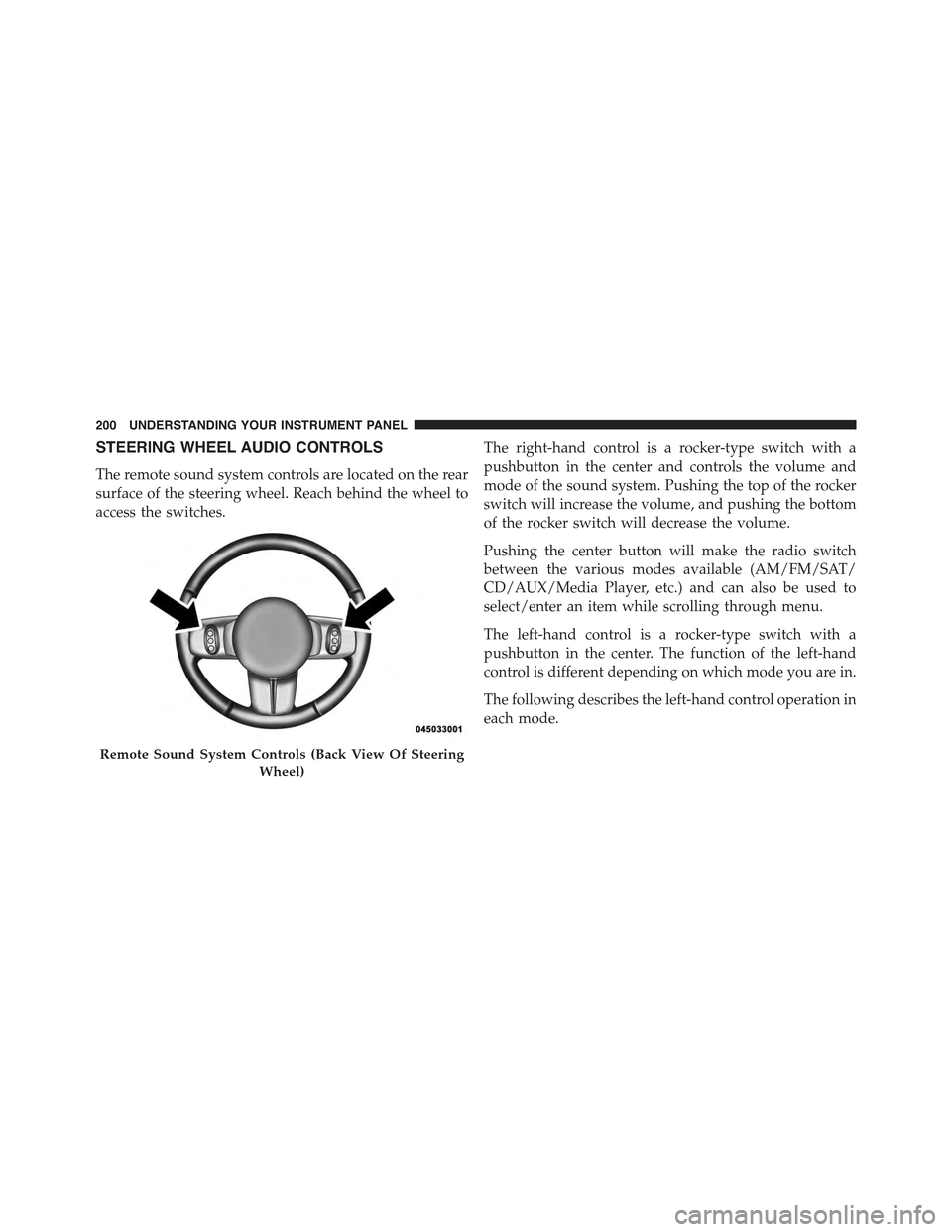
STEERING WHEEL AUDIO CONTROLS
The remote sound system controls are located on the rear
surface of the steering wheel. Reach behind the wheel to
access the switches.
The right-hand control is a rocker-type switch with a
pushbutton in the center and controls the volume and
mode of the sound system. Pushing the top of the rocker
switch will increase the volume, and pushing the bottom
of the rocker switch will decrease the volume.
Pushing the center button will make the radio switch
between the various modes available (AM/FM/SAT/
CD/AUX/Media Player, etc.) and can also be used to
select/enter an item while scrolling through menu.
The left-hand control is a rocker-type switch with a
pushbutton in the center. The function of the left-hand
control is different depending on which mode you are in.
The following describes the left-hand control operation in
each mode.
Remote Sound System Controls (Back View Of Steering
Wheel)
200 UNDERSTANDING YOUR INSTRUMENT PANEL