2015 DODGE CHARGER Evic
[x] Cancel search: EvicPage 82 of 236

Via Mobile apps can also be launched through Voice Recognition by pressing the
VR button on the steering wheel and stating “launch” and then the name of the app.
For example, you can say “launch Aha Via Mobile.”
NOTE:
For detailed information on how to use Via Mobile apps visit the Mopar Owner Connect
website (moparownerconnect.com) and login using the username and password you set
up when registering for Uconnect®Access.
AmessagewillbedisplayedtoremindyouthatViaMobileappsutilizethedataplanon
your connected smartphone to provide content. Many smartphones have a limit to how
much data they can utilize before incurring additional charges. The amount of data being
used varies by smartphone device, cellular service provider and specific app. Check your
mobile phone service plan for more details.* Press “OK” to continue or the “X” to exit.
(*Additional smartphone data usage charges may apply.)
Via Mobile Apps — If Equipped
•Aha™ by HARMAN—Aha™byHARMANmakesiteasytoinstantlyaccessyour
favorite Web content on the go. Choose from over 40,000+ stations spanning internet
radio, personalized music, news, entertainment, hotels, weather, audiobooks,
Facebook®,Twitter®,andmore.
•iHeartRadio—iHeartRadioprovidesinstantaccesstomorethan1,500liveradio
stations from across the country and allows listeners to create custom music stations
inspired by their favorite artists or songs.
•Pandora®—Pandora®gives people the music and comedy they love anytime,
anywhere. Personalized stations launch instantly, with the input of a favorite artist,
track, comedian, or genre.
•Slacker Radio—Enjoymillionsofsongsandhundredsofhandcraftedstations.
NOTE:
For detailed information on how to use Via Mobile apps visit the Mopar Owner Connect
website (moparownerconnect.com) and log in using the username and password you set
up when registering for Uconnect®Access.
ELECTRONICS
80
Page 85 of 236

SiriusXM Premier Over 160 channels
Get every channel available on your satellite radio, and enjoy all you want, all in one place.
Hear commercial-free music plus sports, news, talk and entertainment. Get all the
premium programming, including Howard Stern, every NFL game, Oprah Radio®,every
MLB®and NHL®game, every NASCAR®race, Martha Stewart and more. And get 20+
extra channels, including SiriusXM Latino, offering 20 channels of commercial free
music, news, talk, comedy, sports and more dedicated to Spanish language programming.
•ToaccessSiriusXM™SatelliteRadio,pushthe“RADIO”buttononthefaceplateand
then the “SXM” button on the touchscreen.
SiriusXM services require subscriptions, sold separately after the 12-month trial included
with the new vehicle purchase.If you decide to continue your service at the end of your
trial subscription, the plan you choose will automatically renew and bill at then-current
rates until you call SiriusXM at 1-866-635-2349 for U.S. residents and 1-888-539-7474
for Canadian residents to cancel. See SiriusXM Customer Agreement for complete terms
at www.siriusxm.com for U.S. residents and www.siriusxm.ca for Canadian residents.All
fees and programming subject to change. Our satellite service is available only to those at
least 18 and older in the 48 contiguous USA and D.C. Our Sirius satellite service is also
available in PR (with coverage limitations). Our Internet radio service is available
throughout our satellite service area and in AK and HI. © 2014 Sirius XM Radio Inc.
Sirius, XM and all related marks and logos are trademarks of Sirius XM Radio Inc.
MEDIA HUB — iPod®/USB/MP3/SD Card
USB/iPod®
•USB/iPod®Mode is entered by either inserting a USB Jump Drive or iPod®cable into
the USB port or by pushing the MEDIA button located left of the display. Once in Media
Mode, press the “source” button on the touchscreen and select “USB/iPod.”
•PushtheMEDIAbuttononthefaceplatethenpressthe“source”buttononthe
touchscreen. Select “USB/iPod” to change the mode to the USB device if the device is
connected, allowing the music from your portable device to play through the vehicle's
speakers.
Audio Jack (AUX)
The AUX allows a portable device, such as an MP3 player or an iPod®,tobepluggedinto
the radio and utilize the vehicle’s audio system, using a 3.5 mm stereo audio cable, to
amplify the source and play through the vehicle speakers.
•PushtheMEDIAbuttononthefaceplate,thenpressthe“source”buttononthe
touchscreen and select “AUX” to change the mode to auxiliary device if the audio jack
is connected, allowing the music from your portable device to play through the vehicle's
speakers.
The functions of the portable device are controlled using the device buttons, not the
buttons on the radio. The volume may be controlled using the radio or portable device.
ELECTRONICS
83
Page 86 of 236

Bluetooth®
If using a Bluetooth®-equippeddevice,youmayalsobeabletostreammusictoyour
vehicle's sound system.
•Push the MEDIA button on the faceplate, then press the “source” button on the
touchscreen. Select “Bluetooth” to change the mode to Bluetooth®if the device is paired,
allowing the music from your portable device to play through the vehicle's speakers.
SD Card
SD Card Mode allows you to play music that has been saved to your SD Card through your
vehicle’s sound system.
•YoucanenterSDCardModebyeitherinsertingaSDCardintotheSDCardslotorby
pushing the “SD Card” button on the left side of the display while in media mode.
For further information refer to your Radio Supplement.
Uconnect® 5.0 VOICE RECOGNITION QUICK TIPS
Introducing Uconnect®
Start using Uconnect®Voice Recognition with these helpful quick tips. It provides the key
Voice Commands and tips you need to know to control your Uconnect®5.0 system.
Key Features:
•5”touchscreen
•Threebuttonsoneithersideofthedisplay
Uconnect® 5.0
ELECTRONICS
84
Page 87 of 236

Get Started
1. VisitUconnectPhone.comto check mobile device and feature compatibility and to find
phone pairing instructions.
2. Reduce background noise. Wind and passenger conversations are examples of noise
that may impact recognition.
3. Speak clearly at a normal pace and volume while facing straight ahead. The micro-
phone is positioned on the rearview mirror and aimed at the driver.
4. Each time you give a Voice Command, you must first push either the VR or Phone
button, wait untilafterthe beep, then say your Voice Command.
5. You can interrupt the help message or system prompts by pushing the VR or Phone
button and saying a Voice Command from current category.
All you need to control your Uconnect®system with your voice are the buttons on your
steering wheel.
Uconnect® VR/Phone Buttons
1—PushToInitiateOrToAnswerAPhoneCall,SendOrReceiveAText2—PushToBeginRadioOrMediaFunctions3—PushToEndCall
ELECTRONICS
85
Page 90 of 236

Media
Uconnect®offers connections via USB, SD, Bluetooth®and auxiliary ports (If Equipped).
Voice operation is only available for connected USB and iPod®devices. (Remote CD
player optional and not available on all vehicles.)
Push the VR button.Afterthebeep,sayoneofthefollowingcommandsand
follow the prompts to switch your media source or choose an artist.
•Change sourceto Bluetooth®
•Change sourceto iPod®
•Change sourceto USB
•Play artistBeethoven;Play albumGreatest Hits;Play songMoonlight Sonata;Play
genreClassical
TIP:Press the Browse button on the touchscreen to see all of the music on your iPod®or
USB device. Your Voice Command must matchexactlyhow the artist, album, song and
genre information is displayed.
Uconnect® 5.0 Media
ELECTRONICS
88
Page 91 of 236

Phone
Making and answering hands-free phone calls is easy with Uconnect®.WhenthePhonebook
button is illuminated on your touchscreen, your system is ready.
U.S. residents can visit UconnectPhone.com to check mobile device and feature com-
patibility and to find phone pairing instructions.
Push the Phone button.Afterthebeep,sayoneofthefollowingcommands…
•CallJohn Smith
•Dial123-456-7890 and follow the system prompts
•Redial(call previous outgoing phone number)
•Call back(call previous incoming phone number)
TIP:When providing a Voice Command, push the Phone buttonand say“Call,”then
pronounce the nameexactlyas it appears in your phone book. When a contact has
multiple phone numbers, you can say“CallJohn Smithwork.”
Uconnect® 5.0 Phone
ELECTRONICS
89
Page 99 of 236
Replay
Lets you replay up to 44 minutes of the content of the current SiriusXM channel.
Replay Option Option Description
Play/PausePress to Pause content playback. Press Pause/Play again to resume play-back.
Rewind/RW Rewinds the channel content in steps of five seconds. Press and hold torewind continuously, then release to begin playing content at that point.
Fast Forward/FW Forwards the content, and works similarly to Rewind/RW. However, FastForward/FW can only be used when content has been previously re-wound.
Replay Time Displays the amount of time in the upper center of the screen by whichyour content lags the Live channel.
Live Resumes playback of Live content at any time while replaying rewoundcontent.
SiriusXM services require subscriptions, sold separately after the 12-month trial included
with the new vehicle purchase.If you decide to continue your service at the end of your
trial subscription, the plan you choose will automatically renew and bill at then-current
rates until you call SiriusXM at 1-866-635-2349 for U.S. residents and 1-888-539-7474
for Canadian residents to cancel. See SiriusXM Customer Agreement for complete terms
at www.siriusxm.com for U.S. residents and www.siriusxm.ca for Canadian residents.
All fees and programming subject to change. Our satellite service is available only to those
at least 18 and older in the 48 contiguous USA and D.C. Our Sirius satellite service is also
available in PR (with coverage limitations). Our Internet radio service is available
throughout our satellite service area and in AK and HI. © 2014 Sirius XM Radio Inc.
Sirius, XM and all related marks and logos are trademarks of Sirius XM Radio Inc.
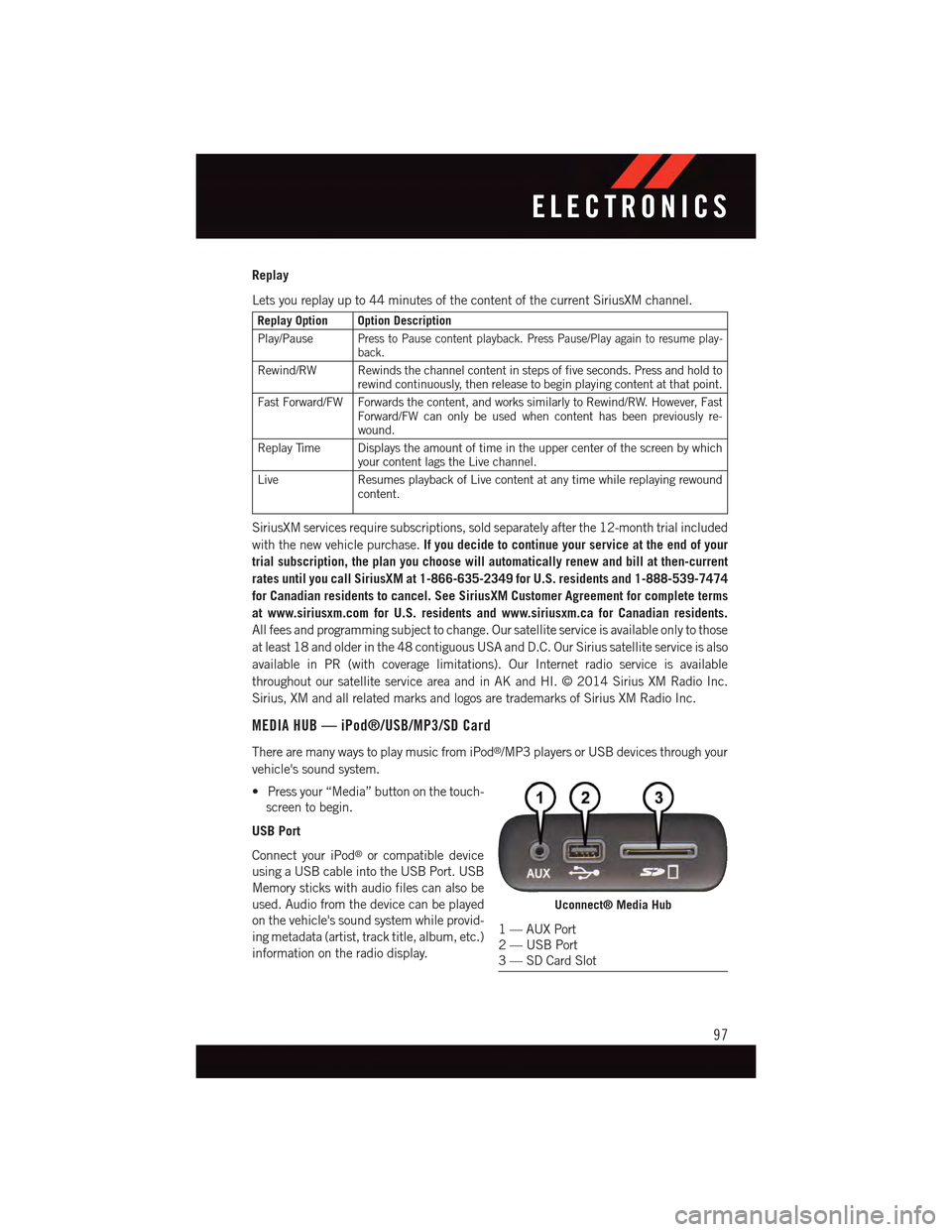
MEDIA HUB — iPod®/USB/MP3/SD Card
There are many ways to play music from iPod®/MP3 players or USB devices through your
vehicle's sound system.
•Pressyour“Media”buttononthetouch-
screen to begin.
USB Port
Connect your iPod®or compatible device
using a USB cable into the USB Port. USB
Memory sticks with audio files can also be
used. Audio from the device can be played
on the vehicle's sound system while provid-
ing metadata (artist, track title, album, etc.)
information on the radio display.
Uconnect® Media Hub
1—AUXPort2—USBPort3—SDCardSlot
ELECTRONICS
97
Page 100 of 236
When connected, the iPod®/compatible USB device can be controlled using the radio or
Steering Wheel Audio Controls to play, skip to the next or previous track, browse, and list
the contents.
The iPod®battery charges when plugged into the USB port (if supported by the specific
device).
There are also two USB Charge Only ports located on the back of the center console for
rear passengers.
To r o u t e t h e U S B / i P o d®cable out of the center console, use the access cut out.
NOTE:
•WhenconnectingyouriPod®device for the first time, the system may take several
minutes to read your music, depending on the number of files. For example, the system
will take approximately five minutes for every 1,000 songs loaded on the device. Also
during the reading process, the Shuffle and Browse functions will be disabled. This
process is needed to ensure the full use of your iPod®features and only happens the
first time it is connected. After the first time, the reading process of your iPod®will take
considerably less time unless changes are made or new songs are added to the playlist.
•TheUSBportsupportscertainMini,Classic,Nano,Touch,andiPhone®devices. The
USB port also supports playing music from compatible external USB Mass Storage
Class memory devices. Some iPod®software versions may not fully support the USB
port features. Please visit Apple’s website for iPod®software updates.
Audio Jack (AUX)
The AUX allows a portable device, such as an MP3 player or an iPod®,tobepluggedinto
the radio and utilize the vehicle’s sound system, using a 3.5 mm stereo audio cable, to
amplify the source and play through the vehicle speakers.
•Pressingthe“AUX”buttononthetouchscreenwillchangethemodetoauxiliarydevice
if the audio jack is connected, allowing the music from your portable device to be heard
through the vehicle's speakers. To activate the AUX, plug in the audio jack.
•Thefunctionsoftheportabledevicearecontrolledusingthedevicebuttons.The
volume may be controlled using the radio or portable device.
•Toroutetheaudiocableoutofthecenterconsole,usetheaccesscutoutinthefront
of the console.
Bluetooth® Streaming Audio
If using a Bluetooth®-equippeddevice,youmayalsobeabletostreammusictoyour
vehicle's sound system. Your connected device must be Bluetooth-compatible, and paired
with your system (see Uconnect®Phone for pairing instructions).
•YoucanaccessthemusicfromyourconnectedBluetooth®device by pressing the
“Bluetooth®”button on the touchscreen while in Media mode.
ELECTRONICS
98