Page 152 of 429
Requirements
•Vehicle must be properly equipped with the
Uconnect® Access System.
•Your smartphone must be compatible with the
Uconnect® Access App and properly connected to the
vehicle.
•Your connected smartphone must be in range of a
usable cellular signal.
•Vehicle must be registered with Uconnect® Access and
have an active subscription that includes the appli-
cable feature or app.
•Vehicle must be powered in the ON/RUN or ACC
(Accessory) position with a properly functioning elec-
trical system.
•Vehicle must be equipped with Uconnect 8.4A/8.4AN.
Not available on Uconnect 5.0.
Tips and Shortcuts
•Use the “like” and “dislike” option to continue to
refine music played on stations like Slacker.
•Link your Facebook® and Twitter® account on the
Aha™ website to share with others what you are
listening to while you drive.
FAQs
1.Why can’t I get Aha™ Via Mobile to work?Here are
some things to consider:
•Check to ensure you have linked your Aha™ account
credentials with Uconnect® Access. This is usually
done during registration and setup. Then, check to
ensure you have properly connected your compat-
ible smartphone to the vehicle touchscreen. The
Uconnect® Access App must be open and you must
be logged in. A blue light indicates that it’s providing
data to the vehicle.
2
ALL ABOUT Uconnect® ACCESS 151
Page 153 of 429
•If you recently changed your password for Aha™, it
may need to be updated on Mopar Owner Connect
under the “Via Mobile” section.
2.How does Aha™ help refine my music options?It
organizes your favorite content into personalized on-
demand radio stations. You can access podcasts, inter-
net radio, personalized traffic reports and even restau-
rant recommendations. It will assemble content for
you based on your use of the “like” and “dislike”
buttons on the touchscreen.
3.Where does the search function search from?The
search function will provide results based on the
location of your vehicle. As you drive, the search
results will change to reflect your vehicle’s current
location.
4.How do I sync my Aha™ account with Facebook®,
Twitter® and Slacker?Associate your Aha™ account
with Facebook®, Twitter® and Slacker services at
aharadio.com, or from the Aha™ smartphone app.
From the Aha™ smartphone app, visit the Aha™
settings screen and look for “Associate Accounts.”
5.If I enter personalized preferences on the web, will it
also save my setting when I am in the vehicle?Yes,
your personalized selections are saved to a common
area, so they will be reflected wherever you access
Aha™ in the vehicle on the vehicle touchscreen,
smartphone or the Aha™ websiteaharadio.com.
152 ALL ABOUT Uconnect® ACCESS
Page 154 of 429
6.Why can’t I get Aha™ Via Mobile to work?Ensure
you have registered for Uconnect® Access and asso-
ciated your Aha™ account credentials with
Uconnect® Access. This is done during registration
and setup process. Then, ensure you have properly
connected your compatible smartphone to the vehicle
touchscreen. The Uconnect® Access App must be
open. A blue light indicates that it’s providing data to
the vehicle.
7.If I changed my password for Aha™, do I have to
update it with Uconnect® Access?Yes. Visit
moparownerconnect.com, log in, and click on Via
Mobile.
8.How do I set up an Aha™ account?You can create an
account with Aha™ by visitingaharadio.com.To
make changes to an existing Aha™ account, visit the
Aha™ website.
9.Can I create an Aha™ account during Uconnect®
Access registration and setup?There is a link from the
Via Mobile profile page where the customer can go to
the Aha™ website to create a new account.
10.How do I block explicit content?By default Aha™
automatically filters and blocks explicit content for
you. If you would like to enable the ability to listen to
explicit podcasts, as well as comedy or user-
generated shouts, you must visit the “Settings”
screen and switch the “Allow Explicit Content” set-
ting to ON.
11.Should I have the Aha™ app downloaded to my
smartphone to use Aha™ Via Mobile?You do not
need to have the Aha™ app on your smartphone to
use Aha™ Via Mobile. The Uconnect® Access App is
required.
2
ALL ABOUT Uconnect® ACCESS 153
Page 155 of 429
12.How do I know how much data is being used?
Uconnect® Access Via Mobile uses your smart-
phone’s existing data plan to stream content. Data
usage varies by phone/device, content (e.g. videos),
high quality audio and several other factors. Please
refer to your device carrier for specific details.
MAINTAIN MY Uconnect® ACCESS ACCOUNT
Reinstalling An App
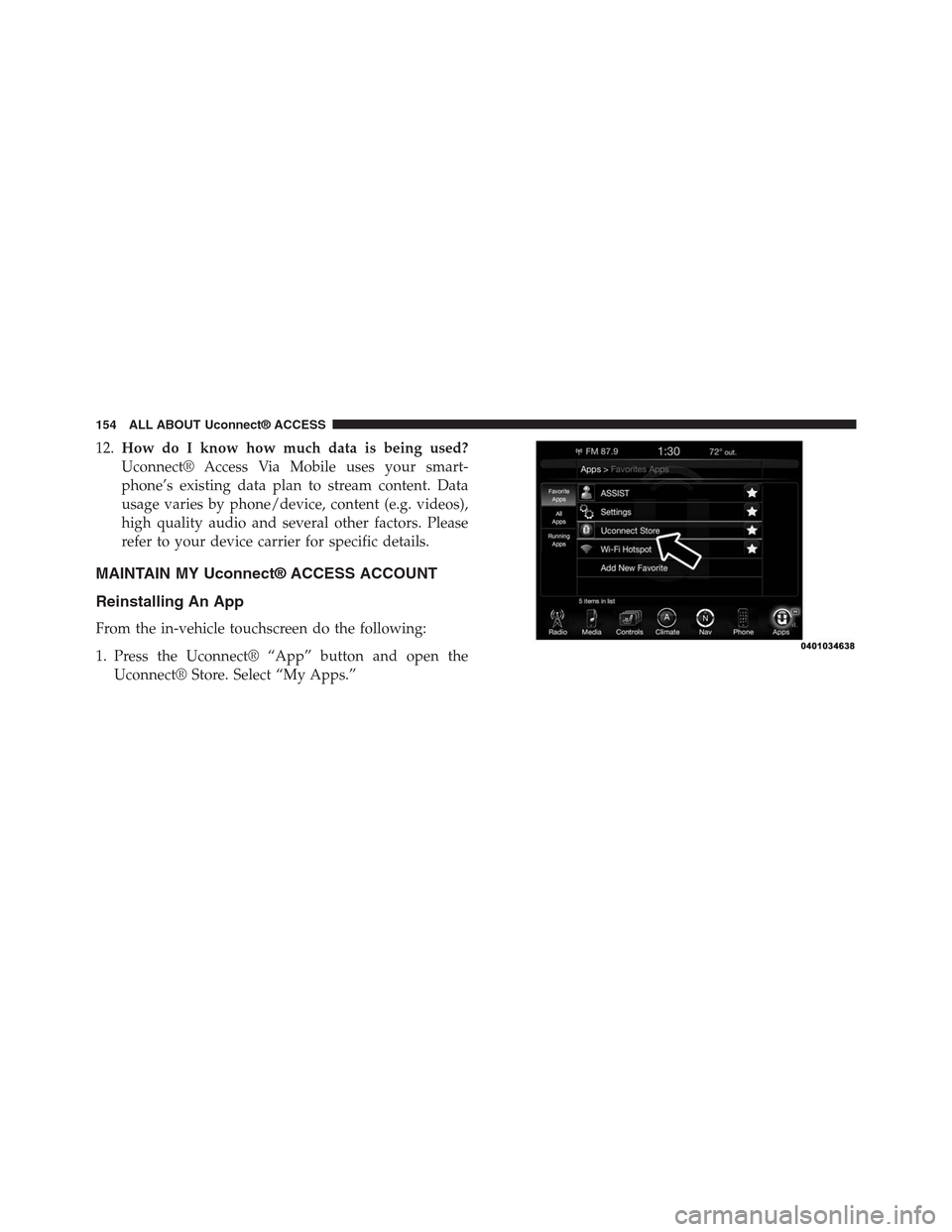
From the in-vehicle touchscreen do the following:
1. Press the Uconnect® “App” button and open the
Uconnect® Store. Select “My Apps.”
154 ALL ABOUT Uconnect® ACCESS
Page 161 of 429
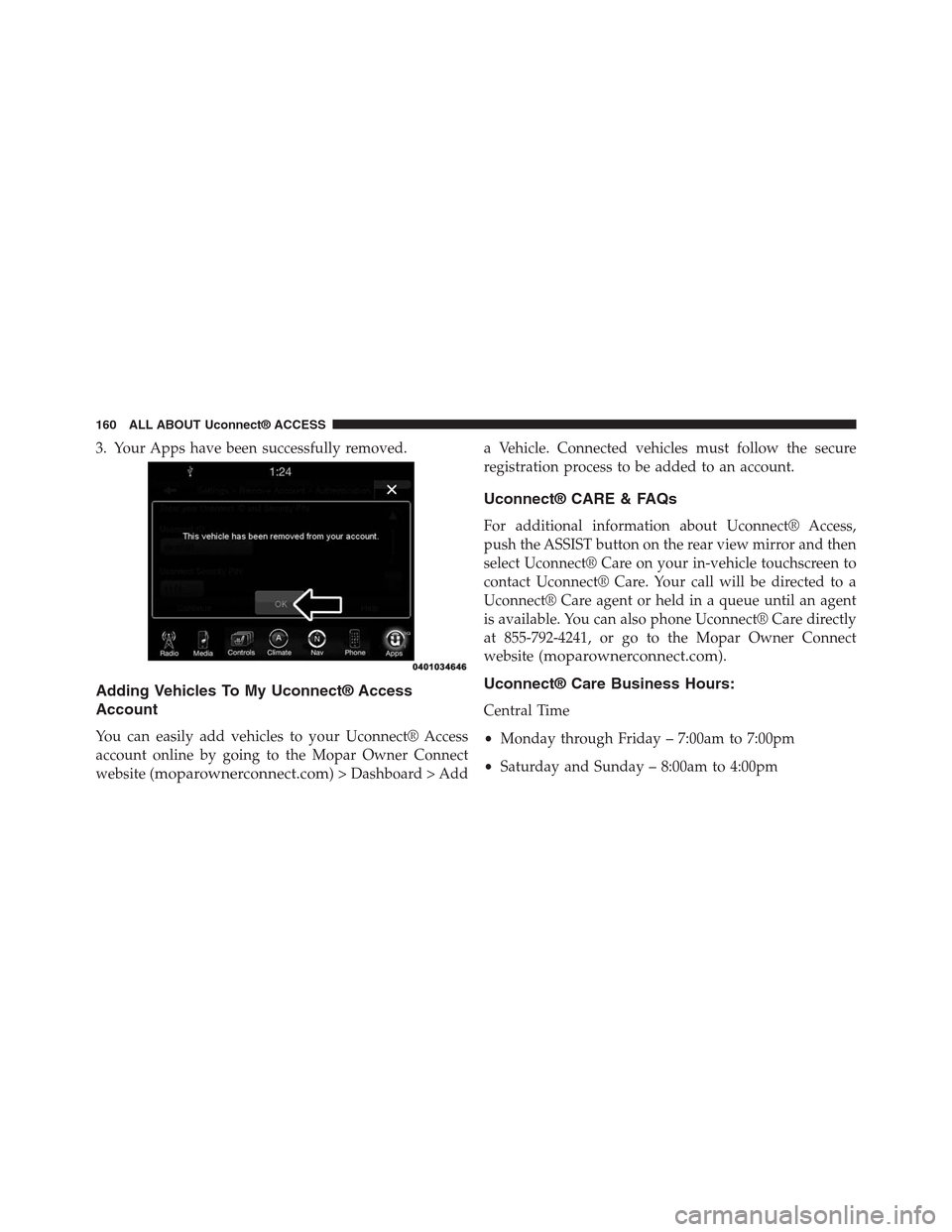
3. Your Apps have been successfully removed.
Adding Vehicles To My Uconnect® Access
Account
You can easily add vehicles to your Uconnect® Access
account online by going to the Mopar Owner Connect
website (moparownerconnect.com) > Dashboard > Add
a Vehicle. Connected vehicles must follow the secure
registration process to be added to an account.
Uconnect® CARE & FAQs
For additional information about Uconnect® Access,
push the ASSIST button on the rear view mirror and then
select Uconnect® Care on your in-vehicle touchscreen to
contact Uconnect® Care. Your call will be directed to a
Uconnect® Care agent or held in a queue until an agent
is available. You can also phone Uconnect® Care directly
at 855-792-4241, or go to the Mopar Owner Connect
website (moparownerconnect.com).
Uconnect® Care Business Hours:
Central Time
•Monday through Friday – 7:00am to 7:00pm
•Saturday and Sunday – 8:00am to 4:00pm
160 ALL ABOUT Uconnect® ACCESS
Page 163 of 429
7.What If I Forgot My Uconnect® Payment PIN?The
next time you are asked for your Uconnect® Payment
PIN, select “Forgot PIN?” and follow the steps to reset
it.
8.How Do I Update My Uconnect® Payment Account
Address?Your Uconnect® Payment Account address
must be updated online only: Login to the Mopar
Owner Connect website (moparownerconnect.com),
and select Edit Profile > Uconnect® Payment Account.
9.How Do I Update My Uconnect® Profile?Your
name, home address, phone number, email address
and Uconnect® Security PIN can be updated online on
the Mopar Owner Connect website
(moparownerconnect.com).
a. Log in to the Mopar Owner Connect website
(moparownerconnect.com) then select Edit Profile
to edit your personal information.
b. Make your edits and click “Save.”
10.Can I Try Apps, Features Or Packages Before I Buy
Them?Your new vehicle purchase may have come
with an included trial period for certain Apps and
services. For more information please contact
Uconnect® Care at 855-792-4241.
11.Can I Access Every App And Service While Driv-
ing?No, some applications and services are not
available while driving. For your own safety, it is not
possible to use some of the touchscreen features
while the vehicle is in motion (e.g. key pad).
12.Can I Access The Uconnect® Store While I Am
Driving?No, some applications and services are not
available while driving. Only use Uconnect® when it
is safe to do so.
162 ALL ABOUT Uconnect® ACCESS
Page 170 of 429
The internal wireless radio operates within guidelines
found in radio frequency safety standards and recom-
mendations, which reflect the consensus of the scientific
community. The radio manufacturer believes the internal
wireless radio is safe for use by consumers. The level of
energy emitted is far less than the electromagnetic energy
emitted by wireless devices such as mobile phones.
DEVICE CONNECTION AND AUDIO TIPS WITH
Uconnect®
•More than one phone or device can be paired to your
vehicle. The connected device with the highest priority
will be used. To transition between devices, Select
Phone > Settings, then press the desired device.
•Multiple devices may be connected at one time. For
example, a phone can be paired and connected for
hands-free calling and texting, while a USB media
source is connected for audio. However, only one
Bluetooth® connection can be used at a time.
•Phone calls will always have the highest priority
regardless of which connection is active (only the 9-1-1
Call and Assist will have a higher priority than the
phone). For example, if an App is launched and the
user receives a call, the user will be exited out of the
App and returned to the App when the call ends.
•After all devices are connected/paired, when switch-
ing to a different audio source, audio will auto-play
from the new source.
2
ALL ABOUT Uconnect® ACCESS 169
Page 171 of 429
•Current audio (AM/FM/SXM/AUX) will continue to
play when switching to a non-media type App.
•Current audio (AM/FM/SXM/AUX) is muted during
Assist and 9-1-1 Call.
•Phone calls will mute all audio except for NAV
prompts if guidance is currently active (audio will
resume after phone call is ended).
•All secondary incoming phone calls will be treated
similar to “call waiting” (except 9-1-1 Call).
•When connecting a second device via USB, that device
will have priority and auto play accordingly. A phone
that is already paired/connected will still be available
for hands-free calling and texting.
•Incoming calls received while entering a nav destina-
tion (before pressing “Go”) will cancel the nav entry.
The user is required to start over when the phone call
has ended.
170 ALL ABOUT Uconnect® ACCESS