Page 341 of 420
339
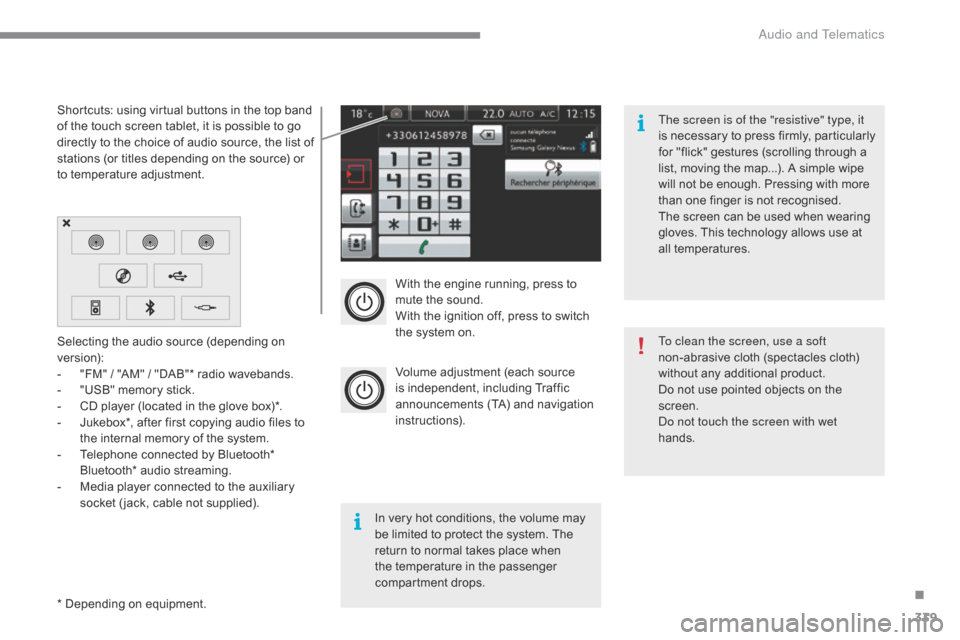
With the engine running, press to mute the sound.
With
the ignition off, press to switch
t
he system on.
Volume
adjustment (each source
i
s
i
ndependent,
i
ncluding
T
raffic
a
nnouncements (TA) and navigation
i
nstructions).
Selecting
the
audio
source
(depending
on
ve
rsion):
-
"
FM"
/
"AM"
/
"DAB"*
radio
wavebands.
-
"
USB"
memory
stick.
-
C
D
player
(located
in
the
glove
box)*.
-
J
ukebox*,
after
first
copying
audio
files
to
t
he
internal
memory
of
the
system.
-
T
elephone
connected
by
Bluetooth*
B
luetooth*
audio
streaming.
-
M
edia
player
connected
to
the
auxiliary
s
ocket
( jack,
cable
not
supplied).
*
Depending
on
equipment.
Shortcuts:
using
virtual
buttons
in
the
top
band
o
f
the
touch
screen
tablet,
it
is
possible
to
go
d
irectly
to
the
choice
of
audio
source,
the
list
of
s
tations
(or
titles
depending
on
the
source)
or
t
o
temperature
adjustment.
The screen is of the "resistive" type, it
is
n
ecessary
t
o
p
ress
f
irmly,
p
articularly
f
or "flick" gestures (scrolling through a
l
ist, moving the map...). A simple wipe
w
ill not be enough. Pressing with more
t
han one finger is not recognised.
The screen can be used when wearing
g
loves. This technology allows use at
a
ll
t
emperatures.
In
very hot conditions, the volume may
b
e
limited to protect the system. The
r
eturn to normal takes place when
t
he
temperature in the passenger
c
ompartment drops. To clean the screen, use a soft
non-abrasive
cloth (spectacles cloth)
w
ithout any additional product.
Do
not use pointed objects on the
sc
reen.
do n
ot touch the screen with wet
hands.
.
audio and Telematics
Page 342 of 420
340
Steering mounted controls
Change the audio source.
M
ute.
Decrease
volume.
Radio,
rotate:
automatic
selection
of
t
he
next
/
p
revious
radio
frequency.
Media,
rotate:
previous
/
next
track.
Press
then
rotate:
access
to
preset
s
tations. Rotate:
move in a menu; zoom in /
o
ut on the map.
Press:
confirm, accept the choice of
a
udio source.
Telephone:
start call.
Call
in progress: access to the
t
elephone menu (End call, Secret
m
ode, Hands-free mode).
Telephone,
press and hold: reject an
i
ncoming call, end a call in progress;
o
ther than call in progress, access to
t
he telephone menu.
Radio:
display
the
list
of
stations.
Media:
display
the
list
of
tracks.
Radio,
press
and
hold:
update
the
list
o
f
stations
received.
Increase
volume.
A
Page 343 of 420
341
Media: change multimedia source.
T elephone: start call.
Call
in progress: access to the
t
elephone menu (End call, Secret
m
ode, Hands-free mode).
Telephone,
press and hold: reject an
i
ncoming call, end a call in progress;
o
ther than call in progress, access to
t
he telephone menu. Decrease
volume.
Radio,
rotate: automatic search for
p
revious / next station.
Media,
rotate: previous / next track.
Press:
confirm a selection. Radio:
display the list of stations.
Media: display the list of tracks.
Radio,
press and hold: update the list
o
f stations received.
Increase
volume.
.
A
Page 345 of 420
343
Telephone
Configuration Connected services
Connect a telephone by bl
uetooth®.
Adjust
settings
for
audio
(balance,
a
mbience, ...),
colour
scheme,
brightness
of
the
i
nstruments
and
controls,
display
(language,
u
nits,
date,
time,
...)
and
access
to
interactive
h
elp
for
the
vehicle's
main
systems
and
w
arning
lam
ps. CITRoËn M
ULTICITY Co
nnE
CT
Connect to an applications portal to facilitate,
make
safe
and
personalise
journeys
by
means
o
f
a
connection
key
available
on
subscription
f
rom
a
CITROËN
dealer.
(Depending
o
n
e
quipment)
.
Audio and Telematics
Page 358 of 420

356
Bluetooth® audio streaming
Streaming allows audio files on your telephone to be played through the vehicle's speakers.
Connect
the telephone: see the "Telephone "
section, then " Bluetooth".
Choose the " Audio" or "All"
pro
file.
If
play does not start automatically, it may be
n
ecessary to start the audio playback from the
t
elephone.
Control
is from the peripheral device or by
u
sing the audio system buttons.
Once
connected in streaming mode,
t
he telephone is considered to be a
m
edia source.
It
is recommended that you activate
"R
epeat"
on the Bluetooth peripheral.
Connecting Apple® players
Connect the apple® player to the USb port
using
a
suitable
cable (not supplied).
Play
starts
automatically.
Control
is
via
the
audio system. The classifications available are those
of
the portable device connected
(
artists / albums / genres / playlists /
a
udiobooks / podcasts).
The default classification used is by
a
rtist. To modify the classification used,
r
eturn to the first level of the menu
t
hen select the desired classification (
playlists for example) and confirm t
o go down through the menu to the
de
sired
t
rack.
The
version of software in the audio system
m
ay not be compatible with the generation of
y
our a
pple® player.
Audio and Telematics
Page 362 of 420
360
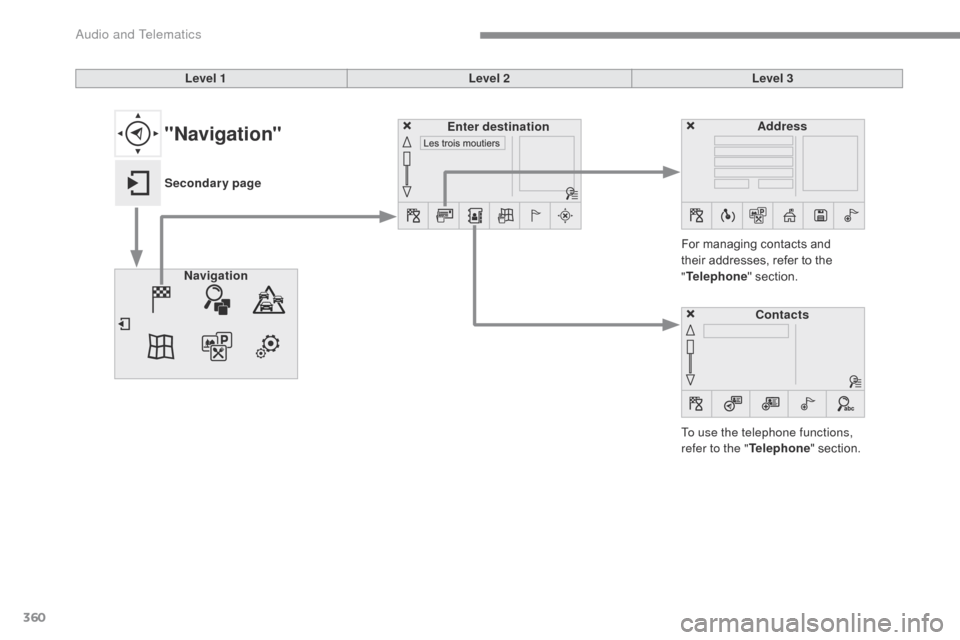
Level 1Level 2Level 3
To use the telephone functions,
refer to the " Telephone"
section.
For
managing contacts and
t
heir addresses, refer to the
"T
elephone"
section.
Navigation Address
Enter destination
Contacts
"Navigation"
Secondary page
Audio and Telematics
Page 375 of 420
373
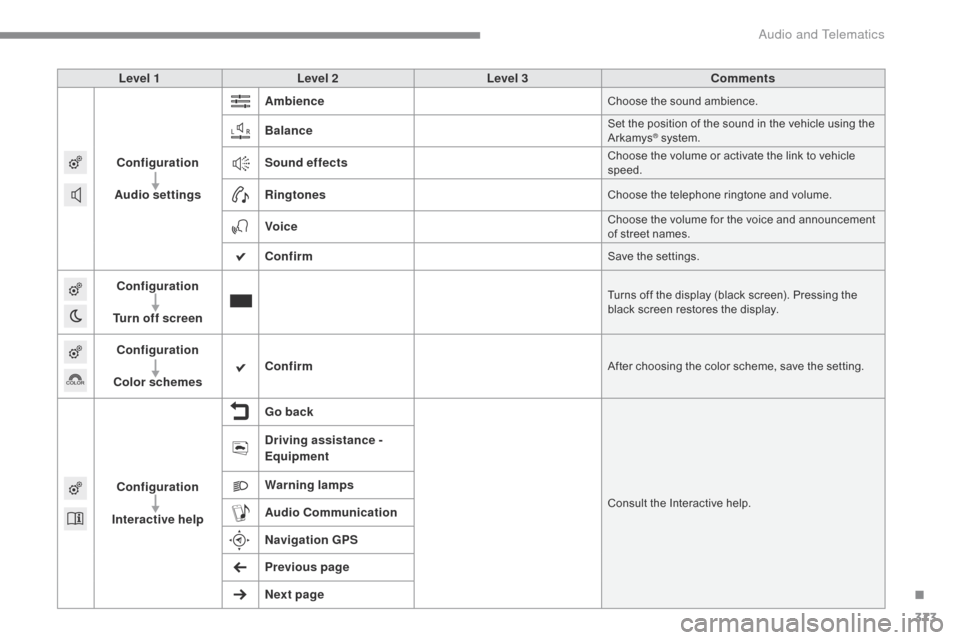
Level 1Level 2 Level 3 Comments
Configuration
Audio settings Ambience
Choose the sound ambience.
BalanceSet the position of the sound in the vehicle using the A
rkamys® system.
Sound effectsChoose the volume or activate the link to vehicle speed.
RingtonesChoose the telephone ringtone and volume.
VoiceChoose the volume for the voice and announcement o f street names.
ConfirmSave the settings.
Configuration
Turn off screenTurns off the display (black screen). Pressing the b lack screen restores the display.
Configuration
Color schemes ConfirmAfter choosing the color scheme, save the setting.
Configuration
Interactive help Go backConsult the Interactive help.
Driving assistance -
Equipment
Warning lamps
Audio
Communication
Navigation GPS
Previous page
Next page
.
Audio and Telematics
Page 384 of 420
382
Connected services
Level 1 Level 2
"Connected services"
Primary page
Driving assistance
a
pplications, see the
"CITR
oËn M
ulticity
Connect"*
s
ection. Identification
DUN connection settings Transfer rate Certain
new generation
s
martphones are not compatible
w
ith this standard.
Secondary page
Internet navigation via Bluetooth
t
elephone Dial-Up Networking
(
DUN).
*
Depending on country.
Audio and Telematics