Page 330 of 401
Multifunction screens
2
C3-additif_en_Chap02_Ecrans-multifonction_ed01-2015
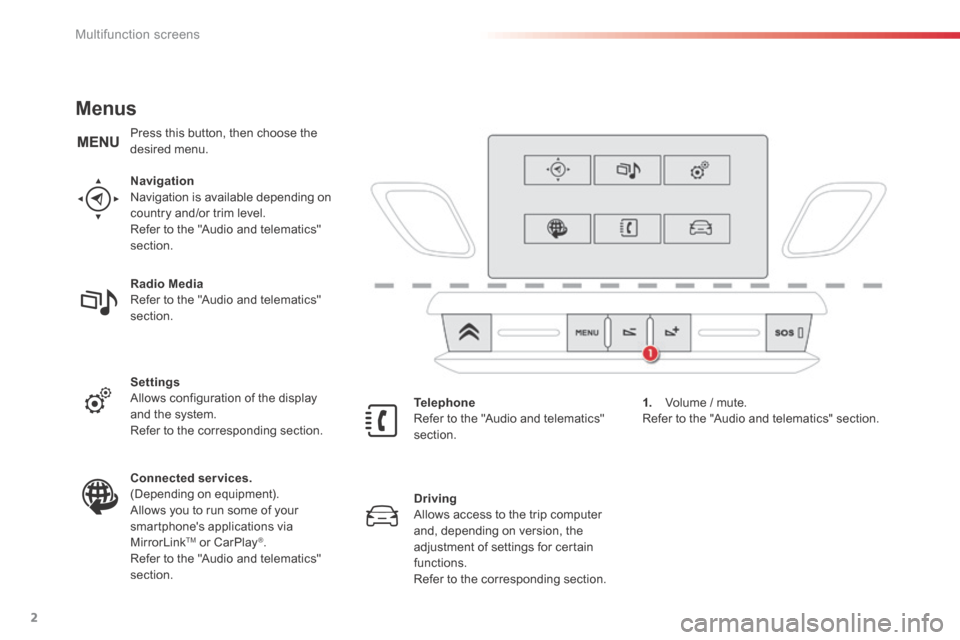
Menus
Navigation Navigation is available depending on country and/or trim level. Refer to the "Audio and telematics" section.
Telephone Refer to the "Audio and telematics"
section.
1. Volume / mute. Refer to the "Audio and telematics" section.
Radio Media Refer to the "Audio and telematics" section.
Settings Allows configuration of the display and the system.
Refer to the corresponding section.
Connected services. (Depending on equipment). Allows you to run some of your smartphone's applications via
MirrorLinkTM or CarPlay®. Refer to the "Audio and telematics" section.
Driving Allows access to the trip computer and, depending on version, the
adjustment of settings for certain functions. Refer to the corresponding section.
Press this button, then choose the desired menu.
Page 337 of 401
9
C3-additif_en_Chap13b_SMEGplus_ed01-2015
7-inch touch screen tablet
GPS satellite navigation - Multimedia audio - Bluetooth® telephone
Contents
First steps
1 0
Steering mounted controls
1
2
M enus
13
N
avigation
1
4
Navigation - Guidance
2
2
Traffic
26
R
adio Media
2
8
Radio
34
DAB (Digital Audio Broadcasting) radio
3
6
Media
38
Settings
40
Connected services
4
8
MirrorLink
TM 48
C
arPlay® 52
T
elephone
54
Frequently asked questions
6
2
The system is protected in such a way that it will only operate in
your vehicle. As a safety measure, the driver should only carry out operations
which require prolonged attention while the vehicle is stationary.
The display of an energy economy mode message signals that
electrical systems operating are going into standby.
Refer to the energy economy mode section.
.
Audio and Telematics
Page 339 of 401

11
C3-additif_en_Chap13b_SMEGplus_ed01-2015
Volume adjustment (each source is independent,
including traffic announcements (TA) and
navigation instructions).
Mute the sound by pressing simultaneously on
the volume increase and reduce buttons.
Unmute the sound by pressing one of the two
volume buttons. Press Menu
to display the menu
carousel.
Increase volume.
Reduce volume.
Selecting the audio source (depending on
version):
-
"
FM" / "DAB"* / "AM"* stations.
-
"
USB" memory stick.
-
S
martphone via MirrorLink
TM or CarPlay®.
- T
elephone connected by Bluetooth®* and
Bluetooth® audio streaming*.
-
M
edia player connected to the auxiliary
socket (jack, cable not supplied).
* Depending on equipment.
Short-cuts: using the touch buttons in the upper
band of the touch screen tablet, it is possible to
go directly to the selection of the audio source
or the list of stations (or titles, depending on the
s o u r c e).
The screen is of the "resistive" type, it
is necessary to press firmly, particularly
for "flick" gestures (scrolling through a
list, moving the map...). A simple wipe
will not be enough. Pressing with more
than one finger is not recognised.
The screen can be used when wearing
gloves. This technology allows use at
all temperatures. In very high temperatures, the volume
may be limited to protect the system.
The return to normal takes place when
the temperature in the passenger
compartment drops.
To clean the screen, use a soft
non-abrasive cloth (spectacles cloth)
without any additional product.
Do not use pointed objects on the
screen.
Do not touch the screen with wet
hands.
.
Audio and Telematics
Page 340 of 401
12
C3-additif_en_Chap13b_SMEGplus_ed01-2015
Steering mounted controls
Radio: select the previous/next
preset station.
Media: select a genre / artist / folder
from the list.
Select the previous/next entry in a
menu.Decrease volume.
Radio: automatic search for a higher
frequency.
Media: Select next track.
Media, press and hold: fast for ward.
Jump in the list.
Mute: cut the sound by pressing
the volume increase and decrease
buttons simultaneously.
Restore the sound by pressing one of
the two volume buttons. Radio: automatic search for a lower
frequency.
Media: select previous track.
Media, press and hold: fast back.
Jump in the list.
Change the audio source.
Confirm a selection.
Call/end call on the telephone.
Press for more than 2 seconds:
access to the telephone menu. Increase volume.
Audio and Telematics
Page 341 of 401
13
C3-additif_en_Chap13b_SMEGplus_ed01-2015
Menus
Settings
Radio Media
Navigation
Driving
Connected services Telephone
Adjust the settings for sound (balance,
ambience, ...) and the display (language,
units, date, time, ...).
Select an audio source, a radio station, display
photographs.
Enter navigation settings and choose a
destination.
Access to the trip computer.
Activate, deactivate or enter settings for certain
vehicle functions.
Operate certain applications on your
smartphone via MirrorLink
TM or CarPlay®.
Connect a telephone by Bluetooth
®.
Access to the CarPlay® function after
connection of your smartphone by USB cable.
(Depending on equipment)
(Depending on equipment)
.
Audio and Telematics
Page 344 of 401
16
C3-additif_en_Chap13b_SMEGplus_ed01-2015
Level 1Level 2Level 3
To use the telephone functions,
refer to the " Telephone" section.
For managing contacts and
their addresses, refer to the
"
Telephone " section.
Navigation Address
Enter destination
Contacts
Audio and Telematics
Page 367 of 401

39
C3-additif_en_Chap13b_SMEGplus_ed01-2015
It is advisable to restrict file names to
20 characters, without using special characters
(e.g. " " ? ; ù) to avoid any playing and
displaying problems.
Use only USB memory sticks formatted FAT32
(file allocation table). The system supports USB mass
storage portable players, BlackBerry
®
devices or Apple® players via USB
ports. The adaptor cable is not
supplied.
Control of the peripheral device is with
the audio system controls.
Other peripheral devices, not
recognised by the system on
connection, must be connected to the
auxiliary socket using a Jack cable (not
supplied).
It is recommended that the USB cable
for the portable device is used. To protect the system, do not use a
USB hub.
Bluetooth® audio streaming
Streaming allows audio files on your telephone
to be played through the vehicle's speakers.
Connect the telephone: see the " Telephone"
section, then " Bluetooth".
Choose the " Audio" or "All" profile.
If play does not start automatically, it may be
necessary to start the audio playback from the
telephone.
Control is from the peripheral device or by
using the audio system buttons.
Once connected in streaming mode,
the telephone is considered to be a
media source.
It is recommended that you activate
"Repeat " on the Bluetooth
® peripheral.
Connecting Apple® players
Connect the Apple® player to the USB port
using a suitable cable (not supplied).
Play starts automatically.
Control is via the audio system.
The classifications available are those
of the portable device connected
(artists / albums / genres / playlists /
audiobooks / podcasts).
The default classification used is by
artist. To modify the classification used,
return to the first level of the menu
then select the desired classification
(playlists for example) and confirm
to go down through the menu to the
desired track.
The version of software in the audio system
may not be compatible with the generation of
your Apple
® p l aye r.
.
Audio and Telematics
Page 369 of 401
41
C3-additif_en_Chap13b_SMEGplus_ed01-2015
Level 1Level 2 Comments
Settings
Audio settings Ambience
Choose the sound ambience.
Balance Sound distribution using the Arkamys
® system.
Sound effects Set the volume or activate the link to vehicle
speed.
Ringtones Set the telephone ringtone and volume.
Voice Set the volume and voice for speaking street
names.
Confirm Save your settings.
Settings
Turn off screen Function that turns off the display.
Pressing the screen reactivates it.
.
Audio and Telematics