Page 396 of 698
setting, press the “Headlights Off Delay” button on the
touchscreen, and choose either 0 sec, 30 sec, 60 sec or 90
seconds. A check-mark appears next to setting indicating
that the setting has been selected. Press the back arrow
button on the touchscreen to return to the previous
menu, or push the back button on the faceplate.
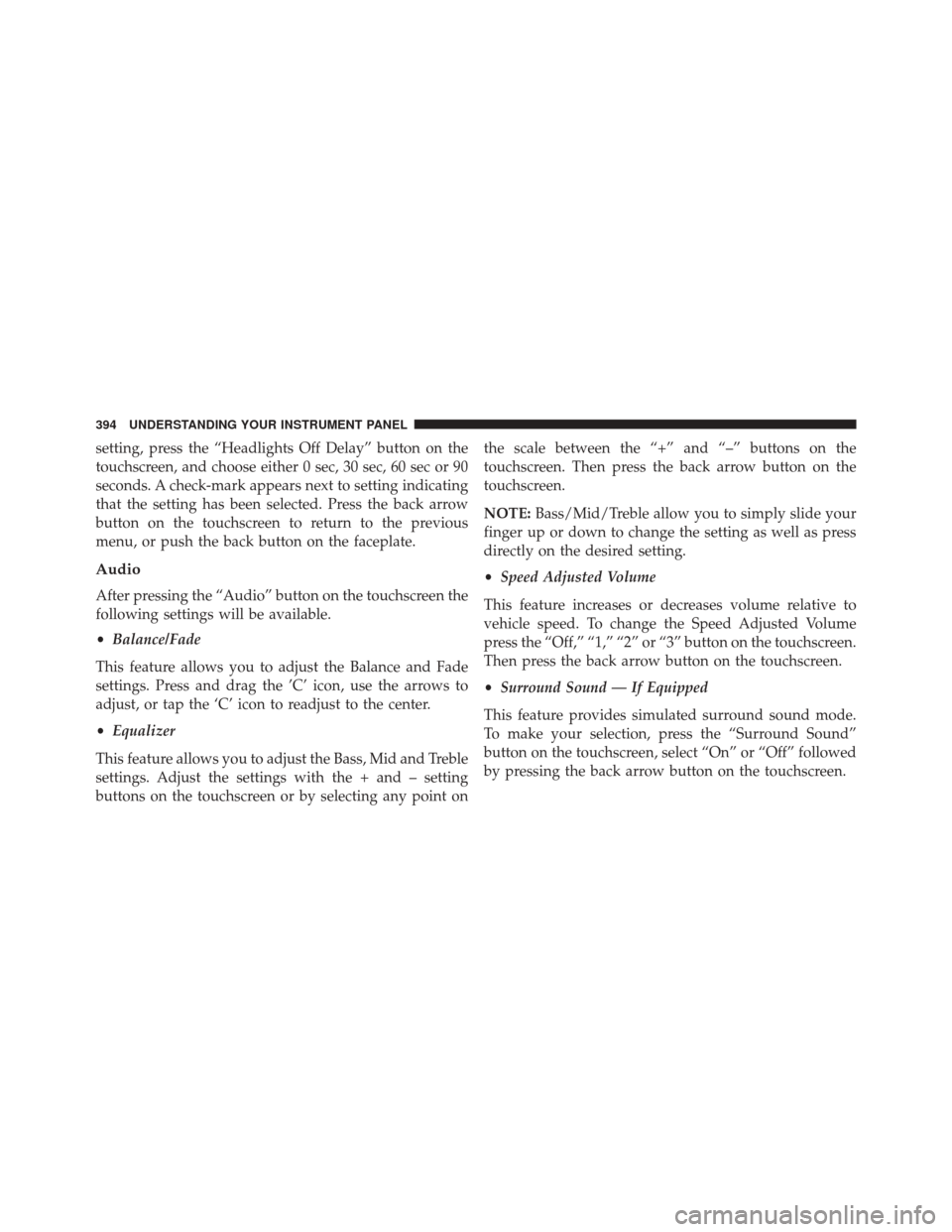
Audio
After pressing the “Audio” button on the touchscreen the
following settings will be available.
•Balance/Fade
This feature allows you to adjust the Balance and Fade
settings. Press and drag the ’C’ icon, use the arrows to
adjust, or tap the ‘C’ icon to readjust to the center.
• Equalizer
This feature allows you to adjust the Bass, Mid and Treble
settings. Adjust the settings with the + and – setting
buttons on the touchscreen or by selecting any point on the scale between the “+” and “–” buttons on the
touchscreen. Then press the back arrow button on the
touchscreen.
NOTE:
Bass/Mid/Treble allow you to simply slide your
finger up or down to change the setting as well as press
directly on the desired setting.
• Speed Adjusted Volume
This feature increases or decreases volume relative to
vehicle speed. To change the Speed Adjusted Volume
press the “Off,” “1,” “2” or “3” button on the touchscreen.
Then press the back arrow button on the touchscreen.
• Surround Sound — If Equipped
This feature provides simulated surround sound mode.
To make your selection, press the “Surround Sound”
button on the touchscreen, select “On” or “Off” followed
by pressing the back arrow button on the touchscreen.
394 UNDERSTANDING YOUR INSTRUMENT PANEL
Page 397 of 698

•AUX Volume Match
This feature provides the ability to tune the audio level
for portable devices connected through the AUX input.
To make your selection, press the AUX Volume Match
button on the touchscreen, choose a level from –3 to +3
followed by pressing the back arrow button on the
touchscreen.
Phone/Bluetooth®
After pressing the “Phone/Bluetooth®” button on the
touchscreen the following settings will be available:
• Paired Devices
This feature shows which phones are paired to the
Phone/Bluetooth® system. For further information, refer
to the Uconnect® Supplement Manual.
SiriusXM Setup
After pressing the SIRIUS Setup button on the touch-
screen the following settings will be available.
• Channel Skip
SiriusXM can be programmed to designate a group of
channels that are the most desirable to listen to, or to exclude
undesirable channels while scanning. To make your selec-
tion, press the Channel Skip button on the touchscreen,
select the channels you would like to skip followed by
pressing the back arrow button on the touchscreen.
•Subscription Information
New vehicle purchasers or lessees will receive a free
limited time subscription to SiriusXM™ Satellite Radio
with your radio. Following the expiration of the free
services, it will be necessary to access the information on
the Subscription Information screen in order to re-
subscribe.
4
UNDERSTANDING YOUR INSTRUMENT PANEL 395
Page 398 of 698

Press the Subscription Info button on the touchscreen to
access the Subscription Information screen.
Write down the SIRIUS ID numbers for your receiver. To
reactivate your service, either call the number listed on
the screen or visit the provider online.
NOTE:SiriusXM Travel Link™ is a separate subscription
and is available for U.S. residents only.
Restore Settings
After pressing the “Restore Settings” button on the
touchscreen the following settings will be available:
• Restore Settings
When this feature is selected it will reset the Display,
Clock, Audio, and Radio Settings to their default settings.
To restore the settings to their default setting, press the
Restore Settings button. A pop-up will appear asking
�Are you sure you want to reset your settings to default?” select Yes to restore, or Cancel to exit. Once the settings
are restored, a pop up appears stating
�settings reset to
default.� Press the okay button on the touchscreen to exit.
Clear Personal Data
After pressing the “Clear Personal Data Settings” button
on the touchscreen the following settings will be avail-
able:
•Clear Personal Data
When this feature is selected it will remove personal data
including Bluetooth® devices and presets. To Clear Per-
sonal Data press the “Yes” or “No” button on the
touchscreen. A check mark will appear in the box when
selected. Then press the back arrow button on the touch-
screen.
396 UNDERSTANDING YOUR INSTRUMENT PANEL
Page 399 of 698
Uconnect® RADIOS — IF EQUIPPED
For detailed information about your Uconnect® radio,
refer to your Uconnect® Supplement Manual.
iPod®/USB/MP3 CONTROL — IF EQUIPPED
Located in the front storage area of the center console,
this feature allows an iPod®/MP3 player, or an external
USB device, to be connected to the audio system.iPod® control supports Mini, 4G, Photo, Nano, 5G iPod®
and iPhone® devices. Some iPod® software versions
USB/AUX Ports
1 — USB Port
2 — AUX Port
4
UNDERSTANDING YOUR INSTRUMENT PANEL 397
Page 400 of 698
may not fully support the iPod® control features. Please
visit Apple’s website for software updates.
For further information, refer to the Uconnect® User ’s
Manual.
STEERING WHEEL AUDIO CONTROLS — IF
EQUIPPED
The remote sound system controls are located on the rear
surface of the steering wheel. Reach behind the wheel to
access the switches.The right-hand control is a rocker-type switch with a
pushbutton in the center and controls the volume and
mode of the sound system. Pushing the top of the rocker
switch will increase the volume, and pushing the bottom
of the rocker switch will decrease the volume.
Remote Sound System Controls (Back View Of SteeringWheel)
398 UNDERSTANDING YOUR INSTRUMENT PANEL
Page 401 of 698

Pushing the center button will make the radio switch
between the various audio modes available (AM/FM/
SXM/AUX, etc.).
The left-hand control is a rocker-type switch with a
pushbutton in the center. The function of the left-hand
control is different depending on which audio mode you
are in.
The following describes the left-hand control operation
while in mode.
Radio Operation
Pushing the top of the switch will “Seek” up for the next
listenable station and pushing the bottom of the switch
will “Seek” down for the next listenable station.
The button located in the center of the left-hand control
will tune to the next preset station that you have pro-
grammed in the radio preset button.
Media Mode
Pushing the top of the switch once will go to the next
track on the selected media (Disc, AUX, Bluetooth®).
Pushing the bottom of the switch once will go to the
beginning of the current track, or to the beginning of the
previous track if it is within eight seconds after the
current track begins to play.
If you push the switch up or down twice, it plays the
second track; three times, it will play the third, etc.
RADIO OPERATION AND MOBILE PHONES
Under certain conditions, the mobile phone being on in
your vehicle can cause erratic or noisy performance from
your radio. This condition may be lessened or eliminated
by relocating the mobile phone antenna. This condition is
not harmful to the radio. If your radio performance does
not satisfactorily “clear” by the repositioning of the
4
UNDERSTANDING YOUR INSTRUMENT PANEL 399
Page 637 of 698
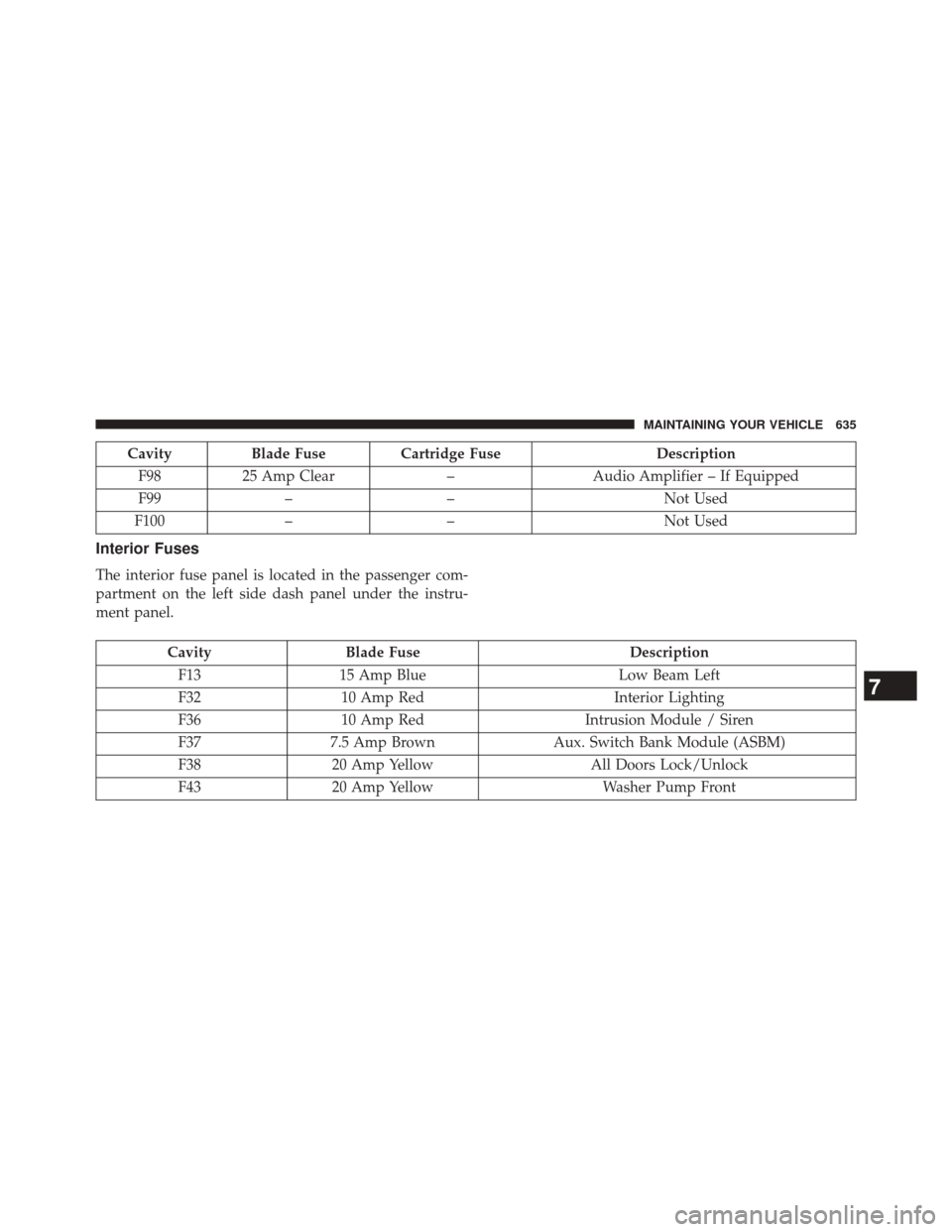
CavityBlade Fuse Cartridge Fuse Description
F98 25 Amp Clear –Audio Amplifier – If Equipped
F99 – – Not Used
F100 – – Not Used
Interior Fuses
The interior fuse panel is located in the passenger com-
partment on the left side dash panel under the instru-
ment panel.
CavityBlade Fuse Description
F13 15 Amp Blue Low Beam Left
F32 10 Amp Red Interior Lighting
F36 10 Amp Red Intrusion Module / Siren
F37 7.5 Amp Brown Aux. Switch Bank Module (ASBM)
F38 20 Amp Yellow All Doors Lock/Unlock
F43 20 Amp Yellow Washer Pump Front
7
MAINTAINING YOUR VEHICLE 635
Page 693 of 698

SpecificationsFuel (Gasoline) ........................ .652
Oil................................. .652
Speed Control (Cruise Control) ................178
Speedometer ............................ .324
Starting .................................27
Cold Weather ......................... .449
Engine Fails to Start .....................450
Remote ...............................27
Starting and Operating .....................448
Starting Procedures ....................... .448
Steering Column Controls ...................... .165
Column Lock ......................... .176
Tilt Column .......................... .176
Wheel, Heated ........................ .177
Wheel, Tilt ........................... .176
Steering Wheel Audio Controls ...............398
Steering Wheel Mounted Sound System Controls . . .398 Storage
............................... .636
Storage, Vehicle .......................... .421
Storing Your Vehicle ...................... .636
Stuck, Freeing ........................... .580
Sunglasses Storage ....................... .279
Sun Roof .............................. .290
Sun Visor Extension ...................... .133
Supplemental Restraint System - Airbag ..........61
Synthetic Engine Oil ...................... .597
System, Remote Starting .....................27
Tachometer ............................. .331
Telescoping Steering Column .................176
Temperature Control, Automatic (ATC) ..........419
Temperature Gauge, Engine Coolant ............331
Tilt Steering Column ...................... .176
Time Delay, Headlight ..................... .161
Tip Start ............................... .449
Tire and Loading Information Placard ...........499
10
INDEX 691
Page:
< prev 1-8 9-16 17-24