2015 CHEVROLET TRAVERSE buttons
[x] Cancel search: buttonsPage 199 of 434

Black plate (15,1)Chevrolet Traverse Owner Manual (GMNA-Localizing-U.S./Canada/Mexico-
7576032) - 2015 - CRC - 8/19/14
Infotainment System 7-15
To change the number of favorite
pages displayed:
1. Press Settings on theHome Page.
2. Press Favorite Pages.
3. Select the number of pages to display.
Recalling a Preset Station
To recall a preset station from a
favorites page, do one the following:
.Press the FAV screen button at
the top bar to display the preset
pop-up. Press one of the preset
screen buttons to go to the
selected preset station.
.In the AM, FM, or SiriusXM (if
equipped) main page, press one
of the preset screen buttons to
go to the selected preset station.
Satellite Radio (Radio
without Touchscreen)
SiriusXM®Satellite Radio
Service
If equipped, SiriusXM is a satellite
radio service based in the
48 contiguous United States and
10 Canadian provinces. SiriusXM
Satellite Radio has a wide variety of
programming and commercial-free
music, coast to coast, and in
digital-quality sound. A service fee
is required to receive the SiriusXM
service. If SiriusXM Service needs
to be reactivated, the radio will
display “No Subscription Please
Renew” on channel XM1. For more
information, contact SiriusXM at
www.siriusxm.com or
1-866-635-2349 (U.S) and
www.xmradio.ca or call
1-877-209-0079 (Canada).
Finding a Station
BAND: Press to switch between
AM, FM, or SiriusXM. The selection
displays.
f(Tune): Turn to select radio
stations.
©SEEK and¨SEEK: Press to go
to the previous or next station and
stay there.
To scan stations, press and hold
©
or¨until a beep sounds. The radio
goes to a station, plays for a few
seconds, then goes to the next
station. Press either arrow again to
stop scanning.
The radio only seeks and scans
stations with a strong signal that are
in the selected band.
Finding a Category (CAT)
Station
CAT (Category): Press to find
SiriusXM stations when the radio is
in the XM mode. To find SiriusXM
channels within a desired category:
1. Press BAND until the SiriusXM frequency displays.
2. Press CAT to display the category tabs.
Page 200 of 434

Black plate (16,1)Chevrolet Traverse Owner Manual (GMNA-Localizing-U.S./Canada/Mexico-
7576032) - 2015 - CRC - 8/19/14
7-16 Infotainment System
3. Continue pressing CAT until thedesired category name displays.
.Radios with CD can also
navigate the category list by
pressing
sREV or
\FWD.
4. Press either of the two buttons below the desired category tab
to immediately tune to the first
SiriusXM station associated with
that category.
5. To go to the next or previous SiriusXM station within the
selected category, do one of the
following:
.Turnf.
.Press the buttons below the
right or left arrows on the
display.
.Press either SEEK arrow.
6. To exit the category search mode, press the FAV button or
BAND button to display the
favorites again. Undesired SiriusXM categories can
be removed through the setup
menu. To remove an undesired
category, perform the following:
1. Press MENU to display the radio
setup menu.
2. Press the softkey below the XM CAT tab.
3. Turn
fto display the category to
be removed.
4. Press the softkey under the Remove tab until the category
name along with the word
Removed displays.
5. Repeat the steps to remove more categories.
Removed categories can be
restored by pressing the softkey
under the Add tab when a removed
category is displayed or by pressing
the softkey under the Restore
All tab.
Categories cannot be removed or
added while the vehicle is moving
faster than 8 km/h (5 mph).
Storing a Radio Station as a
Favorite
Drivers are encouraged to set up
their radio station favorites while the
vehicle is in P (Park). Tune to
favorite stations using the presets,
favorites button, and steering wheel
controls. See Steering Wheel
Controls (Radio with Touchscreen)
on page 5-3 orSteering Wheel
Controls (Radio without
Touchscreen) on page 5-2.
FAV (Favorites): A maximum of
36 stations can be programmed as
favorites using the six softkeys
below the radio station frequency
tabs and by using the radio favorites
page button (FAV button). Press to
go through up to six pages of
favorites, each having six favorite
stations available per page. Each
page of favorites can contain any
combination of AM, FM, or SiriusXM
stations.
The balance/fade and tone settings
that were previously adjusted are
stored with the favorite stations.
Page 211 of 434

Black plate (27,1)Chevrolet Traverse Owner Manual (GMNA-Localizing-U.S./Canada/Mexico-
7576032) - 2015 - CRC - 8/19/14
Infotainment System 7-27
To connect an iPod, connect one
end of the USB cable that came
with the iPod to the iPod’s dock
connector and connect the other
end to the USB port located in the
instrument panel storage area. If the
vehicle is on and the USB
connection works,“OK to
disconnect” and a GM logo may
appear on the iPod, and iPod
appears on the radio's display. The
iPod music appears on the radio’s
display and begins playing.
The iPod charges while it is
connected to the vehicle if the
vehicle is in the ACC/ACCESSORY
or ON/RUN position. When the
vehicle is turned off, the iPod
automatically powers off and will not
charge or draw power from the
vehicle's battery. If you have an older iPod model that
is not supported, it can still be used
by connecting it to the auxiliary
input jack using a standard 3.5 mm
(1/8 in) stereo cable. See
Clock
(Radio without Touchscreen) on
page 5-8 orClock (Radio with
Touchscreen) on page 5-8.
Using the Radio to Control a
USB Storage Device or iPod
The radio can control a USB
storage device or an iPod using the
radio buttons and knobs and display
song information on the radio’s
display.
f(Tune): Turn to select files.
©SEEK:Press to go to the start of
the current track, if more than
10 seconds on the track have
played, otherwise goes to the
previous track. Press and hold or
press multiple times to continue
moving backward through tracks.
¨SEEK: Press to go to the next
track. Press and hold or press
multiple times to continue moving
forward through tracks.
sREV (Reverse): Press and hold
to reverse playback quickly. Sound
is heard at a reduced volume.
Release
sREV to resume playing.
The elapsed time of the file
displays.
\FWD (Fast Forward): Press
and hold to advance playback
quickly. Sound is heard at a reduced
volume. Release
\FWD to
resume playing. The elapsed time of
the file displays.
4(Information): Press to display
additional information about the
selected track.
Using Softkeys to Control a
USB Storage Device or iPod
The five softkeys below the radio
display are used to control the
functions listed below.
Page 214 of 434

Black plate (30,1)Chevrolet Traverse Owner Manual (GMNA-Localizing-U.S./Canada/Mexico-
7576032) - 2015 - CRC - 8/19/14
7-30 Infotainment System
.Maximum number of folders:
eight folders with 255 files per
folder.
.Maximum of 1,000 files on
a disc.
.Recorded on a CD-R or CD-RW
with a maximum capacity of
700 MB.
.The Artist/Album/Song Titles/
Genre information requires a CD
to be fully scanned before the
music navigator works with
these menus.
MP3 Audio
Press the Menu screen button while
that source is active to access the
MP3 Audio Menu.
Press any of the following buttons
on the MP3 Audio Menu:
Folders: Press to view the folders
stored on the disc. Select a folder to
view the list of all songs in that
folder. There might be a delay
before the list displays. Select a
song from the list to begin playback.
Playlists: Press to view the
playlists stored on the disc. Select a
playlist to view the list of all songs in
that playlist. There might be a delay
before the list displays. Select a
song from the list to begin playback.
Artists: Press to view the list of
artists stored on the disc. Select an
artist name to view a list of all songs by the artist. There might be a delay
before the list displays. Select a
song from the list to begin playback.
Genres:
Press to view the genres.
Select a genre to view a list of all
songs of that genre. Select a song
from the list to begin playback.
Albums: Press to view the albums
on the disc. Select the album to
view a list of all songs on the album.
There might be a delay before the
list displays. Select a song from the
list to begin playback.
Composers: Press to view the
Composers stored on the disc.
There might be a delay before the
list displays. The Composers menu
displays. Select a composer to
display a list of albums from the
composer.
Tracks (Song Titles): Press to
display a list of all songs on the
disc. Songs are displayed as stored
on the disc. There might be a delay
before the list displays. To begin
playback, select a song from the list.
Page 215 of 434

Black plate (31,1)Chevrolet Traverse Owner Manual (GMNA-Localizing-U.S./Canada/Mexico-
7576032) - 2015 - CRC - 8/19/14
Infotainment System 7-31
Root Directory
The root directory is treated as a
folder. All files contained directly
under the root directory are
accessed prior to any root directory
folders.
Empty Folders
If a root directory or folder is empty
or contains only folders, the player
advances to the next folder in the
file structure that contains a
compressed audio file. The empty
folder(s) are not displayed or
numbered.
No Folder
When the CD only contains
compressed audio files without any
folders or playlists, all files are
under the root folder.
File System and Naming
The song titles, artists, albums, and
genres are taken from the file's ID3
tag and are only displayed if present
in the tag. If a song title is notpresent in the ID3 tag, the radio
displays the file name as the
track name.
Preprogrammed Playlists
The radio recognizes
preprogrammed playlists; however,
there is no editing capability. These
playlists are treated as special
folders containing compressed
audio song files.
Auxiliary Devices
The vehicle has a 3.5 mm (1/8 in)
auxiliary input jack on the faceplate
and a USB port in the center stack.
If equipped, there are two USB
ports on the rear of the center
console that can be used for
charging only. They can charge
devices that draw 2.1 amps or less.
See the device’
s owner manual for
the specification.
Using the 3.5 mm (1/8 in)
Auxiliary Input Jack
This is not an audio output; do not
plug a headphone set into the front
auxiliary input jack. Connect an
auxiliary input device such as an
iPod, laptop computer, MP3 player,
CD player, or cassette tape player
to the auxiliary input jack for use as
another source for audio listening.
Drivers are encouraged to set up
any auxiliary device while the
vehicle is in P (Park). See
Defensive Driving on page 9-3 for
more information on driver
distraction.
To use an auxiliary input device,
connect a 3.5 mm (1/8 in) cable to
the radio's front auxiliary input jack.
Press SRCE to select the device.
Using the USB Port
The USB port can control a USB
storage device or an iPod using the
radio buttons and knobs.
Page 217 of 434

Black plate (33,1)Chevrolet Traverse Owner Manual (GMNA-Localizing-U.S./Canada/Mexico-
7576032) - 2015 - CRC - 8/19/14
Infotainment System 7-33
P(Power):Press to turn the RSA
on or off.
Volume: Turn to increase or to
decrease the volume of the wired
headphones. The left knob controls
the left headphones and the right
knob controls the right headphones.
SRCE (Source): Press to select
between the radio, CD, and if the
vehicle has these features, DVD,
front auxiliary, and rear auxiliary.
©or¨(Seek): Press to go to the
previous or to the next station and
stay there. This function is inactive,
with some radios, if the front seat
passengers are listening to the
radio. Press and hold
©or¨until the
display flashes to tune to an
individual station. The display stops
flashing after the buttons have not
been pressed for more than
two seconds. This function is
inactive, with some radios, if the
front seat passengers are listening
to the radio.
While listening to a disc, press
¨to
go to the next track or chapter on
the disc. Press
©to go back to the
start of the current track or chapter
(if more than 10 seconds have
played). This function is inactive,
with some radios, if the front seat
passengers are listening to the disc.
When a DVD video menu is being
displayed, press
©or¨to perform a
cursor up or down on the menu.
Hold
©or¨to perform a cursor left
or right on the menu. PROG (Program):
Press to go to
the next preset radio station or
channel set on the main radio. This
function is inactive, with some
radios, if the front seat passengers
are listening to the radio.
When a CD or DVD audio disc is
playing, press PROG to go to the
beginning of the CD or DVD audio.
This function is inactive, with some
radios, if the front seat passengers
are listening to the disc.
When a disc is playing in the CD or
DVD changer, press PROG to
select the next disc if multiple discs
are loaded. This function is inactive,
with some radios, if the front seat
passengers are listening to the disc.
When a DVD video menu is being
displayed, press PROG to perform
the ENTER menu function.
Page 219 of 434
Black plate (35,1)Chevrolet Traverse Owner Manual (GMNA-Localizing-U.S./Canada/Mexico-
7576032) - 2015 - CRC - 8/19/14
Infotainment System 7-35
When to Speak:A short tone
sounds after the system responds
indicating when it is waiting for a
voice command. Wait until the tone
and then speak.
How to Speak: Speak clearly in a
calm and natural voice.
Audio System
When using the in-vehicle Bluetooth
system, sound comes through the
vehicle's front audio system
speakers and overrides the audio
system. Use the audio system
volume knob, during a call, to
change the volume level. The
adjusted volume level remains in
memory for later calls. To prevent
missed calls, a minimum volume
level is used if the volume is turned
down too low.
Bluetooth Controls
Use the buttons located on the
steering wheel to operate the
in-vehicle Bluetooth system. See
Steering Wheel Controls (Radio with
Touchscreen) on page 5-3 or
Steering Wheel Controls (Radio
without Touchscreen) on page 5-2.
b/g(Press To Talk): Press to
answer incoming calls, confirm
system information, and start
speech recognition.
c/x(End): Press to end a call,
reject a call, or cancel an operation.
Pairing
A Bluetooth enabled cell phone
must be paired to the Bluetooth
system and then connected to the
vehicle before it can be used. See
the cell phone manufacturer's user
guide for Bluetooth functions before
pairing the cell phone. If a Bluetooth
phone is not connected, calls will be
made using OnStar Hands-Free
Calling, if equipped. See “OnStar”if
equipped. Pairing Information
.A Bluetooth phone with MP3
capability cannot be paired to
the vehicle as a phone and an
MP3 player at the same time.
.Up to five cell phones can be
paired to the Bluetooth system.
.The pairing process is disabled
when the vehicle is moving.
.Pairing only needs to be
completed once, unless the
pairing information on the cell
phone changes or the cell phone
is deleted from the system.
.Only one paired cell phone can
be connected to the Bluetooth
system at a time.
.If multiple paired cell phones are
within range of the system, the
system connects to the first
available paired cell phone in the
order that they were first paired
to the system. To connect to a
different paired phone, see
“Connecting to a Different
Phone”
later in this section.
Page 232 of 434
Black plate (4,1)Chevrolet Traverse Owner Manual (GMNA-Localizing-U.S./Canada/Mexico-
7576032) - 2015 - CRC - 8/19/14
8-4 Climate Controls
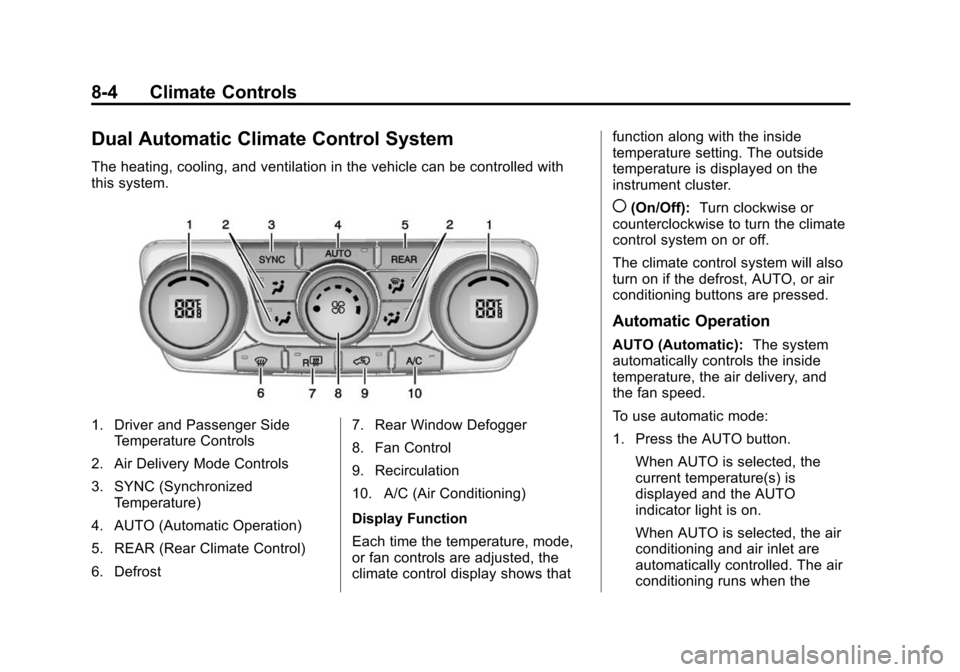
Dual Automatic Climate Control System
The heating, cooling, and ventilation in the vehicle can be controlled with
this system.
1. Driver and Passenger SideTemperature Controls
2. Air Delivery Mode Controls
3. SYNC (Synchronized Temperature)
4. AUTO (Automatic Operation)
5. REAR (Rear Climate Control)
6. Defrost 7. Rear Window Defogger
8. Fan Control
9. Recirculation
10. A/C (Air Conditioning)
Display Function
Each time the temperature, mode,
or fan controls are adjusted, the
climate control display shows thatfunction along with the inside
temperature setting. The outside
temperature is displayed on the
instrument cluster.
((On/Off):
Turn clockwise or
counterclockwise to turn the climate
control system on or off.
The climate control system will also
turn on if the defrost, AUTO, or air
conditioning buttons are pressed.
Automatic Operation
AUTO (Automatic): The system
automatically controls the inside
temperature, the air delivery, and
the fan speed.
To use automatic mode:
1. Press the AUTO button.
When AUTO is selected, the
current temperature(s) is
displayed and the AUTO
indicator light is on.
When AUTO is selected, the air
conditioning and air inlet are
automatically controlled. The air
conditioning runs when the