2015 CHEVROLET SPARK lock
[x] Cancel search: lockPage 129 of 363

Black plate (34,1)Chevrolet Spark Owner Manual (GMNA-Localizing-U.S./Canada-7707489) -
2015 - CRC - 11/19/14
5-34 Instruments and Controls
Vehicle Location Lights
Select to turn the Vehicle Location
Lights on or off.
Select On or Off. Press
4.
Power Door Locks
Select Power Door Locks and the
following may be displayed:
.Auto Door Unlock
.Unlocked Door Anti Lock Out
.Delayed Door Lock
Auto Door Unlock
Select to set which of the doors will
automatically unlock when the
vehicle is shifted into P (Park).
Select All Doors, Driver Door, or Off.
Press
4.
Unlocked Door Anti Lock Out
When on, this feature will keep the
driver door from locking when the
door is open. If Off is selected, the Delayed Door Lock menu will be
available and the door will lock as
programmed through this menu.
Select On or Off. Press
4.
Delayed Door Lock
When on, this feature will delay the
locking of the doors until
five seconds after the last door is
closed. Three chimes will signal that
delayed locking is in use. Pressing
either
QorKon the RKE
transmitter twice will override the
delayed locking feature and
immediately lock all of the doors.
Select On or Off. Press
4.
Lock, Unlock Settings
Select Lock, Unlock Settings and
the following may be displayed:
.Remote Unlock Light Feedback
.Remote Lock Light & Horn
Feedback
.Remote Door Unlock Remote Unlock Light Feedback
When on, the exterior lamps will
flash when unlocking the vehicle
with the RKE transmitter.
Select Flash Lights or Lights Off.
Press
4.
Remote Lock Light & Horn
Feedback
Select to set what type of feedback
is given when pressing
Qon the
RKE transmitter.
Select Lights Only, Lights & Horn,
Horn Only, or Off. Press
4.
Remote Door Unlock
Select to set which doors will unlock
when pressing
Kon the RKE
transmitter.
Select All Doors or Driver Door.
When set to Driver Door, the driver
door will unlock the first time
Kis
pressed and all doors will unlock
when the button is pressed a
Page 130 of 363

Black plate (35,1)Chevrolet Spark Owner Manual (GMNA-Localizing-U.S./Canada-7707489) -
2015 - CRC - 11/19/14
Instruments and Controls 5-35
second time. When set to All Doors,
all of the doors will unlock at the first
press of
K. Press4.
Rear Camera Option
Select the Rear Camera Option
menu and the following may be
displayed:
.Guidelines
Guidelines
When on, guidelines overlay the
screen to help when backing into a
parking spot.
Select On or Off. Press
4.
Vehicle Factory Settings
Select Vehicle Factory Settings to
return all of the vehicle
personalization to the default
settings. Press Vehicle Factory
Settings when highlighted. Select
Yes or No. Press
4.
Text Scroll
Select to set the Text Scroll feature
on or off. When on, if there is long text
displayed on the audio screen, the
text is scrolled. When off, the text is
scrolled once and displayed in
truncated form.
Select On or Off. Press
4.
Touch Beep Sound
Select to set the Touch Beep Sound
feature on or off.
When on, a beep will be heard
when pressing the screen. When
off, the beep is canceled.
Select On or Off. Press
4.
Max Startup Volume
Select to set the startup volume of
the infotainment system.
Press
SorTto select the desired
volume between 9-21. Press
4.
System Version
Press System Version when
highlighted to view the version of
the infotainment system. Press
4.
DivX VOD
Press DivX VOD when highlighted.
.DIVX VIDEO: DivX is a digital
video format created by DivX,
LLC, a subsidiary of Rovi
Corporation. This is an official
DivX Certified
®device that plays
DivX video. See divx.com for
more information and software
tools on how to convert files into
DivX videos.
.DIVX VIDEO-ON DEMAND: This
DivX Certified device must be
registered in order to play
purchased DivX
Video-on-Demand (VOD)
movies. To obtain a registration
code, locate the DivX VOD
section in the device setup
menu. See vod.divx.com for
more information on how to
complete the registration.
Press
4.
Page 141 of 363

Black plate (4,1)Chevrolet Spark Owner Manual (GMNA-Localizing-U.S./Canada-7707489) -
2015 - CRC - 11/19/14
7-4 Infotainment System
7.©SEEK (Previous)
.Press to seek the previous
station.
.Press and hold to reverse
through the currently playing
song on an external audio
device.
8. AUX (Auxiliary)
.Press to access the auxiliary
input device.
9. RADIO/BAND
.Press to select AM or FM.
.Press to select the radio
when listening to a different
audio source. 10.
H(Clock)
.Press to enter the Time and
Date settings menu.
11. TONE
.Press to open the
Tone menu.
12. CONFIG (Configuration)
.Press to open the System
Configuration menu. 13.
/BACK
.Press to go to the previous
screen.
.Press to cancel entered
content.
14.
5/>(Phone/Mute)
.Press to open the Phone
main menu.
.Press to mute the audio
system.
Page 156 of 363
Black plate (19,1)Chevrolet Spark Owner Manual (GMNA-Localizing-U.S./Canada-7707489) -
2015 - CRC - 11/19/14
Infotainment System 7-19
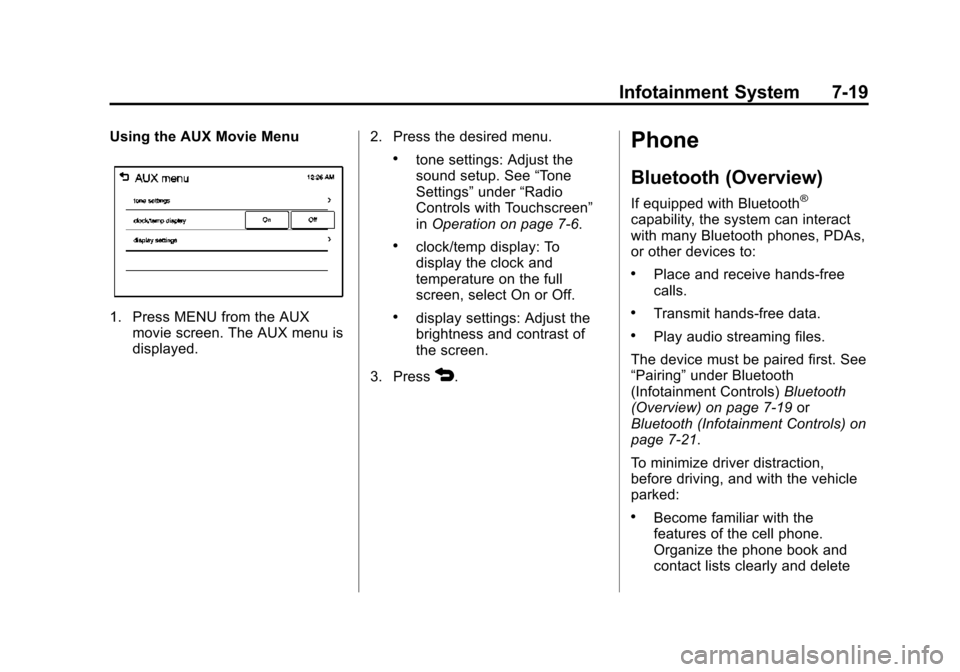
Using the AUX Movie Menu
1. Press MENU from the AUXmovie screen. The AUX menu is
displayed. 2. Press the desired menu.
.tone settings: Adjust the
sound setup. See
“Tone
Settings” under“Radio
Controls with Touchscreen”
in Operation on page 7-6.
.clock/temp display: To
display the clock and
temperature on the full
screen, select On or Off.
.display settings: Adjust the
brightness and contrast of
the screen.
3. Press
4.
Phone
Bluetooth (Overview)
If equipped with Bluetooth®
capability, the system can interact
with many Bluetooth phones, PDAs,
or other devices to:
.Place and receive hands-free
calls.
.Transmit hands-free data.
.Play audio streaming files.
The device must be paired first. See
“Pairing” under Bluetooth
(Infotainment Controls) Bluetooth
(Overview) on page 7-19 or
Bluetooth (Infotainment Controls) on
page 7-21.
To minimize driver distraction,
before driving, and with the vehicle
parked:
.Become familiar with the
features of the cell phone.
Organize the phone book and
contact lists clearly and delete
Page 167 of 363

Black plate (30,1)Chevrolet Spark Owner Manual (GMNA-Localizing-U.S./Canada-7707489) -
2015 - CRC - 11/19/14
7-30 Infotainment System
.Connect Andriod™phones
through Bluetooth.
iPod/iPhone Error Messages and
Solution
If the system fails to activate the
application on the iPod/iPhone
connected, an error message is
displayed as, “Unable to start
application, possible reasons.”
.Your iPhone is locked. To
resolve, unlock the iPhone.
.You have another active
application open. To resolve,
close the other active
application.
.You have not installed the
application on your iPhone. To
resolve, install the application on
the iPhone.
iOS Version Error
If the iOS version of the iPhone is
less than 4.0, the error message is
displayed as, “Your iPhone does not
allow this application to be opened
on a USB connection. Please refer
to owner ’s manual.”
.Activate the application on your
iPhone, then press the desired
application menu on the
infotainment system.
Connecting Application Error
If the infotainment system fails to
activate the application on the
smartphone connected through
Bluetooth wireless technology, the
error message is displayed as,
“Connecting application failed.”
.Reset all settings related to the
phone, then press the desired
application menu on the
infotainment system.
.Reconnect the smartphone and
infotainment system through
Bluetooth wireless technology,
then press the desired
application menu on the
infotainment system.
.When the application is stopped
on the smartphone, it usually
takes time to return to normal
operation. Try to activate the
application after 10–20 seconds. To switch to another application
while playing an application and
connected through the USB port,
press HOME on the iPod/iPhone,
then press the application icon on
the infotainment system.
Switching Between a USB
Connected Device and a
Bluetooth Device
When the iPhone is connected to
the infotainment system through the
USB port, and the infotainment
system is connected to another
phone through Bluetooth wireless
technology, press iPhone or
bluetooth phone on the smartphone
list menu to switch between the two
applications.
Displaying or Hiding Application
Icons
To display or hide application icons
on the smartphone link menu:
1. Press
D.
2. Press
^smartphone link.
Page 177 of 363

Black plate (40,1)Chevrolet Spark Owner Manual (GMNA-Localizing-U.S./Canada-7707489) -
2015 - CRC - 11/19/14
7-40 Infotainment System
2. Press the appropriate menu:
.picture file list: lists all picture
files.
.sort by title: shows pictures
in title order.
.sort by date: shows pictures
in date order.
.slide show time: allows
selection of the slide show
interval.
.clock/temp display: allows
selection of On or Off to
show the clock and
temperature on the full
screen.
.display settings: adjusts for
Brightness and Contrast.
3. Press
4to exit.
Pictures and Movies
(Movie System)
The infotainment system can play
movie files stored on a USB storage
device and devices that support
Media Transfer Protocol (MTP).
Movie System Information
Caution for Using Movie Files
.Available resolution: Within 720
x 576 (W x H) pixels.
.Frame rate: Less than 30 fps.
.Playable movie file: .avi, .mpg,
.mp4, .divx, .xvid, .wmv. The
playable movie file may not be
played according to the codec
format.
.Playable codec format: divx,
xvid, mpeg-1, mpeg-4 (mpg4,
mp42, mp43), wmv9 (wmv3).
.Playable Audio format: MP3,
AC3, AAC, WMA.
.Max video bitrate:
‐ mpeg-1: 8 Mbps
‐ mpeg-4 (mpg4, mp42, mp43):
4 Mbps
‐ wmv9: 3 Mbps
‐ divx 3: 3 Mbps
‐ divx 4/5/6: 4.8 Mbps
‐ xvid: 4.5 Mbps
.Max audio bitrate:
‐mp3: 320 Kbps
‐ wma: 320 Kbps
‐ ac-3: 640 Kbps
‐ aac: 449 Kbps
.Movie files to which Digital Right
Management (DRM) is applied
may not be played.
Playing a Movie File
1. Connect the USB device to the USB port.
Page 178 of 363

Black plate (41,1)Chevrolet Spark Owner Manual (GMNA-Localizing-U.S./Canada-7707489) -
2015 - CRC - 11/19/14
Infotainment System 7-41
2. Press the screen to open to fullscreen. Press the screen again
to return to the previous screen.
If the USB device is already
connected:
1. Press
D.
2. Press
Gpicture & movie.
3. Press Source
R.
4. Press USB movie.
Movie is not available while driving.
Viewing a Slide Show
From the picture screen, press
z.
.The slide show will start to play.
.Press the screen to cancel the
slide show during the slide show
playback.
.The last played audio source will
play as background music
during the slide show playback. Pause
.Pressjto pause.
.Pressrto resume.
Changing to Next/Previous Movie
.Pressuto change to the
next file.
.Presstwithin five seconds of
the playback time to play the
previous file.
Returning to the Beginning of the
Current Movie
Press
tafter five seconds of the
playback time.
Scanning Forward or Backward
Press and hold
toruduring
playback to rewind or fast forward.
Release the button to resume
playback at normal speed. Viewing Full Screen
Press
tfrom the movie screen.
Press
tagain to return to the
previous screen.
Using the USB Movie Menu
1. Press MENU from the movie screen.
2. Press the appropriate menu:
.movie file list: lists all movie
files.
.clock/temp display: allows
selection of On or Off to
show the clock and
temperature on the full
screen.
Page 182 of 363

Black plate (1,1)Chevrolet Spark Owner Manual (GMNA-Localizing-U.S./Canada-7707489) -
2015 - CRC - 11/19/14
Climate Controls 8-1
Climate Controls
Climate Control Systems
Climate Control Systems . . . . . . 8-1
Air Vents
Air Vents . . . . . . . . . . . . . . . . . . . . . . 8-3
Maintenance
Air Intake . . . . . . . . . . . . . . . . . . . . . 8-4
Passenger Compartment AirFilter . . . . . . . . . . . . . . . . . . . . . . . . . 8-4
Climate Control
Systems
The heating, cooling, and ventilation
for the vehicle can be controlled
with this system.
1. Fan Control
2. Air Conditioning
3. Recirculation
4. Temperature Control
5. Rear Window Defogger
6. Air Delivery Mode Control
A(Fan Control): Turn clockwise
or counterclockwise to increase or
decrease the fan speed. Turning the
fan control to 0 turns the fan off. The
fan must be turned on to run the air
conditioning compressor.
Temperature Control: Turn
clockwise or counterclockwise to
increase or decrease the
temperature.
Air Delivery Mode Control: Turn
clockwise or counterclockwise to
change the current airflow mode.
Select from the following air delivery
modes:
Y(Vent): Air is directed to the
instrument panel outlets.
\(Bi-Level): Air is divided
between the instrument panel and
floor outlets.
[(Floor): Air is directed to the
floor outlets.