Page 25 of 403

Black plate (18,1)Chevrolet Sonic Owner Manual (GMNA-Localizing-U.S./Canada-7707487) -
2015 - crc - 10/31/14
1-18 In Brief
quickly, FCA provides a red flashing
alert and rapidly beeps. This alert
stays lit if you follow a vehicle much
too closely.
SeeForward Collision Alert (FCA)
System on page 9-32.
Lane Departure
Warning (LDW)
If equipped, LDW may help avoid
unintentional lane departures at
speeds of 56 km/h (35 mph) or
greater. LDW uses a camera sensor
to detect the lane markings. The
LDW light,
@, is green if a lane
marking is detected. If the vehicle
departs the lane without using a turn
signal in that direction, the light will
change to amber and flash. In
addition, beeps will sound.
See Lane Departure Warning (LDW)
on page 9-36.
Rear Vision
Camera (RVC)
If equipped, RVC displays a view of
the area behind the vehicle, on the
center stack display, when the
vehicle is shifted into R (Reverse).
See Rear Vision Camera (RVC) on
page 9-34.
Power Outlets
The accessory power outlets can be
used to plug in electrical equipment,
such as a cell phone or MP3 player.
The vehicle has an accessory
power outlet in front of the
cupholders on the center floor
console.
See Power Outlets on page 5-7.
Sunroof
On vehicles with this feature, the
sunroof only operates when the
ignition is turned to ON/RUN or
Retained Accessory Power (RAP) is
active.
Open/Close: To open the sunroof,
press and hold the rear of the
switch. To close the sunroof, press
and hold the front of the switch.
Vent: Press and hold the front of
the switch to vent the sunroof.
Page 136 of 403
Black plate (33,1)Chevrolet Sonic Owner Manual (GMNA-Localizing-U.S./Canada-7707487) -
2015 - crc - 10/31/14
Instruments and Controls 5-33
.Turn on or off the Bluetooth
connection
.Make the infotainment system
discoverable by Bluetooth
devices
.Check the device information
Change Ringtone
Select to set different ringtones.
Ringtone Volume
Select to set the ringtone volume.
Press
SorT.
Vehicle Settings
Select and the following may
display:
.Climate & Air Quality
.Comfort & Convenience
.Collision/Detection
.Lighting
.Power Door Locks
.Lock, Unlock Settings
.Rear Camera Option
.Vehicle Factory Settings
Climate & Air Quality
Select and Remote Start Heated
Seats may display.
Select On or Off.
Comfort and Convenience
Select the and the following may
display:
.Chime Volume
.Auto Wipe in Reverse Gear
Chime Volume
Select to set the chime volume
level.
Select Normal or High.
Auto Wipe in Reverse Gear
Select to set this feature on or off.
When on, and the front wipers are
on, the rear window wiper will turn
on automatically when the vehicle is
shifted into R (Reverse).
Select On or Off.
Collision/Detection
Select and Park Assist may display.
Select On or Off.
Lighting
Select and the following may
display:
.Exit Lighting
.Vehicle Locator Lights
Exit Lighting
Select to set how long the exterior
lamps stay on when leaving the
vehicle and it is dark outside.
Select Off, 30 Sec, 60 Sec,
or 120 Sec.
Vehicle Locator Lights
This allows selection of how long
the exterior lamps stay on when
leaving the vehicle and it is dark
outside.
Select On or Off.
Page 247 of 403
Black plate (34,1)Chevrolet Sonic Owner Manual (GMNA-Localizing-U.S./Canada-7707487) -
2015 - crc - 10/31/14
9-34 Driving and Operating
Selecting the Alert Timing
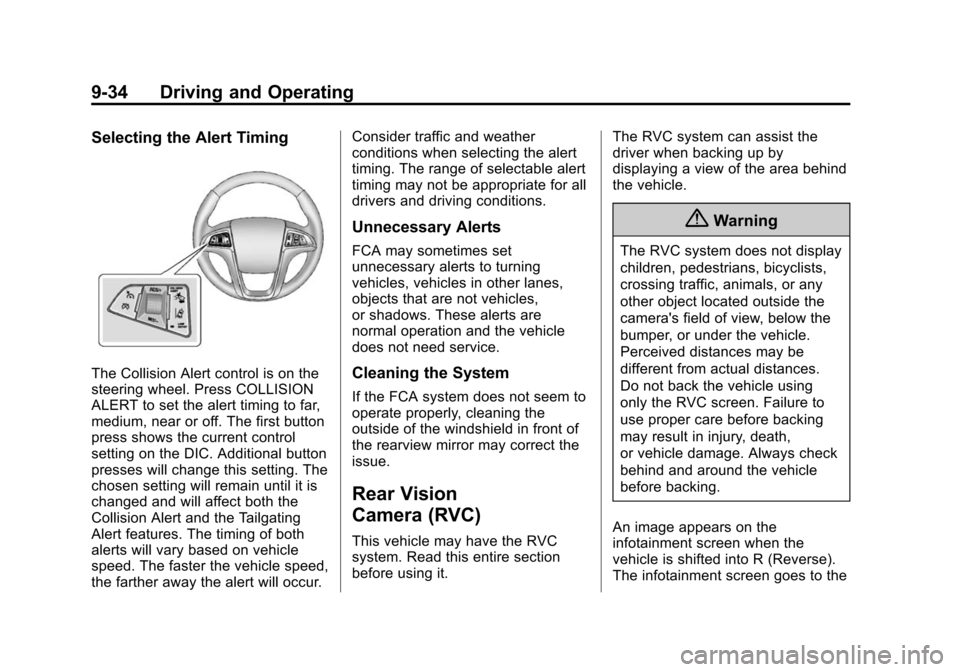
The Collision Alert control is on the
steering wheel. Press COLLISION
ALERT to set the alert timing to far,
medium, near or off. The first button
press shows the current control
setting on the DIC. Additional button
presses will change this setting. The
chosen setting will remain until it is
changed and will affect both the
Collision Alert and the Tailgating
Alert features. The timing of both
alerts will vary based on vehicle
speed. The faster the vehicle speed,
the farther away the alert will occur.Consider traffic and weather
conditions when selecting the alert
timing. The range of selectable alert
timing may not be appropriate for all
drivers and driving conditions.
Unnecessary Alerts
FCA may sometimes set
unnecessary alerts to turning
vehicles, vehicles in other lanes,
objects that are not vehicles,
or shadows. These alerts are
normal operation and the vehicle
does not need service.
Cleaning the System
If the FCA system does not seem to
operate properly, cleaning the
outside of the windshield in front of
the rearview mirror may correct the
issue.
Rear Vision
Camera (RVC)
This vehicle may have the RVC
system. Read this entire section
before using it.
The RVC system can assist the
driver when backing up by
displaying a view of the area behind
the vehicle.
{Warning
The RVC system does not display
children, pedestrians, bicyclists,
crossing traffic, animals, or any
other object located outside the
camera's field of view, below the
bumper, or under the vehicle.
Perceived distances may be
different from actual distances.
Do not back the vehicle using
only the RVC screen. Failure to
use proper care before backing
may result in injury, death,
or vehicle damage. Always check
behind and around the vehicle
before backing.
An image appears on the
infotainment screen when the
vehicle is shifted into R (Reverse).
The infotainment screen goes to the
Page 248 of 403
Black plate (35,1)Chevrolet Sonic Owner Manual (GMNA-Localizing-U.S./Canada-7707487) -
2015 - crc - 10/31/14
Driving and Operating 9-35
previous screen after approximately
4 seconds once the vehicle is
shifted out of R (Reverse).
To return to the previous screen
sooner, do one of the following:
.Shift into P (Park).
.Reach a vehicle speed of
8 km/h (5 mph).
Guidelines
The RVC system has a guideline
overlay that can help the driver align
the vehicle when backing into a
parking spot.
To turn the guidelines on or off:
1. Shift into P (Park).
2. From the home page on the infotainment system, select
Settings.
3. Select Rear Camera Options.
4. Select Guidelines. Rear Vision Camera Error
Messages
SERVICE REAR VISION CAMERA
SYSTEM:
This message can
display when the system is not
operating properly.
If any other problem occurs or if a
problem persists, see your dealer.
Rear Vision Camera Location
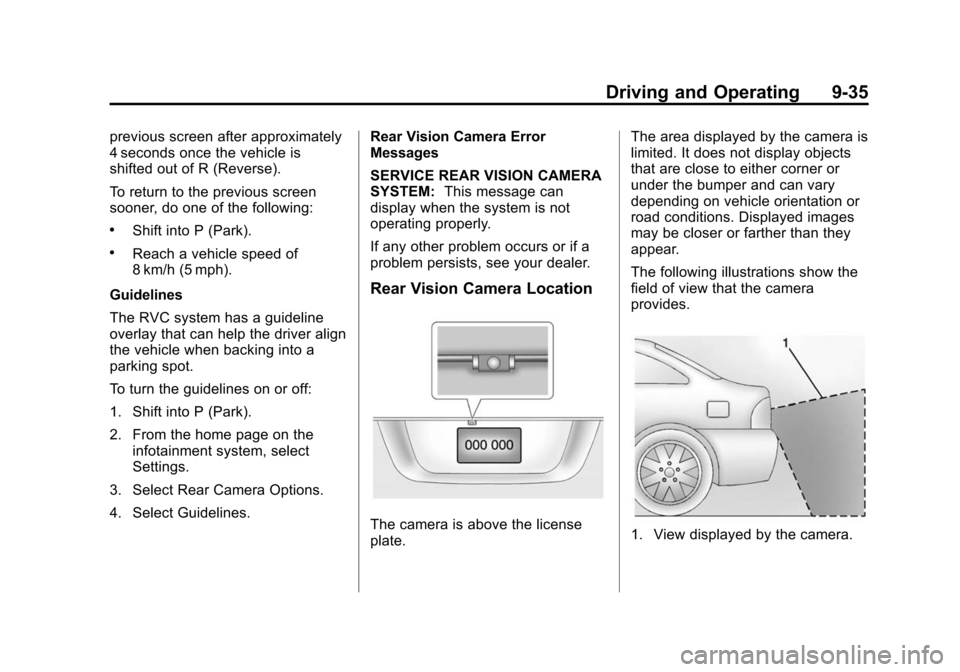
The camera is above the license
plate. The area displayed by the camera is
limited. It does not display objects
that are close to either corner or
under the bumper and can vary
depending on vehicle orientation or
road conditions. Displayed images
may be closer or farther than they
appear.
The following illustrations show the
field of view that the camera
provides.1. View displayed by the camera.