2015 CHEVROLET SONIC key
[x] Cancel search: keyPage 49 of 403

Black plate (20,1)Chevrolet Sonic Owner Manual (GMNA-Localizing-U.S./Canada-7707487) -
2015 - crc - 10/31/14
2-20 Keys, Doors, and Windows
2NOTES
Page 64 of 403
Black plate (15,1)Chevrolet Sonic Owner Manual (GMNA-Localizing-U.S./Canada-7707487) -
2015 - crc - 10/31/14
Seats and Restraints 3-15
Warning (Continued)
and across the chest. These parts
of the body are best able to take
belt restraining forces.
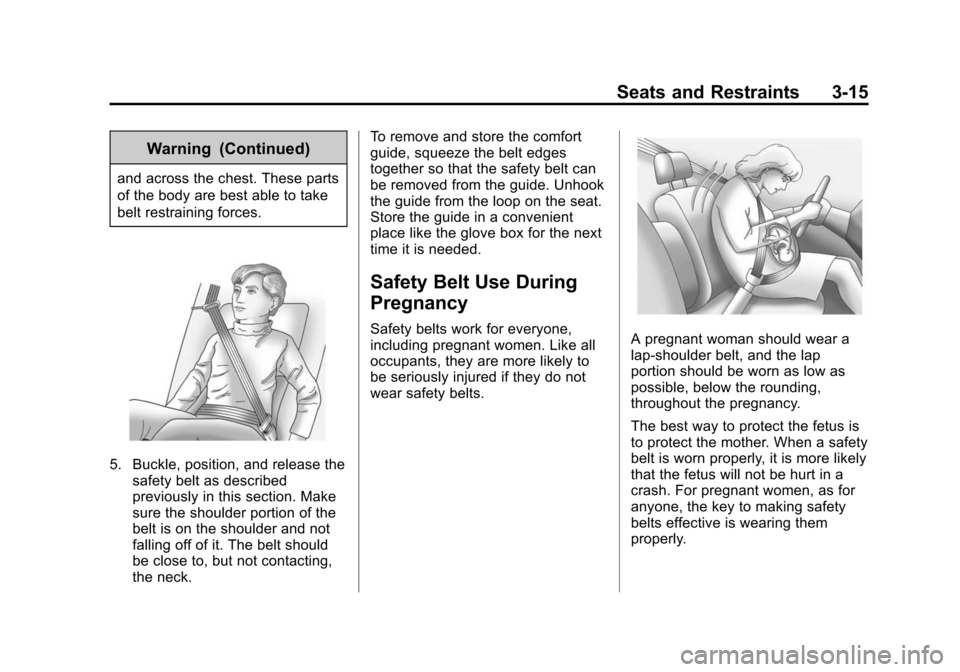
5. Buckle, position, and release thesafety belt as described
previously in this section. Make
sure the shoulder portion of the
belt is on the shoulder and not
falling off of it. The belt should
be close to, but not contacting,
the neck. To remove and store the comfort
guide, squeeze the belt edges
together so that the safety belt can
be removed from the guide. Unhook
the guide from the loop on the seat.
Store the guide in a convenient
place like the glove box for the next
time it is needed.
Safety Belt Use During
Pregnancy
Safety belts work for everyone,
including pregnant women. Like all
occupants, they are more likely to
be seriously injured if they do not
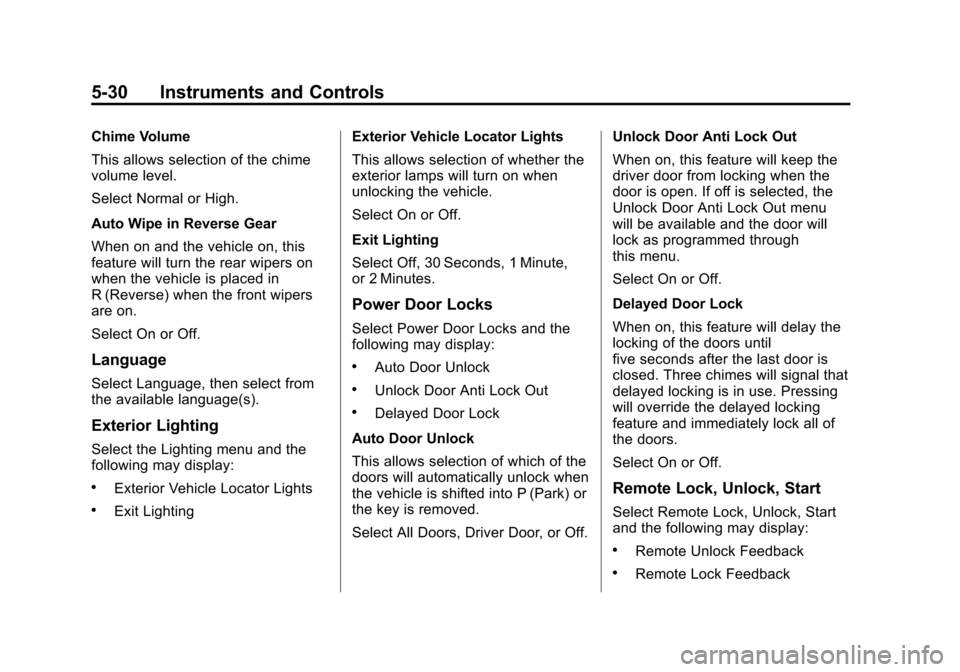
wear safety belts.A pregnant woman should wear a
lap-shoulder belt, and the lap
portion should be worn as low as
possible, below the rounding,
throughout the pregnancy.
The best way to protect the fetus is
to protect the mother. When a safety
belt is worn properly, it is more likely
that the fetus will not be hurt in a
crash. For pregnant women, as for
anyone, the key to making safety
belts effective is wearing them
properly.
Page 133 of 403
Black plate (30,1)Chevrolet Sonic Owner Manual (GMNA-Localizing-U.S./Canada-7707487) -
2015 - crc - 10/31/14
5-30 Instruments and Controls
Chime Volume
This allows selection of the chime
volume level.
Select Normal or High.
Auto Wipe in Reverse Gear
When on and the vehicle on, this
feature will turn the rear wipers on
when the vehicle is placed in
R (Reverse) when the front wipers
are on.
Select On or Off.
Language
Select Language, then select from
the available language(s).
Exterior Lighting
Select the Lighting menu and the
following may display:
.Exterior Vehicle Locator Lights
.Exit LightingExterior Vehicle Locator Lights
This allows selection of whether the
exterior lamps will turn on when
unlocking the vehicle.
Select On or Off.
Exit Lighting
Select Off, 30 Seconds, 1 Minute,
or 2 Minutes.
Power Door Locks
Select Power Door Locks and the
following may display:
.Auto Door Unlock
.Unlock Door Anti Lock Out
.Delayed Door Lock
Auto Door Unlock
This allows selection of which of the
doors will automatically unlock when
the vehicle is shifted into P (Park) or
the key is removed.
Select All Doors, Driver Door, or Off. Unlock Door Anti Lock Out
When on, this feature will keep the
driver door from locking when the
door is open. If off is selected, the
Unlock Door Anti Lock Out menu
will be available and the door will
lock as programmed through
this menu.
Select On or Off.
Delayed Door Lock
When on, this feature will delay the
locking of the doors until
five seconds after the last door is
closed. Three chimes will signal that
delayed locking is in use. Pressing
will override the delayed locking
feature and immediately lock all of
the doors.
Select On or Off.
Remote Lock, Unlock, Start
Select Remote Lock, Unlock, Start
and the following may display:
.Remote Unlock Feedback
.Remote Lock Feedback
Page 145 of 403
Black plate (6,1)Chevrolet Sonic Owner Manual (GMNA-Localizing-U.S./Canada-7707487) -
2015 - crc - 10/31/14
6-6 Lighting
Courtesy Lamps
The courtesy lamps come on
automatically when any door is
opened and the dome lamp is in the
door position.
Dome Lamps
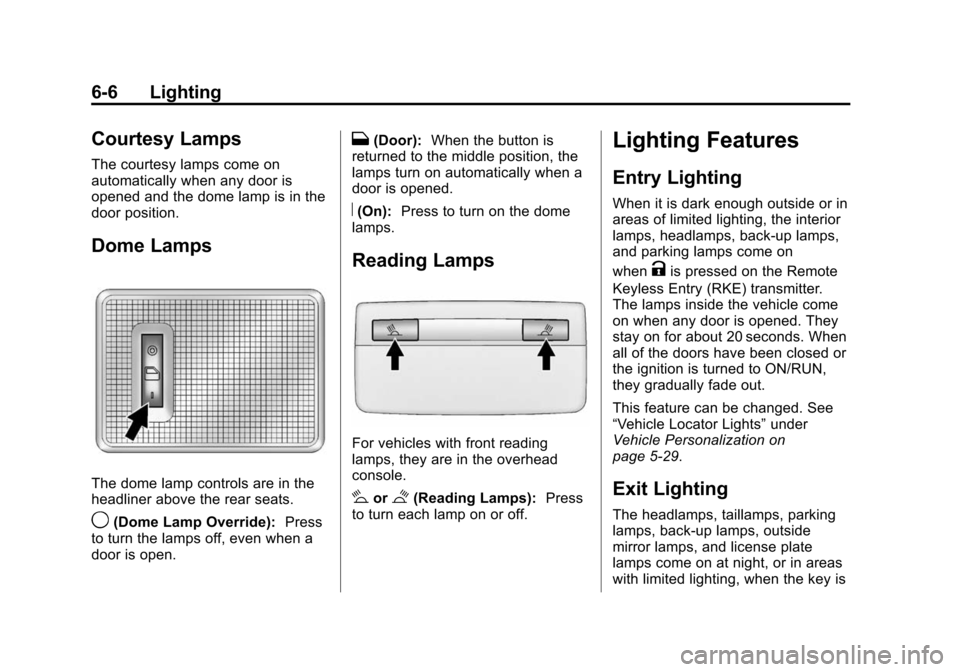
The dome lamp controls are in the
headliner above the rear seats.
9(Dome Lamp Override):Press
to turn the lamps off, even when a
door is open.
H(Door): When the button is
returned to the middle position, the
lamps turn on automatically when a
door is opened.
R(On): Press to turn on the dome
lamps.
Reading Lamps
For vehicles with front reading
lamps, they are in the overhead
console.
#or$(Reading Lamps): Press
to turn each lamp on or off.
Lighting Features
Entry Lighting
When it is dark enough outside or in
areas of limited lighting, the interior
lamps, headlamps, back-up lamps,
and parking lamps come on
when
Kis pressed on the Remote
Keyless Entry (RKE) transmitter.
The lamps inside the vehicle come
on when any door is opened. They
stay on for about 20 seconds. When
all of the doors have been closed or
the ignition is turned to ON/RUN,
they gradually fade out.
This feature can be changed. See
“Vehicle Locator Lights” under
Vehicle Personalization on
page 5-29.
Exit Lighting
The headlamps, taillamps, parking
lamps, back-up lamps, outside
mirror lamps, and license plate
lamps come on at night, or in areas
with limited lighting, when the key is
Page 190 of 403
Black plate (43,1)Chevrolet Sonic Owner Manual (GMNA-Localizing-U.S./Canada-7707487) -
2015 - crc - 10/31/14
Infotainment System 7-43
system. Not all phones support all
functions and not all phones work
with the Hands-Free Phone system.
Hands-Free Phone Controls
Use the buttons on the infotainment
system and the steering wheel to
operate the Hands-Free Phone
system.
Steering Wheel Controls
Steering wheel controls can be
used to:
.Answer incoming calls.
.Confirm system information.
.End a call.
.Decline a call.
.Cancel an operation.
.Make outgoing calls using the
call list.
b/g(Press to Talk):Press to
answer incoming calls and to
confirm system information. Press
and hold for two to three seconds to
access the call list.
$/i(Mute/End Call): Press to
end a call, decline a call, or cancel
an operation.
Making a Call by Entering a Phone
Number
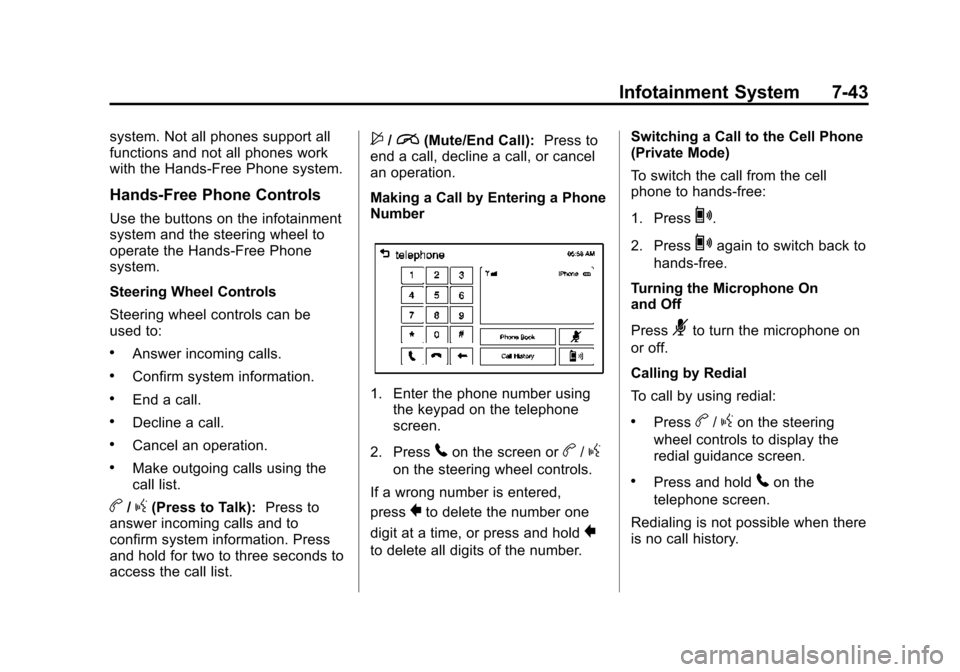
1. Enter the phone number using the keypad on the telephone
screen.
2. Press
5on the screen orb/g
on the steering wheel controls.
If a wrong number is entered,
press
}to delete the number one
digit at a time, or press and hold
}
to delete all digits of the number. Switching a Call to the Cell Phone
(Private Mode)
To switch the call from the cell
phone to hands-free:
1. Press
0.
2. Press
0again to switch back to
hands-free.
Turning the Microphone On
and Off
Press
3to turn the microphone on
or off.
Calling by Redial
To call by using redial:
.Pressb/gon the steering
wheel controls to display the
redial guidance screen.
.Press and hold5on the
telephone screen.
Redialing is not possible when there
is no call history.
Page 191 of 403
Black plate (44,1)Chevrolet Sonic Owner Manual (GMNA-Localizing-U.S./Canada-7707487) -
2015 - crc - 10/31/14
7-44 Infotainment System
Taking calls
When a phone call comes through
the connected Bluetooth cell phone,
the playing track will be cut off and
the phone will ring with the relevant
information displayed.
Press
b/gon the steering wheel
controls or press Accept on the
screen.
To decline the call, press
$/ion
the steering wheel controls or press
Reject on the screen.
Using the Phone Book Menu
1. Press Phone Book on the telephone screen.
2. Press
QorRto scroll through
the list.
3. Select the phone book entry to call.
4. Press the number to dial.
Searching for Phone Book Entries
1. Press Phone Book on the telephone screen. 2. Press
9on the phone book
screen.
3. Use the keypad to input the name to search. For details,
refer to the “Searching for a
Name” later in this section.
4. Select the phone book entry to call.
5. Press the number to dial.
When the Bluetooth device and
infotainment system are
successfully paired, the phone book
will download. Some phones may
not download automatically. If this
happens, connect it again or
proceed with the phone book
download on the phone.
Always accept the Phone book
request on the initial pairing of the
phone.
Searching for a Name
Select characters by using the
keypad on the phone book screen.
As characters are selected, the
names that include those characters will display on the phone book
screen. As more characters of the
name are entered, the list of
possible names is shortened.
To search for the name Alex:
1. Press (abc) to select the first
character.
2. Press (jkl) to select the second character.
3. Press (def) to select the third character.
4. Press (wxy) to select the fourth character.
Making a Call from Call History
1. Press Call History on the telephone screen.
2. Press one of the following for:
.2Dialed calls.
.4Missed calls.
.9Received calls.
3. Select the phone book entry to call.
Page 192 of 403
Black plate (45,1)Chevrolet Sonic Owner Manual (GMNA-Localizing-U.S./Canada-7707487) -
2015 - crc - 10/31/14
Infotainment System 7-45
Making a Call with Speed Dial
Numbers
Press and hold the speed dial
number using the keypad on the
telephone screen.
Only speed dial numbers already
stored on the cell phone can be
used for speed dial calls. Up to
two-digit speed dial numbers are
supported.
For two-digit speed dial numbers,
press and hold the second digit to
make a call to the speed dial
number.Downloadable
Applications
Smartphone Link
(Overview)
Before Using Smartphone Link
If equipped, the vehicle can connect
to Pandora
®, Stitcher SmartRadio®,
or other available applications
through the infotainment system.
The applications must be
downloaded to the device first, then
the device can be connected to the
infotainment system.
Pandora is a free Internet radio
service that streams personalized
radio stations based on artists,
songs, genres, and comedians.
Create stations using the Pandora
website or smartphone application,
then use
-(thumbs up) or,
(thumbs down) to personalize
stations. To set up an account, or for
more information, go to www.pandora.com. Pandora may
not be available in Canada or
Mexico.
Stitcher SmartRadio is an Internet
radio service that streams news,
sports, and entertainment shows
through the audio system. Create
personalized, on-demand stations or
discover new shows through
Stitcher's preset stations. To set up
an account, download the
application from the Android Market
or iTunes Store, or go to
www.stitcher.com.
A phone or tablet with Internet
connection and the application
installed is required. Personal cell
phone data plans are used. Make
sure the latest version is installed
on the device and the volume is
turned up.
Smartphone Supported by
Application
To use Applications:
.Connect an iPod/iPhone using
the USB port.
Page 195 of 403
Black plate (48,1)Chevrolet Sonic Owner Manual (GMNA-Localizing-U.S./Canada-7707487) -
2015 - crc - 10/31/14
7-48 Infotainment System
If the smartphone is not connected
to the infotainment system or the
application is not installed on the
smartphone, the Pandora menu is
not activated.
Thumbs Up and Thumbs Down
Rate tracks by using
-(thumbs up)
or
,(thumbs down).
Pause
.Pressjto pause.
.Pressrto resume.
Changing Tracks
Press
lto change to the next
track.
Bookmark
To bookmark a favorite artist or
track:
1. Press
Son the screen.
2. Press Artist or Track. Pandora Menus
Creating Stations from Currently
Playing Music
1. Press MENU. The Pandora
menu is displayed.
2. Press create station.
3. Press from currently playing.
4. Press Artist or Track.
5. Press the desired station. The station is added into the
Pandora menu automatically.
Creating Stations by Searching
by Artist or Track
1. Press MENU. The Pandora menu is displayed.
2. Press create station.
3. Press enter artist/track. The keypad is displayed.
4. Enter the artist or track name using the keypad, then press
Create. 5. Press the desired station. The
station is added into the
Pandora menu automatically.
Listening to Stations
1. Press MENU. The Pandora menu is displayed.
2. Press
QorRto scroll through
the list. Select the desired
station.
QuickMix
1. Press MENU. The Pandora menu is displayed.
2. Press QuickMix
Zto listen to a
selection of tracks from your
stations.
Tone Settings
1. Press MENU. The Pandora menu is displayed.
2. Press tone settings. The tone settings menu is displayed. See
“Tone Settings” under“Radio
Controls with Touchscreen” in
Operation on page 7-8.