2015 CHEVROLET CRUZE AUX
[x] Cancel search: AUXPage 22 of 417
Black plate (15,1)Chevrolet Cruze Owner Manual (GMNA-Localizing-U.S./Canada-7707493) -
2015 - crc - 11/24/14
In Brief 1-15
Storing a Favorite Station
Stations from all bands can be
stored in the favorite lists in any
order. Up to six stations can be
stored in each favorite page and the
number of available favorite pages
can be set.
To store the station to a position in
the list, press the corresponding
numeric button 1 to 6 until a beep is
heard.
See“Storing a Station as a
Favorite” inAM-FM Radio on
page 7-7.
Setting the Clock
Adjusting the Time or Date
To set the time and date for the
radio with navigation:
1. Press CLOCK.
2. Select Set Time or Set Date.
3. Turn the MENU/SEL knob to adjust the highlighted number.
4. Press the MENU/SEL knob to select the next number. 5. To save the settings, press
BACK on the radio faceplate.
Setting the 12/24 Hour Format
To set the 12/24 hour format for the
radio with navigation:
1. Press CLOCK.
2. Highlight 12/24 Hour Format.
3. Press the MENU/SEL knob to select the 12 hour or 24 hour
display format.
4. To save the settings, press BACK on the radio faceplate.
For detailed instructions on setting
the clock for the vehicle's specific
audio system, see Clock on
page 5-4.
Satellite Radio
If equipped, vehicles with a
SiriusXM®satellite radio tuner and a
valid SiriusXM satellite radio
subscription can receive SiriusXM
programming.
SiriusXM Satellite Radio
Service
SiriusXM is a satellite radio service
based in the 48 contiguous United
States and 10 Canadian provinces.
SiriusXM satellite radio has a wide
variety of programming and
commercial-free music, coast to
coast, and in digital-quality sound.
A fee is required to receive the
SiriusXM service.
Refer to:
.www.siriusxm.com or call
1-866-635-2349 (U.S.).
.www.xmradio.ca or call
1-877-209-0079 (Canada).
See Satellite Radio on page 7-10.
Portable Audio Devices
Some vehicles have a 3.5 mm
(1/8 in) auxiliary input and a USB
port in the center console. External
devices such as iPods
®, laptop
computers, MP3 players, CD
Page 23 of 417
Black plate (16,1)Chevrolet Cruze Owner Manual (GMNA-Localizing-U.S./Canada-7707493) -
2015 - crc - 11/24/14
1-16 In Brief
changers, and USB drives may be
connected, depending on the audio
system.
SeeAuxiliary Devices on page 7-15.
Bluetooth®
The Bluetooth®system allows users
with a Bluetooth-enabled mobile
phone to make and receive
hands-free calls using the vehicle
audio system and controls.
The Bluetooth-enabled mobile
phone must be paired with the
in-vehicle Bluetooth system before it
can be used in the vehicle. Not all
phones will support all functions.
See Bluetooth (Infotainment
Controls) on page 7-19 orBluetooth
(Voice Recognition) on page 7-22 or
Bluetooth (Overview) on page 7-17.
Steering Wheel Controls
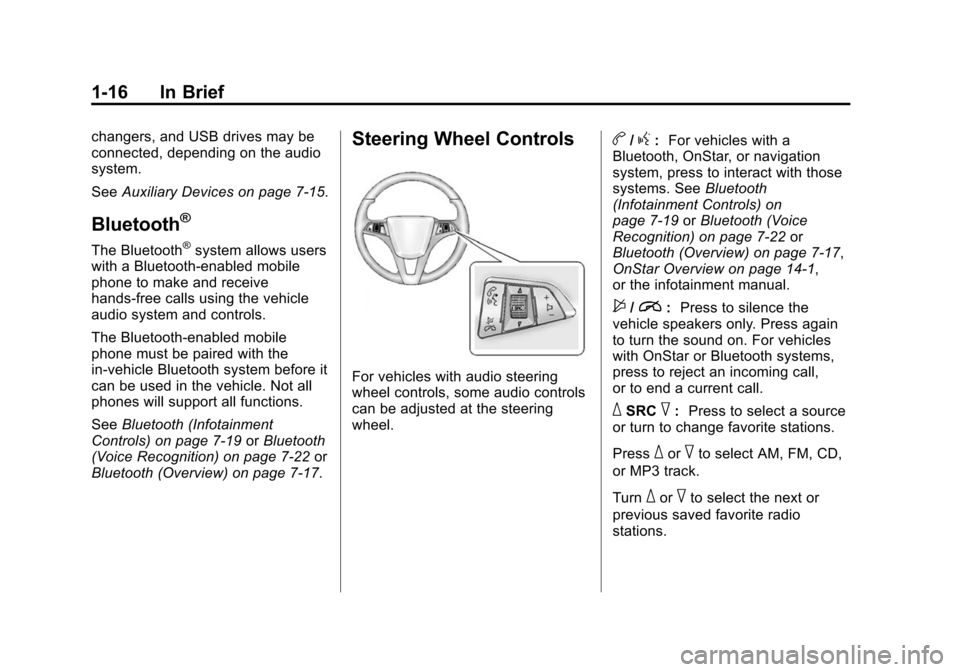
For vehicles with audio steering
wheel controls, some audio controls
can be adjusted at the steering
wheel.
b/g: For vehicles with a
Bluetooth, OnStar, or navigation
system, press to interact with those
systems. See Bluetooth
(Infotainment Controls) on
page 7-19 orBluetooth (Voice
Recognition) on page 7-22 or
Bluetooth (Overview) on page 7-17,
OnStar Overview on page 14-1,
or the infotainment manual.
$/i: Press to silence the
vehicle speakers only. Press again
to turn the sound on. For vehicles
with OnStar or Bluetooth systems,
press to reject an incoming call,
or to end a current call.
_SRC^: Press to select a source
or turn to change favorite stations.
Press
_or^to select AM, FM, CD,
or MP3 track.
Turn
_or^to select the next or
previous saved favorite radio
stations.
Page 103 of 417
Black plate (2,1)Chevrolet Cruze Owner Manual (GMNA-Localizing-U.S./Canada-7707493) -
2015 - crc - 11/24/14
4-2 Storage
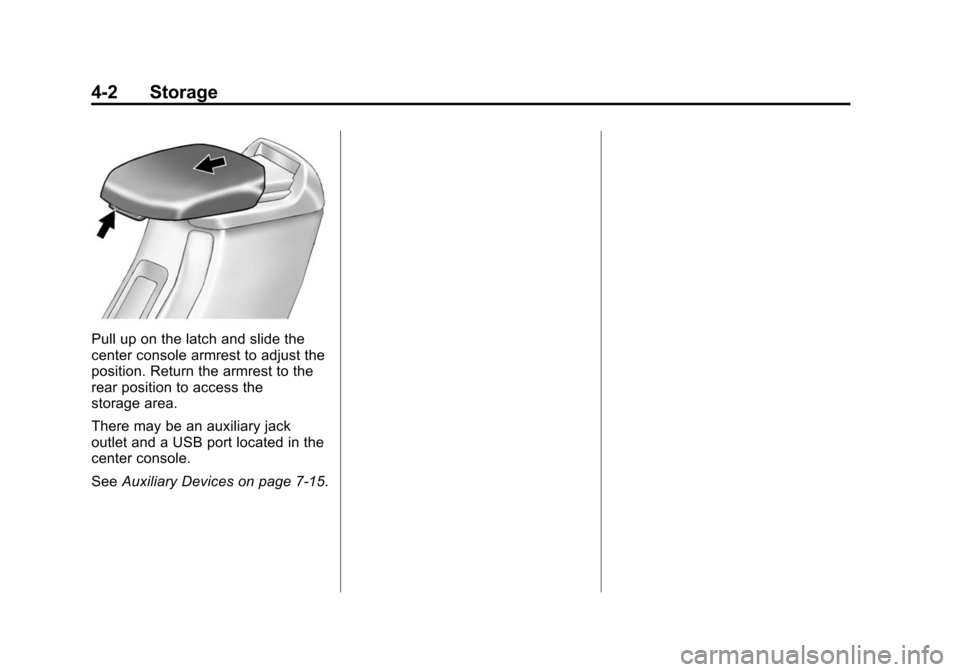
Pull up on the latch and slide the
center console armrest to adjust the
position. Return the armrest to the
rear position to access the
storage area.
There may be an auxiliary jack
outlet and a USB port located in the
center console.
SeeAuxiliary Devices on page 7-15.
Page 140 of 417
Black plate (37,1)Chevrolet Cruze Owner Manual (GMNA-Localizing-U.S./Canada-7707493) -
2015 - crc - 12/2/14
Instruments and Controls 5-37
.Maximum Startup Volume
.Number of Favorites Pages
.Radio Favorites
.RDS Options
.XM Categories
.Software Versions Menu
Auto Volume
This feature adjusts the volume to
minimize the effects of unwanted
background noise that can result
from changing road surfaces, driving
speeds, or open windows. This
feature works best at lower volume
settings where background noise is
typically louder than the sound
system volume.
Select Off, Low, Medium, or High.
Gracenote Options
Select and the following may
display:
.Normalization Normalization
This feature improves voice
recognition and media groupings.
See
“CD Player,” “USB,” “Auxiliary
Devices,” and“Bluetooth Audio” in
the infotainment manual.
Select to enable or disable.
XM Channel Art
This feature turns the XM Audio
page background on the XM
Channel display on and off.
Select to enable or disable.
Max Startup Volume or Maximum
Startup Volume
This feature sets the maximum
startup volume. If the vehicle is
started and the volume is greater
than this level, the volume is
adjusted to this level.
Press + or −to increase or
decrease the volume. Number of Favorites Pages or
Radio Favorites
Press to set the number of favorites
to display.
Select the desired number.
RDS Options
Select and the following may
display:
.RDS
.Text Scroll Freeze
.RDS Text
RDS
Select to turn RDS on or off. See
“RDS (Radio Data System)” in
AM-FM Radio on page 7-7.
Text Scroll Freeze
When on, this allows the RDS Text
to scroll across the radio screen.
Select to enable or disable.
Page 152 of 417
Black plate (1,1)Chevrolet Cruze Owner Manual (GMNA-Localizing-U.S./Canada-7707493) -
2015 - crc - 11/24/14
Infotainment System 7-1
Infotainment
System
Introduction
Infotainment . . . . . . . . . . . . . . . . . . . 7-1
Theft-Deterrent Feature . . . . . . . 7-2
Overview . . . . . . . . . . . . . . . . . . . . . . 7-3
Operation . . . . . . . . . . . . . . . . . . . . . 7-4
Radio
AM-FM Radio . . . . . . . . . . . . . . . . . 7-7
Satellite Radio . . . . . . . . . . . . . . . 7-10
Radio Reception . . . . . . . . . . . . . 7-11
Satellite Radio Antenna . . . . . . 7-12
Multi-Band Antenna . . . . . . . . . . 7-12
Audio Players
CD Player . . . . . . . . . . . . . . . . . . . 7-13
Auxiliary Devices . . . . . . . . . . . . 7-15
Phone
Bluetooth (Overview) . . . . . . . . 7-17
Bluetooth (InfotainmentControls) . . . . . . . . . . . . . . . . . . . 7-19
Bluetooth (Voice Recognition) . . . . . . . . . . . . . . . 7-22
Trademarks and License
Agreements
Trademarks and License
Agreements . . . . . . . . . . . . . . . . 7-28
Introduction
Infotainment
Read the following pages to
become familiar with the audio
system's features.
{Warning
Taking your eyes off the road for
extended periods could cause a
crash resulting in injury or death
to you or others. Do not give
extended attention to infotainment
tasks while driving.
This system provides access to
many audio and non-audio listings.
To minimize taking your eyes off the
road while driving, do the following
while the vehicle is parked:
.Become familiar with the
operation and controls of the
audio system.
Page 155 of 417
Black plate (4,1)Chevrolet Cruze Owner Manual (GMNA-Localizing-U.S./Canada-7707493) -
2015 - crc - 11/24/14
7-4 Infotainment System
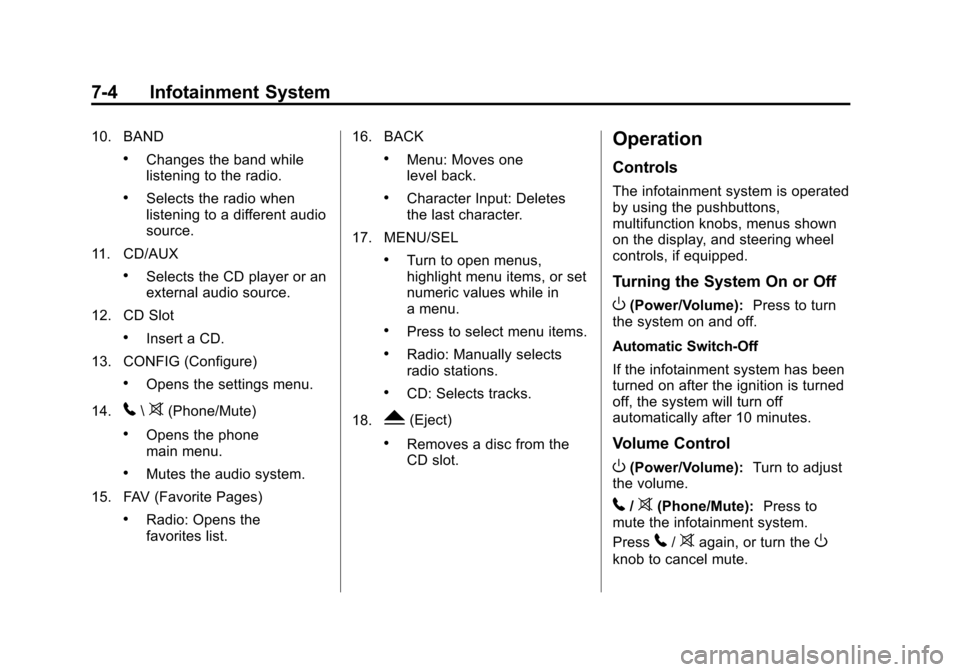
10. BAND
.Changes the band while
listening to the radio.
.Selects the radio when
listening to a different audio
source.
11. CD/AUX
.Selects the CD player or an
external audio source.
12. CD Slot
.Insert a CD.
13. CONFIG (Configure)
.Opens the settings menu.
14.
5\>(Phone/Mute)
.Opens the phone
main menu.
.Mutes the audio system.
15. FAV (Favorite Pages)
.Radio: Opens the
favorites list. 16. BACK
.Menu: Moves one
level back.
.Character Input: Deletes
the last character.
17. MENU/SEL
.Turn to open menus,
highlight menu items, or set
numeric values while in
a menu.
.Press to select menu items.
.Radio: Manually selects
radio stations.
.CD: Selects tracks.
18.
Y(Eject)
.Removes a disc from the
CD slot.
Operation
Controls
The infotainment system is operated
by using the pushbuttons,
multifunction knobs, menus shown
on the display, and steering wheel
controls, if equipped.
Turning the System On or Off
O(Power/Volume): Press to turn
the system on and off.
Automatic Switch-Off
If the infotainment system has been
turned on after the ignition is turned
off, the system will turn off
automatically after 10 minutes.
Volume Control
O(Power/Volume): Turn to adjust
the volume.
5/>(Phone/Mute): Press to
mute the infotainment system.
Press
5/>again, or turn theO
knob to cancel mute.
Page 164 of 417
Black plate (13,1)Chevrolet Cruze Owner Manual (GMNA-Localizing-U.S./Canada-7707493) -
2015 - crc - 11/24/14
Infotainment System 7-13
Audio Players
CD Player
The CD player can play audio CDs
and MP3 CDs.
The CD player will not play
8 cm (3 in) CDs.
Care of CDs
Sound quality can be reduced due
to disc quality, recording method,
quality of the music recorded, and
how the disc has been handled.
Handle discs carefully and store
them in their original cases or other
protective cases away from direct
sunlight and dust. If the bottom
surface of a disc is damaged, the
disc may not play properly or at all.
Do not touch the bottom surface of
a disc while handling it; this could
damage the surface. Pick up discs
by grasping the outer edges or the
edge of the hole and the outer edge.
If the bottom surface of a disc is
dirty, take a soft lint-free cloth,
or dampen a clean soft cloth in amild neutral detergent solution
mixed with water, and clean it. Wipe
the disc from the center to the
outer edge.
Care of the CD Player
Do not add a label to a disc, as it
could get caught in the CD player.
If a label is needed, label the top of
the recorded disc with a
marking pen.
Do not use disc lens cleaners
because they could contaminate the
lens of the disc optics and damage
the CD player.
{Caution
If a label is added to a CD, more
than one CD is inserted into the
slot at a time, or an attempt is
made to play scratched or
damaged CDs, the CD player
could be damaged. While using
the CD player, use only CDs in
good condition without any label,
(Continued)
Caution (Continued)
load one CD at a time, and keep
the CD player and the loading slot
free of foreign materials, liquids,
and debris.
Control Buttons
The buttons used to control the CD
player are:
CD/AUX:Press to use the CD
player.
lorg: Press to select tracks or
to fast forward or rewind within a
track.
INFO: Press to display additional
information about the current track
that may be available.
MENU/SEL: Turn to enter
the menu.
Y: Press to eject the disc.
Page 165 of 417
Black plate (14,1)Chevrolet Cruze Owner Manual (GMNA-Localizing-U.S./Canada-7707493) -
2015 - crc - 11/24/14
7-14 Infotainment System
Inserting a CD
With the printed side facing up,
insert a disc into the CD slot until it
is drawn in.
Removing a CD
PressY.
The disc is pushed out of the
CD slot.
If the disc is not removed after it is
ejected, it is pulled back in after a
few seconds.
Playing a CD or MP3 CD
Press the CD/AUX button if there is
a disc in the player; it begins
playing.
Information about the disc and
current track is shown on the
display depending on the data
stored.
Selecting a CD Track
Using the control buttons:
.Pressgorlto select the
previous or next track. Using the CD Menu:
1. Turn the MENU/SEL knob.
2. Select Tracks list.
3. Select the track.
Playing Tracks in Random Order
Turn the MENU/SEL knob and then
set Shuffle Songs to On.
Fast Forward and Rewind
Press and hold
lorgto fast
forward or rewind within the current
track.
Selecting an MP3 Track
Using the control buttons:
.Pressgorlto select the
previous or next track.
Using the CD Menu:
1. Turn the MENU/SEL knob.
2. Select Playlists/Folders.
3. Select the playlist or folder.
4. Select the track. Searching for MP3 Tracks
The search feature may take some
time to display the information after
reading the disc due to the amount
of information stored on the disc.
FM automatically plays while the
disc is being read.
Tracks can be searched by:
.Playlists
.Artists
.Albums
.Song Titles
.Genres
.Folder View
To search for tracks:
1. Turn the MENU/SEL knob.
2. Select Search.
3. Select: Playlists, Artists, Albums, Song Titles, Genres,
or Folder View.
4. Select the track.