2015 CADILLAC XTS SEDAN steering
[x] Cancel search: steeringPage 131 of 419

Black plate (12,1)Cadillac XTS Owner Manual (GMNA-Localizing-U.S./Canada-7707485) -
2015 - CRC - 10/31/14
5-12 Instruments and Controls
Use the five-way control on the right
side of the steering wheel to move
between the different display zones
and scroll through the different
displays.
To change the cluster configuration:
1. Find the Settings page in one ofthe interactive display zones on
the cluster.
2. Press SEL to enter the Settings menu.
3. Scroll down to highlight Display Layout. Then press SEL to
select it.
4. Each layout in the menu is represented by a small preview
image of the display layout.
Scroll up or down and highlight
the selection. Press SEL to
select the desired cluster
configuration.
5. Exit the Display Layout menu by pressing
S.
Cluster Application Displays
The cluster can display information
regarding Navigation, Audio, and
Phone. On the base cluster, a
speedometer can also be displayed
in the center zone.
Navigation
If there is no active route, a
compass will be displayed. If there
is an active route, press SEL to end
route guidance or turn the voice
prompts on or off.
Audio
While the Audio application page is
displayed, press SEL to enter the
Audio menu. In the Audio menu,
search for music, select from
favorites, or change the audio
source
Phone
While the Phone application page is
displayed, press SEL to enter the
Phone menu. In the Phone menu,
if there is no active phone call, view
recent calls, select from favorites, or scroll through contacts. If there is
an active call, mute the phone or
switch to handset operation.
Cluster Settings Menu
To enter the cluster settings menu:
1. Use the five-way control on the
right side of the steering wheel
to find the Settings page in one
of the interactive display zones
on the cluster.
2. Press SEL on the center of the five-way control to enter the
Settings menu.
Units: Press SEL while Units is
highlighted to enter the Unit menu.
Choose English or metric units by
pressing SEL while the desired item
is highlighted. A checkmark will be
displayed next to the selected item.
Info Pages: Press SEL while Info
Pages is highlighted to select the
items to be displayed in the DIC info
displays. See Driver Information
Center (DIC) on page 5-29.
Page 139 of 419

Black plate (20,1)Cadillac XTS Owner Manual (GMNA-Localizing-U.S./Canada-7707485) -
2015 - CRC - 10/31/14
5-20 Instruments and Controls
vehicle, allowing fuel to
evaporate into the atmosphere.
A few driving trips with the
adapter removed should turn off
the light.
.Check that good quality fuel is
used. Poor fuel quality causes
the engine not to run as
efficiently as designed and may
cause stalling after start-up,
stalling when the vehicle is
changed into gear, misfiring,
hesitation on acceleration,
or stumbling on acceleration.
These conditions might go away
once the engine is warmed up.
If one or more of these conditions
occurs, change the fuel brand used.
It may require at least one full tank
of the proper fuel to turn the light off.
See Fuel on page 9-59.
If none of the above have made the
light turn off, your dealer can check
the vehicle. The dealer has the
proper test equipment and diagnostic tools to fix any
mechanical or electrical problems
that might have developed.
Emissions Inspection and
Maintenance Programs
Depending on where you live, your
vehicle may be required to
participate in an emission control
system inspection and maintenance
program. For the inspection, the
emission system test equipment will
likely connect to the vehicle's Data
Link Connector (DLC).
The DLC is under the instrument
panel to the left of the steering
wheel. See your dealer if assistance
is needed.
The vehicle may not pass
inspection if:
.The malfunction indicator lamp is
on with the engine running, or if
the vehicle is placed in Service
Only Mode and the malfunction
indicator lamp does not come
on. See your dealer for
assistance in verifying proper
operation of the malfunction
indicator lamp.
.The OBD II (On-Board
Diagnostics) system determines
that critical emission control
systems have not been
completely diagnosed. The
vehicle would be considered not
ready for inspection. This can
happen if the 12-volt battery has
recently been replaced or run
down. The diagnostic system is
designed to evaluate critical
emission control systems during
normal driving. This can take
several days of routine driving.
If this has been done and the
vehicle still does not pass the
inspection for lack of OBD II
Page 142 of 419

Black plate (23,1)Cadillac XTS Owner Manual (GMNA-Localizing-U.S./Canada-7707485) -
2015 - CRC - 10/31/14
Instruments and Controls 5-23
Lane Departure Warning
(LDW) Light
For some vehicles with the Lane
Departure Warning (LDW) system,
this light comes on briefly while
starting the vehicle. If it does not
come on, have the vehicle serviced.
For vehicles with the uplevel cluster,
this light may not come on when
starting the vehicle.
This light is green if LDW is on and
ready to operate.
This light changes to amber and
flashes to indicate that the lane
marking has been crossed without
using a turn signal in that direction.
SeeLane Departure Warning (LDW)
on page 9-56.
Lane Keep Assist (LKA)
Light
For some vehicles, this light comes
on briefly while starting the vehicle.
If it does not come on, have the
vehicle serviced.
For vehicles with the uplevel cluster,
this light may not come on when
starting the vehicle.
This light is green if LKA is available
to assist.
LKA may assist by gently turning
the steering wheel if the vehicle
approaches a detected lane marking
without using the turn signal in that
direction. The LKA light will turn
amber. This light is amber and flashes as a
Lane Departure Warning (LDW)
alert, to indicate that the lane
marking has been crossed.
See
Lane Keep Assist (LKA) on
page 9-57.
Vehicle Ahead Indicator
If equipped, this indicator will
display green when a vehicle is
detected ahead and amber when
you are following a vehicle ahead
much too closely.
See Forward Collision Alert (FCA)
System on page 9-50.
Page 152 of 419
Black plate (33,1)Cadillac XTS Owner Manual (GMNA-Localizing-U.S./Canada-7707485) -
2015 - CRC - 10/31/14
Instruments and Controls 5-33
.Lane Departure or Lane Keeping
Assist
.Low Fuel
Some vehicle messages or alerts
displayed in the HUD may be
cleared by using the steering wheel
controls. See Vehicle Messages on
page 5-35.
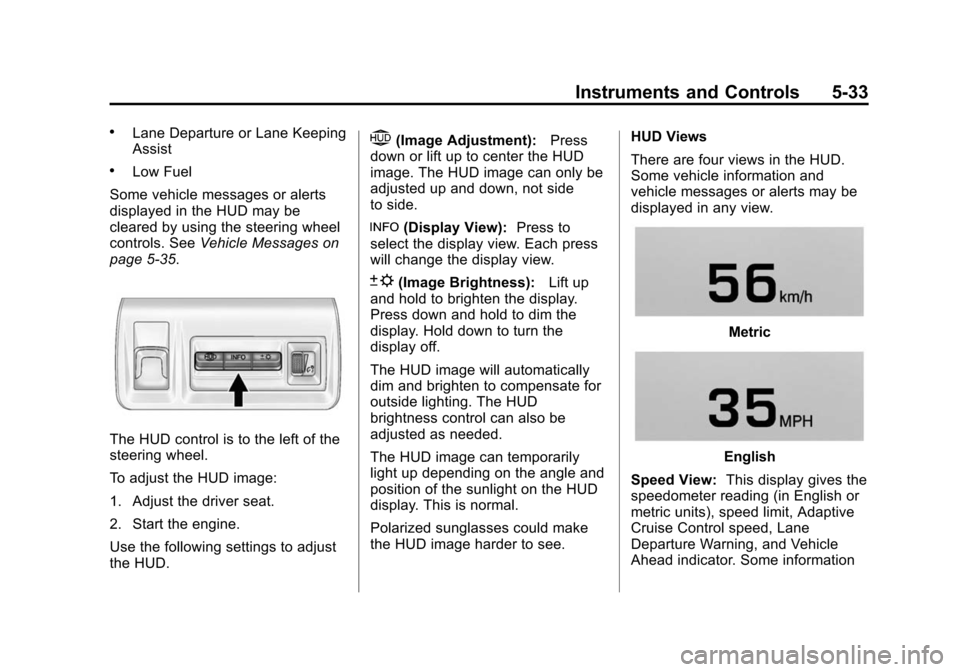
The HUD control is to the left of the
steering wheel.
To adjust the HUD image:
1. Adjust the driver seat.
2. Start the engine.
Use the following settings to adjust
the HUD.
$(Image Adjustment): Press
down or lift up to center the HUD
image. The HUD image can only be
adjusted up and down, not side
to side.
!(Display View): Press to
select the display view. Each press
will change the display view.
D(Image Brightness): Lift up
and hold to brighten the display.
Press down and hold to dim the
display. Hold down to turn the
display off.
The HUD image will automatically
dim and brighten to compensate for
outside lighting. The HUD
brightness control can also be
adjusted as needed.
The HUD image can temporarily
light up depending on the angle and
position of the sunlight on the HUD
display. This is normal.
Polarized sunglasses could make
the HUD image harder to see. HUD Views
There are four views in the HUD.
Some vehicle information and
vehicle messages or alerts may be
displayed in any view.
Metric
English
Speed View: This display gives the
speedometer reading (in English or
metric units), speed limit, Adaptive
Cruise Control speed, Lane
Departure Warning, and Vehicle
Ahead indicator. Some information
Page 153 of 419

Black plate (34,1)Cadillac XTS Owner Manual (GMNA-Localizing-U.S./Canada-7707485) -
2015 - CRC - 10/31/14
5-34 Instruments and Controls
only appears on vehicles that have
these features, and when they are
active.
Metric
English
Audio/Phone View: This displays
the speed view along with audio/
phone information. The current radio
station, media type, and incoming
calls may be displayed. All HUD views may briefly display
audio information when the driver
uses the steering wheel controls to
adjust the audio settings appearing
in the instrument cluster.
Incoming phone calls appearing in
the instrument cluster, may also
display in any HUD view.
Metric
English
Navigation View:
This displays the
speed view along with Turn-by-Turn
Navigation information. The
compass heading is displayed when
navigation routing is not active.
Navigation Turn-by-Turn Alerts
shown in the instrument cluster may
also be displayed in any HUD view.
Metric
English
Performance View: This displays
the speedometer reading, rpm
reading, transmission positions, and
gear shift indicator.
Page 162 of 419

Black plate (43,1)Cadillac XTS Owner Manual (GMNA-Localizing-U.S./Canada-7707485) -
2015 - CRC - 10/31/14
Instruments and Controls 5-43
SERVICE FRONT CAMERA
If this message remains on after
continued driving, take the vehicle
to your dealer for service. Do not
use the Lane Keeping Assist (LKA),
Lane Departure Warning (LDW),
and Forward Collision Alert (FCA)
features.
SERVICE PARK ASSIST
This message displays if there is a
problem with the Parking Assist
system. Do not use this system to
help you park. See your dealer for
service.
SERVICE REAR AUTO BRAKE
AND PARK ASSIST
This message displays if there is a
problem with the parking and
backing features of the Driver
Assistance System. Do not use this
system to help park or back the
vehicle. See your dealer for service.
SIDE BLIND ZONE ALERT OFF
This message indicates that the
driver has turned the Side Blind
Zone Alert (SBZA) system off.
SERVICE SIDE DETECTION
SYSTEM
If this message remains on after
continued driving, the vehicle needs
service. Side Blind Zone Alert
(SBZA) and Rear Cross Traffic Alert
(RCTA) features will not work. Take
the vehicle to your dealer.
SIDE DETECTION SYSTEM
UNAVAILABLE
This message indicates that Side
Blind Zone Alert (SBZA) and Rear
Cross Traffic Alert (RCTA) are
disabled either because the sensor
is blocked and cannot detect
vehicles in the blind zone, or the
vehicle is passing through an open
area, such as the desert, where
there is insufficient data for
operation. This message may also
activate during heavy rain or due to
road spray. The vehicle does notneed service. For cleaning, see
"Washing the Vehicle" under
Exterior Care on page 10-81.
TAKE STEERING
If LKA does not detect active driver
steering, an alert and chime may be
provided. Move the steering wheel
to dismiss. See
“Lane Keeping
Assist (LKA)” underLane Departure
Warning (LDW) on page 9-56.
Ride Control System
Messages
SERVICE ALL WHEEL DRIVE
This message displays when there
is a problem with the AWD system.
This message could be set by a
number of issues. Some may
require service of the AWD system.
The vehicle will run in normal
two-wheel-drive mode when this
message has been set. This could
be caused by:
.A vehicle or an AWD system
electronics problem.
Page 164 of 419

Black plate (45,1)Cadillac XTS Owner Manual (GMNA-Localizing-U.S./Canada-7707485) -
2015 - CRC - 10/31/14
Instruments and Controls 5-45
Service Vehicle Messages
SERVICE POWER STEERING
This message is displayed if there is
a problem with the power steering
system and a chime may sound.
Take the vehicle to your dealer for
service.
SERVICE VEHICLE SOON
This message is displayed if there is
a problem with the vehicle. Take the
vehicle to your dealer for service.
Starting the Vehicle
Messages
PRESS BRAKE TO START
VEHICLE
This message is displayed when
attempting to start the vehicle
without first pressing the brake
pedal.
SERVICE KEYLESS START
SYSTEM
This message is displayed if there is
a problem with the pushbutton start
system. Take the vehicle to your
dealer for service.
Tire Messages
SERVICE TIRE MONITOR
SYSTEM
This message displays if there is a
problem with the Tire Pressure
Monitor System (TPMS). SeeTire
Pressure Monitor Operation on
page 10-48.
TIRE LEARNING ACTIVE
This message displays when the
system is learning new tires. See
Tire Pressure Monitor Operation on
page 10-48.
TIRE LOW ADD AIR TO TIRE
This message displays when the
pressure in one or more of the tires
is low. This message also displays LEFT
FRONT, RIGHT FRONT, LEFT
REAR, or RIGHT REAR to indicate
the location of the low tire.
The low tire pressure warning light
will also come on. See
Tire
Pressure Light on page 5-25.
If a tire pressure message appears
on the DIC, stop as soon as you
can. Inflate the tires by adding air
until the tire pressure is equal to the
values shown on the Tire and
Loading Information label. See Tires
on page 10-38, Vehicle Load Limits
on page 9-10, and Tire Pressure on
page 10-45.
You can receive more than one tire
pressure message at a time. The
DIC also shows the tire pressure
values. See Driver Information
Center (DIC) on page 5-29.
Page 166 of 419

Black plate (47,1)Cadillac XTS Owner Manual (GMNA-Localizing-U.S./Canada-7707485) -
2015 - CRC - 10/31/14
Instruments and Controls 5-47
Vehicle
Personalization
Use the audio system controls to
access the personalization menus
for customizing vehicle features.
The following are all possible
personalization features. Depending
on the vehicle, some may not be
available.
Infotainment System Audio
System Controls
To access the
personalization menu:
1. Press SETTINGS on the HomePage on the infotainment system
display.
2. Press the desired feature to display a list of available
options.
3. Press to select the desired feature setting.
4. Press
SBack to exit or move
backward in a menu. Personalization Menus
The following list of menu items may
be available:
.Time and Date
.Language (Language)
.Valet Mode
.Teen Driver
.Radio
.Vehicle
.Bluetooth
.Voice
.Display
.Rear Camera
.Return to Factory Settings
.Software Information
Each menu is detailed in the
following information.
Time and Date
Manually set the time and date. See
Clock on page 5-5.
Language (Language)
Select Language, then select from
the available language(s).
The selected language will display
on the system, and voice
recognition will reflect the selected
language.
Valet Mode (If Equipped)
This will lock the infotainment
system and steering wheel controls.
It may also limit top speed, power,
and access to vehicle storage
locations (if equipped).
To enable valet mode:
1. Enter a four-digit code on the keypad.
2. Press Enter to go to the confirmation screen.
3. Re-enter the four-digit code.
Press LOCK or UNLOCK to lock or
unlock the system. Press Back to go
back to the previous menu.