2015 BMW Z4 symbol
[x] Cancel search: symbolPage 213 of 289
▷ Select the symbol.
Using contact data
Contact data from appointments, tasks, text
messages, e-mails, and notes can be saved or
selected, refer to page 212.
Reading the appointment out loud Read the appointment out loud, refer to
page 212.
Tasks Displaying the task list
Display tasks that are due within the next
90 days.
1."Office"2."Tasks"
Sorting the task list
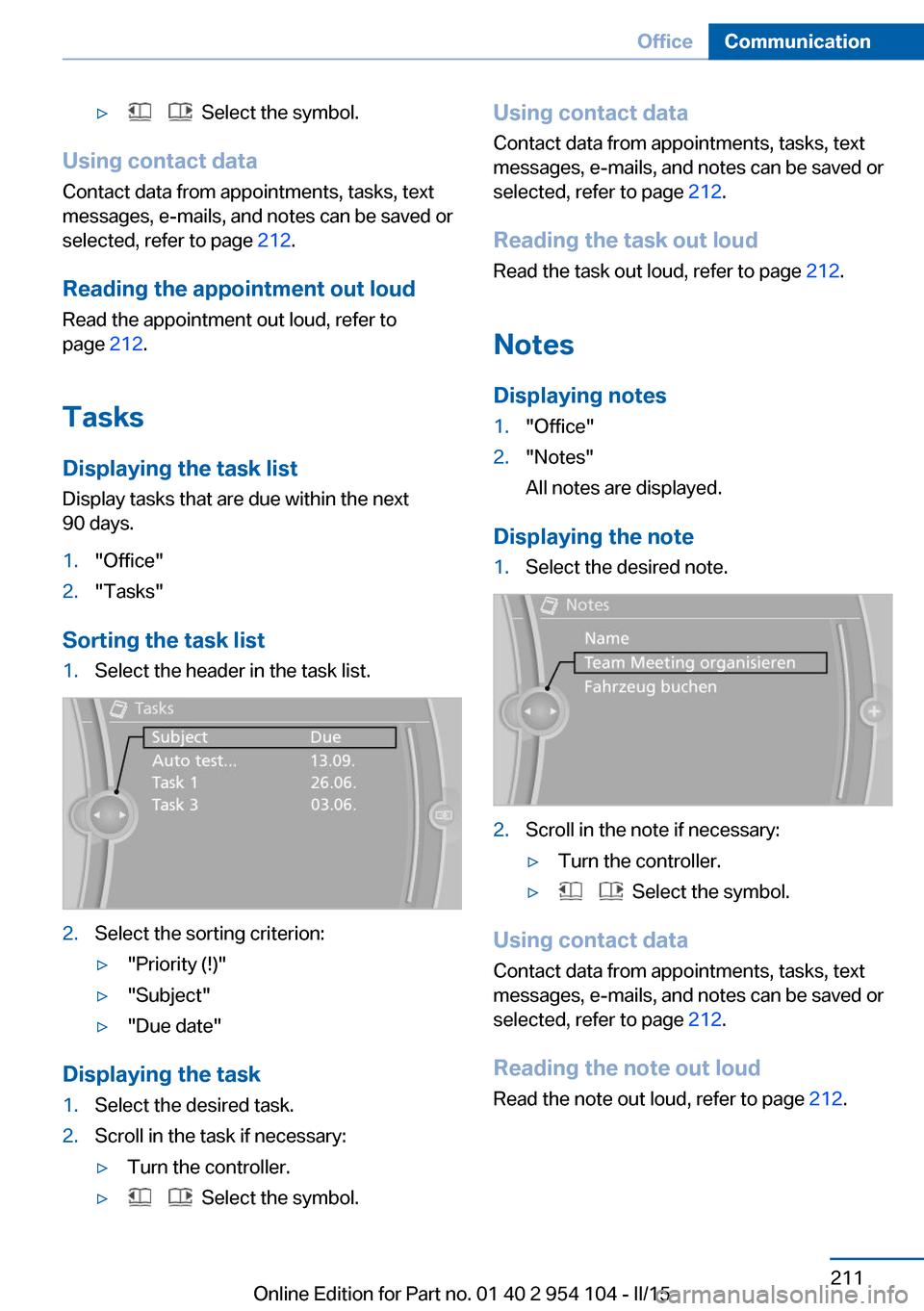
1.Select the header in the task list.2.Select the sorting criterion:▷"Priority (!)"▷"Subject"▷"Due date"
Displaying the task
1.Select the desired task.2.Scroll in the task if necessary:▷Turn the controller.▷ Select the symbol.Using contact data
Contact data from appointments, tasks, text
messages, e-mails, and notes can be saved or
selected, refer to page 212.
Reading the task out loud Read the task out loud, refer to page 212.
Notes
Displaying notes1."Office"2."Notes"
All notes are displayed.
Displaying the note
1.Select the desired note.2.Scroll in the note if necessary:▷Turn the controller.▷ Select the symbol.
Using contact data
Contact data from appointments, tasks, text
messages, e-mails, and notes can be saved or
selected, refer to page 212.
Reading the note out loud Read the note out loud, refer to page 212.
Seite 211OfficeCommunication211
Online Edition for Part no. 01 40 2 954 104 - II/15
Page 214 of 289

Reminders
Displaying reminders
Reminders of pending appointments and tasks
are displayed. After an appointment or after a
task is due, the reminder is no longer dis‐
played.1."Office"2."Reminders"3.Select the desired reminder.
The corresponding appointment or the task
are displayed.
Using contact data
At a glance Contact data from appointments, tasks, text
messages, emails, and notes can be stored or
selected.
Displaying contact or selecting phone number
1. "Use contact data"2.Display the contact or select the phone
number:▷Select the contact to display contact
details.▷Select the phone number to establish a
connection directly.
Storing contact data
1. "Use contact data"2.Highlight the phone number or e-mail ad‐
dress.3.Open "Options".4."Add to existing contact" or "Store as new
contact"Reading out loud
Text messages, e-mails, appointment entries,
tasks, and notes can be read out loud.1.Select the desired message, appointment,
task, or note.2. Select the symbol.
The following options are available during
reading:
▷ "Pause"
Interrupt reading. Select again to restart
reading.▷ "Back to beginning"
Start reading the message again from the
beginning.▷ Select the symbol.
Go back one paragraph.▷ Select the symbol.
Skip a paragraph.▷To end reading, turn the controller to the
left.
What to do if...
Information on suitable mobile phones, refer to
page 194.
Appointments, tasks, notes, text messages, or
e-mails from the mobile phone are not dis‐
played.
▷The mobile phone is not capable of the
missing function or is not connected cor‐
rectly.▷The Office function is deactivated.▷The mobile phone is connected as an addi‐
tional phone.▷Appointments are older than 20 days or
are more than 50 days in the future.▷The tasks have been marked as completed
or have a due date that lies more than
90 days in the future.Seite 212CommunicationOffice212
Online Edition for Part no. 01 40 2 954 104 - II/15
Page 216 of 289

ContactsVehicle equipmentThis chapter describes all series equipment as
well as country-specific and special equipment
offered for this model series. Therefore, it also
describes equipment that may not be found in
your vehicle, for instance due to the selected
special equipment or the country version. This
also applies to safety-related functions and
systems.
When using the features and systems descri‐
bed here, adhere to local regulations.
Note Equipment version without the mobile phone
preparation package.
General information
Contacts can be created and edited. The con‐
tacts from the mobile phone are displayed as
well if this function is supported by the mobile
phone. The addresses can be adopted as des‐
tinations for navigation and the phone num‐
bers can be dialed.
New contact1."Contacts"2."New contact"3.The entry fields are still filled with the pre‐
vious entries: "Delete input fields"4.Fill in the entry fields: select the symbol
next to the entry field.5.Enter, refer to page 25, the text.
In vehicles equipped with a navigation sys‐
tem: it is only possible to enter addresses
that are contained in the vehicle navigation
data. This ensures that destination guid‐
ance is possible for all addresses.6.If necessary, "Store"7."Store contact in vehicle"
Specifying the home address
A home address can be stored. It appears at
the top of the contact list.
1."Home"2.Create a contact.3."Store contact in vehicle"
My contacts
General information List of all contacts stored in the vehicle.
Displaying contacts
1."Contacts"Seite 214CommunicationContacts214
Online Edition for Part no. 01 40 2 954 104 - II/15
Page 217 of 289

2."My contacts"
All contacts are listed in alphabetical order.
Depending on the number of contacts, an A-Z
search is offered, refer to page 25.
A symbol indicates the storage location of the
contacts:
SymbolStorage locationNo sym‐
bolIn the vehicle; the address has not
been checked as a destination. In the vehicle; the address has
been checked as a destination. Mobile phone.
Dialing a phone number
1.Select the desired contact.2.Select the phone number.
The connection is established.
Editing a contact
1.Select the desired contact.2."Edit contact"3.Change the entries.4.Move the controller to the left.5."Yes"
If a contact from the mobile phone is edited,
the changes are not stored on the mobile
phone. A copy of the entry is stored in the ve‐
hicle, and only this copy is displayed. Under
certain circumstances, a contact entry with the
same name is created.
Selecting the contact as a navigation
destination
1.Select the desired contact.2.Select the address.
When contacts from the mobile phone are
used, the address may need to be matched
to the navigation data contained in the ve‐
hicle. In this case:
Correct the address.3."Start guidance" or "Add as another
destination"
Checking the address as a destination
An address that is to be used for destination
guidance must match the navigation data con‐
tained in the vehicle. The address can be
checked for this purpose.
1.Select the desired contact and highlight
the address.2.Open "Options".3."Check as destination"4.Correct and store the address if necessary.
If the address is corrected and stored, a copy
of it is stored in the vehicle. The address is not
changed on the mobile phone.
Selecting the sorting order of the
names
Names can be displayed in a different order.
1."My contacts"2.Open "Options".Seite 215ContactsCommunication215
Online Edition for Part no. 01 40 2 954 104 - II/15
Page 227 of 289
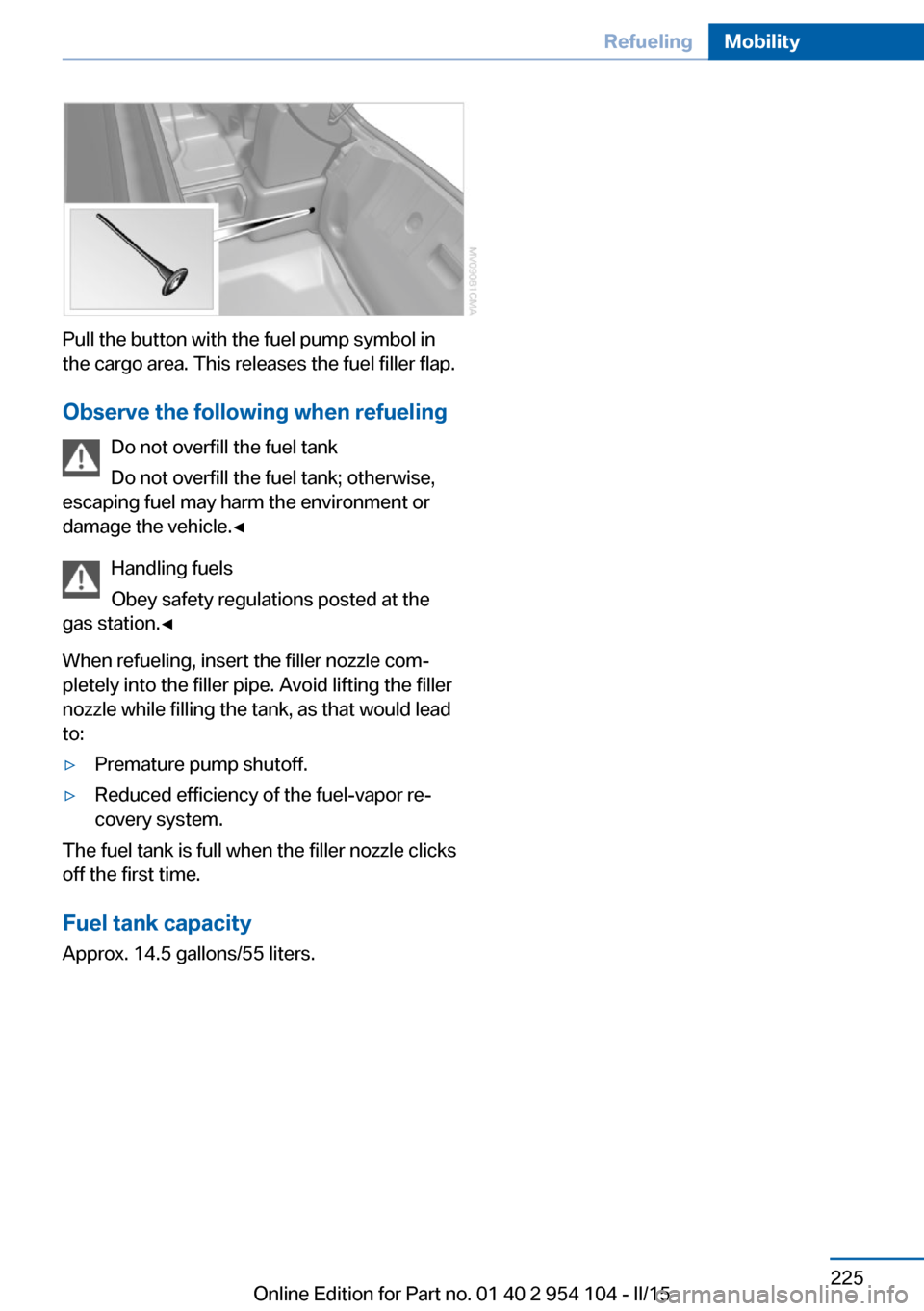
Pull the button with the fuel pump symbol in
the cargo area. This releases the fuel filler flap.
Observe the following when refueling Do not overfill the fuel tank
Do not overfill the fuel tank; otherwise,
escaping fuel may harm the environment or
damage the vehicle.◀
Handling fuels
Obey safety regulations posted at the
gas station.◀
When refueling, insert the filler nozzle com‐ pletely into the filler pipe. Avoid lifting the filler
nozzle while filling the tank, as that would lead
to:
▷Premature pump shutoff.▷Reduced efficiency of the fuel-vapor re‐
covery system.
The fuel tank is full when the filler nozzle clicks
off the first time.
Fuel tank capacity Approx. 14.5 gallons/55 liters.
Seite 225RefuelingMobility225
Online Edition for Part no. 01 40 2 954 104 - II/15
Page 235 of 289

car tires must meet under the Federal Motor
Vehicle Safety Standard No. 109. Grades B
and A represent higher levels of performance
on the laboratory test wheel than the minimum
required by law.
Temperature grade for this tire
The temperature grade for this tire is es‐
tablished for a tire that is properly inflated and
not overloaded. Excessive speed, underinfla‐
tion, or excessive loading, either separately or
in combination, can cause heat buildup and
possible tire failure.◀
RSC – Run-flat tires The symbol identifying run-flat tires is a circle
with the letters RSC on the sidewall, refer to
page 234.
M+S
Winter and all-season tires.
These have better winter properties than
summer tires.
XL
Designation for specially reinforced tires.
Tire tread
Summer tires
Do not drive with a tire tread depth of less than
0.12 in/3 mm.
There is an increased danger of hydroplaning if
the tread depth is less than 0.12 in/3 mm.
Winter tires
Do not drive with a tire tread depth of less than
0.16 in/4 mm.
Below a tread depth of 0.16 in/4 mm, tires are
less suitable for winter operation.Minimum tread depth
Wear indicators are distributed around the
tire's circumference and have the legally re‐
quired minimum height of 0.063 in/1.6 mm.
They are marked on the side of the tire with
TWI, Tread Wear Indicator.
Tire damage
Driving over rough or damaged road surfaces,
as well as debris, curbs and other obstacles can cause serious damage to wheels, tires and
suspension parts. This is more likely to occur
with low-profile tires, which provide less cush‐
ioning between the wheel and the road. Be
careful to avoid road hazards and reduce your
speed, especially if your vehicle is equipped
with low-profile tires.
Inspect your tires often for damage, foreign
objects lodged in the tread, and tread wear.
Indications of tire damage or other vehicle de‐
fects:
▷Unusual vibrations during driving.▷Unusual handling such as a strong ten‐
dency to pull to the left or right.
In case of tire damage
If there are indications of tire damage, re‐
duce your speed immediately and have the
wheels and tires checked right away; other‐
wise, there is the increased risk of an accident.
Drive carefully to the next service center or tire
shop.
Seite 233Wheels and tiresMobility233
Online Edition for Part no. 01 40 2 954 104 - II/15
Page 241 of 289

Requirements▷The engine must be running and warm af‐
ter the vehicle has been driven for at least
6.2 miles/10 km.▷The vehicle is stopped or being driven on a
level roadway.
Display in the instrument cluster
1.Press button 1 in the turn indicator lever up
or down repeatedly until the appropriate
symbol appears in the display, accompa‐
nied by the word "OIL".2.Press button 2 in the turn indicator lever.
The oil level is checked and the reading
displayed.
Possible displays
Too much engine oil
Have the vehicle checked immediately;
otherwise, surplus oil can lead to engine dam‐
age.◀
1Oil level OK2Oil level is being checked. This can take
about 3 minutes if the car is at a standstill
on a level surface, or about 5 minutes while
the car is on the move.3Oil level at minimum: add engine oil as
soon as possible, but no more
than 1 US quart/1 liter.4Oil level is too high.5The oil level sensor is defective. Do not
add engine oil. It is possible to continue
driving. Note the newly calculated remain‐
ing mileage until the next oil service. Have
the system checked as soon as possible.
Display via iDrive
1."Vehicle Info"Seite 239Engine compartmentMobility239
Online Edition for Part no. 01 40 2 954 104 - II/15
Page 285 of 289

Seats, storing the setting, re‐fer to Seat and mirror mem‐
ory 51
Sensors, care 260
Service and warranty 8
Service requirements, CBS Condition Based Serv‐
ice 243
Service requirements, dis‐ play 80
Services, remote 221
Servotronic 104
Settings and information 77
Settings, clock, 12h/24h mode 79
Settings, configuring, refer to Personal Profile 32
Settings, DVD 175
Settings on Control Dis‐ play 80
Shift paddles on steering wheel, 7-gear automatic
transmission 70
Shift paddles on steering wheel, 8-gear automatic
transmission 67
Short commands, voice acti‐ vation 266
Side airbags 92
Side windows, refer to Win‐ dows 42
Sitting safely 48
Ski bag, refer to Through- loading opening with
integrated transport
bag 121
Slot for remote control 57
Smokers' package, refer to Ashtray 120
Snap-in adapter, mobile phone 203
Snap-in adapter, refer to Cen‐ ter armrest storage com‐
partment 124
Snow chains 235 Socket, OBD Onboard Diag‐
nostics 244
Socket, refer to Connecting electrical devices 120
Software applications, iPhone 220
Software part number 194
Software update 189
SOS, refer to Emergency Re‐ quest, initiating 251
Spare fuses 250
Special destinations, naviga‐ tion 145
Special equipment, series equipment 6
Specified oil types 240
Speed, average 75
Speed limit 85
Speedometer 16
Split screen 24
Split screen map set‐ tings 155
Spoken instructions, naviga‐ tion 153
SPORT+ program, Dynamic Driving Control 103
Sport program, 7-gear auto‐ matic transmission 70
Sport program, 8-gear auto‐ matic transmission 67
SPORT program, Dynamic Driving Control 103
Spray nozzles, refer to Clean‐ ing the windshield and head‐
lamps 64
Stability control systems 101
Start/Stop button 57
Start/Stop button, starting the engine 58
Start/Stop button, switching off the engine 59
Starting aid 252
Starting the engine 58
State/province, selecting for navigation 142
Stations, stored 170 Station, storing 164
Status information, iDrive 23
Status of Owner's Manual 6
Steam jets 257
Steering wheel 54
Steering wheel, adjusting 54
Steering wheel, buttons on the steering wheel 14
Stopping, engine 59
Storage compartments 125
Storage, tires 235
Storing the seat position, re‐ fer to Seat and mirror mem‐
ory 51
Storing the vehicle 260
Street, entering for naviga‐ tion 143
Summer tires, refer to Wheels and tires 228
Summer tires, tread 233
Suspension settings 102
Switches, refer to Cockpit 14
Switch for Dynamic Driving Control 102
Switching off, engine 59
Switching off, vehicle 59
Symbols 6
T Tachometer 74
Tailgate, opening from the in‐ side 38
Tailgate, refer to Trunk lid 38
Tailgate, remote control 35
Tail lamps, bulb replace‐ ment 247
Tail lights 247
Tank display 74
Tasks 211
Technical changes, refer to Safety 7
Technical data 264
Telephone 194
Telephone, adjusting the vol‐ ume 198 Seite 283Everything from A to ZReference283
Online Edition for Part no. 01 40 2 954 104 - II/15