2015 BMW X1 key
[x] Cancel search: keyPage 194 of 297
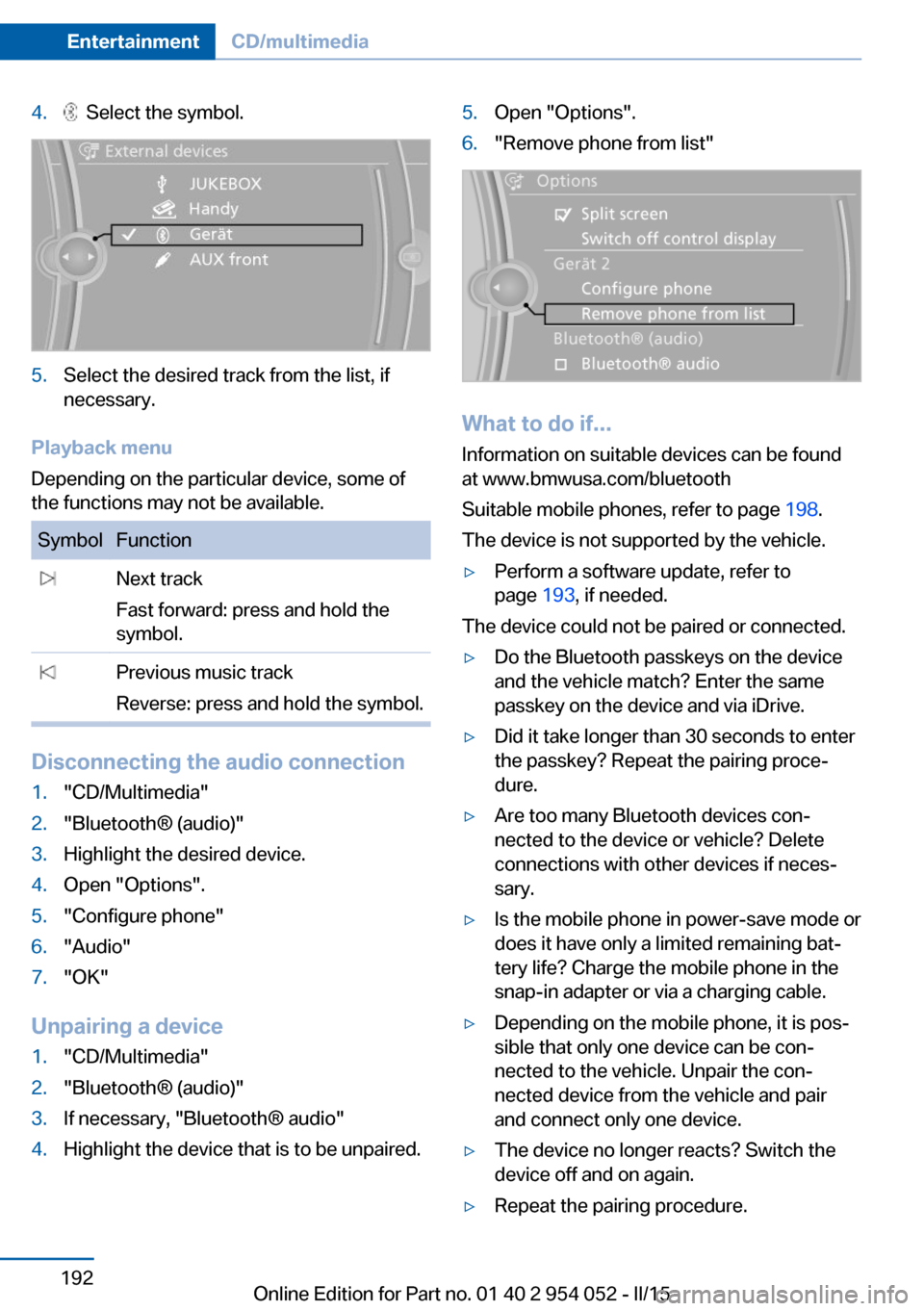
4. Select the symbol.5.Select the desired track from the list, if
necessary.
Playback menu
Depending on the particular device, some of
the functions may not be available.
SymbolFunction Next track
Fast forward: press and hold the
symbol. Previous music track
Reverse: press and hold the symbol.
Disconnecting the audio connection
1."CD/Multimedia"2."Bluetooth® (audio)"3.Highlight the desired device.4.Open "Options".5."Configure phone"6."Audio"7."OK"
Unpairing a device
1."CD/Multimedia"2."Bluetooth® (audio)"3.If necessary, "Bluetooth® audio"4.Highlight the device that is to be unpaired.5.Open "Options".6."Remove phone from list"
What to do if...
Information on suitable devices can be found
at www.bmwusa.com/bluetooth
Suitable mobile phones, refer to page 198.
The device is not supported by the vehicle.
▷Perform a software update, refer to
page 193, if needed.
The device could not be paired or connected.
▷Do the Bluetooth passkeys on the device
and the vehicle match? Enter the same
passkey on the device and via iDrive.▷Did it take longer than 30 seconds to enter
the passkey? Repeat the pairing proce‐
dure.▷Are too many Bluetooth devices con‐
nected to the device or vehicle? Delete
connections with other devices if neces‐
sary.▷Is the mobile phone in power-save mode or
does it have only a limited remaining bat‐
tery life? Charge the mobile phone in the
snap-in adapter or via a charging cable.▷Depending on the mobile phone, it is pos‐
sible that only one device can be con‐
nected to the vehicle. Unpair the con‐
nected device from the vehicle and pair
and connect only one device.▷The device no longer reacts? Switch the
device off and on again.▷Repeat the pairing procedure.Seite 192EntertainmentCD/multimedia192
Online Edition for Part no. 01 40 2 954 052 - II/15
Page 200 of 297

TelephoneVehicle equipmentThis chapter describes all series equipment as
well as country-specific and special equipment
offered for this model series. Therefore, it also
describes equipment that may not be found in
your vehicle, for instance due to the selected
special equipment or the country version. This
also applies to safety-related functions and
systems.
When using the features and systems descri‐
bed here, adhere to local regulations.
At a glance The conceptMobile phones or other external devices such
as audio players can be connected to the vehi‐
cle via Bluetooth.
Bluetooth® is a registered trademark of Blue‐
tooth® SIG, Inc.
After these devices are paired once, they are
recognized automatically when the ignition is
switched on as soon as they are in the vehicle
and can then be operated via iDrive, the but‐
tons on the steering wheel, and via voice acti‐
vation.
Depending on their functionality, external devi‐
ces can be used via the vehicle as a telephone
or as an audio source. The telephone functions
are described in the following. Operating the
audio functions, refer to page 189.
Up to four external devices can be paired.
Certain functions may need to be enabled by
the mobile phone provider or service provider.
Using the mobile phone while driving
Make entries only when traffic and road
conditions allow. Do not hold the mobile phone
in your hand while you are driving; use the
hands-free system instead. If you do not ob‐serve this precaution, you can endanger the
vehicle occupants and other road users.◀
Snap-in adapter The snap-in adapter is used to:▷Hold the mobile phone.▷Recharge the battery.▷Connect the mobile phone to an outside
antenna of the vehicle.
This provides for better network reception
and consistent sound quality.
Approved mobile phones
Details on which mobile phones and external
devices with a Bluetooth interface are sup‐
ported by the mobile phone preparation pack‐
age can be obtained at www.bmwusa.com/
bluetooth.
Displaying the vehicle identification
number and software part number
The vehicle identification number and software part number are needed to determine which
mobile phones are supported by the mobile
phone preparation package. The software ver‐
sion of the mobile phone may also be required.
1."Telephone"2.Open "Options".3."Bluetooth® info"4."Display system information"
These approved mobile phones with a certain
software version, support the vehicle functions
described below.
Malfunctions may occur with other mobile
phones or software versions.
Do not operate a mobile phone that is con‐
nected to the vehicle on the mobile phone key‐
pad, as this may lead to a malfunction.
Seite 198CommunicationTelephone198
Online Edition for Part no. 01 40 2 954 052 - II/15
Page 201 of 297
A software update, refer to page 193, can be
performed if necessary.
Notes At high temperatures, the charging function of
the mobile phone may be limited and functions
may not be executed.
When using the mobile phone via the vehicle,
note the operating instructions of the mobile
phone.
Pairing/unpairing the mobile
phone
General information The following functions are available:▷Use of a mobile phone as a telephone.▷Use of a mobile phone as an additional te‐
lephone.▷Use of a mobile phone as an audio source.▷Use of an audio device as an audio source,
refer to page 189.
Requirements
▷The mobile phone is suitable, refer to
page 198.▷The mobile phone is ready for operation.▷Bluetooth is activated in the vehicle and on
the mobile phone.▷Bluetooth presettings may need to be
made on the mobile phone, e.g., for a con‐
nection without confirmation or visibility,
refer to the mobile phone operating in‐
structions.▷Deactivate Bluetooth audio if necessary.▷A number with at least four and a maximum
of 16 digits was defined as the Bluetooth
passkey. It is only required once for pairing.▷The ignition is switched on.Activating/deactivating Bluetooth
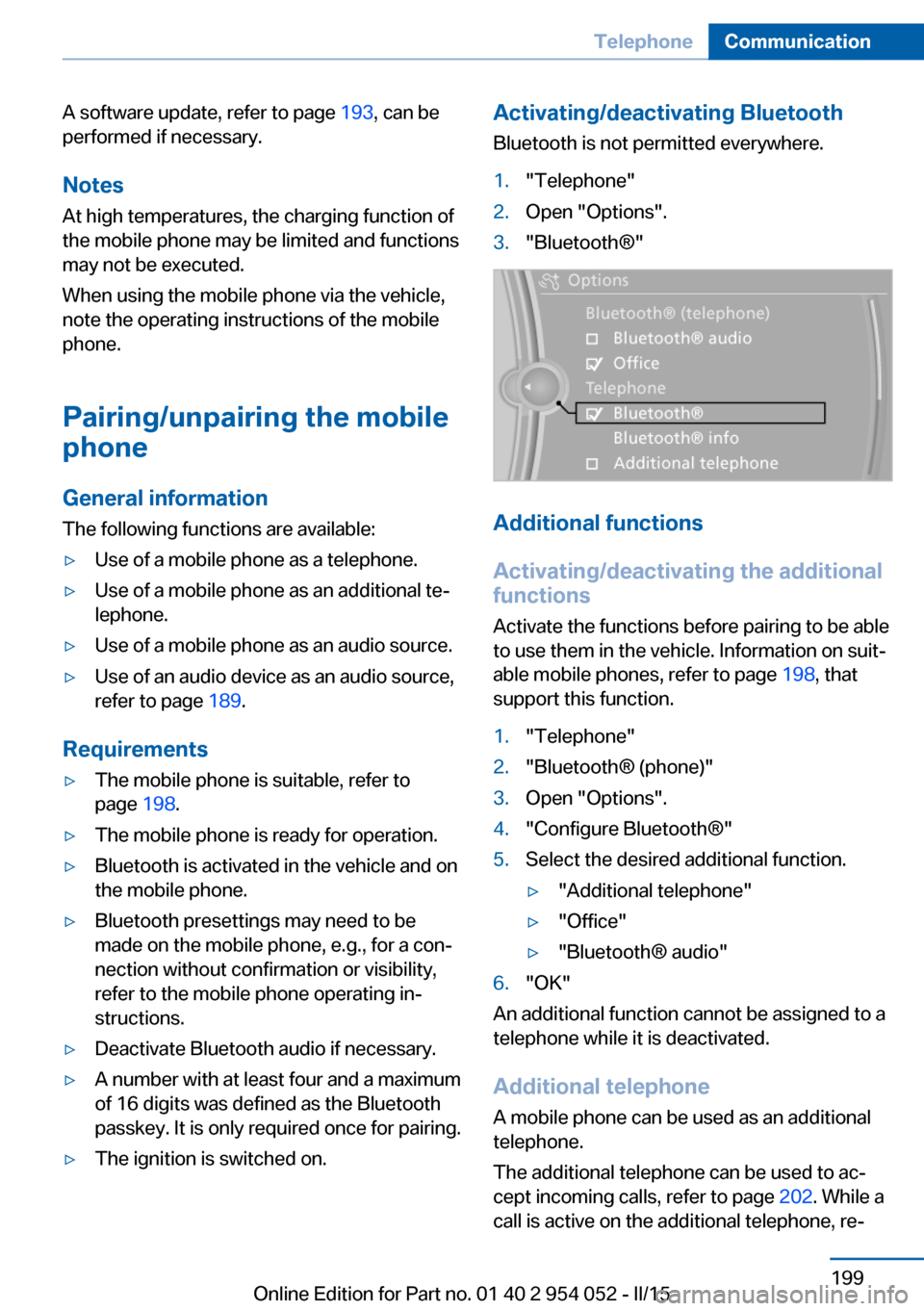
Bluetooth is not permitted everywhere.1."Telephone"2.Open "Options".3."Bluetooth®"
Additional functions
Activating/deactivating the additional
functions
Activate the functions before pairing to be able
to use them in the vehicle. Information on suit‐
able mobile phones, refer to page 198, that
support this function.
1."Telephone"2."Bluetooth® (phone)"3.Open "Options".4."Configure Bluetooth®"5.Select the desired additional function.▷"Additional telephone"▷"Office"▷"Bluetooth® audio"6."OK"
An additional function cannot be assigned to a
telephone while it is deactivated.
Additional telephone A mobile phone can be used as an additional
telephone.
The additional telephone can be used to ac‐
cept incoming calls, refer to page 202. While a
call is active on the additional telephone, re‐
Seite 199TelephoneCommunication199
Online Edition for Part no. 01 40 2 954 052 - II/15
Page 202 of 297

ceived calls are displayed on the Control Dis‐
play.
Audio source
A mobile phone can be used as an audio
source.
Pairing and connecting a mobile
phone
Pairing the mobile phone
To avoid becoming distracted and pos‐
ing an unnecessary hazard both to your own
vehicle's occupants and to other road users,
only pair the mobile phone while the vehicle is
stationary.◀1."Telephone"2."Bluetooth® (phone)"3."Add new phone"
The Bluetooth name of the vehicle is dis‐
played.4.To perform additional steps on the mobile
phone, refer to the mobile phone operating
instructions: for instance, search for or
connect the Bluetooth device or a new de‐
vice.
The Bluetooth name of the vehicle appears
on the mobile phone display.5.Select the Bluetooth name of the vehicle
on the mobile phone display.6.You are prompted by the iDrive or mobile
phone to enter the same Bluetooth pass‐
key. Enter the passkey and confirm.
or
Compare the control number on the vehi‐
cle display with the control number on the
mobile phone display. Confirm the control
number on the mobile phone and in the ve‐
hicle.
"OK"7.Select the functions for which the mobile
phone is to be used.8."OK"If the pairing was successful, the mobile phone
appears at the top of the list of mobile phones.
The functions supported by the mobile phone
and audio device are displayed as symbols
when paired.
White symbol: the function is active.
Gray symbol: the function is inactive.SymbolFunction Telephone. Additional telephone. Audio source.
Four mobile phones can be paired with the ve‐
hicle at once. Three mobile phones can be
connected with the vehicle at once.
If pairing was unsuccessful: What to do if..., re‐
fer to page 201.
Following the initial pairing
▷The mobile phone is detected/connected
in the vehicle within a short period of time
when the engine is running or the ignition
is switched on.▷The phone book entries of the telephone
stored on the SIM card or mobile phone
are transmitted to the vehicle after detec‐
tion, depending on the mobile phone.▷Four mobile phones can be paired.▷Specific settings may be necessary in
some mobile phones, e.g., authorization or
a secure connection; refer to the mobile
phone operating instructions.
Connecting a particular mobile phone
1."Telephone"2."Bluetooth® (phone)"3.Select the mobile phone that is to be con‐
nected.
The functions assigned to the mobile phone
before unpairing are assigned to the mobile
Seite 200CommunicationTelephone200
Online Edition for Part no. 01 40 2 954 052 - II/15
Page 203 of 297

phone when it is reconnected. These functions
are deactivated in a mobile phone that is al‐
ready connected.
Configuring the mobile phone Additional functions can be activated or deacti‐
vated for paired and connected mobile phones.1."Telephone"2."Bluetooth® (phone)"3.Highlight the mobile phone to be config‐
ured.4.Open "Options".5."Configure phone"6.At least one function must be selected.▷"Telephone"▷"Additional telephone"▷"Audio"7."OK"
If a function has already been assigned to an‐
other connected mobile phone, the function is
deactivated in that mobile phone and the mo‐
bile phone is unpaired when the function is as‐
signed to a new mobile phone.
Swapping the telephone and
additional telephone
The function of the telephone and additional
telephone can be swapped automatically.
1."Telephone"2."Bluetooth® (phone)"3."Swap phone/addit. phone"
Unpairing the mobile phone
1."Telephone"2."Bluetooth® (phone)"3.Highlight the mobile phone that is to be
unpaired.4.Open "Options".5."Remove phone from list"
What to do if...
Information on suitable mobile phones, refer to
page 198.
The mobile phone could not be paired or con‐
nected.
▷Is Bluetooth activated in the vehicle and on
the mobile phone? Activate Bluetooth in
the vehicle and on the mobile phone.▷Do the Bluetooth passkeys on the mobile
phone and the vehicle match? Enter the
same passkey on the mobile phone and via
iDrive.▷Did it take longer than 30 seconds to enter
the passkey? Repeat the pairing proce‐
dure.▷Are too many Bluetooth devices con‐
nected to the mobile phone or vehicle? De‐
lete connections with other devices if nec‐
essary.▷Is the audio connection activated? Deacti‐
vate the audio connection.▷Is the mobile phone in power-save mode or
does it have only a limited remaining bat‐
tery life? Charge the mobile phone in the
snap-in adapter or via the charging cable.▷Depending on the mobile phone, it is pos‐
sible that only one mobile phone can be
connected to the vehicle. Unpair the con‐
nected mobile phone from the vehicle and
pair and connect only one mobile phone.
The mobile phone no longer reacts.
Seite 201TelephoneCommunication201
Online Edition for Part no. 01 40 2 954 052 - II/15
Page 206 of 297

If a second call comes in during an ongoing
call, a call waiting signal is sounded.
"Accept"
The call is accepted and the existing call is put
on hold.
Establishing a second call
Establish an additional call during an active
call.
1."Telephone"2."Active calls"3. "Hold"
The existing call is put on hold.4.Dial the new phone number or select it
from a list.
"Return"
The call on hold is resumed.
Switching between two calls, hold call The active call is displayed in color.
The call on hold is displayed in gray.
"Swap calls"
The call on hold is resumed.
Establishing a conference call Two calls can be connected to a single tele‐
phone conference call.
1.Establish two calls.2. "Conference call"When terminating a conference call, both calls
are ended. If one call is terminated by another
party, the other call can be continued.
Switching the microphone to mute When a call is active, the microphone can be
muted.1."Telephone"2."Active calls"3. "Microphone mute"
A microphone that has been switched to mute
is automatically reactivated:
▷When a new connection is established.▷When switching between call parties.
DTMF suffix dialing
DTMF suffix dialing can be used for gaining ac‐
cess to network services or for controlling de‐
vices, e.g., to make a remote inquiry of an an‐
swering machine. The DTMF code is needed
for this purpose.
1."Telephone"2.Select the contact from a list or "Dial
number".3. "Keypad dialing"4.Enter the DTMF code via iDrive.
Phone book
Displays The phone book accesses the contacts and
shows all contacts for which a phone number
has been stored. The entries can be selected
to make a call.
1."Telephone"2."Phone book"
A symbol indicates the storage location of the
contacts.
Seite 204CommunicationTelephone204
Online Edition for Part no. 01 40 2 954 052 - II/15
Page 284 of 297

Cargo floor panel, foldingup 123
Cargo floor panel, raising 123
Cargo net, refer to Partition net 121
Cargo straps, securing cargo 137
Car key, refer to Integrated key/remote control 32
Carpet, care 265
Car phone, installation loca‐ tion, refer to Center arm‐
rest 126
Car phone, refer to Tele‐ phone 198
Car vacuum cleaner, connect‐ ing, refer to Connecting
electrical devices 119
Car wash 263
Catalytic converter, refer to Hot exhaust system 133
CBS Condition Based Serv‐ ice 247
CD/DVD 176
CD notes 180
CDs, storing 181
Cell phone, installation loca‐ tion, refer to Center arm‐
rest 126
Center armrest, front 126
Center armrest, rear 126
Center brake lamp, bulb re‐ placement 255
Center console, refer to Around the center con‐
sole 18
Central locking, Comfort Ac‐ cess 39
Central locking from the in‐ side 37
Central locking from the out‐ side 33
Central locking, setting the unlocking characteristics 34
Central screen, refer to Con‐ trol Display 20 Changes, technical, refer to
Safety 7
Changing wheels/tires 239
Check Control 82
Children, transporting 54
Child restraint fixing system LATCH 55
Child restraint fixing sys‐ tems 54
Child restraint fixing systems, mounting 54
Child safety locks 57
Child seat, mounting 54
Child seats, refer to Trans‐ porting children safely 54
Chrome parts, care 265
Cigarette lighter, connecting electrical devices 119
Cigarette lighter, refer to Lighter 119
Cigarette lighter socket 119
Circulation of air, refer to Re‐ circulated air mode 112
Cleaning, displays 266
Cleaning your BMW, refer to Care 263
Clock 73
Clock, 12h/24h format 78
Clock, setting the time and date 78
Clock, setting the time zone 78
Closing from the inside 37
Closing from the outside 34
Clothes hooks 127
Cockpit 14
Cold start, refer to Starting the engine 60
Combination instrument, refer to Instrument cluster 16
Combination switch, refer to Turn signal/high beams/
headlamp flasher 64
Combination switch, refer to Washer/wiper system 64
Comfort Access 39 Comfort Access, battery re‐
placement 41
Comfort area, refer to Around the center console 18
Compact wheel, inflation pressure 232
Compartment for remote control, refer to Ignition
lock 59
Compartment in floor 123
Compartments, refer to Stor‐ age compartments 125
Compass, digital 117
Computer 75
Computer, displaying infor‐ mation 75
Computer, displays on the Control Display 76
Concierge service 221
Condensation under the vehi‐ cle 134
Condition Based Service CBS 247
Confirmation signals 35
Connecting, mobile phone, refer to Pairing the mobile
phone 199
Consumption, refer to Aver‐ age fuel consumption 75
Contacts 210
Control Display 20
Control Display, care 266
Control Display, settings 79
Controller 21
Controls and displays 14
Control systems, driving sta‐ bility 99
Convenient operation, glass sunroof 34
Convenient operation, win‐ dow 34
Coolant 246
Coolant, checking the level 246
Coolant temperature 74 Seite 282ReferenceEverything from A to Z282
Online Edition for Part no. 01 40 2 954 052 - II/15
Page 285 of 297

Cooling function, switchingon and off 112
Cooling, maximum 111
Cooling system, refer to Cool‐ ant 246
Corrosion on brake discs 134
Courtesy lights, refer to Inte‐ rior lights 89
Cradle for telephone or mo‐ bile phone, refer to Snap-in
adapter 207
Cruise control 103
Cruise control, malfunc‐ tion 105
Cupholder 127
Curb weight, refer to Weights 270
Current fuel consumption 74
Current location, storing 148
Curve lights, refer to Adaptive Light Control 86
D
Dashboard lighting, refer to Instrument lighting 89
Dashboard, refer to Cock‐ pit 14
Data, technical 270
Date, date format 79
Date, setting 78
Daytime running lights 86
Daytime running lights, bulb replacement 253
Defroster, rear window 113
Destination entry via the ad‐ dress book 148
Destination guidance 155
Destination guidance with in‐ termediate destinations 153
Destination input, naviga‐ tion 146
Digital clock 73
Digital compass 117
Digital radio 169
Dimming mirrors 52 Directional indicators, refer to
Turn signals 64
Display lighting, refer to In‐ strument lighting 89
Displays and controls 14
Displays, care 266
Displays, cleaning 266
Displays, refer to Instrument cluster 16
Disposal, coolant 246
Disposal, vehicle battery 256
Distance warning, refer to Park Distance Control
PDC 105
Divided rear seat backrest, re‐ fer to Cargo area, enlarg‐
ing 121
Divided screen view, split screen 24
Door key, refer to Remote control with integrated
key 32
Door lock 36
Doors, manual operation 37
Doors, unlocking and locking, confirmation signals 35
Doors, unlocking and locking from the inside 37
Doors, unlocking and locking from the outside 34
DOT Quality Grades 238
Downhill control 101
Draft-free ventilation 113
Drive-off assistant 102
Driving away on inclines, refer to Drive-off assistant 102
Driving notes, breaking in 132
Driving notes, general 132
Driving on poor roads 134
Driving stability control sys‐ tems 99
Driving through water 133
Driving tips, refer to Driving notes 132 Dry air, refer to Cooling func‐
tion 112
DSC Dynamic Stability Con‐ trol 99
DTC Dynamic Traction Con‐ trol 100
DTMF suffix dialing 204
DVD/CD 176
DVDs, storing 181
DVD, video 178
Dynamic destination guid‐ ance 162
Dynamic Stability Control DSC 99
Dynamic Traction Control DTC 100
E ECO PRO 140
ECO PRO display 140
ECO PRO driving mode 140
ECO PRO mode 140
EfficientDynamics, refer to Saving fuel 139
Electrical malfunction, door lock 37
Electrical malfunction, driver's door 37
Electrical malfunction, fuel filler flap 229
Electrical malfunction, tail‐ gate 38
Electric seat adjustment 47
Electronic brake-force distri‐ bution 99
Electronic engine oil level check 243
Electronic Stability Program ESP, refer to Dynamic Sta‐
bility Control DSC 99
Emergency operation, auto‐ matic transmission, refer to
Overriding selector lever
lock 69 Seite 283Everything from A to ZReference283
Online Edition for Part no. 01 40 2 954 052 - II/15