2015 AUDI S4 fuel
[x] Cancel search: fuelPage 26 of 304

24 Driver information d isplay
Trip computer
Introduction
Applies to vehicles: wit h trip computer
The trip computer gives you information on
current and average fuel mileage, average
speed, fuel range and driving time .
Fig. 9 Tri p comp uter d isp lay: Ave rage fuel mileage
The follow ing informat ion is continuously
evaluated by the trip computer and can be dis
p layed sequentially in the instrument cluster
display:
Fuel range
The estimated cruising range in miles (km)
appears in the display. This tells you how far
your vehicle wi ll be able to t ravel on the cur
rent tank of fue l and with the same driving
style. The display changes in increments of
5 miles (10 km).
The cruising range is calculated based on the
fuel consumption for the last 18 miles
(30 km). If you drive conservatively, the cruis
ing range will increase.
Average fuel mileage
The average fuel economy in MPG (l/100 km)
since you last cleared the memory appears in
this display. You can use this disp lay to adjust
your driving technique to achieve a desired mileage .
Current fuel mileage
The instantaneous fuel consumption in miles
per gallon (l/100 km) is shown in this display .
You can use this display to adjust your driving
technique to achieve a desired mileage. Fuel
consumption is recalcu lated at intervals
of 33 yards (30 meters). This disp lay switches
to gallons/hour (liters/hour) when the vehicle is not moving.
Average speed
The average speed in mph (km/h) s ince you
last reset the memory appears in the display.
Elapsed time
The length of time that you have been driving
s ince you last reset the memory appears in
th is disp lay.
Distance
The distance that has been covered since the
last t ime the memory was cleared appears in
the display.
(0 Tips
- Fuel consumptions (average and cur
rent), range and speed are displayed in
metric units on Canadian models.
- All stored values will be lost if the vehi
cle battery is disconnected .
Memories
Applies to veh icles: w ith t rip co mputer
The trip computer is equipped with two fully
automatic memories as well as an efficiency
program* .
Fig. 10 Trip computer d isp lay : memory leve l 1
You can switch between the trip computer 1
and 2 and the efficiency program* by pressing
the
I RESET ! button@<=:> page 25 , fig . 11.
You can tell which memory leve l is cu rrently
active by the number o r the sign in the display
IJ,-
Page 27 of 304
"' N
0 :,,: co ,...., \!) ..,.,
,...., ..,., ,....,
¢fig. 10. The data from the single-trip mem
ory (memory leve l 1) is being displayed if a
D
appears in the display. If a fJ is shown, then
the data from the total-trip memory is being
d isplayed (memory level
2). The fuel pump
nozzle
ii indicate s the efficiency program*
¢page 26 .
Single-trip memory (Trip computer 1)
The single -trip memory stores the trip infor
mat ion from the time the ignition is turned on
until it is turned off. If the trip is continued
within 2 hours from the time the ignition was
turned off, the new data will be included in
the calculation of the current trip informa
tion. If the trip is interrupted for
more than 2
hours the memory is reset automatically.
Total-trip memory (Trip computer 2)
Unlike the sing le-trip memory, the total-trip
memory is not reset automatically. This per
mits you to evaluate your driving data for the
enti re pe riod between manual resets.
Efficiency program*
The effic iency program can help you to use
less fuel ¢
page 26.
Operation
Applies to vehicles: with trip computer
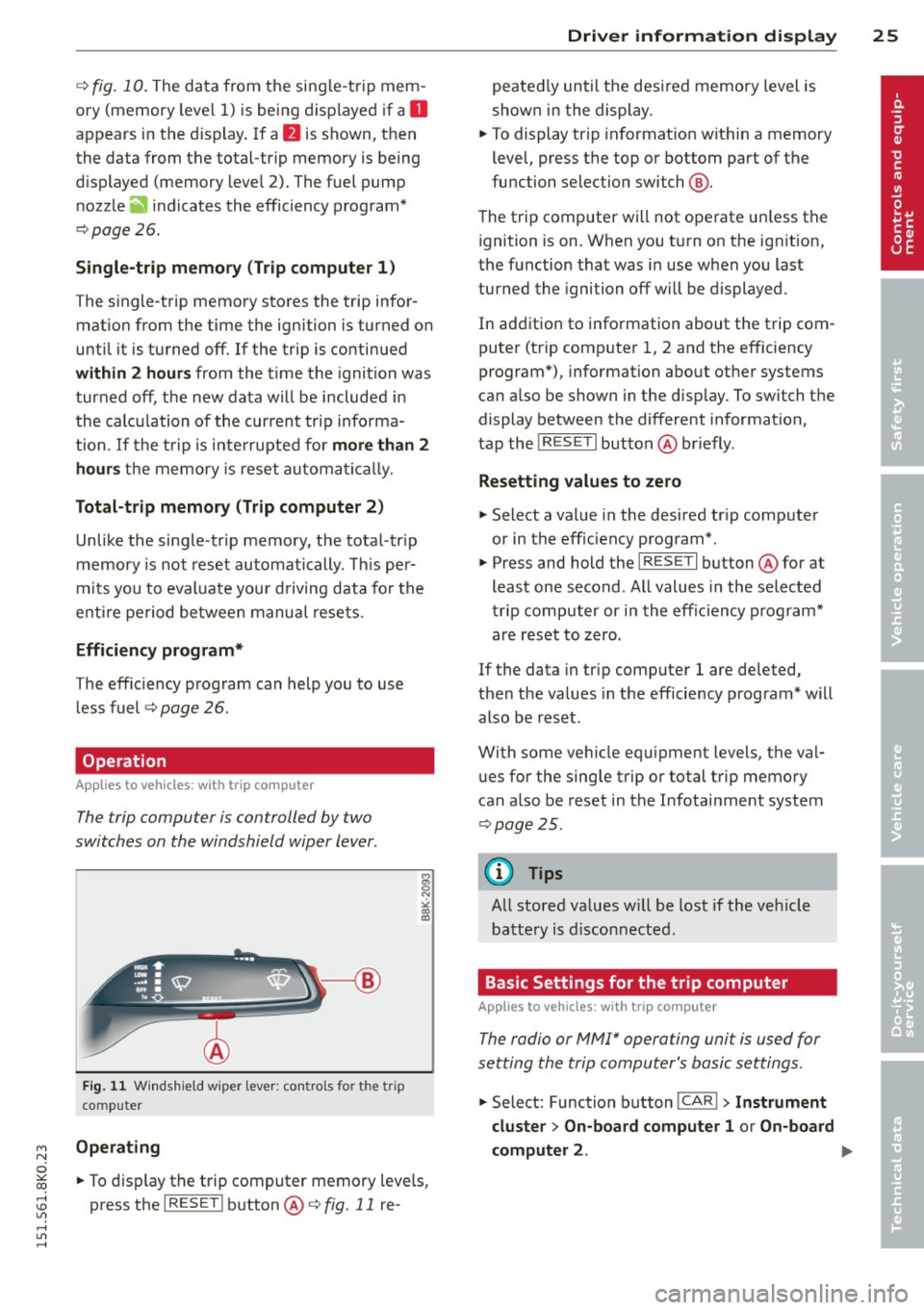
The trip computer is controlled by two
switches on the windshield wiper lever.
Fig. 11 Wind shi eld w iper lever: controls for the t rip
comp uter
Operating
~ To display the trip computer memory leve ls,
press the
I RESE T I button @¢ fig. 11 re-
Driver information display 25
peated ly until the desi red memory level is
show n in the display.
~ To display trip informat ion with in a memory
level, press the top or bottom part of the
function selection switch @.
The trip computer will not operate un less the
ignition is on. When you turn on the ign it ion,
the function that was in use when you last
turned the ignition off will be displayed .
In addition to information about the trip com
puter (trip computer 1, 2 and the efficiency
program*), information about other systems
can also be shown in the disp lay. To switch the
display between the different information ,
tap the
! RESET I button @briefly.
Resetting values to zero
~ Select a value in the desired tr ip computer
or in the eff iciency program".
~ Press and hold the I RESE T I button @for at
least one second . All values in the selected
trip computer or in the efficiency program*
are reset to zero.
If the data in trip computer
1 are deleted ,
then the values in the efficiency program* w ill
also be reset.
With some vehicle equipment levels, the val
ues for the single trip or total trip memory
can a lso be reset in the Infotainment system
¢page 25 .
(D Tips
All stored va lues w ill be lost if the vehicle
battery is disconnected.
Basic Settings for the trip computer
App lies to vehicles : wit h trip co mputer
The radio or MM!* operating unit is used for
setting the trip computer's basic settings.
~ Select: Function button !CAR !> Instrument
cluster > On-board computer 1
or On-board
computer 2 . .,.
Page 28 of 304

26 Driver information d isplay
The values in the single -trip or the total-trip
memory can a ll be reset to zero at the same
time under
Reset in the menu.
I n addition, you can determine what informa
tion from the trip computer should be shown
in the instrument cluster d isplay. If one of the
p ieces of driver information is turned
Off, that
driver information will not be shown in the
display. The information will continue to be
calculated by the trip computer and can be
turned back
On at any time .
@ Tips
-This function is not available on all
vehicles.
- The dr iving information in the efficiency
program is also reset to zero with the
s ingle-trip memory.
Gearshift Indicator
App lies to vehicles: with manua l transmission and gear
shift indicator
This indicator can help conserve fuel.
F ig. 12 Disp lay : Gea rs hift indicator
In order to become familiar with the gearshift
indictor, at first just drive the way you are
used to. If the current gear -and the driving
situa tion -is not the best one for conserving
fuel, then the indicator will display the recom
mended gear. The display shows the current
gear and the gear that is recommended
¢ fig. 12.
- Upshifting The display will light up to the
right of the gear currently se lected if it is
recommending a higher gear.
-Downshifting: The display will light up to
the
left of the gear currently selected if it is
recommend ing a lower gear.
Sometimes the indicator will recommend
skipping a gear (3
> S).
If there is no gearshift recommendation, then
j us t drive in the appropriate gear for conserv
ing fuel.
(D Note
This indicator can help you conserve fuel.
This indicator is not meant to show you
which gear you should always be in in all
driving situations . Sometimes, in situa
tions such as passing, driving through
mountains or when towing a trailer, there
won't be any gearshift recommendation.
@ Tips
The display does not light up when the
clutch pedal is being depressed.
Efficiency program
Description
Applies to vehicles: with trip computer with efficiency
program
Fig. 13 Display: efficie ncy prog ra m
.. Press the I RESE T! button @~ page 25,
fig.
11 repeatedly until the efficiency pro
gram appears in the display .
T he efficiency program can help you to use
less fue l. It evaluates driving information in
reference to fuel consumption and shows oth
er equipment influencing consumption as well
as shift recommendat ions . Fuel economy
ll>
Page 29 of 304

M N
~ co
rl I.O
"' rl
"' rl
messages ¢ page 28 provide tips for effi
cient driving.
The effic iency program uses distance and con
sumpt ion data from trip computer
1. If the
data are deleted in the efficiency prog ram,
those values are also reset in trip computer
1.
Enhanced shift indicator
Applies to vehicles: with manual transmission and trip
computer with efficiency program
Fig. 1 4 Display: enhanced shift indicator
~ In the efficiency program, press the function
selection switch ¢
page 25, fig. 11 @ re
peatedly unt il the enhanced sh ift indicator
appea rs in the di sp lay .
The eff ic iency program also has an enhanced
shift indicator. This enhanced sh ift indicator
follows the same concept as the "standard"
shift indicator¢
page 26. The selected and
the recommended gea rs a re highlig hted in
colors like a traffic light .
The color of the circle indicates if the most
suitab le gear is engaged or if you sho uld sh ift
up or down.
Green circle without No gear or the most
or with a gear suitable gear is en-
gaged
Yellow circle ¢
fig. 14
Shift up or down one
gear
Red circle Shift up two gears
(D Note
This enhanced shift ind icator can help you
conserv e fuel. It is not des ign ed to recom
mend the cor rect gear in a ll driving situa
tions. Only the driver ca n dec ide which
Dri ver inform ation di spl ay 2 7
gear is correct in certain d riving situations
such as when passing another vehicle,
driving on hills or towing a trailer .
(D Tips
- The e nhanced shift indicator display is
different in vehicles with a monochrome
display.
- The "standard" shift indicato r* d isap
pears when the enhanced shift indicator
is displayed.
Other equipment
Appl ies to vehicles : with trip computer with efficiency
program
F ig. 15 Display: othe r equipment
~ In the efficiency program, p ress the function
selectio n sw itch
¢ page 2 5, fig. 11 @ re
peated ly until the ot her equ ipment appea rs
in the display.
Other equ ipment that is currently affecting
fuel consump tion is listed in the effi ciency
program. The disp lay shows up to th ree other
items of eq uipment @. The equ ipment using
the most fuel is listed first. If more than three
items using fuel a re switched on, the equip
ment that is currently using the most fuel is
displayed.
A scale @also shows the c urrent tota l con
sumption of all othe r equipment .
Page 30 of 304

28 Driver information d isplay
Fuel economy messages
App lies to vehicles: with trip computer w ith eff ici ency
program
Fig. 16 Display: fuel economy message
F ue l economy messages are disp layed when
fuel consumption is increased by certain con ditions. If you follow these fuel economy mes
sages, you can reduce your vehicle's consump
tion of fuel. The messages appear automati
cally and are only displayed in the efficiency program. The fuel economy messages turn
off
automatically after a certain period of time.
~ To turn a fuel economy message off immedi
ately after it appears, press the lRESET I but
ton
c::> page 25, fig. 11 @ , or
~ Press the function selection switch
c::> page 2 5, fig. 11 @ .
(D Tips
-Once you have turned a fuel economy
message
off, it will only appear again af
ter you turn the ignition on aga in.
- The fuel economy messages are not dis
played in every instance, but rather in in
tervals over a period of time.
Service interval display
The service interval display reminds you when
your next service is due.
Fig. 17 Display: Service interval display
The schedule for the next o il change or inspec
tion is ca lculated automatically and displayed
accord ingly. The d isp lay works in two stages:
Service reminder
30 days before the next service is due, a serv
ice reminder appears in the display when you
turn on the ign ition
c::> fig . 17 .
After about 5 seconds the display switches
back to normal. The distance and time re
main ing are updated each time the ignit ion is
turned on until the date due for serv ice is
reached.
Service due
When the due date for service is reached, the message
Service due! appears in the instru
ment cluster immed iately after you turn on
the ignition. Additional ly, a warning tone
sounds. After about 5 seconds the disp lay
switches back to normal.
Calling up the service schedules
If or when an oil change or inspection is due,
can be shown in the rad io or MMI* display by
selecting the service interval display in the car
menu. Select !CAR I function button
> Service
interval display
o r! CAR I function button > Car
systems*
control button > Servicing &
checks.
Page 31 of 304

M N
~ co
rl I.O
"' rl
"' rl
Resetting the service interval display
Your authorized Audi dealer w ill rese t the cor
responding service schedule after performing
the appropriate service on your vehicle. Yo u
also have the possibility to reset the oil
change schedule after having performed an
oil change according to Audi specifications.
Select
I CAR I function button > Service interval
display > Reset oil change interval
or !CARI
function button > Car systems* control but
ton
> Servicing & checks > Reset oil change
interval.
0 Note
- Only reset the oil change d isplay when
you have completed an oil change.
-If you disconnect the battery terminals,
no calculat ions can be made for the serv
ic e interval display during this tim e and
no service rem inder will appear. Remem
ber that observing the proper service in
terva ls is vitally important to extending
the life of your vehicle, particularly the
engine, and maintaining its va lue. Even if
the mileage dr iven is low, the max imum
period of one year from one serv ice to
the next must not be exceeded .
(D Tips
The informat ion in the Service Reminder
remains stored even when the vehicle bat
tery is disconnected.
On-Board Diagnostic
system (OBD)
Malfunction Indicator Lamp (MIL)
The Malfunction Indicator Lamp (MIL) ¢..ift in
the instrument cluster is part of the On-Board
Diagnostic (OBD II) system.
The warning/indicator light illuminates when
the ignition is switched on and goes out after
the engine starts and the idle has stabilized .
This indicates that the MIL is work ing proper
l y.
Driver information display 29
If the light does not go out after the engine
is started, or illuminates while you are driv
ing , a malfunction may exist in the engine sys
tem.
If the light illuminates, the catalytic con
verter could be damaged.
Continue d rivin g
with reduced power (avoid
ing su sta ined high speeds and/or rapid accel
erations) and have the cond ition corrected.
Contact your authorized Audi dealer.
If the light illuminates, the electronic speed
li miter may also be malfunct ioning. For more
information
c;,page 30, Electronic speed
limiter.
An improperly closed fuel filler cap may also
cause the MIL light to illuminate
c:;, page 210.
On-Board Diagnostics
Fig. 18 Location of Data Link Connector (D LC)
On-Board Diagnostics monitors the compo
nents of your emission contro l system . Each
monitored component in your engine system
has been assigned a code. In case of a mal
function, the component will be identified
and the fault stored as a code in the control
module memo ry .
The MIL light may also illuminate if there is a
leak in the on-board fuel vapor recovery sys
tem. If the light illumi nates afte r a refueling,
stop the vehicle and make sure the fuel filler
cap is properly closed
¢ page 210.
In order to make an accurate diagnosis, the
stored data can on ly be displayed using spe
c ial diagnostic equipment (generic scan tool
for 080). .,.
Page 71 of 304

M N
~ co
rl I.O
"' rl
"' rl
Roof rack
Description and mounting locations
Additional cargo can be carried with a roof
luggage rack .
Fig. 75 Seda n: Roof ra ck atta chmen t po ints
Fig. 76 allroa d: Roof ra ck atta chm ent po ints
~ Always read and follow the instructions pro
vided by the roof rack manufacturer when
installing the roof rack system.
If luggage or cargo is to be carried on the roof, you must observe the following:
- Only use roof racks approved for your vehi
cle. These approved roof racks are the basis
for a complete roof rack system. Additional
attachmen ts or carrier systems are needed
to transport luggage a nd sports equ ipment .
We recommend using roof racks from the
Audi original accessories program.
- When installing the roof rack, make sure it
is only mounted on the designated locations
on the roof ¢
fig. 75 or¢ fig. 76 .
- We recommend that you keep the installa
tion instructions for your roof rack system
together with your Owner 's literature in the
veh icle .
Sea ts a nd s to rage 69
When sh ould th e ro of rac k be r emo ved ?
-Before going through an automatic car wash
(it is best to ask the car wash operator for
advice).
- When not in use, to reduce fuel cons ump
tion, wind noise and to guard against theft.
A WARNING
=
- Use of an unapproved roof rack or incor-
rect mounting of an approved roof rack
can cause the roof rack or the items at
tached to it to fall off the roof onto the road.
- Objects falling from the roof of a vehicle
can cause a crash and personal injury.
- Only mount the roof rack on the desig
nated locations on the roof
i:> fig . 75.
- The roof rack system must be installed
exactly according to the instruct ions pro
vided.
- When driving with a roof rack system,
changes to the center of gravity and wind
resistance can change the vehicle han
dling and lead to a collision . Always
adapt your driving and your speed to the
cur ren t conditions.
(D Note
- Your vehicle warranty does not cover any
damages to the veh icle caused by using
roof racks or mounting structures not
approved by Aud i for your veh icle. The
same app lies to damage resulting from
incorrect roof rack installation.
- Always check the roof rack mountings
and hardware before each trip and d ur
ing a trip to make sure everything is se
curely tightened. If necessary, retighten
the mountings and check the entire sys
tem from time to time.
- After mounting a roof rack system, or
when you transport objects on the roof
of your vehicle, the height of the veh icle
is naturally increased. Be careful when
dr iving under low bridges or in parking
garages for example . This cou ld cause
111>
Page 72 of 304

70 Seat s a nd s tor ag e
damage to the load and even the vehicle
itse lf.
- Make sure that the open rear lid and the
sunroof do not come into contact with
objects on the roof.
Loading the roof rack
Always distribute loads evenly. J\llake sure
anything on the roof rock is securely tied
down.
.. Always dist ribute the loads on the roof rack
evenly .
.. Always attach items to the roof rack securely
before you drive off.
The maximum permissible roof weight is
2 00 lb (90 kg ). The roof weight is the total of
the we ight of the roof rack, the attachments
and the cargo you are carry ing. You must also
not exceed the maximum load weight for the
roof rack you are using .
When us ing a roof rack system which has a
lower load carry ing capac ity , you must not use
up the total max imum perm issible load carry
ing capacity specified above. Instead, you
should load the roof rack system only to the maximum capacity spec ified by the manufac
turer of the roof rack system.
A WARNING
Weak, damaged or improper straps used
to secure items to the roof rack can fail
during hard braking or in a co llision and
cause serious personal injury.
- Make sure the roo f rack is insta lled exact
ly as specified above
,=;,page 69.
- Always use suitable mounting straps for
sec uring items to the roof rack to help
prevent items from shifting or flying for
ward.
- Items on the roof rack must always be
sec urely mo unted.
- T he use of a roof rack can negative ly af
fect the way a vehicle handles . Cargo
that is large, heavy, bulky, long or flat
will have a greater negative influence on
.
the vehicle's aerodynamics, center of
grav ity and overall handling. Always
drive s lowly, avoid sudden braking and
maneuvers when transporting cargo on
the roof of your vehicle.
- Never exceed the maximum permissible
load carrying capacity of the roof of your
veh icle, the permissible axle weights and
the permissible total weight of you r vehi
cle~
page 280, Weights.
(D Note
Make sure that the opened rear lid does
not come in contact with the cargo on the
r oof.
@ For the sake of the environment
As a result of the increased wind resist
ance created by a roof rack, you r vehicle is
us ing fuel unnecessarily . So remove the
r oof rack after using it.
Luggage compartment
General information
A WARNING
Read and follow t he important safety pre
cautions o n
~ page 132, S towing lug
gage.