2015 AUDI Q3 infotainment
[x] Cancel search: infotainmentPage 89 of 258

M N
M N
0 ::i co ,...., \!) 1.1"1 ,...., 1.1"1 ,....,
Parking systems
General information
App lies to vehicles: with rea r parking sys te m /pa rk in g sys
tem plus w ith rear view camera
Depending on your vehicle's equipment, vari
ous parking a ids w ill help you when parking
and maneuvering.
The
r ea r pa rk ing sys te m is an audible parking
aid that warns you of obstacles
behind the ve
hicle
¢ page 88 .
The p ark in g syste m plus assists you when
parking by audibly and visually indicat ing ob
jects detected
in front of and behind the vehi
cle
¢ page 88.
The re ar view ca mera shows the area behind
the veh icle in the Infotainment d isplay. This
display assists you when you are c ross or par
allel parking ¢
page 89. In addition , you are
assisted by the functions from the parking
system plus
q pag e 88.
A WARNING
-Always look for traffic and check the area
around your vehicle by looking at it di
rect ly as well. The parking system cannot
replace the driver's attent ion. The driver
is always respons ible for safety during
park ing and for all other maneuvers .
- Please note that some surfaces, such as
clothing, are not detected by the system .
- Sensors and cameras have blind spots in
wh ich people and objects cannot be de
tected . Be especially cautious of children
and animals.
- The sensors can be displaced by impacts
or damage to the radiato r grille, bumper ,
wheel housing and the underbody . The
par king systems may become impaired
as a result. Have your authorized Audi
dealer or qualified workshop check their
function.
- Make su re the sensors are not covered by
stickers, deposits or any other obstruc
tions as it may impair the sensor func
tion . For information on cleaning, refer
to
¢ page 170.
Par king system s 87
@ Note
-Some objects are not detected by the
system under certain circumstances :
- Objects such as barrier chains, trailer draw bars, vertical poles or fences
- Objects above the sensors such as wall extensions
- Objects w ith specific surfaces or struc
tures such as chain link fences or pow
der snow .
- If you continue driving closer to a low -ly
ing object, it may disappear from the
sensor range. Note that you w ill no lon
ger be warned about this obstacle.
(D Tips
- T he system may provide a warning even
though there are no obstacles in the cov
erage area i n some situations, such as:
- certain road surfaces or for long grass.
- externa l ultrasonic sources e .g . from
cleaning vehicles.
- heavy rain, snow or thick vehicle ex
ha ust.
- We recommend tha t you prac tice park
ing in a traffic-free location or par king
lot to become familiar with the system.
When doing this, there should be good
light and weather cond itions.
- You can change the vo lume and pitch of
the signals as we ll as the disp lay
¢ page 93.
-Please refer to the instructions for tow
ing a trailer
¢ page 93.
-What appears in the infotainment dis
play is somewhat time-delayed .
Page 92 of 258

90 Parking systems
General information
Applies to vehicles: with park ing system p lus with rear
view camera
0
~ CX) ID
Fig. 97 Area covere d (!) and area not covered @by the
r ea r view came ra
Fig. 98 Re ar lid: Locatio n of the rear view camera
The rear view camera is located above the rear
license plate bracket . Make sure that the lens
for the parking system~
fig. 98 is not covered
by deposits or any other obstructions because
this can affect the function of the parking sys
tem. For info rmation on cleaning, refer to
¢page 170.
The rear view camera coverage area includes
@Q fig. 97. Only this area is shown in the In
fotainment display. Objects that are outside
of this area @are not displayed.
The accuracy of the orientation lines and the blue surfaces is reduced if the
Dynamic mode
is activated
~ page 79.
.&, WARNING
-Always read and follow the applicable
warnings ¢_&.
in General information on
page 87.
- If the position and the installation angle
of the rear view camera was changed, for example, after a collision, do not contin
ue to use the system for safety reasons. Have
it checked by your authorized Audi
dealership or authorized repair facility .
- Only use the rear view camera to assist
you if it shows a good, clear picture . For
example, the image may be affected by
the sun shining into the lens, dirt on the
lens or if there is a system fault.
- Use the rear view camera only if the lug
gage compartment lid is completely
closed . Make sure any objects you may
have mounted on the luggage compart
ment lid do not block the rear view cam
era.
- The camera lens enlarges and distorts
the field of vision. The object appears both altered and inaccurate on the
screen.
- In certain situations, people or objects in
the display appear closer or further
away:
- objects that do not touch the ground,
such as the bumper of a parked vehicle,
a trailer hitch or the rear of a truck . Do
not use the help lines in this case .
- If driven from a level surface onto an incline, or a downward slope .
- If driven toward protruding objects .
- If the vehicle is carrying too much load
in the rear.
(D Note
-Always read and follow the applicable
warnings ¢(I)
in General information on
page 87.
- The orange colored orientation lines in
the Infotainment display show the vehi
cle path depending on the steering
wheel angle . The front of the vehicle
front swings out more than the rear of
the vehicle . Maintain plenty of distance
so that your outside mirror or a corner of
your vehicle does not collide with any ob
stacles .
Page 93 of 258

M N M N
0 ::i co
rl I.O
"' rl
"' rl
Switching on/off
Applies to vehicles: with parking system plus with rea r
view camera
Switching on
• Shift into reverse or
• press the
p,,1, button in the center console
c:> page 89, fig . 93 . A short confirmation
tone sounds and the LED in the button turns
on.
S wi tc hing between the rear v iew came ra
a nd optical di splay
• Press the G raphic control button ®
r::!.> page 91, fig. 99 to see the optical d is
play.
• Press the
Rearvi ew con trol button to see the
rear view camera image.
Switching off
• Drive forward faster than 6 mph (10 km/h),
o r
• Press the
P,qA button, or
• Swi tch the ignition off.
@ Tips
The v isua l disp lay in t he left pa rt of the
disp lay sho uld help you detect the critical
vehicle areas.
Cross parking
Applies to vehicles: with parking system plus with rear
view camera
This view may be used when parking in a ga
rage or in a parking space.
Fig. 99 Infota inment: aiming at a park ing space
P arking systems 91
Fig. 100 Infotainment : aligning th e ve hicle
• Turn the Infotainment on and shift into re
verse gear .
• The orange colored orientation lines
(D
show the direction of travel of the vehicle.
Tu rn the steering wheel until the orange ori
entation lines appear in the parking space
c:> fig. 99. Use the ma rkings @to he lp you
estimate the distance from an obstacle.
Each marking represents about
3 ft (1 m) .
The blue area represents an extension of the
vehicle's outline by approximate ly 16 ft
(5 m) to the rear.
• Wh ile driving in reverse gear, adjust the
steering wheel angle to fit the parking space
w ith the aid of the orange or ientat ion lines
c:> ,& in General information on page 90,
c:>(D in General information on page 90. @
marks the rear bumper. Stop the veh icle
when the red orientation line © borders an
object .
Page 94 of 258
92 Park in g s ystems
Parallel parking
App lies to vehicles: with park ing system p lus with rear
view camera
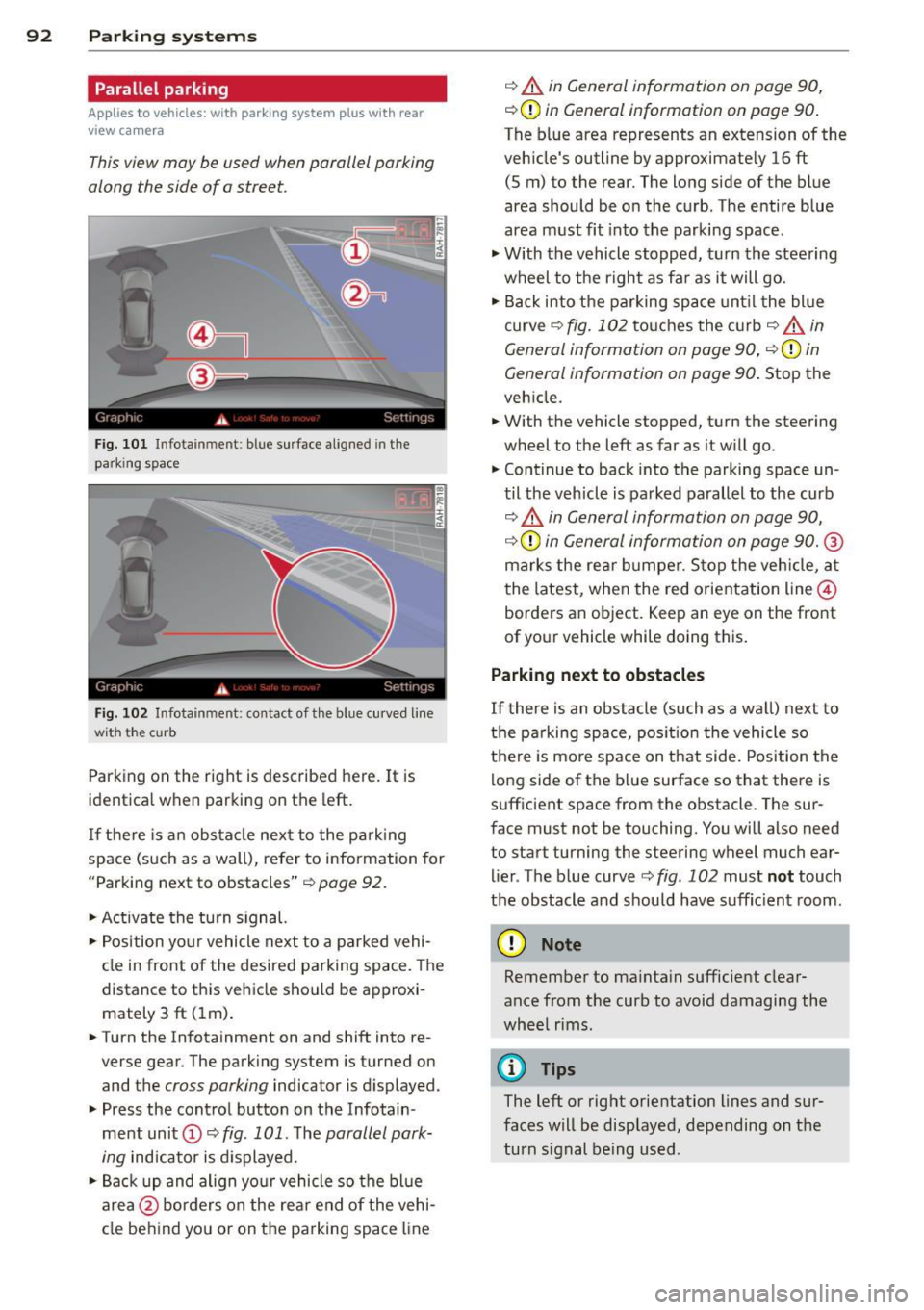
This view may be used when parallel parking
along the side of a street.
Fig. 1 01 Infotainment: blue surface aligned in the
parking space
Fig. 102 Infotainment: contact of th e blue curved line
wit h the cu rb
Parking on the right is described here. It is
identica l when parking on the left.
If there is an obs tacle nex t to the pa rk ing
space (such as a wall), refer to information for
"Parking next to obstacles" ¢
page 92.
~ Activate the turn s ignal.
~ Position yo ur vehicle next to a parked vehi
cle in front of the desired parking space. The
distance to this vehicle should be approxi
mately 3 ft (lm) .
~ Turn the Infotainment on and shift into re
verse gear. The parking system is turned on
and the
cross parking indicator is displayed.
~ Press the cont rol button on the Infotain
ment unit
(D ~ fig . 101 . The parallel park
ing
indicator is d isplayed.
~Backup and align yo ur vehicle so the bl ue
area @ borders on the rear end of the vehi
cle behind you or on the parking space line
¢ A in General information on page 90,
¢ (D in General information on page 90.
The blue area represents an extension of the
veh icle's outline by approximate ly 16 ft
(5 m) to the rear. The long side of the blue
area should be on the curb. The entire blue
area must fit into the parking space.
~ With the vehicle stopped, turn the steering
wheel to the right as fa r as it will go.
~ Back i nto the parking space unt il the blue
curve ¢
fig. 102 touches the c urb¢ A in
General information on page 90,
¢ (Din
General information on page 90. Stop the
veh icle .
~ With the vehicle stopped, turn the steering
wheel to the left as far as it w ill go.
~ Continue to back into the parking space un
til the veh icle is parked parallel to the curb
¢ A in General information on page 90,
¢ (Din General information on page 90. ®
marks the rea r bumper. Stop the veh icle, a t
the latest, when the red orientation line@
borders an object. Keep an eye on the front
of your vehicle while doing this .
Parking next to obstacles
If
there is an obstacle (such as a wa ll) next to
the pa rking space, pos ition the vehicle so
there is mo re space on that side. Position the
long side of the blue surface so that there is
sufficient space from the obstacle. The sur
face must not be touching. You will also need
to start turning the steering wheel much ear
lier . The blue curve ¢
fig. 102 must not touch
the obstacle and should have suffic ient room.
(D Note
Remember to ma inta in sufficient clear
ance from the curb to avoid damaging the
whee l rims .
(D Tips
The left or right orientation lines and sur
faces will be displayed, depending on the
turn s ignal being used .
Page 95 of 258

M N
M N
0 ::i co ,...., \!) ..,.,
,...., ..,., ,....,
Adjusting the display and the warning tones
App lies to vehicles: with pa rking system p lus wit h rear
view ca mera
The display and warning tones con be adjust
ed in the Infotainment.
~ Se lect: I CARI f u nction button > System s or
Car systems contro l button > D riv er assi st >
Parking aid .
Display
On * -
optical d isplay is shown for the parking
system plus, rear view came ra image is shown
for parking system plus with rear view cam
era.
Off -when the park ing system is switched on,
on ly audib le signa ls are given.
Warning tones
Front volume -
Volume fo r the front area
Rear volume -Volume for the rear area
Front frequen c:y -Freq uency for the front area
Rear frequency -Frequency for the rear area
Music volume while parking -When the park
i ng system is turned on, the volume of the au
d io/v ideo source is lowered.
The new ly adjusted value is briefly heard from
the signal gene rator.
(0 Tips
- The warning tones can also be adjusted
direct ly from the visual display or the
r ear view camera image . Simply press
the
Settings cont ro l button .
- Changed settings are activated when the parking system is switched on aga in.
- The settings a re automatically stored
and ass igned to the remote control key
that is in use.
Parking systems 93
Error messages
App lies to vehicles: wi th parking syste m plus w ith rea r
v iew camera
T he re is an error i n the system if the LED i n
the
P' "A bu tton is bl ink ing and yo u hear a con
t inu ous alarm for a few seconds after sw itch
ing on the park ing system or when the park
ing system is already activated. If the error is
not co rrected before yo u switch off the ign i
tion, the LED in the
? 1J.A. button will blink the
next t ime you sw itch on the parking system by
shifting into reverse .
If a sensor is fa ulty, the~ symbol will appear
in front of/behind the vehicle in the Infota in
ment display. If a rear sensor is faulty, only
obstacles that are in areas @and @ are
shown
Q page 88, fig . 92. If a front senso r is
faulty, only obstacles that are in areas © and
@ are shown.
Drive to your authorized Audi dealer or au
t h orized repa ir facility immed iately to have
the malfunct ion corrected .
Trailer hitch
Applies to vehicles: wit h parking system pluswith rear
v iew camera a nd t railer hitch
For vehicles using the trailer socket, the park
ing system rear sensors do not turn on when
you shift into reverse gear or when you press
the
P, "~ button . This resu lts in the following re
str ictions:
There is no distance warn ing for the rear. The
front sensors remain act ivated . The visual dis
play sw itches to the trailer towing mode. The
rear view camera image will not show the or i
entat io n lines and the bl ue surfaces.
(D Tips
Trailer h itches that are not installed at the
factory may ca use the par king system to
malfunction or they may restr ict its func
tion.
Page 227 of 258

M N
M N
0 ::i co ,...., \!) 1.1'1 ,...., 1.1'1 ,....,
No.
13
14
15
16
17
18
19
20
23
26
27
28
Consumer
A ir quality/outside air sen-
sor, heated washer jets,
Electronic Stabilization Con-
trol (button), reversing
light, electromechanical
parking brake, o il level sen-
sor, climate control, seat oc-
cup ied recognit ion system,
seat heating, contro ls in
center console, automatic
dimming mirrors
Eng ine control u nit, auto-
matic transmiss ion, bra ke
l ights, electro-mechanical
power steer ing, gateway
control un it, towing bracket
control unit, ESC contro l
unit, light switch, damping
control un it
H eadlight leveling, park ing
brake contro l unit, inst ru-
men t lighting, headlights,
diagnostic connector, adap-
tive light control unit, heat-
er for crankcase, air mass
meter, relay for electr ical
sockets, DC/DC converter
Parking aid
Reversing camera for park-
i ng a id
TV tuner
Eng ine starter cont ro l unit,
DC/DC converter
ESC control unit, air condi-
tioner controls, interface for
spec ial functions
e lectromechanical parking
b rake switch, switches for
interior lighting (front), di-
agnostic connector, light
switch, rain and light sensor,
humidity sensor
Rear window wiper
Starter control un it
Radio/MM I
Amps
5
7,5 10 5
5
5 5
s
10
15
40
15/7,5
Fu ses and bulb s 225
No. Consumer Amps
29
Supply for reversing camera
15 for park ing aid and TV tuner
30 Infot ainment 5
31
Infotainment 5
32
Instr ument cluster 5
33
Automatic dimming rear-
view m irror
10
E lectrica l socket in front
36 cabin, electrical socket in 20
luggage compartment
37 Electr ica l soc ket i n rear cab-
20 in, ciga rette lighter
38 Automatic transmission 15
44
Rear window hea ting 30
45
Parking brake control unit 20
48
Power-operated rear lid 30
so B lower 40
51
Parking brake control unit 20
52
On board supply control unit 20
53
Seat heating, front 30
54
Panoram ic sun roof 20
55
Sun b lind for panorama sun 20
roof
56
Contro l unit fo r suspension
20 cont rol
Engine compartment fuse assignment
The fuse number is given on the plastic be
neath or above the correspond ing fuse.
No. Electrical equipment
amps
1 Power supply for automatic 5 transmission
2
E lectronic Stabilizat ion Con-
30 t ro l (E SC)
3 Horn 15
4
DC/DC converter 40
5
Onboard supply control unit 5
6
BCM (righ t-side) 30
7
Washer pump 20
8
BCM ( left -side) 30
•
•