Page 96 of 521
95
uuGauges and Multi-Information Display uMulti-Information Display
Continued
Instrument Panel
Multi-Information DisplayThe multi-information display shows the odometer, trip meter, outside temperature
indicator, and other gauges. It also displays important messages such as warnings
and other helpful information.
Roll the right selector wheel or press the TRIP button to change the display.■
Switching the DisplayModels with navigation systemRight Selector Wheel Engine Oil Life
Vehicle Settings Elapsed Time
OFF
Average Speed
Range
Instant Fuel Economy/
Average Fuel Economy
Turn-by-Turn
Directions
Tire Pressure for
Each Tire
Current Mode
for ACC with LSF
*
* Not available on all models
Page 98 of 521
97
uuGauges and Multi-Information Display uMulti-Information Display
Continued
Instrument Panel
Models without navigation system
Engine Oil Life
Vehicle Settings Elapsed Time
OFF
Average SpeedRange
Average Fuel Economy/
Instant Fuel Economy
Tire Pressure for
Each Tire
Right Selector Wheel
Page 100 of 521

Continued
99
uuGauges and Multi-Information Display uMulti-Information Display
Instrument Panel
Shows the total number of miles or kilometers that your vehicle has accumulated.
Shows the total number of miles or kilometers driven since the last reset. Meters A
and B can be used to measure two separate trips.■Resetting a trip meter
To reset a trip meter, display it, then press and hold the TRIP button. The trip meter
is reset to 0.0.
Shows the outside temperature in Fahrenheit (U.S.) or Celsius (Canada).■Adjusting the ou tside temperature display
Adjust the temperature reading up to ± 5°F (U.S.) or ± 3°C (Canada) if the
temperature reading seems incorrect.
Shows the estimated average fuel economy of each trip meter in mpg (U.S.) or
l/100 km (Canada). The display is updated at set intervals. When a trip meter is reset,
the average fuel economy is also reset.■
Odometer
■
Trip Meter
■
Outside Temperature
■
Average Fuel Economy
1 Trip Meter
Switch between trip meter A and trip meter B by
pressing the TRIP button.1Outside Temperature
The temperature sensor is in the front bumper.
Road heat and exhaust from another vehicle can
affect the temperature reading when your vehicle
speed is less than 19 mph (30 km/h).
It may take several mi nutes for the display to be
updated after the temperature reading has stabilized.
Use the multi-information display’s customized
features to corre ct the temperature.
2 Customized Features P. 102, 2631Average Fuel Economy
You can change when to reset the average fuel
economy.
2 Customized Features P. 102, 263
Page 101 of 521
uuGauges and Multi- Information Display uMulti-Information Display
100Instrument Panel
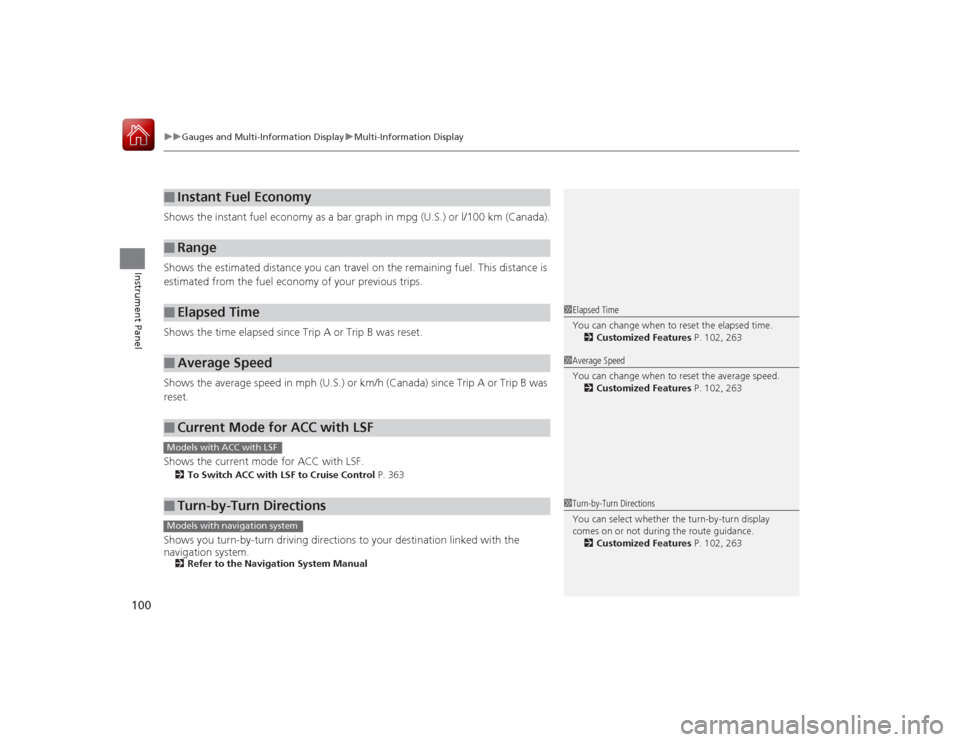
Shows the instant fuel economy as a bar graph in mpg (U.S.) or l/100 km (Canada).
Shows the estimated distance you can travel on the remaining fuel. This distance is
estimated from the fuel economy of your previous trips.
Shows the time elapsed since Trip A or Trip B was reset.
Shows the average speed in mph (U.S.) or km/h (Canada) since Trip A or Trip B was
reset.
Shows the current mode for ACC with LSF.2 To Switch ACC with LSF to Cruise Control P. 363Shows you turn-by-turn driving directions to your destination linked with the
navigation system.2Refer to the Navigation System Manual■
Instant Fuel Economy
■
Range
■
Elapsed Time
■
Average Speed
■
Current Mode for ACC with LSF
■
Turn-by-Turn Directions
1Elapsed Time
You can change when to reset the elapsed time.
2 Customized Features P. 102, 2631Average Speed
You can change when to reset the average speed.
2 Customized Features P. 102, 263
Models with ACC with LSF
1Turn-by-Turn Directions
You can select whether the turn-by-turn display
comes on or not during the route guidance.
2 Customized Features P. 102, 263
Models with navigation system
Page 107 of 521
106
uuGauges and Multi- Information Display uMulti-Information Display
Instrument Panel
*1:Default SettingSetup Group Customizable
Features Descript ion Selectable Settings
Meter Setup Language Selection
Changes the displayed language. English
*1/French /Spanish
Adjust Outside Temp.
Display Adjusts the temperature reading by a few degrees. -5°F ~
±0°F*1 ~ +5°F
(U.S.)
-3°C ~ ±0°C*1 ~ +3°C
(Canada)
“Trip A” Reset Timing Changes the setting of how to reset trip meter A,
average fuel economy A, average speed A, and elapsed
time A. When Refueled
/IGN Off/
Manually Reset
*1
“Trip B” Reset Timing Changes the setting of how to reset trip meter B,
average fuel economy B, average speed B, and elapsed
time B. When Refueled
/IGN Off/
Manually Reset
*1
Turn by Turn Display
*
Selects whether the turn-by-turn display comes on
during the route guidance. On
*1/
Off
* Not available on all models
Page 111 of 521
110
uuGauges and Multi- Information Display uMulti-Information Display
Instrument Panel
■Example of customization settings
The steps for changing the “Trip A” Reset Timing setting to When Refueled are
shown below. The default setting for “Trip A” Reset Timing is Manually Reset .
1. Roll the right selector wheel to select
Vehicle Settings , then push the right
selector wheel.
2. Roll the right selector wheel until Meter
Setup appears on the display.
3. Push the right selector wheel.
u Language Selection appears first on
the display.Models with
navigation
system
Models without
navigation
system
Models with
navigation
system
Models without
navigation
system
Page 112 of 521
111
uuGauges and Multi-Information Display uMulti-Information Display
Instrument Panel
4. Roll the right selector wheel until “Trip A”
Reset Timing appears on the display, then
push the right selector wheel.
u The display switches to the
customization setup screen, where you
can select When Refueled , IGN Off ,
Manually Reset , or Exit .
5. Roll the right selector wheel and select
When Refueled , then push the right
selector wheel.
u The When Refueled Setup screen
appears, then the display returns to the
customization menu screen.
6. Roll the right selector wheel until Exit
appears on the display, then push the right
selector wheel.
7. Repeat Step 6 until you return to the
normal screen.
Models with
navigation
system
Models without
navigation
system
Models with
navigation
system
Models without
navigation
system
Models with
navigation
system
Models without
navigation
system
Page 204 of 521

203
uuAudio System Basic Operation uAudio/Information Screen
Continued
Features
■Audio
Shows the current audio information.■Navigation
*
Shows the navigation screen.
2 Refer to the Navigation System Manual
■Phone
Shows the HFL information.
2 Bluetooth ® HandsFreeLink ® P. 286
■Info
Shows the Trip Computer or Clock/Wallpaper and other information. Rotate
to select an item, then press .■Trip computer (Current Drive)
Shows the range, and instant and average fuel economy of the current trip, as well
as the average fuel economy from your last trip.■Trip computer (History of Trip A)
Shows the range, average fuel economy and distance s traveled for the current trip, as well
as the average fuel economy and distances traveled during the last three driving cycles.
Each time you reset the trip meter A, the information on the display updates. The
history of the previous three driving cycles is kept.■Deleting the history manually
1. Move on the History of Trip A screen to select Delete History , then press .
2. You will receive a confirmation message on the screen. Rotate to select Yes,
then press .■Clock/Wallpaper
Shows a clock screen or an image you import.* Not available on all models


