Page 166 of 365
165
uuAudio System Basic Operation uAudio Remote Controls
Features
Audio Remote Controls
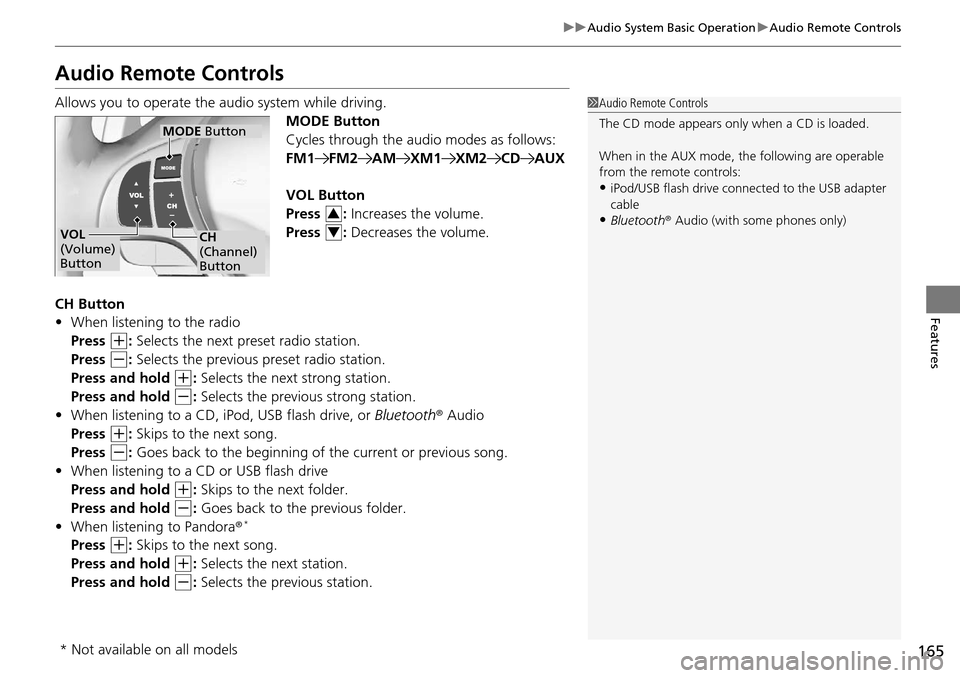
Allows you to operate the audio system while driving.
MODE Button
Cycles through the audio modes as follows:
FM1FM2AMXM1XM2CDAUX
VOL Button
Press : Increases the volume.
Press : Decreases the volume.
CH Button
• When listening to the radio
Press
(+: Selects the next preset radio station.
Press
(-: Selects the previous preset radio station.
Press and hold
(+: Selects the next strong station.
Press and hold
(-: Selects the previous strong station.
• When listening to a CD, iPod, USB flash drive, or Bluetooth® Audio
Press
(+: Skips to the next song.
Press
(-: Goes back to the beginning of the current or previous song.
• When listening to a CD or USB flash drive
Press and hold
(+: Skips to the next folder.
Press and hold
(-: Goes back to the previous folder.
• When listening to Pandora ®*
Press (+: Skips to the next song.
Press and hold
(+: Selects the next station.
Press and hold
(-: Selects the previous station.
1 Audio Remote Controls
The CD mode appears only when a CD is loaded.
When in the AUX mode, the following are operable
from the remote controls:
•iPod/USB flash drive connect ed to the USB adapter
cable
•Bluetooth ® Audio (with some phones only)VOL
(Volume)
Button
MODE Button
CH
(Channel)
Button
3
4
* Not available on all models
Page 168 of 365
167
uuAudio System Basic Operation uPlaying the AM/FM Radio
Continued
Features
Playing the AM/FM Radio
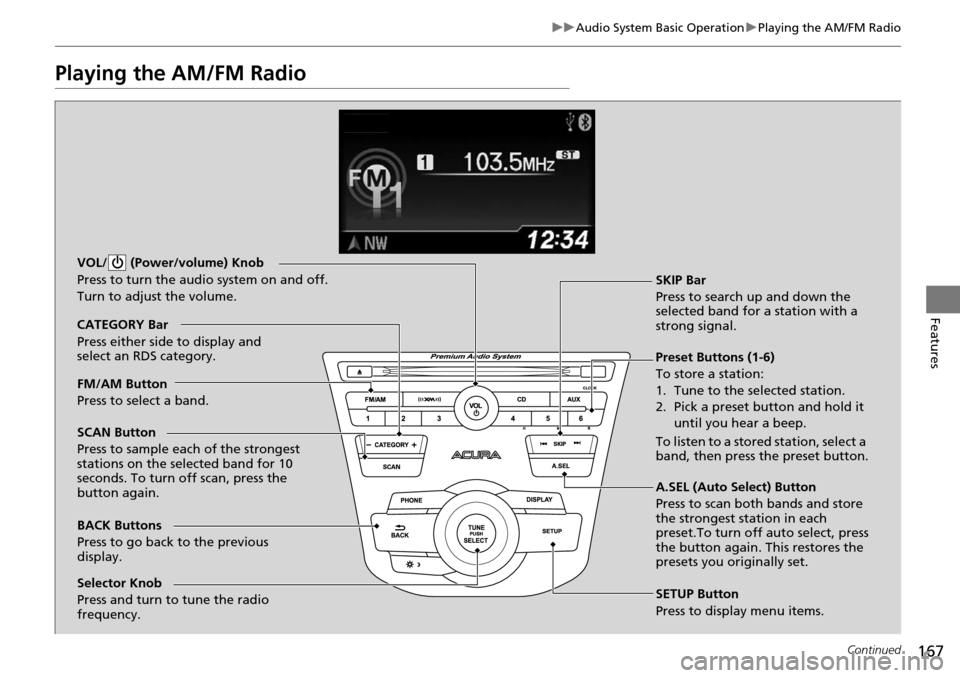
BACK Buttons
Press to go back to the previous
display. SCAN Button
Press to sample each of the strongest
stations on the selected band for 10
seconds. To turn off scan, press the
button again. VOL/ (Power/volume) Knob
Press to turn the audio system on and off.
Turn to adjust the volume.
Preset Buttons (1-6)
To store a station:
1. Tune to the selected station.
2. Pick a preset button and hold it
until you hear a beep.
To listen to a stored station, select a
band, then press the preset button. SKIP Bar
Press to search up and down the
selected band for a station with a
strong signal.
SETUP Button
Press to display menu items.
Selector Knob
Press and turn to tune the radio
frequency. FM/AM Button
Press to select a band. CATEGORY Bar
Press either side to display and
select an RDS category.
A.SEL (Auto Select) Button
Press to scan both bands and store
the strongest station in each
preset.To turn off auto select, press
the button again. This restores the
presets you originally set.
Page 169 of 365
uuAudio System Basic Operation uPlaying the AM/FM Radio
168
Features
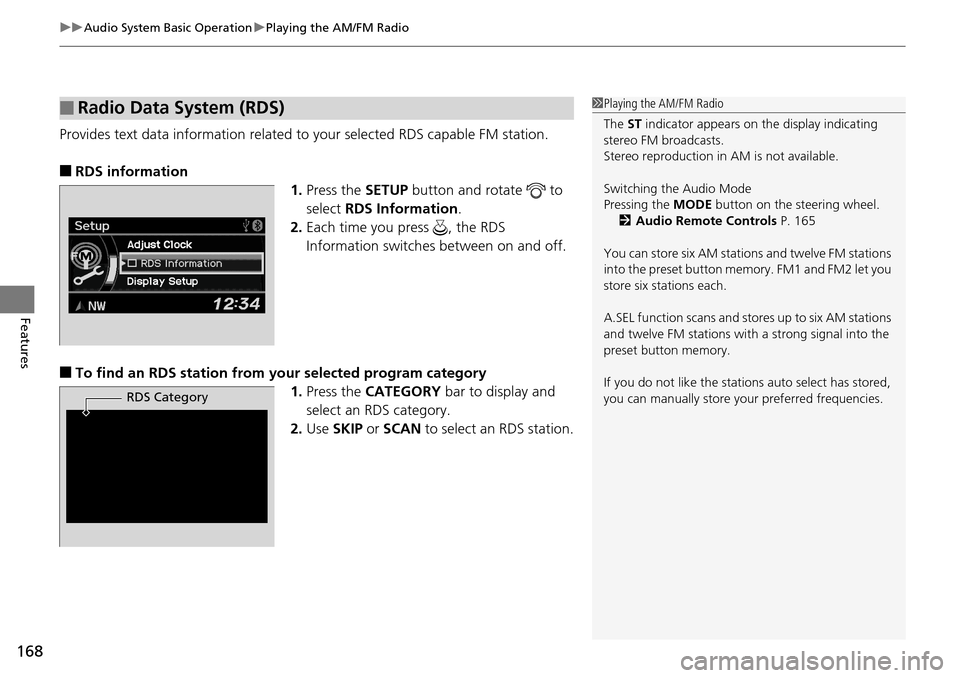
Provides text data information related to your selected RDS capable FM station.
■RDS information
1.Press the SETUP button and rotate to
select RDS Information .
2. Each time you press , the RDS
Information switches between on and off.
■To find an RDS station from your selected program category
1.Press the CATEGORY bar to display and
select an RDS category.
2. Use SKIP or SCAN to select an RDS station.
■Radio Data System (RDS)1Playing the AM/FM Radio
The ST indicator appears on the display indicating
stereo FM broadcasts.
Stereo reproduction in AM is not available.
Switching the Audio Mode
Pressing the MODE button on the steering wheel.
2 Audio Remote Controls P. 165
You can store six AM stations and twelve FM stations
into the preset button me mory. FM1 and FM2 let you
store six stations each.
A.SEL function scans and stor es up to six AM stations
and twelve FM stations wi th a strong signal into the
preset button memory.
If you do not like the stati ons auto select has stored,
you can manually store your preferred frequencies.
RDS Category
Page 170 of 365
169
uuAudio System Basic Operation uPlaying the XM ® Radio
Continued
Features
Playing the XM ® Radio
BACK Button
Press to go back to the previous
display. (XM
®) Button
Press to select XM ® Radio.
VOL/ (Power/volume) Knob
Press to turn the audio system on
and off.
Turn to adjust the volume.
SKIP Bar
Press or to the
previous or next channel.
SETUP Button
Press to display menu items.
Selector Knob
Press and turn to select channels. Preset Buttons (1-6)
To store a channel:
1. Tune to the selected channel.
2. Pick a preset button and hold it
until you hear a beep.
To listen to a stored channel, select
XM, then press the preset button.
SCAN Button
Press to sample all channels (in the
channel mode), or channels within a
category (in the category mode).
Each sampling continues for a few
seconds. Press SCAN again to cancel
scanning and continue listening to the
channel. CATEGORY Bar
Press either side to display and select
an XM ® Radio category.
Page 171 of 365
uuAudio System Basic Operation uPlaying the XM ® Radio
170
Features
1. Press the button to select the XM ® radio band (XM1 or XM2).
2. Press the SETUP button, rotate to select XM Mode, and press . Rotate
to select Channel Mode or Category Mode , then press .
3. Select a channel using the TUNE ( ), SKIP, CATEGORY , SCAN, or Preset
buttons.
1.Press to display a channel list.
2. Rotate to select a channel, then press
.
■To Play the XM® Radio
■To Select a Channel from a List
1Playing the XM ® Radio
In the channel mode, all available channels are
selectable. In the categor y mode, you can select a
channel within a category ( Jazz, Rock , Classical,
etc.).
You can store twelve XM ® stations in the preset
buttons. XM1 and XM2 let you store six stations
each.
There may be instances when XM ® Radio does not
broadcast all the data fields (artist name, title). This
does not indicate a problem with your audio system.
Page 179 of 365

uuAudio System Basic Operation uPlaying Pandora ®
178
Features
You can operate some of the Pandora menu items from your vehicle’s audio system.
The available items are:
• Station List (QuickMix is also available)
• Like
• Dislike
• Resume/Pause
• SKIP
• Bookmark this song
• Bookmark this artist
■Operating a menu item
1.Press to display the PANDORA MENU.
2. Rotate to select a menu.
3. Press to display the items on that menu.
■Pandora® Menu1Playing Pandora ®
Pandora ® is a personalized Intern et radio service that
selects music based on an artist, song, or genre a user
enters, and streams what is likely to be of interest.
To use this service in your vehicle, the Pandora ® app
must first be installe d on your iPhone. Visit
www.pandora.com. for more information.
If you cannot operate Pandora ® through the audio
system, it may be streaming through Bluetooth®
Audio. Make sure Pandora ® mode on your audio
system is selected.
1 Pandora ® Menu
Available operating functi ons vary on software
versions. Some functions ma y not be available on the
vehicle's audio system.
If there is a problem, you may see an error message
on the audio/information screen. 2 Pandora ® P. 189
You can skip the song or select Dislike only a
predetermined number of times in an hour.
Page 191 of 365

190
Features
General Information on the Audio System
XM® Radio Service
1. You need your radio ID ready before regist ering for subscription. To see the ID in
the display: Turn the selector knob until 0 appears.
2. Have your radio ID and credit card numbe r ready, and either call or visit the XM®
website to subscribe.
Press the (XM ®) button and stay in this mode for about 30 minutes until the
service is activated. Make su re your vehicle is in an open area with good reception.
Loading...:
XM ® is loading the audio or program information.
Channel Off Air:
The channel is not currently broadcasting.
Channel Not Authorized:
XM ® radio is receiving information update from the network.
No Signal:
The signal is too weak in the current location.
--------:
No such channel exists, the channel is not pa rt of your subscription, or the artist or
title information is unavailable.
Check Antenna:
There is a problem with the XM ® antenna. Contact a dealer.
■Subscribing to XM® Radio
■Receiving XM® Radio
■XM ® Radio Display Messages
1 Subscribing to XM ® Radio
Contact Information for XM ® Radio:
US: XM ® Radio at www.siriusxm.com or
(800) 852-9696
Canada: XM ® Canada at www.xmradio.ca , or
(877) 209-0079
1 Receiving XM ® Radio
The XM ® satellites are in orbit over the equator;
therefore, objects south of the vehicle may cause
satellite reception interruptions. Sa tellite signals are
more likely to be blocked by tall buildings and
mountains the farther north you travel from the
equator.
You may experience rece ption problems under the
following circumstances:
•In a location with an obstruction to the south of
your vehicle.
•In tunnels
•On the lower level of a multi-tiered road
•Large items carried on the roof rack
Page 241 of 365
240
Driving
When Driving
Starting the Engine
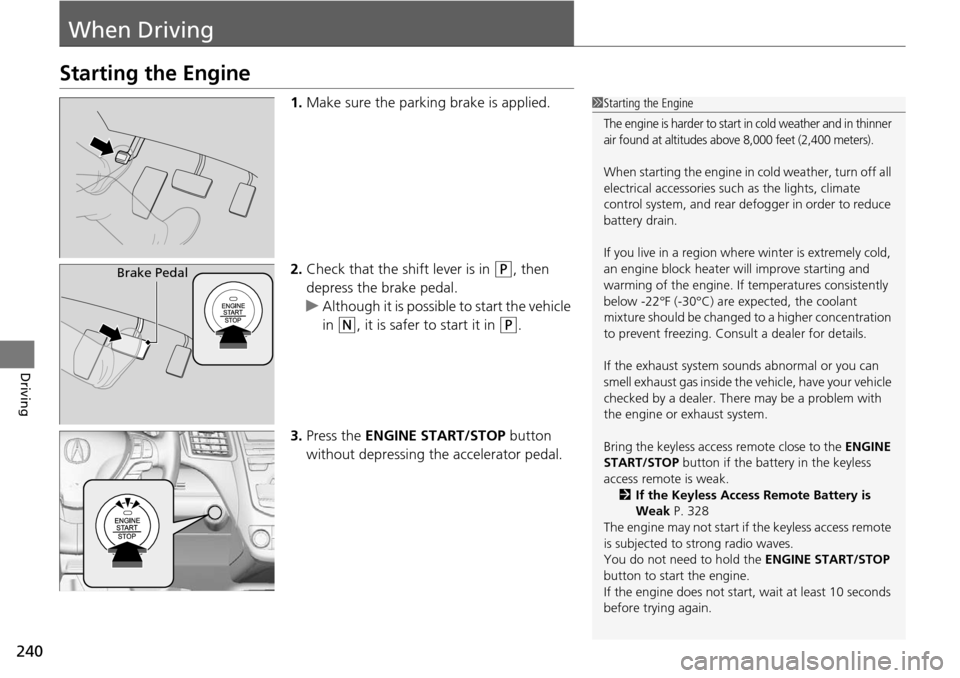
1.Make sure the parking brake is applied.
2. Check that the shift lever is in
(P, then
depress the brake pedal.
u Although it is possible to start the vehicle
in
(N, it is safer to start it in (P.
3. Press the ENGINE START/STOP button
without depressing the accelerator pedal.
1 Starting the Engine
The engine is harder to start in cold weather and in thinner
air found at altitudes above 8,000 feet (2,400 meters).
When starting the engine in cold weather, turn off all
electrical accessories such as the lights, climate
control system, and rear de fogger in order to reduce
battery drain.
If you live in a region where winter is extremely cold,
an engine block heater will improve starting and
warming of the engine. If temperatures consistently
below -22°F (-30°C) are expected, the coolant
mixture should be changed to a higher concentration
to prevent freezing. Cons ult a dealer for details.
If the exhaust system sounds abnormal or you can
smell exhaust gas inside the vehicle, have your vehicle
checked by a dealer. There may be a problem with
the engine or exhaust system.
Bring the keyless access remote close to the ENGINE
START/STOP button if the batte ry in the keyless
access remote is weak.
2 If the Keyless Access Remote Battery is
Weak P. 328
The engine may not start if the keyless access remote
is subjected to strong radio waves.
You do not need to hold the ENGINE START/STOP
button to start the engine.
If the engine does not start, wait at least 10 seconds
before trying again.
Brake Pedal

