Page 158 of 365
157
Features
This chapter describes how to operate technology features.
Audio SystemAbout Your Audio System ................ 158
USB Adapter Cable .......................... 159
Auxiliary Input Jack .......................... 159
Audio System Theft Protection ......... 160
Audio System Basic Operation ........ 161
Audio/Information Screen
*.............. 162
Audio Remote Controls .................... 165
Adjusting the Sound ........................ 166
Playing the AM/FM Radio ................. 167
Playing the XM ® Radio ..................... 169
Playing a CD .................................... 171
Playing an iPod ................................ 174 Playing Pandora
®............................. 177
Playing a USB Flash Drive ................. 179
Playing Bluetooth ® Audio................. 182
Wallpaper Setup .............................. 184
Display Setup ................................... 186
Audio Error Messages ...................... 187
General Information on the Audio System ............................................. 190
HomeLink ® Universal Transceiver
Training HomeLink ........................... 194
Bluetooth® HandsFreeLink®
Using HFL ........................................ 196
HFL Menus....................................... 198 Compass
*.......................................... 225
* Not available on all models
Page 161 of 365
160
uuAudio System uAudio System Theft Protection
Features
Audio System Theft Protection
The audio system is disabled when it is di sconnected from the power source, such as
when the battery is disconnected or goes dead.
■Reactivating th e audio system
1. Set the power mode to ON, and turn on the audio system.
u If you set the power mode to ACCESSORY, you will be requested to enter the
audio security code. See step 3.
2. Press and hold the power button ag ain for more than two seconds.
u The audio system is reactivated when the system’s control unit recognizes that
the system is in your vehicle.
If the control unit fails to recognize, ENTER CODE appears on the audio/
information screen.
3. Enter the audio security code using the pr eset buttons. If you enter an incorrect
digit, continue to the last digit, then try again. If you do not enter the code
correctly after 10 tries, leave the system for one hour before trying again, or visit
a dealer to have the system reset.
1 Audio System Theft Protection
Find the audio system's se curity code and serial
number label in your owner’s manual kit.
We recommend that you write down the serial
number in this owner’s manual.
Do not store the label in your vehicle. If you lose the
label, you must first retrie ve the serial number, and
then obtain the code.
You can find out about your serial number and
security code from a dealer.
You can register the securi ty code at Acura Owners
(owners.acura.com.), and find information on how to
retrieve the serial numbe r and obtain the code at
radio-navicode.acura.com .
U.S. models
Page 162 of 365
161
Features
Audio System Basic Operation
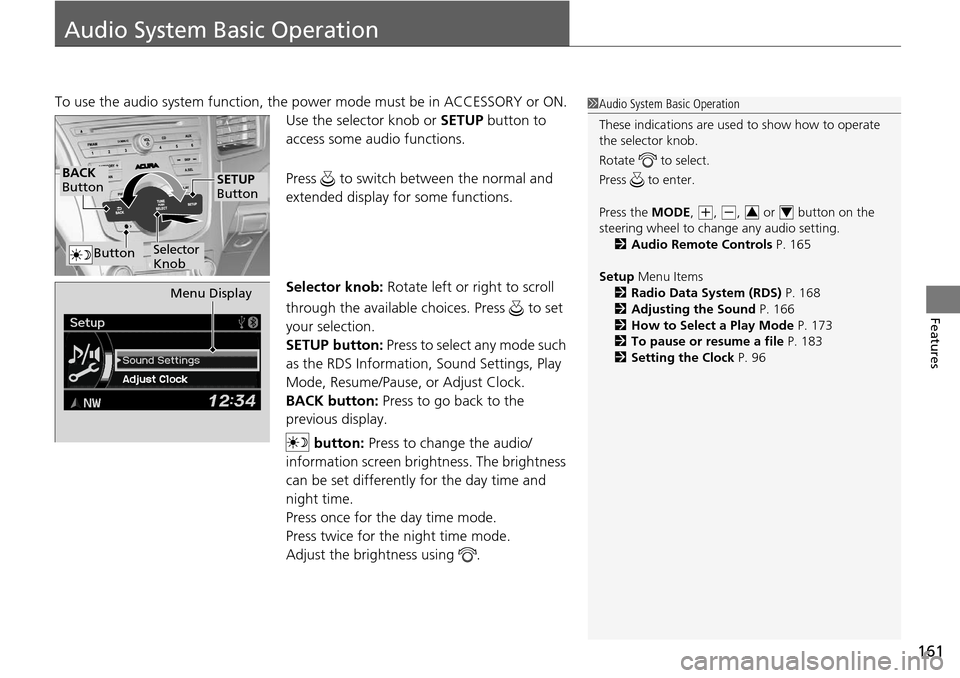
To use the audio system function, the power mode must be in ACCESSORY or ON.
Use the selector knob or SETUP button to
access some au dio functions.
Press to switch between the normal and
extended display fo r some functions.
Selector knob: Rotate left or right to scroll
through the available choices. Press to set
your selection.
SETUP button: Press to select any mode such
as the RDS Information, Sound Settings, Play
Mode, Resume/Pause, or Adjust Clock.
BACK button: Press to go back to the
previous display.
button: Press to change the audio/
information screen brightness. The brightness
can be set differently for the day time and
night time.
Press once for the day time mode.
Press twice for the night time mode.
Adjust the brightness using . 1 Audio System Basic Operation
These indications are used to show how to operate
the selector knob.
Rotate to select.
Press to enter.
Press the MODE,
( +, (-, or button on the
steering wheel to cha nge any audio setting.
2 Audio Remote Controls P. 165
Setup Menu Items
2 Radio Data System (RDS) P. 168
2 Adjusting the Sound P. 166
2 How to Select a Play Mode P. 173
2 To pause or resume a file P. 183
2 Setting the Clock P. 9634
BACK
Button
Selector
Knob
SETUP
Button
Button
Menu Display
Page 163 of 365
162
uuAudio System Basic Operation uAudio/Information Screen*
Features
Audio/Information Screen*
Displays audio status and wallpaper. It allows you to go to various setup options.
Press DISPLAY button. Rotate and select the mode from the three display
modes. Press .
■Switching the Display
Models without navigation system
DISPLAY
Button
Selector Knob
* Not available on all models
Page 164 of 365
163
uuAudio System Basic Operation uAudio/Information Screen*
Continued
Features
Shows the current audio information.
2 Audio System Basic Operation P. 161
Shows a clock screen or an image you import.
2Wallpaper Setup P. 184
Minimizes the display by only showing the compass, audio status, and clock on the
display.
1.Press SETUP button.
2. Rotate and select the setup option you
want to change. Press .
■Audio Display
■Wallpaper
■Minimum Display
■Setting Options
Page 165 of 365
164
uuAudio System Basic Operation uAudio/Information Screen*
Features
1. Rotate to select Language Selection ,
then press .
2. Rotate to select the language, then
press .
■Language Selection
Page 176 of 365
Continued175
uuAudio System Basic Operation uPlaying an iPod
Features
1. Press to display the iPod menu.
2. Rotate to select a menu.
3. Press to display the items on that menu.
4. Rotate to select an item, then press .
■How to Select a File from the iPod Menu1Playing an iPod
Available operating functi ons vary on models or
versions. Some functions ma y not be available on the
vehicle's audio system.
If there is a problem, you may see an error message
on the audio/information screen. 2 iPod/USB Flash Drive P. 188
iPod® Menu
Page 179 of 365

uuAudio System Basic Operation uPlaying Pandora ®
178
Features
You can operate some of the Pandora menu items from your vehicle’s audio system.
The available items are:
• Station List (QuickMix is also available)
• Like
• Dislike
• Resume/Pause
• SKIP
• Bookmark this song
• Bookmark this artist
■Operating a menu item
1.Press to display the PANDORA MENU.
2. Rotate to select a menu.
3. Press to display the items on that menu.
■Pandora® Menu1Playing Pandora ®
Pandora ® is a personalized Intern et radio service that
selects music based on an artist, song, or genre a user
enters, and streams what is likely to be of interest.
To use this service in your vehicle, the Pandora ® app
must first be installe d on your iPhone. Visit
www.pandora.com. for more information.
If you cannot operate Pandora ® through the audio
system, it may be streaming through Bluetooth®
Audio. Make sure Pandora ® mode on your audio
system is selected.
1 Pandora ® Menu
Available operating functi ons vary on software
versions. Some functions ma y not be available on the
vehicle's audio system.
If there is a problem, you may see an error message
on the audio/information screen. 2 Pandora ® P. 189
You can skip the song or select Dislike only a
predetermined number of times in an hour.


