2015 Acura RDX AUX
[x] Cancel search: AUXPage 5 of 71

2 || 3
SAFETY
VISUAL INDEX
TABLE OF
CONTENTS
VISUAL INDEX
SAFETY
INFORMATION
INSTRUMENT PANEL
VEHICLE
CONTROLS
AUDIO AND
CONNECTIVITY
BLUETOOTH®
HANDSFREELINK®
ACURALINK®
INDEX
VOICE COMMAND INDEX
CLIENT
INFORMATION
SPECIFICATIONS
MAINTENANCE
HANDLING THE UNEXPECTED
DRIVING
NAVIGATION
Dashboard and Ceiling Controls
1 Color information display p. 47
2 Hazard warning button
3 Audio/phone/navigation* buttons
p. 47, 63, 72
4 Climate control p. 43
5 Seat heater switches p. 43
6 Accessory power socket
USB adapter cable p. 45
Auxiliary input jack p. 45
7 Moonroof switch p. 32Map lights p. 34
*if equipped
Your safety—and the safety of others—is very important, and operating this vehicle
safely is an important responsibility. While we strive to help you make informed
decisions about safety, it is not practical or possible to warn you about all the
hazards associated with operating or maintaining your vehicle. Therefore, you must
use your own good judgment.
Important Safety Information
This guide explains many of your vehicle’s safety features and how to use them.
Please read this information carefully. Following the instructions below will also
help to keep you and your passengers safe.
Important Safety Precautions• Always wear your seat belt.
• Secure all children in the proper restraint system.
• Be aware of airbag hazards.
• Don’t drink and drive.
• Pay appropriate attention to the task of driving safely.
• Control your speed.
• Keep your vehicle in safe condition.
Engaging in cell phone conversation or other activities that keep you from paying
close attention to the road, other vehicles, and pedestrians could lead to a crash.
Remember, situations can change quickly, and only you can decide when it is safe
to divert some attention away from driving.
Important Handling Information Your vehicle has a higher ground clearance than a passenger vehicle designed for
use only on pavement. Higher ground clearance has many advantages for off-
highway driving. It allows you to travel over bumps, obstacles, and rough terrain.
It also provides good visibility so you can anticipate problems earlier.
These advantages come at some cost. Because your vehicle is taller and rides
higher off the ground, it has a higher center of gravity, making it more susceptible
to tipping or rollover if you make abrupt turns. Utility vehicles have a significantly
higher rollover rate than other types of vehicles. In a rollover crash, an unbelted
person is significantly more likely to die than a person wearing a seat belt. As a
reminder, make sure you and your passengers always wear seat belts.
SAFETY INFORMATION
6453
712
Page 26 of 71
44 || 45
AUDIO AND CONNECTIVITY
VEHICLE CONTROLS
TABLE OF
CONTENTS
VISUAL INDEX
SAFETY
INFORMATION
INSTRUMENT PANEL
VEHICLE
CONTROLS
AUDIO AND
CONNECTIVITY
BLUETOOTH®
HANDSFREELINK®
ACURALINK®
INDEX
VOICE COMMAND INDEX
CLIENT
INFORMATION
SPECIFICATIONS
MAINTENANCE
HANDLING THE UNEXPECTED
DRIVING
NAVIGATION
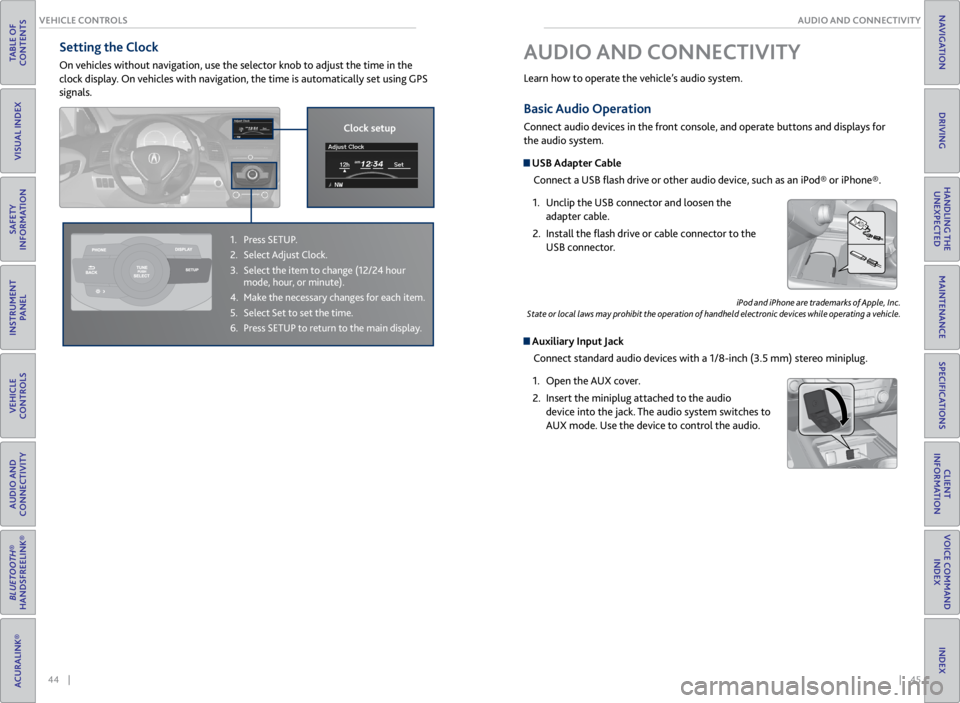
Basic Audio Operation
Connect audio devices in the front console, and operate buttons and displays for
the audio system.
USB Adapter Cable
Connect a USB flash drive or other audio device, such as an iPod® or iPhone®.
1. Unclip the USB connector and loosen the
adapter cable.
2. Install the flash drive or cable connector to the
USB connector.
Auxiliary Input Jack
Connect standard audio devices with a 1/8-inch (3.5 mm) stereo miniplug.
1. Open the AUX cover.
2. Insert the miniplug attached to the audio
device into the jack. The audio system switches to
AUX mode. Use the device to control the audio.
iPod and iPhone are trademarks of Apple, Inc.
State or local laws may prohibit the operation of handheld electronic devices while operating a vehicle.
AUDIO AND CONNECTIVITY
Learn how to operate the vehicle’s audio system.
Setting the Clock
On vehicles without navigation, use the selector knob to adjust the time in the
clock display. On vehicles with navigation, the time is automatically set using GPS
signals.
1. Press SETUP.
2. Select Adjust Clock.
3. Select the item to change (12/24 hour
mode, hour, or minute).
4. Make the necessary changes for each item.
5. Select Set to set the time.
6. Press SETUP to return to the main display.
Clock setup
Page 31 of 71
54 || 55
AUDIO AND CONNECTIVITY
AUDIO AND CONNECTIVITY
TABLE OF
CONTENTS
VISUAL INDEX
SAFETY
INFORMATION
INSTRUMENT PANEL
VEHICLE
CONTROLS
AUDIO AND
CONNECTIVITY
BLUETOOTH®
HANDSFREELINK®
ACURALINK®
INDEX
VOICE COMMAND INDEX
CLIENT
INFORMATION
SPECIFICATIONS
MAINTENANCE
HANDLING THE UNEXPECTED
DRIVING
NAVIGATION
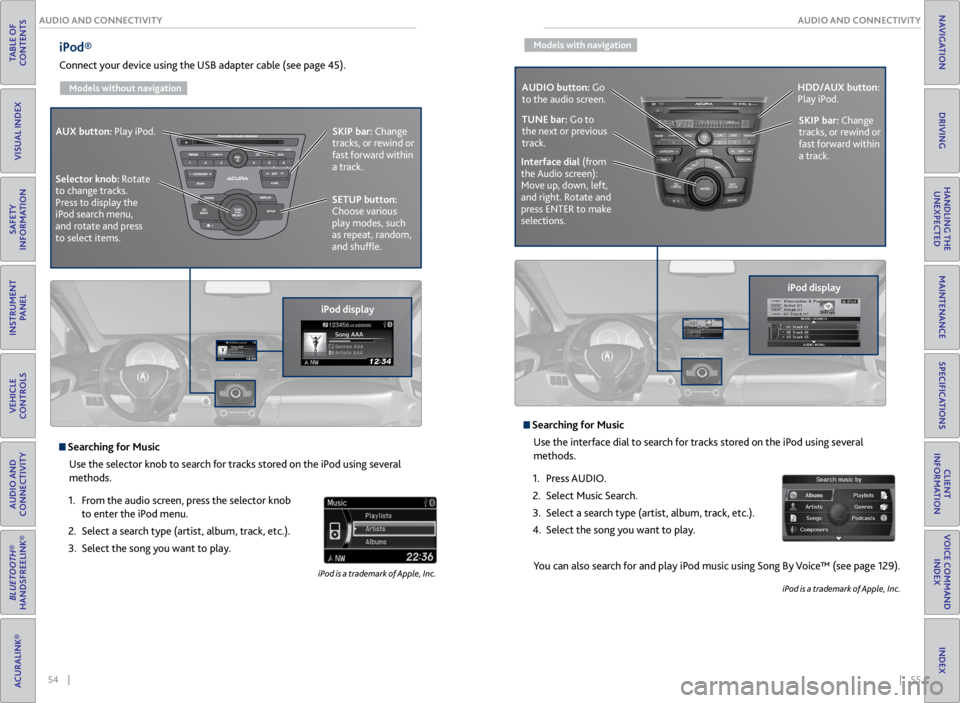
iPod®
Connect your device using the USB adapter cable (see page 45).
Models without navigation
Searching for Music
Use the selector knob to search for tracks stored on the iPod using several
methods.
1. From the audio screen, press the selector knob
to enter the iPod menu.
2. Select a search type (artist, album, track, etc.).
3. Select the song you want to play.
iPod is a trademark of Apple, Inc.
iPod displaySKIP bar:
Change
tracks, or rewind or
fast forward within
a track.
SETUP button:
Choose various
play modes, such
as repeat, random,
and shuffle.
AUX button:
Play iPod.
Selector knob: Rotate
to change tracks.
Press to display the
iPod search menu,
and rotate and press
to select items.
Models with navigation
Searching for Music Use the interface dial to search for tracks stored on the iPod using several
methods.
1. Press AUDIO.
2. Select Music Search.
3. Select a search type (artist, album, track, etc.).
4. Select the song you want to play.
You can also search for and play iPod music using Song By Voice™ (see page 129).
iPod is a trademark of Apple, Inc.
iPod displaySKIP bar:
Change
tracks, or rewind or
fast forward within
a track.
AUDIO button: Go
to the audio screen.
HDD/AUX button:
Play iPod.
Interface dial (from
the Audio screen):
Move up, down, left,
and right. Rotate and
press ENTER to make
selections.
TUNE bar: Go to
the next or previous
track.
Page 32 of 71
56 || 57
AUDIO AND CONNECTIVITY
AUDIO AND CONNECTIVITY
TABLE OF
CONTENTS
VISUAL INDEX
SAFETY
INFORMATION
INSTRUMENT PANEL
VEHICLE
CONTROLS
AUDIO AND
CONNECTIVITY
BLUETOOTH®
HANDSFREELINK®
ACURALINK®
INDEX
VOICE COMMAND INDEX
CLIENT
INFORMATION
SPECIFICATIONS
MAINTENANCE
HANDLING THE UNEXPECTED
DRIVING
NAVIGATION
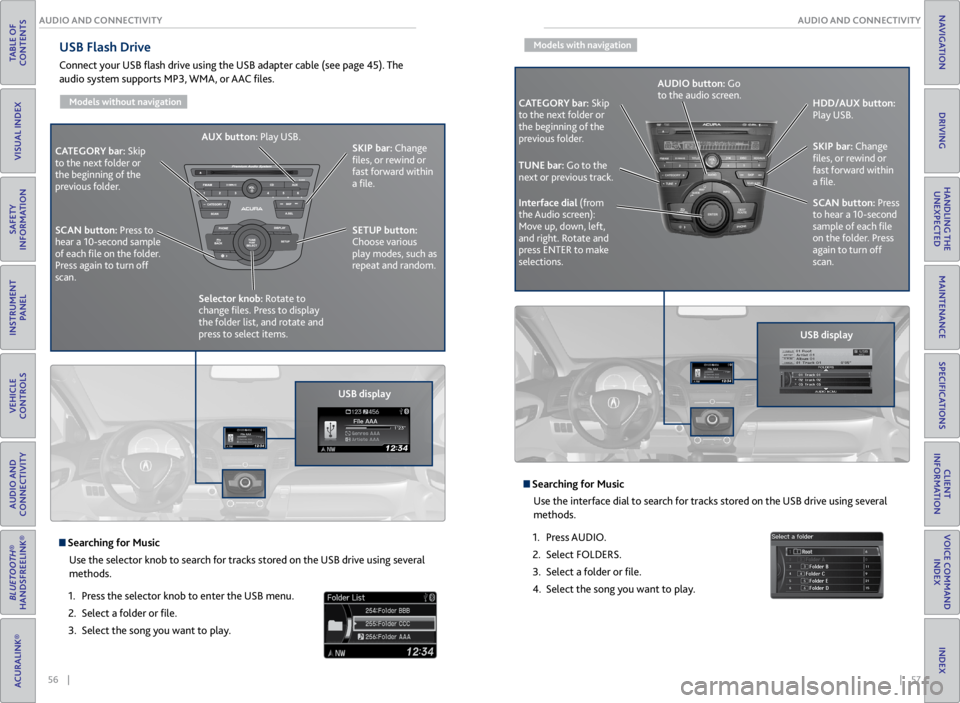
USB Flash Drive
Connect your USB flash drive using the USB adapter cable (see page 45). The
audio system supports MP3, WMA, or AAC files.
Models without navigation
USB display
CATEGORY bar: Skip
to the next folder or
the beginning of the
previous folder. SKIP bar:
Change
files, or rewind or
fast forward within
a file.
SETUP button:
Choose various
play modes, such as
repeat and random.
AUX button:
Play USB.
Selector knob: Rotate to
change files. Press to display
the folder list, and rotate and
press to select items.
SCAN button:
Press to
hear a 10-second sample
of each file on the folder.
Press again to turn off
scan.
Searching for Music
Use the selector knob to search for tracks stored on the USB drive using several
methods.
1. Press the selector knob to enter the USB menu.
2. Select a folder or file.
3. Select the song you want to play.
Models with navigation
Searching for Music
Use the interface dial to search for tracks stored on the USB drive using several
methods.
1. Press AUDIO.
2. Select FOLDERS.
3. Select a folder or file.
4. Select the song you want to play.
CATEGORY bar: Skip
to the next folder or
the beginning of the
previous folder.
USB displaySKIP bar:
Change
files, or rewind or
fast forward within
a file.
SCAN button: Press
to hear a 10-second
sample of each file
on the folder. Press
again to turn off
scan. HDD/AUX button:
Play USB.
Interface dial (from
the Audio screen):
Move up, down, left,
and right. Rotate and
press ENTER to make
selections. AUDIO button: Go
to the audio screen.
TUNE bar: Go to the
next or previous track.
Page 33 of 71
58 || 59
AUDIO AND CONNECTIVITY
AUDIO AND CONNECTIVITY
TABLE OF
CONTENTS
VISUAL INDEX
SAFETY
INFORMATION
INSTRUMENT PANEL
VEHICLE
CONTROLS
AUDIO AND
CONNECTIVITY
BLUETOOTH®
HANDSFREELINK®
ACURALINK®
INDEX
VOICE COMMAND INDEX
CLIENT
INFORMATION
SPECIFICATIONS
MAINTENANCE
HANDLING THE UNEXPECTED
DRIVING
NAVIGATION
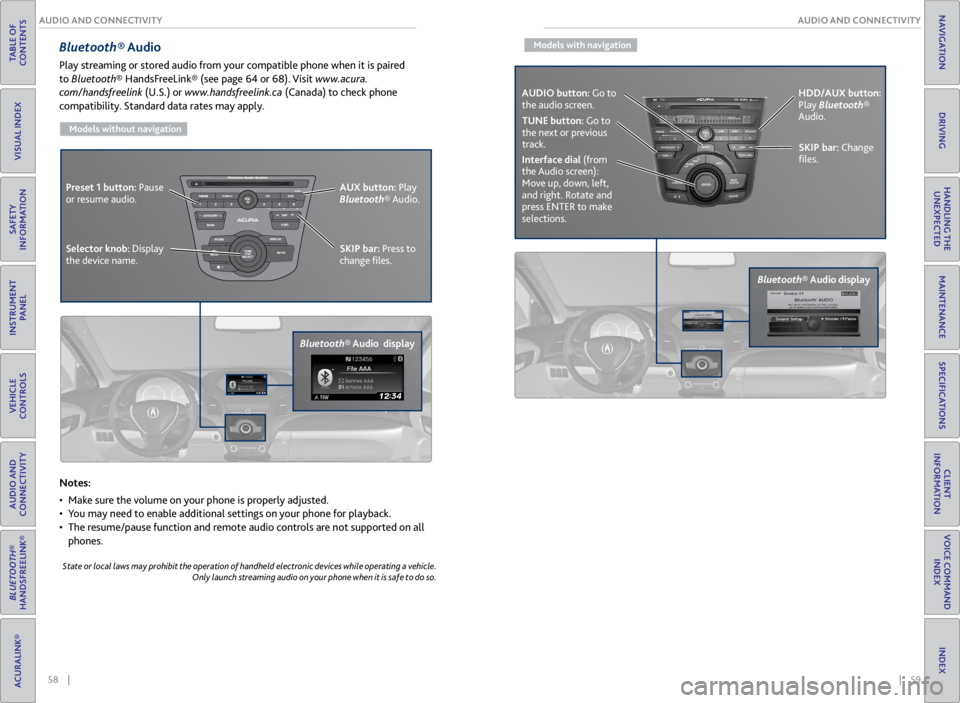
Bluetooth® Audio
Play streaming or stored audio from your compatible phone when it is paired
to Bluetooth® HandsFreeLink® (see page 64 or 68). Visit www.acura.
com/handsfreelink (U.S.) or www.handsfreelink.ca (Canada) to check phone
compatibility. Standard data rates may apply.
Models without navigation
Notes:
• Make sure the volume on your phone is properly adjusted.
• You may need to enable additional settings on your phone for playback.
• The resume/pause function and remote audio controls are not supported on all
phones.
State or local laws may prohibit the operation of handheld electronic devices while operating a vehicle.
Only launch streaming audio on your phone when it is safe to do so.
Bluetooth® Audio display SKIP bar:
Press to
change files.
Selector knob: Display
the device name. AUX button:
Play
Bluetooth® Audio.
Preset 1 button:
Pause
or resume audio.
Models with navigation
Bluetooth® Audio display
SKIP bar: Change
files.
Interface dial (from
the Audio screen):
Move up, down, left,
and right. Rotate and
press ENTER to make
selections. HDD/AUX button:
Play Bluetooth®
Audio.
TUNE button: Go to
the next or previous
track.
AUDIO button: Go to
the audio screen.
Page 34 of 71
60 || 61
AUDIO AND CONNECTIVITY
AUDIO AND CONNECTIVITY
TABLE OF
CONTENTS
VISUAL INDEX
SAFETY
INFORMATION
INSTRUMENT PANEL
VEHICLE
CONTROLS
AUDIO AND
CONNECTIVITY
BLUETOOTH®
HANDSFREELINK®
ACURALINK®
INDEX
VOICE COMMAND INDEX
CLIENT
INFORMATION
SPECIFICATIONS
MAINTENANCE
HANDLING THE UNEXPECTED
DRIVING
NAVIGATION
State or local laws may prohibit the operation of handheld electronic devices while operating a vehicle.
Only launch streaming audio on your phone when it is safe to do so.
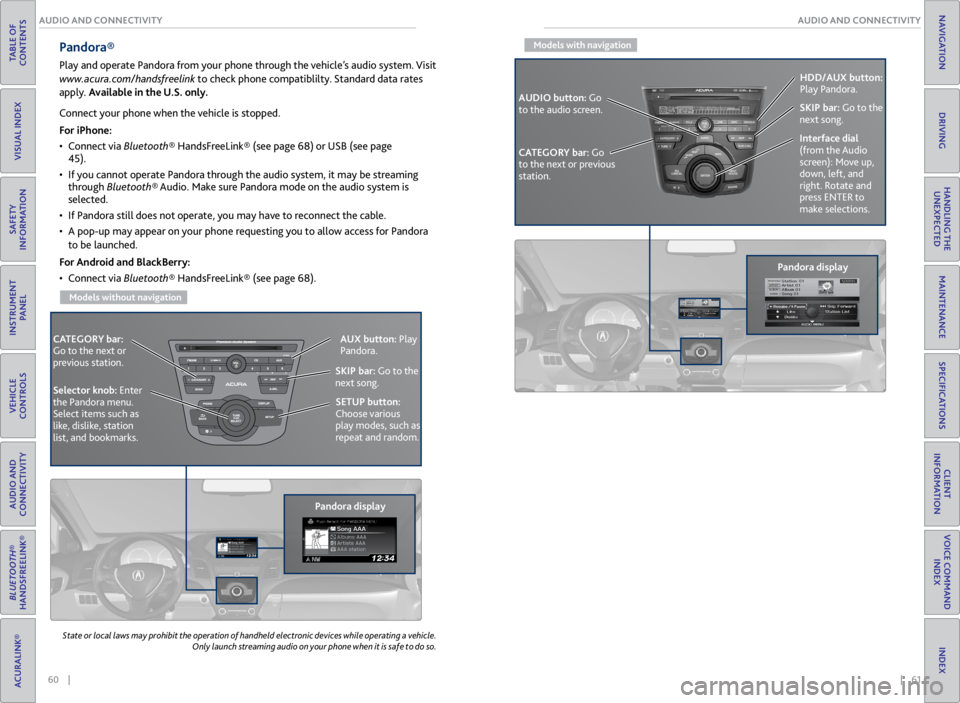
Pandora®
Play and operate Pandora from your phone through the vehicle’s audio system. Visit
www.acura.com/handsfreelink to check phone compatiblilty. Standard data rates
apply. Available in the U.S. only.
CATEGORY bar:
Go to the next or
previous station.
Pandora displaySKIP bar:
Go to the
next song.
SETUP button:
Choose various
play modes, such as
repeat and random. AUX button:
Play
Pandora.
Selector knob: Enter
the Pandora menu.
Select items such as
like, dislike, station
list, and bookmarks.
Connect your phone when the vehicle is stopped.
For iPhone:
• Connect via Bluetooth® HandsFreeLink® (see page 68) or USB (see page
45).
• If you cannot operate Pandora through the audio system, it may be streaming
through Bluetooth® Audio. Make sure Pandora mode on the audio system is
selected.
• If Pandora still does not operate, you may have to reconnect the cable.
• A pop-up may appear on your phone requesting you to allow access for Pandora
to be launched.
For Android and BlackBerry:
• Connect via Bluetooth® HandsFreeLink® (see page 68).
Models without navigation
Models with navigation
Pandora display
CATEGORY bar: Go
to the next or previous
station. SKIP bar:
Go to the
next song.
AUDIO button: Go
to the audio screen. HDD/AUX button:
Play Pandora.
Interface dial
(from the Audio
screen): Move up,
down, left, and
right. Rotate and
press ENTER to
make selections.
Page 35 of 71
| 63
INDEX
VOICE COMMAND INDEX
CLIENT
INFORMATION
SPECIFICATIONS
MAINTENANCE
HANDLING THE UNEXPECTED
DRIVING
NAVIGATION
62 |
AUDIO AND CONNECTIVITY
TABLE OF
CONTENTS
VISUAL INDEX
SAFETY
INFORMATION
INSTRUMENT PANEL
VEHICLE
CONTROLS
AUDIO AND
CONNECTIVITY
BLUETOOTH®
HANDSFREELINK®
ACURALINK®
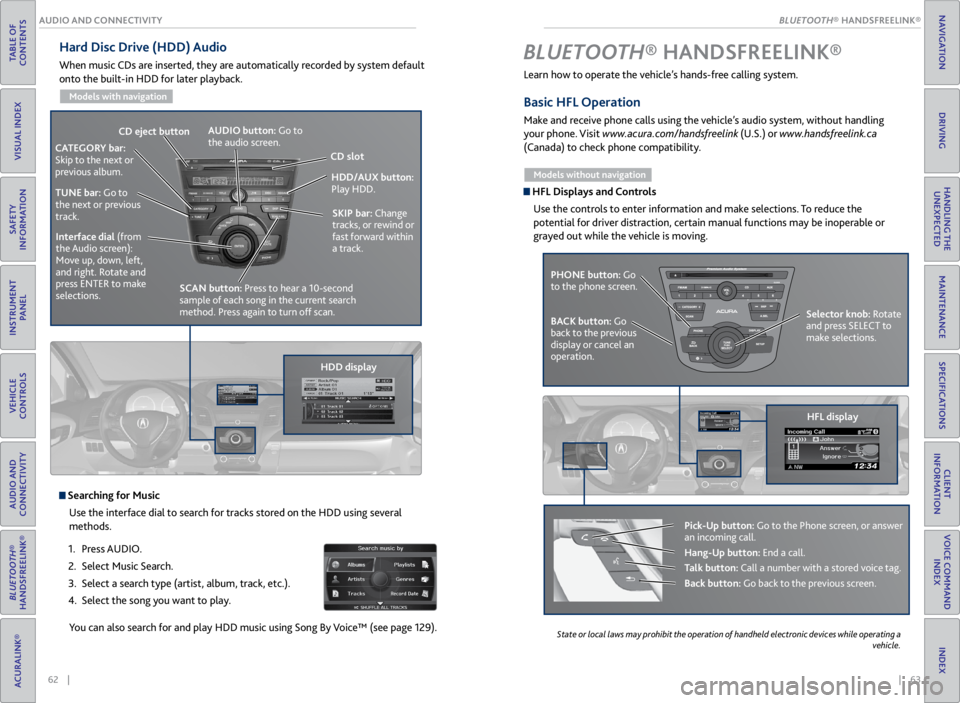
Hard Disc Drive (HDD) Audio
When music CDs are inserted, they are automatically recorded by system default
onto the built-in HDD for later playback.
Models with navigation
Searching for Music
Use the interface dial to search for tracks stored on the HDD using several
methods.
1. Press AUDIO.
2. Select Music Search.
3. Select a search type (artist, album, track, etc.).
4. Select the song you want to play.
You can also search for and play HDD music using Song By Voice™ (see page 129).
HDD/AUX button:
Play HDD.
AUDIO button: Go to
the audio screen.
CD
eject button
HDD displaySKIP bar:
Change
tracks, or rewind or
fast forward within
a track.
CATEGORY bar:
Skip to the next or
previous album.
TUNE bar: Go to
the next or previous
track.Interface dial (from
the Audio screen):
Move up, down, left,
and right. Rotate and
press ENTER to make
selections.
CD slot
SCAN button: Press to hear a 10-second
sample of each song in the current search
method. Press again to turn off scan.
Learn how to operate the vehicle’s hands-free calling system.
Basic HFL Operation
Make and receive phone calls using the vehicle’s audio system, without handling
your phone. Visit www.acura.com/handsfreelink (U.S.) or www.handsfreelink.ca
(Canada) to check phone compatibility.
Models without navigation
HFL Displays and Controls
Use the controls to enter information and make selections. To reduce the
potential for driver distraction, certain manual functions may be inoperable or
grayed out while the vehicle is moving.
BLUETOOTH® HANDSFREELINK ®
PHONE button: Go
to the phone screen.
BACK button: Go
back to the previous
display or cancel an
operation. Selector knob: Rotate
and press SELECT to
make selections.
HFL display
Pick-Up button: Go to the Phone screen, or answer
an incoming call.
Hang-Up button: End a call.
Talk button: Call a number with a stored voice tag.
Back button: Go back to the previous screen.
State
or local laws may prohibit the operation of handheld electronic devices while operating a
vehicle.
BLUETOOTH® HANDSFREELINK®
BLUETOOTH® HANDSFREELINK®
Page 68 of 71

128 || 129
VOICE COMMAND INDEX
VOICE COMMAND INDEX
TABLE OF
CONTENTS
VISUAL INDEX
SAFETY
INFORMATION
INSTRUMENT PANEL
VEHICLE
CONTROLS
AUDIO AND
CONNECTIVITY
BLUETOOTH®
HANDSFREELINK®
ACURALINK®
INDEX
VOICE COMMAND INDEX
CLIENT
INFORMATION
SPECIFICATIONS
MAINTENANCE
HANDLING THE UNEXPECTED
DRIVING
NAVIGATION
Audio Commands (continued)
* These commands toggle the function on and off, so the
command may not match your intended action.
USB Commands
• USB play
• USB play track # (#: 1 to 30)
• USB skip forward
• USB skip back
• USB track random*
• USB track repeat*
• USB track scan*
• USB folder up
• USB folder down
• USB folder random*
• USB folder repeat*
• USB folder scan*
• USB normal play
iPod® Commands
• iPod play
• iPod search
• iPod play track # (#: 1-30)
• iPod skip forward
• iPod skip back
• iPod track shuffle*
• iPod album shuffle*
• iPod track repeat*
• iPod normal play
• What/Who am I listening to?
• Who is this?
• What’s playing?
• Who’s playing?
• What album is this? Pandora® Commands
• Pandora play*
• Pandora on*
• Pandora off*
• Pandora quick mix on
• Pandora skip forward (or next
song)
• Pandora station up
• Pandora station down
• Pandora pause*
• Pandora resume*
• Pandora like song
• Pandora dislike song
• Pandora bookmark song
• Pandora bookmark artist
• Station list (accepted on Audio
screen only)
Bluetooth® Audio Commands
• Bluetooth audio play
• Bluetooth audio skip forward
• Bluetooth audio skip back
• Bluetooth audio pause
• Bluetooth audio resume
• Bluetooth audio group up
• Bluetooth audio group down
Commands may not work on
some phones or devices.
AUX Commands
• Auxiliary play
Cellular Phone Commands
The system accepts these commands on the Cellular Phone screen. Song By Voice™ Commands
These commands can be used for iPod and HDD operation.
• iPod search
• HDD search
• List album (specify album)
• List artist (specify artist)
• List composer (specify
composer)
• List genre (specify genre)
• List playlist (specify playlist)
• Play album (specify album)
• Play artist (specify artist) •
Play composer (specify
composer)
• Play genre (specify genre)
• Play playlist (specify playlist)
• Play song (specify song)
• What/Who am I listening to?
• Who is this?
• What’s playing?
• Who’s playing?
• What album is this?
Text Message Commands
These commands are accepted on the Inbox Message screen.
• Reply
• Call
• Send
• Full message
• Next message •
Previous message
• Read (accepted when a message
is received)
• Cancel (accepted when a message
is received)
Phone Commands
• Redial
• Call history
• Phone book
• Dial
• Text message
• More speed dial •
Phone setup
• Dial/call by number
(accepted on any screen)
• Dial/call by voice tag
(accepted on any screen)
Audio Commands (continued)