Page 126 of 505

Continued
125
uuLocking and Unlocking the Doors uLocking/Unlocking the Doors from the Inside
Controls
Pull the front door inner handle.
u The door unlocks and opens in one
motion.
Unlocking and opening the driver’s door from the inner handle unlocks all the other
doors.
To avoid all the doors to be unlocked, use the lock tab on the driver’s door to unlock,
then lock again before opening the door. u This setting works for one time only. If you do not want all the doors to be
unlocked all the time, customize the Auto Door Unlock setting to Off using
the MID or audio/information screen.
■
Unlocking Using the Front Door Inner Handle
1 Unlocking Using the Front Door Inner Handle
The front door inner handles are designed to allow
front seat occupants to open the door in one motion.
However this feature requires that front seat
occupants never pull a front door inner handle while
the vehicle is in motion.
Children should always ride in a rear seat where
childproof door locks are provided.
2 Childproof Door Locks P. 126
Inner Handle
Page 128 of 505
127
uuLocking and Unlocking the Doors uAuto Door Locking/Unlocking
Controls
Auto Door Locking/UnlockingYour vehicle locks all doors and unlocks all doors or the driver’s door automatically
when a certain condition is met.■Drive lock mode
All doors and tailgate lock when the vehicle’s speed reaches about 10 mph (15
km/h).■Driver’s door open mode
All doors unlock when the driver’s door is opened.■
Auto Door Locking
■
Auto Door Unlocking
1 Auto Door Locking/Unlocking
You can turn off or change to another auto door
locking/unlocking setting using the audio/
information screen or MID.
2 Customized Features P. 104, 249
Page 142 of 505

141
Continued
Controls
Operating the Switches Around the Steering WheelENGINE START/STOP Button■
Changing the Power Mode
1ENGINE START/STOP Button
ENGINE START/STOP Button Operating Range
You can start the engine when the keyless access
remote is inside the vehicle.
The engine may also run if the keyless access remote
is close to the door or window, even if it is outside the
vehicle.
ON mode:
Indicator in the button is off, if the engine is running.
If the keyless access remote battery is weak, beeper
sounds and the To Start, Hold Remote Near Start
Button message appears on the MID.
2 If the Keyless Access Remote Battery is
Weak P. 463
If the power mode does not change from VEHICLE
OFF to ACCESSORY, press the ENGINE START/STOP
button while moving the steering wheel left and
right. The steering wheel will unlock, allowing the
mode to change.
Operating Range
VEHICLE OFF (LOCK)
Indicator in the button is off.
The steering wheel is locked. The power to all electrical
components is turned off.
ACCESSORY
Indicator in the button is on.
Indicator in the button blinks (from ON to ACCESSORY).
Operate the audio system and other accessories in this
position.
ON
Indicator in the button is on.
All electrical components can be used.
Press the button.
Press the button without the
shift lever in (
P.
Shift to
( P, then press the button.
Indicator
Without pressing the brake pedal
Page 156 of 505
155
uuOperating the Switches Around the Steering Wheel uDriving Position Memory System
Continued
Controls
Driving Position Memory SystemYou can store two driver’s seat (except for power lumbar), steering wheel and door
mirror positions with the driving position memory system.
When you unlock and open the driver’s door with a remote transmitter, or keyless
access system, the seat and door mirrors adjust automatically to one of the two
preset positions.
The steering wheel will move to the stored position when you set the power mode
to ACCESSORY.
The MID shows you which remote transmitter you used to unlock the vehicle when
you enter.
• DRIVER 1 transmitter is linked to memory button 1.
• DRIVER 2 transmitter is linked to memory button 2.
1Driving Position Memory System
Using the audio/information screen or MID, you can
disable the automatic seat, steering wheel and door
mirrors adjustment function.
2 Customized Features P. 104, 249
DRIVER 1 DRIVER 2
Page 200 of 505

199
Features
This chapter describes how to operate technology features.
Audio SystemAbout Your Audio System ................ 200
USB Port .......................................... 201
Auxiliary Input Jack .......................... 202
Audio System Theft Protection ......... 203
Audio Remote Controls .................... 204
Audio System Basic Operation ........ 205
On Demand Multi-Use Display
TM....... 206
Audio/Information Screen ................ 212
Adjusting the Sound ........................ 216
Display Setup ................................... 217
Playing AM/FM Radio ....................... 218
Playing SiriusXM ® Radio ................... 222 Playing a CD .................................... 225
Playing an iPod ................................ 228
Playing Internet Radio ...................... 232
Playing a USB Flash Drive ................. 235
Playing
Bluetooth ® Audio................. 238
Audio Error Messages
CD Player ......................................... 240
iPod/USB Flash Drive ........................ 241
Pandora ®......................................... 242
Aha
TM Radio ..................................... 244
General Information on the Audio System
SiriusXM ® Radio Service ................... 245 Recommended CDs ......................... 246
Compatible iPod, iPhone, and USB Flash
Drives ................................................. 248
Customized Features ........................ 249
Defaulting All the Settings ............... 266
HomeLink ® Universal Transceiver ... 267
Bluetooth ® HandsFreeLink ®
Using HFL ........................................ 269
HFL Menus ...................................... 271
Compass
*.......................................... 302
* Not available on all models
Page 201 of 505
200Features
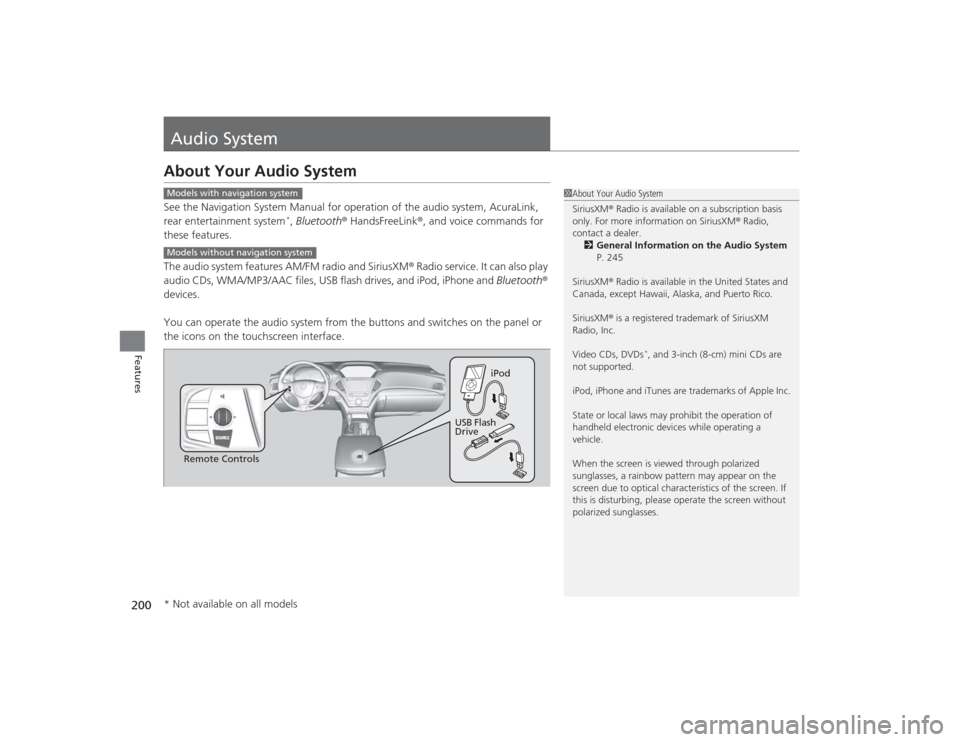
Audio SystemAbout Your Audio SystemSee the Navigation System Manual for operation of the audio system, AcuraLink,
rear entertainment system
*, Bluetooth ® HandsFreeLink ®, and voice commands for
these features.
The audio system features AM/FM radio and SiriusXM ® Radio service. It can also play
audio CDs, WMA/MP3/AAC files, USB flash drives, and iPod, iPhone and Bluetooth ®
devices.
You can operate the audio system from the buttons and switches on the panel or
the icons on the touchscreen interface.
1 About Your Audio System
SiriusXM ® Radio is available on a subscription basis
only. For more information on SiriusXM ® Radio,
contact a dealer.
2 General Information on the Audio System
P. 245
SiriusXM ® Radio is available in the United States and
Canada, except Hawaii, Alaska, and Puerto Rico.
SiriusXM ® is a registered trademark of SiriusXM
Radio, Inc.
Video CDs, DVDs
*, and 3-inch (8-cm) mini CDs are
not supported.
iPod, iPhone and iTunes are trademarks of Apple Inc.
State or local laws may prohibit the operation of
handheld electronic devices while operating a
vehicle.
When the screen is viewed through polarized
sunglasses, a rainbow pattern may appear on the
screen due to optical character istics of the screen. If
this is disturbing, please operate the screen without
polarized sunglasses.
Models with navigation systemModels without navigation system
Remote Controls iPod
USB Flash
Drive
* Not available on all models
Page 202 of 505
201
uuAudio System uUSB Port
Features
USB Port
Install the iPod dock connector or the USB
flash drive to the USB port.
1USB Port•Do not leave the iPod or USB flash drive in the
vehicle. Direct sunlight and high temperatures may
damage it.•We recommend using an extension cable with the
USB port.•Do not connect the iPod or USB flash drive using a
hub.•Do not use a device such as a card reader or hard
disk drive, as the device or your files may be
damaged.•We recommend keeping your data backed up
before using the device in your vehicle.•Displayed messages may vary depending on the
device model and software version.
If the audio system does not recognize the iPod, try
reconnecting it a few times or reboot the device. To
reboot, follow the manufacturer’s instructions
provided with the iPod or visit www.apple.com/ipod.
Page 203 of 505
202
uuAudio System uAuxiliary Input Jack
Features
Auxiliary Input Jack
Use the jack to connect standard audio
devices.
1. Open the AUX cover.
2. Connect a standard audio device to the
input jack using a 1/8 inch (3.5 mm) stereo
miniplug.
u The audio system automatically switches
to the AUX mode.
1Auxiliary Input Jack
You can return to the AUX mode by selecting
Change Source on the Audio menu screen or
Audio Source on the touchscreen.


