2014 VOLVO S80 AUX
[x] Cancel search: AUXPage 220 of 380

05 Comfort and driving pleasure
Passenger compartment convenience
05
218
Compartment in door panel
Storage pocket on the front edge of the front seat cushions
Glove compartment
Storage compartment, 12-volt socket and AUX input
Jacket holder
Rear seat cup holders
Storage pocket
Jacket holderThe jacket hanger is located on the inboard side of the front passenger's seat headrestraint. It is only intended for hanging lightgarments.
Tunnel console
Storage compartment (for CDs, etc.) under armrest, AUX input/USB connec-tor.
Includes cup holder for driver and pas- senger, 12-volt socket and a small stor-age compartment.
Glove compartment
The owner's manual and maps can be kept here. There are also holders for pens and fuelcards. The glove compartment can be lockedmanually with the key blade, see page 68.
Page 221 of 380
05 Comfort and driving pleasure
Passenger compartment convenience
05
219
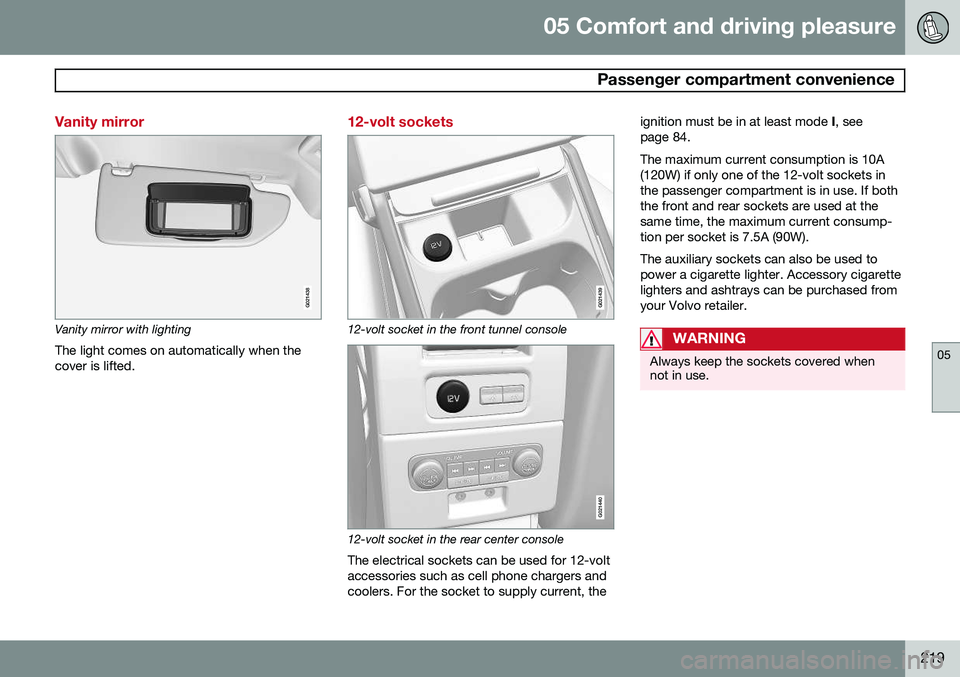
Vanity mirror
G021438
Vanity mirror with lightingThe light comes on automatically when the cover is lifted.
12-volt sockets
G021439
12-volt socket in the front tunnel console
G021440
12-volt socket in the rear center console
The electrical sockets can be used for 12-volt accessories such as cell phone chargers andcoolers. For the socket to supply current, the ignition must be in at least mode
I, see
page 84. The maximum current consumption is 10A (120W) if only one of the 12-volt sockets inthe passenger compartment is in use. If boththe front and rear sockets are used at thesame time, the maximum current consump-tion per socket is 7.5A (90W). The auxiliary sockets can also be used to power a cigarette lighter. Accessory cigarettelighters and ashtrays can be purchased fromyour Volvo retailer.
WARNING
Always keep the sockets covered when not in use.
Page 224 of 380

222* Option/accessory, for more information, see Introduction. Introduction........................................................................................... 224 Radio..................................................................................................... 234Media player......................................................................................... 243
AUX/USB sockets................................................................................. 248 Bluetooth
®
media ................................................................................. 251
Bluetooth ®
hands-free connection ...................................................... 253
Cell phone voice control*...................................................................... 262
Page 227 of 380

06 Infotainment
Introduction
06
}}
* Option/accessory, for more information, see Introduction.225
Infotainment system overview
Sockets for external audio sources (AUX and USB)
Steering wheel keypad
Center console control panel
7" display
Rear seat control panel with headphone socket*
Not in use
Basic infotainment functions
Corresponding controls - steering wheel keypad and center console
Left/right arrow keys – short press
moves between preset radio stations, tracks on a disc or chapters on a DVD. Press and
hold to search within tracks or to tune to the
next/previous available radio station.
SOUND – press to access the menu for
adjusting bass, treble, etc., see page 229 for additional information.
VOL – turn to raise or lower the volume
level.
ON/OFF/MUTE – short press - switch
the system ON. Press and hold (until the
screen turns black) - switch the system
OFF . A short press when the infotainment
system is on will mute/unmute the sound.
The entire infotainment system, including the navigation* and telephone functions, isswitched on/off at the same time by usingthis button.
CD/DVD* slot.
Mode buttons – select a mode (e.g.,
RADIO , MEDIA , TEL , etc.) by pressing its
button on the center console. The most recent source in the selected mode (e.g.,FM1 in RADIO mode) will be displayed. In
TEL or NAV* modes, pressing the respective
source button will display a shortcut menu.
Page 230 of 380

06 Infotainment
Introduction
06
228* Option/accessory, for more information, see Introduction.
Mode button (in this example, the MEDIA
button). The number of buttons varies, depending on your vehicle’s specifica-tions). Each mode has four basic views:
Normal view
Shortcut view
Quick scroll view
Menu view
Select a mode by pressing its button (1) ( RADIO, MEDIA, TEL , etc.). Navigate using
TUNE, OK/MENU or EXIT .
Rear control panel with headphone sockets*
Headphones with an impedance of 16 – 32 ohm and sensitivity of 102 dB orhigher are recommended for best soundreproduction.
Volume control (right/left sides)
Scroll/search forward and back
MODE – select: AM, FM1, FM2,HD
Radio2 , SAT1*, SAT2*, Disc, USB, iPod,Bluetooth, AUX and ON/OFF.
Headphones sockets (3.5 mm)
Activating/deactivatingThe control panel is activated by pressing MODE when the infotainment system is
switched on. It is switched off automaticallywhen the infotainment system is switched offor by a long press on MODE.
Scroll/search forward and backPress briefly on (2) to scroll between CDtracks/audio files or to search for the nextavailable radio station.
Limitations
NOTE
•The sound source (AM, FM1, Disc,
etc.) being played through the infotain- ment system's speakers cannot becontrolled from the rear control panel.
• In order to select and play an externaldevice using
MODE, the device must
be connected to the infotainment sys-tem.
2 U.S. models only.
Page 231 of 380

06 Infotainment
Introduction
06
}}
* Option/accessory, for more information, see Introduction.229
* FAV—storing a shortcut
The * FAV button can be used to store fre-
quently used functions, making it possible to start the stored function by simply press-ing * FAV . One favorite (for example,
Equalizer) can be programmed for each of
the following infotainment system functions: In RADIO mode
• AM
• FM1/FM2
• SIRIUS1/SIRIUS2*
In MEDIA mode
• DISC
• USB •
iPod
• Bluetooth
• AUX
Favorites can also be stored for MY CAR,
CAM * and NAV*. See page 193 for a descrip-
tion of the menu system.To program a function on the * FAV button:
1. Select a mode (e.g., RADIO, MEDIA ,
etc.).
2. Select e.g., a waveband (
FM1, etc.) or
source (Disc), etc.
3. Press and hold * FAV until the "favorite"
menu is displayed.
4. Turn TUNE to scroll through the list of
alternatives displayed and press OK/
MENU to confirm (store) your choice.
> The next time the infotainment system mode ( RADIO , MEDIA , etc.) is
selected, a short press on * FAV will
start the stored function.
Basic sound settings
Press SOUND to display the basic sound set-
ting menu (Bass, Treble, etc). Continue
pressing SOUND or OK/MENU to display the
other setting alternatives. Adjust the setting by turning TUNE and save
the new setting by pressing OK/MENU.
Continue pressing SOUND or OK/MENU to
display: •
Surround: 3
Can be set to On or Off.
When switched on, the system will auto- matically select settings for the bestsound quality, which is normally DPLII and
will appear in the display. If the
recording was made using Dolby Digital technology, playback will be provided with this setting and
will appear
in the display. If Surround is switched off, audio will be provided using 3 channelstereo.
•
Bass: Bass level.
•
Treble: Treble level.
•
Fader: Balance between the front and
rear speakers.
•
Balance: Balance between the right and
left speakers.
3 Premium Sound Multimedia only
Page 232 of 380
06 Infotainment
Introduction
06
230
•DPL II centre level/3 channel centre
level3 : Volume for the center speaker.
•
DPL II surround level3 /4
: Surround level.
Advanced sound settings
EqualizerSound levels for different frequencies can be adjusted separately using this feature. To do so:1. Press OK/MENU to access
Audio
settings and select Equalizer
2. Turn TUNE to select one of the frequen-
cies and press OK/MENU.
3. Turn TUNE to adjust the sound setting
and confirm the change by pressing OK/
MENU . Do the same for the other fre-
quencies.
4. When you have finished making your set- tings, press EXIT to save and return to
normal view.
For general information regarding menu navi- gation, see page 227 and menu overview seepage 231.
Sound stage 5The sound experience can be optimized forthe driver's seat, both front seats or the rearseat. If the front and rear seats are occupied, the sound stage setting
Front seats is rec-
ommended. Select one of the options under
Audio settingsSound stage.
Audio volume and automatic volume
control
The infotainment system compensates for disrupting noises in the passenger compart-ment by increasing the volume according tothe speed of the vehicle. The level of soundcompensation can be set at low, medium,high or off. Select the level under
Audio
settings
Volume compensation.
External audio source volumeIf an external device such as an MP3 player or an iPod ®
is connected to the AUX socket,
the device's volume may be different than the volume of the internal sound sources such asthe disc player or the radio. If the externalsound source's volume is too high, the qualityof the sound may be impaired. To help pre-vent this, adjust the input volume of the exter-nal audio source:
NOTE
Sound quality may be affected if the MP3 player is being charged while the system isin AUX mode. To help prevent this, avoidcharging the MP3 player in a 12-voltsocket while it is being played.
1. Press MEDIA and turn TUNE to AUX.
Press OK/MENU or the thumb wheel on
the steering wheel keypad.
2. Press OK/MENU and turn TUNE to
AUX
input volume. Confirm by pressing OK/
MENU .
3. Turn TUNE to adjust the volume.
Optimal sound reproductionThe infotainment system is pre-calibrated for optimal sound reproduction using digital sig-nal processing. This calibration takes into account factors such as the speakers, amplifier, cabin acous-tics, the listeners' seating positions, etc., foreach combination of vehicle/infotainmentsystem.
3
Premium Sound Multimedia only
4 Only when Surround is on.
5Premium Sound Multimedia only
Page 234 of 380

06 Infotainment
Introduction
06
232
MEDIA menus
Main CD Audio menuDisc menuRandom Scan
Audio settings 7
Main CD/DVD 10
Data menuDisc menu
Play/Pause
StopRandomRepeat folderChange subtitlesChange audio trackScan
Audio settings 7
Main DVD10
Video menuDVD Video Menu
DVD disc menuPlay/Pause/Continue StopSubtitlesAudio tracksAdvanced settings
AngleDivX® VOD code
Audio settings 7
Main iPod menuiPod menu
RandomScan
Audio settings 7
Main USB menuUSB menu
Play/Pause
StopRandomRepeat folderSelect USB deviceChange subtitles Change audio trackScan
Audio settings 7
Main AUX menuAUX menu
AUX input volume
Audio settings 7
TEL menus
Main Bluetooth media menuBluetooth menu
Random Change deviceRemove Bluetooth deviceScanBluetooth software version in car
Audio settings 7
7
The audio settings are the same for all infotainment system modes10
The media player can only play DVDs in models equipped with the optional navigation system. Images are only displayed when the vehicle is not in motion.