Page 21 of 346

21
8“Intersection & Freeway”
The names of two intersecting streets or a
freeway (interstate) entrance or exit can be
entered. This is helpful if only the general
vicinity, not the specific address, is known.
67
. . . . . . . . . . . . . . . . . . . . . . . . . . . . . . . . . .
9“Map”
A destination can be selected simply by
touching the location on the displayed
map. 70 . . . . . . . . . . . . . . . . . . . . . . . . . . . . .
10“Coordinates”
A destination can be set using latitudes
and longitudes as coordinates. 71 . . . . . .
11Preset destination touch screen
buttons
One of 5 preset destination points can be
selected by touching the screen directly. If
a preset destination point has not been
registered, a message will be displayed
and the setting screen will automatically
appear. To use this function, it is neces-
sary to set the “preset destination”. (To
register a “Preset Destination”, see “(a)
Registering preset destinations” on page
106.) 54 . . . . . . . . . . . . . . . . . . . . . . . . . . . .
12“Go Home”
A personal home address can be selected
without entering the address each time. If
“Home” has not been registered, a mes-
sage will be displayed and the setting
screen will automatically appear. To use
this function, it is necessary to set a
“Home” address. (To register “Home”, see
“(a) Registering home” on page 103.) 54
. . . . . . . . . . . . . . . . . . . . . . . . . . . . . . . . . .
Page 23 of 346
23
This screen can be used to display the calendar and information on opera\
tion of the
hands−free phone, etc. To display the “Information” screen, push the “INFO/PHONE”
button.
1“Phone”
To view hands free phone information. 126
. . . . . . . . . . . . . . . . . . . . . . . . . . . . . . . .
2“Map Data”
Displays information regarding the map
data disc version or coverage area. 335
. . . . . . . . . . . . . . . . . . . . . . . . . . . . . . . .
3“Calendar”
To view calendar. 143 . . . . . . . . . . . . . . . .
Quick reference (“Information” screen)
Page 25 of 346

SECTION 1
BASIC FUNCTIONS
25
BASIC FUNCTIONS
Basic information before operation
�Initial screen 26 . . . . . . . . . . . . . . . . . . . . . . . . . . . . . . . . . . . . .\
. . . . . .
� Touch screen operation 27
. . . . . . . . . . . . . . . . . . . . . . . . . . . . . . . . .
� Inputting letters and numbers/List screen operation 28
. . . . . . . . .
� Screen adjustment 31
. . . . . . . . . . . . . . . . . . . . . . . . . . . . . . . . . . . . .\
� Function help 33
. . . . . . . . . . . . . . . . . . . . . . . . . . . . . . . . . . . . .\
. . . . .
� Map screen operation 33
. . . . . . . . . . . . . . . . . . . . . . . . . . . . . . . . .
Current position display 33
. . . . . . . . . . . . . . . . . . . . . . . . . . . . . . .
Screen scroll operation 34
. . . . . . . . . . . . . . . . . . . . . . . . . . . . . . .
Switching the screens 39
. . . . . . . . . . . . . . . . . . . . . . . . . . . . . . . . .
Map scale 42
. . . . . . . . . . . . . . . . . . . . . . . . . . . . . . . . . . . . .\
. . . . . .
Foot print map 42
. . . . . . . . . . . . . . . . . . . . . . . . . . . . . . . . . . . . .\
. .
Orientation of the map 43
. . . . . . . . . . . . . . . . . . . . . . . . . . . . . . . .
Map icons 44
. . . . . . . . . . . . . . . . . . . . . . . . . . . . . . . . . . . . .\
. . . . . .
� Speech command system 44
. . . . . . . . . . . . . . . . . . . . . . . . . . . . .
Command list 47
. . . . . . . . . . . . . . . . . . . . . . . . . . . . . . . . . . . . .\
. . .
Page 26 of 346

BASIC FUNCTIONS
26
Vehicles with smart key system —
When the “ENGINE START STOP” switch
is in ACCESSORY or IGNITION ON
mode, the initial screen will be displayed
and the system will begin operating.
Vehicles without smart key system —
When the engine switch is in the “ACC” or
“ON” position, the initial screen will be
displayed and the system will begin oper-
ating.
CAUTION
When the vehicle is stopped with the
engine running, always apply the
parking brake for safety.
After a few seconds, the “CAUTION”
screen will be displayed.
After about 5 seconds, the “CAUTION”
screen automatically switches to the map
screen. When the “MAP/VOICE” button
is also pushed, the map screen is dis-
played.
While the “CAUTION” screen is displayed,
the “DEST” or “SETUP” button cannot be
operated. And if the “Calendar” button on
the “Information” screen is touched, the
screen will change back to the “CAUTION”
screen. In about 5 seconds, or when the
“MAP/VOICE” button is pushed or the
“Show Map” is touched, the “CAUTION”
screen will change to the map screen.
Initial screen
Page 27 of 346

BASIC FUNCTIONS
27
�
Maintenance information
This system informs about when to replace
certain parts or components and shows
dealer information (if registered) on the
screen.
When the vehicle reaches a previously set
driving distance or date specified for a
scheduled maintenance check, the “Infor-
mation” screen will be displayed when the
navigation system is in operation.
To disable this screen, touch “Do Not
Display This Message Again”. This
screen goes off if the screen is not op-
erated for several seconds.
To prevent this information screen from be-
ing displayed again, touch “Do Not
Display This Message Again” .
To register “Maintenance information”, see
“—Maintenance” on page 316. This system is operated mainly by the
touch screen buttons on the screen.
When a button on the screen is
touched, a beep sounds. (To set a beep
sound, see page 252.)
NOTICE
�To prevent damaging the screen,
lightly touch the screen buttons
with your finger.
�Do not use objects other than your
finger to touch the screen.
�Wipe off
fingerprints using a glass
cleaning cloth. Do not use chemi-
cal cleaners to clean the screen, as
they may damage the touch
screen.
INFORMATION
� If the system does not respond to
a touch on a touch screen button,
move the finger away from the
screen and then touch it again.
� Dimmed touch screen buttons
cannot be operated.
� The displayed image may become
darker and moving images may be
slightly distorted when the display
is cold.
� Under extremely cold conditions,
the map may not be displayed and
the data input by a user may be de-
leted. Also, the touch screen but-
tons may be harder than usual to
depress.
� When you look at the screen
through polarized material such as
polarized sunglasses, the screen
may be dark and hard to see. If so,
look at the screen from different
angles, adjust the screen settings
on the “Display” screen, or take off
your sunglasses.
Touch screen operation
Page 33 of 346
BASIC FUNCTIONS
33
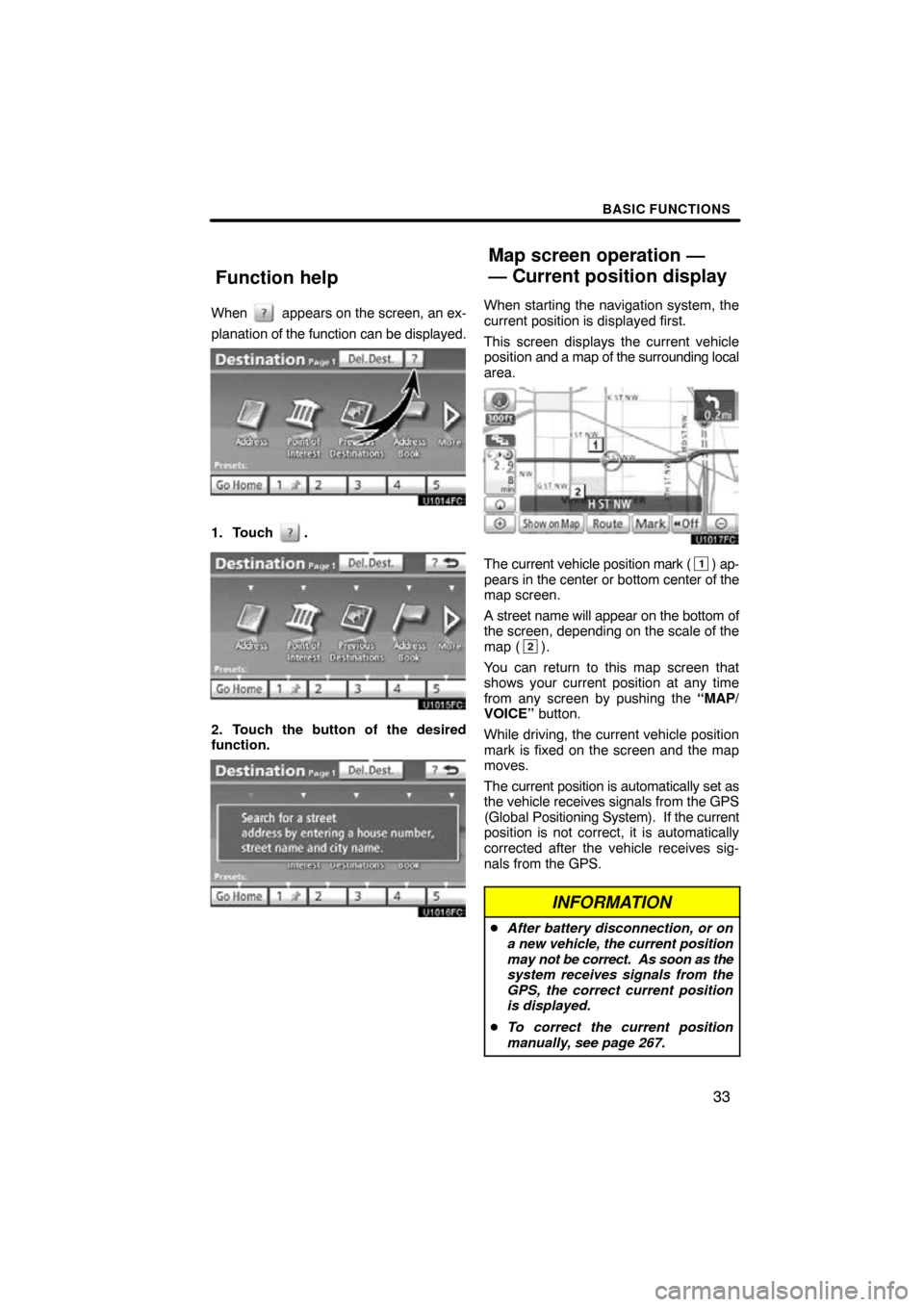
When appears on the screen, an ex-
planation of the function can be displayed.
1. Touch .
2. Touch the button of the desired
function.
When starting the navigation system, the
current position is displayed first.
This screen displays the current vehicle
position and a map of the surrounding local
area.
The current vehicle position mark (1) ap-
pears in the center or bottom center of the
map screen.
A street name will appear on the bottom of
the screen, depending on the scale of the
map (
2).
You can return to this map screen that
shows your current position at any time
from any screen by pushing the “MAP/
VOICE” button.
While driving, the current vehicle position
mark is fixed on the screen and the map
moves.
The current position is automatically set as
the vehicle receives signals from the GPS
(Global Positioning System). If the current
position is not correct, it is automatically
corrected after the vehicle receives sig-
nals from the GPS.
INFORMATION
� After battery disconnection, or on
a new vehicle, the current position
may not be correct. As soon as the
system receives signals from the
GPS, the correct current position
is displayed.
� To correct the current position
manually, see page 267.
Function help
Map screen operation —
— Current position display
Page 34 of 346

BASIC FUNCTIONS
34
When any point on the map is touched,
that point moves to the center of the screen
and is shown by the cursor mark (
1).
Use the scroll feature to move the desired
point to the center of the screen for looking
at a point on the map that is different from
the current position of the vehicle.
If the finger is continuously held on the
screen, the map will continue scrolling in
that direction until the finger is removed.
A street name, city name, etc. of the
touched point will be shown, depending on
the scale of the map (
2). Distance from
the current position to will also be
shown (3).
After the screen is scrolled, the map re-
mains centered at the selected location
until another function is activated. The cur-
rent vehicle position mark will continue to
move along your actual route and may
move off the screen. When the “MAP/
VOICE” button is pushed, the current ve-
hicle position mark returns to the center of
the screen and the map moves as the ve-
hicle proceeds along the designated route.
INFORMATION
When the onetouch scroll feature is
used, the current vehicle position
mark may disappear from the screen.
Move the map with a onetouch scroll
again or push the “MAP/VOICE” but-
ton to return to the current vehicle
position map location display.
�To set the cursor position as a des-
tination
A specific point on the map can be set as
a destination using the one −touch scroll
function.
Touch “Enter ”.
The screen changes and displays the map
location of the selected destination and the
route preference. (See “Starting route
guidance” on page 72.)
— Screen scroll operation
(onetouch scroll)
Page 35 of 346
BASIC FUNCTIONS
35
�
To register the cursor position as an
address book entry
Address book entry registration enables
easy access to a specific point.
Touch “Mark”.
When you touch “Mark” , the following
screen appears for a few seconds, and
then the map screen returns.
The registered point is shown by on the
map. To change the icon or name, etc., see “ (b)
Editing
address book entries” on page 110.
Up to 100 address book entries can be reg-
istered. If there is an attempt to register
more than 100 address book entries, an
error message will appear.

