Page 356 of 732
356
RAV4_OM_OM42A04U_(U)
5-2. Using the audio system
Using the steering wheel audio switches
Vo l u m e
Radio mode:
Selects a radio station
CD mode:
Selects a track and file (MP3
and WMA)
Bluetooth
® audio mode:
Selects a track and album
iPod mode:
Selects a song
USB memory mode:
Selects a file and folder
Power on, select audio source
: If equipped
Some audio features can be c ontrolled using the switches on
the steering wheel.
Operation may differ depending on the type of audio system or
navigation system. For details, refer to the manual provided with
the audio system or navigation system.
1
2
3
Page 357 of 732
RAV4_OM_OM42A04U_(U)
3575-2. Using the audio system
5
Interior features
Press the “MODE” switch when the audio system is turned off.
Press the “MODE” switch when the audio system is turned on. The
audio source changes as follows each time the button is pressed. If a
mode cannot be used, it will be skipped.
AM FM1 FM2 CD mode iPod or USB memory
Bluetooth
® audio AUX
Press the “+” switch to increase the volume and the “-” switch to
decrease the volume.
Hold down the switch to continue increasing or decreasing the volume.
Press and hold the “MODE” switch.
To cancel, press and hold the switch again.
Press the “MODE” switch to select the radio mode.
Press the “ ” or “ ” switch to select a preset station.
To scan for receivable stations, press and hold the switch until you hear a
beep.
Turning on the power
Changing the audio source
Adjusting the volume
Silencing a sound
Selecting a radio station
1
2
Page 358 of 732
358
RAV4_OM_OM42A04U_(U)
5-2. Using the audio system
Press the “MODE” switch to select the CD, Bluetooth® audio, iPod
or USB memory mode.
Press the “ ” or “ ” switch to select the desired track/file or song.
Press the “MODE” switch to select Bluetooth
® audio mode.
Press and hold the “ ” or “ ” switch until you hear a beep.
Press the “MODE” switch to se lect CD or USB memory mode.
Press and hold the “ ” or “ ” switch until you hear a beep.
Selecting a track/file or song
Selecting an album
Selecting a folder (MP3 and WMA or USB memory)
CAUTION
■ To reduce the risk of an accident
Exercise care when operating the audio switches on the steering wheel.
1
2
1
2
1
2
Page 391 of 732
391
RAV4_OM_OM42A04U_(U)
5-3. Using the audio system (Entune Audio)
5
Interior features
USB Port/AUX Por t
■iPod
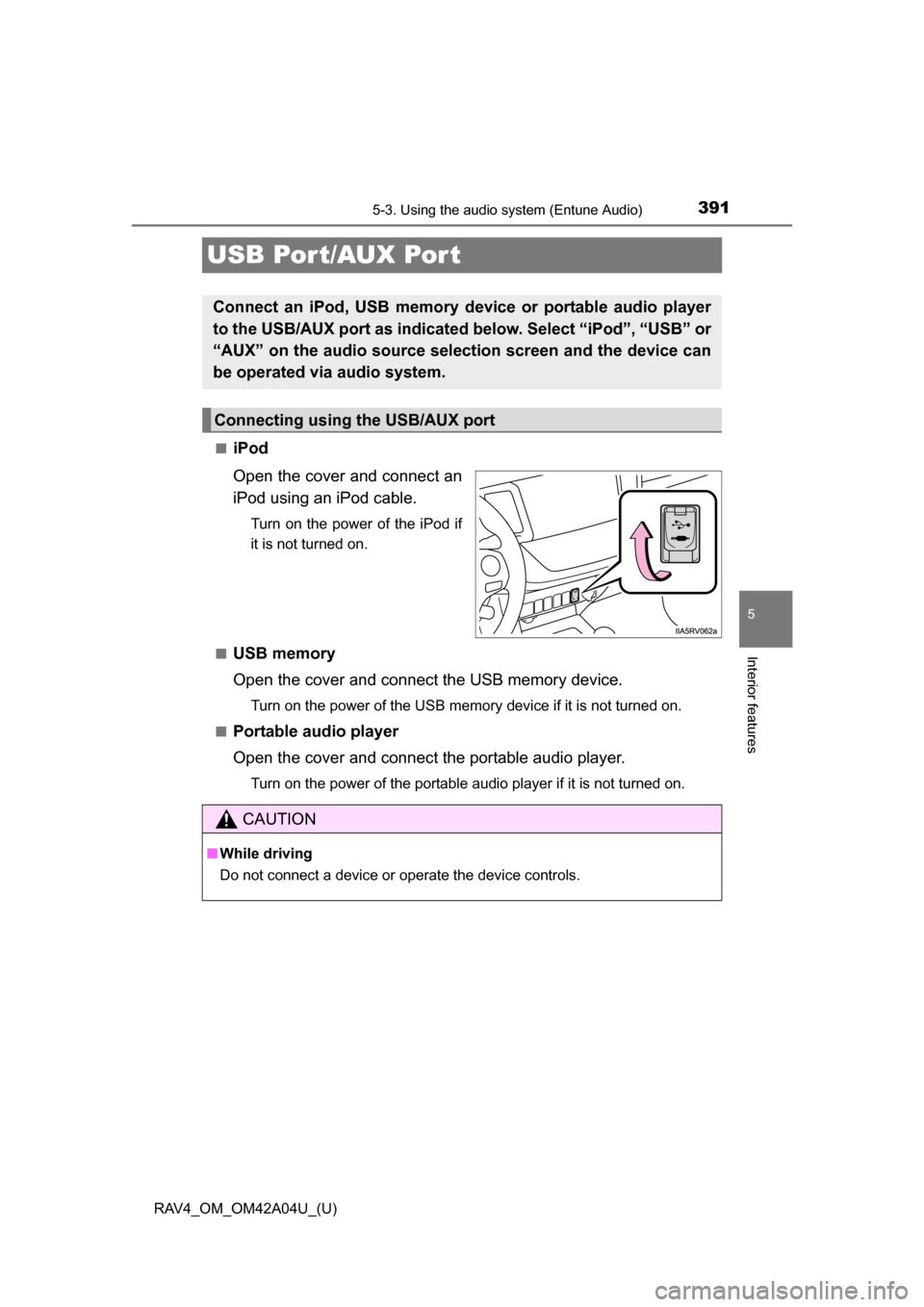
Open the cover and connect an
iPod using an iPod cable.
Turn on the power of the iPod if
it is not turned on.
■
USB memory
Open the cover and connect the USB memory device.
Turn on the power of the USB memory device if it is not turned on.
■
Portable audio player
Open the cover and connect the portable audio player.
Turn on the power of the portable audio player if it is not turned on.
Connect an iPod, USB memory device or portable audio player
to the USB/AUX port as indicated below. Select “iPod”, “USB” or
“AUX” on the audio sour ce selection screen and the device can
be operated via audio system.
Connecting using the USB/AUX port
CAUTION
■ While driving
Do not connect a device or operate the device controls.
Page 396 of 732

396
RAV4_OM_OM42A04U_(U)
5-3. Using the audio system (Entune Audio)
An image can be copied from a USB memory and used as the startup
and screen off Images.
When the engine switch is in the “ACC” or “ON” position (vehicles
without a smart key system) or ACCESSORY or IGNITION ON mode
(vehicles with a smart ke y system), the initial screen will be displayed.
When “Screen Off” on the “Setup” screen is selected, the screen is
turned off and the desired screen off image that is set is displayed.
(To turn the screen off: P. 394)
■Transferring images
Open the cover and connect
a USB memory.
Turn on the power of the USB
memory if it is not turned on.
Press the “MENU” button.
Select “Setup”.
Select “General”.
Select “Customize Startup Image” or “Customize Screen Off
Image”.
Select “Transfer”.
Select “Yes”.
● When saving the images to a USB, name the folder that the star-
tup image is saved to “StartupImage” and name the folder that
the screen off image is saved to “DisplayOffImage”. If these
folder names are not used, the audio system cannot download
the images. (The folder nam es are case sensitive.)
● The compatible file extensions are JPG and JPEG.
● Image files of 5 MB or le ss can be transferred.
● Up to 3 images can be transferred to the audio system.
Customizing the startup and sc reen off images (if equipped)
1
2
3
4
5
6
7
Page 405 of 732
RAV4_OM_OM42A04U_(U)
4055-3. Using the audio system (Entune Audio)
5
Interior features
■Selecting a track/file/song
Press the “SEEK >” button or “< TRACK” button, or turn the
“TUNE•SCROLL” knob to select the desired track/file/song number.
To fast-forward or reverse, pres s and hold the “SEEK >” button or
“< TRACK” button.
■Selecting a track/file/song from the track/file/song list
Select “Browse” or cover art.
Select the desired track/file/
song.
When an MP3/WMA/AAC disc or USB memory device is being used,
the folder can be selected. When a Bluetooth
® device or iPod is being
used, the album can be selected.
According to the audio device, the following is displayed.
Selecting, fast-forwarding a nd reversing tracks/files/songs
1
2
Audio sourceList name
Audio CDTrack
MP3/WMA/AAC disc, USBFolder, Album, Artist, Song,
Composer, Genre, File
Bluetooth®Album, Track
iPod
Playlist, Artist, Album, Genre,
Audiobook, Composer, Song, Video,
Podcast
Page 420 of 732
420
RAV4_OM_OM42A04U_(U)
5-3. Using the audio system (Entune Audio)
Listening to a USB memor y device
P. 3 9 1
Pressing the “AUDIO” button disp lays the audio control screen from
any screens of the selected source.
Audio source selection screen
appears
Displaying the folder list
Random playback ( P. 393)
Repeat play ( P. 393)
Pause
Select to resume playback
Setting the sound ( P. 406)
Connecting a USB memory device enables you to enjoy music
from the vehicle speakers.
Touch “USB” on the audio source selection screen.
Connecting a USB memory device
Audio control screen
1
2
3
4
5
6
Page 421 of 732
RAV4_OM_OM42A04U_(U)
4215-3. Using the audio system (Entune Audio)
5
Interior features
■USB memory functions
●Depending on the USB memory device that is connected to the system, the
device itself may not be operable and certain functions may not be avail-
able. If the device is inoperable or a function is unavailable due to a mal-
function (as opposed to a system specification), disconnecting the device
and reconnecting it may resolve the problem.
● If the USB memory device still does not begin operation after being discon-
nected and reconnected, format the memory.
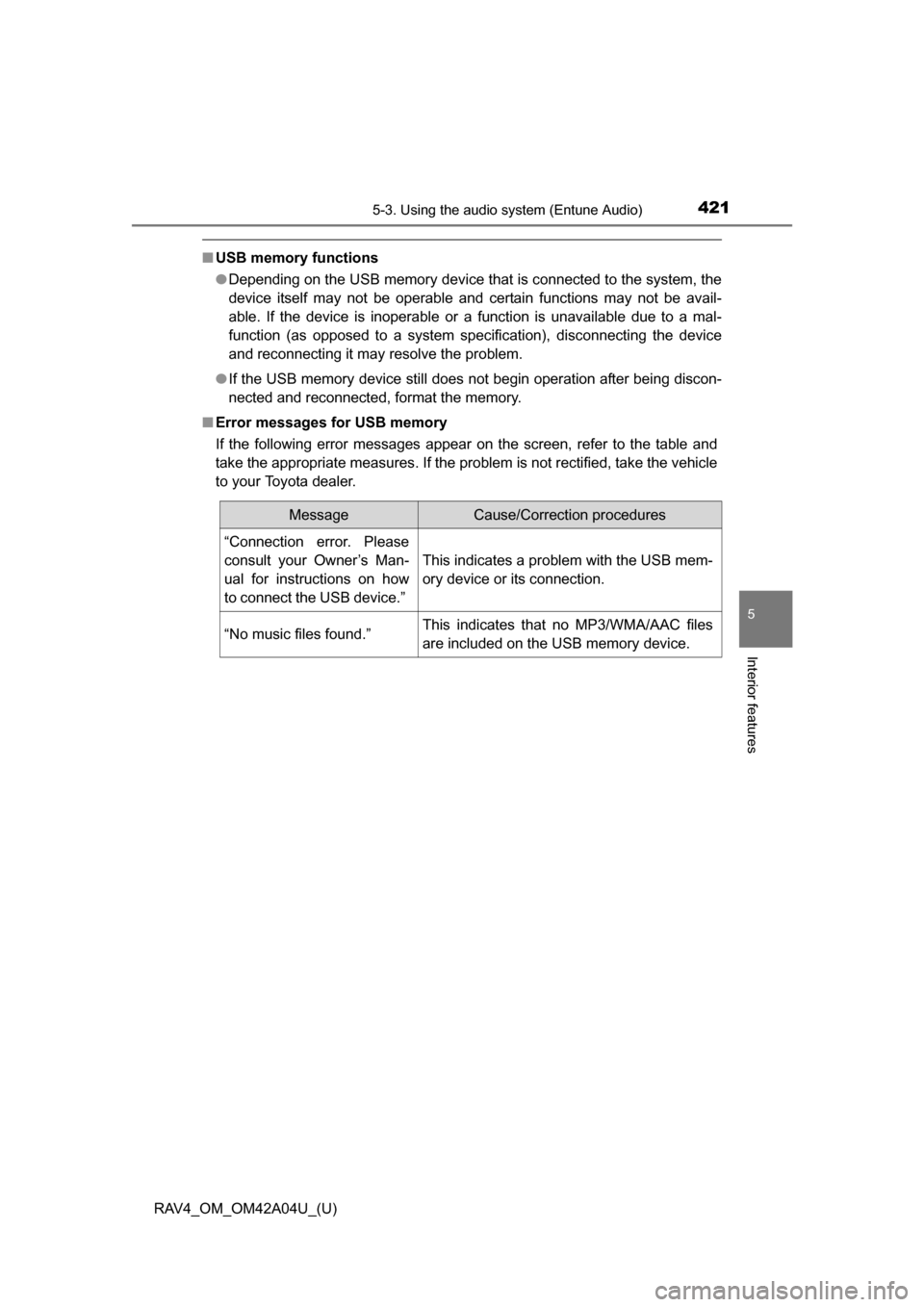
■ Error messages for USB memory
If the following error messages appear on the screen, refer to the table and
take the appropriate measures. If the problem is not rectified, take the vehicle
to your Toyota dealer.
MessageCause/Correction procedures
“Connection error. Please
consult your Owner’s Man-
ual for instructions on how
to connect the USB device.”
This indicates a problem with the USB mem-
ory device or its connection.
“No music files found.”This indicates that no MP3/WMA/AAC files
are included on the USB memory device.