Page 3 of 612

1
2
3
4
5
6
7
3
2-2. Instrument cluster
Gauges and meters................ 174
Indicators and warning lights ................................. 180
Multi-information display ..... 185
2-3. Operating the lights and wipers
Headlight switch .................. 192
Fog light switch ................... 198
Windshield wipers and washer .............................. 200
2-4. Using other driving systems
Cruise control ...................... 204
Driving assist systems ........ 207
Hill-start assist control ......... 212
BSM (Blind Spot Monitor) .......... 214
2-5. Driving information Cargo and luggage ............. 224
Vehicle load limits ............... 228
Winter driving tips ............... 229
Trailer towing ...................... 233
Dinghy towing ..................... 234 3-1. Using the air conditioning
system and defogger
Automatic air conditioning system .............................. 238
Rear window and outside rear view mirror
defoggers ......................... 248
3-2. Using the audio system Audio system types ............ 249
Audio system ...................... 251
Steering wheel audio switches ........................... 254
USB/AUX port .................... 256
Basic audio operations ....... 258
Setup menu ........................ 261
General settings ................. 262
Audio settings ..................... 264
Display settings .................. 265
Voice settings ..................... 267
Selecting the audio source .............................. 268
List screen operation .......... 269
Optimal use of the audio system .............................. 271
Radio operation .................. 272
CD player operation ........... 274
Listening to an iPod ............ 281
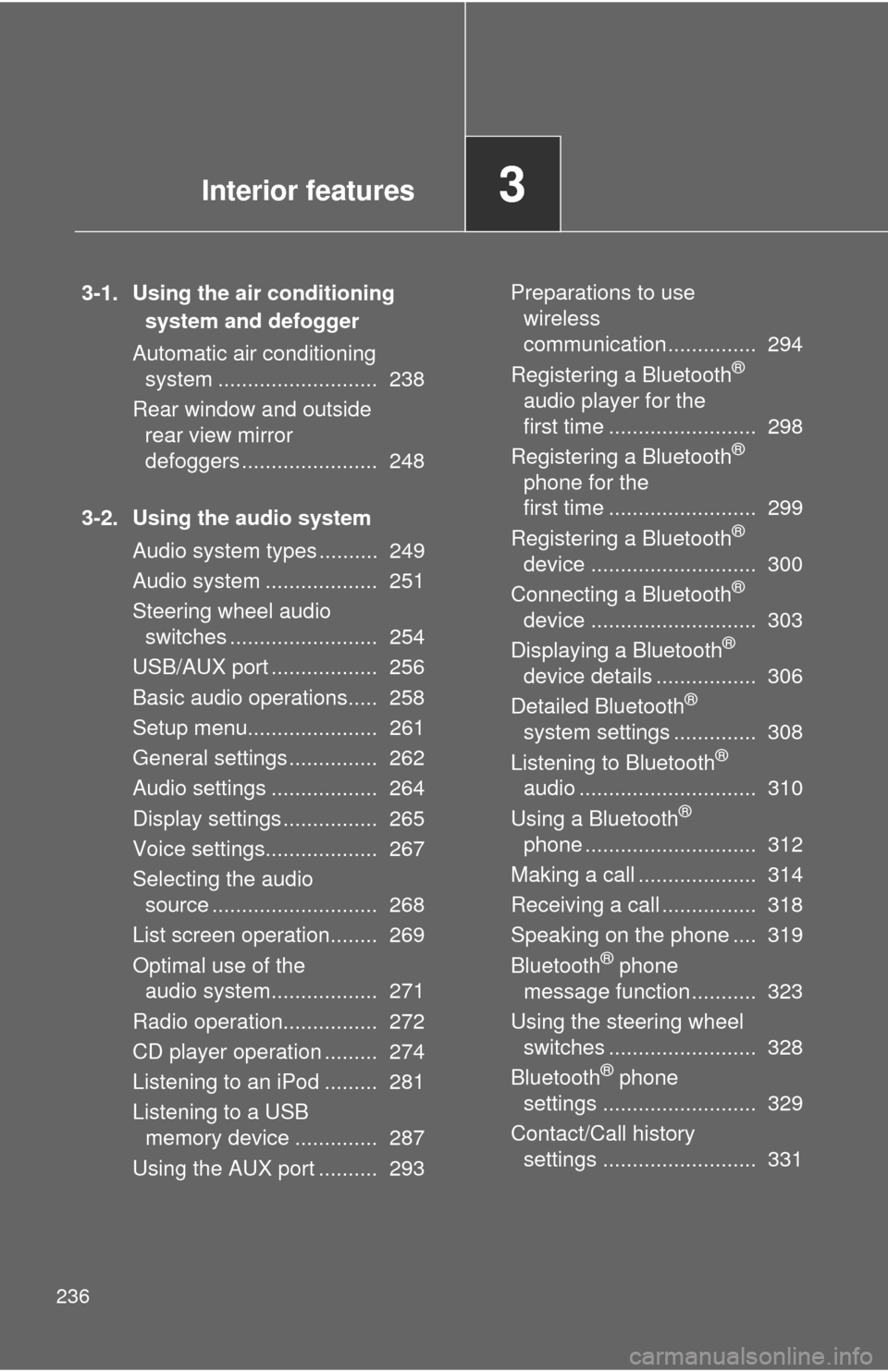
Listening to a USB memory device ................. 287
Using the AUX port............. 293
Preparations to use wireless
communication ................. 2943Interior features
Page 18 of 612
18
C
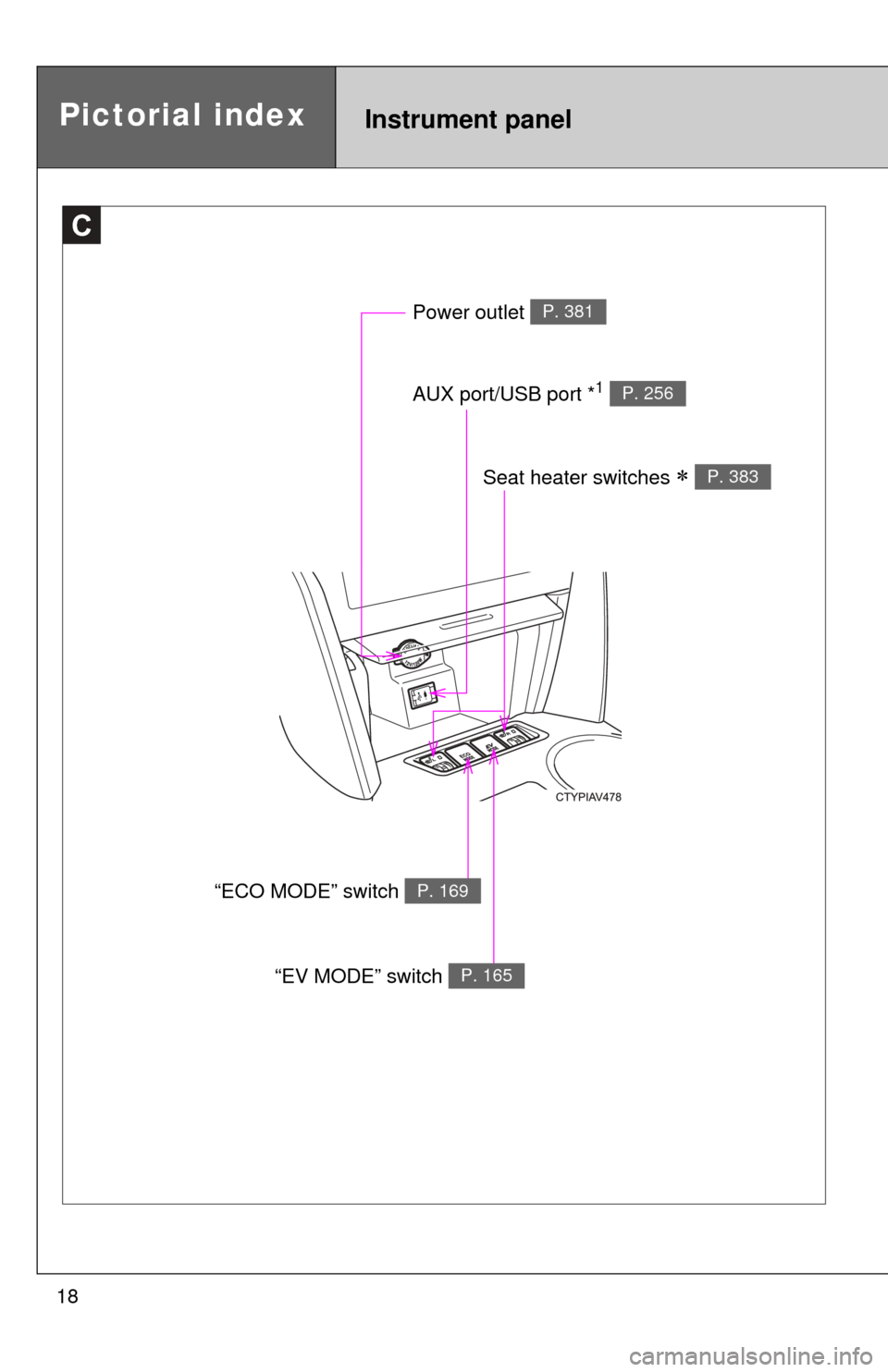
Power outlet P. 381
AUX port/USB port *1 P. 256
Pictorial indexInstrument panel
Seat heater switches P. 383
“ECO MODE” switch P. 169
“EV MODE” switch P. 165
Page 236 of 612
236
3-1. Using the air conditioning system and defogger
Automatic air conditioning system ........................... 238
Rear window and outside rear view mirror
defoggers ....................... 248
3-2. Using the audio system Audio system types .......... 249
Audio system ................... 251
Steering wheel audio switches ......................... 254
USB/AUX port .................. 256
Basic audio operations..... 258
Setup menu...................... 261
General settings ............... 262
Audio settings .................. 264
Display settings ................ 265
Voice settings................... 267
Selecting the audio source ............................ 268
List screen operation........ 269
Optimal use of the audio system.................. 271
Radio operation................ 272
CD player operation ......... 274
Listening to an iPod ......... 281
Listening to a USB memory device .............. 287
Using the AUX port .......... 293 Preparations to use
wireless
communication ............... 294
Registering a Bluetooth
®
audio player for the
first time ......................... 298
Registering a Bluetooth
®
phone for the
first time ......................... 299
Registering a Bluetooth
®
device ............................ 300
Connecting a Bluetooth
®
device ............................ 303
Displaying a Bluetooth
®
device details ................. 306
Detailed Bluetooth
®
system settings .............. 308
Listening to Bluetooth
®
audio .............................. 310
Using a Bluetooth
®
phone ............................. 312
Making a call .................... 314
Receiving a call ................ 318
Speaking on the phone .... 319
Bluetooth
® phone
message function ........... 323
Using the steering wheel switches ......................... 328
Bluetooth
® phone
settings .......................... 329
Contact/Call history settings .......................... 331
Interior features3
Page 249 of 612
249
3
Interior features
3-2. Using the audio system
Audio system types
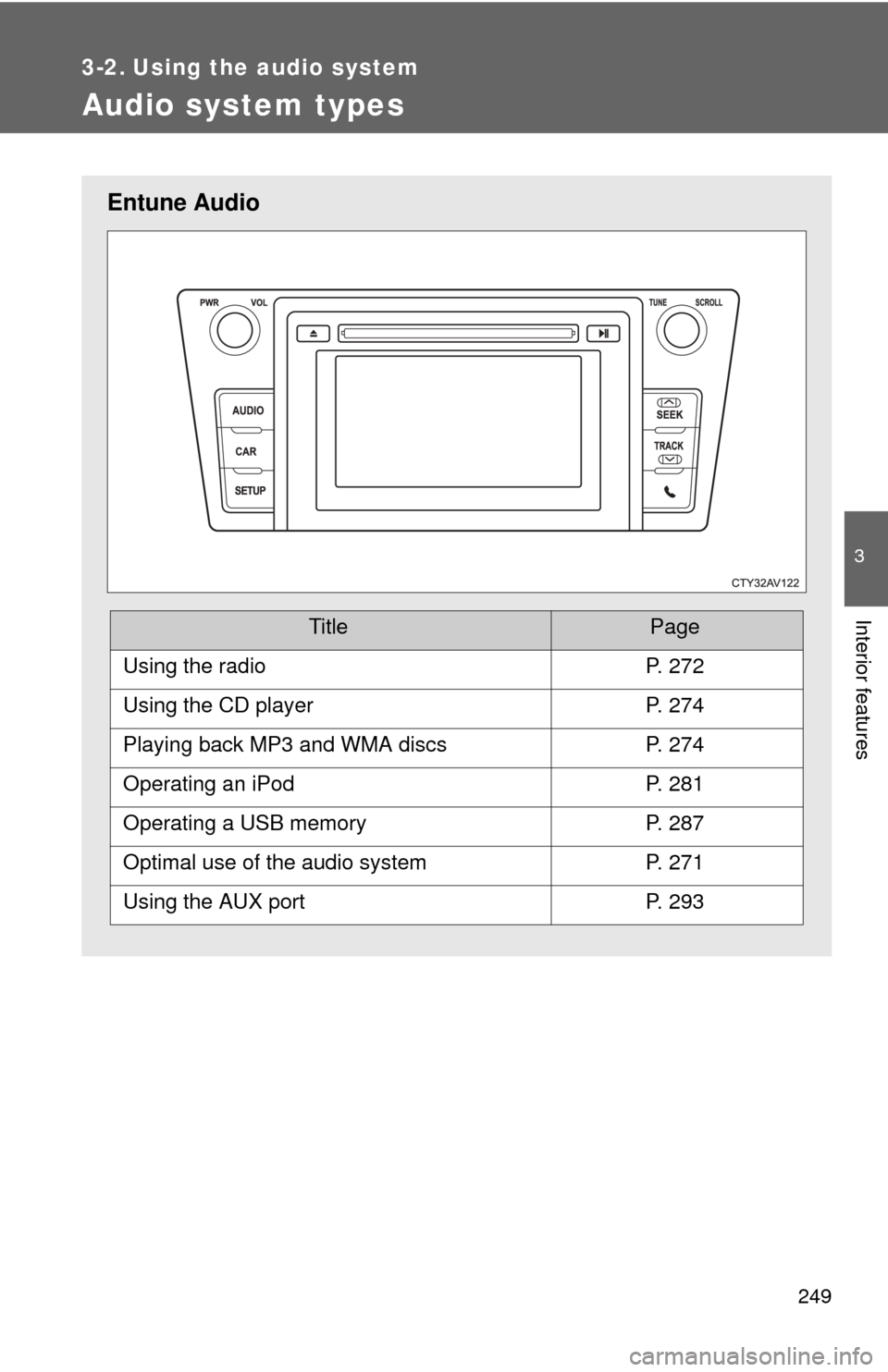
Entune Audio
TitlePage
Using the radioP. 272
Using the CD playerP. 274
Playing back MP3 and WMA discsP. 274
Operating an iPodP. 281
Operating a USB memoryP. 287
Optimal use of the audio systemP. 271
Using the AUX portP. 293
Page 256 of 612
256
3-2. Using the audio system
USB/AUX por t
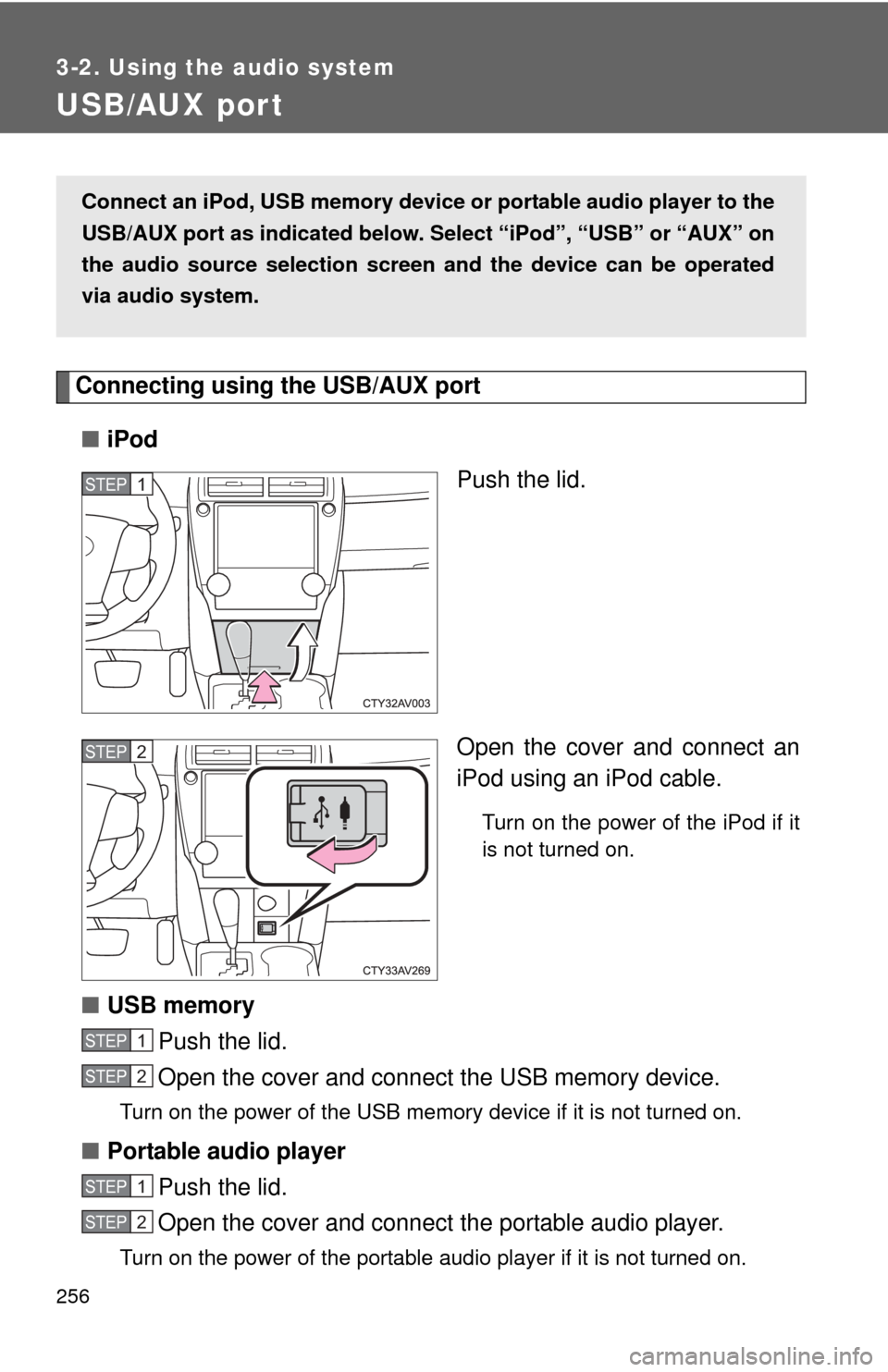
Connecting using the USB/AUX port■ iPod
Push the lid.
Open the cover and connect an
iPod using an iPod cable.
Turn on the power of the iPod if it
is not turned on.
■USB memory
Push the lid.
Open the cover and connect the USB memory device.
Turn on the power of the USB memory device if it is not turned on.
■Portable audio player
Push the lid.
Open the cover and connect the portable audio player.
Turn on the power of the portable audio player if it is not turned on.
Connect an iPod, USB memory device or portable audio player to the
USB/AUX port as indicated below. Se lect “iPod”, “USB” or “AUX” on
the audio source selection screen and the device can be operated
via audio system.
STEP1
STEP2
STEP1
STEP2
STEP1
STEP2
Page 270 of 612
270 3-2. Using the audio system
Selecting, fast-forwarding and reversing tracks/files/songs
■ Selecting a track/file/song
Press the “ ” or “ ” button on “SEEK/TRACK” or turn the “TUNE/
SCROLL” knob to select the desired track/file/song number.
To fast-forward or reverse, press and hold the “ ” or “ ” button on
“SEEK/TRACK”.
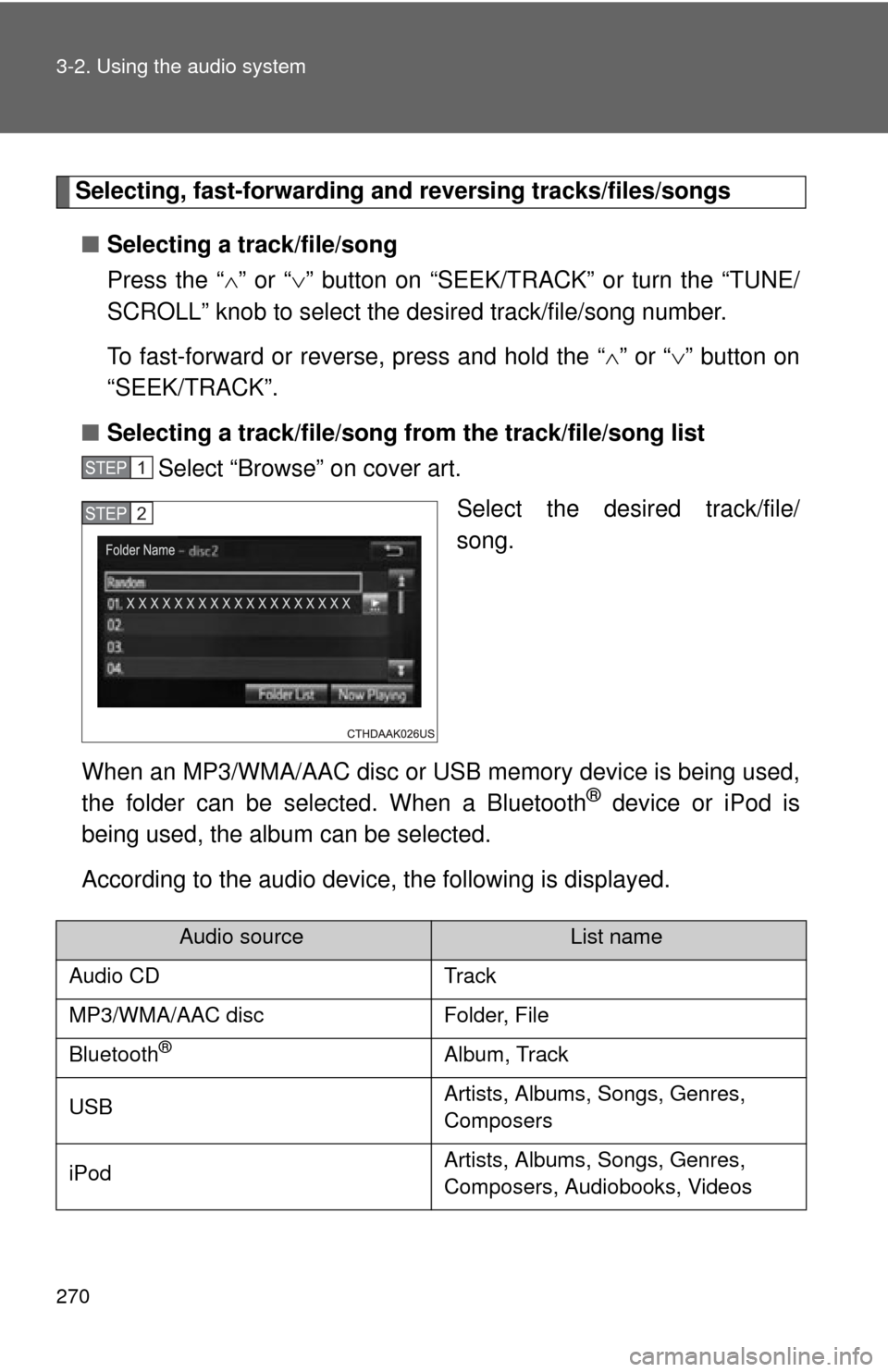
■ Selecting a track/file/song fr om the track/file/song list
Select “Browse” on cover art.
Select the desired track/file/
song.
When an MP3/WMA/AAC disc or USB memory device is being used,
the folder can be selected. When a Bluetooth
® device or iPod is
being used, the album can be selected.
According to the audio device, the following is displayed.
STEP1
STEP2
Audio sourceList name
Audio CD Track
MP3/WMA/AAC disc Folder, File
Bluetooth
®Album, Track
USB Artists, Albums, Songs, Genres,
Composers
iPod Artists, Albums, Songs, Genres,
Composers, Audiobooks, Videos
Page 287 of 612
287
3-2. Using the audio system
3
Interior features
Listening to a USB memor y device
Connecting a USB memory device P. 2 5 6
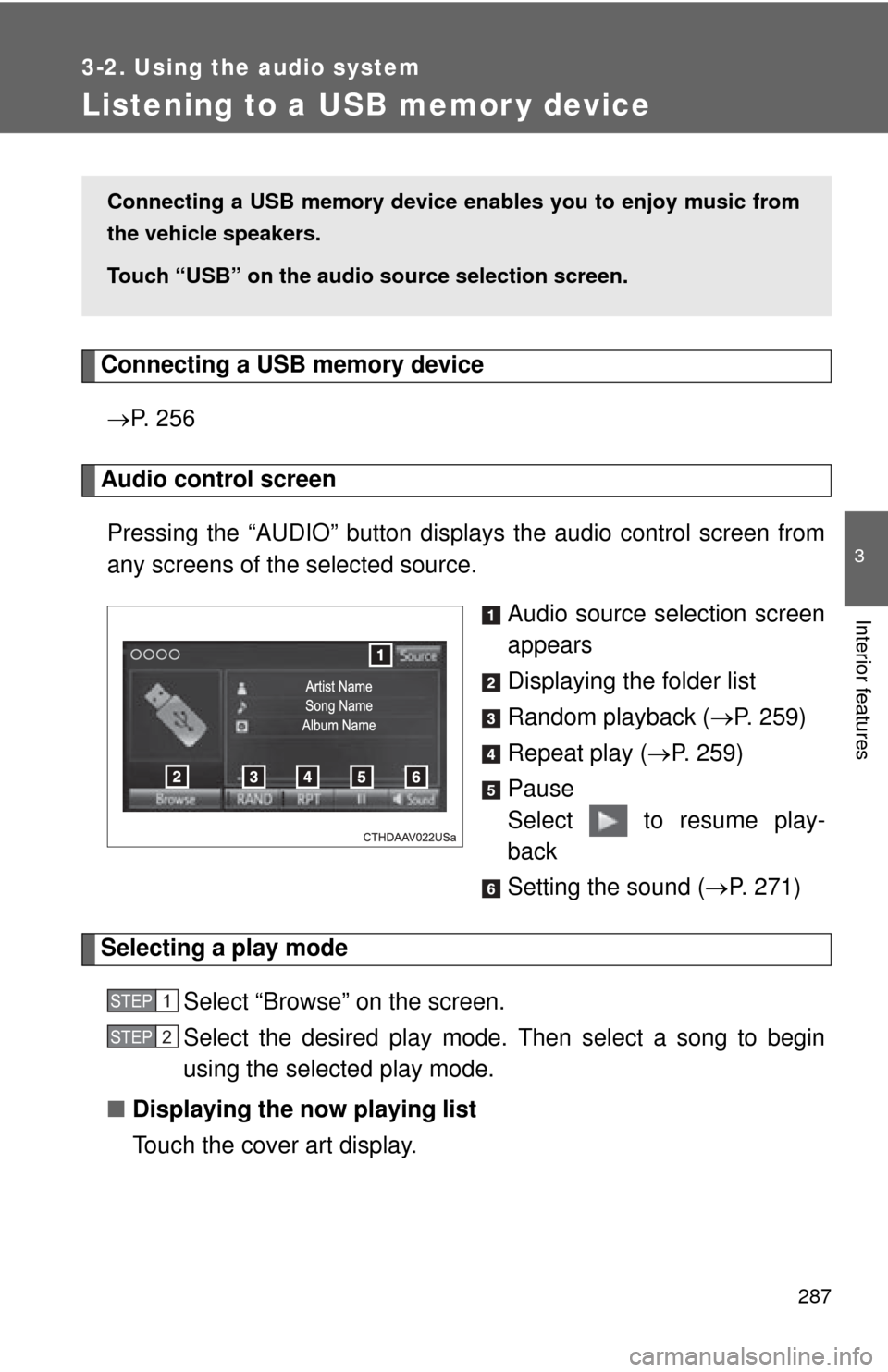
Audio control screen
Pressing the “AUDIO” button disp lays the audio control screen from
any screens of the selected source.
Audio source selection screen
appears
Displaying the folder list
Random playback (P. 259)
Repeat play ( P. 259)
Pause
Select to resume play-
back
Setting the sound ( P. 271)
Selecting a play mode
Select “Browse” on the screen.
Select the desired play mode. Then select a song to begin
using the selected play mode.
■ Displaying the now playing list
Touch the cover art display.
Connecting a USB memory device en ables you to enjoy music from
the vehicle speakers.
Touch “USB” on the audio source selection screen.
STEP1
STEP2
Page 288 of 612
288 3-2. Using the audio system
■USB memory functions
●Depending on the USB memory device that is connected to the system,
the device itself may not be operable and certain functions may not be
available. If the device is inoperable or a function is unavailable due to a
malfunction (as opposed to a system specification), disconnecting the
device and reconnecting it may resolve the problem.
● If the USB memory device still does not begin operation after being dis-
connected and reconnected, format the memory.
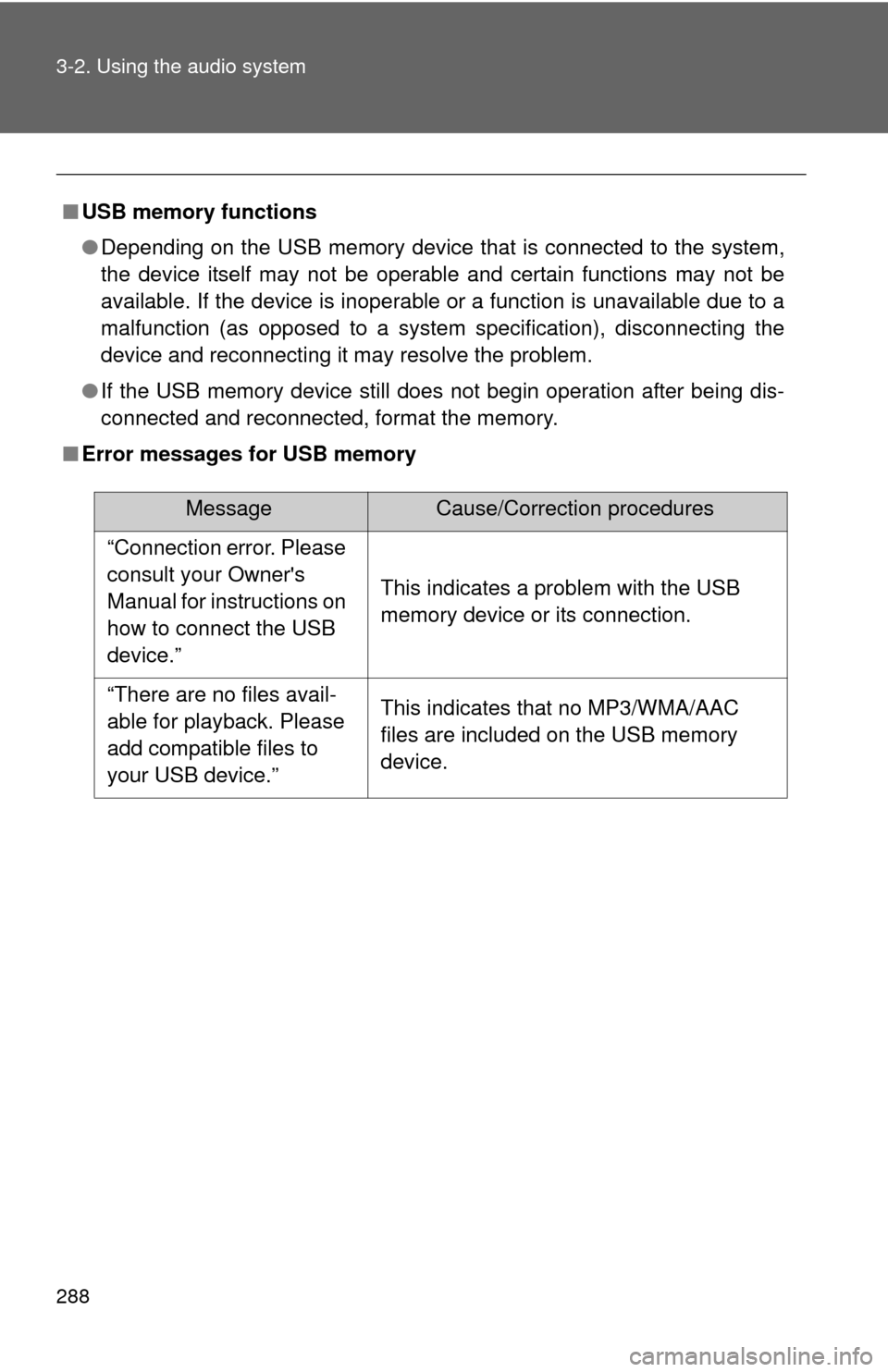
■ Error messages for USB memory
MessageCause/Correction procedures
“Connection error. Please
consult your Owner's
Manual for instructions on
how to connect the USB
device.”
This indicates a problem with the USB
memory device or its connection.
“There are no files avail-
able for playback. Please
add compatible files to
your USB device.” This indicates that no MP3/WMA/AAC
files are included on the USB memory
device.