2014 TESLA MODEL S lock
[x] Cancel search: lockPage 42 of 159

Starting Model S
When you open a door, Model S powers on the instrument panel and touchscreen. Thecenter circle on the instrument panel displaysthe status of doors and the charge level, and
you can operate all controls.
To drive:
• PRESS THE BRAKE - the center circle on
the instrument panel changes to display
the speedometer, power meter, charge level, and selected gear (P, R, N, or D).
• SELECT A GEAR - all the way down for
Drive and all the way up for Reverse.
Everything you need to know when driving
Model S displays on the instrument panel.
Key Not Inside
If Model S does not detect a key when you
press the brake, the instrument panel displays
a message telling you that a key was not
detected.
Place the key in the center console cup holder
where Model S can best detect it.
If Model S still does not detect the key, try
holding it against the center console,
immediately below the 12V power socket (see 12V Power Socket on page 80). Or try using
another key. If another key does not work,
contact Tesla.
A number of factors can affect whether
Model S can detect the key. These include a
low battery in the key, interference from other
devices using radio signals, and objects
between the key and receiver.
Always keep the key with you. After driving,
you need it to restart Model S after it powers
off. And when you leave Model S, you must
bring it with you to lock Model S, either manually or automatically (see Walk-away
Locking on page 7).
Powering Off When you finish driving, shift into Park by
pressing the button on the end of the gear
selector. The parking brake automatically
engages and all systems keep operating.
When you leave Model S with the key, it
powers off automatically, turning off the
touchscreen and instrument panel.
Model S also powers off automatically after
being in Park for 15 minutes, even if you are
sitting in the driver’s seat.
Although usually not needed, you can power
off Model S while you are still sitting in the
driver’s seat. Touch Controls > E-Brake &
Power Off > Power Off . Model S automatically
powers back on again if you press the brake or touch anywhere on the touchscreen.
Note: Model S automatically shifts into Park
whenever you leave the vehicle, even if you
shift into Neutral before exiting. To keep
Model S in Neutral, see Leaving Model S in
Neutral - Tow Mode on page 41.
Starting and Powering Off
40Model S Owner's Manual
Page 44 of 159
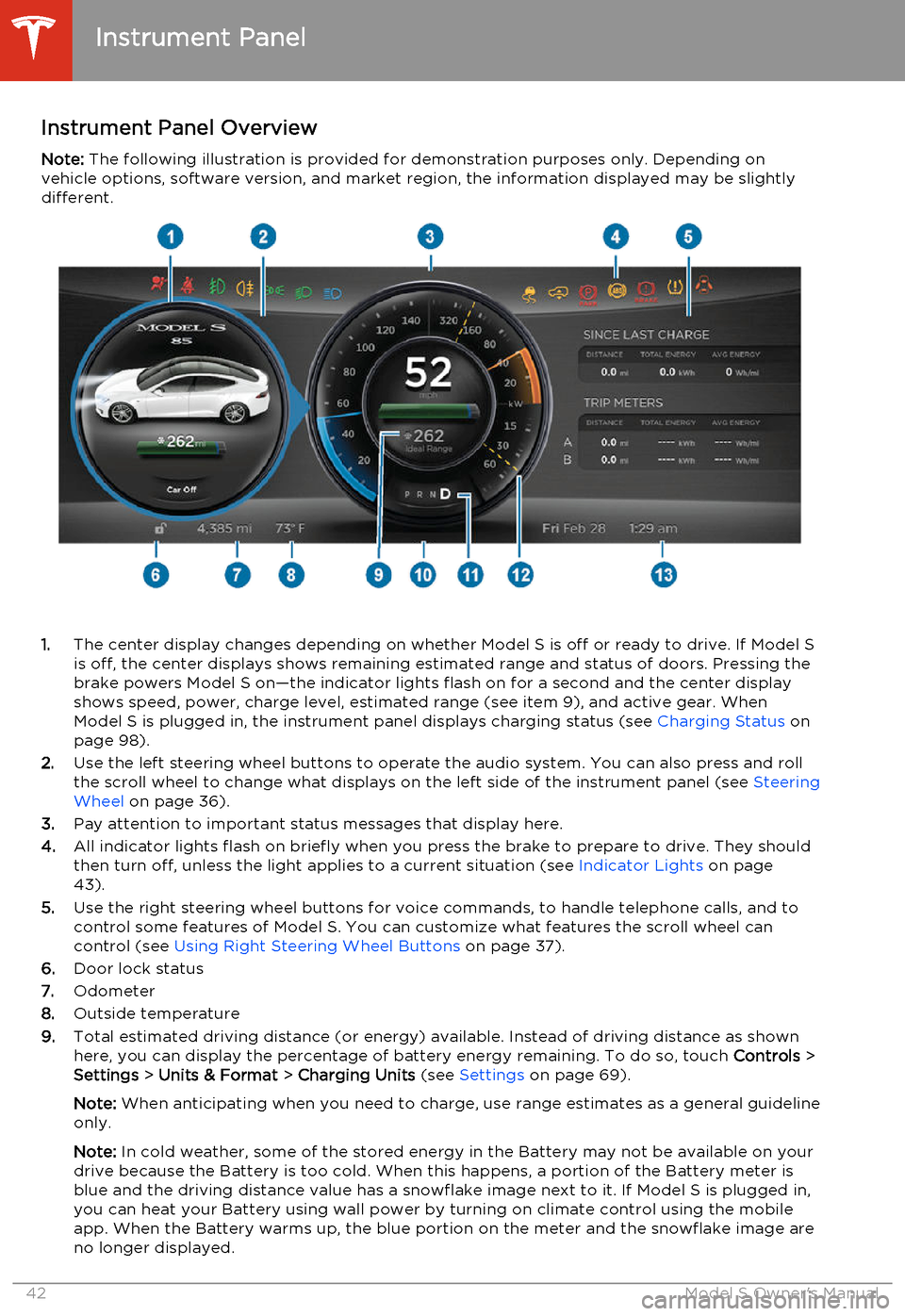
Instrument Panel OverviewNote: The following illustration is provided for demonstration purposes only. Depending on
vehicle options, software version, and market region, the information displayed may be slightly different.
1. The center display changes depending on whether Model S is off or ready to drive. If Model S
is off, the center displays shows remaining estimated range and status of doors. Pressing thebrake powers Model S on—the indicator lights flash on for a second and the center display
shows speed, power, charge level, estimated range (see item 9), and active gear. When
Model S is plugged in, the instrument panel displays charging status (see Charging Status on
page 98).
2. Use the left steering wheel buttons to operate the audio system. You can also press and roll
the scroll wheel to change what displays on the left side of the instrument panel (see Steering
Wheel on page 36).
3. Pay attention to important status messages that display here.
4. All indicator lights flash on briefly when you press the brake to prepare to drive. They should
then turn off, unless the light applies to a current situation (see Indicator Lights on page
43).
5. Use the right steering wheel buttons for voice commands, to handle telephone calls, and to
control some features of Model S. You can customize what features the scroll wheel can control (see Using Right Steering Wheel Buttons on page 37).
6. Door lock status
7. Odometer
8. Outside temperature
9. Total estimated driving distance (or energy) available. Instead of driving distance as shown
here, you can display the percentage of battery energy remaining. To do so, touch Controls >
Settings > Units & Format > Charging Units (see Settings on page 69).
Note: When anticipating when you need to charge, use range estimates as a general guideline
only.
Note: In cold weather, some of the stored energy in the Battery may not be available on your
drive because the Battery is too cold. When this happens, a portion of the Battery meter is
blue and the driving distance value has a snowflake image next to it. If Model S is plugged in,
you can heat your Battery using wall power by turning on climate control using the mobile
app. When the Battery warms up, the blue portion on the meter and the snowflake image are
no longer displayed.
Instrument Panel
42Model S Owner's Manual
Page 46 of 159

IndicatorDescriptionElectronic stability control systems are applying the brake to the relevant
wheel to prevent slippage (light flashes). See Traction Control on page 60.The traction control system has been disabled. See Traction Control on page
60.A Smart Air Suspension fault is detected. Contact Tesla. See Smart Air
Suspension on page 75.Smart Air Suspension’s automatic self-leveling is disabled. In other words,
Model S is in Jack mode and is ready to be lifted or pulled onto a transporter. Jack mode cancels when Model S is driven over 4.5 mph(7 km/h). See Smart Air Suspension on page 75.
The parking brake is manually applied. See Parking Brake on page 59.A parking brake fault is detected. Contact Tesla. See Parking Brake on page
59.An ABS (Anti-lock Braking System) fault is detected. See Brakes on page
58. Contact Tesla immediately.A brake system fault is detected or the brake fluid level is low. See Brakes
on page 58. Contact Tesla immediately.Tire pressure warning. The pressure of a tire is out of range. If a fault with
the Tire Pressure Monitoring System (TPMS) is detected, the indicator
flashes. For a TPMS fault, contact Tesla. See Tire Care and Maintenance on
page 100.
A door or trunk is open. See Using Exterior Door Handles on page 6.Flashes green when the left turn signal is operating. Both turn signal
indicators flash green when the hazard warning flashers are operating.Instrument Panel
44Model S Owner's Manual
Page 48 of 159

Controlling LightsTouch Controls on the bottom corner of the touchscreen to control most of the lights.
In addition to the lights that you can control from the touchscreen, Model S has convenience lights that turn on and off automatically based on what you are doing. For example, you will
notice interior lights, marker lights, tail lights, door handle lights, and puddle lights that turn on
when you unlock Model S, when you open a door, and when you shift into Park. They turn off
automatically after a minute or two or when you shift into a driving gear or lock Model S.
Lights
46Model S Owner's Manual
Page 49 of 159
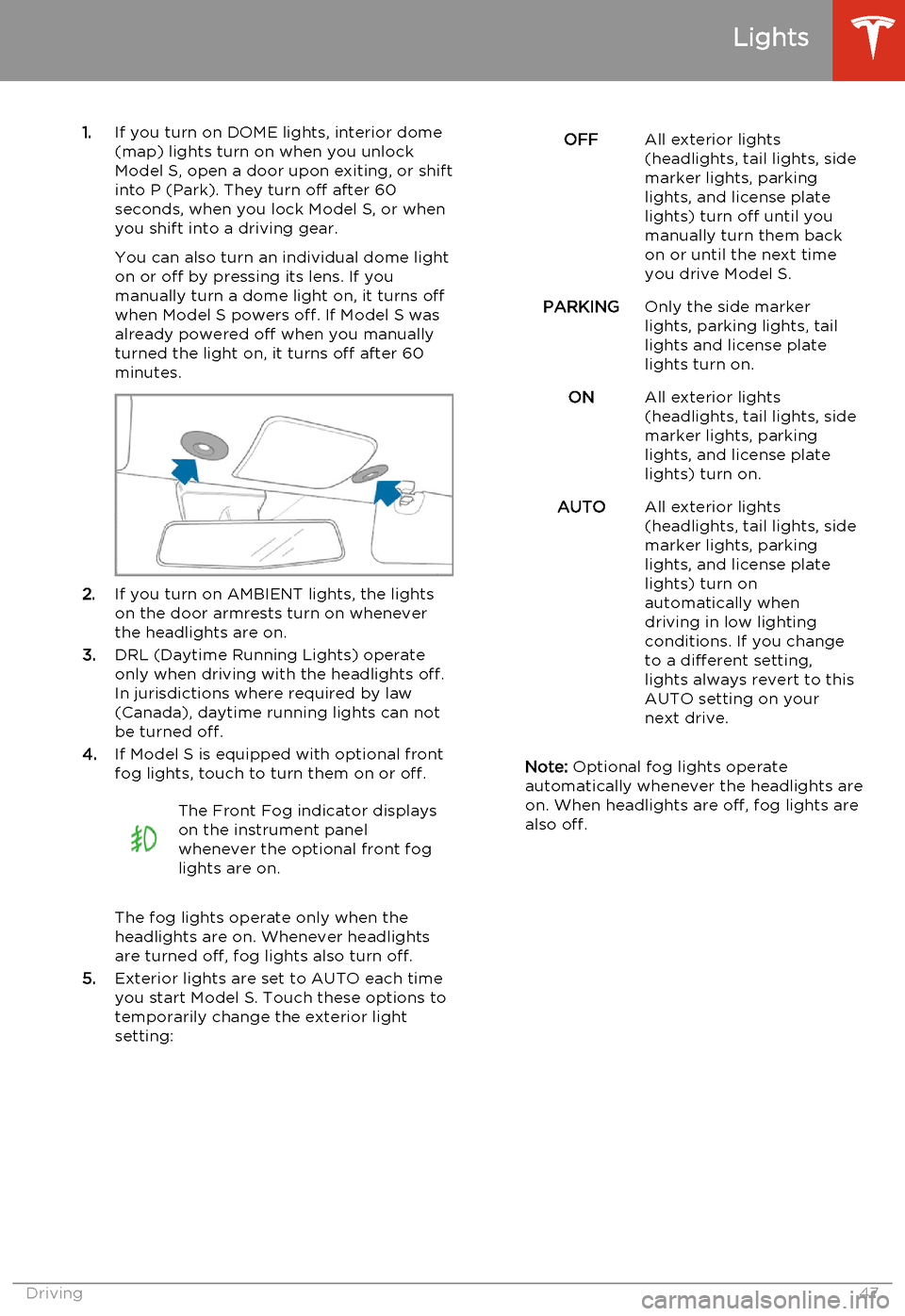
1.If you turn on DOME lights, interior dome
(map) lights turn on when you unlock
Model S, open a door upon exiting, or shift into P (Park). They turn off after 60
seconds, when you lock Model S, or when you shift into a driving gear.
You can also turn an individual dome light
on or off by pressing its lens. If you
manually turn a dome light on, it turns off
when Model S powers off. If Model S was
already powered off when you manually
turned the light on, it turns off after 60
minutes.
2. If you turn on AMBIENT lights, the lights
on the door armrests turn on whenever
the headlights are on.
3. DRL (Daytime Running Lights) operate
only when driving with the headlights off.
In jurisdictions where required by law (Canada), daytime running lights can not
be turned off.
4. If Model S is equipped with optional front
fog lights, touch to turn them on or off.
The Front Fog indicator displays
on the instrument panel
whenever the optional front fog
lights are on.
The fog lights operate only when the
headlights are on. Whenever headlights
are turned off, fog lights also turn off.
5. Exterior lights are set to AUTO each time
you start Model S. Touch these options to
temporarily change the exterior light
setting:
OFFAll exterior lights
(headlights, tail lights, side
marker lights, parking
lights, and license plate
lights) turn off until you
manually turn them back
on or until the next time
you drive Model S.PARKINGOnly the side marker
lights, parking lights, tail
lights and license plate
lights turn on.ONAll exterior lights
(headlights, tail lights, side
marker lights, parking
lights, and license plate
lights) turn on.AUTOAll exterior lights
(headlights, tail lights, side
marker lights, parking
lights, and license plate
lights) turn on
automatically when
driving in low lighting
conditions. If you change
to a different setting,
lights always revert to this
AUTO setting on your
next drive.
Note: Optional fog lights operate
automatically whenever the headlights are
on. When headlights are off, fog lights are
also off.
Lights
Driving47
Page 50 of 159

Headlight High BeamsPush the left-hand steering column lever away
from you. To cancel, pull the lever toward you.The high beam indicator lights up on
the instrument panel whenever high
beams are on.
To flash the headlight high beams, pull the
lever fully toward you and release.
Headlights After Exit
When you stop driving and park Model S in
low lighting conditions, the exterior lights
automatically turn on. They automatically turn
off after two minutes or when you lock Model S.
You can turn this feature on and off using the
touchscreen. Touch Controls > Settings >
Vehicle > Headlights After Exit .
Cornering Lights
If Model S is equipped with the optional tech
package, LED cornering lights broaden the beam of the headlights whenever you drive
through a corner.
Lights
48Model S Owner's Manual
Page 54 of 159

Always drive at a safe speed based on
traffic and road conditions.Caution: If your Model S is equipped with
Speed Assist, you must take your vehicle to Tesla Service if a windshield
replacement is needed. Failure to do so
can cause Speed Assist to malfunction.
Controlling Speed Assist
To turn Speed Assist on or off, and control
how it works, touch Controls > Settings >
Driver Assistance > Assistance Level , then
choose an assistance level:
• Off. The speed limit is not displayed.
• Display . Speed limit information visually
displays on the speedometer and when you exceed the limit, a speed limit sign
displays in the center of the instrument panel, and the speedometer displays theexcess speed in gray.
• Chime . In addition to the visual display, an
audible chime sounds whenever you
exceed the speed limit.
You can also specify how the speed limit is
determined:
• Relative . The speed limit is determined
automatically based on detected traffic
signs and GPS data. If desired, you can set
a speed limit offset (+ or -) if you want to
be alerted only when you exceed the
speed limit by a specified amount. For example, you would increase the offset to+10 mph if you only want to be alerted
when you exceed the speed limit by 10 mph.
• Absolute . Manually specify any speed limit
between 20 and 140 mph (30 and
240 km/h).
Note: GPS data is not always accurate. The
GPS can misjudge the road's location and
provide the speed limit for a directly adjacent
road that may have a different speed limit. For example, The GPS can assume Model S is on a
freeway when it’s actually on a nearby surface
street, and vice versa.
Limitations and Inaccuracies Speed Assist may not be fully functional or
may provide inaccurate information in these
situations:
• Visibility is poor and speed limit signs are not clearly visible (due to heavy rain,
snow, fog, etc.).
• Bright light (oncoming headlights or direct sunlight) is interfering with thecamera's view.
• Model S is being driven very close to a vehicle in front of it which is blocking the
camera's view.
• The windshield area in the camera's field of view is obstructed (fogged over, dirty,
covered by a sticker, etc.).
• Speed limit signs are concealed by objects.
• The speed limits stored in the GPS database are incorrect or outdated.
• Model S is being driven in an area where GPS data is not available.
• Traffic signs do not conform to standard recognizable formats.
• A road or a speed limit has recently changed.
Speed Assist
52Model S Owner's Manual
Page 55 of 159

How Lane Departure Warning
Works
If Model S is equipped with Driver Assistance
features, a camera mounted on the windshield
behind the interior rear view mirror monitors
the markers on the lane you are driving in. If a
front wheel passes over a lane marking and
the associated turn signal is off, you feel three
slight vibrations in the steering wheel.
Lane Departure Warning operates only when
Model S is traveling over approximately
30 mph (50 km/h).Warning: Never depend on Lane
Departure Warning to inform you of
unintentionally driving outside of the
boundaries of the driving lane. Several
external factors can reduce the
performance of Lane Departure Warning,
causing either no readings or false
readings. Therefore, depending on this
system to stay within the boundaries of the driving lane can result in serious injury
or death. Lane Departure Warning is for
guidance purposes only. Always keep
your eyes on the road when driving. It is
the driver's responsibility to stay alert,
drive safely, ensure the vehicle stays in
the traveling lane, and be in control of the
vehicle at all times.Caution: If your Model S is equipped with
Lane Departure Warning, you must take
your vehicle to Tesla Service if a
windshield replacement is needed. Failure
to do so can cause Lane Departure
Warning to malfunction.Controlling Lane Departure
Warning
To turn Lane Assist on or off, touch Controls >
Settings > Driver Assistance > Lane Departure
Warning .
Limitations and Inaccuracies
Lane Departure Warning can not always
clearly detect lane markings and you may experience unnecessary or invalid warnings inthese situations:
• Visibility is poor and lane markings are not clearly visible (due to heavy rain, snow,fog, etc.).
• Bright light (oncoming headlights or direct sunlight) is interfering with thecamera's view.
• Model S is being driven very close to a vehicle in front of it which is blocking thecamera's view.
• The windshield area in the camera's field of view is obstructed (fogged over, dirty,covered by a sticker, etc.).
• Lane markings are excessively worn or have been adjusted due to road
construction.
• Lane markings are changing quickly (for example, lanes branching off, crossing
over, or merging).
• The road is narrow or winding. • Objects or landscape features are casting strong shadows on lane markers.
Lane Departure Warning
Driving53