2014 SKODA SUPERB wheel
[x] Cancel search: wheelPage 121 of 246

Display warning light B » Fig. 127ImportanceLights up orange for around 2 sec-
onds, then flashes green or red.The battery is weak, however the
switching on or off signal was not re-
ceived.Flashes orange for around 5 seconds.The battery is discharged, however
the switching on or off signal was not
received.
Replace the battery » page 211.
CAUTION
The radio remote control comprises electronic components and must therefore
be protected against water, severe impacts and direct sunlight.Communication and multimedia
General information
Introduction
This chapter contains information on the following subjects:
Mobile phones and two-way radio systems
119
Universal telephone preinstallation (hands free)
120
Operating the phone on the multifunction steering wheel
120
Symbols in the MAXI DOT display
121
Phone Phonebook
121
Mobile phones and two-way radio systems
ŠKODA permits the operation of mobile phones and two-way radio systems
with a professionally installed external aerial and a maximum transmission
power of up to 10 watts.
Please ask at a specialist workshop about installing and operating mobile
phones and two-way radio systems that have a transmission power of more
than 10 W.
Operating mobile phones or two-way radio systems may interfere with the
functionality of the electronic systems in your vehicle.
This could be for the following reasons.
› no external aerial.
› external aerial incorrectly installed.
› transmission power greater than 10 watts.
WARNING■
If a mobile phone or a two-way radio system is operated in a vehicle with-
out an external aerial or an external aerial which has been installed incor-
rectly, this can increase the strength of the electromagnetic field inside the
vehicle.■
Two-way radio systems, mobile phones or mounts must not be installed
on airbag covers or within the immediate deployment range of the airbags.
119Communication and multimedia
Page 122 of 246
WARNING (Continued)■Never leave a mobile phone on a seat, on the dash panel or in any area
from where it becomes a projectile during a sudden braking manoeuvre, an
accident or a collision — risk of injury.■
Before transport of the vehicle by air, the Bluetooth ®
function must be
switched off by a specialist company.
Universal telephone preinstallation (hands free)
The universal telephone preinstallation (“hands-free system”) includes a con- venience mode for the mobile phone via voice control, the multifunction steer-
ing wheel, the radio or navigation system.
WARNING■ Concentrate fully at all times on your driving! As the driver, you are fully
responsible for the operation of your vehicle.■
Only use the device in such a way that you are in full control of your vehi-
cle in every traffic situation – there is the risk of accidents!
■
The national regulations for using a mobile phone in a vehicle must be
observed.
Note■ We recommend that the installation of mobile phones and two-way radio
systems in a vehicle be carried out by a specialist firm.■
Not all mobile phones that enable Bluetooth ®
communication are compatible
with the universal telephone preinstallation GSM II or GSM III. Ask a ŠKODA Partner whether your phone is compatible with the universal telephone prepa-
ration GSM II or GSM III.
■
The range of the Bluetooth ®
connection to the hands-free system is restric-
ted to the vehicle interior. The range is dependent on local factors, e.g. obsta-
cles between the devices and mutual interferences with other devices. If your
mobile phone is in a jacket pocket, for example, this can lead to difficulties
when establishing a connection with the hands-free-system or transferring
data.
Operating the phone on the multifunction steering wheel
Fig. 128
Multifunction steering wheel: Control buttons for the telephone
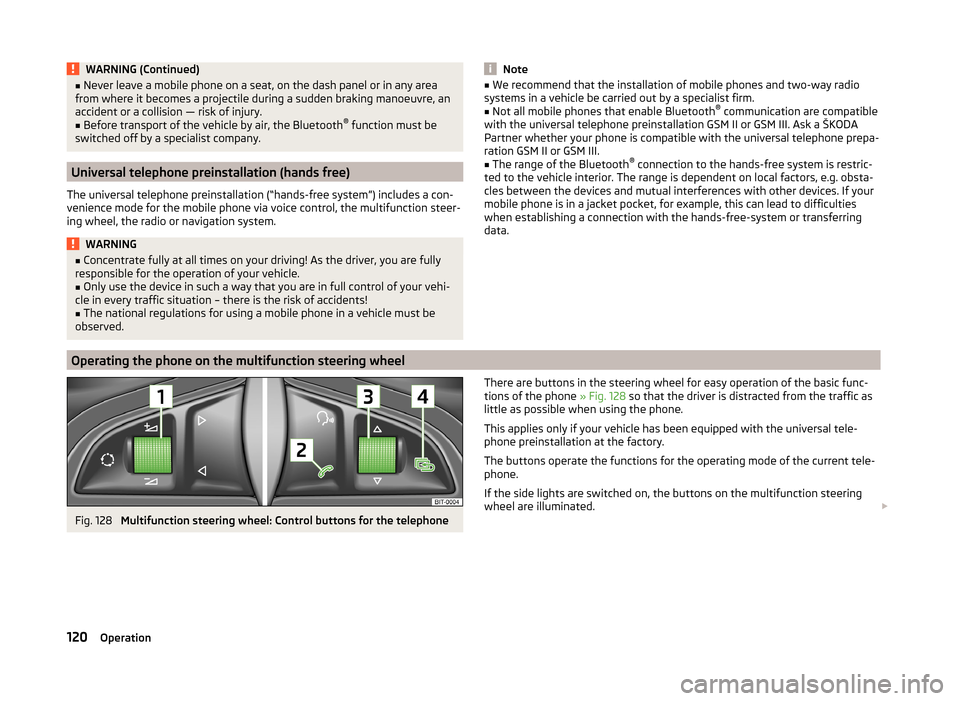
There are buttons in the steering wheel for easy operation of the basic func-
tions of the phone » Fig. 128 so that the driver is distracted from the traffic as
little as possible when using the phone.
This applies only if your vehicle has been equipped with the universal tele-
phone preinstallation at the factory.
The buttons operate the functions for the operating mode of the current tele-
phone.
If the side lights are switched on, the buttons on the multifunction steering
wheel are illuminated. 120Operation
Page 123 of 246

Button/wheel
» Fig. 128ActionOperation
1Press brieflyMUTE )1Turn upwardsIncrease the volume1Turn downwardsDecrease volume2Press brieflyAccept a call/end a call
Display of the basic Phone menu → Main Phone menu → List of dialled numbers → Call selected contact2Press and hold buttonReject the incoming call3Turn up/downPrevious / next menu item3Press brieflyConfirm selected menu item3Press and hold buttonContinuously display first letter of the phone book3Quickly turn upwardsTo the previous initial letter in the telephone book3Quickly turn downwardsTo the next initial letter in the telephone book4Press brieflyReturn to a previous level on menu4Press and hold buttonExit telephone menu
Symbols in the MAXI DOT display
SymbolImportanceValid forCharge status of the telephone battery a)GSM II, GSM IIISignal strengtha)GSM II, GSM IIIA phone is connected with the hands-free system.GSM II, GSM III when connected via the HFP profileThe hands-free system is visible to other devicesGSM II, GSM III when connected via the HFP profileA phone is connected with the hands-free system.GSM III when connected via the rSAP profileThe hands-free system is visible to other devicesGSM III when connected via the rSAP profileA multimedia unit is connected to the hands-free systemGSM II, GSM IIIA UMTS network is availableGSM IIIInternet connection via the hands-free systemGSM III when connected via the rSAP profilea)
This function is only supported by some mobile phones.
Phone Phonebook
A phone phonebook is part of the hands-free system. This phone phonebook
can be used depending on the type of mobile phone.After the telephone's first connection to the hands-free system, the phone
book from the phone and the SIM card loads into the hands-free memory. 121Communication and multimedia
Page 124 of 246

Each time the telephone has established a new connection with the hands-
free system, an update of the relevant phone book is performed. The updating
can take a few minutes. During this period, the available phone book is the one
stored at the previous update. Newly stored telephone numbers are only
shown after the updating has ended.
The update is interrupted if a telephone event (e.g. incoming or outgoing call, voice control dialogue) occurs during the updating procedure. After the tele-
phone event has ended, the updating starts anew.
GSM II
The internal phonebook provides 2 500 free memory locations. Each contact
can contain up to 4 numbers.
On vehicles fitted with the Columbus navigation system, a maximum of 1 200
telephone contacts are shown on the display of this appliance.
If the number of contacts loaded exceeds 2 500, the phone book is not com-
plete.
GSM III
The internal phonebook provides 2 000 free memory locations. Each contact
can contain up to 5 numbers.
On vehicles fitted with the Columbus navigation system, a maximum of 1 000
telephone contacts are shown on the display of this appliance.
If the mobile phone's telephone book has more than 2,000 contacts, the fol- lowing message will appear in the MAXI DOTdisplay:
Phone book not fully loaded
Universal telephone preinstallation GSM II
Introduction
This chapter contains information on the following subjects:
Connecting the mobile phone to the hands-free system
122
Telephone operation in the MAXI DOT display
123The universal telephone preinstallation GSM II comprises the following func-
tions.
› Phone Phonebook
» page 121.
› Convenience operation of the telephone via the multifunction steering
wheel » page 120 .
› Telephone operation in the MAXI DOT display
» page 120.
› Voice control of the telephone
» page 129.
› Music playback from the telephone or other multimedia units
» page 131.
All communication between a mobile phone and your vehicle's hands-free sys-
tem is established with the help of Bluetooth ®
technology.
Note
The following guidelines must be observed » page 119, Mobile phones and
two-way radio systems .
Connecting the mobile phone to the hands-free system
To connect a mobile phone with the hands-free system, the two devices must
be paired. Detailed information on this is provided in the operating instructions
for your mobile phone.
The following steps must be carried out for the connection.
›
Activate Bluetooth ®
and the visibility of your mobile phone on your tele-
phone.
›
Switch on the ignition.
›
Select the Phone - New user menu in the MAXI DOT display and wait until
the hands-free system has completed the search.
›
Select the phone you wish to connect from the list of units found.
›
Confirm the PIN 1)
.
›
If the hands-free system announces (as standard SKODA_BT) on the display
of the mobile phone, enter the PIN 1 )
within 30 seconds and wait, until the
connection is established 2)
.
›
To finish pairing in the MAXI DOT display, confirm the creation of the new
user profile.
1)
Depending on the Bluetooth®
version on the mobile phone, an automatically generated 6-digit PIN (SSP)
is either displayed, or the PIN 1234 has to be entered manually.
2)
Some mobile phones have a menu, in which the authorisation for establishing a Bluetooth ®
connection
is completed by inputting a code. If the authorisation input is required, it must always be performed
when re-establishing the Bluetooth connection.
122Operation
Page 125 of 246

If there is no free space available to create a new user profile, delete an exist-
ing user profile.
During the connecting procedure, no other mobile phone may be connected
with the hands-free system.
Up to four mobile phones can be paired with the hands-free system, whereby
only one mobile phone can communicate with the hands-free system.
The visibility of the hands-free system is automatically switched off 3 minutes
after the ignition is switched on and is also deactivated when the mobile
phone has connected to the hands-free system.
Restoring the visibility of the hands-free system
If you have not managed to connect your mobile phone with the hands-free
system within 3 minutes of switching on the ignition, the visibility of the
hands-free system can be reestablished for 3 minutes in the following ways.
› By turning the ignition off and on.
› By turning voice control off and on.
› In the MAXI DOT display under menu item
Bluetooth - Visibility .
Creating a connection with an already paired mobile phone
After switching on the ignition, the connection is automatically established for
the already paired mobile phone 1)
. Check on your mobile phone if the automatic
connection has been established.
Disconnecting the connection
› By withdrawing the ignition key.
› By disconnecting the hands-free system in the mobile phone.
› By disconnecting from the user in the MAXI DOT display under the menu item
Bluetooth - User .
Solving connection problems
If the hands-free system reports No paired phone found, check the operating
status of the mobile phone.
› Is the mobile phone switched on?
› Is the PIN code entered?
› Is Bluetooth ®
active?› Is the visibility of the mobile phone active?
› Has the mobile phone already been paired with the hands-free system?
Telephone operation in the MAXI DOT display
The following menu items can be selected from the Phone menu.
■ Phone book
■ Dial number 2)
■ Call list
■ Voice mailbox
■ Bluetooth 2)
■ Settings 3)
■ Back
Phone book
The Phone book menu item lists the contacts downloaded from the telephone
memory and the mobile phone SIM card.
Dial number
Any telephone number can be entered in the Dial number menu item. The re-
quired digits must be selected one after the other using the adjustment wheel,
and then confirmed by pressing the adjustment wheel. You can select digits
0-9 , symbols
,
, #
and the Cancel, Call and Delete functions.
Call list
The following menu items can be selected in the Call list menu item.
■ Missed calls - List of missed calls
■ Dialled Nos. - List of dialled numbers
■ Received calls - list of received calls
Voice mailbox
In the Voice mailbox menu item, you can set the number of the voice mailbox 2)
and then dial the number.
1)
Some mobile phones have a menu, in which the authorisation for establishing a Bluetooth®
connection
is completed by inputting a code. If the authorisation input is required, it must always be performed
when re-establishing the Bluetooth connection.
2)
On vehicles fitted with the Amundsen+ navigation system, this function can be accessed via the naviga-
tion system menu; refer to the » operating instructions for the Amundsen+ navigation system .
3)
This function is not available in vehicles fitted with the Amundsen+ navigation system.
123Communication and multimedia
Page 126 of 246

Bluetooth
The following menu items can be selected from the Bluetooth menu item.
■ User - Overview of the stored telephones
■ New user - Search for new mobile phones that are in the reception range
■ Visibility - Switches on the visibility of the hands-free system for other devi-
ces
■ Media player - Playback via Bluetooth ®
■ Active device - Connected device
■ Paired Devices - List of paired devices
■ Search - Device search
■ Phone name - option to change the name of the phone (default SKODA_BT)
Settings
The following menu items can be selected from the Settings menu item.
■ Phone book - Phonebook
■ Update 1)
- Update the phone book
■ List - Arrange the entries in the phone book
■ Surname - Arrange according to surname
■ First name - Arrange according to first name
■ Ring tone - Ring tone setting
Back
Return to the telephone's basic menu.
Universal telephone preinstallation GSM IIl
Introduction
This chapter contains information on the following subjects:
Connecting the phone to the hands-free system
124
Telephone operation in the MAXI DOT display
125
Internet connection via Bluetooth ®
127
The following functions are included in the universal telephone preinstallation
GSM III:
› Phone Phonebook
» page 121.
› Convenience operation via the multifunction steering wheel
» page 120.
› Telephone operation in the MAXI DOT display
» page 125.
› Voice control of the telephone
» page 129.
›Music playback from the telephone or other multimedia units
» page 131.
› Internet connection
» page 127.
› Display of SMS messages
» page 126.
All communication between a telephone and the hands-free system of your
vehicle can only be established with the help of the following profiles of Blue-
tooth ®
technology.
rSAP - Remote SIM access profile After connecting the telephone with the hands-free system via the rSAP pro-
file, the telephone deregisters from the GSM network, and communication
with the network is only enabled by the hands-free system via the vehicle's
external aerial. In the telephone only the interface for Bluetooth ®
remains ac-
tive. In this case, you can only use the mobile phone to disconnect from the
hands-free system, deactivate the Bluetooth ®
connection or dial the emergen-
cy number 112 (only valid in some countries).
HFP - Hands Free Profile
After connecting the telephone with the hands-free system via the HFP pro-
file, the telephone continues to use its GMS module and the internal antenna
to communicate with the GSM network.
Note
The following guidelines must be observed » page 119, Mobile phones and
two-way radio systems .
Connecting the phone to the hands-free system
To connect a mobile phone with the hands-free system, it is necessary to in-
terconnect the telephone and hands-free system. Detailed information on this
is provided in the operating instructions for your mobile phone. The following
steps must be carried out for the connection.
Connecting the telephone with the hands-free system via the rSAP profile
›
Activate Bluetooth ®
and the visibility of your mobile phone on your tele-
phone. For certain mobile phones it is necessary to switch on first the rSAP
function.
›
Switch on the ignition.
›
Select the Phone - New user menu in the MAXI DOT display and wait until
the hands-free system has completed the search.
1)
On vehicles fitted with the Amundsen+ navigation system, this function can be accessed via the naviga-
tion system menu; refer to the » operating instructions for the Amundsen+ navigation system .
124Operation
Page 128 of 246

The following functions are available for each phone contact.
■ Display telephone number
■ Voice tag - Voice tag for the contact
■ Replay - Play a voice tag
■ Record - Record a voice contact
Dial number
Any telephone number can be entered in the Dial number menu item. The re-
quired digits must be selected one after the other using the adjustment wheel,
and then confirmed by pressing the adjustment wheel. You can select digits
0-9 , symbols +,
, # and the Delete, Call and Back functions.
Call list
The following menu items can be selected in the Call list menu item.
■ Missed calls - List of missed calls
■ Received calls - list of received calls
■ Calls dialled - dialled calls
■ Delete lists - Delete call registers
Voice mailbox
In the Voice mailbox menu item, you can set or save the number of the voice
mailbox and then dial the number. The required digits must be selected one
after the other using the adjustment wheel, and then confirmed by pressing
the adjustment wheel. You can select digits 0-9, symbols +,
, #
and the De-
lete , Call , Save and Back functions.
SMS 1)
A list of received text messages is displayed in the SMS menu item. After call-
ing a message, the following functions appear. ■ Show - Display text message
■ Read - The system reads out the selected text message through the vehi-
cle's speakers
■ Send time - Display message send time
■ Callback - Dial the phone number of the sender of the text message
■ Copy - Copy the received text message to the SIM card
■ Delete - Delete the messageBluetooth
The following menu items can be selected from the Bluetooth menu item.
■ User - Overview of the stored telephones
■ Connect - Connection with the telephone
■ Disconnect - Disconnection of telephone
■ Rename - Rename the telephone
■ Delete - Delete the telephone
■ New user - Search for new mobile phones that are in the reception range
■ Visibility - Switches on the visibility of the hands-free system for other devi-
ces
■ Media player - Media player
■ Active device - Connected device
■ Paired devices - List of paired devices
■ Connect - Connection with the device
■ Rename - Rename the device
■ Delete - Delete the device
■ Authorisation - Authorise the device
■ Search - Search for available media players
■ Visibility - Switch on the visibility of the hands-free system for media play-
ers in the vicinity
■ Modem - overview of the active and paired devices for the connection to the
internet
■ Active device - Connected device
■ Paired devices - List of paired devices
■ Phone name - option to change the name of the phone (default SKODA_BT)
WLAN
Wi-Fi menu item » page 128, Use WLAN network in MAXI DOT display .
Settings
The following menu items can be selected from the Settings menu item.
■ Phone book - Phonebook
■ Update - Read in the phone book
■ Select memory - Select memory with phone contacts
■ SIM & phone - Download the contacts of the SIM card and the phone
■ SIM card - Download the contacts from the SIM card
■ Mobile phone - Initial setting to also import contacts from the SIM card; it
is necessary to switch to the SIM & phone menu item 1)
Only applies when connecting the telephone to the hands-free system via the rSAP profile.
126Operation
Page 131 of 246
■Delete lists - Delete device lists
■ Known devices - Delete the list of known devices
■ Device blocked - Delete the list of blocked devices
■ Both lists - Delete both device lists
■ Password - Use of password to log on to the WLAN network
■ Show - Display a password to log on to the WLAN network
■ Generate - Generate a new password to log on to the WLAN network
■ WLAN name - Use of WLAN network name
■ Show - Display the WLAN network name
■ Rename - Rename the WLAN network
■ WPS config. - Wi-Fi network connection using WPS
■ Pushbutton - Automatic connection
■ WPS PIN - PIN entry for the connection
■ Data counter - Display information about the volume of data transferred
■ Act Conn. - display of the volume of data transferred for the current con-
nection
■ Total - Display the total volume of data transferred
■ Reset - Reset the information about the volume of data transferred
■ Settings - WLAN network settings
■ Access point - Access point settings
■ Settings - Access point management
■ APN - Change the access point name
■ User name - User Name
■ Password - Password
■ Reset - Reset access point factory settings
■ Prioritisation - Set the connection priority
■ Calls - Set the connection priority for calls
■ Data - Set the connection priority for data transfer
■ Encryption - Set the encryption
■ WPA2 - Enable WPA 2 encryption
■ Open - No encryption
■ Visibility - Set the WLAN network visibility
■ Visible - WLAN network is visible to other devices
■ Invisible - WLAN network is not visible to other devices
■ Data roaming - Set the data roaming
■ No roaming - Data roaming is not allowed
■ Allow - Data roaming is allowed
■ Always ask - Question setting for data roaming■
WLAN channel - Select WLAN network channels (preferably set to channel
11) ■ Channel 1 ... Channel 11 - Display the WLAN network channels
■ Reset - Reset Wi-Fi network factory settings
Voice control
Introduction
This chapter contains information on the following subjects:
Dialogue
129
Voice commands - GSM II
130
Voice commands - GSM III
131
Dialogue
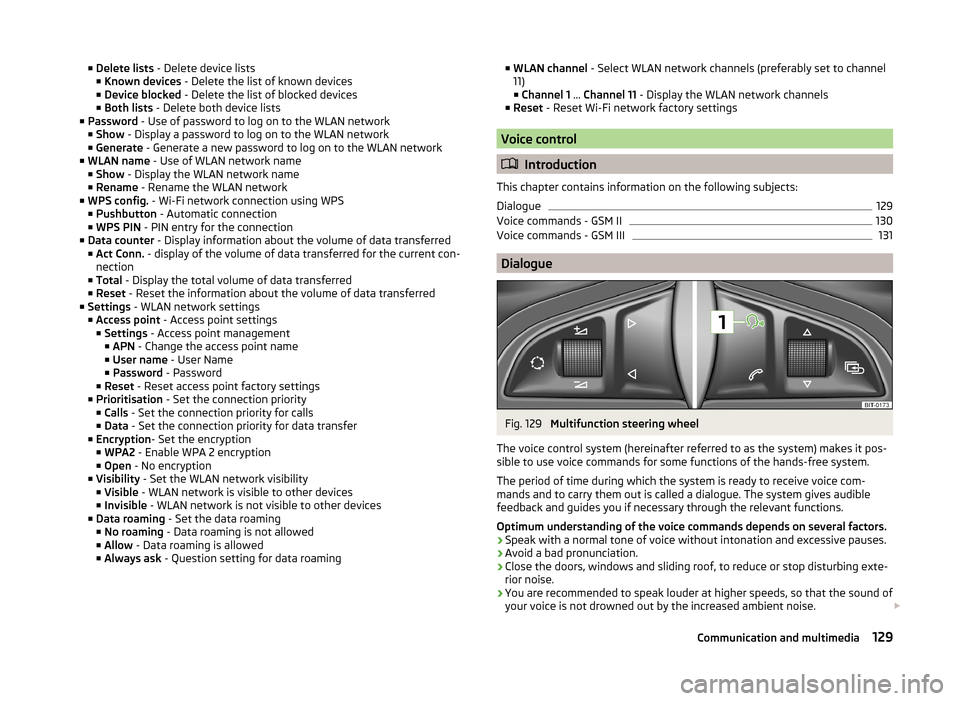
Fig. 129
Multifunction steering wheel
The voice control system (hereinafter referred to as the system) makes it pos-
sible to use voice commands for some functions of the hands-free system.
The period of time during which the system is ready to receive voice com-
mands and to carry them out is called a dialogue. The system gives audible
feedback and guides you if necessary through the relevant functions.
Optimum understanding of the voice commands depends on several factors. › Speak with a normal tone of voice without intonation and excessive pauses.
› Avoid a bad pronunciation.
› Close the doors, windows and sliding roof, to reduce or stop disturbing exte-
rior noise.
› You are recommended to speak louder at higher speeds, so that the sound of
your voice is not drowned out by the increased ambient noise.
129Communication and multimedia