2014 Seat Altea XL instrument panel
[x] Cancel search: instrument panelPage 91 of 321

89
Cockpit
Operating the foot brake
The brake pedal must be depressed when this warning lamp lights up. This
is necessary when the automatic gearbox* selector lever is moved out of the
positions P or N.
Electronic immobiliser* “Safe”
This warning lamp flashes if an unauthorised key is used.
Inside the key there is a chip that deactivates the electronic immobiliser au-
tomatically when the key is inserted into the ignition. The electronic immo-
biliser will be activated again automatically as soon as you pull the key out
of the ignition lock.
The instrument panel displays the following message 1)
: IMMOBILISER. The
vehicle cannot be used in that case ⇒ page 174.
The engine can, however, be started if the appropriate coded SEAT genuine
key is used.
Note
A perfect operation of the vehicle is ensured if genuine SEAT keys are used.
1)
Depending on the version of the model.
Safety FirstOperating instructionsPractical TipsTechnical Specifications
Page 93 of 321

91
Steering wheel controls
Audio system
Steering wheel audio version controls
Fig. 51 Controls on the
steering wheelFig. 52 Steering wheel
controls (depending on
version of model)
ButtonRadioCD/MP3/USB*/iPod*AUX ⇒ table on page 92AVolume upVolume upVolume upBVolume downVolume downVolume down
CSearch for next stationNext track
Hold down: Fast forwardNo function specified
DSearch for last stationPrevious track
Hold down: RewindNo function specified
ENo function specifiedNo function specifiedNo function specifiedFMutePauseMute
Ga)Operates on instrument panel displayOperates on instrument panel displayOperates on instrument panel displayNext preset b)Next trackb)No function specified b)
Ha)Operates on instrument panel displayOperates on instrument panel displayOperates on instrument panel displayPrevious presetb)Previous trackb)No function specified b)
Safety FirstOperating instructionsPractical TipsTechnical Specifications
Page 94 of 321
92Steering wheel controls
Ia)Next presetChange folderNo function specifiedChange menu on instrument panelChange menu on instrument panelChange menu on instrument panel
Ja)Previous presetChange folderNo function specifiedChange menu on instrument panelChange menu on instrument panelChange menu on instrument panelKOperates on instrument panelOperates on instrument panelOperates on instrument panel
La)Change sourceChange sourceChange sourceOperates on instrument panelOperates on instrument panelOperates on instrument panela)
Depending on the model version
b) Only if the panel is in Audio menu.
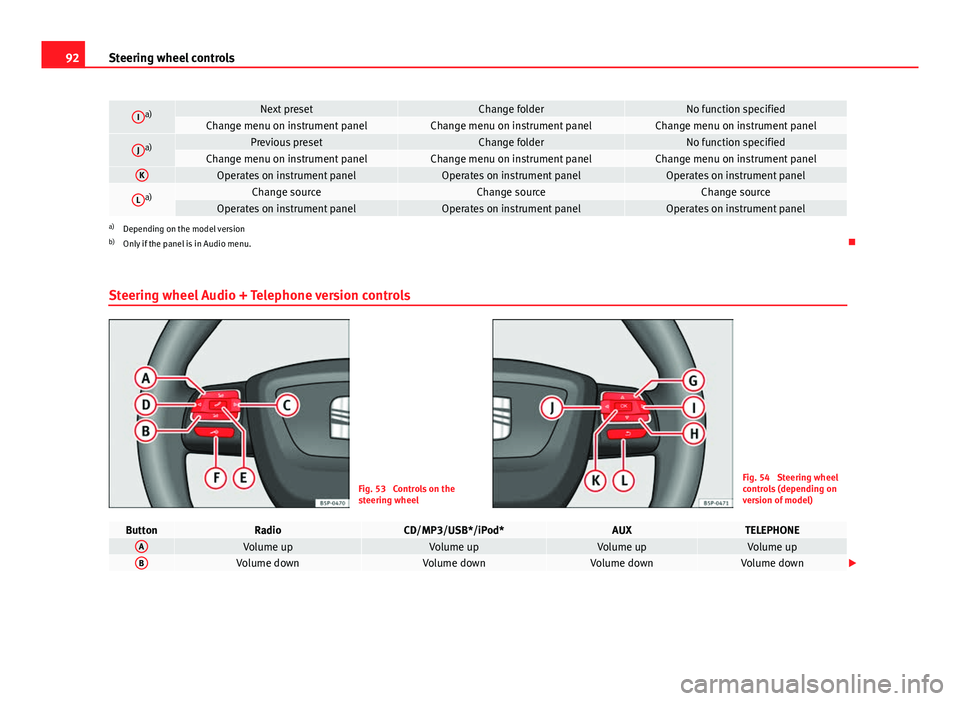
Steering wheel Audio + Telephone version controls
Fig. 53 Controls on the
steering wheelFig. 54 Steering wheel
controls (depending on
version of model)
ButtonRadioCD/MP3/USB*/iPod*AUXTELEPHONEAVolume upVolume upVolume upVolume upBVolume downVolume downVolume downVolume down
Page 95 of 321

93
Steering wheel controls
CSearch for next stationNext track
Hold down: Fast forwardNo function specifiedNo function specified
DSearch for last stationPrevious track
Hold down: RewindNo function specifiedNo function specified
EAccess telephone menu on instrument panelAccess telephone menu on instru-ment panelAccess telephone menu on in-strument panel
Make call
Accept incoming call End call
Hold down: reject incoming call
FEnable voice recognitionEnable voice recognitionEnable voice recognitionActivate voice control/
Interrupt current message/ Deactivate voice control
GNext preset a)Next tracka)No function specified
Previous option in the menu/
list/
selection shown on instru- ment panel b)
HPrevious preset a)Previous tracka)No function specified
Next option in the menu/
list/
selection shown on instru- ment panel b)
IChange menu on instrument panelChange menu on instrument panelChange menu on instrument
panelChange menu on instrumentpanel
JChange menu on instrument panelChange menu on instrument panelChange menu on instrumentpanelChange menu on instrumentpanel
KOperates on instrument panelOperates on instrument panelOperates on instrument panelConfirmLOperates on instrument panelOperates on instrument panelOperates on instrument panelBack to last-opened menua)Only if the panel is in Audio menu.
b) Only if the instrument panel is in the “TELEPHONE” menu. Examples of use: Agenda, List of calls, Select numbers, Select letters, Main menu.
Safety FirstOperating instructionsPractical TipsTechnical Specifications
Page 97 of 321

95
Steering wheel controls
ENo function specifiedNo function specifiedNo function specifiedNo function specified
Accept incoming call
(press briefly)
Reject incoming call
(press and hold down)
End ongoing call /estab- lish call (press briefly)
Switch to private mode (press and hold down)
Redial last number (press and hold down) a)
F
Activation of voice recogni-
tion for mobile phone con-
nected to the system (if the phone has this function)* / MUTEActivation of voice recognition
for mobile phone connected to the system (if the phone has this function)* / MUTEActivation of voice recog-nition for mobile phone
connected to the system (if the phone has this function)* / MUTEActivation of voice recog-nition for mobile phone
connected to the system (if the phone has this function)* / MUTEActivation of voice recog-nition for mobile phone
connected to the system (if the phone has this function)* / MUTE
GNext preset b)Next trackb)No function specifiedOperates on instrument
panelOperates on instrument
panel/No function speci- fied
HPrevious preset b)Previous trackb)No function specifiedOperates on instrument
panelOperates on instrument
panel/No function speci- fied
IChange menu on instrument panelChange menu on instrumentpanelChange menu on instru-ment panelNo function specifiedChange menu on instru- ment panel
JChange menu on instrument panelChange menu on instrumentpanelChange menu on instru-ment panelNo function specifiedChange menu on instru- ment panel
KOperates on instrument pan- elOperates on instrument panelOperates on instrumentpanelOperates on instrumentpanelOperates on instrument
panel/No function speci- fied
LOperates on instrument pan- elOperates on instrument panelOperates on instrumentpanelOperates on instrumentpanelOperates on instrument
panel/No function speci- fied
a)For a more detailed description of how to use this button, please refer to the Radio navigation System User Handbook (SEAT Media System)
b) Only if the panel is in Audio menu.
Safety FirstOperating instructionsPractical TipsTechnical Specifications
Page 110 of 321

108Opening and closing
Rear lid
Unlocking and locking
The rear lid opening system operates electrically. It is activa-
ted by using the handle on the rear lid.
Fig. 64 Rear lid: opening
from the outside
Fig. 65 Close-up of the
inside trim of the rear lid:
hand grip
Opening the rear lid
– Pull on the release lever and lift the rear lid ⇒ Fig. 64. The rear
lid will automatically open.
Closing the rear lid
– Hold the rear lid by one of the two handles on the interior lining
and close it, pushing slightly.
This system may or may not be operative, depending on the situation of the
vehicle.
If the rear lid is locked then it cannot be opened, however if it is unlocked
then the opening system is operative and the rear lid may be opened.
To lock/unlock, press the button
or the button
1 on the remote control
key.
A warning appears on the instrument panel display if the rear lid is open or
not properly closed.* An audible warning is also given if the rear lid is
opened while the vehicle is moving faster than 6 km/h (4 mph)*.
Page 117 of 321

115
Lights and visibility
Lights and visibility
Lights Switching lights on and off
Fig. 70 Detailed view of
the dash panel: lights,
fog lights and rear fog
light switch
Switching on the side lights
– Turn the light switch ⇒ Fig. 70 to position .
Switching on dipped beam headlights
– Turn the light switch to position .
Switching off the lights
– Turn the light switch to position 0. Switching on front fog lights*
–
Pull the switch out of position or to the first stop. The
symbol in the light switch lights up.
Switching on the rear fog lights (vehicles with front fog lights)
– Pull the switch out of position or to the second stop ⇒
.
A control lamp lights up in the instrument panel.
Switching on the rear fog lights (vehicles with no front fog lights)
– Pull the light switch from position to the last stop. A control
lamp lights up in the instrument panel.
WARNING
Never drive with just the side lights on. Risk of accident. The side lights
are not bright enough to illuminate the road ahead and to ensure that
other road users are able to see you. Always use your dipped beam head-
lights if it is dark or if visibility is poor.
Note
● The dipped beam headlights will only work with the ignition on. The side
lights come on automatically when the ignition is turned off.
● If the lights are left on after the key has been taken out of the ignition
lock, an audible warning will sound while the driver door remains open. This
is a reminder to switch the lights off.
● The rear fog light is so bright that it can dazzle drivers behind you. You
should use the rear fog light only when visibility is very poor.
Safety FirstOperating instructionsPractical TipsTechnical Specifications
Page 119 of 321

117
Lights and visibility
Daytime driving lights*
The daytime light reduces the risk of accidents by increasing
the visibility of the vehicle. The daytime running lights are
enabled automatically when the ignition is switched on. It is
automatically switched off when the side lights are turned
on.
Daytime running lights are signalling devices for improving road safety. The
lights are built into the headlights and come on each time the ignition is
turned on if the light switch is in position 0 or .
Automatic control of the dipped beam in combination with the daytime
running lights
If the dipped beam control and the daytime running lights are activated at
the same time, the dipped beams and the instrument panel lighting will au-
tomatically come on as required (e.g. when entering a tunnel) and the day-
time running lights will switch off. When the automatic dipped beam control
switches off the dipped beams (e.g. when coming out of a tunnel), the day-
time running lights come back on.
Activating the daytime driving lights
● Remove the key from the ignition, move the turn signal lever upwards
(right turn signal), press it backwards to flash position and hold it in this po-
sition.
● Insert the key and switch the ignition on, holding it in this position for 3
seconds. Then, switch off the ignition. The daytime lights are activated and
can be switched on. Switching off daytime driving lights
●
Remove the key from the ignition, move the turn signal lever downwards
(left turn signal), press it backwards to flash position and hold it in this po-
sition.
● Insert the key and switch the ignition on, holding it in this position for 3
seconds. Then, switch off the ignition. The daytime lights are deactivated
and cannot be switched on.
Note
Please observe any relevant legal requirements which may apply in your
country.
Nordic country solution 1)
The so-called “Nordic country solution” is an alternative solution to daytime
running lights in vehicles without this function. It consists of simultaneous-
ly connecting the dimmed dipped beams, the sidelights and the licence
plate lights.
Said lights come on each time the ignition is turned on if the light switch is
in position 0 or . Depending upon the model, the control lamp
on the
light control switch or the lighting up of the instrument panel will indicate
that the lighting is on.
Activation of the Nordic country solution
● Remove the key from the ignition, move the turn signal lever upwards
(right turn signal), press it backwards to flash position and hold it in this po-
sition.
● Insert the key and switch the ignition on, holding it in this position for 3
seconds. Then, switch off the ignition. The Nordic country solution is now
activated and the corresponding lights may come on.
1)
Only available in certain countries or as an optional extra.
Safety FirstOperating instructionsPractical TipsTechnical Specifications