Page 299 of 400
03
297
308_EN_CHAP10C_SMEGPLUS_ED02-2013
STEERING MOUNTED CONTROLS
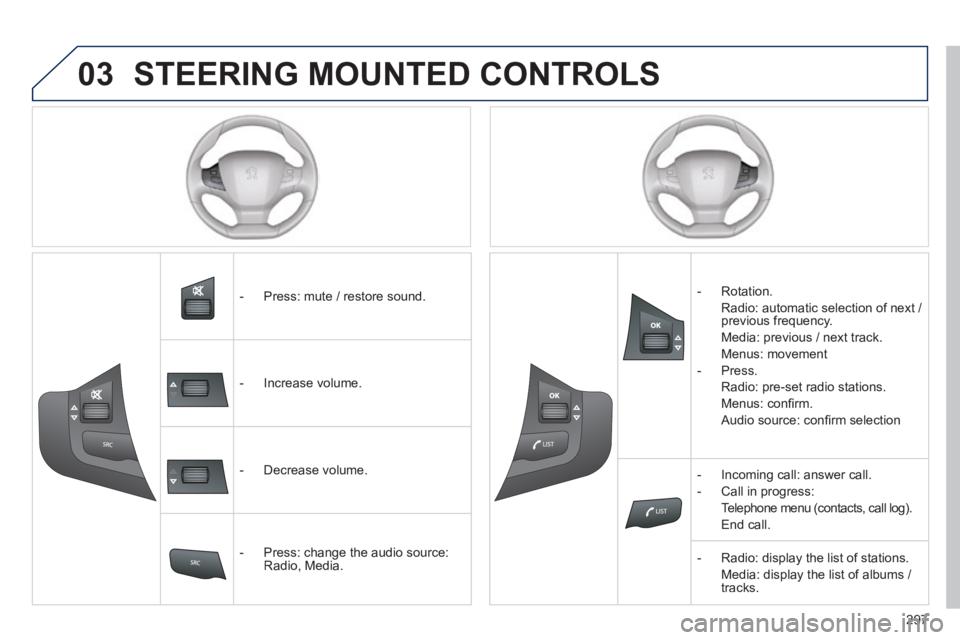
- Press: mute / restore sound.
- Increase volume.
- Decrease volume.
- Press: change the audio source: Radio, Media.
- Rotation.
Radio: automatic selection of next / previous frequency.
Media: previous / next track.
Menus: movement
- Press.
Radio: pre-set radio stations.
Menus: confi rm.
Audio source: confi rm selection
- Incoming call: answer call.
- Call in progress:
Telephone menu (contacts, call log).
End call.
- Radio: display the list of stations.
Media: display the list of albums / tracks.
Page 306 of 400
04
308_EN_CHAP10C_SMEGPLUS_ED02-2013
Selecting a station
The exterior environment (hills, buildings, tunnel, car park, below gro\
und...) may prevent reception, even in RDS station tracking mode. This phenomenon is normal in the propagation of radio waves and is in no\
way indicative of a fault with the audio system.
Select " List " in the primary page.
or
Select " Radio list " in the secondary page.
Press on Media to display the primary page.
or
Press on Media to display the primary page then go to the secondary page.
Select a radio station from the list offered. If necessary, select change of source.
Press Media to display the primary page then select " Memo ".
Select " FM Radio " or " AM Radio ".
OR
Select " Update list " to refresh the list.
RADIO
Select a preset radio station in the list.
304
Page 310 of 400
04
308
308_EN_CHAP10C_SMEGPLUS_ED02-2013
RADIO
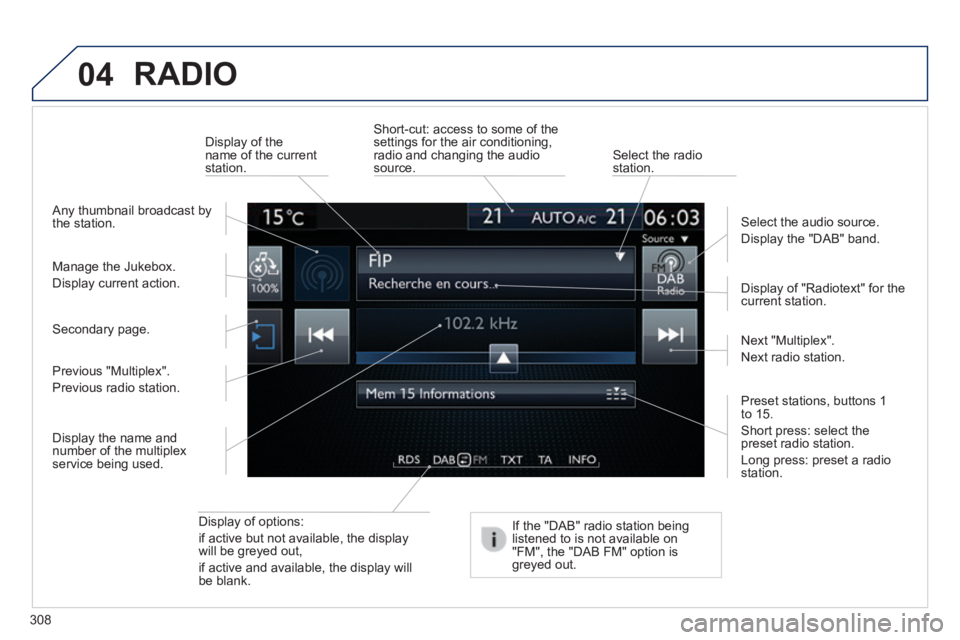
Display of options:
if active but not available, the display will be greyed out,
if active and available, the display will be blank.
Display of "Radiotext" for the current station.
Manage the Jukebox.
Display current action.
Select the audio source.
Display the "DAB" band.
Display of the name of the current station.
Short-cut: access to some of the settings for the air conditioning, radio and changing the audio source. Select the radio station.
If the "DAB" radio station being listened to is not available on "FM", the "DAB FM" option is greyed out.
Any thumbnail broadcast by the station.
Preset stations, buttons 1 to 15 .
Short press: select the preset radio station.
Long press: preset a radio station.
Next "Multiplex".
Next radio station.
Secondary page.
Display the name and number of the multiplex service being used.
Previous "Multiplex".
Previous radio station.
Page 311 of 400
04
309
308_EN_CHAP10C_SMEGPLUS_ED02-2013
RADIO
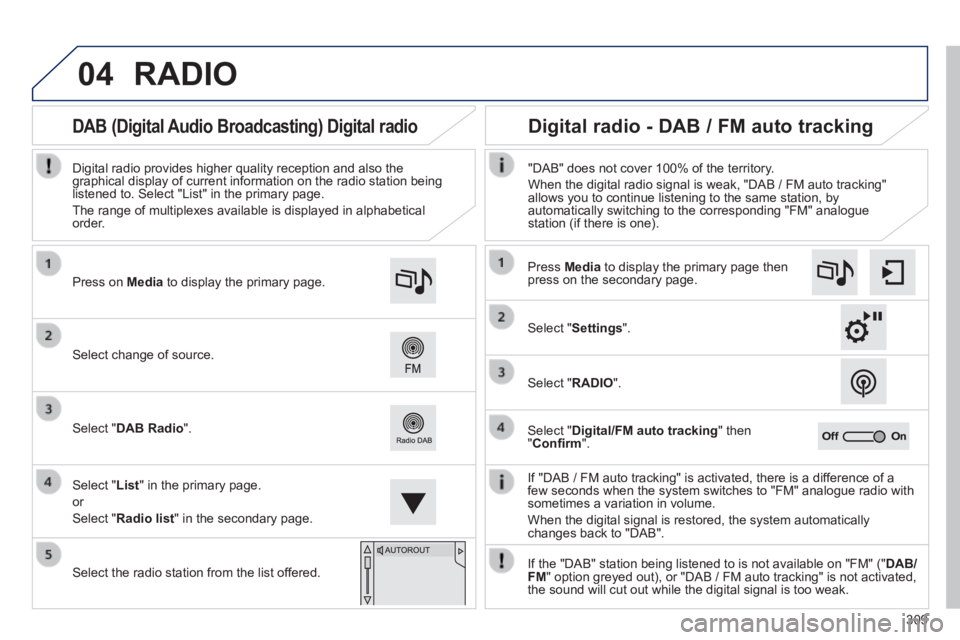
If "DAB / FM auto tracking" is activated, there is a difference of a few seconds when the system switches to "FM" analogue radio with sometimes a variation in volume.
When the digital signal is restored, the system automatically changes back to "DAB".
Select change of source.
Press on Media to display the primary page.
Select " DAB Radio ".
Select " List " in the primary page.
or
Select " Radio list " in the secondary page.
Select the radio station from the list offered.
Digital radio provides higher quality reception and also the graphical display of current information on the radio station being listened to. Select "List" in the primary page.
The range of multiplexes available is displayed in alphabetical order.
Press Media to display the primary page then press on the secondary page.
Select " Settings ".
Select " RADIO ".
Select " Digital/FM auto tracking " then " Confi rm ".
"DAB" does not cover 100% of the territory.
When the digital radio signal is weak, "DAB / FM auto tracking" allows you to continue listening to the same station, by automatically switching to the corresponding "FM" analogue station (if there is one).
If the "DAB" station being listened to is not available on "FM" (" DAB/FM " option greyed out), or "DAB / FM auto tracking" is not activated, the sound will cut out while the digital signal is too weak.
Digital radio - DAB / FM auto tracking DAB (Digital Audio Broadcasting) Digital radio
Page 313 of 400
04
3 11
308_EN_CHAP10C_SMEGPLUS_ED02-2013
CD, MP3 CD / USB player
The audio equipment will only play audio fi les with".wma, .aac, .fl ac, .ogg and. mp3" fi le extensions and with a bit rate of between 32 Kbps and 320 Kbps.
It also supports VBR (Variable Bit Rate) mode.
No other type of fi le (.mp4, ...) can be played.
WMA fi les must be of the standard wma 9 type.
The sampling rates supported are 11, 22, 44 and 48 KHz.
It is advisable to restrict fi le names to 20 characters, without using of special characters (e.g.: " " ? ; ù) to avoid any playing and displ\
aying problems.
In order to be able to play a recorded CDR or CDRW, when recording it is preferable to select the ISO 9660 level 1, 2 or Joliet standard.
If the disc is recorded in another format it may not be played correctly.
It is recommended that the same recording standard is always used for an individual disc, with as low a speed as possible (4x maximum) for optimum sound quality.
In the particular case of a multi-session CD, the Joliet standard is recommended.
Information and advice
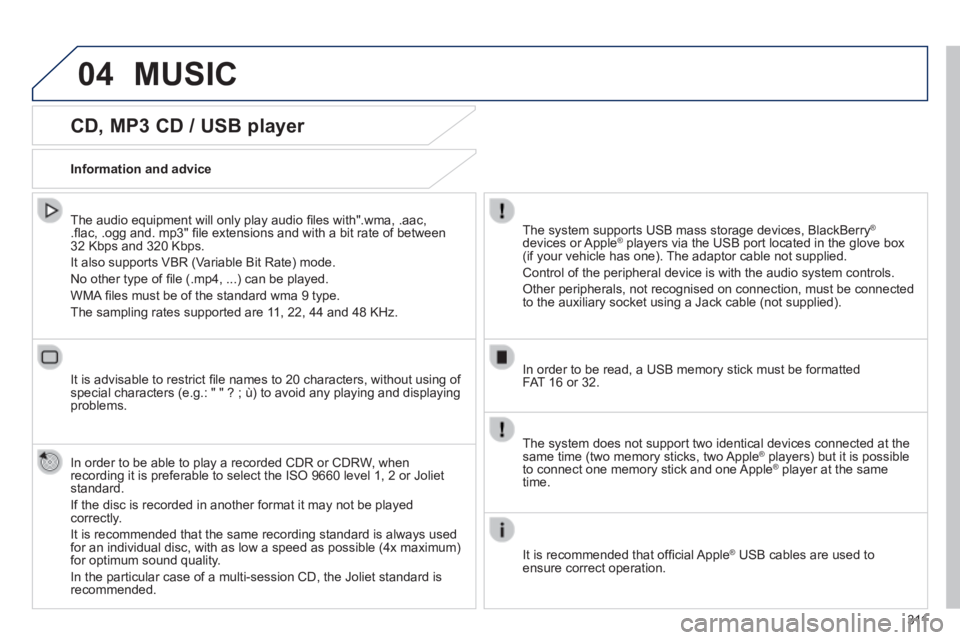
The system supports USB mass storage devices, BlackBerry ®
devices or Apple ® players via the USB port located in the glove box ® players via the USB port located in the glove box ®
(if your vehicle has one). The adaptor cable not supplied.
Control of the peripheral device is with the audio system controls.
Other peripherals, not recognised on connection, must be connected to the auxiliary socket using a Jack cable (not supplied).
In order to be read, a USB memory stick must be formatted FAT 16 or 32.
MUSIC
The system does not support two identical devices connected at the same time (two memory sticks, two Apple ® players) but it is possible ® players) but it is possible ®
to connect one memory stick and one Apple ® player at the same ® player at the same ®
time.
It is recommended that offi cial Apple ® USB cables are used to ® USB cables are used to ®
ensure correct operation.
Page 315 of 400
04
313
308_EN_CHAP10C_SMEGPLUS_ED02-2013
Audio streaming
Streaming allows audio fi les on your telephone to be played via the vehicle's speakers.
Connect the telephone: see the " Telephone " section, then " Bluetooth ".
Choose the " Audio " or " All " profi le.
If play does not start automatically, it may be necessary to start the audio playback from the telephone.
Control is from the peripheral device or by using the audio system buttons.
Once connected in streaming mode, the telephone is considered to be a media source.
It is recommended that you activate " Repeat " on the Bluetooth peripheral.
Connecting APPLE ® players
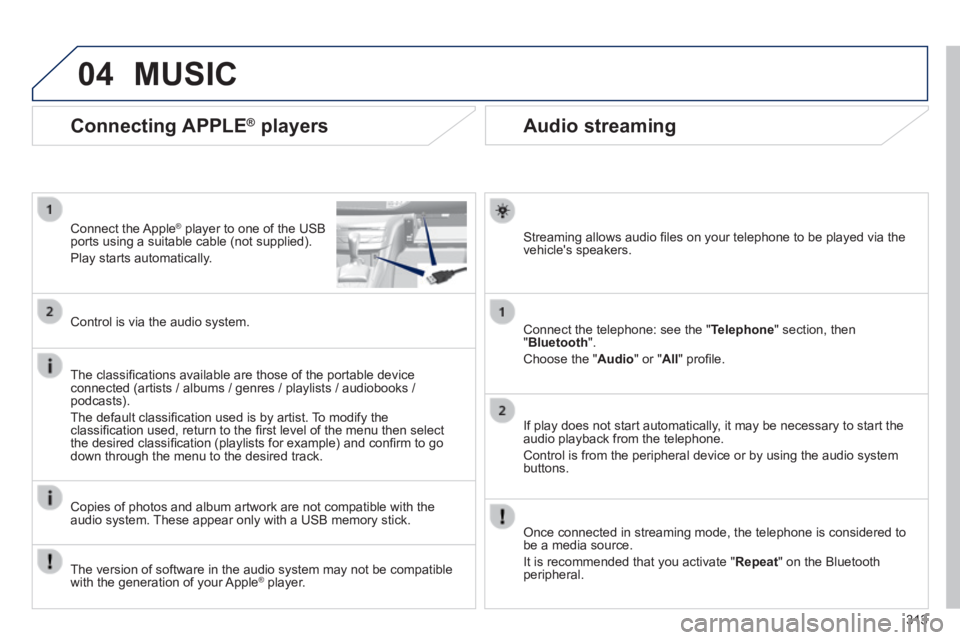
Connect the Apple ® player to one of the USB ® player to one of the USB ®
ports using a suitable cable (not supplied).
Play starts automatically.
Control is via the audio system.
The classifi cations available are those of the portable device connected (artists / albums / genres / playlists / audiobooks / podcasts).
The default classifi cation used is by artist. To modify the classifi cation used, return to the fi rst level of the menu then select the desired classifi cation (playlists for example) and confi rm to go down through the menu to the desired track.
Copies of photos and album artwork are not compatible with the audio system. These appear only with a USB memory stick.
MUSIC
The version of software in the audio system may not be compatible with the generation of your Apple ® player. ® player. ®
Page 316 of 400
04
308_EN_CHAP10C_SMEGPLUS_ED02-2013
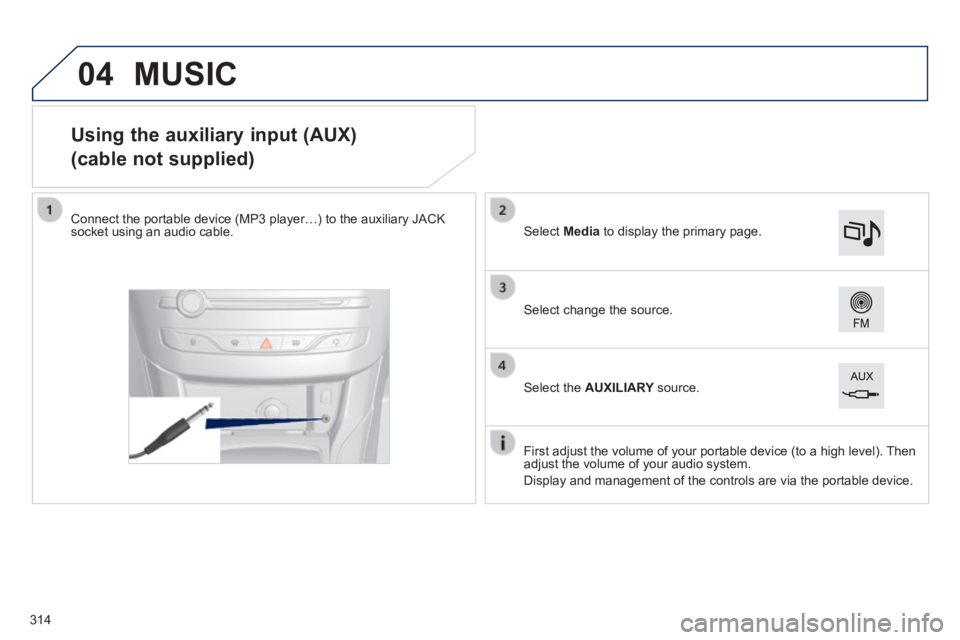
Using the auxiliary input (AUX)
(cable not supplied)
Connect the portable device (MP3 player…) to the auxiliary JACK socket using an audio cable.
First adjust the volume of your portable device (to a high level). Then adjust the volume of your audio system.
Display and management of the controls are via the portable device.
Select change the source.
Select Media to display the primary page.
Select the AUXILIARY source. AUXILIARY source. AUXILIARY
MUSIC
314
Page 317 of 400
04
315
308_EN_CHAP10C_SMEGPLUS_ED02-2013
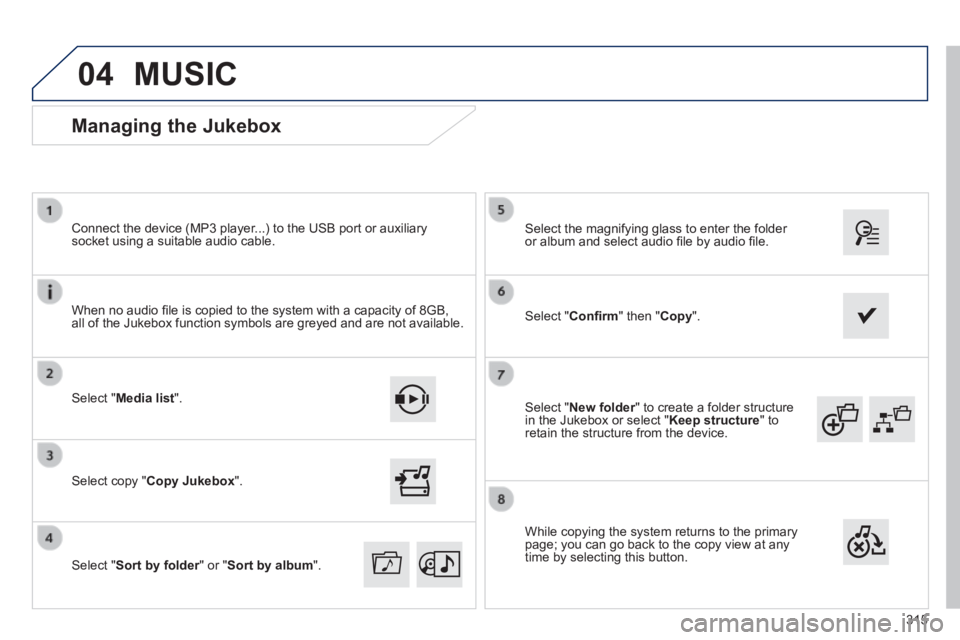
Select " New folder " to create a folder structure New folder " to create a folder structure New folderin the Jukebox or select " Keep structure " to retain the structure from the device.
Select the magnifying glass to enter the folder or album and select audio fi le by audio fi le.
Managing the Jukebox
Select " Media list ".
Connect the device (MP3 player...) to the USB port or auxiliary socket using a suitable audio cable.
Select copy " Copy Jukebox ".
MUSIC
When no audio fi le is copied to the system with a capacity of 8GB, all of the Jukebox function symbols are greyed and are not available.
Select " Sort by folder " or " Sort by folder " or " Sort by folderSort by album ".
Select " Confi rm " then " Copy ".
While copying the system returns to the primary page; you can go back to the copy view at any time by selecting this button.
 may prevent reception, even in RDS station tracki")