Page 19 of 24
17
BLUETOOTH® SYSTEM WITH NAVIGATION (if so equipped)
Send predefined or custom text messages* through your vehicle’s Bluetooth® system.
Receive texts through your vehicle’s Bluetooth® system that can be read to you.
Bluetooth® Streaming Audio allows you to use a compatible Bluetooth® phone to play
audio files on your device. Your compatible cellular phone can be connected to the vehicle’s audio system, allowing audio files to play through the vehicle’s speakers.
SMARTPHONE INTEGRATION*
For information on how to pair your phone and use popular smartphone apps\
in your
NISSAN, please visit: www.nissanusa.com/connect/support.
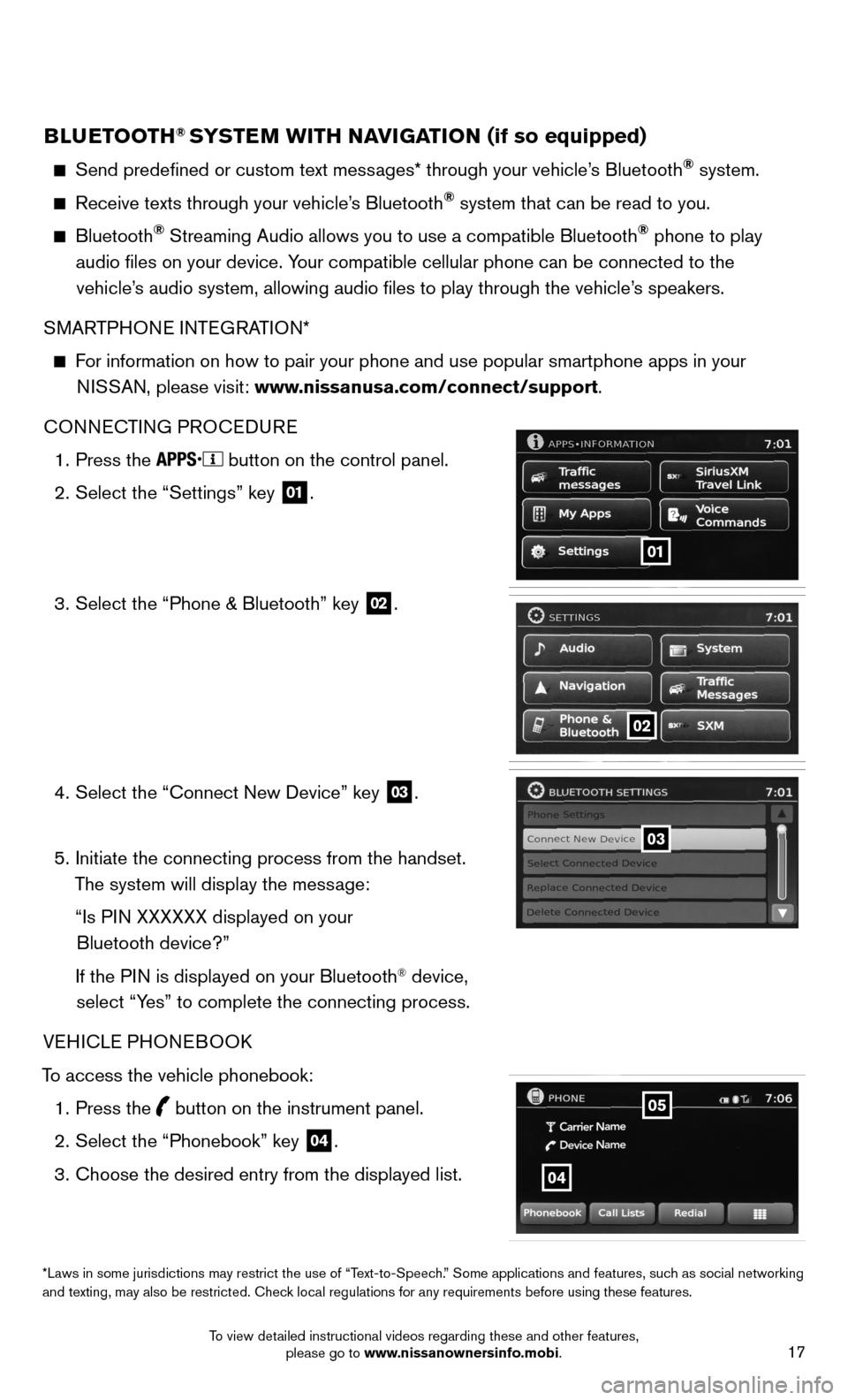
CONNECTING PROCEDURE
1. Press the
button on the control panel.
2. Select the “Settings” key
01.
3. Select the “Phone & Bluetooth” key
02.
4. Select the “Connect New Device” key
03.
5. Initiate the connecting process from the handset.
The system will display the message:
“Is PIN XXXXXX displayed on your
Bluetooth device?”
If the PIN is displayed on your Bluetooth
® device,
select “Yes” to complete the connecting process.
VEHICLE PHONEBOOK
To access the vehicle phonebook: 1. Press the
button on the instrument panel.
2. Select the “Phonebook” key
04.
3. Choose the desired entry from the displayed list.
01
02
03
*Laws in some jurisdictions may restrict the use of “Text-to-Speech.” Some applications and features, such as social networking
and texting, may also be restricted. Check local regulations for any requirements before using these features.
04
05
To view detailed instructional videos regarding these and other features, please go to www.nissanownersinfo.mobi.
Page 20 of 24
18
SYSTEM GUIDE
MAKING A CALL
1. Press the
button on the instrument panel. The “Phone” screen
05 will appear on
the display.
2. Select one of the following options to make a call:
“Phonebook”: Select the name from an entry stored in the vehicle p\
honebook.
“Call Lists”: Select the name from the incoming, outgoing or misse\
d call history.
“Redial”: Dial the last outgoing call from the vehicle.
– Input the phone number manually using the keypad displayed on the scree\
n.
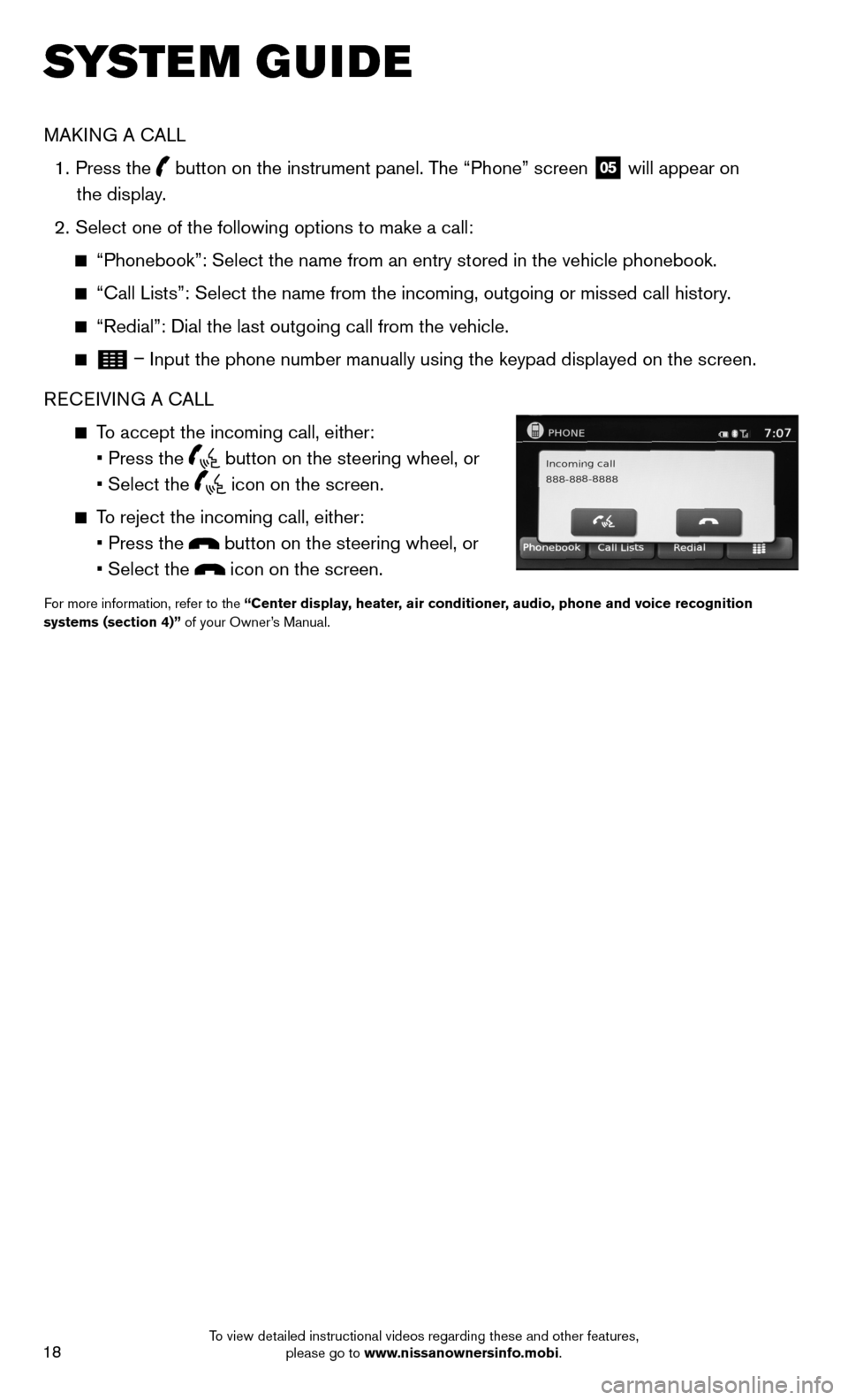
RECEIVING A CALL
To accept the incoming call, either:
• Press the
button on the steering wheel, or
• Select the
icon on the screen.
To reject the incoming call, either:
• Press the
button on the steering wheel, or
• Select the
icon on the screen.
For more information, refer to the “Center display, heater, air conditioner, audio, phone and voice recognition
systems (section 4)” of your Owner’s Manual.
To view detailed instructional videos regarding these and other features, please go to www.nissanownersinfo.mobi.
Page 21 of 24

Your Navigation System can calculate a route from the current location to\
a preferred
destination. The real-time map display and turn-by")
19
04
03
06
07
05
0102
NAVIGATION SYSTEM (if so equipped)
Your Navigation System can calculate a route from the current location to\
a preferred
destination. The real-time map display and turn-by-turn voice guidance will lead you a\
long
the route.
The Navigation System will continually update your vehicle’s position. If you have deviated
from the original route, it will recalculate the route from your current\
location.
NissanConnect™ Apps integrates popular smartphone apps and services into your vehicle.\
NissanConnect ™ Apps requires a subscription. Please visit www.nissanconnect.com
for more information.
01 N AV
button – Press to access the functions of the Navigation System.
02 MAP button – Press to display the current location map screen.
03 VOL
knob – Turn right to increase the volume or left to decrease the volume.
04 key – Select to zoom the map in.
05 key – Select to zoom the map out.
06 button – Press to access Traffic messages, MyApps, SiriusXM Travel Link, Voice
Commands, and Settings.
07 button
– Press to change the display brightness between day and night modes.
While the mode is being displayed, the brightness can be adjusted using t\
he TUNE knob.
Press and hold to turn the display off. Press again to turn the display \
on.
08
BACK button – Press to return to the previous screen.
09 TUNE
knob – Turn to navigate the items in a list. Press to select a menu item.
10 Touch-screen display.
11 SD-card location – An SD-card with map data must be inserted here for map functions
to operate.
For more information, refer to your Navigation System Owner’s Manual.
08
09
10
11
To view detailed instructional videos regarding these and other features, please go to www.nissanownersinfo.mobi.