2014 NISSAN PATHFINDER USB
[x] Cancel search: USBPage 251 of 492
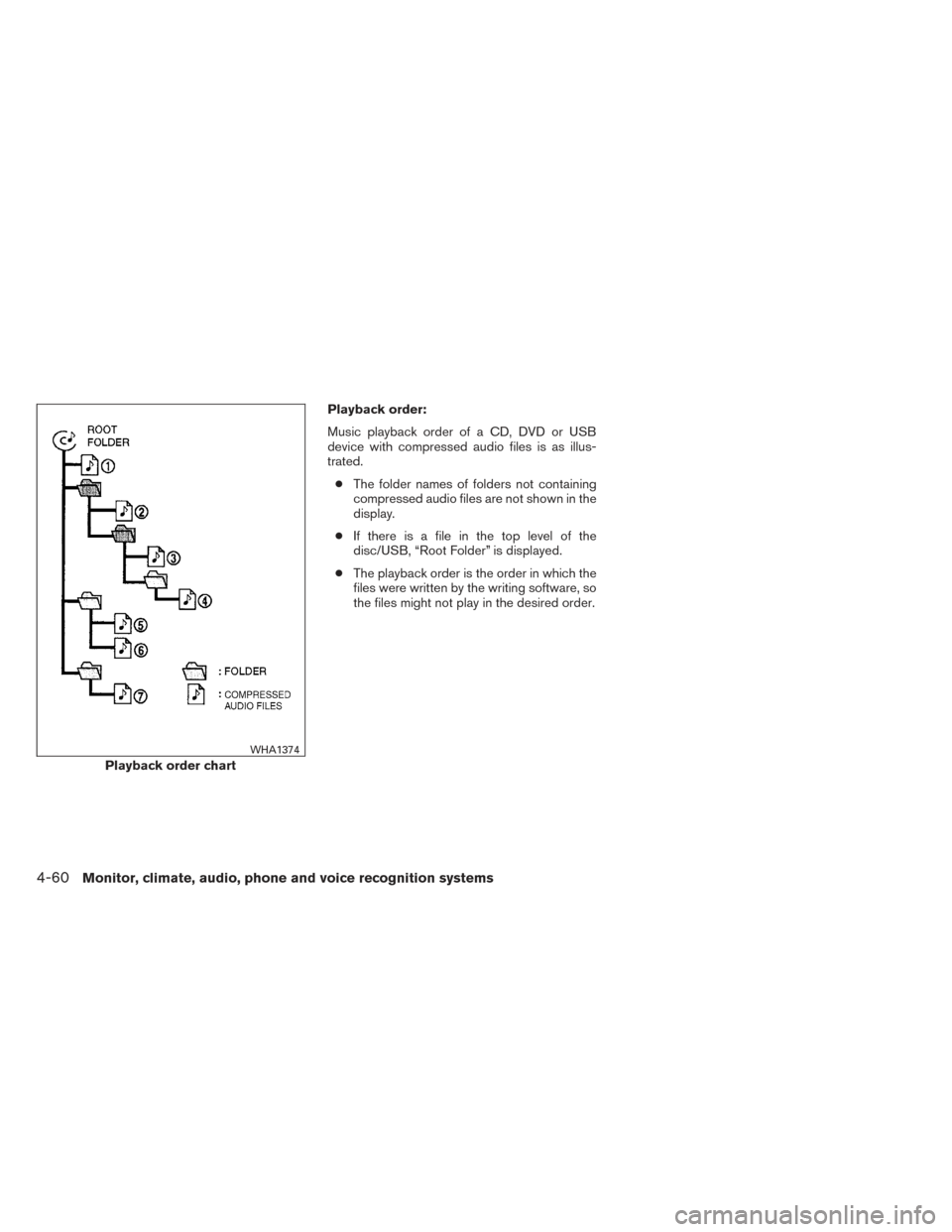
Playback order:
Music playback order of a CD, DVD or USB
device with compressed audio files is as illus-
trated.● The folder names of folders not containing
compressed audio files are not shown in the
display.
● If there is a file in the top level of the
disc/USB, “Root Folder” is displayed.
● The playback order is the order in which the
files were written by the writing software, so
the files might not play in the desired order.
Playback order chart
WHA1374
4-60Monitor, climate, audio, phone and voice recognition systems
Page 252 of 492
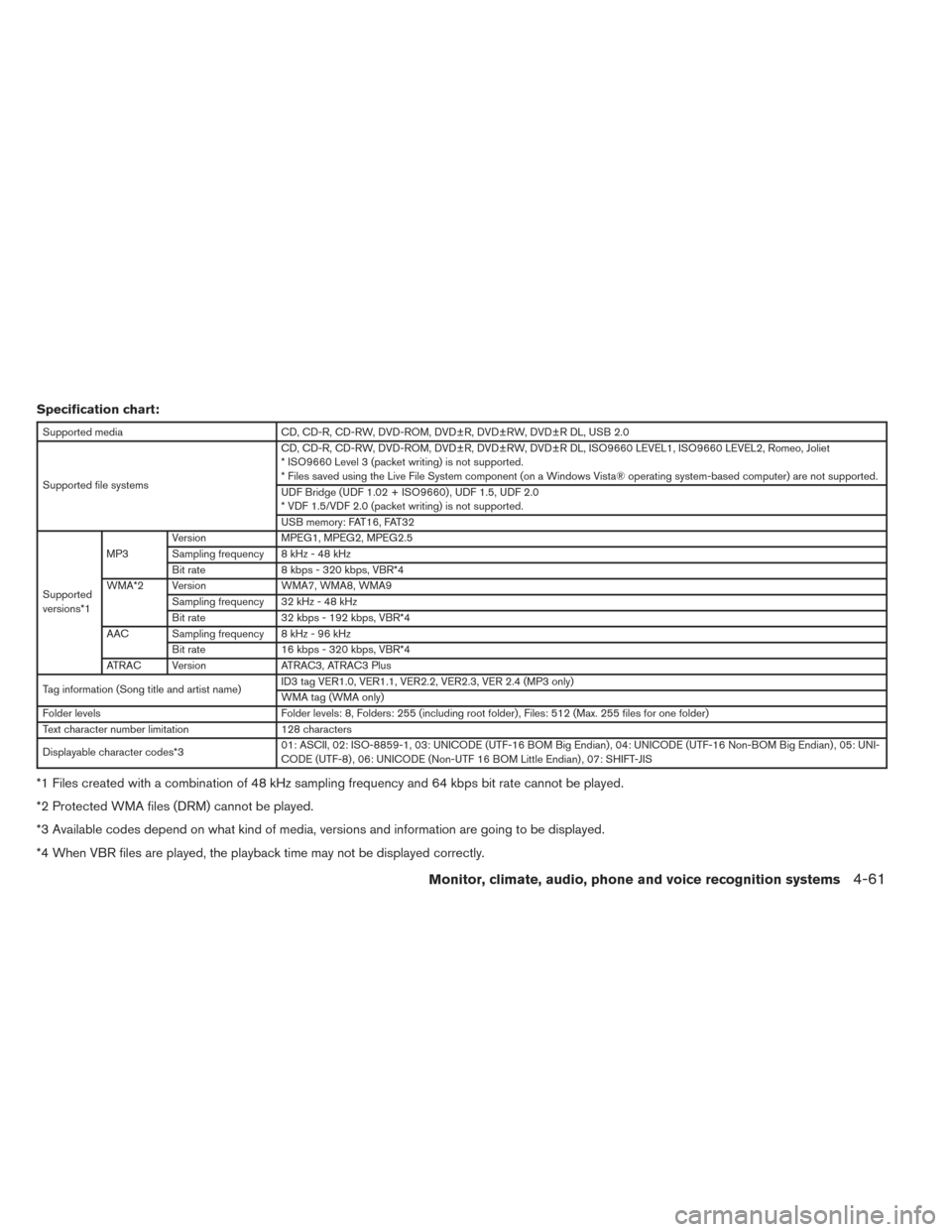
Specification chart:
Supported mediaCD, CD-R, CD-RW, DVD-ROM, DVD±R, DVD±RW, DVD±R DL, USB 2.0
Supported file systems CD, CD-R, CD-RW, DVD-ROM, DVD±R, DVD±RW, DVD±R DL, ISO9660 LEVEL1, ISO9660 LEVEL2, Romeo, Joliet
* ISO9660 Level 3 (packet writing) is not supported.
* Files saved using the Live File System component (on a Windows Vista® operating system-based computer) are not supported.
UDF Bridge (UDF 1.02 + ISO9660) , UDF 1.5, UDF 2.0
* VDF 1.5/VDF 2.0 (packet writing) is not supported.
USB memory: FAT16, FAT32
Supported
versions*1 MP3
Version
MPEG1, MPEG2, MPEG2.5
Sampling frequency 8 kHz - 48 kHz
Bit rate 8 kbps - 320 kbps, VBR*4
WMA*2 Version WMA7, WMA8, WMA9
Sampling frequency 32 kHz - 48 kHz
Bit rate 32 kbps - 192 kbps, VBR*4
AAC Sampling frequency 8 kHz - 96 kHz Bit rate 16 kbps - 320 kbps, VBR*4
ATRAC Version ATRAC3, ATRAC3 Plus
Tag information (Song title and artist name) ID3 tag VER1.0, VER1.1, VER2.2, VER2.3, VER 2.4 (MP3 only)
WMA tag (WMA only)
Folder levels Folder levels: 8, Folders: 255 (including root folder) , Files: 512 (Max. 255 files for one folder)
Text character number limitation 128 characters
Displayable character codes*3 01: ASCII, 02: ISO-8859-1, 03: UNICODE (UTF-16 BOM Big Endian) , 04: UNICODE (UTF-16 Non-BOM Big Endian) , 05: UNI-
CODE (UTF-8) , 06: UNICODE (Non-UTF 16 BOM Little Endian) , 07: SHIFT-JIS
*1 Files created with a combination of 48 kHz sampling frequency and 64 kbps bit rate cannot be played.
*2 Protected WMA files (DRM) cannot be played.
*3 Available codes depend on what kind of media, versions and information are going to be displayed.
*4 When VBR files are played, the playback time may not be displayed correctly.
Monitor, climate, audio, phone and voice recognition systems4-61
Page 253 of 492
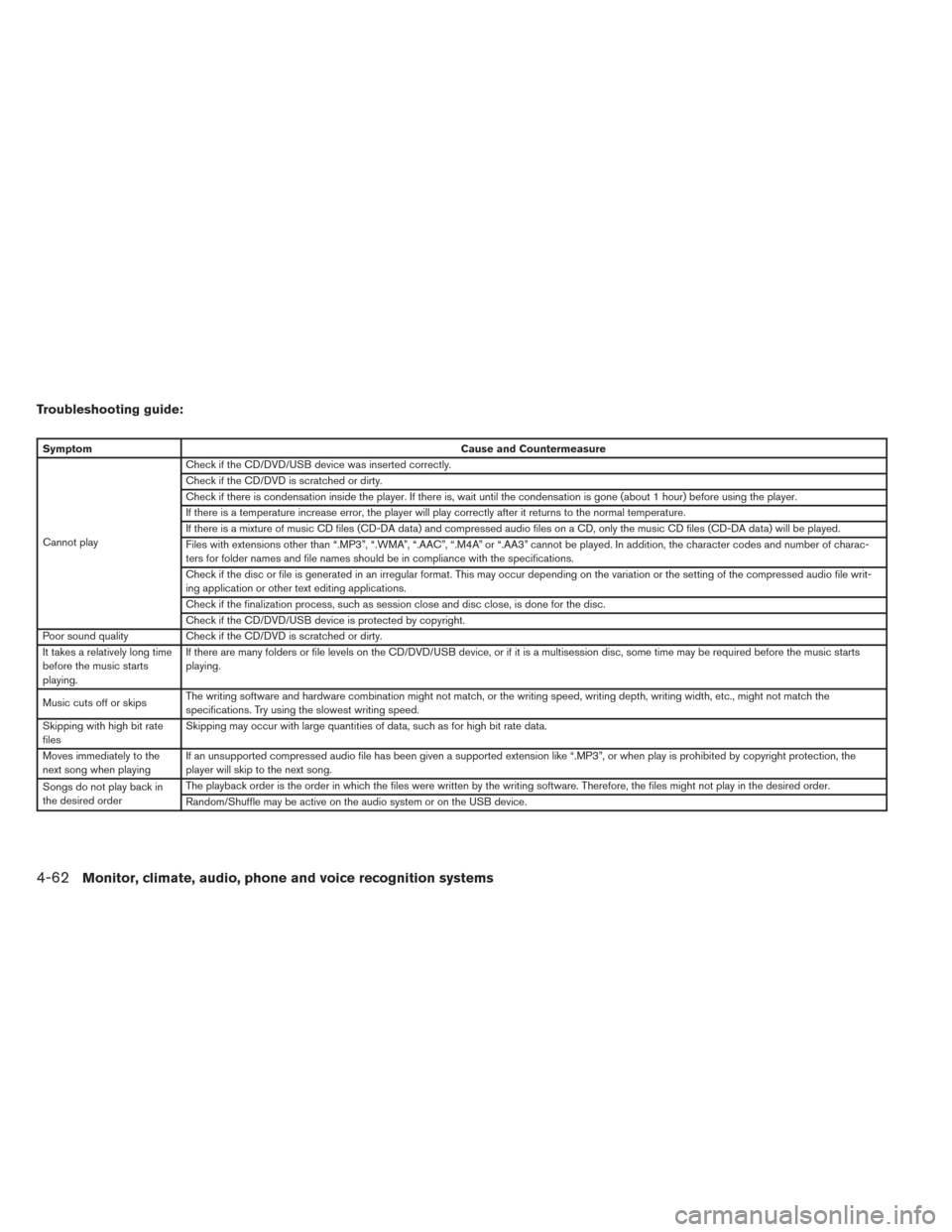
Troubleshooting guide:
SymptomCause and Countermeasure
Cannot play Check if the CD/DVD/USB device was inserted correctly.
Check if the CD/DVD is scratched or dirty.
Check if there is condensation inside the player. If there is, wait until the condensation is gone (about 1 hour) before using the player.
If there is a temperature increase error, the player will play correctly after it returns to the normal temperature.
If there is a mixture of music CD files (CD-DA data) and compressed audio files on a CD, only the music CD files (CD-DA data) will be played.
Files with extensions other than “.MP3”, “.WMA”, “.AAC”, “.M4A” or “.AA3” cannot be played. In addition, the character codes and number of charac-
ters for folder names and file names should be in compliance with the specifications.
Check if the disc or file is generated in an irregular format. This may occur depending on the variation or the setting of the compressed audio file writ-
ing application or other text editing applications.
Check if the finalization process, such as session close and disc close, is done for the disc.
Check if the CD/DVD/USB device is protected by copyright.
Poor sound quality Check if the CD/DVD is scratched or dirty.
It takes a relatively long time
before the music starts
playing. If there are many folders or file levels on the CD/DVD/USB device, or if it is a multisession disc, some time may be required before the music starts
playing.
Music cuts off or skips The writing software and hardware combination might not match, or the writing speed, writing depth, writing width, etc., might not match the
specifications. Try using the slowest writing speed.
Skipping with high bit rate
files Skipping may occur with large quantities of data, such as for high bit rate data.
Moves immediately to the
next song when playing If an unsupported compressed audio file has been given a supported extension like “.MP3”, or when play is prohibited by copyright protection, the
player will skip to the next song.
Songs do not play back in
the desired order The playback order is the order in which the files were written by the writing software. Therefore, the files might not play in the desired order.
Random/Shuffle may be active on the audio system or on the USB device.
4-62Monitor, climate, audio, phone and voice recognition systems
Page 255 of 492
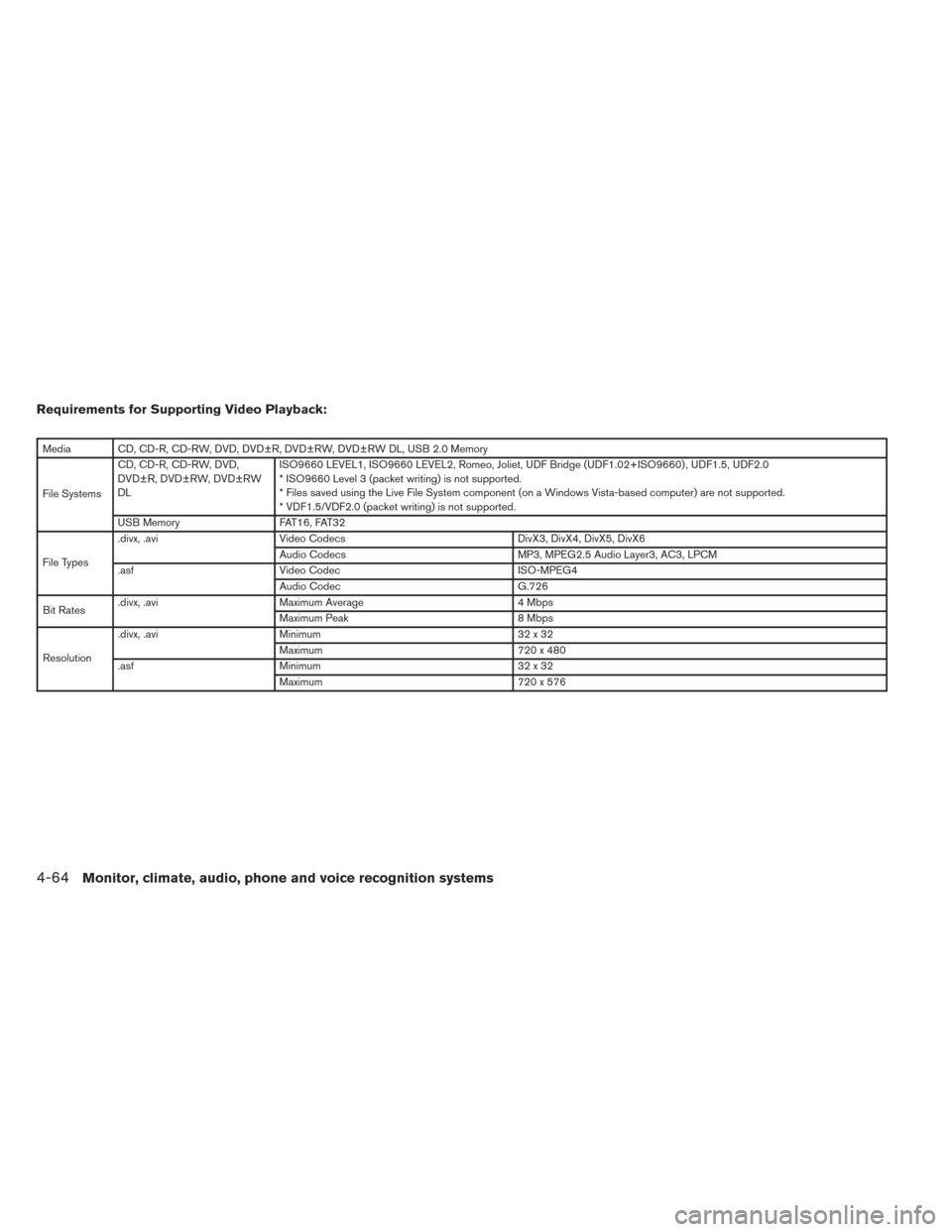
Requirements for Supporting Video Playback:
Media CD, CD-R, CD-RW, DVD, DVD±R, DVD±RW, DVD±RW DL, USB 2.0 Memory
File SystemsCD, CD-R, CD-RW, DVD,
DVD±R, DVD±RW, DVD±RW
DL
ISO9660 LEVEL1, ISO9660 LEVEL2, Romeo, Joliet, UDF Bridge (UDF1.02+ISO9660) , UDF1.5, UDF2.0
* ISO9660 Level 3 (packet writing) is not supported.
* Files saved using the Live File System component (on a Windows Vista-based computer) are not supported.
* VDF1.5/VDF2.0 (packet writing) is not supported.
USB Memory FAT16, FAT32
File Types .divx, .avi
Video Codecs DivX3, DivX4, DivX5, DivX6
Audio Codecs MP3, MPEG2.5 Audio Layer3, AC3, LPCM
.asf Video Codec ISO-MPEG4
Audio Codec G.726
Bit Rates .divx, .avi
Maximum Average 4 Mbps
Maximum Peak 8 Mbps
Resolution .divx, .avi
Minimum 32 x 32
Maximum 720 x 480
.asf Minimum 32 x 32
Maximum 720 x 576
4-64Monitor, climate, audio, phone and voice recognition systems
Page 264 of 492
XM band select:
Pressing the AUX button will change the band as
follows:
USB→XM1* →XM2* →XM3* →AUX →USB
(satellite, if so equipped)
When the AUX button is pressed while the igni-
tion switch is in the ACC or ON position, the
radio will come on at the station last played.
The last station played will also come on when
the VOL/ON·OFF control knob is pressed ON.
*When the AUX button is pressed, the satellite
radio mode will be skipped unless an optional
satellite receiver and antenna are installed and a
SiriusXM Satellite Radio service subscription is
active. Satellite radio is not available in Alaska,
Hawaii and Guam.
If a compact disc is playing when the AUX button
is pressed, the compact disc will automatically be
turned off and the last radio station played will
come on.
TUNE/FOLDER (Tuning) knob:
To manually tune the radio, turn the
TUNE/FOLDER knob to the right or left.SEEK/CAT and TRACK
tuning buttons:
Press the SEEK/CAT
button or the
TRACK
button to tune from high to low or
low to high frequencies and stop at the next
broadcasting station.
SCAN tuning:
Press the SCAN button to stop at each broad-
casting station for 5 seconds. Pressing the
SCAN button again during this five second pe-
riod will stop scan tuning and the radio will remain
tuned to that station. If the SCAN button is not
pressed within 5 seconds, scan tuning moves to
the next station.
1 to 6 Station memory operations:
Six stations can be set for the AM band. Twelve
stations can be set for the FM band (6 for FM1, 6
for FM2) . Eighteen stations can be set for the XM
band (6 for XM1, 6 for XM2, 6 for XM3) .
1. Choose the radio band AM, FM1 or FM2 using the FM·AM select button or choose
the satellite band SAT1 or SAT2 using the
AUX button. 2. Tune to the desired station using manual,
SEEK or SCAN tuning. Press and hold any
of the desired station memory buttons (1 –
6) until a beep sound is heard.
3. The channel indicator will then come on and the sound will resume. Programming is now
complete.
4. Other buttons can be set in the same man- ner.
If the battery cable is disconnected, or if the fuse
opens, the radio memory will be canceled. In that
case, reset the desired stations.
Radio data system (RDS):
RDS stands for Radio Data System, and is a data
information service transmitted by some radio
stations on the FM band (not AM band) . Cur-
rently, most RDS stations are in large cities, but
many stations are now considering broadcasting
RDS data.
RDS can display: ● Station call sign, such as “WHFR 98.3”.
● Station name, such as “The Groove”.
● Music or programming type such as “Clas-
sical”, “Country”, or “Rock”.
Monitor, climate, audio, phone and voice recognition systems4-73
Page 267 of 492
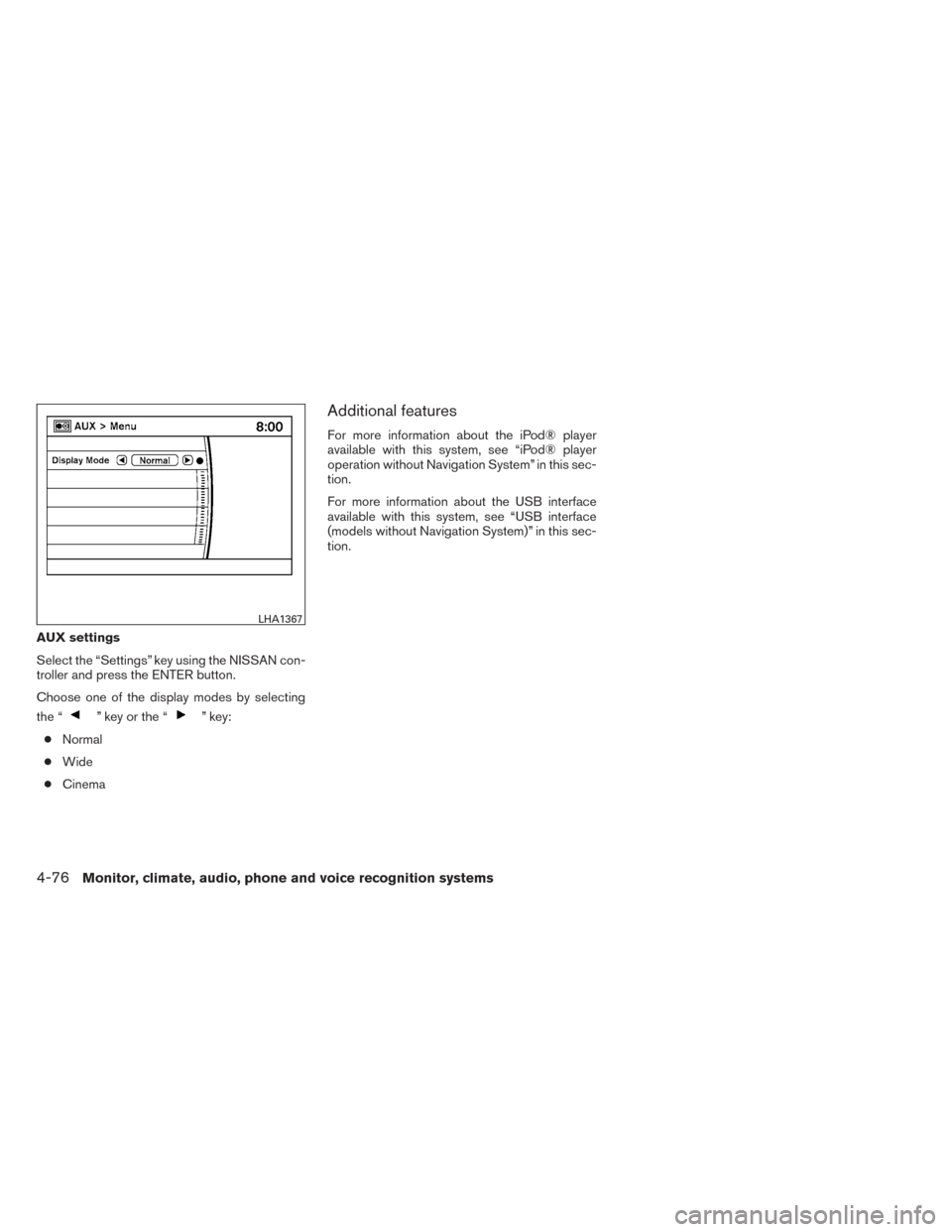
AUX settings
Select the “Settings” key using the NISSAN con-
troller and press the ENTER button.
Choose one of the display modes by selecting
the “
” key or the “” key:
● Normal
● Wide
● Cinema
Additional features
For more information about the iPod® player
available with this system, see “iPod® player
operation without Navigation System” in this sec-
tion.
For more information about the USB interface
available with this system, see “USB interface
(models without Navigation System)” in this sec-
tion.
LHA1367
4-76Monitor, climate, audio, phone and voice recognition systems
Page 270 of 492
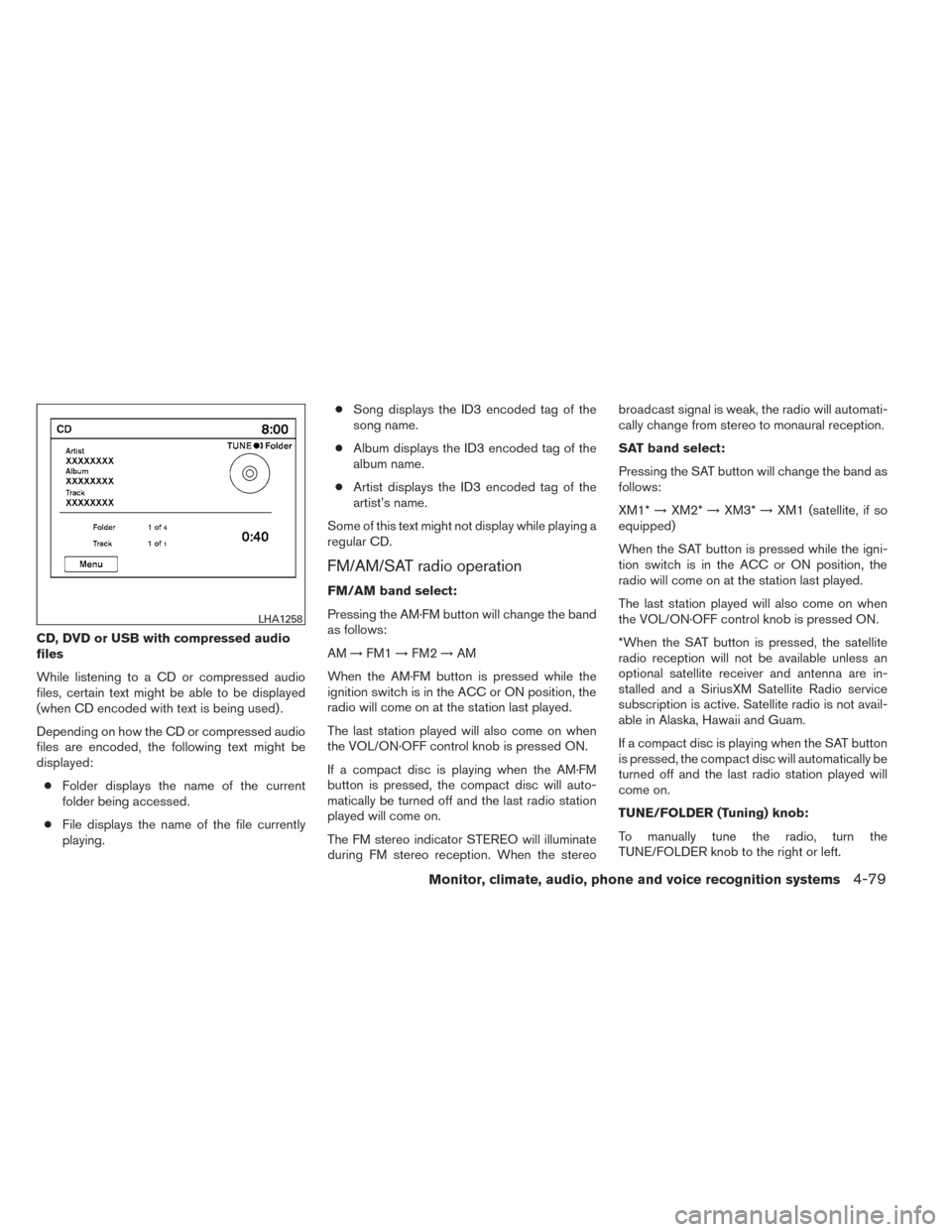
CD, DVD or USB with compressed audio
files
While listening to a CD or compressed audio
files, certain text might be able to be displayed
(when CD encoded with text is being used) .
Depending on how the CD or compressed audio
files are encoded, the following text might be
displayed:● Folder displays the name of the current
folder being accessed.
● File displays the name of the file currently
playing. ●
Song displays the ID3 encoded tag of the
song name.
● Album displays the ID3 encoded tag of the
album name.
● Artist displays the ID3 encoded tag of the
artist’s name.
Some of this text might not display while playing a
regular CD.
FM/AM/SAT radio operation
FM/AM band select:
Pressing the AM·FM button will change the band
as follows:
AM →FM1 →FM2 →AM
When the AM·FM button is pressed while the
ignition switch is in the ACC or ON position, the
radio will come on at the station last played.
The last station played will also come on when
the VOL/ON·OFF control knob is pressed ON.
If a compact disc is playing when the AM·FM
button is pressed, the compact disc will auto-
matically be turned off and the last radio station
played will come on.
The FM stereo indicator STEREO will illuminate
during FM stereo reception. When the stereo broadcast signal is weak, the radio will automati-
cally change from stereo to monaural reception.
SAT band select:
Pressing the SAT button will change the band as
follows:
XM1*
→XM2* →XM3* →XM1 (satellite, if so
equipped)
When the SAT button is pressed while the igni-
tion switch is in the ACC or ON position, the
radio will come on at the station last played.
The last station played will also come on when
the VOL/ON·OFF control knob is pressed ON.
*When the SAT button is pressed, the satellite
radio reception will not be available unless an
optional satellite receiver and antenna are in-
stalled and a SiriusXM Satellite Radio service
subscription is active. Satellite radio is not avail-
able in Alaska, Hawaii and Guam.
If a compact disc is playing when the SAT button
is pressed, the compact disc will automatically be
turned off and the last radio station played will
come on.
TUNE/FOLDER (Tuning) knob:
To manually tune the radio, turn the
TUNE/FOLDER knob to the right or left.
LHA1258
Monitor, climate, audio, phone and voice recognition systems4-79
Page 276 of 492
Additional features
For more information about the iPod® player
available with this system, see “iPod® player
operation with Navigation System” in this section.
For more information about the USB interface
available with this system, see “USB interface
(models with Navigation System)” in this section.
For more information about the Bluetooth®
streaming audio feature available with this sys-
tem, see “Bluetooth® streaming audio” in this
section.
DIGITAL VERSATILE DISC (DVD)
PLAYER OPERATION (models with
Navigation System)
Precautions
Start the engine when using the DVD entertain-
ment system.
Movies will not be shown on the front display
while the vehicle is in any drive position to reduce
driver distraction. Audio is available when a movie
is played. To view movies on the front display,
stop the vehicle in a safe location, move the shift
lever to the P (Park) position and apply the park-
ing brake.
WARNING
●The driver must not attempt to operate
the DVD system or wear the head-
phones while the vehicle is in motion so
that full attention may be given to ve-
hicle operation.
● Do not attempt to modify the system to
display a movie on the front screen
while the vehicle is being driven. Doing
so may distract the driver and may
cause a collision and serious personal
injury or death.
CAUTION
● Only operate the DVD while the vehicle
engine is running. Operating the DVD
for extended periods of time with the
engine OFF can discharge the vehicle
battery.
● Do not allow the system to get wet.
Excessive moisture such as spilled liq-
uids may cause the system to
malfunction.
● While playing VIDEO-CD media, this
DVD player does not guarantee com-
plete functionality of all VIDEO-CD
formats.
LHA1394
Monitor, climate, audio, phone and voice recognition systems4-85