2014 NISSAN PATHFINDER HYBRID phone
[x] Cancel search: phonePage 65 of 571
NOTE:
Care should be taken to avoid situations
that can lead to potential battery discharge
and potential no-start conditions such as:
1. Installation or extended use of electronic
accessories that consume battery power
when the engine is not running (Phone
chargers, GPS, DVD players, etc.)
2. Vehicle is not driven regularly and/or
only driven short distances. In these cases,
the battery may need to be charged to
maintain battery health.
WARNING
●Do not expose the 12–volt battery to
flames, an electrical spark or a ciga-
rette. Hydrogen gas generated by the
12–volt battery is explosive. Explosive
gases can cause blindness or injury. Do
not allow battery fluid to contact your
skin, eyes, fabrics or painted surfaces.
Sulfuric acid can cause blindness or in-
jury. After touching a 12–volt battery or
battery cap, do not touch or rub your
eyes. Thoroughly wash your hands. If
the acid contacts your eyes, skin or
clothing, immediately flush with water
for at least 15 minutes and seek medical
attention. ●
If the 12-volt battery needs to be re-
placed, use a battery of the same de-
sign. Using the wrong battery can cause
hydrogen gas to build up in the vehicle ,
which could lead to explosion and per-
sonal injury.
● When working on or near a 12–volt bat-
tery, always wear suitable eye protec-
tion and remove all jewelry.
● Battery posts, terminals and related ac-
cessories contain lead and lead com-
pounds. Wash hands after handling.
● Keep 12–volt battery out of the reach of
children.CAUTION
● Do not ground accessories directly to
the battery terminal. Doing so will by-
pass the variable-voltage control sys-
tem and the vehicle battery may not
charge completely.
● Use electrical accessories with the en-
gine running to avoid discharging the
vehicle battery.
Your vehicle is equipped with a variable-voltage
control system. This system measures the
amount of electrical discharge from the battery
and controls voltage generated by the generator.
LDI2259
VARIABLE-VOLTAGE CONTROL
SYSTEM
8-10Maintenance and do-it-yourself
Page 84 of 571
NISSAN CARES...
Both NISSAN and your NISSAN dealer are dedicated to serving all your automotive needs. Your satisfaction with your vehicle and your NISSAN dealer are
our primary concerns. Your NISSAN dealer is always available to assist you with all your automobile sales and service needs.
However, if there is something that your NISSAN
dealer cannot assist you with or you would like to
provide NISSAN directly with comments or
questions, please contact the NISSAN Con-
sumer Affairs Department using our toll-free
number:
For U.S. customers1-800-NISSAN-1
(1-800-647-7261)
For Canadian customers 1-800-387-0122 The Consumer Affairs Department will ask for the
following information:
– Your name, address, and telephone number
– Vehicle identification number (attached to the
top of the instrument panel on the driver’s
side)
– Date of purchase
– Current odometer reading
– Your NISSAN dealer’s name
– Your comments or questions
OR You can write to NISSAN with the information at:
For U.S. customers
Nissan North America, Inc.
Consumer Affairs Department
P.O. Box 685003
Franklin, TN 37068-5003
or via e-mail at:
[email protected]
For Canadian customers Nissan Canada Inc.
5290 Orbitor Drive
Mississauga, Ontario L4W 4Z5
or via e-mail at:
[email protected]
If you prefer, visit us at:
www.nissanusa.com (for U.S. customers) or
www.nissan.ca (for Canadian customers)
We appreciate your interest in NISSAN and thank you for buying a quality NISSAN vehicle.
NISSAN CUSTOMER CARE PROGRAM
Page 85 of 571
Table of
ContentsIllustrated table of contents
Safety—Seats, seat belts and supplemental restraint system
Instruments and controls
Pre-driving checks and adjustments
Monitor, climate, audio, phone and voice recognition systems
Starting and driving
In case of emergency
Appearance and care
Maintenance and do-it-yourself
Technical and consumer information
Index
0
1
2
3
4
5
6
7
8
9
10
Page 92 of 571
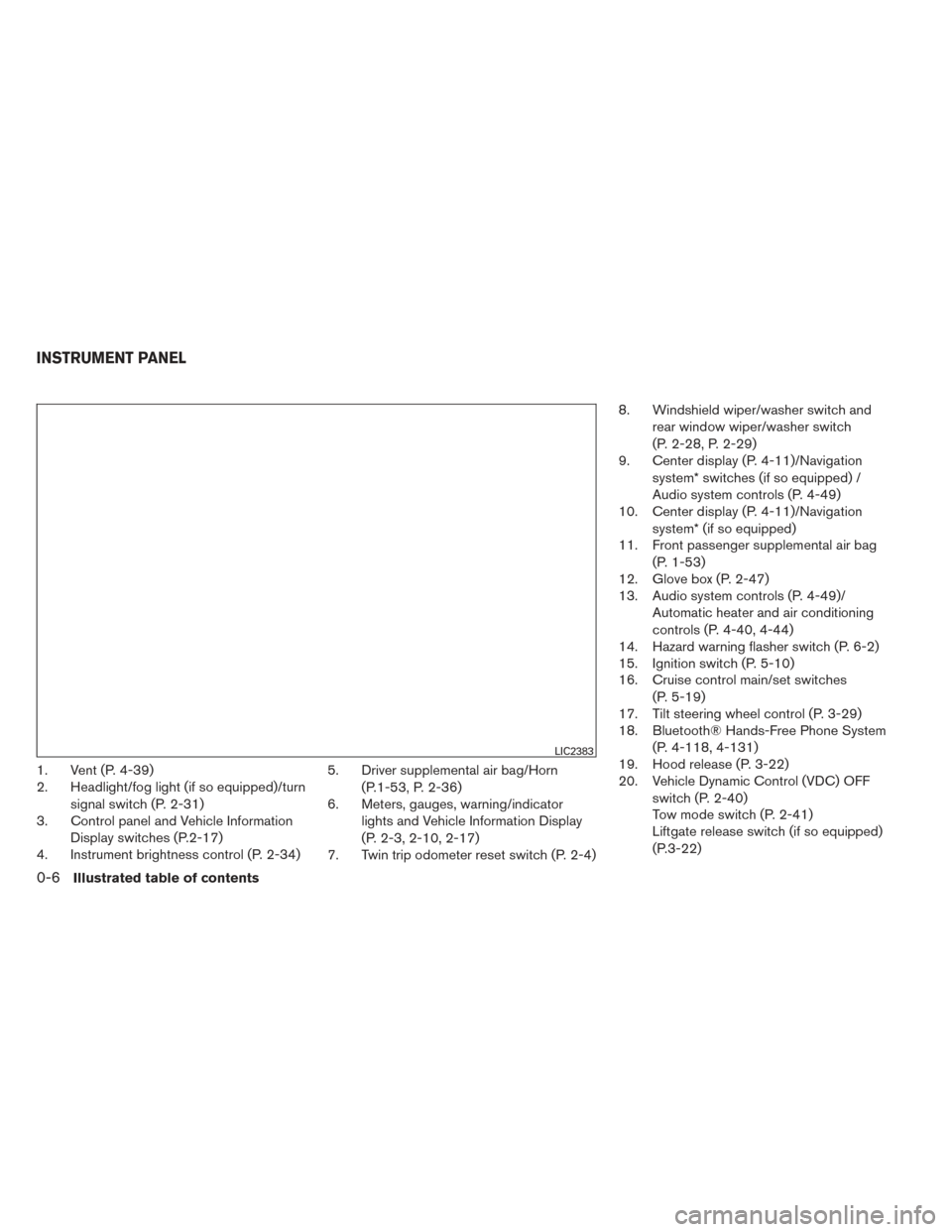
1. Vent (P. 4-39)
2. Headlight/fog light (if so equipped)/turnsignal switch (P. 2-31)
3. Control panel and Vehicle Information
Display switches (P.2-17)
4. Instrument brightness control (P. 2-34) 5. Driver supplemental air bag/Horn
(P.1-53, P. 2-36)
6. Meters, gauges, warning/indicator
lights and Vehicle Information Display
(P. 2-3, 2-10, 2-17)
7. Twin trip odometer reset switch (P. 2-4) 8. Windshield wiper/washer switch and
rear window wiper/washer switch
(P. 2-28, P. 2-29)
9. Center display (P. 4-11)/Navigation
system* switches (if so equipped) /
Audio system controls (P. 4-49)
10. Center display (P. 4-11)/Navigation
system* (if so equipped)
11. Front passenger supplemental air bag
(P. 1-53)
12. Glove box (P. 2-47)
13. Audio system controls (P. 4-49)/
Automatic heater and air conditioning
controls (P. 4-40, 4-44)
14. Hazard warning flasher switch (P. 6-2)
15. Ignition switch (P. 5-10)
16. Cruise control main/set switches
(P. 5-19)
17. Tilt steering wheel control (P. 3-29)
18. Bluetooth® Hands-Free Phone System
(P. 4-118, 4-131)
19. Hood release (P. 3-22)
20. Vehicle Dynamic Control (VDC) OFF
switch (P. 2-40)
Tow mode switch (P. 2-41)
Liftgate release switch (if so equipped)
(P.3-22)
LIC2383
INSTRUMENT PANEL
0-6Illustrated table of contents
Page 168 of 571
1. Vent (P. 4-39)
2. Headlight/fog light (if so equipped)/turnsignal switch (P. 2-31)
3. Control panel and Vehicle Information
Display switches (P.2-17)
4. Instrument brightness control (P. 2-34) 5. Driver supplemental air bag/Horn
(P.1-53, P. 2-36)
6. Meters, gauges, warning/indicator
lights and Vehicle Information Display
(P. 2-3, 2-10, 2-17)
7. Twin trip odometer reset switch (P. 2-4) 8. Windshield wiper/washer switch and
rear window wiper/washer switch
(P. 2-28, P. 2-29)
9. Center display (P. 4-11)/Navigation
system* switches (if so equipped) /
Audio system controls (P. 4-49)
10. Center display (P. 4-11)/Navigation
system* (if so equipped)
11. Front passenger supplemental air bag
(P. 1-53)
12. Glove box (P. 2-47)
13. Audio system controls (P.
4-49)/Automatic heater and air
conditioning controls (P. 4-40, 4-44)
14. Hazard warning flasher switch (P. 6-2)
15. Ignition switch (P. 5-10)
16. Cruise control main/set switches
(P. 5-19)
17. Tilt steering wheel control (P. 3-29)
18. Bluetooth® Hands-Free Phone System
(P. 4-118, 4-131)
19. Hood release (P. 3-22)
20. Vehicle Dynamic Control (VDC) OFF
switch (P. 2-40)
Tow mode switch (P. 2-41)
Liftgate release switch (if so equipped)
(P.3-22)
LIC2383
INSTRUMENT PANEL
2-2Instruments and controls
Page 183 of 571
The vehicle information display is located to the
left of the speedometer. It displays such items as:● Vehicle settings
● Trip computer information
● Drive system warnings and settings (if so
equipped)
● Cruise control system information
● NISSAN Intelligent Key® operation informa-
tion
● Indicators and warnings (if so equipped)
● Tire Pressure information (if so equipped)HOW TO USE THE VEHICLE
INFORMATION DISPLAY
The vehicle information display can be changed
using the buttons
and ENTER located on
the steering wheel.
1.
— select/enter the Vehicle informa-
tion menu items or to change from one dis-
play screen to the next (i.e. trip, TPMS, Fuel
economy)
2.
— navigate through the items in ve-
hicle information
ENTER — change or select an item in the
vehicle information display 3.
— go back to the previous menu
The ENTER and
buttons also control audio
and control panel functions. For additional infor-
mation see, “Steering wheel switch for audio
control” in “Monitor, climate, audio, phone and
voice recognition systems” section.
STARTUP DISPLAY
When the vehicle in placed in the ON or ACC
position the screens that display in the vehicle
information include:
● Active system status (if so equipped)
● Trip computer
● Tire pressure information (if so equipped)
● 4 x 4 (if so equipped)
● Fuel economy
● Warnings
Warnings will only display if there are any pres-
ent, for more information on warnings and indica-
tors see, “Vehicle information display warnings
and indicators” in this section.
To control what items display in the vehicle infor-
mation display, see “Main menu selection” in this
section.
LIC2205LIC2245
VEHICLE INFORMATION DISPLAY
Instruments and controls2-17
Page 184 of 571
SETTINGS
The setting mode allows you to change the infor-
mation displayed in the vehicle information dis-
play:● Parking Aids (if so equipped)
● Vehicle Settings
● Main Menu Selection
● Body Color
● Maintenance
● Alarms
● Language
● Unit
● Welcome Effects
● Factory Reset
Parking Aids (if so equipped)
To turn on or off the system displayed in the
“Parking Aids” menu use the
button to
select and the ENTER button.
For additional information, see
“RearView/Around View® Monitor (If So
Equipped)” in the “Monitor, climate, audio, phone
and voice recognition systems” section.
Vehicle Settings
The vehicle settings allows the customer to
change settings for interior lights, intelligent key
settings, unlock settings and other vehicle set-
tings.
The vehicle settings can be changed using
the
,, and the ENTER buttons.
Welcome light (if so equipped)
The welcome light can be set to be ON or OFF.
From the Vehicle Settings menu, select “Wel-
come Light”. Use the ENTER button to turn this
feature ON or OFF.
Auto Room Lamp
The interior lights can be set to be ON or OFF if
any door is unlocked. From the Vehicle Settings
menu, select “Auto Room Light”. Use the ENTER
button to turn this feature ON or OFF.
Light Sensitivity (if so equipped)
The light sensitivity can be set to illuminate earlier
based on the brightness outside the vehicle.
From the Vehicle Settings menu, select “Light
Sensitivity”. Use the ENTER button to change the
sensitivity. Light Off Delay (if so equipped)
The duration of the automatic headlights can be
changed from 0 to 180 seconds. From the Ve-
hicle Settings menu, select “Light Off Delay”. Use
the ENTER button to change the duration.
Wiper with Speed
The wiper with speed can be set to be ON or
OFF. From the Vehicle Settings menu, select
“Wiper with Speed”. Use the ENTER button to
turn this feature ON or OFF.
I-Key Door Lock (if so equipped)
From the Vehicle Settings menu, select “I-Key
Door Lock”. When this item is turned on, the
request switch on the door is activated. When
this item is turned off, the request switch on the
door is deactivated. Use the ENTER button to
activate this function.
Selective-Unlock
When this item is turned on, only the driver’s door
is unlocked first after the door unlock operation.
When the door handle request switch on the
driver’s or front passenger’s side door is pushed
to be unlocked, only the corresponding door is
unlocked first. All the doors can be unlocked if the
door unlock operation is performed again within
1 minute. When this item is turned to off, all the
doors will be unlocked after the door unlock
2-18Instruments and controls
Page 187 of 571
WARNING
The tire replacement indicator is not a
substitute for regular tire checks, includ-
ing tire pressure checks. See “Changing
Wheels and Tires” in “Maintenance & Do-
It-Yourself” section. Many factors includ-
ing tire inflation, alignment, driving habits
and road conditions affect tire wear and
when tires should be replaced. Setting the
tire replacement indicator for a certain
driving distance does not mean your tires
will last that long. Use the tire replace-
ment indicator as a guide only and always
perform regular tire checks. Failure to per-
form regular tire checks, including tire
pressure checks could result in tire fail-
ure. Serious vehicle damage could occur
and may lead to a collision, which could
result in serious personal injury or death.
Other
This indicator appears when the customer set
distance comes for checking or replacing main-
tenance items other than the engine oil, oil filter
and tires. Other maintenance items can include
such things as air filter or tire rotation. You can set
or reset the distance for checking or replacing
the items.
Alarms
This setting allows the customer to set alarms for
outside temperature and a timer alert. 1. Press the
button.
2. Use the
button until “Settings” is se-
lected, and press ENTER.
3. Select “Alarms” using the
buttons and
press ENTER.
Outside Temperature
This setting allows the customer to
enable/disable the alert for low outside tempera-
ture in the vehicle information display.
1. Use the
buttons to select “Outside
Temperature”.
2. Press the ENTER button to turn ON/OFF the outside temperature in the vehicle infor-
mation display.
Timer Alert
This setting allows the customer to set an alert to
notify the driver that the set time has been
reached.
1. Use the
buttons to select “Timer
Alert”.
2. Press the ENTER button. 3. To change the timer amount, use the
buttons and the ENTER button to save the
selected time amount.
Language
The language of the vehicle information display
can be changed to:
● US English
● French
● Spanish
Use the
,, and the ENTER buttons to
select and change the language of the vehicle
information display. The language of the center
display/navigation can be changed indepen-
dently of the vehicle information display. For ve-
hicles not equipped with Navigation see “SET-
TING button:” and vehicles equipped with
Navigation see, “System” in the “Monitor, climate,
audio, phone and voice recognition systems”
section of this manual.
Units
The units that are shown in the vehicle informa-
tion display can be changed:
● Mileage
● Tire pressures
● Temperature
Instruments and controls2-21