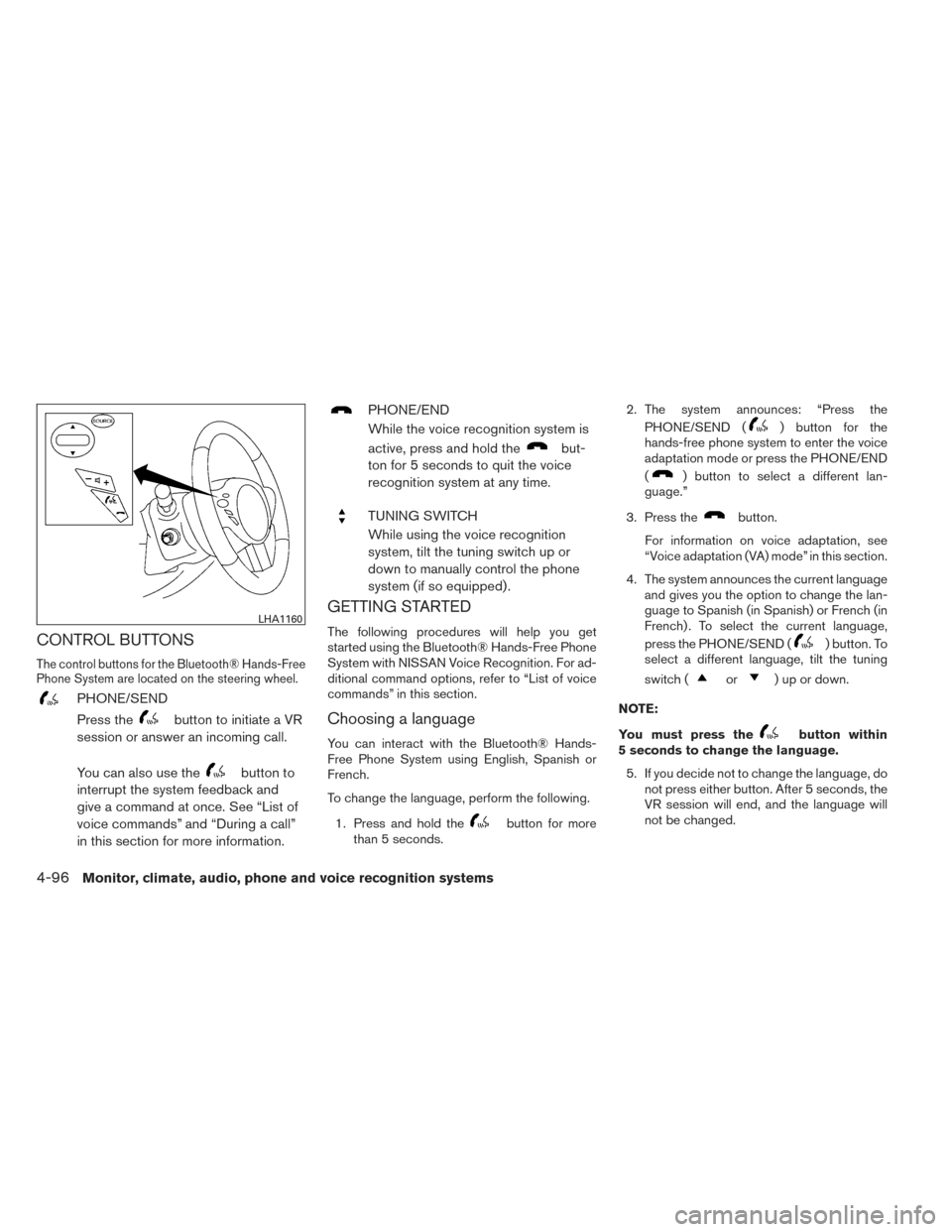
CONTROL BUTTONS
The control buttons for the Bluetooth® Hands-Free
Phone System are located on the steering wheel.
PHONE/SEND
Press the
button to initiate a VR
session or answer an incoming call.
You can also use the
button to
interrupt the system feedback and
give a command at once. See “List of
voice commands” and “During a call”
in this section for more information.
PHONE/END
While the voice recognition system is
active, press and hold the
but-
ton for 5 seconds to quit the voice
recognition system at any time.
TUNING SWITCH
While using the voice recognition
system, tilt the tuning switch up or
down to manually control the phone
system (if so equipped) .
GETTING STARTED
The following procedures will help you get
started using the Bluetooth® Hands-Free Phone
System with NISSAN Voice Recognition. For ad-
ditional command options, refer to “List of voice
commands” in this section.
Choosing a language
You can interact with the Bluetooth® Hands-
Free Phone System using English, Spanish or
French.
To change the language, perform the following.
1. Press and hold the
button for more
than 5 seconds. 2. The system announces: “Press the
PHONE/SEND (
) button for the
hands-free phone system to enter the voice
adaptation mode or press the PHONE/END
(
) button to select a different lan-
guage.”
3. Press the
button.
For information on voice adaptation, see
“Voice adaptation (VA) mode” in this section.
4. The system announces the current language and gives you the option to change the lan-
guage to Spanish (in Spanish) or French (in
French) . To select the current language,
press the PHONE/SEND (
) button. To
select a different language, tilt the tuning
switch (
or) up or down.
NOTE:
You must press the
button within
5 seconds to change the language.
5. If you decide not to change the language, do not press either button. After 5 seconds, the
VR session will end, and the language will
not be changed.
LHA1160
4-96Monitor, climate, audio, phone and voice recognition systems
“Connect Phone”
NOTE:
The Add Phone command is not available
when the vehicle is moving.
Main Menu“Connect Phone”“Add Phone”
�A
“Select Phone”�B
“Delete Phone”�C
“Turn Bluetooth OFF”�D
Use the Connect Phone commands to manage
the phones connecting to the vehicle or to enable
the Bluetooth® function on the vehicle.
“Add Phone”
�A
Use the Add Phone command to add a phone to
the vehicle. See “Connecting procedure” in this
section for more information.
“Select Phone”
�B
Use the Select Phone command to select from a
list of phones connected to the vehicle. The sys-
tem will list the names assigned to each phone
and then prompt you for the phone you wish to
select. Only one phone can be active at a time. “Delete Phone”
�C
Use the Delete Phone command to delete a
phone that is connected to the vehicle. The sys-
tem will list the names assigned to each phone
and then prompt you for the phone you wish to
delete. Deleting a phone from the vehicle will also
delete that phonebook for that phone.
“Turn Bluetooth OFF”
�D
Use the Turn Bluetooth OFF command to prevent
a wireless connection to your phone.
VOICE ADAPTATION (VA) MODE
Voice Adaptation allows up to two out-of-dialect
users to train the system to improve recognition
accuracy. By repeating a number of commands,
the users can create a voice model of their own
voice that is stored in the system. The system is
capable of storing a different voice adaptation
model for each connected phone.
Training procedure
The procedure for training a voice is as follows.
1. Position the vehicle in a reasonably quiet outdoor location.
2. Sit in the driver’s seat with the engine run- ning, the parking brake on, and the transmis-
sion in P (Park) . 3. Press and hold the
button for more
than 5 seconds.
4. The system announces: “Press the PHONE/SEND (
) button for the
hands-free phone system to enter the voice
adaptation mode or press the PHONE/END
(
) button to select a different lan-
guage.”
5. Press the
button.
For information on selecting a different lan-
guage, see “Choosing a language” in this
section.
6. Voice memory A or memory B is selected automatically. If both memory locations are
already in use, the system will prompt you to
overwrite one. Follow the instructions pro-
vided by the system.
7. When preparation is complete and you are ready to begin, press the
button.
8. The VA mode will be explained. Follow the instructions provided by the system.
9. When training is finished, the system will tell you an adequate number of phrases have
been recorded.
4-102Monitor, climate, audio, phone and voice recognition systems