2014 NISSAN JUKE radio
[x] Cancel search: radioPage 204 of 402
on, pushing the ON·OFF button turns the system
off.
Turn the VOL control knob to adjust the volume.
Adjusting tone quality and speaker bal-
ance:
To adjust Bass, Treble, Balance and Fade, push
the Audio control knob. When the display shows
the setting you want to change (Bass, Treble,
Balance and Fade) , rotate the Audio control
knob to set the desired setting. For the other
setting methods, see “How to use touch screen”
(P.4-4) .
This vehicle has some sound effect functions as
follows:
.Speed Volume
For more details, see “How to use the SETUP
button” (P.4-6).
Adjusting AUX level:
The volume level of incoming sound can be
selected from “Quiet”, “Medium” and “Loud”
when an auxiliary device is connected to the
system. For more details, see “How to use the
SETUP button” (P.4-6) .
Switching the display:
Pushing the AUX button will switch the displays
between USB/iPod
®and AUX.
FM-AM-SAT radio operation
When the radio band select button is pushed
while the ignition switch is in the ACC or ON
position, the radio will come on at the channel
last played.
The last channel played will also come on when
the ON·OFF button is pushed to ON.
If another audio source is playing when the radio
band select button is turned to ON, the audio
source will automatically be turned off and the
last radio channel played will come on.
When the stereo broadcast signal is weak, the
radio will automatically change from stereo to
monaural reception.
FM·AM radio band select:
Pushing the FM·AM radio band select button will
change the band as follows:
AM ?FM1 ?FM2 ?AM
SiriusXM Satellite Radio band se-
lect:
Pushing the XM radio band select button will
change the band as follows:
XM1 ?XM2 ?XM3 ?XM1
The satellite radio is not available in Alaska,
Hawaii and Guam. TUNE (Tuning):
. For AM and FM radio
Turn the TUNE knob for manual tuning.
. For SiriusXM Satellite Radio
Turn the TUNE knob to seek channels from
all of the categories when any category is
not selected.
SEEK tuning:
. For AM and FM radio
Push the SEEK/CATEGORY button
orto tune from low to high or high to low
frequencies and to stop at the next broad-
casting station.
. For SiriusXM Satellite Radio
Push the SEEK/CATEGORY button
orto tune to the first channel of the next or
previous category.
Tuning with the touch screen (AM and FM
radio):
When in AM or FM mode, the radio can be
tuned using the touch screen. To bring up the
visual tuner, touch the “Tune” key on the lower
right corner of the screen. A screen appears
with a bar running from low frequencies on the
left to high frequencies on the right. Touch the
screen at the location of the frequency you wish
to tune and the station will change to that
Heater, air conditioner, audio and phone systems4-49
Page 205 of 402
4-50Heater, air conditioner, audio and phone systems
frequency. To return to the regular radio display
screen, touch the “OK” key.
toStation memory operations:
12 stations/channels can be set for the FM band
(6 each for FM1 and FM2) , 18 for SiriusXM
Satellite Radio (6 each for XM1, XM2 and XM3)
and 6 stations can be set for the AM band.
1. Choose the radio band using the radio band select button.
2. Tune to the desired station/channel using the SEEK/CATEGORY button or the TUNE
knob.
3. Push and hold the desired station preset button
tountil the beep sound is
heard.
4. The station indicator will then come on and the sound will resume. Memorizing is now
complete.
5. Other buttons can be set in the same manner.
If the battery cable is disconnected, or if the fuse
opens, the radio memory will be erased. In that
case, reset the desired stations/channels.
Channels (SiriusXM Satellite Radio):
When the SiriusXM Satellite Radio is being
played, select “Channels” key to display a list of
channels. Select a preferred channel from the list to change to that channel.
Categories (SiriusXM Satellite Radio):
When the SiriusXM Satellite Radio is being
played, select “Categories” key to display a list
of channels. Select a preferred channel from the
list to display options within that category.
Compact Disc (CD) player operation
Place the ignition switch in the ACC or ON
position and insert the Compact Disc (CD) into
the slot with the label side facing up. The CD will
be guided automatically into the slot and start
playing.
If the radio is already operating, it will auto-
matically turn off and the CD will play.
If the system has been turned off while the CD
was playing, pushing the ON·OFF button will
start the CD.
Do not use 3.1 in (8 cm) discs.
PLAY:
When the CD button is pushed with the system
off and the CD loaded, the system will turn on
and the CD will start to play.
When the CD button is pushed with the CD
loaded and the radio playing, the radio will
automatically be turned off and the CD will start
to play. While listening to a CD or an MP3/WMA CD,
certain text may be displayed (when a CD
encoded with text is being used). Depending on
how the CD or MP3/WMA CD is encoded, the
text is displayed listing the artist, album and
song title.
Next/Previous Track and Fast
Forward/Rewind:
When the
orbutton is pushed for more
than 1.5 seconds while the CD is being played,
the CD will play while fast forwarding or
rewinding. When the button is released, the
CD will return to normal play speed.
When the
orbutton is pushed for less
than 1.5 seconds while the CD is being played,
the next track or the beginning of the current
track on the CD will be played.
When the rewind button is pushed for less than
1.5 seconds within 3 seconds after the current
track starts playing, the previous track will be
played.
Page 212 of 402
JVH0738X
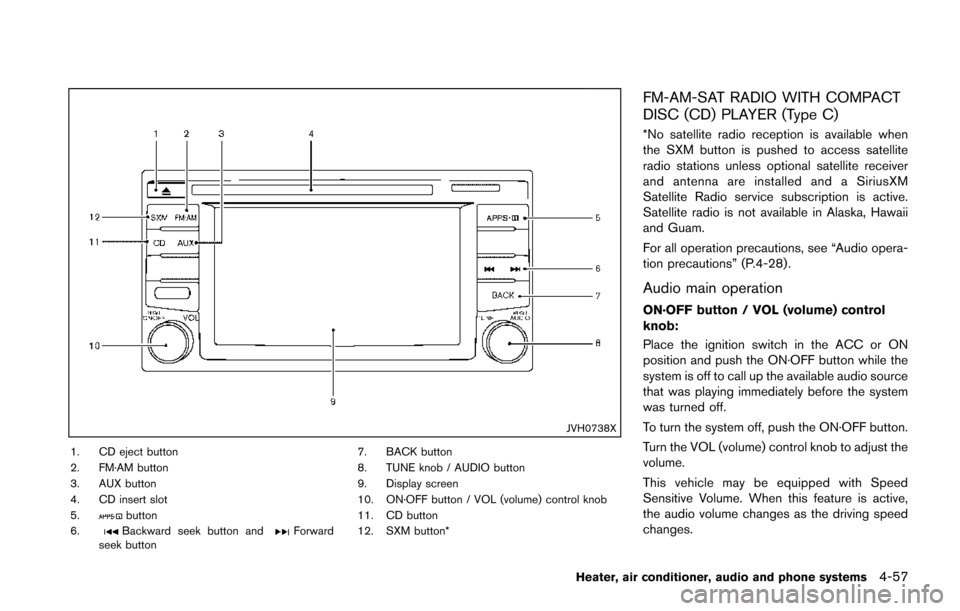
1. CD eject button
2. FM·AM button
3. AUX button
4. CD insert slot
5.
button
6.Backward seek button andForward
seek button 7. BACK button
8. TUNE knob / AUDIO button
9. Display screen
10. ON·OFF button / VOL (volume) control knob
11. CD button
12. SXM button*
FM-AM-SAT RADIO WITH COMPACT
DISC (CD) PLAYER (Type C)
*No satellite radio reception is available when
the SXM button is pushed to access satellite
radio stations unless optional satellite receiver
and antenna are installed and a SiriusXM
Satellite Radio service subscription is active.
Satellite radio is not available in Alaska, Hawaii
and Guam.
For all operation precautions, see “Audio opera-
tion precautions” (P.4-28) .
Audio main operation
ON·OFF button / VOL (volume) control
knob:
Place the ignition switch in the ACC or ON
position and push the ON·OFF button while the
system is off to call up the available audio source
that was playing immediately before the system
was turned off.
To turn the system off, push the ON·OFF button.
Turn the VOL (volume) control knob to adjust the
volume.
This vehicle may be equipped with Speed
Sensitive Volume. When this feature is active,
the audio volume changes as the driving speed
changes.
Heater, air conditioner, audio and phone systems4-57
Page 213 of 402
4-58Heater, air conditioner, audio and phone systems
Audio settings:
1. push the
button.
2. Touch the “Settings” key.
3. Touch the “Audio” key. Use the touch-screen to adjust the following
items to the desired setting:
.Bass:Adjusts the bass to the desired level.
.Treble:
Adjusts the treble to the desired level.
.Balance:Adjusts the balance to the desired level.
Balance adjusts the sound level between
the left and right speakers.
.Fade:Adjusts the fade to the desired level.
Fade adjusts the sound level between
the front and rear speakers.
.Speed Sensitive Vol.:Adjusts the speed sensitive volume
function, which increases the volume of
the audio system as the speed of the
vehicle increases. Set to “OFF” to dis-
able the feature. The higher the setting,
the more the volume increases in relation
to vehicle speed.
.AUX Volume Level:Controls the volume level of incoming
sound when an auxiliary device is con- nected to the system. Available options
are Low (Quiet) , Medium, and High
(Loud).
Bass, treble, balance and fade can also be
adjusted by pushing the AUDIO control knob
and turning it to select the item to adjust. When
the desired item is shown on the display, turn the
tuning to adjust and then push the AUDIO
button until the display returns to the main audio
screen. If the button is not pushed for approxi-
mately 10 seconds, the radio or CD display will
automatically reappear.
SXM settings:
To view the SXM settings:
1. Push the
button.
2. Touch the “Settings” key.
3. Touch the “SXM” key.
The signal strength, activation status and other
information are displayed on the screen.
FM/AM/SAT radio operation
FM·AM button:
Push the FM·AM button to change the band as
follows:
AM ?FM1 ?FM2 ?AM
If another audio source is playing when the
FM·AM button is pushed, the audio source
playing will automatically be turned off and the
last radio station played will begin playing.
The FM stereo indicator (ST) is shown on the
screen during FM stereo reception. When the
stereo broadcast signal is weak, the radio
automatically changes from stereo to monaural
reception.
SXM band select:
Pushing the SXM button will change the band
as follows:
SXM1* ?SXM2* ?SXM3* ?SXM1*
(satellite, if so equipped)
When the SXM button is pushed while the
ignition switch is in the ACC or ON position, the
radio will come on at the last station played.
The last station played will also come on when
the ON·OFF button is pushed.
*When the SXM button is pushed, the satellite
radio mode will be skipped unless an optional
satellite receiver and antenna are installed and a
Page 214 of 402
SiriusXM Satellite Radio service subscription is
active. Satellite radio is not available in Alaska,
Hawaii and Guam.
If a compact disc is playing when the SXM
button is pushed, the compact disc will auto-
matically be turned off and the last radio station
played will come on.
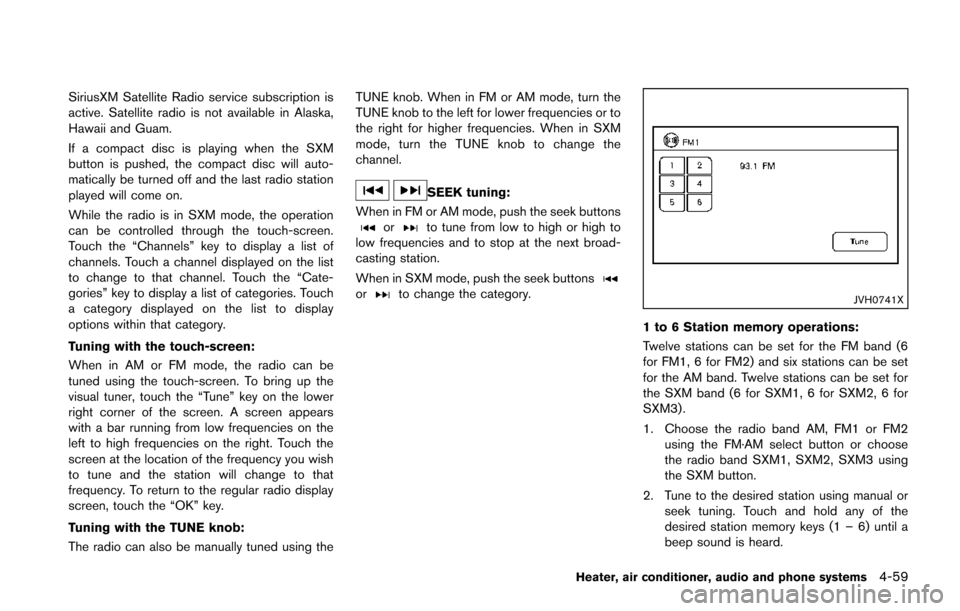
While the radio is in SXM mode, the operation
can be controlled through the touch-screen.
Touch the “Channels” key to display a list of
channels. Touch a channel displayed on the list
to change to that channel. Touch the “Cate-
gories” key to display a list of categories. Touch
a category displayed on the list to display
options within that category.
Tuning with the touch-screen:
When in AM or FM mode, the radio can be
tuned using the touch-screen. To bring up the
visual tuner, touch the “Tune” key on the lower
right corner of the screen. A screen appears
with a bar running from low frequencies on the
left to high frequencies on the right. Touch the
screen at the location of the frequency you wish
to tune and the station will change to that
frequency. To return to the regular radio display
screen, touch the “OK” key.
Tuning with the TUNE knob:
The radio can also be manually tuned using theTUNE knob. When in FM or AM mode, turn the
TUNE knob to the left for lower frequencies or to
the right for higher frequencies. When in SXM
mode, turn the TUNE knob to change the
channel.
SEEK tuning:
When in FM or AM mode, push the seek buttons
orto tune from low to high or high to
low frequencies and to stop at the next broad-
casting station.
When in SXM mode, push the seek buttons
orto change the category.JVH0741X
1 to 6 Station memory operations:
Twelve stations can be set for the FM band (6
for FM1, 6 for FM2) and six stations can be set
for the AM band. Twelve stations can be set for
the SXM band (6 for SXM1, 6 for SXM2, 6 for
SXM3) .
1. Choose the radio band AM, FM1 or FM2 using the FM·AM select button or choose
the radio band SXM1, SXM2, SXM3 using
the SXM button.
2. Tune to the desired station using manual or seek tuning. Touch and hold any of the
desired station memory keys (1 – 6) until a
beep sound is heard.
Heater, air conditioner, audio and phone systems4-59
Page 215 of 402
4-60Heater, air conditioner, audio and phone systems
3. The channel indicator will then come on andthe sound will resume. Programming is now
complete.
4. Other keys can be set in the same manner.
If the battery cable is disconnected or if the fuse
opens, the radio memory will be canceled. In
that case, reset the desired stations.
Presets can also be selected by touching the
desired preset number on the screen.
Compact Disc (CD) player operation
If the radio is already operating, it automatically
turns off and the compact disc begins to play.
CD button:
When the CD button is pushed with the system
off and the compact disc loaded, the system will
turn on and the compact disc will start to play.
When the CD button is pushed with a compact
disc loaded and the radio playing, the radio will
automatically be turned off and the compact
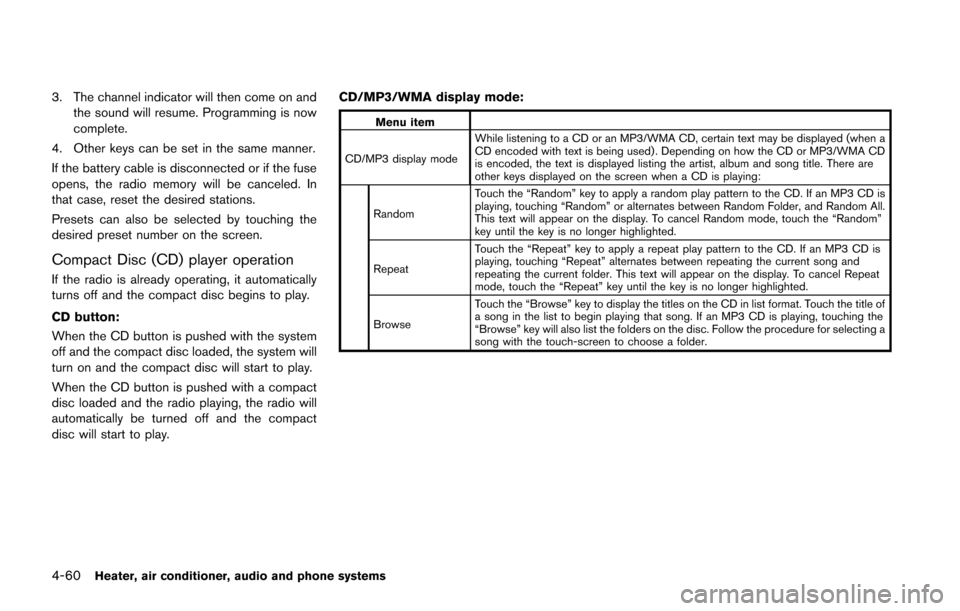
disc will start to play. CD/MP3/WMA display mode:
Menu item
CD/MP3 display mode While listening to a CD or an MP3/WMA CD, certain text may be displayed (when a
CD encoded with text is being used) . Depending on how the CD or MP3/WMA CD
is encoded, the text is displayed listing the artist, album and song title. There are
other keys displayed on the screen when a CD is playing:
Random Touch the “Random” key to apply a random play pattern to the CD. If an MP3 CD is
playing, touching “Random” or alternates between Random Folder, and Random All.
This text will appear on the display. To cancel Random mode, touch the “Random”
key until the key is no longer highlighted.
Repeat Touch the “Repeat” key to apply a repeat play pattern to the CD. If an MP3 CD is
playing, touching “Repeat” alternates between repeating the current song and
repeating the current folder. This text will appear on the display. To cancel Repeat
mode, touch the “Repeat” key until the key is no longer highlighted.
Browse Touch the “Browse” key to display the titles on the CD in list format. Touch the title of
a song in the list to begin playing that song. If an MP3 CD is playing, touching the
“Browse” key will also list the folders on the disc. Follow the procedure for selecting a
song with the touch-screen to choose a folder.
Page 224 of 402
.A new disc may be rough on the inner and
outer edges. Remove the rough edges by
rubbing the inner and outer edges with the
side of a pen or pencil as illustrated.
USB memory
.Do not touch the terminal portion of the USB
memory.
. Do not place heavy objects on the USB
memory.
. Do not store the USB memory in very humid
locations.
. Do not expose the USB memory to direct
sunlight.
. Do not spill any liquids on the USB memory.
Refer to the USB memory Owner’s Manual for
the details.
SAA3383
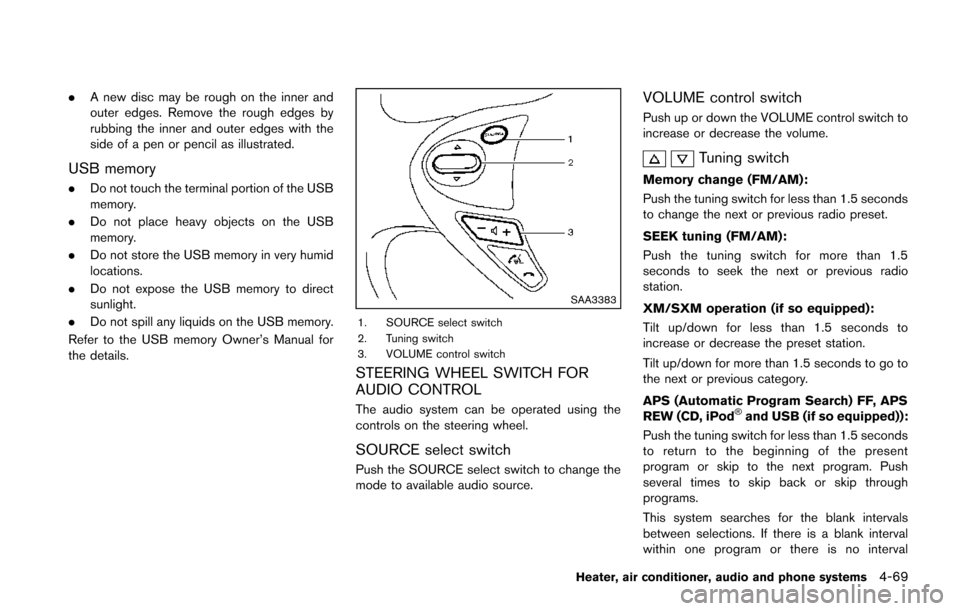
1. SOURCE select switch
2. Tuning switch
3. VOLUME control switch
STEERING WHEEL SWITCH FOR
AUDIO CONTROL
The audio system can be operated using the
controls on the steering wheel.
SOURCE select switch
Push the SOURCE select switch to change the
mode to available audio source.
VOLUME control switch
Push up or down the VOLUME control switch to
increase or decrease the volume.
Tuning switch
Memory change (FM/AM):
Push the tuning switch for less than 1.5 seconds
to change the next or previous radio preset.
SEEK tuning (FM/AM):
Push the tuning switch for more than 1.5
seconds to seek the next or previous radio
station.
XM/SXM operation (if so equipped):
Tilt up/down for less than 1.5 seconds to
increase or decrease the preset station.
Tilt up/down for more than 1.5 seconds to go to
the next or previous category.
APS (Automatic Program Search) FF, APS
REW (CD, iPod
®and USB (if so equipped)):
Push the tuning switch for less than 1.5 seconds
to return to the beginning of the present
program or skip to the next program. Push
several times to skip back or skip through
programs.
This system searches for the blank intervals
between selections. If there is a blank interval
within one program or there is no interval
Heater, air conditioner, audio and phone systems4-69
Page 226 of 402
This vehicle is equipped with Smartphone
Integration technology. This allows many com-
patible Smartphone applications to be displayed
and easily controlled through the vehicle’s
touchscreen.
NOTE:
A compatible smartphone and registration
is required to use mobile applications or to
access connected features of certain vehi-
cle applications.
REGISTERING WITH NISSANCON-
NECTTMAPP
To use the Smartphone Integration feature, it is
necessary for the user to register. In order to
register, visit the NissanConnect
TMwebsite,
www.nissanusa.com/connect/ and sign up or
create an account through the prompts on the
NissanConnect
TMApp. Once registered, down-
load the NissanConnectTMApp from your
compatible phone’s application download
source and then log into the application. If you
already have an account created through the
App, please log in.
CONNECT PHONE
To use this feature, a compatible smartphone
must be connected via Bluetooth®or USB to the
vehicle. For more information on connecting your
phone, see “Bluetooth
®Hands-Free Phone
System (Type B)” (P.4-85) .
NOTE:
. For Apple iPhones, NissanConnect
TM
Apps REQUIRES the phone to be
plugged in via USB.
. For Android phones, NissanConnect
TM
Apps REQUIRES the phone to be
paired via Bluetooth.
APPLICATION DOWNLOAD
Once connected, the NissanConnectTMApp will
search your phone to determine which compa-
tible applications are currently installed. The
user will then choose which apps they want to
bring into their vehicle from the list of apps
within the “Manage My Apps” section of the
NissanConnect
TMApp on their smartphone.
The vehicle will then download the in-vehicle
interface for each of these compatible applica-
tions. Once downloaded, the user can access
their selected smartphone applications through
the vehicle touchscreen. For more information
on application availability see www.nissanusa.
com/connect/ When installing a car phone or a CB radio in
your vehicle, be sure to observe the following
precautions, otherwise the new equipment may
adversely affect the electronic control modules
and electronic control system harness.
WARNING
.
A cellular phone should not be used
for any purpose while driving so full
attention may be given to vehicle
operation. Some jurisdictions prohi-
bit the use of cellular phones while
driving.
. If you must make a call while your
vehicle is in motion, the hands-free
cellular phone operational mode (if
so equipped) is highly recom-
mended. Exercise extreme caution
at all times so full attention may be
given to vehicle operation.
. If a conversation in a moving vehicle
requires you to take notes, pull off
the road to a safe location and stop
your vehicle before doing so.
Heater, air conditioner, audio and phone systems4-71
NISSANCONNECTTMAPP
SMARTPHONE INTEGRATION (if so
equipped) CAR PHONE OR CB RADIO