2014 NISSAN ALTIMA wheel
[x] Cancel search: wheelPage 268 of 428
●You can cancel a command when the sys-
tem is waiting for a response by saying,
“Cancel” or “Quit.” The system announces
“Cancel” and ends the VR session. You can
also press and hold the
button on the
steering wheel for 5 seconds at any time to
end the VR session. Whenever the VR ses-
sion is cancelled, a double beep is played to
indicate you have exited the system.
● If you want to adjust the volume of the voice
feedback, press the volume control switches
(+ or -) on the steering wheel while being
provided with feedback. You can also use
the radio volume control knob.
Voice Prompt Interrupt
In most cases you can interrupt the voice feed-
back to speak the next command by pressing
the
button on the steering wheel. After
interrupting the system, wait for a beep before
speaking your command.
One Shot Call
To use the system faster, you may speak the
second level commands with the main menu
command on the main menu. For example, press
the
button and after the tone say, “Call
Redial”.
CONTROL BUTTONS
The control buttons for the Bluetooth® Hands-
Free Phone System are located on the steering
wheel.
PHONE/SEND
Press the
button to initiate
a VR session or answer an incom-
ing call. You can also use the
button
to interrupt the system feedback
and give a command at once. See
“List of voice commands” and
“During a call” in this section for
more information.
PHONE/END
While the voice recognition sys-
tem is active, press and hold
the
button for 5 seconds to
quit the voice recognition system
at any time.
Tuning switch
While using the voice recognition
system, tilt the tuning switch up or
down to manually control the
phone system.
LHA2273
Monitor, climate, audio, phone and voice recognition systems4-99
Page 271 of 428
●Missed Calls
Speak this command to list the last five
missed calls to the vehicle. If the call is from
an entry in the phonebook, the name will be
displayed. Otherwise, the phone number of
the missed call will be displayed.
Say “Dial” to call the number or “Send Text”
to send a text message to that number. Say
“Next Entry” or “Previous Entry” to move
through the list of missed calls.
● Outgoing Calls
Speak this command to list the last five
outgoing calls from the vehicle. If the call
was to an entry in the phonebook, the name
will be displayed. Otherwise, the phone
number of the outgoing call will be dis-
played.
Say “Dial” to call the number or “Send Text”
to send a text message to that number. Say
“Next Entry” or “Previous Entry” to move
through the list of outgoing calls.
● Redial
Speak this command to call the last number
dialed. ●
Call Back
Speak this command to call the number of
the last incoming call to the vehicle.
“Messaging”
Speak this command to access text messaging
functions. For more information on these com-
mands, see “Text messaging” in this section.
“Show Applications”
Speak this command to display list of smart-
phone apps available.
NOTE:
Compatible smartphone and registration
necessary to access applications. See “Nis-
sanConnect Mobile App Smart Phone Inte-
gration” in this section for more informa-
tion
“Select Phone”
Speak this command to select a phone to use
from a list of those phones connected to the
vehicle.
MAKING A CALL
To make a call from a phone connected to the
vehicle’s Bluetooth® Hands-Free Phone Sys-
tem:
1. Press the
button on the steering
wheel.
2. The system will prompt you for a command. Say “Call”.
3. Select one of the available voice commands to continue:
● “(A Name)” — Speak the name of a phone-
book entry to place a call to that entry. The
system will respond with the name it inter-
preted from your command and will prompt
you to confirm that the name is correct. Say
“Yes” to initiate the call or “No” to hear an-
other name from the phonebook.
4-102Monitor, climate, audio, phone and voice recognition systems
Page 274 of 428
The text message, sender and delivery time are
shown on the screen. Use the tuning switch on
the steering wheel to scroll through all text mes-
sages if more than one are available. Press
the
button to exit the text message screen.
Press the
button to access the following
options for replying to the text message:
● Call Back
Speak this command to call the sender of
the text message using the Bluetooth®
Hands-Free Phone System.
● Send Text
Speak this command to send a text message
response to the sender of the text message.
● Read Text
Speak this command to read the text mes-
sage again.
● Previous Text
Speak this command to move to the previ-
ous text message (if available) .
● Next Text
Speak this command to move to the next text
message (if available) .
NOTE:
Text messages are only displayed if the
vehicle speed is less than 5 mph (8 km/h).
BLUETOOTH® SETTINGS
To access and adjust the settings for the
Bluetooth® Hands-Free Phone System: 1. Press the SETTING button.
2. Use the TUNE/SCROLL knob to select “Bluetooth” and then press the ENTER but-
ton:
● Bluetooth
Select “On” or “Off” to turn the vehicle’s
Bluetooth® system on or off.
● Add Phone or Device
To connect a phone to the system, see
“Connecting procedure” in this section. ●
Delete Phone or Device
Select to delete a phone from the displayed
list. The system will ask to confirm before
deleting the phone.
● Replace Phone
Select to replace a phone from the displayed
list. When a selection is made, the system
will ask to confirm before proceeding. The
recorded phonebook for the phone being
deleted will be saved as long as the new
phone’s phonebook is the same as the old
phone’s phonebook.
● Select Phone or Device
Select to connect to a previously connected
phone from the displayed list.
● Phonebook Download
Select to turn on or off the automatic down-
load of a connected phone’s phonebook.
● Show Incoming Calls
Select “Driver Only” to have incoming call
information displayed only in the vehicle in-
formation display. Select “Both” to have in-
coming call information displayed in both the
vehicle information display and the center
display screen.
● Text Message
Select to turn on or off the vehicle’s text
messaging feature.
LHA2274
Monitor, climate, audio, phone and voice recognition systems4-105
Page 275 of 428
●New Text Sound
Select to adjust the volume of the sound that
plays when a new text is received by a phone
connected to the Bluetooth® Hands-Free
Phone System. The setting all the way to the
left indicates that the new text sound will be
muted.
● Show Incoming Text
Select “Driver Only” to have incoming text
messages displayed only in the vehicle infor-
mation display. Select “Both” to have incom-
ing text messages displayed in both the ve-
hicle information display and the center
display screen. Select “None” to have no
display of incoming text messages.
● Edit Custom Messages
Select to set a custom message that will be
available with the standard options when
sending a text message. To set a custom
message, send a text message to your own
phone number while the phone is connected
to the system. Three custom messages can
be set. Custom messages can only be set
while the vehicle is stationary. ●
Auto Reply
Select to turn on or off the Auto Reply func-
tion. When enabled, the vehicle will auto-
matically send a predefined text message to
the sender when a text message is received
while driving.
● Auto Reply Message
Select to choose the message that is sent
when the Auto Reply function is enabled.
Choose from “I’m Driving” or one of the three
custom messages stored in the system.
● Vehicle Signature On/Off
Select to choose whether or not the vehicle
signature is added to outgoing text mes-
sages from the vehicle. This message can-
not be changed or customized.
MANUAL CONTROL
While using the Voice Recognition system, it is
possible to select menu options by using the
steering wheel controls instead of speaking voice
commands. To activate manual control mode,
press the PHONE/SEND (
) button on the
steering wheel to access the phone menu and
then press either up or down on the tuning switch
(
). The manual control mode does not allow dialing a
phone number by digits. The user may select an
entry from the Phonebook or Recent Calls lists.
To reactivate Voice Recognition, exit the manual
control mode by pressing and holding the
PHONE/END (
) button. At that time, press-
ing the PHONE/SEND (
) button will start
the Hands Free Phone System.
4-106Monitor, climate, audio, phone and voice recognition systems
Page 278 of 428
2. this device must accept any interference,including interference that may cause unde-
sired operation of the device.
IC Regulatory information
– Operation is subject to the following two con- ditions: (1) this device may not cause interfer-
ence, and (2) this device must accept any
interference, including interference that may
cause undesired operation of the device.
– This Class B digital apparatus meets all re- quirements of the Canadian Interference-
Causing Equipment Regulations.
BLUETOOTH® is a
trademark owned by
Bluetooth SIG, Inc.
and licensed to
Bosch.
VOICE COMMANDS
You can use voice commands to operate various
Bluetooth® Hands-Free Phone System features
using the NISSAN Voice Recognition system. For
more details, see “NISSAN Voice Recognition
System” in this section.
Voice Prompt Interrupt
While using the voice recognition system, the
system voice can be interrupted to allow the user
to speak commands. While the system is speak-
ing, press the
button on the steering
wheel. The system voice will stop and a tone will
be heard. After the tone, speak desired command
(displayed on the touchscreen) .
One Shot Call
To use the system faster, you may speak the
second level commands with the main menu
command on the main menu. For example, press
the
button and after the tone say, “Call
Redial”.
CONNECTING PROCEDURE
NOTE:
The connecting procedure must be per-
formed when the vehicle is stationary. If the
vehicle starts moving during the procedure,
the procedure will be cancelled.
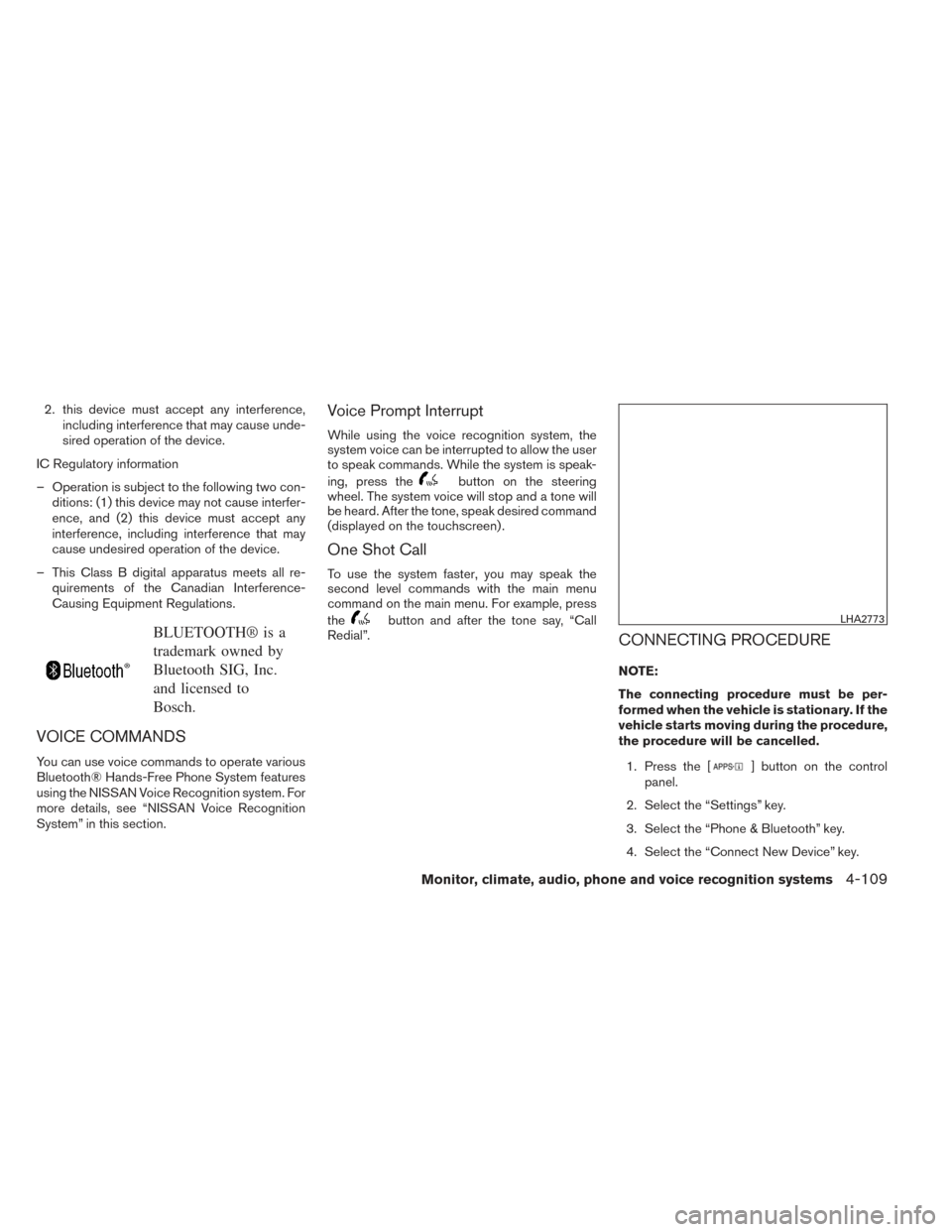
1. Press the [
] button on the control
panel.
2. Select the “Settings” key.
3. Select the “Phone & Bluetooth” key.
4. Select the “Connect New Device” key.
LHA2773
Monitor, climate, audio, phone and voice recognition systems4-109
Page 279 of 428
5. Initiate the connecting process from thehandset. The system will display the mes-
sage: “Is PIN XXXXXX displayed on your
Bluetooth device?”. If the PIN is displayed
on your Bluetooth® device, select “Yes” to
complete the pairing process.
For more information, see the Bluetooth® de-
vice’s Owner’s Manual.
VEHICLE PHONEBOOK
To access the vehicle phonebook:
1. Press the
button on the control panel.
2. Select the “Phonebook” key.
3. Choose the desired entry from the displayed list.
4. The number of the entry will be displayed on the screen. Touch the number to initiate di-
aling.
NOTE:
To scroll quickly through the list, touch the
“A-Z” key in the upper right corner of the
screen. Turn the TUNE/SCROLL knob to
choose a letter or number and then press
ENTER. The list will move to the first entry
that begins with that number or letter.
MAKING A CALL
To make a call, follow the procedure below: 1. Press the
button on the control panel.
The “Phone” screen will appear on the dis-
play.
2. Select one of the following options to make a call:
● “Phonebook”: Select the name from an entry
stored in the vehicle phonebook.
● “Call Lists”: Select the name from the in-
coming, outgoing or missed.
● “Redial”: Dial the last outgoing call from the
vehicle.
● “
”: Input the phone number manually
using a keypad displayed on the screen. For
information on how to use the touchscreen,
see “How to use the touchscreen” in this
section.
RECEIVING A CALL
When a call is placed to the connected phone,
the display will change to phone mode.
To accept the incoming call, either:
● Press the
button on the steering
wheel, or ●
Touch the
icon on the screen.
To reject the incoming call, either:
● Press the
button on the steering
wheel, or
● Touch the red phone icon on the screen.
DURING A CALL
While a call is active, the following options are
available on the screen:
● “Handset”
Select this option to switch control of the
phone call over to the handset.
● “Mute Mic.”
Select this option to mute the microphone.
Select again to unmute the microphone.
● Red phone (
) icon
Select to end the phone call.
ENDING A CALL
To end a phone call, select the red phone ()
icon on the screen or press the
button on
the steering wheel.
4-110Monitor, climate, audio, phone and voice recognition systems
Page 280 of 428
TEXT MESSAGING
WARNING
●Laws in some jurisdictions may restrict
the use of some of the applications and
features, such as social networking and
texting.
● Laws in some jurisdictions may restrict
the use of “Text-to-Speech”. Check lo-
cal regulations before using this
feature.
● Use the text messaging feature after
stopping your vehicle in a safe location.
If you have to use the feature while
driving, exercise extreme caution at all
times so full attention may be given to
vehicle operation.
● If you are unable to devote full attention
to vehicle operation while using the text
messaging feature, pull off the road to a
safe location and stop your vehicle.
The system allows for the sending and receiving
of text messages through the vehicle interface. Sending a text message:
1. Press the
button on the steering
wheel.
2. Say “Phone” after the tone.
3. Say “Send Text” after the tone.
4. The system will provide a list of available commands in order to determine the recipi-
ent of the text message. Choose from the
following:
● To (a name)
● Enter Number
● Missed Calls
● Incoming Calls
● Outgoing Calls
For more information about these options,
see “Voice commands” in this section. 5. Once a recipient is chosen, the system
prompts for which message to send. Nine
predefined messages are available as well
as three custom messages. To choose one
of the predefined messages, speak one of
the following after the tone:
● “Driving, can’t text”
● “Call me”
● “On my way”
● “Running late”
● “Okay”
● “Yes”
● “No”
● “Where are you?”
● “When?”
To send one of the custom messages, say
“Custom Messages”. If more than one cus-
tom message is stored, the system will
prompt for the number of the desired cus-
tom message. For more information on set-
ting and managing custom text messages,
see “Bluetooth® settings” in this section.
Monitor, climate, audio, phone and voice recognition systems4-111
Page 281 of 428
Reading a received text message:1. Press the
button on the steering
wheel.
2. Say “Phone” after the tone.
3. Say “Read Text” after the tone.
The text message, sender and delivery time are
shown on the screen. Use the tuning switch to
scroll through all text messages if more than one
are available. Press the
button to exit the
text message screen. Press the
button to
access the following options for replying to the
text message:
● Call Back
Speak this command to call the sender of
the text message using the Bluetooth®
Hands-Free Phone System. ●
Send Text
Speak this command to send a text message
response to the sender of the text message.
● Read Text
Speak this command to read the text mes-
sage again.
● Previous Text
Speak this command to move to the previ-
ous text message (if available) .
● Next Text
Speak this command to move to the next text
message (if available) .
NOTE:
Text messages are only displayed if the
vehicle speed is less than 5 mph (8 km/h).
BLUETOOTH® SETTINGS
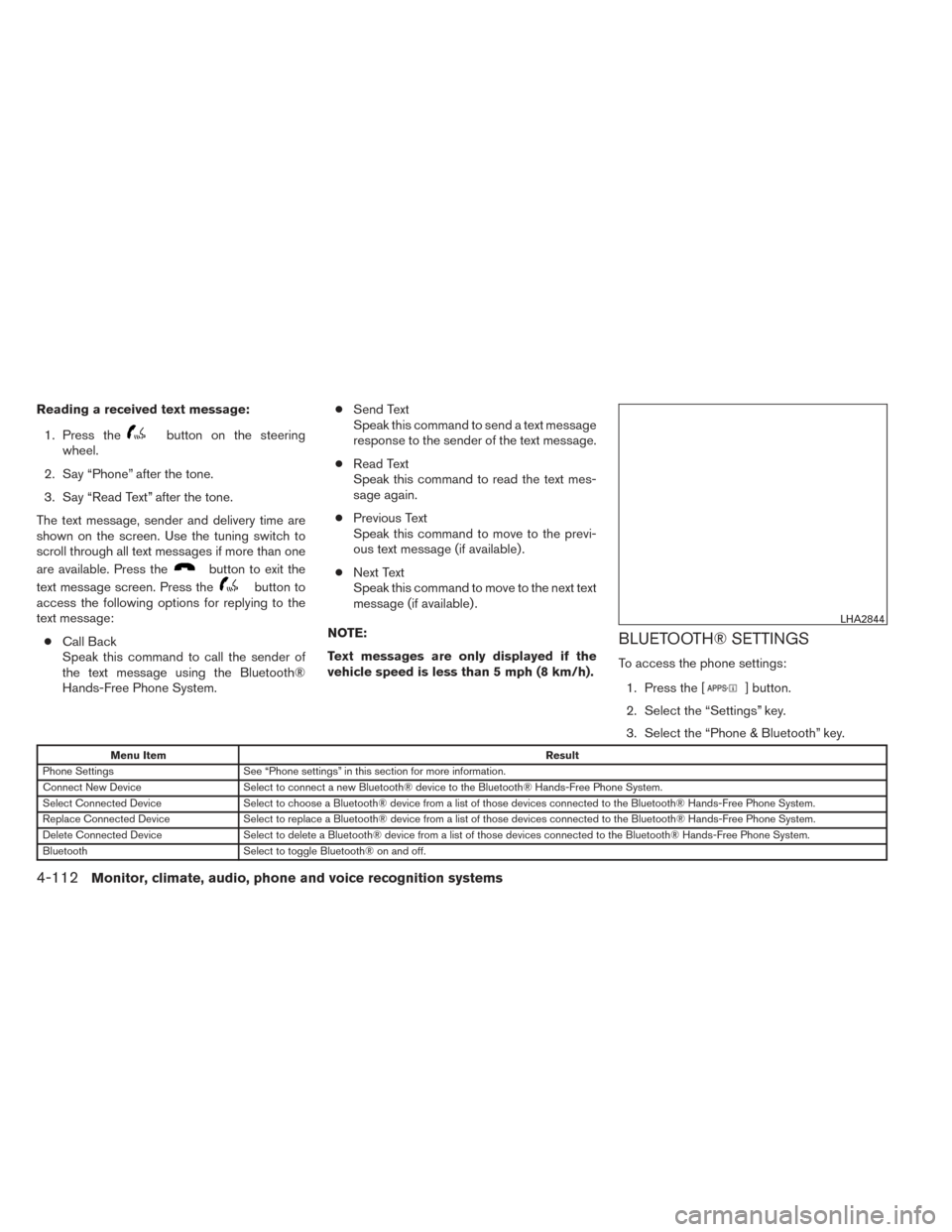
To access the phone settings: 1. Press the [
] button.
2. Select the “Settings” key.
3. Select the “Phone & Bluetooth” key.
Menu Item Result
Phone Settings See “Phone settings” in this section for more information.
Connect New Device Select to connect a new Bluetooth® device to the Bluetooth® Hands-Free Phone System.
Select Connected Device Select to choose a Bluetooth® device from a list of those devices connected to the Bluetooth® Hands-Free Phone System.
Replace Connected Device Select to replace a Bluetooth® device from a list of those devices connected to the Bluetooth® Hands-Free Phone System.
Delete Connected Device Select to delete a Bluetooth® device from a list of those devices connected to the Bluetooth® Hands-Free Phone System.
Bluetooth Select to toggle Bluetooth® on and off.
LHA2844
4-112Monitor, climate, audio, phone and voice recognition systems