2014 NISSAN 370Z COUPE bluetooth
[x] Cancel search: bluetoothPage 214 of 428
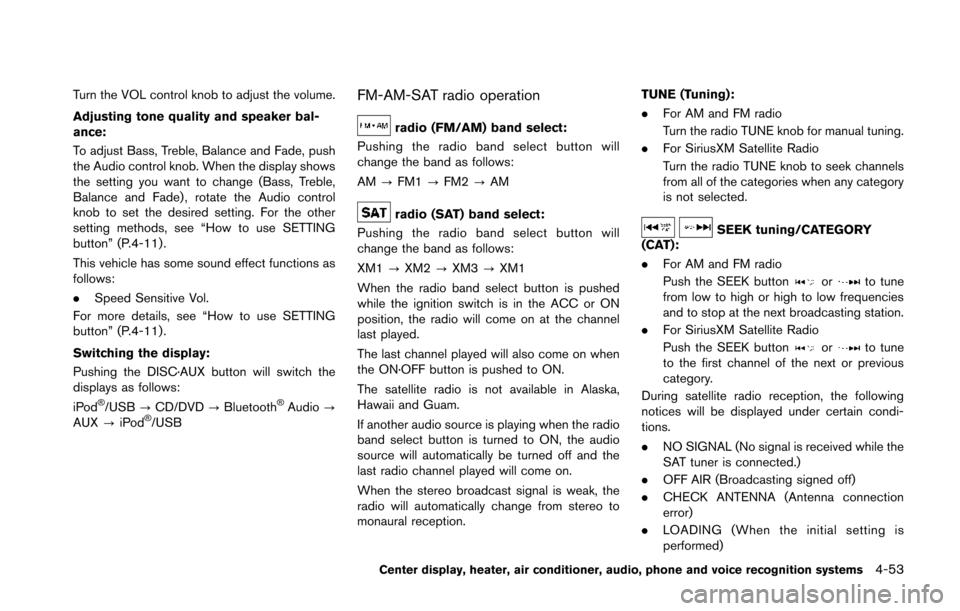
Turn the VOL control knob to adjust the volume.
Adjusting tone quality and speaker bal-
ance:
To adjust Bass, Treble, Balance and Fade, push
the Audio control knob. When the display shows
the setting you want to change (Bass, Treble,
Balance and Fade) , rotate the Audio control
knob to set the desired setting. For the other
setting methods, see “How to use SETTING
button” (P.4-11).
This vehicle has some sound effect functions as
follows:
.Speed Sensitive Vol.
For more details, see “How to use SETTING
button” (P.4-11).
Switching the display:
Pushing the DISC·AUX button will switch the
displays as follows:
iPod
®/USB ?CD/DVD ?Bluetooth®Audio ?
AUX ?iPod®/USB
FM-AM-SAT radio operation
radio (FM/AM) band select:
Pushing the radio band select button will
change the band as follows:
AM ?FM1 ?FM2 ?AM
radio (SAT) band select:
Pushing the radio band select button will
change the band as follows:
XM1 ?XM2 ?XM3 ?XM1
When the radio band select button is pushed
while the ignition switch is in the ACC or ON
position, the radio will come on at the channel
last played.
The last channel played will also come on when
the ON·OFF button is pushed to ON.
The satellite radio is not available in Alaska,
Hawaii and Guam.
If another audio source is playing when the radio
band select button is turned to ON, the audio
source will automatically be turned off and the
last radio channel played will come on.
When the stereo broadcast signal is weak, the
radio will automatically change from stereo to
monaural reception. TUNE (Tuning):
. For AM and FM radio
Turn the radio TUNE knob for manual tuning.
. For SiriusXM Satellite Radio
Turn the radio TUNE knob to seek channels
from all of the categories when any category
is not selected.SEEK tuning/CATEGORY
(CAT):
. For AM and FM radio
Push the SEEK button
orto tune
from low to high or high to low frequencies
and to stop at the next broadcasting station.
. For SiriusXM Satellite Radio
Push the SEEK button
orto tune
to the first channel of the next or previous
category.
During satellite radio reception, the following
notices will be displayed under certain condi-
tions.
. NO SIGNAL (No signal is received while the
SAT tuner is connected.)
. OFF AIR (Broadcasting signed off)
. CHECK ANTENNA (Antenna connection
error)
. LOADING (When the initial setting is
performed)
Center display, heater, air conditioner, audio, phone and voice recognition systems4-53
Page 224 of 428
SAA2504Example
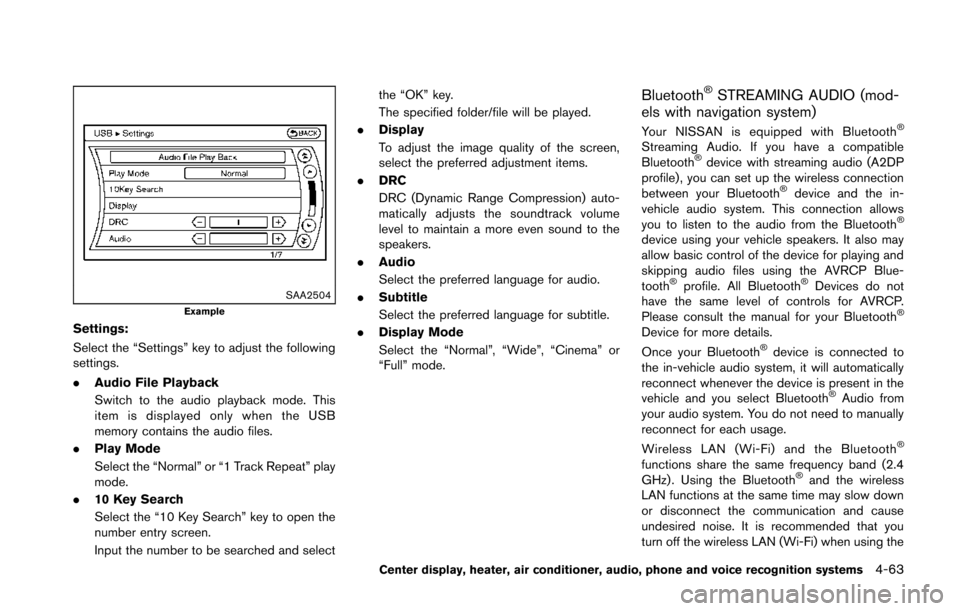
Settings:
Select the “Settings” key to adjust the following
settings.
.Audio File Playback
Switch to the audio playback mode. This
item is displayed only when the USB
memory contains the audio files.
. Play Mode
Select the “Normal” or “1 Track Repeat” play
mode.
. 10 Key Search
Select the “10 Key Search” key to open the
number entry screen.
Input the number to be searched and select the “OK” key.
The specified folder/file will be played.
. Display
To adjust the image quality of the screen,
select the preferred adjustment items.
. DRC
DRC (Dynamic Range Compression) auto-
matically adjusts the soundtrack volume
level to maintain a more even sound to the
speakers.
. Audio
Select the preferred language for audio.
. Subtitle
Select the preferred language for subtitle.
. Display Mode
Select the “Normal”, “Wide”, “Cinema” or
“Full” mode.
Bluetooth®STREAMING AUDIO (mod-
els with navigation system)
Your NISSAN is equipped with Bluetooth®
Streaming Audio. If you have a compatible
Bluetooth®device with streaming audio (A2DP
profile) , you can set up the wireless connection
between your Bluetooth
®device and the in-
vehicle audio system. This connection allows
you to listen to the audio from the Bluetooth
®
device using your vehicle speakers. It also may
allow basic control of the device for playing and
skipping audio files using the AVRCP Blue-
tooth
®profile. All Bluetooth®Devices do not
have the same level of controls for AVRCP.
Please consult the manual for your Bluetooth
®
Device for more details.
Once your Bluetooth®device is connected to
the in-vehicle audio system, it will automatically
reconnect whenever the device is present in the
vehicle and you select Bluetooth
®Audio from
your audio system. You do not need to manually
reconnect for each usage.
Wireless LAN (Wi-Fi) and the Bluetooth
®
functions share the same frequency band (2.4
GHz) . Using the Bluetooth®and the wireless
LAN functions at the same time may slow down
or disconnect the communication and cause
undesired noise. It is recommended that you
turn off the wireless LAN (Wi-Fi) when using the
Center display, heater, air conditioner, audio, phone and voice recognition systems4-63
Page 225 of 428
4-64Center display, heater, air conditioner, audio, phone and voice recognition systems
Bluetooth®functions.
Regulatory information
FCC Regulatory information:
.CAUTION: To maintain compliance with
FCC’s RF exposure guidelines, use only
the supplied antenna. Unauthorized antenna,
modification, or attachments could damage
the transmitter and may violate FCC regula-
tions.
. Operation is subject to the following two
conditions:
1) This device may not cause interference
and
2) This device must accept any interfer- ence, including interference that may
cause undesired operation of the device
IC Regulatory information:
. Operation is subject to the following two
conditions:
1) This device may not cause interference,
and
2) This device must accept any interfer- ence, including interference that may
cause undesired operation of the device.
. This Class B digital apparatus meets all
requirements of the Canadian Interference-
Causing Equipment Regulations. Bluetooth trademark:
Bluetooth®is a trademark owned
by Bluetooth SIG, Inc. and li-
censed to Clarion Co., Ltd.
SAA2505
Connecting procedure
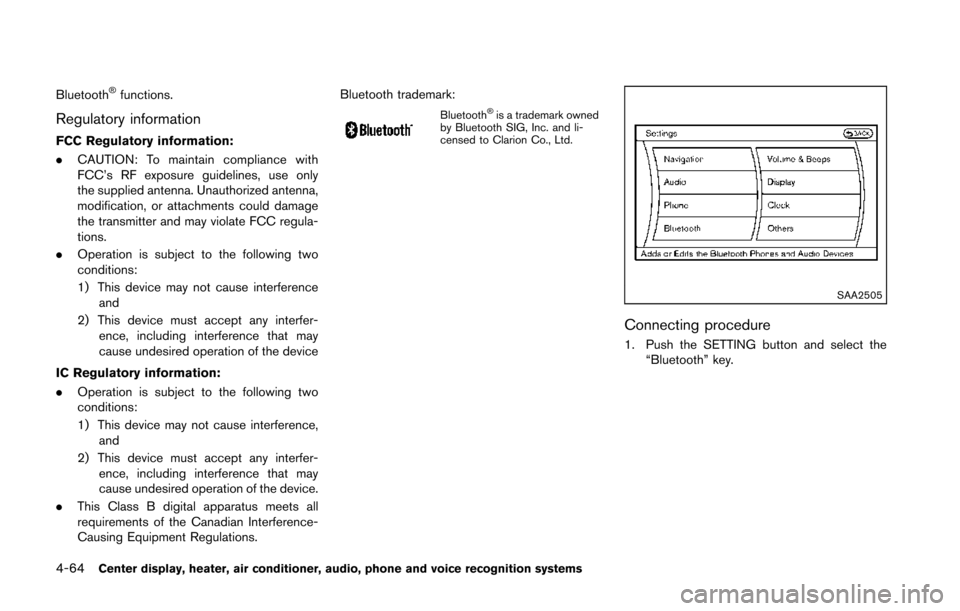
1. Push the SETTING button and select the
“Bluetooth” key.
Page 226 of 428
SAA2506
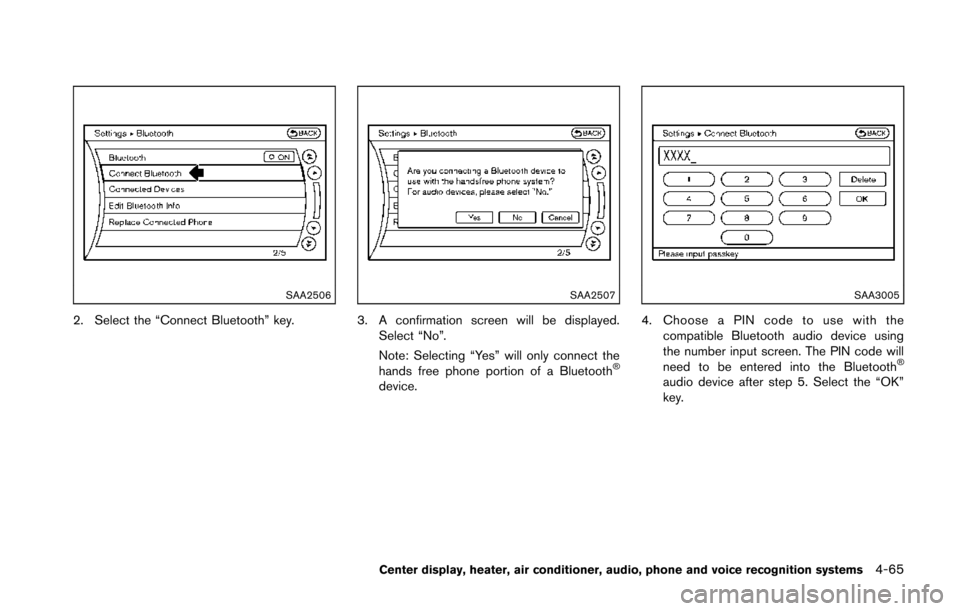
2. Select the “Connect Bluetooth” key.
SAA2507
3. A confirmation screen will be displayed.Select “No”.
Note: Selecting “Yes” will only connect the
hands free phone portion of a Bluetooth
®
device.
SAA3005
4. Choose a PIN code to use with thecompatible Bluetooth audio device using
the number input screen. The PIN code will
need to be entered into the Bluetooth
®
audio device after step 5. Select the “OK”
key.
Center display, heater, air conditioner, audio, phone and voice recognition systems4-65
Page 227 of 428
4-66Center display, heater, air conditioner, audio, phone and voice recognition systems
SAA3006
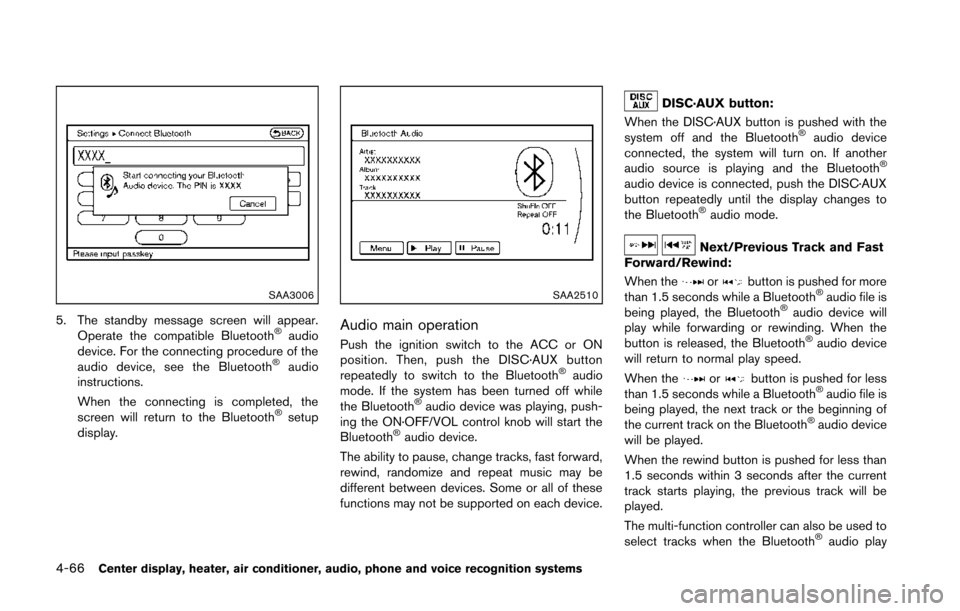
5. The standby message screen will appear.Operate the compatible Bluetooth®audio
device. For the connecting procedure of the
audio device, see the Bluetooth
®audio
instructions.
When the connecting is completed, the
screen will return to the Bluetooth
®setup
display.
SAA2510
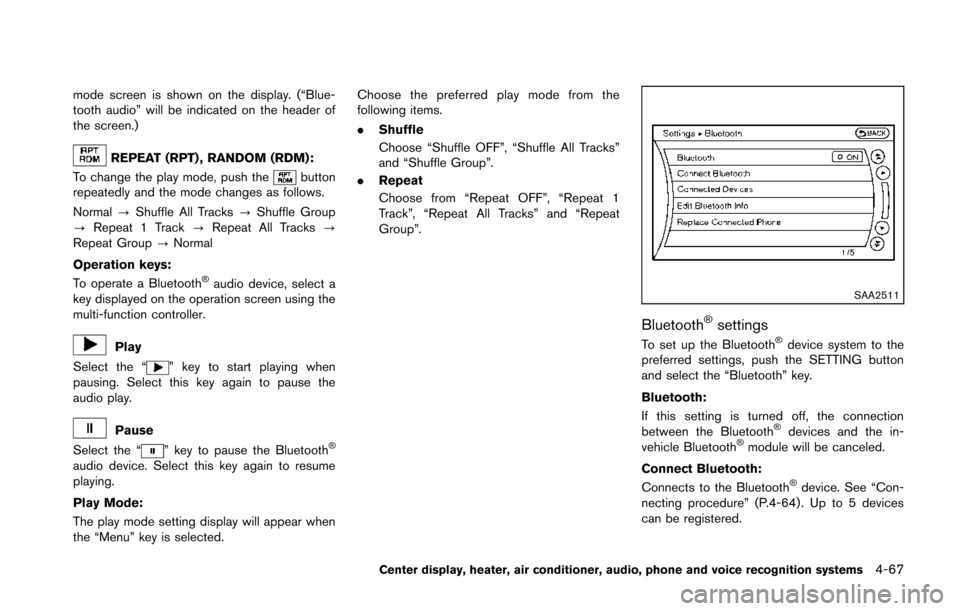
Audio main operation
Push the ignition switch to the ACC or ON
position. Then, push the DISC·AUX button
repeatedly to switch to the Bluetooth
®audio
mode. If the system has been turned off while
the Bluetooth
®audio device was playing, push-
ing the ON·OFF/VOL control knob will start the
Bluetooth
®audio device.
The ability to pause, change tracks, fast forward,
rewind, randomize and repeat music may be
different between devices. Some or all of these
functions may not be supported on each device.
DISC·AUX button:
When the DISC·AUX button is pushed with the
system off and the Bluetooth
®audio device
connected, the system will turn on. If another
audio source is playing and the Bluetooth
®
audio device is connected, push the DISC·AUX
button repeatedly until the display changes to
the Bluetooth
®audio mode.
Next/Previous Track and Fast
Forward/Rewind:
When the
orbutton is pushed for more
than 1.5 seconds while a Bluetooth®audio file is
being played, the Bluetooth®audio device will
play while forwarding or rewinding. When the
button is released, the Bluetooth
®audio device
will return to normal play speed.
When the
orbutton is pushed for less
than 1.5 seconds while a Bluetooth®audio file is
being played, the next track or the beginning of
the current track on the Bluetooth
®audio device
will be played.
When the rewind button is pushed for less than
1.5 seconds within 3 seconds after the current
track starts playing, the previous track will be
played.
The multi-function controller can also be used to
select tracks when the Bluetooth
®audio play
Page 228 of 428
mode screen is shown on the display. (“Blue-
tooth audio” will be indicated on the header of
the screen.)
REPEAT (RPT) , RANDOM (RDM):
To change the play mode, push the
button
repeatedly and the mode changes as follows.
Normal ?Shuffle All Tracks ?Shuffle Group
? Repeat 1 Track ?Repeat All Tracks ?
Repeat Group ?Normal
Operation keys:
To operate a Bluetooth
®audio device, select a
key displayed on the operation screen using the
multi-function controller.
Play
Select the “
” key to start playing when
pausing. Select this key again to pause the
audio play.
Pause
Select the “
” key to pause the Bluetooth®
audio device. Select this key again to resume
playing.
Play Mode:
The play mode setting display will appear when
the “Menu” key is selected. Choose the preferred play mode from the
following items.
.
Shuffle
Choose “Shuffle OFF”, “Shuffle All Tracks”
and “Shuffle Group”.
. Repeat
Choose from “Repeat OFF”, “Repeat 1
Track”, “Repeat All Tracks” and “Repeat
Group”.
SAA2511
Bluetooth®settings
To set up the Bluetooth®device system to the
preferred settings, push the SETTING button
and select the “Bluetooth” key.
Bluetooth:
If this setting is turned off, the connection
between the Bluetooth
®devices and the in-
vehicle Bluetooth®module will be canceled.
Connect Bluetooth:
Connects to the Bluetooth
®device. See “Con-
necting procedure” (P.4-64) . Up to 5 devices
can be registered.
Center display, heater, air conditioner, audio, phone and voice recognition systems4-67
Page 229 of 428
4-68Center display, heater, air conditioner, audio, phone and voice recognition systems
Connected Devices:
Registered devices are shown on the list. Select
a Bluetooth
®device from the list, the following
options will be available.
. Select
Select “Select” to connect the selected
device to the vehicle. If there is a different
device currently connected, the selected
device will replace the current device.
. Edit
Rename the selected Bluetooth
®device
using the keypad displayed on the screen.
(See “How to use touch screen” (P.4-4).)
. Delete
Delete the selected Bluetooth
®device.
Edit Bluetooth Info:
Change the name broadcasted by this system
over Bluetooth
®. Change the PIN code that is
entered when connecting a hands free device to
this system.
Replace Connected Phone:
Replace the Bluetooth
®connection with a
connected Bluetooth®cellular phone. For de-
tails about Hands-Free Phone System, see
“Bluetooth
®hands-free phone system (models
with navigation system)” (P.4-76) .
iPod®PLAYER OPERATION (models
with navigation system)
Connecting iPod
®
WARNING
Do not connect, disconnect or operate
the USB device while driving. Doing so
can be a distraction. If distracted you
could lose control of your vehicle and
cause an accident or serious injury.
CAUTION
. Do not force the USB device into the
USB port. Inserting the USB device
tilted or up-side-down into the port
may damage the port. Make sure
that the USB device is connected
correctly into the USB port.
. Do not grab the USB port cover (if
so equipped) when pulling the USB
device out of the port. This could
damage the port and the cover.
. Do not leave the USB cable in a
place where it can be pulled unin-
tentionally. Pulling the cable may damage the port.
Refer to your device manufacturer’s owner
information regarding the proper use and care
of the device.
Page 234 of 428

1. Audio source switch
2. Menu control switch (models with navigationsystem) or audio tuning switch (models without
navigation system)
3. Back switch
4. Volume control switch
STEERING-WHEEL-MOUNTED CON-
TROLS FOR AUDIO
Menu control switch (models with navi-
gation system) or audio tuning switch
(models without navigation system)
While the display is showing a MAP (navigation
systems only), STATUS or Audio screen, tilt the
switch upward or downward to select a station,
track, CD or folder. For most audio sources,
tilting the switch up/down for more than 1.5
seconds provides a different function than tilting
up/down for less than 1.5 seconds.
AM and FM radio:
. Tilting up/down for less than 1.5 seconds
will scroll up or down through the preset
station.
. Tilting up/down for more than 1.5 seconds
will seek up or down to the next station.
. Pushing the menu control switch will show
the list of preset stations. SiriusXM Satellite Radio (if so equipped):
. Tilting up/down for less than 1.5 seconds
will scroll up or down through the preset
channel.
. Tilting up/down for more than 1.5 seconds
will go to the next or previous category.
. Pushing the menu control switch will show
the XM Menu.
iPod
®(models with navigation system):
. Tilting up/down for less than 1.5 seconds
will scroll up or down through the track
number.
. Pushing the menu control switch will show
the iPod Menu.
CD:
. Tilting up/down for less than 1.5 seconds
will scroll up or down through the track
number.
. Tilting up/down for more than 1.5 seconds
will scroll up or down through the folder
number (if playing compressed audio files) .
. Pushing the menu control switch will show
the CD Menu.
DVD (models with navigation system):
. Tilting up/down for less than 1.5 seconds
will scroll up or down through the track
number. .
Tilting up/down for more than 1.5 seconds
will scroll up or down through the title
number.
. Pushing the menu control switch will select
an item from the DVD display.
. When the transparent operation menu ap-
pears, the switch will control the menu.
USB (models with navigation system):
. Tilting up/down for less than 1.5 seconds
will scroll up or down through the track
number.
. Tilting up/down for more than 1.5 seconds
will scroll up or down through the folder
number
. Pushing the menu control switch will show
the USB Menu.
Bluetooth
®Audio (models with navigation
system):
. Tilting up/down for less than 1.5 seconds
will scroll up or down through the track
number.
AUX:
. Pushing the menu control switch will show
the AUX Menu.
Center display, heater, air conditioner, audio, phone and voice recognition systems4-73