2014 MITSUBISHI OUTLANDER phone
[x] Cancel search: phonePage 287 of 451
USB input terminal (if so equipped)
Features and controls 5-209
5
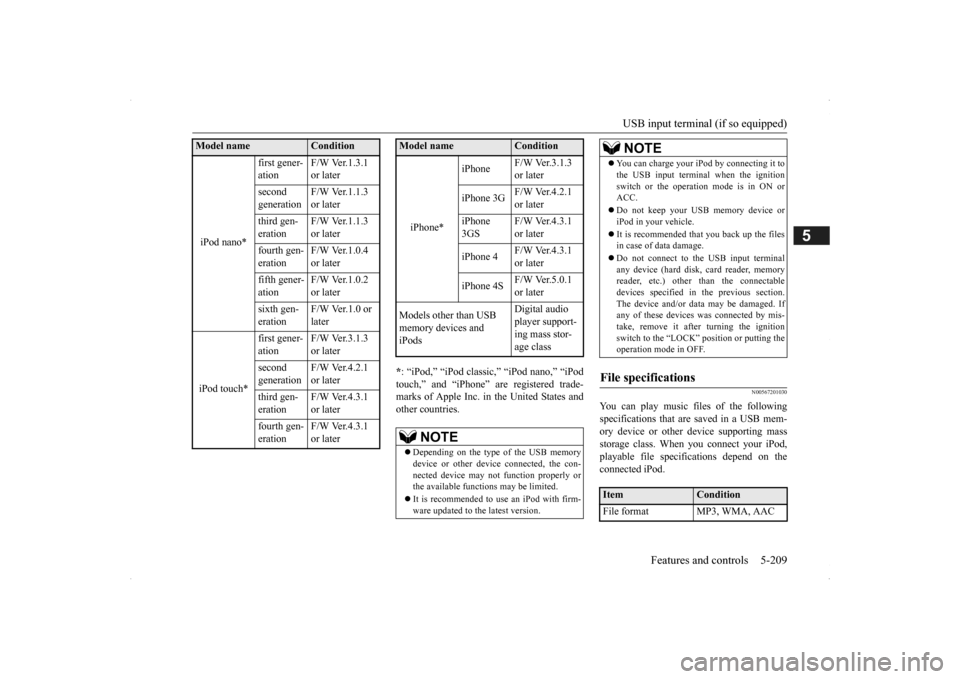
* : “iPod,” “iPod classic,” “iPod nano,” “iPod touch,” and “iPhone”
are registered trade-
marks of Apple Inc. in the United States and other countries.
N00567201030
You can play music files of the followingspecifications that are saved in a USB mem- ory device or other
device supporting mass
storage class. When
you connect your iPod,
playable file specif
ications depend on the
connected iPod.
iPod nano*
first gener- ation
F/W Ver.1.3.1 or later
second generation
F/W Ver.1.1.3 or later
third gen- eration
F/W Ver.1.1.3 or later
fourth gen- eration
F/W Ver.1.0.4 or later
fifth gener- ation
F/W Ver.1.0.2 or later
sixth gen- eration
F/W Ver.1.0 or later
iPod touch*
first gener- ation
F/W Ver.3.1.3 or later
second generation
F/W Ver.4.2.1 or later
third gen- eration
F/W Ver.4.3.1 or later
fourth gen- eration
F/W Ver.4.3.1 or later
Model name
Condition
iPhone*
iPhone
F/W Ver.3.1.3 or later
iPhone 3G
F/W Ver.4.2.1 or later
iPhone 3GS
F/W Ver.4.3.1 or later
iPhone 4
F/W Ver.4.3.1 or later
iPhone 4S
F/W Ver.5.0.1 or later
Models other than USB memory devices and iPods
Digital audio player support-ing mass stor- age class
NOTE
Depending on the type of the USB memory device or other devi
ce connected, the con-
nected device may not
function properly or
the available functi
ons may be limited.
It is recommended to use an iPod with firm- ware updated to th
e latest version.
Model name
Condition
You can charge your iP
od by connecting it to
the USB input terminal
when the ignition
switch or the operation mode is in ON orACC. Do not keep your USB memory device or iPod in your vehicle. It is recommended that you back up the files in case of data damage. Do not connect to the USB input terminal any device (hard disk
, card reader, memory
reader, etc.) other
than the connectable
devices specified in the previous section.The device and/or data
may be damaged. If
any of these devices
was connected by mis-
take, remove it after turning the ignitionswitch to the “LOCK” position or putting the operation mode in OFF.
File specifications
Item
Condition
File format MP3, WMA, AAC
NOTE
BK0200500US.book 209 ページ 2013年2月12日 火曜日 午前9時46分
Page 331 of 451

AM/FM radio/CD player (if so equipped)
Comfort controls 7-15
7
N00734302102
The audio system can only be used when the ignition switch or the
operation mode is in
ON or ACC.
N00715000021
This product supports audio playback from iPod/iPhone devices, however dif- fering versions mean
that playback cannot
be guaranteed. Please be aware that depending on the iPod/iPhone model or
version, operation
may differ.
N00715200023
If the product becomes dirty, wipe with a soft cloth. If very dirty, use a soft cloth dipped in neutral detergent diluted in water, and then wrung out. Do not use benzene, thin- ners, or other chemic
al wipes. This may
harm the surface.
N00715300024
Product names and other proper names are the trademarks or registered trade- marks of their respective owners.
AM/FM radio/CD player
(if
so equipped)
NOTE
To listen to the audio system while the engine is not running, turn the ignitionswitch to the “ACC” position or put the oper- ation mode in ACC. If the ignition switch
or the operation mode
is left in ACC, the accessory power will automatically turn off after a certain period of time and you will no longer be able to usethe audio system. The accessory power comes on again if the ignition switch or the engine switch is operated with it in the“ACC” position. Refer
to “ACC power auto-
cutout function” on page 5-18 and 5-57. If a cellular phone is
used inside the vehicle,
it may create noise in the audio equipment. This does not mean that anything is wrongwith your audio equipment. In such a case, use the cellular phone at
a place as far away
as possible from the audio equipment.
If foreign objects or water get into the audio equipment, or if smoke or a strange odorcomes from it, immediately turn off theaudio system and have it checked at an authorized Mitsubishi
Motors dealer or a
repair facility of your
choice. Never try to
repair it yourself. Avoid using the audio sys- tem until it is insp
ected by a qualified per-
son. If the audio system is damaged by foreign objects, water, or fi
re, have the system
checked by a qualified Mitsubishi Motors technician.
Important Points on Usage
iPod/iPhone Playback Function
(if
so equipped)
NOTE
How to Clean
Trademarks
BK0200500US.book 15 ページ 2013年2月12日 火曜日 午前9時46分
Page 332 of 451
AM/FM radio/CD player (if so equipped) 7-16 Comfort controls
7
Furthermore, even if there is no specific denotation of trademarks or registeredtrademarks, these are to be observed in their entirety. “Made for iPod”, “Made for iPhone” mean that an electronic accessory hasbeen designed to connect specifically to iPod or iPhone, respec
tively, and has been
certified by the devel
oper to meet Apple
performance standards. iPhone, iPod, iPod clas
sic, iPod nano, and
iPod touch are trademarks of Apple Inc.,registered in the U.S. and other countries. Apple is not responsib
le for the operation
of this device or its compliance withsafety and regulatory standards.NOTE
iPod and iTunes licensi
ng allows individual
users to privately re
produce and play back
non- copyrighted
material as we
ll as material
that may be legally
copied and reproduced.
Infringement of copyright is prohibited. Please refer to your
vehicle’s user manual
regarding the iPod/iPho
ne that can be used
with vehicles equippe
d with a Bluetooth
®
2.0 interface.
BK0200500US.book 16 ページ 2013年2月12日 火曜日 午前9時46分
Page 343 of 451
Operation Keys
Comfort controls 7-27
7
N00716800042
13-
5 key Play/Pause Bluetooth Audio
*2, and use
as preset key 5 for radio.
14-
6 key Return during audio track search, and stop Bluetooth Audio
*2.
For radio, use as preset key 6.
15-
key/ key
For audio, select a
udio track/file; for
radio, perform auto
matic station selec-
tion. Select channels in the satellite radio*
1.
16- MENU key
Switch to Menu mode.
17- /SEL key
Adjust audio quality
and select items.
For radio, manually select stations. Select channels in the satellite radio*
1.
*1: Requires a satellite
tuner connection.
*2: Requires a separately
-purchased Blue-
tooth-capable audio
device in equip-
ment by type (vehicles with a Bluetooth
® 2.0 interface).
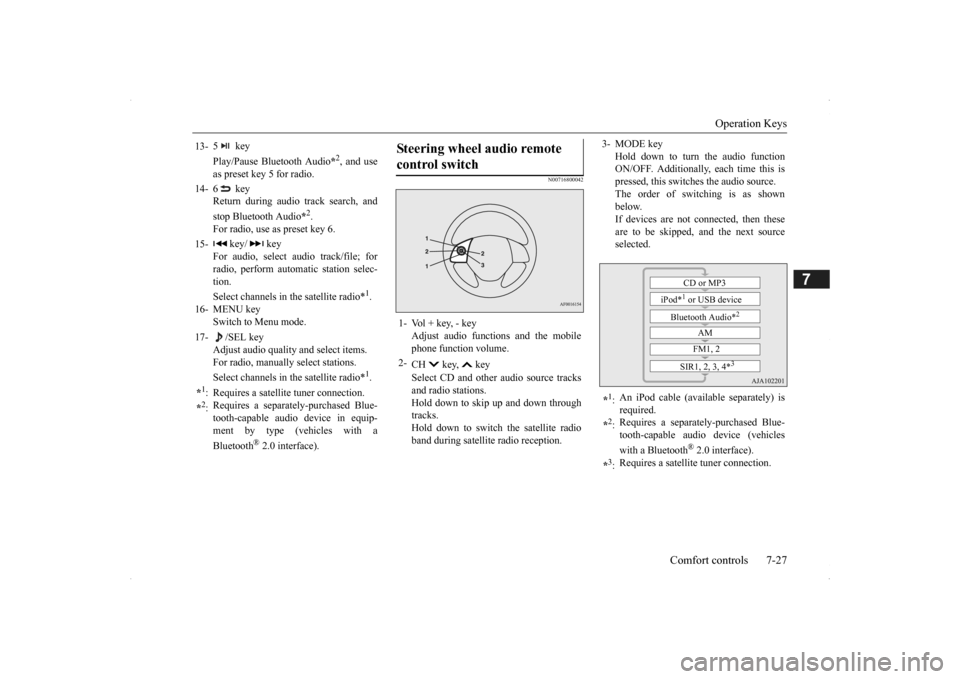
Steering wheel audio remote control switch 1- Vol + key, - key
Adjust audio functions and the mobile phone function volume.
2-
CH key, key Select CD and other
audio source tracks
and radio stations. Hold down to skip up and down through tracks.Hold down to switch the satellite radio band during satellit
e radio reception.
3- MODE key
Hold down to turn the audio function ON/OFF. Additionally, each time this ispressed, this switches the audio source. The order of switching is as shown below.If devices are not connected, then these are to be skipped, and the next source selected.
*1: An iPod cable (availa
ble separately) is
required.
*2: Requires a separately
-purchased Blue-
tooth-capable audio device (vehicles with a Bluetooth
® 2.0 interface).
*3: Requires a satellit
e tuner connection.CD or MP3
iPod*
1 or USB device
Bluetooth Audio*
2
AM FM1, 2
SIR1, 2, 3, 4*
3
BK0200500US.book 27 ページ 2013年2月12日 火曜日 午前9時46分
Page 349 of 451
Listen to an iPod
Comfort controls 7-33
7
Play the tracks in the folder in a random order. Hold down the 2RDM key. Play all tracks in folders on the disc in a ran- dom order. Press the SCAN key. Play the first 10 seconds of each of the tracks in the folder currently being played in order.
Search folders and files, and select a track. 1. Turn the /SEL key to select the folder. 2. Press the /SEL key. Files within the selected folder are dis- played. 3. Turn the /SEL key to select the file.4. Press the /SEL key. This plays the selected file (track).
N00717300028
By connecting commercially-available iPod/iPhone devices to this product, you can play back tracks on these through the product.
NOTE
Pressing again will cancel.
Folder Random Playback
NOTE
Pressing again will cancel.
Scan Playback (SCAN)
NOTE
Press this button again during playback if you wish to hear that track, and that track will play normally.
Search Tracks
NOTE
While the folder is selected, press the 6 key to cancel track search mode. If there is no operation for 10 seconds after selecting the folder, then track search modewill be cancelled. Select the folder, and hold down the /SEL key to start playback from the first track in that folder. While the file is selected, press the 6 key to return to the
previous operation.
While the file is selected, hold down the 6 key to cancel track search mode. If there is no operation for five seconds after selecting the file, that file is played back. Disc operations such as
selecting a track will
cancel track search mode.
Listen to an iPod
CAUTION Do not leave the iP
od/iPhone unattended in
the vehicle. Never hold these devices in your hand to operate while driving,
as this is dangerous.
No indemnification for data loss resulting when the iPod/iPhone is connected to the product will be possible. Depending on how the de
vices are handled,
audio files being damage
d or lost, therefore
it is recommended that
data be backed up.
NOTE
Depending on the generati
on, model, or soft-
ware version of th
e iPod/iPhone, playback
on this product may
not be possible.
( P.7-15) Additionally, playback as
explained in this docum
ent may not be possi-
ble.
BK0200500US.book 33 ページ 2013年2月12日 火曜日 午前9時46分
Page 350 of 451

Listen to an iPod 7-34 Comfort controls
7
Press the MEDIA key to set the iPod as the source. The selected source is
indicated on the dis-
play. Press the key or key to select the track. This enables selection of the next or previous track.
Hold down the 3 key or the 4 key. Fast forward/rewind is possible. Repeat playback and
shuffle playback are
possible. Press the 1RPT key. Repeat playback of th
e track currently being
played. Press the 2RDM key. Play tracks in the category currently being played in a random order.
Regarding details such as types of iPod/iPhone that can be
connected to equip-
ment by type (vehicle
s with a Bluetooth
® 2.0
interface), and types
of files that can be
played back, refer to “Types of connectable devices and supported fi
le specifications” on
page 5-208. Regarding how to c
onnect the iPod/iPhone,
refer to “How to c
onnect an iPod” on page
5-208. When connecting th
e iPod/iPhone, use a
commercially-available iPod connection cable. Set up the device in order that no unsafe actions, such as pluggi
ng in the connection
cable are taken while driving. When inserting and removing the iPod/iPhone, for safety’s
sake first stop the
vehicle. Depending on the status
of the iPod/iPhone,
it may take some time
until the device is rec-
ognized, or playback starts. Buttons on the product will not operate while iPod/iPhone is
connected.
iPod/iPhone spec
ifications and settings may
mean that connection
is not possible, or
result in differences in
operation or display.
Depending on audio data
in the iPod/iPhone,
track information may
not be displayed cor-
rectly. Depending on the status of the vehicle and device, the iPod/iPhone
may not play back
after starting
the engine.
NOTE
Data containing copyri
ght information may
not play back. It is recommended
that the iPod/iPhone
equalizer settings be set to flat. Operate the iPod/iPhone while connected to this product. If the iPod/iPhone is
connected via Bluetooth
as a Bluetooth-capable
audio device, then do
not connect the iPod/iP
hone using an iPod
cable. Connection us
ing both methods will
result in erroneous operation. If an iPod/iPhone does
not operate
correctly,
then remove the iPod/iPhone from the prod- uct, reset, then reconnect.
Play iPod Select the Track (File)
NOTE
Fast Forward or Rewind Switch Playback Mode Repeat Playback (RPT)
NOTE
Pressing again will cancel.
Shuffle Playback (RDM)
BK0200500US.book 34 ページ 2013年2月12日 火曜日 午前9時46分
Page 352 of 451

Listen to Audio Files on a USB Device 7-36 Comfort controls
7
Press the MEDIA key to set USB as the source. The selected source is
indicated on the dis-
play. Press the key or key to select the track. This enables selection of the next or previous track.
Hold down the 3 key or the 4 key. Fast forward/rewind is possible. Repeat playback, random
playback, and scan
playback are possible. Press the 1RPT key. Repeat playback of th
e track currently being
played. Hold down the 1RPT key.
Regarding how to c
onnect USB devices,
refer to “How to
connect a USB memory
device” on page 5-207. When connecting a US
B device, use a con-
nection cable. Failure to use a connectioncable when connecti
ng may place undue load
on, or damage th
e USB connector.
Set up the device in order that no unsafe actions, such as pluggi
ng in the connection
cable are taken while driving. When inserting and removing the USB device, for safety’s sa
ke first stop the vehi-
cle. Do not insert other than audio devices into the USB port. Damage
to the device or
equipment may result. Depending on the status
of the USB device,
it may take some time
until the device is rec-
ognized, or playback starts. Depending on USB device
s, buttons on the
product will not operate while the USBdevice is connected. USB device specificati
ons and settings may
mean that connection
is not possible, or
result in differences in
operation or display.
Depending on audio data
in the USB device,
track information may
not be displayed cor-
rectly. Depending on the status of the vehicle and device, the iPod/iPhone
may not play back
after starting
the engine.
Data containing copyri
ght information may
not play back.NOTE
This product can play
back MP3, WMA, and
AAC format audio files. Depending on the type of USB device, usage may not be possible, or
functions that can be
used may be restricted. The recommended file system for USB memory is FAT32. The maximum supported capacity for USB memory is 32GB. Operate the USB device containing recorded audio files while conne
cted to this product.
Play Back of Audio Files on a USB Device Select the Track (File)
NOTE
Fast Forward or Rewind Switch Playback Mode Repeat Playback (RPT)
NOTE
Pressing again will cancel. Selecting a file will cancel this. However, it will not be
cancelled in vehicles
with a Bluetooth
® 2.0 interface.
Folder Repeat Playback
BK0200500US.book 36 ページ 2013年2月12日 火曜日 午前9時46分
Page 354 of 451
Listen to Bluetooth Audio (if so equipped) 7-38 Comfort controls
7
N00717500020
This product can play back tracks on com- mercially-available Bl
uetooth-capable audio
devices.
Regarding how to connect your Bluetooth device, refer to “Connecting the Bluetooth
®
2.0 interface and Blue
tooth device” on page
5-192.Operation methods belo
w describe situations
once connection has been completed. 1. Press the MEDIA key to set Bluetooth Audio as the source. The selected source is indicated on the display. 2. Press the 5 key. Bluetooth Audio play- back starts.
While the file is selected, press the 6 key to return to the
previous operation.
While the file is se
lected, hold down the
6 key to cancel track search mode. If there is no operation for five seconds after selecting the file, that file is played back. Operations such as sele
cting a trac
k will can-
cel track search mode.
Listen to Bluetooth Audio
(if
so equipped)
CAUTION Never hold these devices in your hand to operate while driving, as this is dangerous. Do not leave the Bluetooth audio device unattended in the vehicle. Depending on how the devices are handled, audio files being damage
d or lost, therefore
it is recommended that
data be backed up.
NOTE
NOTE
Depending on the type of
Bluetooth-capable
audio devices, usage ma
y not be possible, or
functions that can be us
ed may be restricted.
Confirm together with the user manuals for the commercially-availab
le Bluetooth-capa-
ble audio devices. Depending on the type of
Bluetooth-capable
audio devices, volume
levels may differ.
There is the danger of loud volumes, so prior to use, it is recommended that you turn thevolume down. “Adjust Volume” (P.7-25)
Depending on the status of the Bluetooth audio device, it may ta
ke some time until the
device is recognized,
or playback starts.
Bluetooth audio device
specifications and
settings may mean th
at connection is not
possible, or result in
differences in operation
or display. Depending on audio data in the Bluetooth audio device, track in
formation may not be
displayed correctly. Depending on the status of the vehicle and device, the iPod/iPhone
may not play back
after starting the engine.
Connect a Bluetooth-capable Audio Device
NOTE
If the iPod/iPhone is c
onnected via Bluetooth
as a Bluetooth-capable
audio device, then do
not connect the iPod/
iPhone using an iPod
cable. Connection us
ing both methods will
result in err
oneous operation.
Play Bluetooth Audio
NOTE
Hold down the 5 key to pause. Press the 6 key to stop.
BK0200500US.book 38 ページ 2013年2月12日 火曜日 午前9時46分