2014 MITSUBISHI LANCER radio controls
[x] Cancel search: radio controlsPage 250 of 434
USB input terminal (if so equipped)
Features and controls 5-183
5
5. The voice guide will say “Importing the contact list from the mobile phonebook. This may take several minutes to com- plete. Would you like to continue?”Answer “Yes,” transferring to the mobile phonebook the phonebook stored in the cellular phone will start.Answer “No,” the system will return to the main menu.
6. When the transfer is complete, the voice guide will say “Import complete” and then the system will return to the main menu.
N00566300040
MODEL: MMC FCC ID: CB2MDGMY10IC: 279B-MDGMY10 Your Bluetooth
® 2.0 interface operates on a
radio frequency subject to Federal Communi- cations Commission (FCC) Rules (For vehi- cles sold in U.S.A.) and Industry CanadaRules (For vehicles sold in Canada). This device complies with Part 15 of the FCC Rules and RSS-210 of the Industry CanadaRules. Operation is subject to the following two conditions: This device may not cause harmful inter- ference. This device must accept any interference received, including interference that may cause undesired operation.
The term “IC:” before the radio certification number only signifies that Industry Canada technical specifications were met. The antenna used for this transmitter must notbe co-located or operating in conjunction with any other antenna or transmitter. End- users and installers must be provided withinstallation instructions and transmitter oper- ating conditions for satisfying RF exposure compliance.
N00566401093 N00566701054
You can connect your USB memory device or iPod
* to play music files stored in the USB
memory device or iPod.
NOTE
The transfer may take some time to complete depending on the number of contacts. If the Bluetooth
® 2.0 interface could not be
connected to the Bluetooth
® compatible cel-
lular phone, the voice guide will say “Unable to transfer contact list from phone” and then the system will return to the main menu. If you press the HANG-UP button or press and hold the SPEECH button during the datatransfer, the transfer will be cancelled and the system will return to the main menu. If an error occurs during the data transfer, all transfer will be cancelled and the voice guide will say “Unable to complete the phonebookimport” and then the system will return to the main menu. If there are no contacts in the phonebook, the voice guide will say “There are no contacts on the connected phone.”
General information
CAUTION Changes or modifications not expressly approved by the manufacturer for compli-ance could void the user’s authority to oper- ate the equipment.
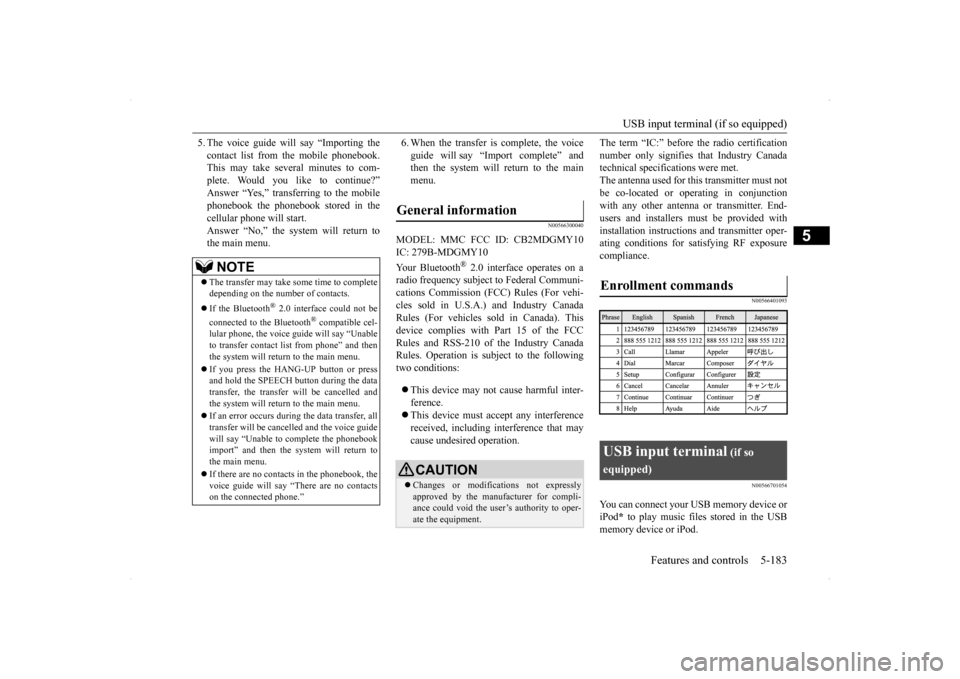
Enrollment commands
USB input terminal
(if so
equipped)
Page 276 of 434

7
Comfort controlsVents ..........................................
.......................................................7-2
Heater without air conditioning function (if so equipped) ...............7-4 Manual air conditioning with MAX A/C mode (if so equipped) .....7-7 Manual air conditioning without MAX A/C mode (if so equipped)...................................................................
..................................7-12
Automatic air conditioning with Fahr
enheit scale (if so equipped)7-17
Automatic air conditioning with Cels
ius scale (if so equipped) .....7-23
Important air conditioning op
erating tips .......................................7-28
Air purifier .......................
...............................................................7-28
AM/FM radio/CD player (if so equipped) .....................................7-29Handling of Discs .
.................................................
........................7-32
Audio Files (MP3/WMA/
AAC) ....................................................7-34
Important Points on Safety fo
r the Customer ................................7-38
Operation Keys ...............
...............................................................7-39
Listen to Radio ......
.................................................
........................7-42
Listen to Satellite Radio (if so equipped) .......................................7-43Listen to CDs ..................
...............................................................7-45
Listen to MP3s ......
.................................................
........................7-46
Listen to an iPod ...
.................................................
........................7-47
Listen to Audio Files on
a USB Device .........................................7-49
Listen to Bluetooth Audio (i
f so equipped) ....................................7-52
Use AUX (if so equippe
d) ..............................................................7-53
Display Indicator ..
.................................................
........................7-55
Audio Quality and Volume Balance Adjustment ...........................7-56 System Settings .....
.................................................
........................7-57
Troubleshooting ...............
...............................................................7-60
Antenna ................................................
...........................................7-62
General information about
your radio ............................................7-63
Page 304 of 434

AM/FM radio/CD player (if so equipped)
Comfort controls 7-29
7
The air filter’s ability to collect pollen and dirt is reduced as it becomes dirty, so replace it periodically. For the maintenance interval, refer to the “WARRANTY AND MAINTE-NANCE MANUAL”.
N00734302098
The audio system can only be used when the ignition switch is in the “ON” or “ACC” position.
N00715000021
This product supports audio playback from iPod/iPhone devices, however dif- fering versions mean that playback cannot be guaranteed. Please be aware that depending on the iPod/iPhone model or version, operation may differ.
N00715200023
If the product becomes dirty, wipe with a soft cloth. If very dirty, use a soft cloth dipped in neutral detergent diluted in water, and then wrung out. Do not use benzene, thin-ners, or other chemical wipes. This may harm the surface.
NOTE
Operation in certain conditions such as driv- ing on a dusty road and frequent use of the air conditioning can lead to reduction of ser-vice life of the filter.
When you feel that the
air flow is lower than
normal or when the
windshield or windows start to fog up easily,replace the air filter. Contact your Mitsubishi Motors dealer or a repair facility of your choice for assistance.
AM/FM radio/CD player
(if
so equipped)
NOTE
To listen to the audio system while the engine is not running, turn the ignition switch to the “ACC” position. If the ignition switch is left in the “ACC” position, the accessory power will automati-cally turn off after a certain period of time and you will no longer be able to use the audio system. The accessory power comeson again if the ignition switch is turned from the “ACC” position. Refer to “ACC power auto-cutout function” on page 5-55. If a cellular phone is used inside the vehicle, it may create noise in the audio equipment.This does not mean that anything is wrong with your audio equipment. In such a case, use the cellular phone at a place as far awayas possible from the audio equipment. If foreign objects or water get into the audio equipment, or if smoke or a strange odor comes from it, immediately turn off the audio system and have it checked at anauthorized Mitsubishi Motors dealer or a repair facility of your choice. Never try to repair it yourself. Avoid using the audio sys-tem until it is inspected by a qualified per- son. If the audio system is damaged by foreign objects, water, or fire, have the system checked by a qualified Mitsubishi Motors technician.
The audio amplifier (if so equipped) is located under the front left seat. Do not subject the amplifier to a strong impact. It could damage the amplifier or malfunc-tioning could result.
Important Points on Usage
iPod/iPhone Playback Function
(if
so equipped)How to Clean
NOTE
Page 305 of 434

AM/FM radio/CD player (if so equipped) 7-30 Comfort controls
7
N00715300024
Product names and other proper names are the trademarks or registered trade-marks of their respective owners. Furthermore, even if there is no specific denotation of trademarks or registeredtrademarks, these are to be observed in their entirety. “Made for iPod”, “Made for iPhone” mean that an electronic accessory has been designed to connect specifically to iPod or iPhone, respectively, and has beencertified by the developer to meet Appleperformance standards. iPhone, iPod, iPod classic, iPod nano, and iPod touch are trademarks of Apple Inc.,registered in the U.S. and other countries. Apple is not responsible for the operation of this device or its compliance withsafety and regulatory standards.
Trademarks
NOTE
iPod and iTunes licensing allows individual users to privately reproduce and play back non- copyrighted material as well as material that may be legally copied and reproduced.Infringement of copyright is prohibited.
Please refer to your vehicle’s user manual regarding the iPod/iPhone that can be used with vehicles equipped with a Bluetooth
®
2.0 interface.NOTE
Page 306 of 434

AM/FM radio/CD player (if so equipped)
Comfort controls 7-31
7
5th generation (video) 60GB 80GB
5th generation (video) 30GB
160GB (2009) 160GB (2007) 80GB
6th generation 8GB 16GB
5th generation (video camera) 8GB 16GB
4th generation (video) 8GB 16GB
3rd generation (video) 4GB 8GB
2nd generation (aluminum) 2GB 4GB 8GB
1st generation 1GB 2GB 4GB
Page 315 of 434

Operation Keys 7-40 Comfort controls
7
N00716700025
This explains names and functions of each part.Explanation of Buttons 1- key
Use to eject a disc.
2- 3 key/4 key
For audio, rewind/fast forward. For radio, use as preset keys 3 and 4.
3- 2RDM key
For audio, play random playback; for radio, use as preset key 2.
4- 1RPT key
For audio, play repeat playback; forradio, use as preset key 1.
5- RADIO key
Switch the radio and the band.
6- PWR/VOL key
Adjust the volume, and turn the power ON/OFF.
7- MEDIA key
Switch between CD and other sources. Hold down the key to switch to AUX.
8- DISP key
Switch the content of the display.
9- PTY key
PTY searches and scans can be per-formed while receiving radio RBDS broadcasts. Search channels in the satellite radio*
1.
10- SCAN key
For audio, play scan playback; for radio, scan for stations.
11- Disc slot 12- PAGE key
Display indicator page advance.
Page 316 of 434

Operation Keys
Comfort controls 7-41
7
N00716800039
13-
5 key Play/Pause Bluetooth Audio
*2, and use
as preset key 5 for radio.
14-
6 key Return during audio track search, and stop Bluetooth Audio
*2.
For radio, use as preset key 6.
15-
key/ key
For audio, select audio track/file; forradio, perform automatic station selec- tion. Select channels in the satellite radio*
1.
16- MENU key
Switch to Menu mode.
17-
/SEL key
Adjust audio quality and select items.For radio, manually select stations. Select channels in the satellite radio*
1.
*1: Requires a satellite tuner connection.*2: Requires a separately-purchased Blue- tooth-capable audio device in equip- ment by type (vehicles with a Bluetooth
® 2.0 interface).
Steering wheel audio remote control switches 1- Vol + key, - key
Adjust audio functions and the mobilephone function volume.Type 1Type 2
2-
CH key, key Select CD and other audio source tracks and radio stations.Hold down to skip up and down through tracks. Hold down to switch the satellite radioband during satellite radio reception.
3- MODE key
Hold down to turn the audio functionON/OFF. Additionally, each time this is pressed, this switches the audio source. The order of switching is as shownbelow. If devices are not connected, then these are to be skipped, and the next sourceselected.
*1: An iPod cable (available separately) is required.
CD or MP3
iPod*
1 or USB device
Bluetooth Audio*
2
AM FM1, 2
SIR1, 2, 3, 4*
3
Page 317 of 434

Listen to Radio 7-42 Comfort controls
7
N00716900027
This explains how to listen to AM and FM radio broadcasts. Press the RADIO key to switch the band. Switch between AM and FM bands. The selected band is indicated on the display. *: When a satellite tuner is connected Turn the /SEL key to the frequency to lis- ten to.
Collective search for stations that can be received. Press the SCAN key.When a station is received, this is played for 5 seconds, then the product searches for the next station.
Register the broadcast station in advance, and select this at a later time. 1. Tune in to the frequency to register. 2. Hold down any of the keys from the 1RPT key to the 6 key. A “Beep” sounds, and the preset key is registered.
During RBDS broadcast reception, select PTY (program content), and automatically scan for stations. 1. During FM reception, press the PTY key. This switches to the PTY selection mode. 2. Press the PTY key to select PTY.
*2: Requires a separately-purchased Blue- tooth-capable audio device (vehicles with a Bluetooth
® 2.0 interface).
*3: Requires a satellite tuner connection.
Listen to Radio To Listen to the Radio
NOTE
Bands switch in the order AM, FM1, FM2, SIR1*, SIR2*, SIR3*, and SIR4*. If no signal is received, bands will not be switched to SIR2, SIR3, or SIR4.
Manual/Seek Station Selection
/SEL key (counter- clockwise)
Reduces the frequency being received.
/SEL key (clockwise)
Increases the frequency being received.
key
(hold down)
Release the button to start seek station selection, and when a station is received, scanning stops.
key
(hold down)Scan Station Selection
NOTE
Press this button again while receiving the station to return to normal reception.
Preset Memory
NOTE
The preset memory can register a maximum of 6 stations for each band. If a preset key that already has a station reg- istered is selected, then this is overwritten with the new preset. Pressing the preset key will select the previ- ously registered frequency.
PTY Search