2014 MITSUBISHI LANCER audio
[x] Cancel search: audioPage 228 of 434
Horn switch
Features and controls 5-161
5
N00523800156
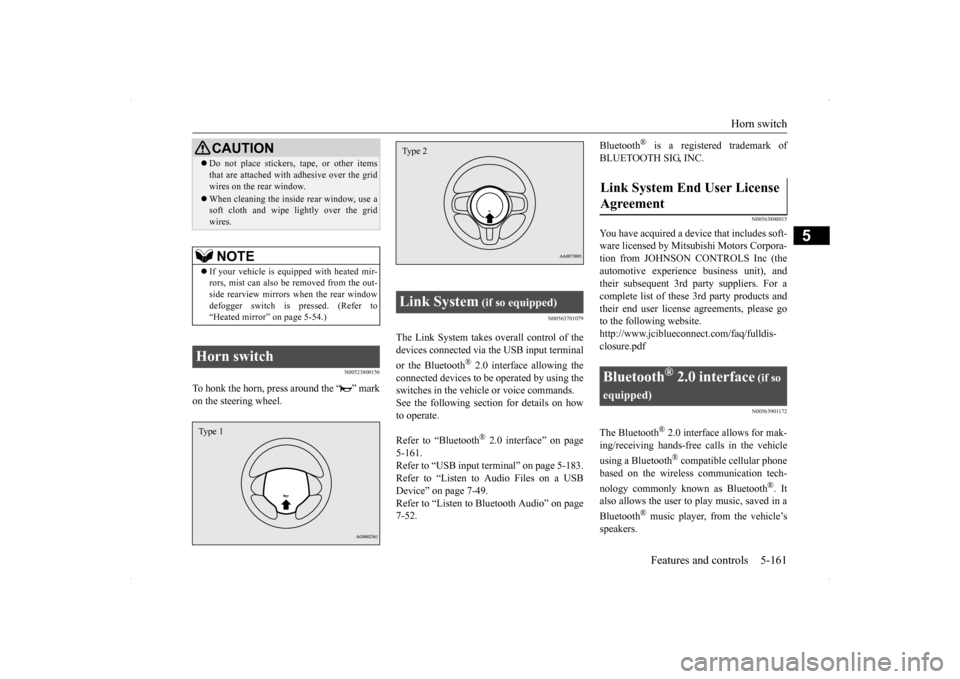
To honk the horn, press around the “ ” mark on the steering wheel.
N00563701079
The Link System takes overall control of thedevices connected via the USB input terminal or the Bluetooth
® 2.0 interface allowing the
connected devices to be operated by using theswitches in the vehicle or voice commands.See the following section for details on how to operate. Refer to “Bluetooth
® 2.0 interface” on page
5-161.Refer to “USB input terminal” on page 5-183. Refer to “Listen to Audio Files on a USB Device” on page 7-49.Refer to “Listen to Bluetooth Audio” on page 7-52.
Bluetooth
® is a registered trademark of
BLUETOOTH SIG, INC.
N00563800015
You have acquired a device that includes soft- ware licensed by Mitsubishi Motors Corpora- tion from JOHNSON CONTROLS Inc (theautomotive experien
ce business unit), and
their subsequent 3rd party suppliers. For a complete list of these 3rd party products and their end user license agreements, please goto the following website. http://www.jciblueconnect.com/faq/fulldis- closure.pdf
N00563901172
The Bluetooth
® 2.0 interface allows for mak-
ing/receiving hands-free calls in the vehicle using a Bluetooth
® compatible cellular phone
based on the wireless communication tech- nology commonly known as Bluetooth
®. It
also allows the user to
play music, saved in a
Bluetooth
® music player, from the vehicle’s
speakers.
Do not place stickers, tape, or other items that are attached with adhesive over the grid wires on the rear window. When cleaning the inside rear window, use a soft cloth and wipe lightly over the grid wires.NOTE
If your vehicle is equipped with heated mir- rors, mist can also be removed from the out-side rearview mirrors when the rear window defogger switch is pressed. (Refer to “Heated mirror” on page 5-54.)
Horn switch
CAUTION
Type 1
Link System
(if so equipped)
Type 2
Link System End User License Agreement
Bluetooth
® 2.0 interface
(if so
equipped)
Page 229 of 434

Bluetooth® 2.0 interface (if so equipped) 5-162 Features and controls
5
The system is equipped with a voice recogni- tion function, which allows you to make hands-free calls by simple switch operations and voice command operations using adefined voice tree. The Bluetooth
® 2.0 interface can be used
when the ignition switch is in the “ON” or “ACC” position. Before you can use the Bluetooth
® 2.0 inter-
face, you must pair the Bluetooth
® device
and Bluetooth
® 2.0 interface. Refer to “Con-
necting the Bluetooth
® 2.0 interface and
Bluetooth
® device” on page 5-169.
Bluetooth
® is a registered trademark of
BLUETOOTH SIG, INC.
Steering control switch and microphone
P.5-163Voice recognition function
P.5-165
Useful voice commands
P.5-165
Speaker enrollment function
P.5-167
Connecting the Bluetooth
® 2.0 interface and
the Bluetooth
® device
P.5-169
Operating a music player connected via Blue- tooth
® P.5-173
How to make or receive hands-free calls
P.5-173 Phonebook function
P.5-176
WA R N I N GAlthough the Bluetooth
® 2.0 interface
allows you to make hands-free calls, if you choose to use the cellular phone whiledriving, you must not allow yourself to be distracted from the safe operation of your vehicle. Anything, including cellularphone usage, that di
stracts you from the
safe operation of your vehicle increases your risk of an accident. Refer to and comply with all state and local laws in your area regarding cellularphone usage while driving.
NOTE
If the ignition switch is left in the “ACC” position, the accessory power will automati- cally turn off after a
certain period of time
and you will no longer be able to use the Bluetooth
® 2.0 interface. The accessory
power comes on again if the ignition switch is turned from the “ACC” position. Refer to “ACC power auto-cutout function” on page5-55. The Bluetooth
® 2.0 interface cannot be used
if the Bluetooth
® device has a dead battery
or the device power is turned off. Hands-free calls will not be possible if your phone does not have service available. Some Bluetooth
® devices are not compatible
with the Bluetooth
® 2.0 interface.
You can confirm the Link System software version by pressing the HANG-UP button 3 times (press and hold 2 times and then press briefly) within 10 seconds.
For detail of the Bluetooth
® 2.0 interface,
refer to the following web site:[For vehicles sold in U.S.A.] You can see to access the MITSUBISHI MOTORS NORTH AMERICA web site.[For vehicles sold in Canada and Mexico] You can see to access via the MITSUBISHI MOTORS web site.Please read and agree the “Warning about Links to the Web Site
s of Other Companies”
because it connects other than MITSUBISHIMOTORS web site. http://www.mitsubishi-motors.com/en/prod- ucts/index.html Software updates by cellular phone/digital audio device manufacturers maychange/alter device connectivity.NOTE
Page 230 of 434

Bluetooth® 2.0 interface (if so equipped)
Features and controls 5-163
5
N00564001082
Press this button to increase the volume. Press this button to decrease the volume.
Press this button to change to voice recog- nition mode. While the system is in voice recognitionmode, “Listening” will appear on the audio display. If you press the button briefly while in voice recognition mode, it will interrupt prompting and allow voice commandinput. Pressing the button longer will deactivate the voice recognition mode. Pressing this button briefly during a call will enable voice recognition and allow voice command input.
Steering control switch and microphone
Type 1
1- Volume up button 2- Volume down button3- SPEECH button 4- PICK-UP button 5- HANG-UP button6- MicrophoneVolume up button
Volume down button
Type 2
SPEECH button
NOTE
On a vehicle equipped with a Mitsubishi Multi-Communication System, pressing the SPEECH button will beep and activated thevoice recognition mode of Mitsubishi Multi- Communication System. When you use the voice recognition of the Bluetooth
® 2.0
interface, press the PICK-UP button.
Page 231 of 434

Bluetooth® 2.0 interface (if so equipped) 5-164 Features and controls
5
Press this button when an incoming call is received to answer the telephone. When another call is received during a call, press this button to put the first calleron hold and talk to the new caller. • In such circumstances, you can press the button briefly to switch between callers.You will switch to the first caller and the other caller will be put on hold. • To establish a three-way call in such situ-ations, press the SPEECH button to enter voice recognition mode and then say “Join calls.”
Press this button when an incoming call is received to refuse the call.
Press this button during a call to end the current call. When another call is on hold, you will switch to that call. If this button is pressed in the voice recog- nition mode, the voice recognition mode will be deactivated.
N00575800025
Your voice will be recognized by a micro-phone in the overhead console, allowing you
to make hands-free calls with voice com- mands.
PICK-UP button
NOTE
On a vehicle equipped with a Mitsubishi Multi-Communication System, pressing the PICK-UP button except when an incomingcall is received to answer the telephone will activate the voice recognition of the Blue- tooth
® 2.0 interface.
HANG-UP button
NOTE
When you press the SPEECH button (except for vehicles with Mitsubishi Multi-Commu-nication System) or PICK-UP button (for vehicles with Mitsubishi Multi-Communica- tion System) to enter voice recognition modewith a cellular phone paired to the system, current information on the cellular phone, such as “remaining battery life,” “signalstrength” or “roaming,” will be displayed on the audio display.
*
* : Some cellular phones will not send this information to the Bluetooth
® 2.0 interface.
Call waiting and three-way calls can be used by the Bluetooth
® 2.0 interface, only if it is
possible to use those services with your cel-lular phone.
Microphone
NOTE
If a cellular phone is within close proximity of the microphone, it may distort the sound quality. In this case, place the cellular phoneas far as possible from the microphone.
Page 240 of 434

Bluetooth® 2.0 interface (if so equipped)
Features and controls 5-173
5
N00565301024
You can change the device tag of a paired cel- lular phone or music player. Follow the steps below to change a device tag. 1. Press the SPEECH button (except for vehicles with Mitsubishi Multi-Commu- nication System) or PICK-UP button (for vehicles with Mitsubishi Multi-Commu-nication System). 2. Say “Setup.” 3. Say “Pairing Options.”4. The voice guide will say “Select one of the following: pair, edit, delete, or list.” Say “Edit.”
5. The voice guide will say “Please say,” and read out the numbers of the Bluetooth
®
devices and device tags of corresponding devices in order, starting with the Blue- tooth
® that has been most recently con-
nected. After all paired device tags have beenread, the voice guide will say “Which device, please?” Say the number of the device tag you want to change. 6. The voice guide will say “New name, please.” Say the name you want to regis- ter as a new device tag.When the confirmation function is on, the voice guide will say “
N00565401054
For the operation of a music player connected via Bluetooth
®, refer to “Listen to Bluetooth
Audio” on page 7-52.
N00565500074
You can make or receive hands-free calls using a Bluetooth
® compatible cellular phone
connected to the Bluetooth
® 2.0 interface.
You can also use the phonebooks in the Blue- tooth
® 2.0 interface to make calls without
dialing telephone numbers. To make a call P.5-174 Send function P.5-175 Receiving calls P.5-176 Mute function P.5-176Switching between hands-free mode and pri- vate mode P.5-176
You can change the music player to be con- nected by pressing and releasing the SPEECH button and then saying “Select music player” while the list is being read.
Changing a device tag
NOTE
NOTE
You can press and release the SPEECH but- ton while the list is being read, and immedi- ately say the number of the device tag you want to change.
Operating a music player con- nected via Bluetooth
®
How to make or receive hands-free calls
NOTE
Hands-free calls may not operate correctly when you place or receive the call directly from your cellular phone, instead of using the Bluetooth
® 2.0 interface.
Page 243 of 434

Bluetooth® 2.0 interface (if so equipped) 5-176 Features and controls
5
“
N00565800019
If an incoming phone call is received whilethe ignition switch is in the “ACC” or “ON”position, the audio system will be automati- cally turned on and switched to the incoming call, even when the audio system was origi-nally off. The voice guide announcement for the incoming call will be output from the frontpassenger’s seat speaker. If the CD player or radio was playing when the incoming call was received, the audio sys-tem will mute the sound from the CD player or radio and output only the incoming call. To receive the call, press the PICK-UP buttonon the steering wheel control switch. When the call is over, the audio system will return to its previous state.
N00565900010
At any time during a call, you can mute thevehicle microphone. Pressing the SPEECH button and then saying “Mute” during a call will turn ON the mute function and mute the microphone.Saying “Mute off” in the same way will turn off the mute function and cancel the mute on the microphone.
N00566600014
The Bluetooth
® 2.0 interface can switch
between hands-free mode (hands-free calls) and private mode (calls using cellular phone). If you press the SPEECH button and say“Transfer call” during a hands-free call, you can stop the hands-free mode and talk in pri- vate mode. To return to hands-free mode, press the SPEECH button again and say “Transfer call.”
N00566000018
The Bluetooth
® 2.0 interface has 2 types of
unique phonebooks that are different from thephonebook stored in the cellular phone. They
are the vehicle phonebook and the mobile phonebook. These phonebooks are used to register tele- phone numbers and make calls to desirednumbers via voice recognition function.
N00566101117
This phonebook is us
ed when making calls
with the voice recognition function. Up to 32 names can be registered in the vehi- cle phonebook per language.Also, each entry has 4 locations associated with: home, work, mobile and other. You can register one telephone number for each loca-tion. You can register a desired name as a name for any phonebook entry registered in the vehicle phonebook.Names and telephone numbers can be changed later on. The vehicle phonebook can be used with all paired cellular phones.
Receiving calls
Mute function
Switching between hands-free mode and private mode
Phonebook function
NOTE
Disconnecting the battery cable will not delete information registered in the phone- book.
Vehicle phonebook
Page 251 of 434

USB input terminal (if so equipped) 5-184 Features and controls
5
The following explains how to connect and remove a USB memory device or iPod. Refer to the following sections for details on how to play music files:Refer to “Listen to Audio Files on a USB Device” on page 7-49.
N00566800074
1. Park your vehicle in a safe place and turn the ignition switch to the “LOCK” posi- tion. 2. Open the USB input terminal cover (A) inthe glove compartment.
3. Connect a commercially available USB connector cable (C) to the USB memory device (B). 4. Connect the USB connector cable (C) to the USB input terminal (D).
5. To remove the USB connector cable, turn the ignition switch to the “LOCK” posi- tion first and perform the installation steps in reverse.
N00566900020
1. Park your vehicle in a safe place and turnthe ignition switch to the “LOCK” posi- tion.
* :“iPod” is a registered trademark of Apple Inc. in the United States and other coun- tries.
How to connect a USB memory device
WA R N I N G An open glove compartment door can cause a serious injury or death to the front passenger in an accident, even if the pas- senger is wearing his/her seat belt. Always keep the glove compartment door closedwhen driving.NOTE
Do not connect the USB memory device to the USB input terminal directly.The USB memory device may be damaged. When closing the glove compartment, be careful not to trap the USB connector cable.
How to connect an iPod
Page 252 of 434

USB input terminal (if so equipped)
Features and controls 5-185
5
2. Open the USB input terminal cover (A) in the glove compartment. 3. Connect the Dock connector (C) to the iPod (B).
4. Connect the Dock connector (C) to the USB input terminal (D). 5. To remove the Dock connector, turn the ignition switch to the “LOCK” positionfirst and perform the installation steps in reverse.
N00567000028 N00567100087
Devices of the following types can be con- nected. * : “iPod touch,” “iPod classic,” “iPod” and “iPod nano” are registered trademarks of
NOTE
Use a genuine Dock connector from Apple Inc.
WA R N I N G An open glove compartment door can cause a serious injury or death to the front passenger in an accident, even if the pas-senger is wearing his/her seat belt. Always keep the glove compartment door closed when driving. NOTE
When closing the glove compartment, be careful not to trap the connector cable.
Types of connectable devices and supported file specifica- tions
Device types
Model name
Condition
USB memory device
Storage capacity of 256 Mbytes or more
iPod touch
*
F/W Ver.1.1.1 or later
iPod classic
*
F/W Ver.1.0 or later
iPod (fifth genera- tion)
*
F/W Ver.1.2.2 or later
iPod nano (fifth gen- eration)
*
F/W Ver.1.2 or later
iPod nano (second generation)
*
F/W Ver.1.1.2 or later
Models other than USB memory devices and iPods
Digital audio player supporting mass storage class