2014 MERCEDES-BENZ S-Class POI
[x] Cancel search: POIPage 7 of 278

Changing the loudspeaker source
.233
Equalizer ........................................ 233
Equipment ..................................... 232
Surround sound ............................. 234
Buttons and controller ........................22 C
Call Accepting/ending/rejecting .......... 130
Connecting .................................... 131
see Telephone
Call lists
Displaying details ........................... 139
Opening and selecting an entry .....138
Saving an entry in the address
book .............................................. 139
Car pool lanes ...................................... 73
Category list (music search) ............201
CD Inserting ........................................ 192
Inserting/loading (DVD changer) ...193
Inserting/loading (Rear Seat
Entertainment System) ..................254
Notes on discs ............................... 200
Removing/ejecting (Rear Seat
Entertainment System) ..................254
Selecting a track ............................ 197
Sound settings (balance, bass,
fader, treble ).................................. 230
Characters
Entering (address book, phone
book) ............................................... 30
Entering (navigation) ........................33
Climate control
COMAND ......................................... 59
Cooling with air dehumidification
(COMAND) ....................................... 60
Ionization (COMAND) .......................62
Perfume atomizer (COMAND) ..........62
Rear-compartment climate
control (COMAND) ...........................60
Setting the air distribution
(COMAND) ....................................... 61
Setting the airflow (COMAND) .........61
Setting the climate mode
(COMAND) ....................................... 61Setting the departure time
(COMAND)
....................................... 62
Setting the footwell temperature
(COMAND) ....................................... 61
Setting the temperature
(COMAND) ....................................... 60
Switching on/off (COMAND) ...........59
Switching the synchronizing
function on/off (COMAND) ..............59
COMAND
Active multicontour sea t.................. 56
Basic functions ................................ 23
Controller ......................................... 23
Display ............................................. 20
Multicontour seat ............................ 56
Seat functions .................................. 55
Settings ......................................... 175
Switching on/off .............................. 23
Telephone keypad overview .............22
COMAND display
Additional display area ..................... 39
Cleaning instructions .......................21
Setting ............................................. 38
Contacts
Deleting ......................................... 154
Importing ....................................... 153
Cordless headphones
Setting the volume ......................... 246
Country-specific information
(navigation) ........................................ 113 D
Date format, setting ............................40
Day design, setting .............................38
Delayed switch-off time Setting (COMAND) ...........................53
Deleting
Call lists ......................................... 140
Destination
Storing in the address book ...........106
Destination (navigation)
Entering a destination using the
map ................................................. 85
Entering a point of interest ..............81
Entering using geo-coordinates .......88
Entering using Mercedes-Benz
Apps ................................................ 88 Index
5
Page 9 of 278

M
Map (navigation) Adjusting the scale ........................108
Building images ............................. 112
Elevation modeling ........................113
Heading ......................................... 108
Map settings .................................. 108
Moving ............................................. 71
North orientation ........................... 108
Notes ............................................. 108
Rotating the 3D map ..................... .111
Updating ........................................ 116
Map functions ................................... .108
Media Interface Mode ............................................. 215
Playback options ........................... 217
Search ........................................... 216
Selecting music files ......................216
Switching to Media Interface .........215
Video function ............................... 217
Media Register
Basic displa y.................................. 204
Calling up memory space
information .................................... 207
Copying file s.................................. 204
Deleting all file s............................. 206
Renaming/deleting file s................ 206
Selecting a playback mode ............207
Switching on .................................. 203
Media search
Category lis t.................................. 201
Current tracklis t............................ 201
Keyword search ............................. 202
Music genres ................................. 202
Selecting by cover .........................201
Starting the media search .............. 200
Menu overview
CD/DVD audio and MP3 mode ...... 193
Mercedes-Benz Apps .........................167
Messages Displaying ...................................... 144
Forwarding ..................................... 147
Replying ......................................... 147
Writing ........................................... 145
Microphone, switching on/off .........132Mobile phone
Authorizing .................................... 125
Connecting (Bluetooth ®
interface) .124
De-authorizing ............................... 128
External authorization ....................127
Registering (authorizing) ................125
MP3
Copyright ....................................... 200
Notes ............................................. 199
Safety notes .................................. 192
MP3 mode
Stop and playback function ...........197
Multimedia system
see COMAND
Multi-Seat Entertainment System
Adjusting sound settings ...............249
AUX mode ...................................... 260
Changing the picture format ..........250
Cordless headphones ....................246
Overview ........................................ 240
Picture settings .............................. 250
Replacing batteries ........................247
Setting the brightness ...................250
Setting the color ............................ 250
Setting the contrast .......................250
System settings ............................. 248
Video DVD mode ........................... 256
My address (navigation system)
see Home address N
Navigation Adjusting the volume of the
navigation announcements ..............23
Alternative route .............................. 97
Avoiding an area ............................ 114
Basic settings .................................. 72
Blocking a route section affected
by a traffic jam ............................... 100
Calling up the compass displa y..... 117
Calling up the menu .......................116
Drive Information ........................... 117
Entering a destination ......................75
Entering a destination using the
map ................................................. 85
Entering a point of interest ..............81
Entering characters (character bar ).33 Index
7
Page 10 of 278

GPS reception .................................. 68
Important safety note s.................... 68
Info on navigation ..........................118
Lane recommendation .....................92
Off-road/off-map (off-road
destination) ................................... .100
Online map displa y........................ 117
Reading out traffic reports .............105
Repeating announcements ..............94
Selecting a destination from the
list of last destinations ..................... 80
Setting options for destination/
route downloa d.............................. 166
Setting route options (avoiding:
highways, toll roads, tunnels,
ferries) ............................................. 72
Setting the route type (short
route, fast route, dynamic route or
economic route) ............................... 72
Showing/hiding the menu ...............70
Starting route calculation ................78
Switching announcements on/off ...94
Switching to ..................................... 70
Navigation announcements
Switching off .................................... 24
North orientation (navigation) .........108 O
Off-road .............................................. 100
Online and Internet functions Destination/routes download ........164
Ending the connection ...................160
Establishing/ending a connection .159
Further Mercedes-Benz Apps ......... 167
General notes ................................ 158
Mercedes-Benz Mobile Website .....167
Options menu ................................ 166
Resetting settings ..........................167
Setting options for destination/
route downloa d.............................. 166
Specifying the ID for the download 166 P
Panel heating Activating/deactivating (COMAND) .52
Parental control
Locking/unlocking rear
compartment displays .....................63
Switching the rear compartment
displays on/off ................................ 63
Pause function
Video DVD ..................................... 226
Perfume atomizer
Setting the perfume intensity
(COMAND) ....................................... 62
Phone book
Adding a number to an address
book entry ..................................... 137
Calling up ....................................... 134
Creating a new entry .....................137
Deleting an entry ........................... 136
Entering characters .........................30
Icon overview ................................. 135
Searching for an entry ...................135
Picture viewer
Changing view ............................... 227
Displaying pictures ........................227
Exiting the picture viewer ..............228
POI (navigation)
Category .......................................... 83
Defining the position for the POI
search .............................................. 82
Entering ........................................... 81
Previous destinations (navigation) ..107 R
Radio Overview ........................................ 178
Setting the waveband ....................179
Sound settings (balance, bass,
treble) ............................................ 181
Storing stations ............................. 181
Tagging music tracks
(downloading/purchasing tracks
from the iTunes Store) ...................180
Radio station
Storing ........................................... 1818
Index
Page 13 of 278

Toggling
......................................... 134
Using the telephone ....................... 130
see Bluetooth ®
Telephone basic menu Bluetooth ®
interface ...................... 129
Telephone keypad overview
COMAND ......................................... 22
Telephone mode
Redialing ........................................ 131
Telephone number
Entering ......................................... 131
Text messages (SMS)
Calling the sende r.......................... 147
Deleting ......................................... 148
Inbox .............................................. 144
Information and requirements .......142
Reading .......................................... 145
Reading aloud ................................ 145
Setting reception ........................... 143
Storing sender in address book .....148
Storing the sender as a new
address book entry ........................147
Texts
see Text messages (SMS)
Time
Setting ............................................. 40
Setting summer/standard time .......41
Setting the format ............................ 40
Setting the time ............................... 40
Setting the time/date forma t.......... 40
Setting the time zone ....................... 41
Tow-away alarm
Arming/deactivating (COMAND) .....54
Track information .............................. 256
Traffic jam function ........................... 100
Traffic reports Calling up a lis t.............................. 103
Reading out on route .....................105
Real-time traffic report ..................104
Trunk lid opening height
restriction
Activating/deactivating (COMAND) .55U
Updating the digital map ..................116
USB audio mode Selecting a track ............................ 197USB devices
Connecting to the Media Interface 195 V
Vehicle Data acquisition ............................... 14
Vehicle settings ................................... 50
Video see Video DVD
Video-AUX
Connecting an external video
source ............................................ 219
Switching to ................................... 219
Video DVD
Control option ................................ 221
DVD's control menu ......................224
DVD functions ............................... 225
DVD menu ..................................... 225
Function restrictions ......................221
Menu options ................................ .223
Notes on discs ............................... 221
Operation ....................................... 220
Overview ........................................ 223
Pause function ............................... 226
Picture settings .............................. 224
Playing conditions .......................... 221
Safety notes .................................. 220
Selecting a scene/chapter ............226
Stop function ................................. 226
Switching to ................................... 222
Video menu ................................... 225
Voice Control
see Voice Control System
Voice Control System
Settings ........................................... 41
Volume, adjusting
Navigation messages .......................23 W
Waypoints Accepting waypoints for the route ...87
Creating ........................................... 86
Editing .............................................. 87 Index
11
Page 27 of 278

R
call up the Internet
R call up the digital operating instructions for
the telephone/00A7 X
Press the 002Bbutton.
If telephone mode was the last mode
selected, the last telephone display
selected will appear.
X To select Tel/
Tel/ 00A7: slide 00970052and press the
controller.
The menu appears. Phone Phoneis at the front. X
Turn the controller until Internet
Internet, for
example, is brought to the front.
X Press the controller.
The Internet basic display appears. SPLITVIEW
Method of operation
SPLITVIEW allows you to simultaneously use
different COMAND functions on the front-
passenger side and on the driver's side.
Different content is seen depending on your
perspective when viewing the display. The navigation function, for example, can be
used from the driver's side while a video is
watched from the front-passenger side.
SPLITVIEW is operated with the COMAND
remote control from the front-passenger
side.
To do so, use the special radio headphones.
Using the headphones on the correct sides
ensures an optimal sound.
You can connect your own headphones to a
special headphones jack. You can use the
COMAND remote control to operate them.
Points to remember
R You can only adjust the volume for the
headphones supplied, directly on the
headphones.
R Only entertainment functions, i.e. audio,
TV, video and Internet, for example, may be
used with SPLITVIEW.
R Videos cannot be shown on the driver's
side while the vehicle is in motion.
R If media from different sources are used,
these can be used separately from the
driver's and front-passenger sides.
Example: if a medium from the DVD
changer is being played on the driver's side.
then another medium that is also played
from the DVD changer cannot be played
separately on the front-passenger side.
However, other media can be used on the
front-passenger side at the same time,
including the radio, memory card, MEDIA
REGISTER, Media Interface, USB or AUX.
R If you use the same medium on both sides,
you can both carry out the respective
settings. The "last one wins" principle
applies here, i.e. the last setting activated
is favored.
R The Internet can be separately used by both
the driver and front passenger at the same
time.
R Internet can only be used if it is set and
connected via a mobile phone on the
driver's side. SPLITVIEW
25At a glance
Page 59 of 278

X
To select Dynamic Multicontour Seat
Dynamic Multicontour Seat:
turn the controller and press to confirm.
You can select:
R 0
0: Off
R 1 1: Level 1 (weak)
R 2
2: Level 2 (strong)
X To select the setting: turn the controller.
X To exit the menu: press the0038button.
Seat heating balance The Balance function controls the distribution
of heat on the seat backrest and cushion.
The balance function influences the currently
set heating level of the seat heating (see the
vehicle Operator's Manual).
X Call up the seat functions (Y page 55).
X To select Seat Heating Balance
Seat Heating Balance: turn
and press the controller.
X To select the seat: slide 009500520096the
controller.
X To change the setting: turn the controller.
You will see the changes you have made in
the settings display.
The settings represent the following:
R 0
0 — the backrest and seat cushion are
evenly heated according to the setting
selected with the seat heating button.
R 1 1to 3
3—t he heat output to the seat cushion
is reduced one level at a time.
R -1
-1 to-3
-3 — the heat output to the backrest
is reduced one level at a time.
X To exit the menu: press the0038button. Massage programs
Overview You can select the following massage
programs:
R
1: Hot Relaxing Massage, Back 1: Hot Relaxing Massage, Back
Relaxing massage program starting in the
pelvic area, warm pressure points can be
felt, full back massage, stretching the
pelvic area, ending with gentle soothing
movements
R 2: Hot Relaxing Massage, Shoulders 2: Hot Relaxing Massage, Shoulders
Relaxing massage program starting in the
pelvic area, warm pressure points can be
felt, full back massage, stretching the
pelvic area, ending with gentle soothing
movements
R 3: Activating Massage 3: Activating Massage
Activating massage through increasing
twin-waves and then soothing movements
R 4: Classic Massage 4: Classic Massage
Massage with increasing waves, soothing
movements
R 5: Mobilizing Massage 5: Mobilizing Massage
Mobilization of the spinal column and the
complete upper body by means of pressure
point mobilizing massage at chest height
R 6: Active Workout 6: Active Workout
The Active Workout program requires your
active participation. It is suitable for
training your stomach muscles during a
traffic jam, for example, by means of
targeted tensing and relaxing. You can use
the program to be sporty in the vehicle. Seats
57Vehicle functions
Page 60 of 278
As soon as you feel a pressure point in the
backrest cushion, this indicates that you
should press against this point.
- As soon as you feel pressure on your
back, press against it.
- Keep the pressure under your feet even.
Do not wedge yourself against the
pedals.
- You will feel how your stomach muscles
tense.
- Continue to breath normally, do not hold
your breath.
- When the pressure in the backrest
cushion stops, stop pressing against it
and relax briefly.
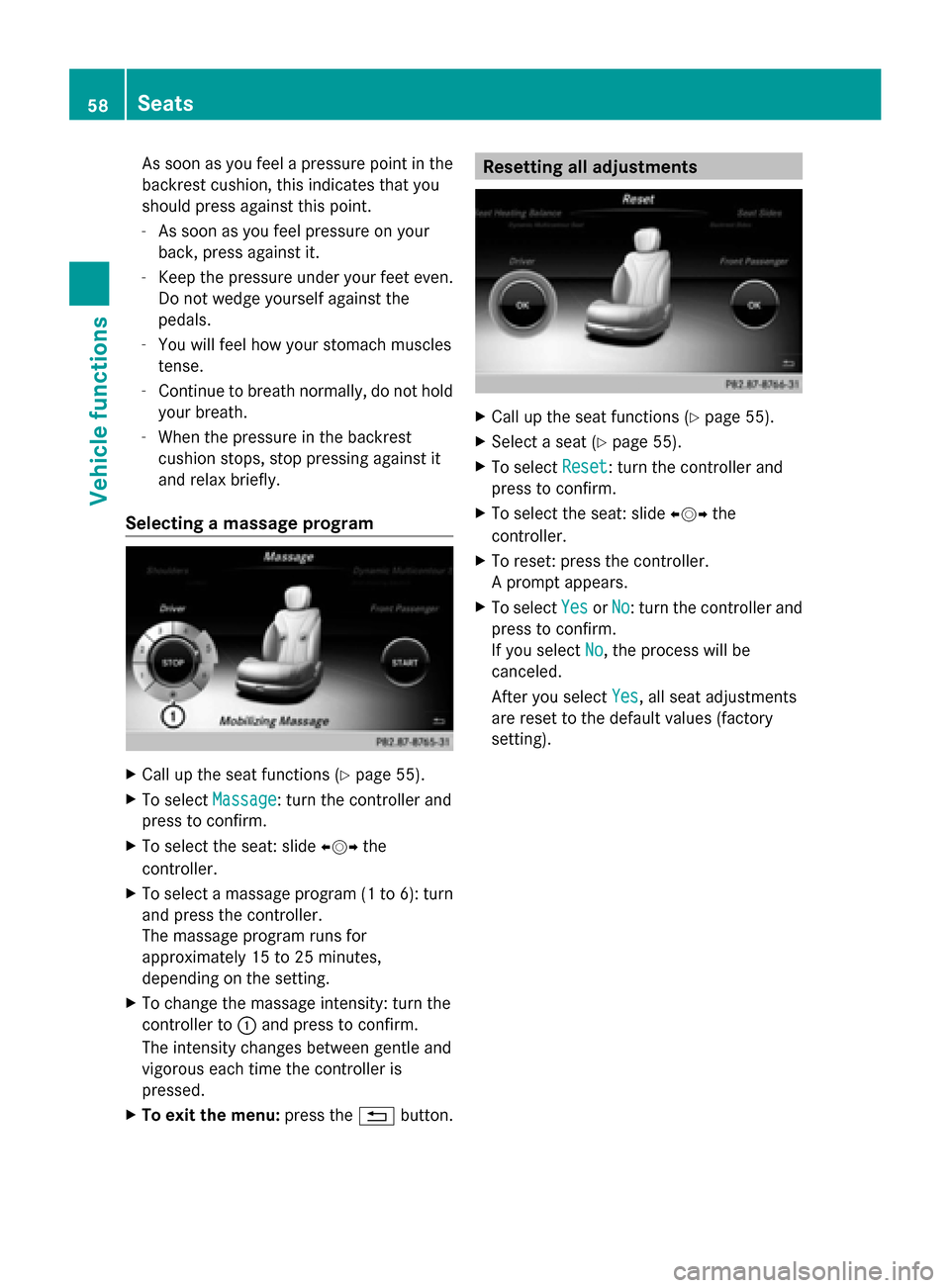
Selecting a massage program X
Call up the seat functions (Y page 55).
X To select Massage
Massage: turn the controller and
press to confirm.
X To select the seat: slide 009500520096the
controller.
X To select a massage program (1 to 6): turn
and press the controller.
The massage program runs for
approximately 15 to 25 minutes,
depending on the setting.
X To change the massage intensity: turn the
controller to 0043and press to confirm.
The intensity changes between gentle and
vigorous each time the controller is
pressed.
X To exit the menu: press the0038button. Resetting all adjustments
X
Call up the seat functions (Y page 55).
X Select a seat (Y page 55).
X To select Reset Reset: turn the controller and
press to confirm.
X To select the seat: slide 009500520096the
controller.
X To reset: press the controller.
A prompt appears.
X To select Yes YesorNo
No: turn the controller and
press to confirm.
If you select No No, the process will be
canceled.
After you select Yes Yes, all seat adjustments
are reset to the default values (factory
setting). 58
SeatsVehicle functions
Page 71 of 278

Entry restriction
For vehicles in certain countries, there is a
data entry restriction.
The restriction is active from a vehicle speed
of above approximately 3 mph (5 km/h). As
soon as the speed falls below approximately
2 mph (3 km/h), the restriction becomes
inactive.
When the restriction is active, certain entries
cannot be made. This will be indicated by the
fact that certain menu items are grayed out
and cannot be selected.
The following entries are not possible, for
example:
R entering the destination city and street
R entering a destination via the map
R entering POIs in the vicinity of a city or via
a name search
R editing entries
R using the number keypad for direct entry
Other entries are possible, such as entering
points of interest in the vicinity of the
destination or current position. Introduction
69Navigation Z