2014 MERCEDES-BENZ GL-Class AUX
[x] Cancel search: AUXPage 225 of 270

Your COMAND equipment
................224
General information .........................224
Basic settings .................................... 224
Video DVD mode ............................... 224
AUX video mode ................................ 230
Picture viewer ................................... 231 223Video
Page 226 of 270
Your COMAND equipment
These operating instructions describe all the
standard and optional equipment for your
COMAND system, as available at the time of
going to print. Country-specific differences
are possible. Please note that your
COMAND system may not be equipped with
all the features described. General information
Automatic picture shutoff
The video image is only displayed for the
driver when the transmission lever is in posi-
tion P.
SPLITVIEW allows the front passenger to view
the video image (Y page 38).
When the transmission lever is disengaged
from position P, the following message
appears in the display: In order not to
In order not to
distract
distract you youfrom
from the
thetraffic
traffic situa‐
situa‐
tion,
tion, the
thepicture
picture is
isfaded
faded out
outwhile
while
the vehicle is in motion.
the vehicle is in motion.
As soon as the selector lever of the transmis-
sion is returned to position P, the video image
is shown. Basic settings
Adjusting the brightness, contrast or
color
X In video DVD or video AUX mode, press the
0098 COMAND Controller.
The menu is shown.
X Select DVD-Video
DVD-Video orAux Aux by turning 00790052
the COMAND controller and press 0098to
confirm.
A menu appears. X
Select Brightness
Brightness ,Contrast Contrast orColor
Color by
turning 00790052the COMAND controller and
press 0098to confirm.
X Set the value between - 5 and + 5 and press
0098 to confirm. Changing the picture format
X Press 0098the COMAND controller.
The menu is shown.
X Select DVD-Video DVD-Video by sliding00520064and turn-
ing 00790052 the COMAND controller and press
0098 to confirm.
A menu appears.
X Select 16:9 Optimized
16:9 Optimized, 4:3
4:3orWide‐
Wide‐
screen
screen and press 0098to confirm.
The dot in front of the entry indicates the
currently selected format.
X Select a setting by turning 00790052the
COMAND controller and press 0098to con-
firm. Video DVD mode
Important safety notes
G
WARNING
The CD/DVD drive is a class 1 laser product.
If you open the CD/DVD drive housing, you
could be exposed to invisible laser radiation.
This laser radiation could damage your retina.
There is a risk of injury.
Never open the housing. Always have main-
tenance and repair work carried out at a quali-
fied specialist workshop. G
WARNING
Handling discs while driving may distract you
from traffic conditions. You could also lose
control of the vehicle. There is a risk of an
accident.
Handle discs only when the vehicle is station-
ary. 224
Video DVD
modeVideo
Page 228 of 270
Switching modes using the function
button
X
Press the 003Afunction button.
COMAND switches to the previous disc
operating mode.
By pressing the function button repeatedly,
you can change the operating mode in the
following order:
R Video DVD/CD/audio DVD/MP3 in the
DVD changer or DVD single drive (disc
mode)
R Memory card mode
R MUSIC REGISTER
R USB storage device
R Media Interface or audio AUX mode
R Bluetooth ®
audio mode
X DVD changer: selectMedia
Media by sliding
00520064 and turning 00790052007Athe COMAND con-
troller and press 0098to confirm.
Single DVD drive: selectMedia Media by sliding
00520064 and turning 00790052007Athe COMAND con-
troller and press 0098to confirm.
X Select a ývideo DVD from the media list
(Y page 228).
Switching on with the video menu X
Select Video
Videoin the main function bar by
sliding 00970052and turning 00790052007Athe COMAND
controller and press 0098to confirm.
Video DVD mode is switched on. Showing/hiding the control menu
X To show: in DVD video mode, slide 009700520064
the COMAND controller.
X To hide: slide009700520064 the COMAND control-
ler.
or
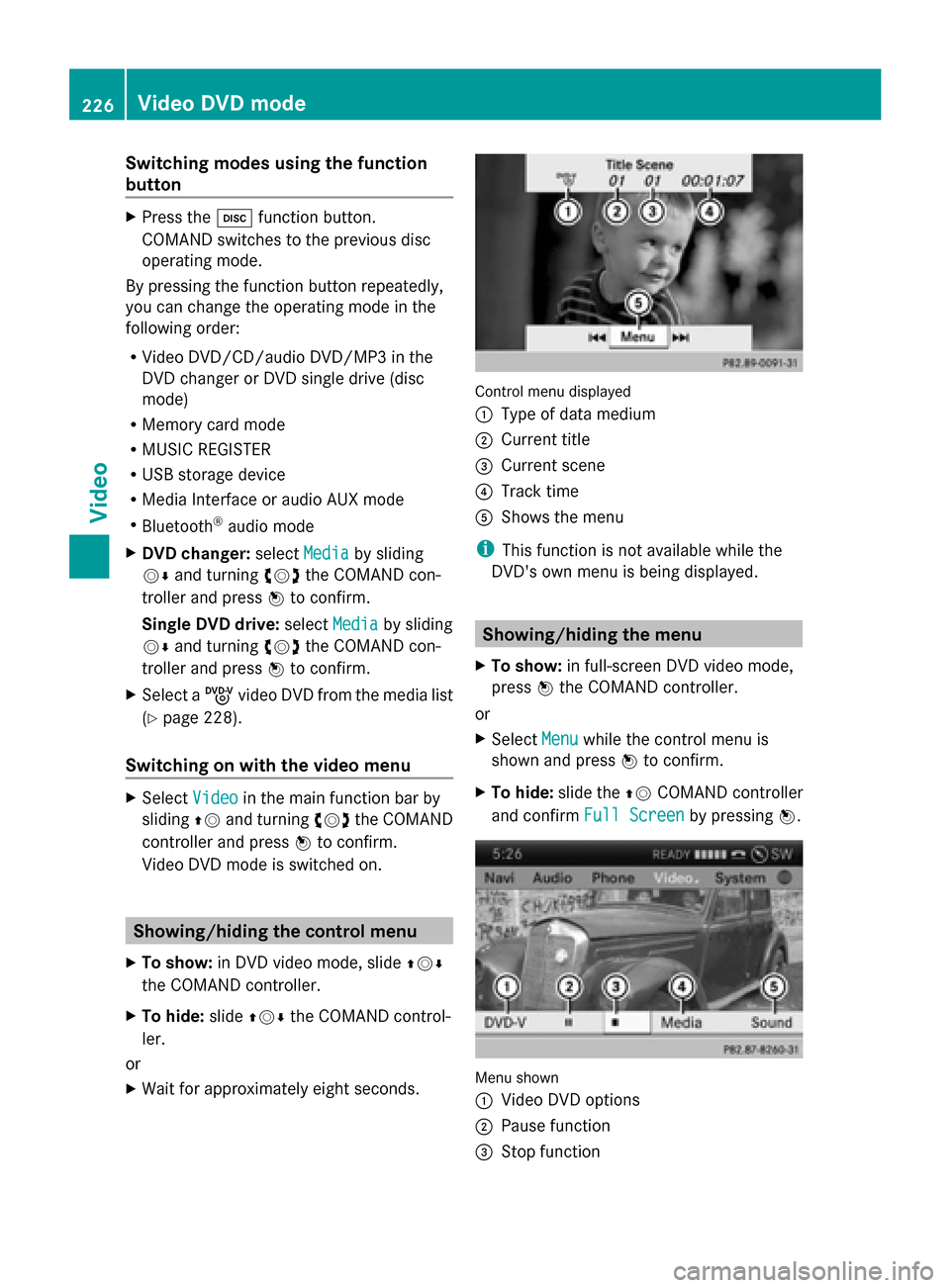
X Wait for approximately eight seconds. Control menu displayed
0043
Type of data medium
0044 Current title
0087 Current scene
0085 Track time
0083 Shows the menu
i This function is not available while the
DVD's own menu is being displayed. Showing/hiding the menu
X To show: in full-screen DVD video mode,
press 0098the COMAND controller.
or
X Select Menu Menuwhile the control menu is
shown and press 0098to confirm.
X To hide: slide the 00970052COMAND controller
and confirm Full Screen
Full Screen by pressing0098. Menu shown
0043
Video DVD options
0044 Pause function
0087 Stop function 226
Video DVD modeVideo
Page 232 of 270
you may be able to influence events by select-
ing and triggering actions. The type and num-
ber of actions depend on the DVD.
X Select an action by sliding 009700520064or009500520096 the
COMAND controller and press 0098to exe-
cute it.
A menu appears and the first entry,
Select
Select , is highlighted.
X Press 0098the COMAND controller. AUX video mode
Connecting external video sources
External video sources may have different
volumes, which can mean that system mes-
sages such as traffic announcements and
navigation system announcements are much
louder. If necessary, deactivate the system
messages or adjust their volume manually.
If your vehicle is equipped with Media Inter-
face, you can connect an external video
source (AUX video) ( Ypage 213).
The 1/8 inch audio/video jacks are in the
center console stowage compartment.
i In vehicles with a rear view camera, the
AUX video jack cannot be used for external
video sources. Switching to AUX video mode
AUX video mode X
Press the 003Afunction button repeatedly
until Media Interface mode is selected.
or
X Select Video
Video in the main function bar by
turning 00790052007Athe COMAND controller and
press 0098to confirm.
If AUX video mode was the last mode
selected, it will now be active.
If another video source is switched on, you
can now switch to AUX video mode in the
video menu.
X Select Video Videoand press 0098to confirm.
X Select Aux
Auxand press 0098to confirm.
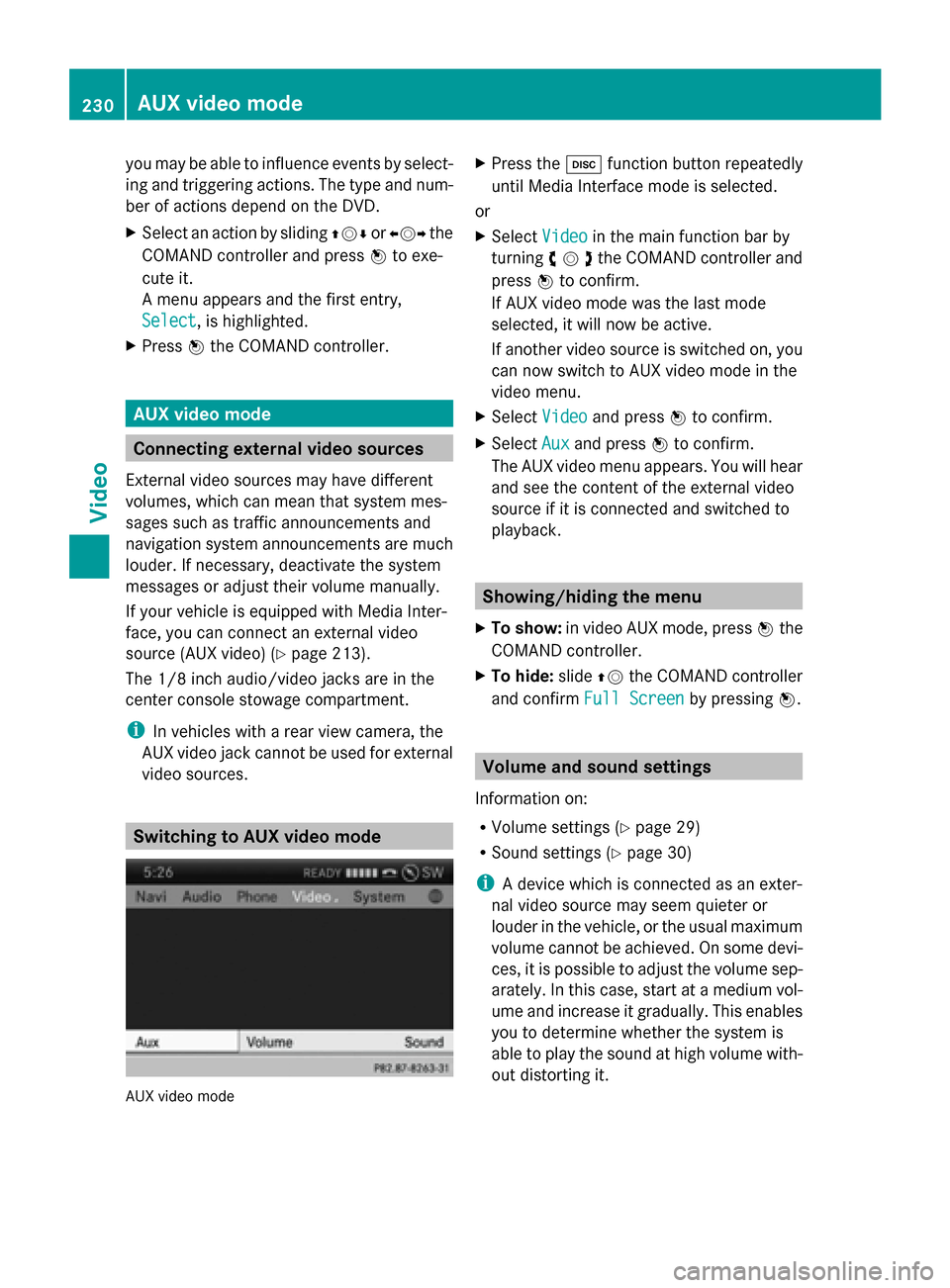
The AUX video menu appears. You will hear
and see the content of the external video
source if it is connected and switched to
playback. Showing/hiding the menu
X To show: in video AUX mode, press 0098the
COMAND controller.
X To hide: slide00970052the COMAND controller
and confirm Full Screen Full Screen by pressing0098. Volume and sound settings
Information on:
R Volume settings (Y page 29)
R Sound settings ( Ypage 30)
i A device which is connected as an exter-
nal video source may seem quieter or
louder in the vehicle, or the usual maximum
volume cannot be achieved. On some devi-
ces, it is possible to adjust the volume sep-
arately. In this case, start at a medium vol-
ume and increase it gradually. This enables
you to determine whether the system is
able to play the sound at high volume with-
out distorting it. 230
AUX video modeVideo
Page 233 of 270
Increasing the volume on COMAND
X Show the video AUX menu (Y page 230).
X Select Volume
Volume by turning 00790052007Athe
COMAND controller and press 0098to con-
firm.
A menu appears. The 003Bdot indicates the
current setting.
X Select Standard Standard orBoost
Boost and press 0098to
confirm.
Standard Standard: the volume of the external video
source is adjusted to a standard value.
Boost
Boost: the volume of the external video
source is raised by approximately 10 dB. Picture viewer
Introduction
If there are pictures on the active data
medium, you can look at them. You can dis-
play pictures with a resolution of up to 20
megapixels. Data medium Supported picture
formats
CD/DVD with pic-
ture files bmp, jpeg, jpg, png
USB devices (sticks,
hard drives)
SD memory card bmp, jpeg, jpg, png
Calling up a category list
X Select a data medium with pictures (e.g. a
memory card):
R
in the Audio menu (Y page 178)
R in the media list ( Ypage 193)
X Select Search Search in the basic display by slid-
ing 00520064 and turning 00790052007Athe COMAND
controller and press 0098to confirm.
The category list appears ( Ypage 200). Displaying pictures
X Select (Y page 200) Photos
Photosin the category
list by turning 00790052007Athe COMAND controller
and press 0098to confirm.
A folder directory appears.
X Select a folder with photos and press 0098to
confirm.
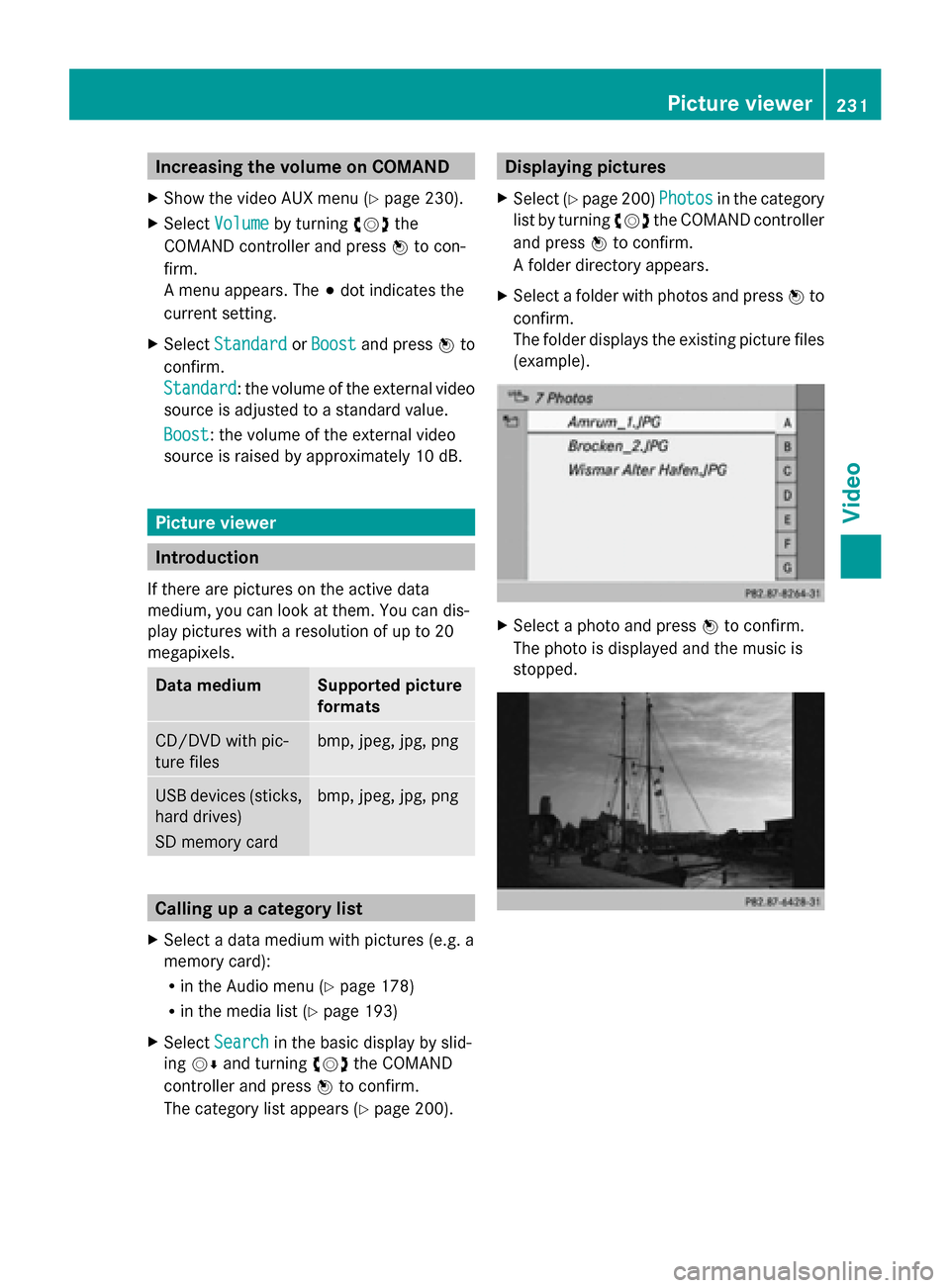
The folder displays the existing picture files
(example). X
Select a photo and press 0098to confirm.
The photo is displayed and the music is
stopped. Picture viewer
231Video Z
Page 235 of 270

Your COMAND equipment
................234
Overview ............................................ 234
Basic functions ................................. 240
System settings ................................ 241
CD/audio DVD and MP3 mode ........242
Video DVD mode ............................... 246
Operation with an active COMAND
source ................................................ 250
AUX mode .......................................... 252 233Rear Seat Entertainment System
Page 236 of 270
Your COMAND equipment
These operating instructions describe all the
standard and optional equipment for your
COMAND system, as available at the time of
going to print. Country-specific differences
are possible. Please note that your
COMAND system may not be equipped with
all the features described. Overview
Important safety notes
G
WARNING
The CD/DVD drive is a class 1 laser product.
If you open the CD/DVD drive housing, you
could be exposed to invisible laser radiation.
This laser radiation could damage your retina.
There is a risk of injury.
Never open the housing. Always have main-
tenance and repair work carried out at a quali-
fied specialist workshop. G
WARNING
If objects such as headphones/headsets or
external audio/video sources are not secured
in the passenger compartment, they can be
flung around and hit vehicle occupants. There
is a risk of injury, for example in the event of
sudden braking or a sudden change in direc-
tion.
Always stow these items or similar objects
carefully so that they cannot be flung around,
for example in a lockable vehicle stowage
compartment. Components
The Rear Seat Entertainment System
includes:
R two screens for the rear behind the front-
seat head restraints
R two remote controls
R a CD/DVD drive R
AUX jacks on both screens (AUX display)
and on the CD/DVD drive (AUX drive)
R two sets of cordless headphones 234
OverviewRea
r Seat Entertainment System
Page 237 of 270
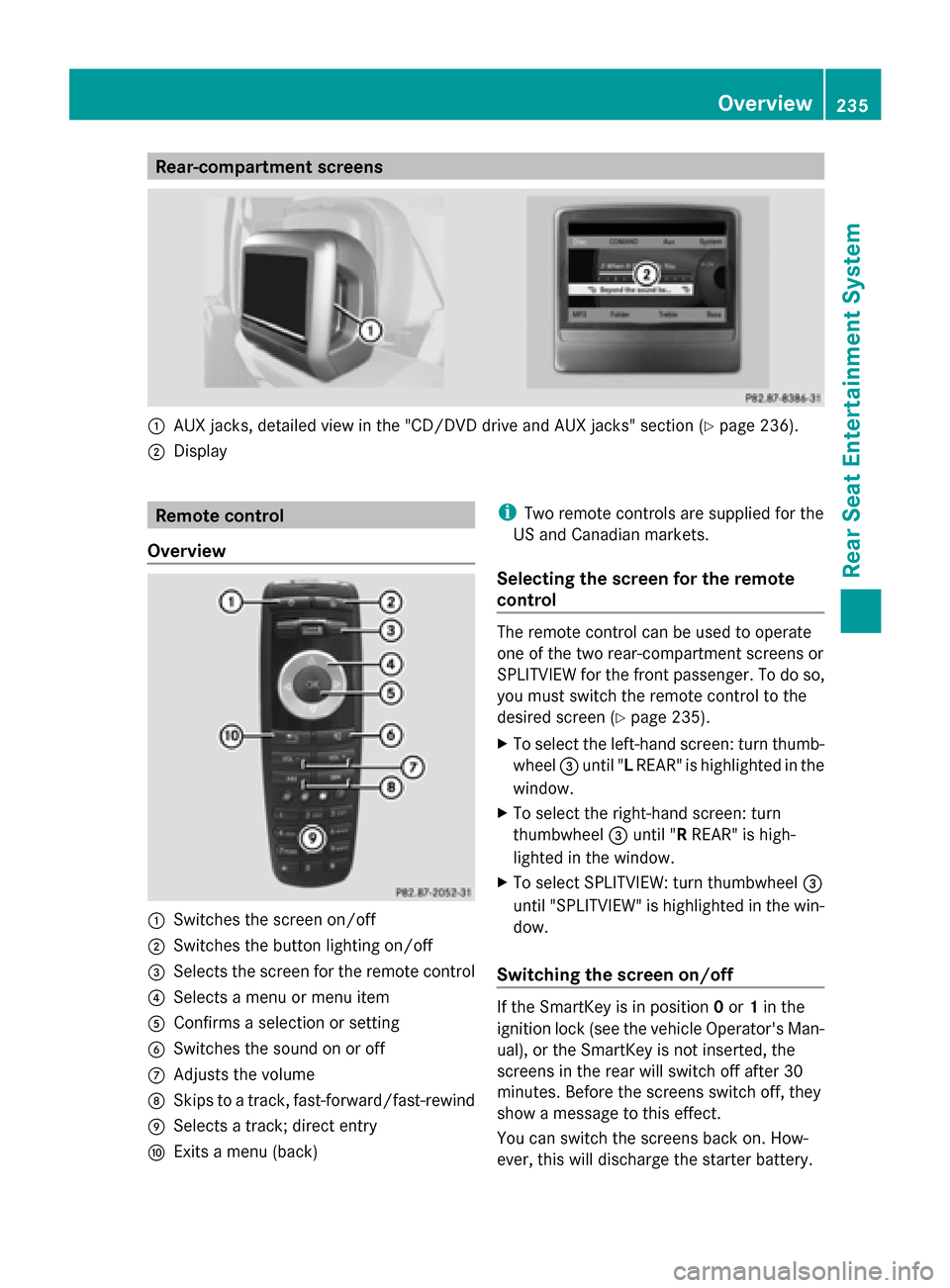
Rear-compartment screens
0043
AUX jacks, detailed view in the "CD/DVD drive and AUX jacks" section (Y page 236).
0044 Display Remote control
Overview 0043
Switches the screen on/off
0044 Switches the button lighting on/off
0087 Selects the screen for the remote control
0085 Selects a menu or menu item
0083 Confirms a selection or setting
0084 Switches the sound on or off
006B Adjusts the volume
006C Skips to a track, fast-forward/fast-rewind
006D Selects a track; direct entry
006E Exits a menu (back) i
Two remote controls are supplied for the
US and Canadian markets.
Selecting the screen for the remote
control The remote control can be used to operate
one of the two rear-compartment screens or
SPLITVIEW for the front passenger. To do so,
you must switch the remote control to the
desired screen (Y
page 235).
X To select the left-hand screen: turn thumb-
wheel 0087until " LREAR" is highlighted in the
window.
X To select the right-hand screen: turn
thumbwheel 0087until "R REAR" is high-
lighted in the window.
X To select SPLITVIEW: turn thumbwheel 0087
until "SPLITVIEW" is highlighted in the win-
dow.
Switching the screen on/off If the SmartKey is in position
0or 1in the
ignition lock (see the vehicle Operator's Man-
ual), or the SmartKey is not inserted, the
screens in the rear will switch off after 30
minutes. Before the screens switch off, they
show a message to this effect.
You can switch the screens back on. How-
ever, this will discharge the starter battery. Overview
235Rear Seat Entertainment System Z