Search & Send is a service assisting you in
entering destinations for the navigation sys-
tem. This mbrace service can send a destina-
tion address directly from the Google Maps ®
website to the navigation system of your vehi-
cle. Selecting and sending a destination
address
Please also refer to the notes about address
entry online: maps.google.com.
X Call up the maps.google.com website and
enter the destination address in the
address entry field.
X Click the corresponding button to send the
destination address to the e-mail address
registered with mbrace.
X Enter the e-mail address you specified
when setting up your mbrace account into
the corresponding field in the "Send" dialog
window.
X Click "Send". Calling up destination addresses
X
Press the 00D9mbrace information button.
Downloading of the destination address to
the navigation system of your vehicle
begins.
i If you have sent more than one destina-
tion address to your vehicle's navigation
system, you will need to call up the infor- mation individually for every address to be
downloaded.
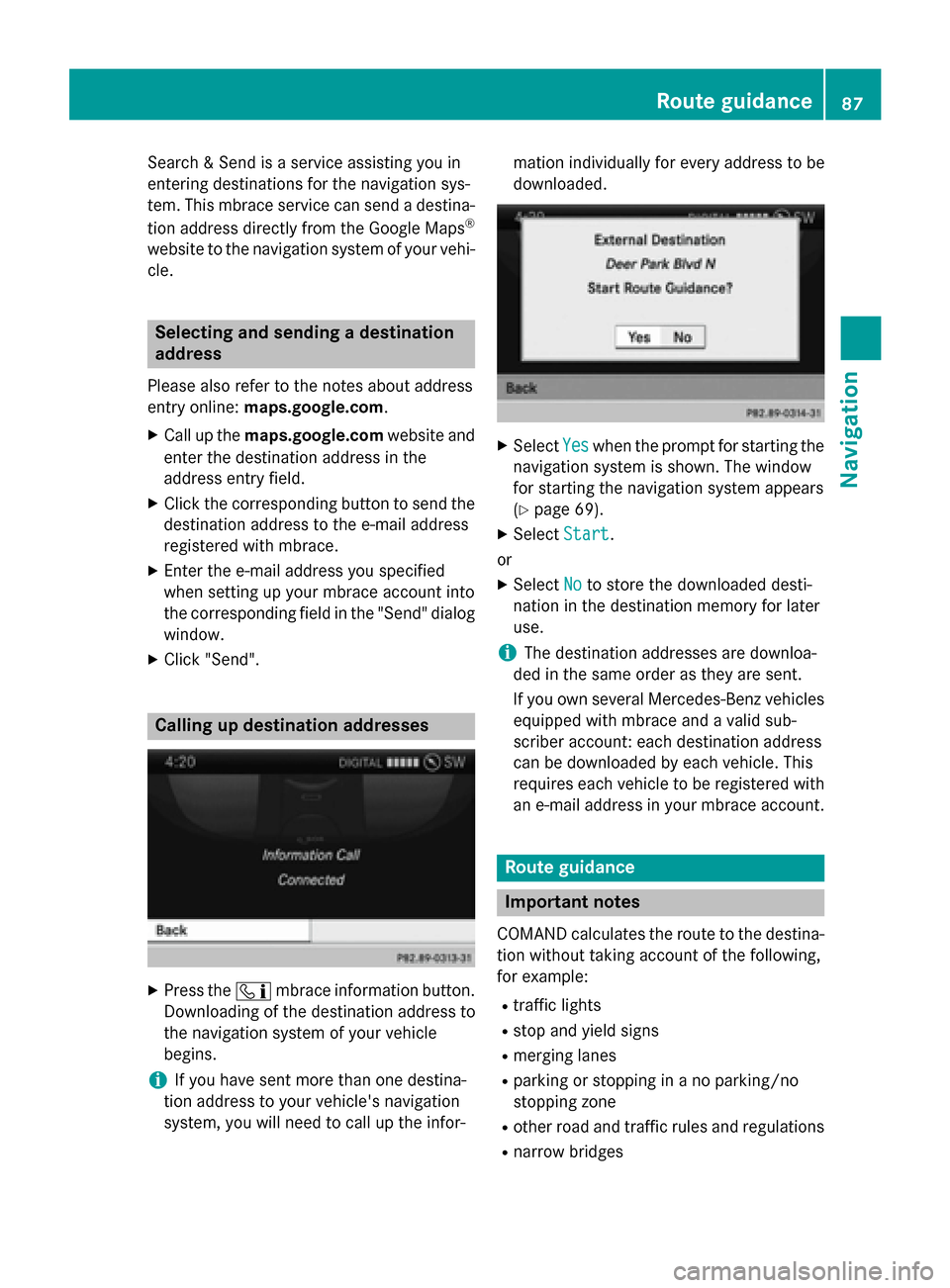
X
Select Yes Yeswhen the prompt for starting the
navigation system is shown. The window
for starting the navigation system appears
(Y page 69).
X Select Start
Start.
or
X Select No Noto store the downloaded desti-
nation in the destination memory for later
use.
i The destination addresses are downloa-
ded in the same order as they are sent.
If you own several Mercedes-Benz vehicles equipped with mbrace and a valid sub-
scriber account: each destination address
can be downloaded by each vehicle. This
requires each vehicle to be registered with
an e-mail address in your mbrace account. Route guidance
Important notes
COMAND calculates the route to the destina- tion without taking account of the following,
for example:
R traffic lights
R stop and yield signs
R merging lanes
R parking or stopping in a no parking/no
stopping zone
R other road and traffic rules and regulations
R narrow bridges Route guidance
87Navigation Z
Weather
front Explanation
Cold front If a cold front moves in, the
weather remains changeable
and there are often rain show-
ers and thunderstorms. The
air temperature decreases. Warm front This can mean longer periods
of rain and can lead to an
increase in cloud cover and a
slow increase in temperature. Stationary
front The weather front moves min-
imally. The weather remains
changeable in this area. Occlusion This occurs when a faster cold
front reaches an advancing
warm front and combines
with it. The weather remains
changeable and rainy within
an occlusion. Example: weather map showing the progress of a
tropical storm
0043
Position on the forecast path
0044 Current position of the cyclone
0087 Position on the previous path
Conditions: theTropical Storm Tracks Tropical Storm Tracks
layer is switched on (Y page 263) and weather
data is available.
A dotted line shows the previous path and the
forecast path of a tropical low-pressure area
(cyclone). Information on a cyclone
You can select individual points ( 0043,0044and
0087) on the path and display further informa-
tion on them.
X In the map, slide 009500520096,009700520064or009100520078 the
COMAND controller and slide the crosshair
to 0043, 0044or0087.
X Press 0098the COMAND controller.
Showing information (if available):
R name of the tropical storm and category
R time stamp
R speed and direction of propagation (Wind Wind)
R maximum wind speed ( Max. Wind Speed Max. Wind Speed)
i The directional movement speed is the
speed at which the storm cell of a tropical
storm moves.
A tropical storm is separated into different
categories according to the location at which
it develops. Region of origin Category
Atlantic, North and
South Pacific
Oceans
Tropical Low Tropical Low
Pressure System Pressure System
Atlantic, North and
South Pacific
Oceans
Tropical Rain Tropical Rain
Zone Zone
Atlantic, North and
South Pacific
Oceans
Tropical Storm Tropical Storm266
Weather mapSIRIUS Weather