2014 MERCEDES-BENZ E-Class Soft
[x] Cancel search: SoftPage 203 of 270

Selecting Gracenote
®
data to be dis-
played X
Switch on CD mode (Y page 197).
X Select CD
CDby sliding 00520064and turning 00790052007A
the COMAND controller and press 0098to
confirm.
X Select Gracenote Media Database
Gracenote Media Database by
turning 00790052007Athe COMAND controller and
press 0098to confirm.
A menu appears.
The 003Bdot indicates the current selection
for the display.
If several entries exist for the CD of a partic-
ular artist, you can select which of the entries
should be shown.
If the inserted CD does not contain any
Gracenote® data, the Gracenote Media
Gracenote Media
Database
Database menu item is shown in gray and
cannot be selected.
X Select an entry by turning 00790052007Athe
COMAND controller and press 0098to con-
firm.
Switching the Gracenote ®
data display
on/off X
Switch on CD mode (Y page 197).
X Select CD CDby sliding 00520064and turning 00790052007A
the COMAND controller and press 0098to
confirm.
X Select Gracenote Media Database
Gracenote Media Database by
turning 00790052007Athe COMAND controller and
press 0098to confirm. X
To switch off the display: selectNone Noneand
press 0098to confirm.
In the basic display, Track 1 Track 1,Track 2
Track 2etc.
are shown instead of the Gracenote ®
data,
for example (Y page 198).
X To switch on the display: select an entry
in the menu by turning 00790052007Athe COMAND
controller and press 0098to confirm.
Updating Gracenote ®
music recogni-
tion technology and the Gracenote
Media Database Due to the release of new CDs, the digital data
on the Gracenote Media Database must be
updated. Optimum functionality can only be
attained with up-to-date Gracenote ®
music
recognition technology. Information about
new versions can be obtained from an author-
ized Mercedes-Benz Center.
You can have your music recognition soft-
ware updated there with a DVD, or you can
update it yourself.
i The Gracenote Media Database is upda-
ted in conjunction with the navigation sys-
tem's digital map (Y page 118). Displaying the track and album
X Press the 0090button.
The current track and album are displayed
in a window. Displaying metadata (MP3 mode)
COMAND can also display the album name
and artist (metadata) during playback if this
information has been entered into the sys-
tem. Audio CD and MP3 mode
201Audio Z
Page 205 of 270

Multisession CDs
For multisession CDs, the content of the first
session determines how COMAND will proc-
ess the CD. COMAND plays only one session
and gives priority to the audio CD session.
If possible, use COMAND to play only CDs
that have been written in one session.
File structure of a data carrier When you create a disc with compressed
music files, the tracks can be organized in
folders. A folder may also contain subfolders. The disc may contain no more than eight
directory levels. Files beyond the eighth level will not be recognized by the system.
i COMAND loads up to 15,000 tracks from
an SD memory card or USB storage
medium.
Track and file names When you create a disc with compressed
music files, you can assign names to the
tracks and folders.
COMAND uses these names accordingly for
the display. Folders that contain data other
than MP3 or WMA tracks are not displayed by
COMAND.
If MP3 or WMA files are stored in the root
directory itself, the root directory will also be
treated as a folder. COMAND will then show
the name of the root directory as the folder
name.
You should observe the following when
assigning track names:
R track names must have at least one char-
acter.
R track names must have the extension
"mp3" or "wma".
R there must be a dot between the track
name and the extension.
Example of a correct track name:
"Track1.mp3". Permissible formats COMAND supports the following formats:
R MPEG1 Audio Layer 3 (MP3)
R Microsoft Windows Media Audio V8 and V9
(WMA) without copy protection
Microsoft Windows Media Audio V2, V7, V8 and V9 (WMA)
R additional music files in AAC format with
the file extensions .aac, .mp4, .m4a
and .m4b, but not copy-protected iTunes
music files with the extension .m4p.
i If, in addition to MP3 files, there are other
music files in these audio formats stored on
the disc, the loading process may require a
longer time before the first track is played.
i The MP3 audio encoding method is under
license from Fraunhofer IIS (Institut Integ-
rierte Schaltungen – Institute for Integrated Circuits) and Thomson.
Permissible bit and sampling rates COMAND supports
MP3files of the following
types:
R fixed and variable bit rates from 32 kbit/s
to 320 kbit/s
R sampling rates of 8 kHz to 48 kHz
COMAND supports WMAfiles of the follow-
ing types:
R fixed bit rates from 5 kbit/s to 384 kbit/s
R sampling rates of 8 kHz to 48 kHz
COMAND does notsupport WMAfiles of the
following types:
R DRM (Digital Rights Management) encryp-
ted files
R variable bit rate
R WMA Pro
R 5.1 surround sound
i Only use tracks with a bit rate of at least
128 kbit/s and a sampling rate of at least
44.1 kHz. Lower rates can cause a notice-
able deterioration in quality. This is espe- Audio CD and MP3 mode
203Audio Z
Page 206 of 270

cially the case if you have activated a sur-
round sound function.
Notes on copyright MP3 or WMA tracks that you create or play
back are generally subject to copyright pro-
tection in accordance with the applicable
international and national regulations.
In many countries, reproductions, even for
private use, are not permitted without the
prior consent of the copyright holder.
Make sure that you know about the applicable copyright regulations and that you comply
with these.
If you own these rights yourself, e.g. for yourown compositions and recordings, or if the
copyright holder has granted you permission,
these restrictions do not apply.
Notes on CDs/DVDs !
COMAND is designed to play discs that
comply with the EN 60908 standard. There- fore, you can only use discs with a maxi-
mum thickness of 1.3 mm.
If you insert thicker discs, e.g. those that
contain data on both sides (DVD on one
side and audio data on the other), they can-
not be ejected and can damage the device.
Only use round discs with a diameter of
12 cm. Do not use discs with a diameter of 8 cm, even with an adapter.
Discs with copy protection are not compati-
ble with the audio CD standard and therefore may not be able to be played by COMAND.
Playback problems may occur when playing
copied discs. There is a wide range of data
carriers, disc-writing software and writers
available. This variety means that there is no
guarantee that the system will be able to play
discs that you have copied yourself.
There may be playback problems if you play
CDs that you have copied yourself with a stor- age capacity of more than 700 MB. CDs of
this type do not conform to the currently
applicable standards. i
COMAND is able to play back audio CDs in
multichannel audio format. Music search
Calling up a category list
Category list
X Switch on an audio source and call up the
basic display, e.g. MP3 mode (Y page 197).
X Select Search
Search by sliding 00520064and turning
00790052007A the COMAND controller and press 0098
to confirm.
The category list appears.
The categories are displayed according to the data available. The categories Current Current
Tracklist
Tracklist, Folder
Folder,Playlists
Playlists (if available)
and Photos Photos (if available) are already
assigned. The other available categories are
filled by the music search. Selecting a category
Starting a music search Select music via categories (e.g. album,
artist) with the music search function.
If you select a category, COMAND starts a
music search under the following conditions:
R the data carriers are inserted or connected.
R the music tracks on these data carriers are
not yet in the COMAND music database. 204
Music searchAudio
Page 220 of 270

Connecting an external device
Do not leave external devices in the vehicle.
They may malfunction in extreme tempera-
tures; see the operating instructions for the
respective device. Examples of extreme tem-
peratures are direct sunlight or very low out-
side temperatures. Mercedes-Benz USA, LLC
accepts no liability for damage to external
devices.
i Never connect more than one device at a
time. You will otherwise not be able to play
back from the external device.
USB hubs (devices with several USB con-
nections) are not supported. 0043
Four-pin socket for ⅛ inch stereo jack,
e.g. for MP3 players (audio and video)
0044 iPod ®
plug for connecting an iPod ®
0087 USB socket for connecting an MP3 player
0085 Example of device: iPod ®
X Connect the external device with suitable
socket 0043,0044or0087.
COMAND activates the device, a display
appears (when connecting an iPod ®
plug or
USB socket).
If you remove a device, the No NoDevice
Device Con‐
Con‐
nected
nected message appears.
i A connected iPod ®
or MP3 player should
not be simultaneously operated via the
Media Interface and the remote control
(e.g. Bluetooth ®
remote control) or directly
via the device itself. This may cause unfore- seen technical difficulties. Applications (Apps) that are activated on
the connected device may lead to malfunc-
tions.
i Connecting a fully discharged iPod ®
or
MP3 player can result in an extended initi-
alization period.
Malfunction messages appear while the
device is being activated if:
R the connected device is not supported
(External Device Unavailable
External Device Unavailable mes-
sage).
R the connected device consumes too much
power.
R the Media Interface connection is faulty.
R a mass storage device (e.g. a USB memory
stick or USB hard drive) is connected to the
Media Interface.
In this case the Please connect the Please connect the
device to the other USB port
device to the other USB port mes-
sage appears.
i The separate USB connection ensures
quick access and expanded media content options.
i Consult an authorized Mercedes-Benz
Center if you have further questions.
Disconnecting an iPod ®
X Press the release catch on iPod ®
plug 0044
and pull the iPod ®
cable from the iPod ®
,
see the separate cable kit instructions. Switching to Media Interface mode
General notes In extreme cases, starting up individual func-
tions can take up to several minutes – this
depends on the external device and its con-
tent (e.g. video podcasts).
Only use the original software to save files on
iPods ®
or MP3 players. Otherwise, some or all
functions may not be available. 218
Operation with the Media InterfaceAudio
Page 224 of 270
not available for albums or playlists, for exam-
ple.
X Select a category, e.g. Artists
Artists, by turning
00790052007A the COMAND controller and press 0098
to confirm.
The available artists are displayed.
X Press the corresponding number key once
or repeatedly to select the initial letter of
the desired artist. For example, to select an
artist whose name begins with C, press the 0082 number key three times.
The available letters are listed at the lower
edge of the display.
After a message, the first entry in the list
which matches the letter entered is high-
lighted.
i If no corresponding entry exists, the last
entry corresponding to a previous letter is
highlighted instead.
i iPods and MP3 players: the quality of the
search results is highly dependent on the
version and language variant of the soft-
ware used to populate the device. A well-
known example of such software is
iTunes ®
.
If different sorting rules are defined (e.g. in iTunes ®
), the search is canceled without
any result.
Additional selection functions R
Select By Cover Select By Cover
Albums can be chosen by cover using the
menu item.
The first time the Select By Cover Select By Cover func-
tion is used, additional data must be loaded
from the iPod ®
/iPhone ®
. The current
music playback is interrupted to allow
access to this data. The process may take a
few minutes and should not be canceled.
Otherwise it will start again from the begin-
ning the next time Select By Cover
Select By Cover is
selected. Covers are initially searched for in the Gracenote Media Database and are
then added to during playback from the
connected device (Y page 200). The avail- ability depends on the use and the tracks
already selected.
R Keyword Search
Keyword Search
Selecting keyword search allows you to
search through all categories on the con-
nected device for keywords.
i More information on
Select By Cover Select By Cover
and Keyword Search
Keyword Search can be found under
"Music search, selecting category"
(Y page 220).
i For an iPod ®
/iPhone ®
, the available cov-
ers are added most efficiently if the entire
media content is in the current playlist. This is the case if you have selected the play-
back option Tracks TracksorRandom Medium
Random Medium
(Y page 222).
Special feature in iPod ®
/iPhone ®
mode i
If the connected iPod ®
/iPhone ®
is not
functioning or paused, you can search for
tracks but cannot select them. After con-
firming a new track, the Function Function
Unavailable
Unavailable message appears. Playback options
X To select a playback option: select
Media Interface
Media Interface in the basic display by
sliding 00520064and turning 00790052007Athe COMAND
controller and press 0098to confirm.
The options list appears. The 003Bdot indi-
cates the option selected.
X Select an option and press 0098to confirm.
The following options are available: R Normal Track Sequence
Normal Track Sequence
Normal track sequence: you hear the
tracks in their normal order (e.g. numerical
or alphabetical).
R Random Medium Random Medium
All the tracks on the medium are played in
random order.
R Random Track List Random Track List 222
Operation with the Media InterfaceAudio
Page 229 of 270

Notes on discs
! Do not affix stickers or labels to the discs.
They could peel off and damage COMAND.
Stickers can cause the disc to bend, which can result in read errors and disc recogni-
tion problems.
! COMAND is designed to play discs that
comply with the EN 60908 standard. There-
fore, you can only use discs with a maxi-
mum thickness of 1.3 mm.
If you insert thicker discs, e.g. those that
contain data on both sides (DVD on one
side and audio data on the other), they can- not be ejected and can damage the device.
Only use round discs with a diameter of
12 cm. Do not use discs with a diameter of 8 cm, even with an adapter.
Playback problems may occur when playing
copied discs. There are a large variety of
discs, DVD authoring software, writing soft-
ware and writers available. This variety means that there is no guarantee that the system will
be able to play discs that you have copied
yourself. DVD playback conditions
If video DVDs do not conform to the NTSC or PAL TV standards, they may create picture,
sound or other problems during playback.
COMAND is capable of playing back video
DVDs produced according to the following
standards:
R Region code 1 or region code 0 (no region
code)
R PAL or NTSC standard
You will generally find the relevant details
either on the DVD itself or on the DVD case.
i If you insert a video DVD with a different
region code, you will see a message to this
effect.
i COMAND is set to region code 1 at the
factory. This setting can be changed at an authorized Mercedes-Benz Center. This will
allow you to play video DVDs with a differ-
ent region code, provided that they are pro- duced in accordance with the PAL or NTSC
standard. The region code can be changed up to five times. Function restrictions
Depending on the DVD, it is possible that cer- tain functions or actions will be temporarily
blocked or may not function at all. As soon as
you try to activate these functions or actions, you will see the 0047symbol in the display. Inserting and removing DVDs
X Proceed as described in the "Inserting and
ejecting CDs and DVDs" section
(Y page 196). Switching to video DVD mode
Switching on automatically X
Insert a video DVD.
COMAND loads the medium inserted and
starts to play it.
Switching on using the DISC button X
Press the 003Abutton.
COMAND switches to the previous disc
operating mode.
By pressing the 003Abutton repeatedly, you
can switch modes in the following order:
R video DVD/CD/MP3 in the single DVD
drive (disc mode)
R memory card mode
R MUSIC REGISTER
R USB storage device
R Media Interface or audio AUX mode
R Bluetooth ®
audio mode Video
DVDmode
227Video Z
Page 250 of 270
radiation. This laser radiation could damage
your retina. There is a risk of injury.
Never open the housing. Always have main-
tenance and repair work carried out at a quali- fied specialist workshop. General notes
DVD playback conditions Playback problems may occur when playing
copied discs. There is a large variety of discs, DVD authoring software, writing software and writers available. This variety means that
there is no guarantee that the Rear Seat
Entertainment System will be able to play
video DVDs that you have copied yourself.
Further information can be found under video
(Y page 227). Information regarding
COMAND also applies to the Rear Seat Enter- tainment System.
Function restrictions Depending on the DVD, it is possible that cer-
tain functions or actions described in this
section will be temporarily blocked or may not
function at all. As soon as you try to activate
these functions or actions, you will see the 0047
symbol in the display. Switching to video DVD mode
X Insert a video DVD (Y page 244).
The Rear Seat Entertainment System loads the disc.
If disc mode was the last mode selected, it
will now be active.
If it was not, switch on video DVD mode as described in the following instruction.
X Select Disc Discin the menu using the
006300590065 buttons on the remote
control and confirm by pressing the 008B
button.
If the video DVD fulfills the playback crite-
ria, the film either starts automatically or the menu stored on the DVD appears. If the
DVD menu appears, you must start the film
manually.
X Select the corresponding menu item in the
DVD menu. Showing/hiding the control menu
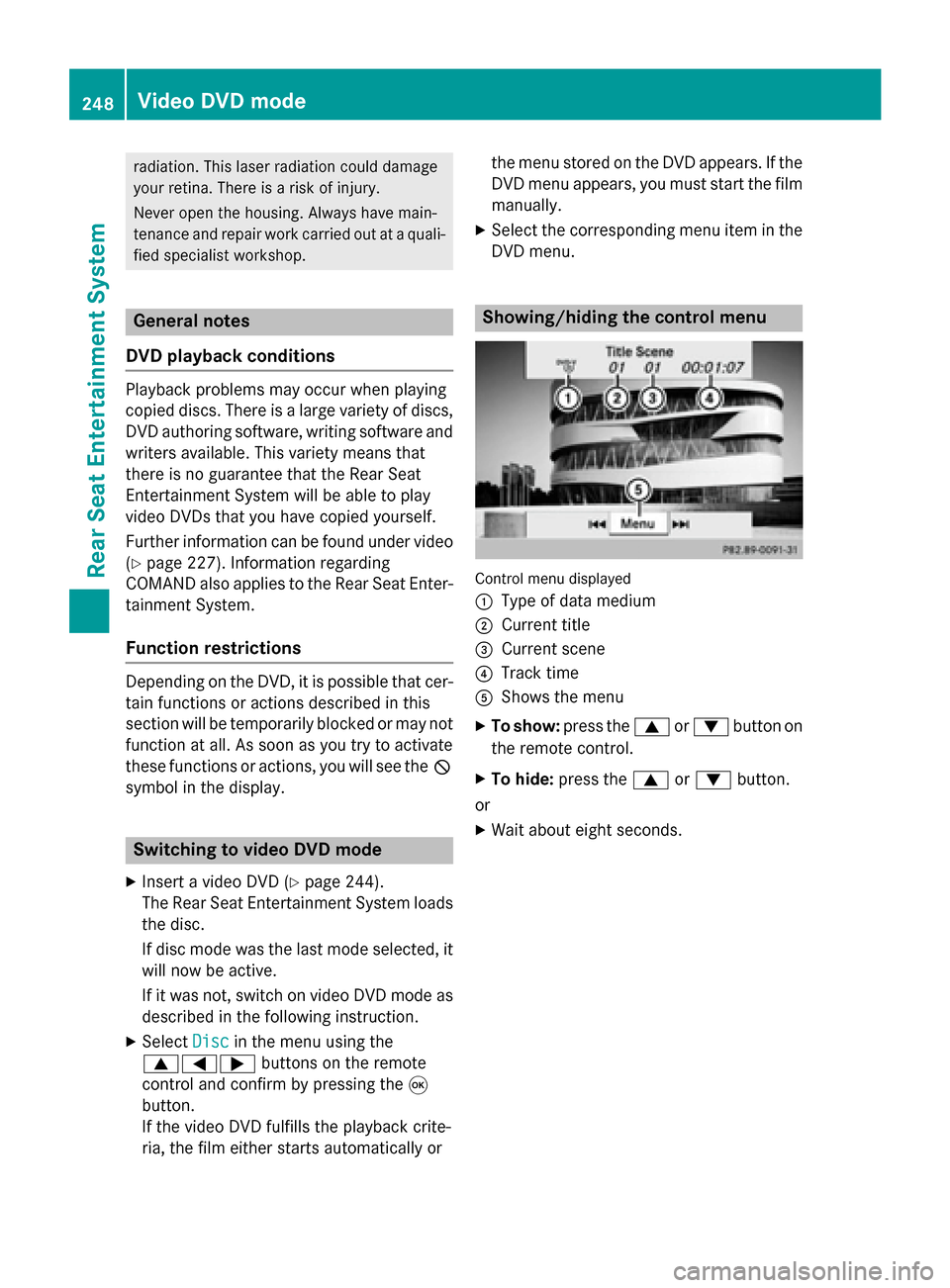
Control menu displayed
0043
Type of data medium
0044 Current title
0087 Current scene
0085 Track time
0083 Shows the menu
X To show: press the0063or0064 button on
the remote control.
X To hide: press the 0063or0064 button.
or
X Wait about eight seconds. 248
Video DVD modeRear Seat Entertainment System