2014 MERCEDES-BENZ CLA-Class Jack
[x] Cancel search: JackPage 6 of 270

1, 2, 3 ...
360° camera Displaying images ............................ 56
Switching on/off .............................. 56
911 emergency call .......................... 125A
Access data of the mobile phone
network provider Deleting .........................................1 65
Editing .......................................... .165
Making entries ............................... 162
Selecting ........................................ 161
Active partition (USB devices only)
Selecting ........................................ 202
Address book
Browsing ........................................ 147
Calling up ....................................... 147
Changing an entry .......................... 149
Connecting a call ........................... 150
Creating an entry ........................... 148
Deleting an entry ........................... 148
Deleting contacts ........................... 153
Details about an entry ................... 149
Entering characters ......................... 33
Entry as a home address .............. .103
Hiding contact details .................... 154
Importing contacts ........................ 152
Introduction ................................... 146
Receiving vCards ........................... 153
Searching for an entry ................... 148
Starting route guidance ................. 150
Voice tags ...................................... 151
Address entry menu ............................ 64
Adjusting the sound settings
Balance ............................................ 30
Alternative Route ................................ 93
Audio
Radio mode ................................... 186
Audio CD/DVD and MP3 mode
Switching to (Rear Seat Entertain-
ment System) ................................ 245
Audio format, setting
Video DVD ..................................... 231
Autostore .......................................... .189 AUX (audio)
Notes/socket ................................ 223
Switching to ................................... 223
AUX (video)
Setting the volume and sound ....... 232
Showing/hiding the menu ............. 232
Switching to ................................... 232
AUX jacks
CD/DVD drive ............................... 238
Avoiding an area ................................ 115 B
Back button ......................................... 27
Balance, adjusting ............................... 30
Bass, setting ........................................ 30
Bird's-eye view (navigation) ............. 109
Bluetooth®
Activating audio mode ................... 215
Activating/deactivating ................... 45
Conditions (telephone) .................. 125
Connecting another mobile
phone ............................................ 129
Connecting audio devices .............. 212
Device list ...................................... 212
Entering the passcode ................... 128
External authorization .................... 129
General information ......................... 44
Interface ........................................ 124
Introduction ................................... 124
Reconnecting an audio device ....... 214
Searching for a mobile phone ....... .127
Settings .......................................... .44
Telephone basic menu ...................1 31
Telephony ...................................... 125
Telephony notes ............................ 124
Bluetooth® audio basic display ....... 215
Brightness, setting (TV, video) ......... 226
Buttons on the COMAND control-
ler .......................................................... 27 C
Call Accepting/ending/rejecting .......... 132
see Telephone
Call lists
Displaying details ........................... 141 4
Index
Page 40 of 270
To do so, use the special cordless head-
phones (Y page 239). Using the headphones
on the correct sides ensures an optimal
sound.
You can connect your own headphones to a
special headphones jack. You can use the
remote control to operate them. Points to remember
R You can only adjust the volume for the
headphones supplied, directly on the head-
phones.
R Only entertainment functions, i.e. audio,
TV, video and Internet, for example, may be used with SPLITVIEW.
R Different media can be used on the driver
and front-passenger sides as long as they
use different media sources. Example: if a
medium from the single DVD drive is being
played on the driver's side, then another
medium that is also played from the single
DVD drive cannot be played separately on
the front-passenger side. However, other
media can be used at the same time on the
front-passenger side, including radio,
memory card, MUSIC REGISTER, Media
Interface, USB or AUX.
R If you use the same medium on both sides,
you can both carry out the respective set-
tings.
R Internet use is only available at any one
time to the driver or the front passenger.
A corresponding message appears on the
display.
R Internet can only be used, if it is set and
connected via a telephone on the driver's
side.
R The multifunction steering wheel can only
be used for functions which relate to the
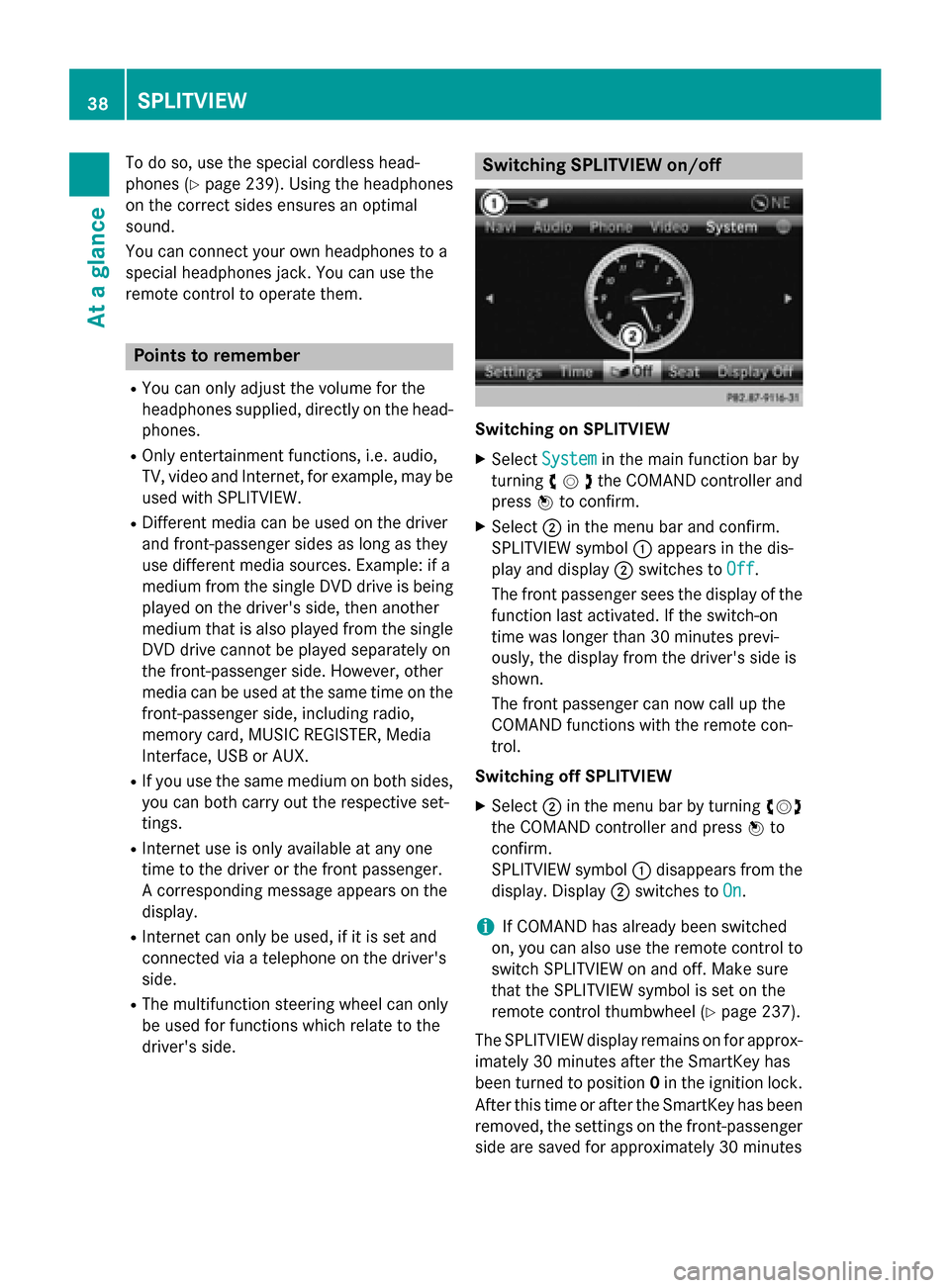
driver's side. Switching SPLITVIEW on/off
Switching on SPLITVIEW
X Select System System in the main function bar by
turning 00790052007Athe COMAND controller and
press 0098to confirm.
X Select 0044in the menu bar and confirm.
SPLITVIEW symbol 0043appears in the dis-
play and display 0044switches to Off
Off .
The front passenger sees the display of the
function last activated. If the switch-on
time was longer than 30 minutes previ-
ously, the display from the driver's side is
shown.
The front passenger can now call up the
COMAND functions with the remote con-
trol.
Switching off SPLITVIEW X Select 0044in the menu bar by turning 00790052007A
the COMAND controller and press 0098to
confirm.
SPLITVIEW symbol 0043disappears from the
display. Display 0044switches to On
On.
i If COMAND has already been switched
on, you can also use the remote control to
switch SPLITVIEW on and off. Make sure
that the SPLITVIEW symbol is set on the
remote control thumbwheel (Y page 237).
The SPLITVIEW display remains on for approx-
imately 30 minutes after the SmartKey has
been turned to position 0in the ignition lock.
After this time or after the SmartKey has been
removed, the settings on the front-passenger side are saved for approximately 30 minutes 38
SPLITVIEWAt a glance
Page 220 of 270

Connecting an external device
Do not leave external devices in the vehicle.
They may malfunction in extreme tempera-
tures; see the operating instructions for the
respective device. Examples of extreme tem-
peratures are direct sunlight or very low out-
side temperatures. Mercedes-Benz USA, LLC
accepts no liability for damage to external
devices.
i Never connect more than one device at a
time. You will otherwise not be able to play
back from the external device.
USB hubs (devices with several USB con-
nections) are not supported. 0043
Four-pin socket for ⅛ inch stereo jack,
e.g. for MP3 players (audio and video)
0044 iPod ®
plug for connecting an iPod ®
0087 USB socket for connecting an MP3 player
0085 Example of device: iPod ®
X Connect the external device with suitable
socket 0043,0044or0087.
COMAND activates the device, a display
appears (when connecting an iPod ®
plug or
USB socket).
If you remove a device, the No NoDevice
Device Con‐
Con‐
nected
nected message appears.
i A connected iPod ®
or MP3 player should
not be simultaneously operated via the
Media Interface and the remote control
(e.g. Bluetooth ®
remote control) or directly
via the device itself. This may cause unfore- seen technical difficulties. Applications (Apps) that are activated on
the connected device may lead to malfunc-
tions.
i Connecting a fully discharged iPod ®
or
MP3 player can result in an extended initi-
alization period.
Malfunction messages appear while the
device is being activated if:
R the connected device is not supported
(External Device Unavailable
External Device Unavailable mes-
sage).
R the connected device consumes too much
power.
R the Media Interface connection is faulty.
R a mass storage device (e.g. a USB memory
stick or USB hard drive) is connected to the
Media Interface.
In this case the Please connect the Please connect the
device to the other USB port
device to the other USB port mes-
sage appears.
i The separate USB connection ensures
quick access and expanded media content options.
i Consult an authorized Mercedes-Benz
Center if you have further questions.
Disconnecting an iPod ®
X Press the release catch on iPod ®
plug 0044
and pull the iPod ®
cable from the iPod ®
,
see the separate cable kit instructions. Switching to Media Interface mode
General notes In extreme cases, starting up individual func-
tions can take up to several minutes – this
depends on the external device and its con-
tent (e.g. video podcasts).
Only use the original software to save files on
iPods ®
or MP3 players. Otherwise, some or all
functions may not be available. 218
Operation with the Media InterfaceAudio
Page 225 of 270
The tracks in the currently active category
or folder, including any subfolders, are
played in random order.
i If the connected iPod ®
/iPhone ®
is not
functioning or paused, the playback
options are inactive. The display of options is grayed out. MP3 player instructions
General information Up to 30,000 tracks per medium are suppor-
ted.
You can speed up some functions and
improve the search results by:
R making sure the names of tracks, albums
and artists, for example, are written the
same way
R labeling albums featuring various artists as
"compilations"
i Multiple entries of tracks in playlists are
filtered out for some players.
Data formats MP3 and WMA are supported as data formats
with fixed and variable bit rates (up to
320 kbits/s).
Special considerations when using MP3
players Up to eight directory levels with up to 1,000
tracks per directory are supported.
Do not use USB extension leads or adapters. They can impair functionality.
i DRM (Digital Rights Management) protec-
ted files are not supported by the Media
Interface. Audio AUX mode
Notes on audio AUX mode
External audio sources may have different
volumes, which can mean that system mes-
sages such as traffic announcements and
navigation system announcements are much louder. If necessary, deactivate the system
messages or adjust their volume manually.
You can connect an external audio source
(AUX) to COMAND.
Depending on the vehicle model series, the
connection is made using a jack in the stow-
age compartment in the center console or a
USB port (Y page 197).
If COMAND is equipped with the Media Inter-
face, external audio sources are connected
using the cable set provided. An AUX socket
is not provided. The connections for the
Media Interface are located in the stowage
compartment in the center console.
i You will find further information online at
http://www.mbusa-mobile.com. Or call
the Mercedes-Benz Customer Assistance
Center at 1-800-FOR-MERCedes
(1-800-367-6372) (for the USA) or Cus-
tomer Relations at 1-800-387-010 0(for
Canada). Switching to audio AUX mode
Switching on using the DISC button The external device is connected to the audio
AUX input.
X Press the 003Abutton one or more times.
By pressing the function button repeatedly,
you can change the operating mode in the
following order:
R CD/MP3 (disc)
R Memory card mode
R MUSIC REGISTER
R USB storage device Audio AUX mode
223Audio Z
Page 234 of 270
If your vehicle is equipped with Media Inter-
face, you can connect an external video
source (AUX video) (Y page 217).
The 1/8 inch audio/video jacks are in the
center console stowage compartment.
i In vehicles with a rear view camera, the
AUX video jack cannot be used for external video sources. Switching to AUX video mode
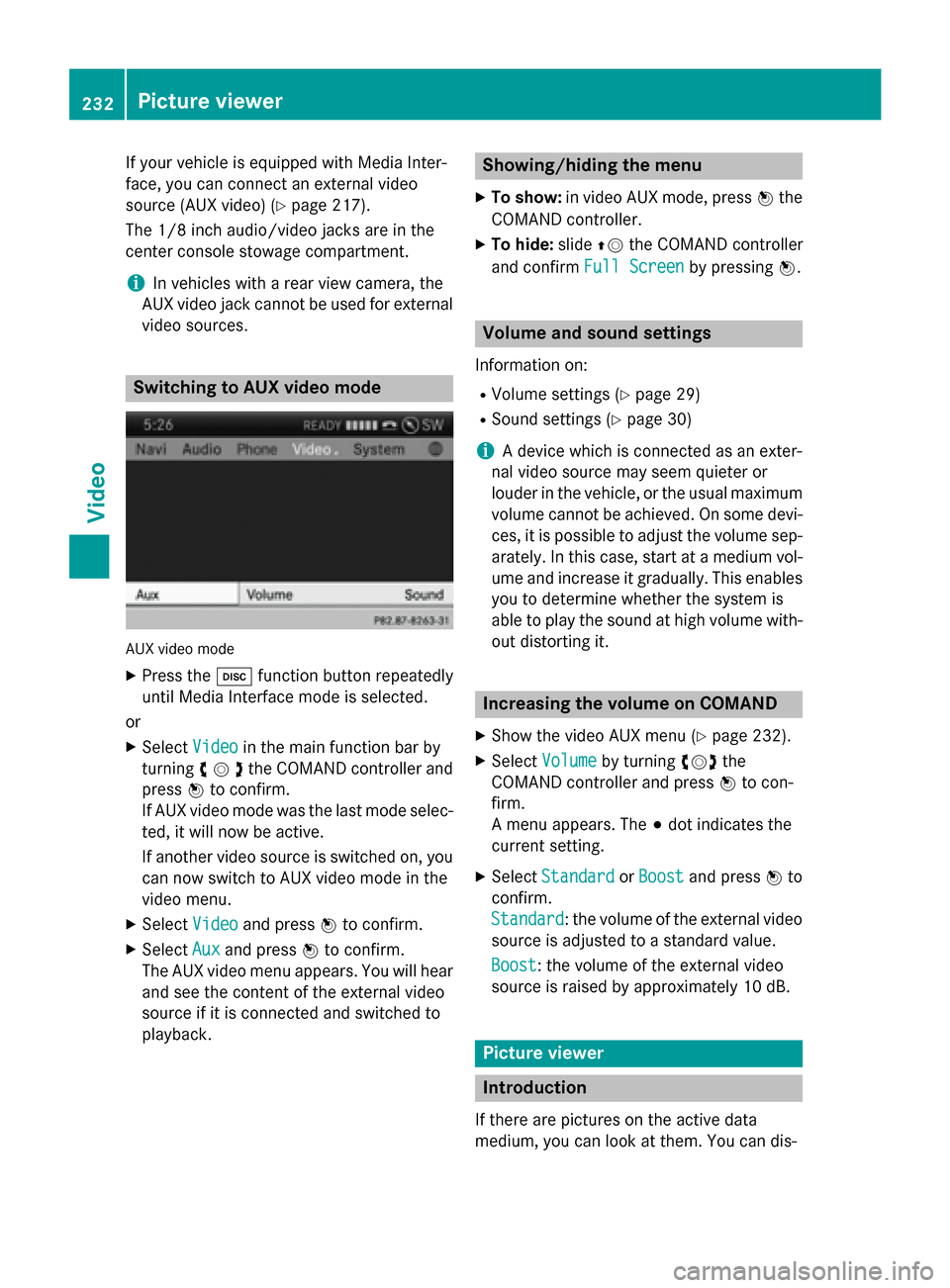
AUX video mode
X Press the 003Afunction button repeatedly
until Media Interface mode is selected.
or X Select Video
Videoin the main function bar by
turning 00790052007Athe COMAND controller and
press 0098to confirm.
If AUX video mode was the last mode selec-
ted, it will now be active.
If another video source is switched on, you can now switch to AUX video mode in the
video menu.
X Select Video
Video and press 0098to confirm.
X Select Aux
Aux and press 0098to confirm.
The AUX video menu appears. You will hear
and see the content of the external video
source if it is connected and switched to
playback. Showing/hiding the menu
X To show: in video AUX mode, press 0098the
COMAND controller.
X To hide: slide00970052the COMAND controller
and confirm Full Screen Full Screen by pressing0098. Volume and sound settings
Information on:
R Volume settings (Y page 29)
R Sound settings (Y page 30)
i A device which is connected as an exter-
nal video source may seem quieter or
louder in the vehicle, or the usual maximum
volume cannot be achieved. On some devi-
ces, it is possible to adjust the volume sep-
arately. In this case, start at a medium vol- ume and increase it gradually. This enables
you to determine whether the system is
able to play the sound at high volume with-
out distorting it. Increasing the volume on COMAND
X Show the video AUX menu (Y page 232).
X Select Volume
Volume by turning 00790052007Athe
COMAND controller and press 0098to con-
firm.
A menu appears. The 003Bdot indicates the
current setting.
X Select Standard Standard orBoost
Boost and press 0098to
confirm.
Standard Standard: the volume of the external video
source is adjusted to a standard value.
Boost Boost: the volume of the external video
source is raised by approximately 10 dB. Picture viewer
Introduction
If there are pictures on the active data
medium, you can look at them. You can dis- 232
Picture viewerVideo
Page 238 of 270
Your COMAND equipment
These operating instructions describe all the
standard and optional equipment for your
COMAND system, as available at the time of
going to print. Country-specific differences
are possible. Please note that your
COMAND system may not be equipped with
all the features described. Overview
Important safety notes
G
WARNING
The CD/DVD drive is a class 1 laser product. If you open the housing of the CD/DVD drive,
there is a risk of exposure to invisible laser
radiation. This laser radiation could damage
your retina. There is a risk of injury.
Never open the housing. Always have main-
tenance and repair work carried out at a quali- fied specialist workshop. G
WARNING
If objects such as headphones/headsets or
external audio/video sources are not secured in the passenger compartment, they can be
flung around and hit vehicle occupants. There
is a risk of injury, for example in the event of
sudden braking or a sudden change in direc-
tion.
Always stow these items or similar objects
carefully so that they cannot be flung around, for example in a lockable vehicle stowage
compartment. equipment
Observe that a range of Rear Seat Entertain-
ment Systems are available for Mercedes-
Benz vehicles. In this Operator's Manual, the
Rear Seat Entertainment System Code 864 is
used for illustration purposes. If you have a
different Rear Seat Entertainment System in your vehicle, please refer to the separate prin-
ted operating instructions . Components
The Rear Seat Entertainment System
includes:
R two screens for the rear behind the front-
seat head restraints
R two remote controls
R a CD/DVD drive
R AUX jacks on both screens (AUX display)
and on the CD/DVD drive (AUX drive)
R two sets of cordless headphones 236
OverviewRea
r Seat Entertainment System
Page 239 of 270
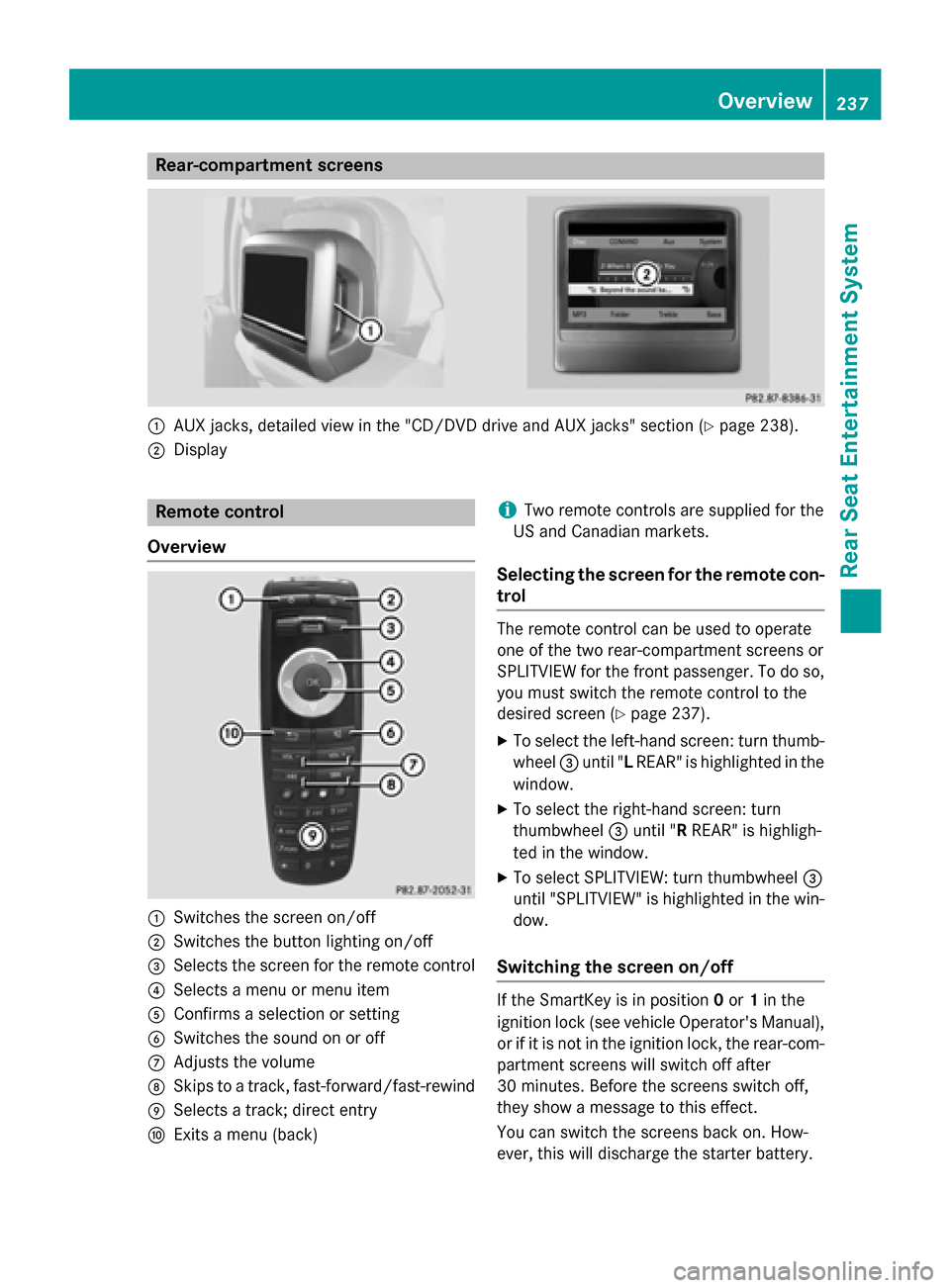
Rear-compartment screens
0043
AUX jacks, detailed view in the "CD/DVD drive and AUX jacks" section (Y page 238).
0044 Display Remote control
Overview 0043
Switches the screen on/off
0044 Switches the button lighting on/off
0087 Selects the screen for the remote control
0085 Selects a menu or menu item
0083 Confirms a selection or setting
0084 Switches the sound on or off
006B Adjusts the volume
006C Skips to a track, fast-forward/fast-rewind
006D Selects a track; direct entry
006E Exits a menu (back) i
Two remote controls are supplied for the
US and Canadian markets.
Selecting the screen for the remote con-
trol The remote control can be used to operate
one of the two rear-compartment screens or
SPLITVIEW for the front passenger. To do so,
you must switch the remote control to the
desired screen (Y page 237).
X To select the left-hand screen: turn thumb-
wheel 0087until "L REAR" is highlighted in the
window.
X To select the right-hand screen: turn
thumbwheel 0087until "R REAR" is highligh-
ted in the window.
X To select SPLITVIEW: turn thumbwheel 0087
until "SPLITVIEW" is highlighted in the win-
dow.
Switching the screen on/off If the SmartKey is in position
0or 1in the
ignition lock (see vehicle Operator's Manual), or if it is not in the ignition lock, the rear-com-
partment screens will switch off after
30 minutes. Before the screens switch off,
they show a message to this effect.
You can switch the screens back on. How-
ever, this will discharge the starter battery. Overview
237Rear Seat Entertainment System Z
Page 240 of 270
X
Point the remote control at the rear-com-
partment screen which has been selected
for remote operation.
X Press button 0043on the remote control
(Y page 237).
The respective rear-compartment screen
switches on or off.
i You can only switch the screens on using
the remote control if the ignition is
switched on.
Switching the button lighting on/off X
Press button 0044on the remote control
(Y page 237).
Depending on the previous status, the but-
ton lighting is switched on or off.
i If you do not use the remote control for
about 15 seconds, the button lighting
switches off automatically.
Switching the sound on or off X
Press button 0084on the remote control
(Y page 237).
The sound is switched on/off.
Selecting a menu/menu item and con-
firming your selection X
Select a menu/menu item using the
0059006500630064 buttons on the
remote control and press the 008Bbutton to
confirm. CD/DVD drive and AUX jacks
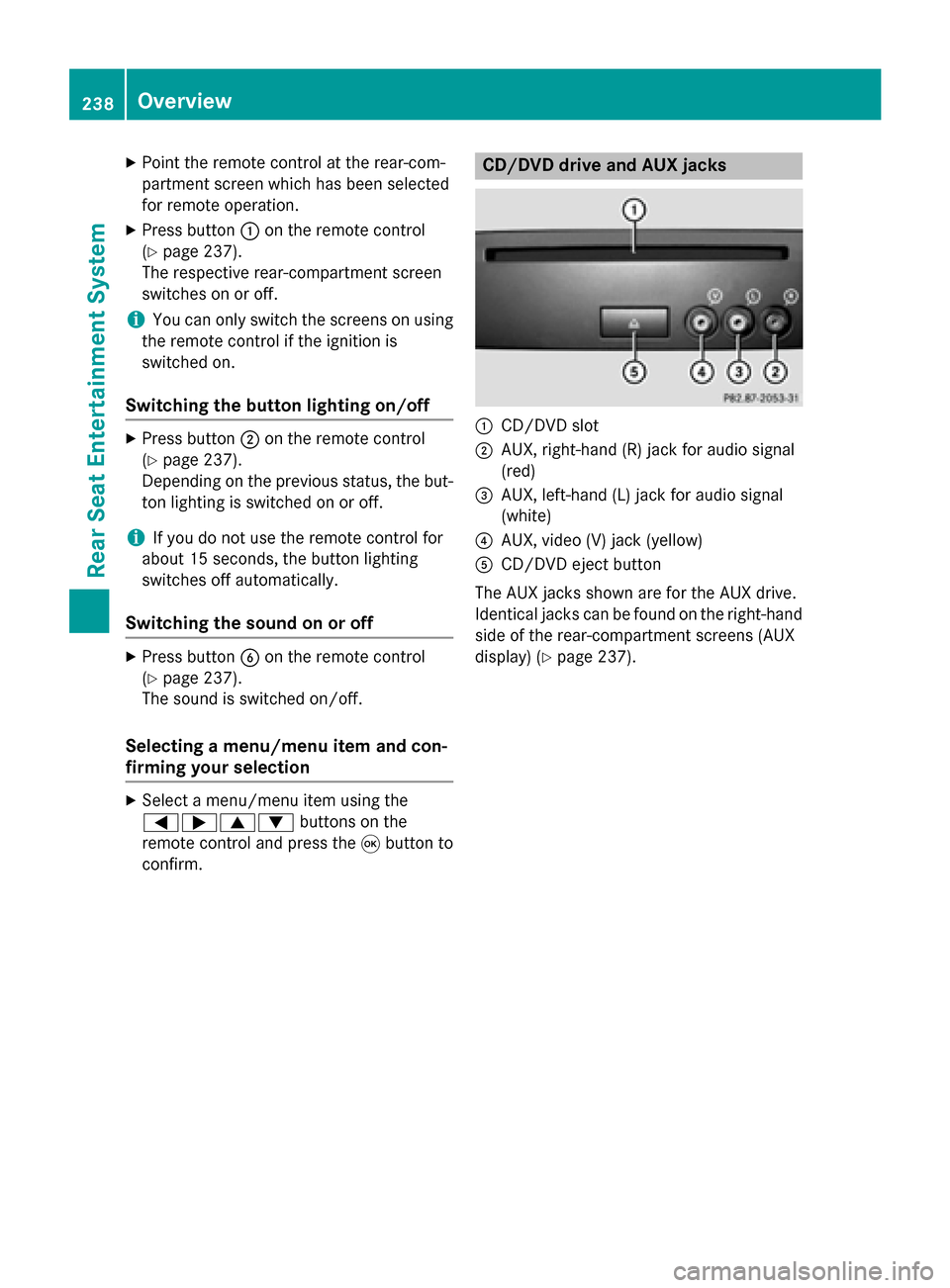
0043
CD/DVD slot
0044 AUX, right-hand (R) jack for audio signal
(red)
0087 AUX, left-hand (L) jack for audio signal
(white)
0085 AUX, video (V) jack (yellow)
0083 CD/DVD eject button
The AUX jacks shown are for the AUX drive.
Identical jacks can be found on the right-hand side of the rear-compartment screens (AUX
display) (Y page 237).238
OverviewRear Seat Entertainment System