2014 MERCEDES-BENZ CL-Class reset
[x] Cancel search: resetPage 139 of 494

X
Select Details and press
Wto confirm.
The detailed display for this device
appears.
X To close the detaile dview: turncVd or
slide XVY the COMAND controller.
De-authorizing (de-registering) a
Bluetooth ®
device Mercedes-Benz USA, LLC recommends de-
authorization in both COMAN
Dand the
Bluetooth ®
device, e.g .the mobile phone.
Subsequent authorization may otherwise fail.
X In the Bluetooth ®
device list, select the
authorized device by turning cVdthe
COMAND controller.
X Select Options by sliding
VYthe
COMAND controller and press Wto
confirm.
X Select De-authorize and press
Wto
confirm.
Ap rompt appears asking whethe ryou
really wish to de-authorize this device.
X Select Yes or
No and press
Wto confirm.
If you select Yes , the authorization for the
device will be revoked.
If you select No , the process will be aborted.
i If a Bluetooth ®
device has been de-
authorized and is out of range, when a new
search is carried out it will not appear in the
Bluetooth ®
device list. System language settings
This function allows you to determine the
language for the menu display sand the
navigation messages. The selected language
affects the characters available for entry.
Whe nyou set the system language, the
language of the Voice Control System will
change accordingly. If the selected language
is not supported by the Voice Control System,
"English" will be selected. X
Select Vehicle by turning
cVdthe
COMAND controller and press Wto
confirm.
X Select System and press
Wto confirm.
X Select Language and press
Wto confirm.
The list of languages appears. The #dot
indicates the current setting.
X Select the language by turning cVdthe
COMAND controller and press Wto
confirm.
COMAND loads the selected language and
sets it. Reset function
You can reset COMAND to the factory
settings. Amongst other things, this will
delete all personal data (e.g. station presets,
address book entries, entries in the
destination memory and in the list of previous
destinations in the navigation system).
Resetting is recommended before selling or
transferring ownership of your vehicle, for
example.
X Select Vehicle in the main function bar by
turning cVdthe COMAND controller and
press Wto confirm.
X Select System by turning
cVdthe
COMAND controller and press Wto
confirm.
X Select Reset and press
Wto confirm.
Ap rompt appears asking whethe ryou wish
to reset.
X Select Yes or
No and press
Wto confirm.
If you select No , the process will be aborted.
If you select Yes , another prompt appears
asking whether you really wish to reset.
X Select Yes or
No and press
Wto confirm.
If you select Yes , a message will be shown.
COMAND is reset and restarted.
If you select No , the process will be aborted. System settings
137COMAND Z
Page 191 of 494

i
The redialing function is also available
using the on-board computer
(Y page 347).
Calling voicemail
This function is only available if it is supported
by the mobile phone network provider.
You can only call voicemail if the voicemail
number is stored as preset 1onthe SIM card.
X Press and hold the 4button on the
telephone keypad.
or
X Use the COMAND controller to select 1and
confirm until dialing commences.
Connecting acall to an entry in acall list
or in the COMAND phone book
X Open a call lis tand select an entry
(Y page 197).
or
X Call up the COMAND phone book and
select an entry (Y page 193).
Functions available during acall Overview
Telephone operatio
nwith a single call
: Perso nyou are calling
; Icon for active telephone connection
= NEW to call other parties
7
? To switch hands-free microphone on/off A
To send DTMF tones (not possible with all
mobile phones)
B To end a call
Switching the hands-free microphone on/
off
This function is also available during an active
phone call.
X To call up the telephone basic menu
(Y page 186).
X To switch off: selectMike OFF and press
W to confirm.
or
X Press the 8button on the multifunction
steering wheel.
If the microphone is switched off, the
display shows the Qsymbol and the The microphone is turned OFF message
appears for a short period.
X To switch on: selectMike ON and press
W to confirm.
or
X Press the 8button on the multifunction
steering wheel.
The Qsymbol disappears. You will briefly
see the The microphone is ON message.
Ending an active call
X Select ~in the telephone basic menu
and press Wto confirm.
or
X Press the ~button on the telephone
keypad or on the multifunction steering
wheel.
Call waiting, toggling and conference
connections with several people
These functions are only available if they are
supported by the mobile phone network
provider. Furthermore, they are only available
if the mobile phone supports HFP 1.5 or
higher.
7 This function is only available if the telephone supports HFP1. 5and above. Telephone
189COMAND Z
Page 202 of 494

If another audio mode is switched on, you
can now switch to radio mode in the audio
menu.
X Select Audio by sliding
ZVthe COMAND
controller and pressing Wto confirm.
The audio menu appears. Example display: audio menu
:
Current audio operating mode
; Main function bar
= Audio menu
X Select FM/AM radio by turning
cVdthe
COMAND controller and press Wto
confirm. Example display, FM radio
:
Display window with station settings
; Frequency of the selected station
= Name of the selected station
? Display bar for frequency setting
A Sound settings
B Waveband
C Station information D
Preset functions
E Radio functions
Switching wavebands X
Select FM ,
AM or
WB in the radio display by
sliding VÆand turning cVdthe COMAND
controller and press Wto confirm.
Waveband submenu is opened. 1
The waveband submenu (the #dot
shows the waveband currently set)
X Select a waveband and press Wto confirm.
You will hear the last station played on the
selected waveband.
Selecting astation Selecting
astation using the station
search function
X Turn cVd or slide XVYthe COMAND
controller while the display/selection
window in the radio display is active.
Station search scans up or down and stops
at the next station found.
Using the multifunction steering wheel
X Press =or; to select the Audio menu.
X Press 9or: briefly.
Selecting stations vi athe station presets
X Quic ksetting: press a number key, e.g.
l. 200
AudioCOMAND
Page 203 of 494

X
Directly in the station presets: select
Presets by sliding
VÆand turning cVd
the COMAND controller and press Wto
confirm.
or
X Press Wthe COMAND controller when the
display/selection window is active.
The station preset memory appears .The
# dot indicates under which preset the
currently selected station is stored.
X Select a station by turning cVdand
pressing Wto confirm or press a number
key, e.g. l.
Using the multifunction steering wheel
X Press =or; to select the Audio menu.
X Press 9or: briefly.
Selecting stations by entering the
frequency manually
X Option 1: press theÄbutton.
X Option 2: selectRadio in the radio display
by sliding VÆand turning cVdthe
COMAND controller and press Wto
confirm.
X Select Enter Frequency and press
Wto
confirm.
Irrespective of the option chosen, an input
menu will appear.
X Enter a frequency using the number keys.
COMAND tunes in to the frequency
entered. Waveband Frequency
AM (MF) 530 – 1700 kHz
FM (VHF) 87.7 – 107.9 MHz
WB (Weather Band) Weather report
channels
i
You can only enter currently permitted
numbers. i
If you enter a frequency in the FM or AM
wavebands which is outside the frequency
range, COMAND tunes in to the next lower
frequency.
Storing stations Storing stations manually
There are twenty presets available for the FM
and AM wavebands.
X
Quick save: press and hold a number key,
e.g. l, until you hear a tone.
The station is stored.
X Directly in the station presets: pressW
the COMAND controller when the display/
selection window is active.
or
X Select Presets by sliding
VÆand turning
cVd the COMAND controller and press
W to confirm.
In both cases, the station presets appear.
The #dot indicates under which preset
the currently selected station is stored. Example display:s
tation presets
X Select a preset by turning cVdthe
COMAND controller and press and hold
W until you hear a tone.
The statio nis stored under the preset.
Storing stations automatically
This function automatically stores stations
with adequate reception under the presets.
The search starts at the lowest frequency.
COMAND stores any stations found, Audio
201COMAND Z
Page 204 of 494

beginning with preset 1. The storing process
ends once the highest frequency has been
reached or once ten stations have been
found. Any stations stored manually under
the presets will be lost. COMAND may not
occupy all memory slots when storing.
X
Option 1: pressWthe COMAND controller
when the display/selection window is
active.
The station preset memory appears.
X Option 2: selectPresets by sliding
VÆ
and turning cVdthe COMAND controller
and press Wto confirm.
The station preset memory appears.
X Irrespective of the option, select
Autostore and press
Wto confirm.
In both cases, COMAND searches for
stations that can be received. You will see
a message to this effect. The available
stations are automatically stored in the
preset positions.
X To cancel storing: selectCancel and
press Wto confirm.
Weather Band Switching on
X
Select the currently set waveband FM or
AM by sliding
VÆand turning cVdthe
COMAND controller and press Wto
confirm.
X Select WB from the menu and press
Wto
confirm. :
Display window with the channel setting
; Currently received channel
= Channel list
? Weather Band switched on
A Sound settings
Searching for achannel
X Quic kselect: turncVd or slide XVYthe
COMAND controller while th edisplay/
selection window is active.
Channel search scans up or down and
stops at the next channel found.
Using the multifunction steering wheel
X Press =or; to selec tthe Audio menu.
X Press 9or:.
Selecting achannel from the channel list
X Select Channel by sliding
VÆand turning
cVd the COMAND controller and press
W to confirm.
The channel lis tappears. 202
AudioCOMAND
Page 206 of 494

Switching on HD Radio
i
As HD Radio stations are broadcast in the
AM/FM wavebands, operating HD Radio is
very similar to operating analog AM/FM
radio. This section describes only those
functions that differ from standard FM
radio functions.
Operating analog FM/AM radio is described
in the "Radio" section (Y page 199).
You can deactivate HD Radio for the selected
frequency in the radio submenu. X
Select Audio in the main function bar by
sliding ZVand turning cVdthe COMAND
controller and press Wto confirm.
X Select FM/AM Radio by sliding
ZVthe
COMAND controller and press Wto
confirm.
The audio menu appears.
X Select Radio by sliding
ZVthe COMAND
controller and press Wto confirm.
HD Radio is deactivated if the ccheck
box is empty.
You hear the analog program of this
frequency.
As soon as you change to another HD Radio
frequency, the HD Radio is reactivated. HD Radio display 1
Display/selection window with frequency
display
2 Preset number
3 Name of the selected station with HD icon
and program number
4 Station frequency
5 Sound settings
6 FM, AM or WB radio
7 Program information
8 Station presets
9 Radio functions
Switching wavebands See "Switching wavebands" in the radio mode
section (Y
page 200).
Selecting astation You can select an HD Radio statio
ninthe
same way as selecting a standard FM radio
station. After settinganHDR adio frequency,
you will briefly hear the analog statio nuntil
the digital data has been decoded .You will
then be listening to digital radio and be able
to switch to a sub-program (-HD2).
See "Selecting stations" in the Radio mode
section (Y page 200).
Storing stations See "Storing stations" in the Radio mode
section (Y
page 201). 204
AudioCOMAND
Page 208 of 494
http://www.siriuscanada.com
(Canada).
Once the connection has been established:
X Follow the instructions of the service staff.
The activation process may take up to ten
minutes. If the activation is completed
successfully, the No Service message
appears in the display, followe dby the
satellite radio main menu.
i If registration is no tincluded when
purchasing the system, your credit card
details will be required to activate your
account.
If the satellite receive ris not installed or is
not installed correctly, the Device notavailable message will appear.
Switching on satellite radio mode Notes
Important notes on registration, see
"Registering satellite radio" (Y page 205).
Switching on satellite radio mode
X Select Audio in the main function bar by
sliding ZVand turning cVdthe COMAND
controller and press Wto confirm.
If satellite radio mode was the last mode
selected, it will now be active.
If another audio mode is switched on, you
can now switch to satellite radio mode in
the audio menu.
X Select Audio by sliding
ZVthe COMAND
controller and pressing Wto confirm.
The audio menu appears.
X Select Sat. Radio and press
Wto
confirm.
The No Service message appears when
starting up or if no signal is being received.
If the satellite receiver is not installed or is
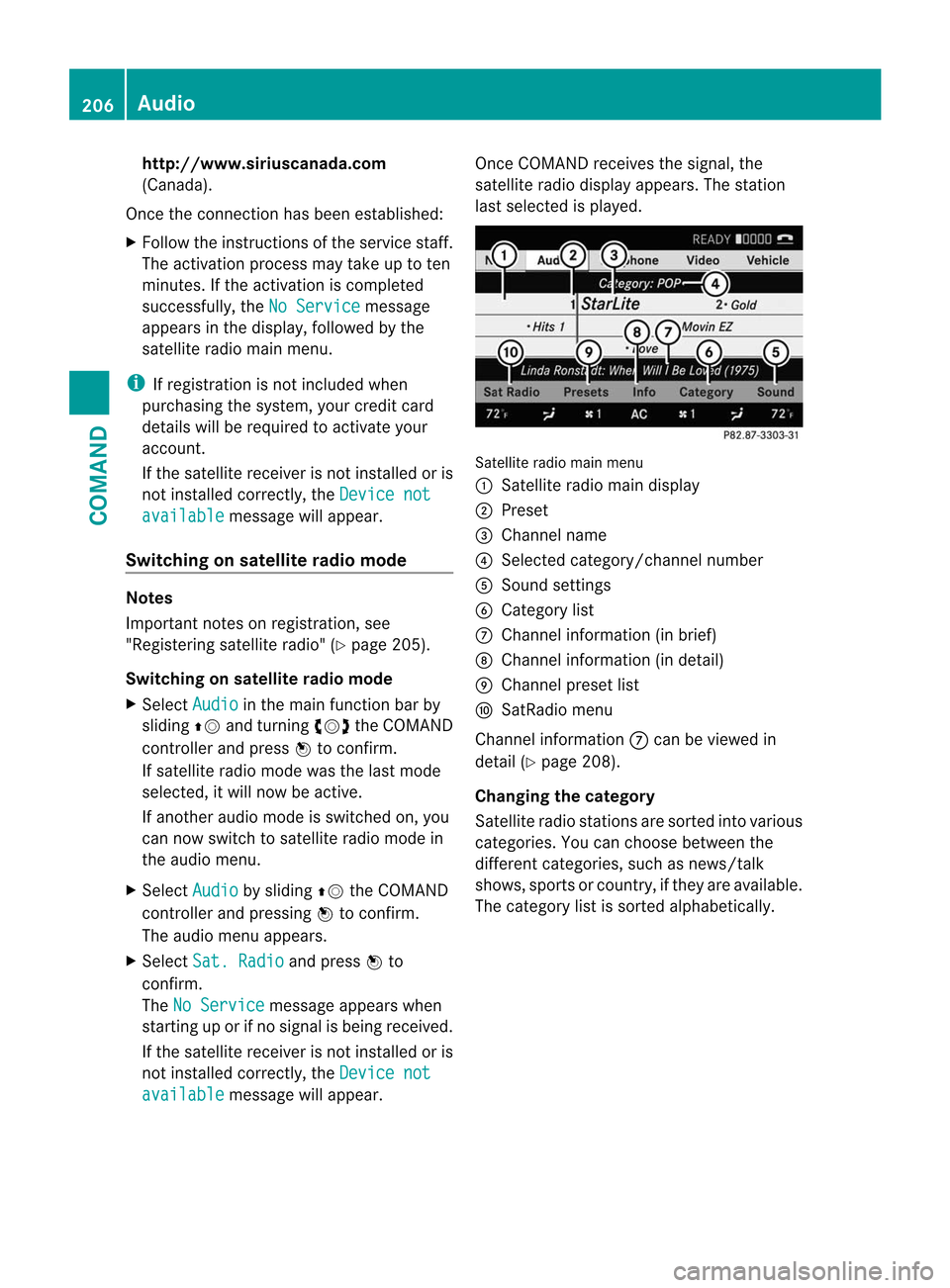
not installed correctly, the Device notavailable message will appear. Once COMAND receives the signal, the
satellite radio display appears. The station
last selected is played.
Satellite radio main menu
1
Satellite radio main display
2 Preset
3 Channel name
4 Selected category/channel number
5 Sound settings
6 Category list
7 Channel information (in brief)
8 Channel information (in detail)
9 Channel preset list
a SatRadio menu
Channel information 7can be viewed in
detail (Y page 208).
Changing the category
Satellite radio stations are sorted into various
categories. You can choose between the
different categories, such as news/talk
shows, sports or country, if they are available.
The category list is sorted alphabetically. 206
AudioCOMAND
Page 209 of 494

Selecting
acategory
X To call up the category list: select
Category by turning
cVdthe COMAND
controller and press Wto confirm.
The category lis tappears.
X To select acategory: select a category by
turning cVdthe COMAND controller and
pressing Wto confirm.
The category selected is show ninthe
display. You hear the station last selected
for this category.
The All Channels category is at the top
of the category list. This category is sorted
by channel number and allows you to
browse all available channels.
Selecting achannel
Channel search
X Turn cVd or slide XVYthe COMAND
controlle rwhile the display/selection
window in the SatRadio displayi s active.
COMAND searches in both directions
(ascending and descending) and stops at
the next channel found in the selected
category.
Using the multifunction steering wheel
X Press =or; to select the Audio menu.
X Press and hold 9or:.
SatRadio menu
X Select Sat. Radio in the submenu bar by
turning cVdthe COMAND controller and
press Wto confirm.
The SatRadio menu appears.
Entering channel numbers directly
Option 1
X Press the Äbutton.
An input menu appears. Option 2
X
Select Sat. Radio in the submenu bar by
turning cVdthe COMAND controller and
press Wto confirm.
X Select Enter Channel and press
Wto
confirm.
An input menu appears.
X To enter achannel: irrespective of the
option, press the corresponding number
keys on the control panel one after the
other.
COMAND sets the selected channel.
i You can only select currently permitted
digits.
Selecting a channel from the SatRadio
channel list
X Select Sat. Radio in the submenu bar by
turning cVdthe COMAND controller and
press Wto confirm.
X Select Channel List and press
Wto
confirm.
The channel lis tappears.
X Select a channel by turning cVdthe
COMAND controller and press Wto
confirm.
Memory functions
Storing channels
i There are ten presets available.
X Press Wthe COMAND controller when the
display/selection window is active.
or
X Select Presets in the submenu bar by
turning cVdthe COMAND controller and
press Wto confirm.
In both cases, the channel presets appear.
The Rdot in front of a preset position
indicates that the currently selected
channel is stored there. Audio
207COMAND Z